Cost Price Analysis
This page describes the Cost Price Analysis report in the Stock module.
---
If the Cost Price of an Item changes, there may be circumstances where you need to change the value of the units of that Item that you hold in stock. If so, you can run the Cost Price Analysis report to see which Items are affected, before using the 'Cost Price Analysis Revaluation' Maintenance function to create a record in the Stock Revaluation register to implement the change in value. If you print the report to screen, you can activate the Maintenance function by clicking (Windows/macOS) or tapping (iOS/Android) the [Stock Revaluation] text link at the top of the report. The specifications that you used when running the report will be copied to the specification window for the Maintenance function..
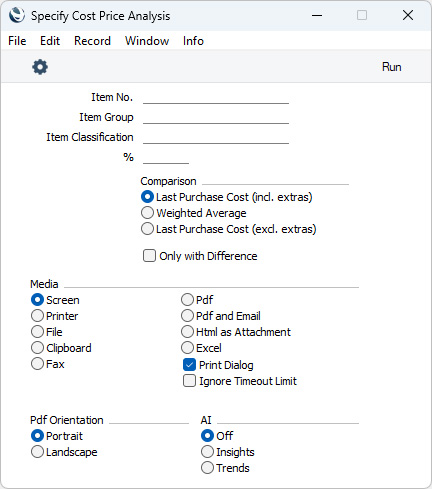
- Item No.
Paste Special Item register
- Range Reporting Alpha
If you need a particular Item to be included in the report, enter its Item Number here. You can also enter a range of Item Numbers separated by a colon (:).
- To be included in the report, an Item must be a Stocked Item and you must have at least one unit in stock.
- Item Group
- Paste Special
Item Group register, Sales Ledger
- If you need Items belonging to a particular Item Group to be included in the report, specify that Item Group here.
- Item Classification
- Paste Special
Item Classifications setting, Sales Ledger
- Enter an Item Classification in this field if you only need Items with a particular Classification to be included in the report. If the field is empty, all Items, with and without Classification, will be included (subject to the conditions listed under Item No. above). If you enter a number of Classifications separated by commas, the report will only include Items featuring all the Classifications that you have listed. If you enter a number of Classifications separated by plus signs (+), all Items featuring at least one of the Classifications listed will be included in the report. If you enter a Classification preceded by an exclamation mark (!), the report will include Items featuring any Classification except the one listed.
- For example:
- 1,2
- Includes Items with Classifications 1 and 2 (including Items with Classifications 1, 2 and 3).
- 1+2
- Includes Items with Classifications 1 or 2.
- !2
- Includes all Items except those with Classification 2.
- 1,!2
- Includes Items with Classification 1 but excludes those with Classification 2 (i.e. Items with Classifications 1 and 2 will not be included). Note the comma before the exclamation mark in this example.
- !1,!2
- Include all Items except those with Classification 1 or 2 or both. Again, note the comma.
- !(1,2)
- Includes all Items except those with Classifications 1 and 2 (Items with Classifications 1, 2 and 3 will not be included).
- !1+2
- Includes Items without Classification 1 and those with Classification 2 (Items with Classifications 1 and 2 will be included).
- (1,2)+(3,4)
- Includes Items with Classifications 1 and 2, and those with Classifications 3 and 4.
- 1*
- Includes Items with Classifications beginning with 1 (e.g. 1, 10, 100).
- 1*,!1
- Includes Items with Classifications beginning with 1 but not 1 itself.
- *1
- Includes Items with Classifications ending with 1 (e.g. 1, 01, 001).
- 1*,*1
- Includes Items with Classifications beginning and ending with 1.
- %
- By default, an Item will be included in the report if its Last Purchase Cost or Weighted Average (as specified below) is different to its Cost Price. If you need this difference to be at least as much as a particular percentage of the Cost Price, enter that percentage here.
- The sign of the difference will be ignored. For example, if you enter "10" in this field, an Item will be included in the report if its Last Purchase Cost or the Weighted Average is 10% higher than its Cost Price or 10% lower than its Cost Price.
- Comparison
- To determine whether an Item will be included in the report, its Last Purchase Cost (incl. extras), its Weighted Average or its Last Purchase Cost (excl. extras) will be compared with its Cost Price to see if there is a difference. Use these options to specify which of these figures will be compared with the Cost Price.
- Only with Difference
- By default, the report will list all the Stocked Items in the specified range that you have in stock. Select this option if you only need to list the Items for which there is a difference between its Cost Price and its Last Purchase Cost or Weighted Average (as specified using the Comparison options above).
For each Item, the report will display the Item Number and Name, the quantity in stock, the Cost Price, the Last Purchase Cost or Weighted Average value, the difference between the Cost Price and the Last Purchase Cost or Weighted Average expressed as a percentage of the Cost Price, and the difference itself.
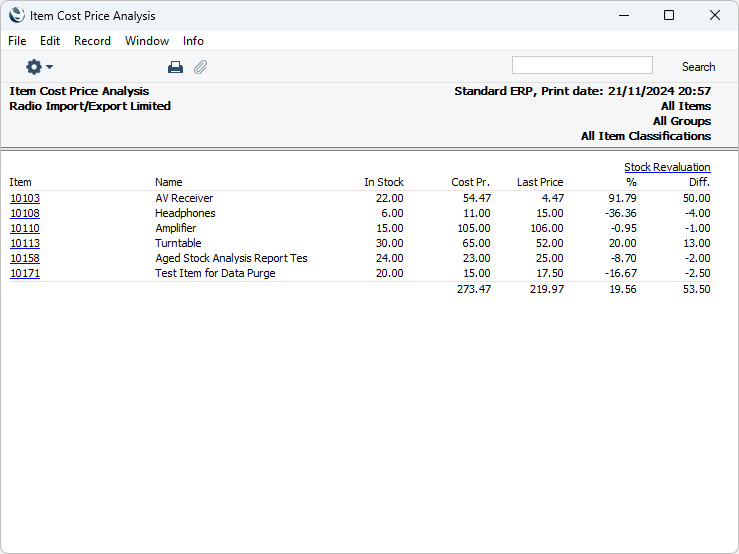
When printed to screen, the Cost Price Analysis report has the Standard ERP
Drill-down feature. Click (Windows/macOS) or tap (iOS/Android) on any Item Number in the report to open an individual Item record
---
Go back to:


 Introduction to Reports in the Stock Module
