Operations Menu - Delivery - Register Electronic Shipment
This page describes the 'Register Electronic Shipment' function on the
Operations menu in the Delivery record window. If you are using iOS or Android, the 'Register Electronic Shipment' function is on the Tools menu.
---
The 'Register Electronic Shipment' function allows you to register a Delivery with a shipping or courier company to instruct them to collect the Items from you and to deliver them to the Customer. The function will also generate printable shipping labels. At the time of writing, you can only use this feature if you are located in the US, with FedEx as the shipping company and for US domestic shipments.
Using this function requires the following configuration work:
- In the Company Info setting in the System module, ensure that your company address is entered to the five address fields as follows:
- First line of address
- Second line of address
- Town or city
- State
- ZIP Code
- Ensure you have entered the Invoice and Delivery Addresses of your Customers in the Contact register and in the Delivery Addresses setting in the format described in step 1.
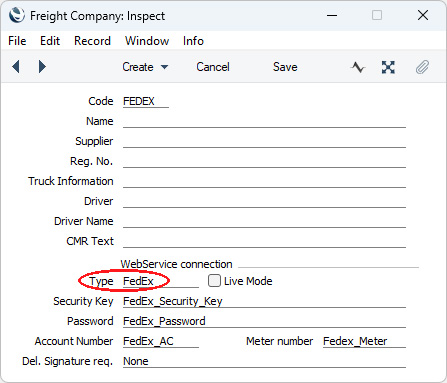
- Create a record for FedEx in the Freight Companies setting in the Stock module. The Code should be "FEDEX" and the Type should be "FedEx" (you can use 'Paste Special' to choose this option). Enter the credentials of your account with FedEx in the Security Key, Password, Account Number and Meter number fields.
Do not tick the Live Mode box until you have finished testing and are ready to generate live labels.
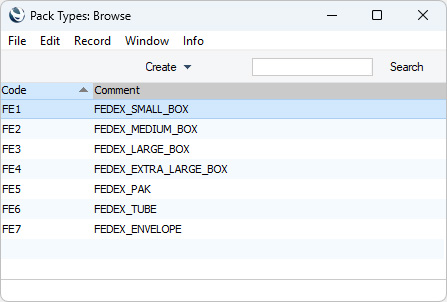
- Create records in the Pack Types setting in the Stock module for each of the box sizes that you have. The following Pack Types are specific to FedEx:
- FEDEX_SMALL_BOX
- FEDEX_MEDIUM_BOX
- FEDEX_LARGE_BOX
- FEDEX_EXTRA_LARGE_BOX
- FEDEX_PAK
- FEDEX_TUBE
- FEDEX_ENVELOPE
Enter separate records for each one with arbitrary Codes, with the FedEx names listed above in the Comment fields and with appropriate measurements and measurement types.
After completing the configuration work, you can register a shipment with FedEx and generate shipping labels as follows:
- Follow the usual process to create a Sales Order and a Delivery.
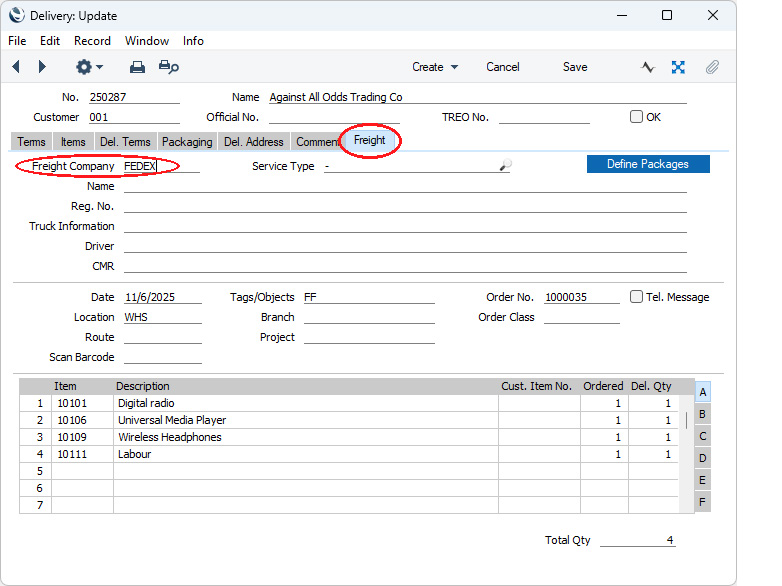
- On the 'Freight' card in the Delivery, specify that the Freight Company is "FedEx" using 'Paste Special' if necessary:
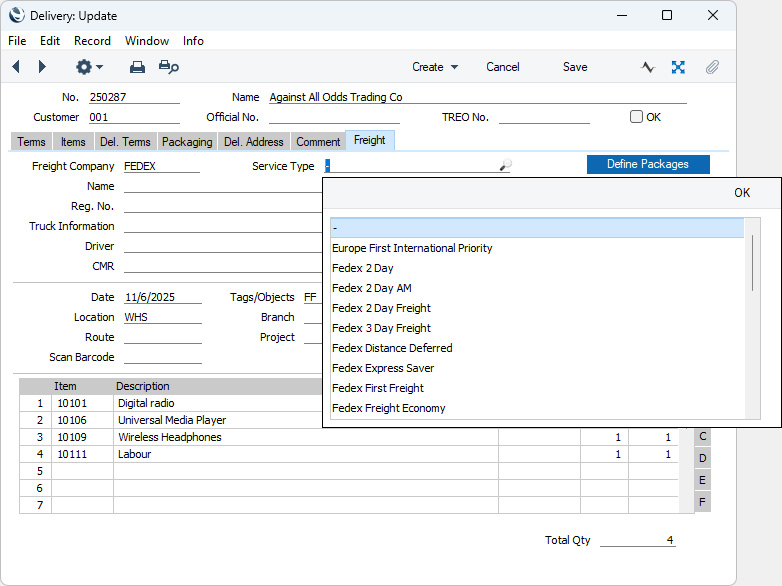
- When you specify a Freight Company in which the Type is "Fedex" (step 3 above), an additional Service Type field will be added to the 'Freight' card. Use 'Paste Special' from this field to choose the service that you need:
- Save the Delivery.
- Press the [Define Packages] button. A 'Delivery Packages: New' window will open (if it does not, the probable reason is that you did not save the Delivery in the previous step). List the packages (i.e. the boxes, envelopes and other packaging that make up the Delivery) as appropriate, using 'Paste Special' from the Pack Type field to choose record(s) from the Pack Types setting as entered in step 4 above:
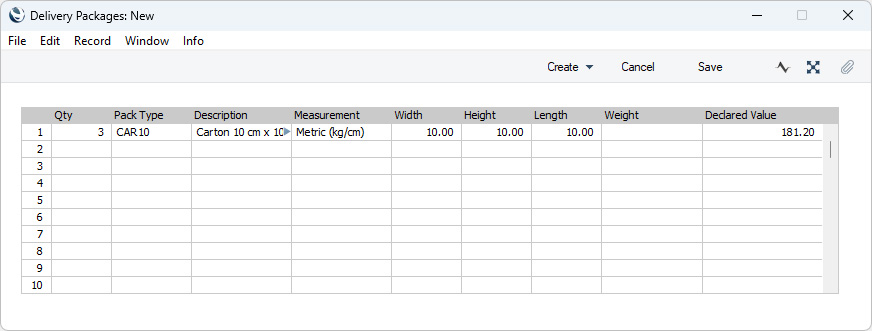
When you save, a record will be created in the Delivery Packages setting in the Stock module. The 'Delivery Packages: New' window will be closed, returning you to the Delivery. In the Delivery, the Packages field on the 'Packaging' card and the Declared Value field on the 'Del. Terms' card will be both updated from the Delivery Packages. If necessary, specify a Currency for the Declared Value on the 'Packaging' card.
- Before moving on to step vii, you can if necessary press the [Define Packages] button again if you need to edit the Delivery Packages record.
- Mark the Delivery as OK and save.
- Select 'Register Electronic Shipment' from the Operations menu (Windows/macOS) or Tools menu (iOS/Android). Standard ERP will log in to the FedEx system using the log-in and account information specified in the Freight Company, and will then send the details about the Delivery electronically. The FedEx system will send pdf image(s) of the label(s) (one label for each row that you listed in the 'Delivery Packages: New' window in step v) which will be attached to the Delivery. FedEx will also send back a tracking number which will be copied to the Transport No. field on the 'Packaging' card. On the 'Del. Terms' card the Electronic Shipment Created box will be ticked.
The following information will be included in the details that are sent to FedEx:
- The sending name and address will be taken from the Company Info setting (point 1 above).
- The delivery address will be marked as residential if the Type in the Contact record for the Customer is Person.
- The paying party will be set to SENDER (sender pays).
- Open the Document Manager in the Delivery to download and print the shipping labels.
---
The Delivery register in Standard ERP:
Go back to:


 Introduction to the Delivery Register
