Stock Movement Journal
This page describes the Stock Movement Journal report in the Stock module.
---
The Stock Movement Journal is a list of internal Stock Movements between Locations as recorded in the Stock Movement register.
When printed to screen, the Stock Movement Journal has the Standard ERP Drill-down feature. Click (Windows/macOS) or tap (iOS/Android) on any Stock Movement Number in the report to open the corresponding Stock Movement record.
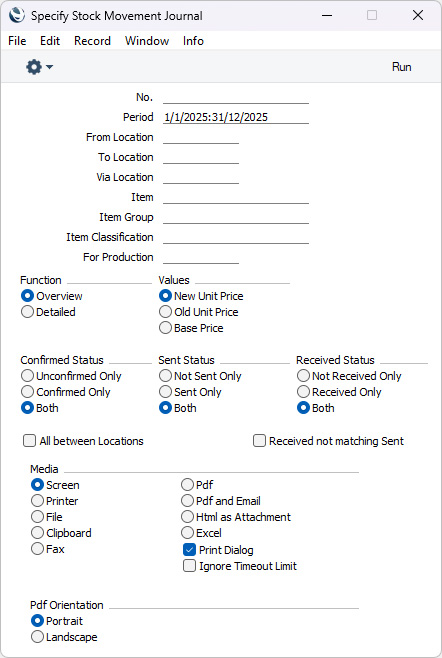
- No
- Range Reporting
Numeric
- Enter a Stock Movement or a range of Numbers separated by a colon (:) here if you would like specific Stock Movements to be shown in the report.
- Period
- Paste Special
Reporting Periods setting, System module
- Enter the start and end dates of the period to be covered by the report. The report will list Stock Movements with Received Dates falling within the period that you specify here together with Stock Movements with blank Received Dates and Ordered Dates that fall within the period.
- From Location, To Location, Via Location
- Paste Special
Locations setting, Stock module
- To report on Stock Movements that move stock from, via or to a particular Location, specify that Location in the relevant field here. If you enter both a From and a To Location, the report will only list those Stock Movements that satisfy both requirements. If you want to list the Stock Movements where a particular Location is either the From or the To Location, enter the Location Code in either of these fields and select the All Between Locations option below.
- Item
- Paste Special
Item register
- Range Reporting Alpha
- If you produce the Overview version of the report, the figures in the report for each Stock Movement will be calculated from the rows with the specified Item. If you produce the Detailed report, only the rows with the specified Item will be listed.
- Item Group
- Paste Special
Item Group register, Sales Ledger
- Use this field if you want to list Stock Movements that include at least one Item belonging to a particular Item Group.
- If you produce the Overview version of the report, the figures in the report for each Stock Movement will be calculated from the rows with Items belonging to the specified Item Group. If you produce the Detailed report, only the rows with Items belonging to the specified Item Group will be listed.
- Item Classification
- Paste Special
Item Classifications setting, Sales Ledger
- Use this field if you want to list Stock Movements that include at least one Item with a particular Item Classification. If you enter a number of Classifications separated by commas, the report will only include Stock Movements with at least one Item featuring all the Classifications that you have listed. If you enter a number of Classifications separated by plus signs (+), Stock Movements with Items featuring at least one of the Classifications listed will be shown in the report. If you enter a Classification preceded by an exclamation mark (!), the report will show Stock Movements with at least one Item featuring any Classification except the one listed.
- For example:
- 1,2
- Shows Stock Movements with at least one Item with Classifications 1 and 2 (including Items with Classifications 1, 2 and 3).
- 1+2
- Shows Stock Movements with at least one Item with Classifications 1 or 2.
- !2
- Shows Stock Movements with at least one Item without Classification 2.
- 1,!2
- Shows Stock Movements with at least one Item with Classification 1 but without Classification 2. Note the comma before the exclamation mark in this example.
- !1,!2
- Shows Stock Movements with at least one Item without Classification 1 or 2 or both. Again, note the comma.
- !(1,2)
- Shows Stock Movements with at least one Item without Classifications 1 and 2 (Stock Movements with Items with Classifications 1, 2 and 3 will not be listed).
- !1+2
- Shows Stock Movements with at least one Item without Classification 1 or at least one Item with Classification 2 (Stock Movements with an Item with Classifications 1 and 2 will be listed).
- (1,2)+(3,4)
- Shows Stock Movements with at least one Item with Classifications 1 and 2 or one with Classifications 3 and 4.
- 1*
- Shows Stock Movements with at least one Item with a Classification beginning with 1 (e.g. 1, 10, 100).
- 1*,!1
- Shows Stock Movements with at least one Item with a Classification beginning with 1 but not 1 itself.
- *1
- Shows Stock Movements with at least one Item with a Classification ending with 1 (e.g. 1, 01, 001).
- 1*,*1
- Shows Stock Movements with at least one Item with a Classification that begins and ends with 1 (e.g. 11, 101, 1001).
- If you produce the Overview version of the report, the figures in the report for each Stock Movement will be calculated from the rows with Items with the specified Item Classification(s). If you produce the Detailed report, only the rows with Items with the specified Item Classification(s) will be listed.
- For Production
- Paste Special
Production register, Production module
- Use this field to print a list of the Stock Movements related to a particular Production record. This might be useful if you use Stock Movements to move components into a particular Location where they will be used to build assembled Items.
- Function
- Use these options to specify the level of detail that you need to be shown in the report.
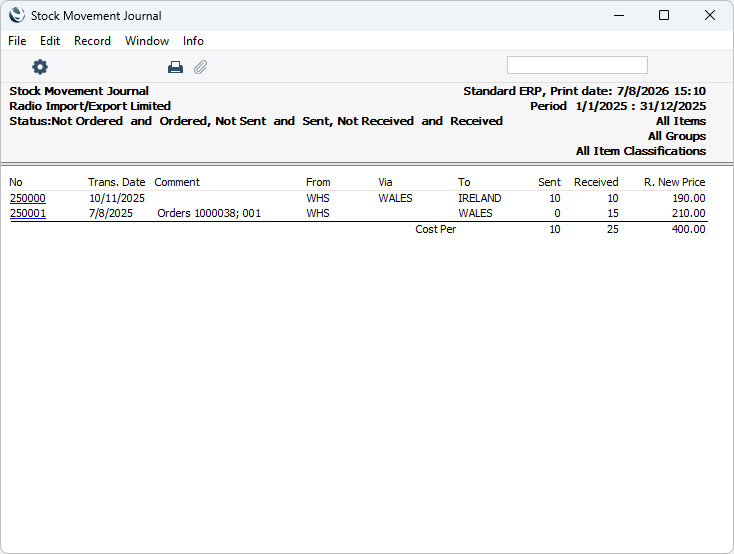
- Overview
- This option gives a report with a single row for each Stock Movement, showing Stock Movement Number, Received Date, Comment, From, Via and To Locations, Sent and Received Quantities and, depending on which Values option below you have selected, total R. New Price, total R. Old Price or total Base Price .
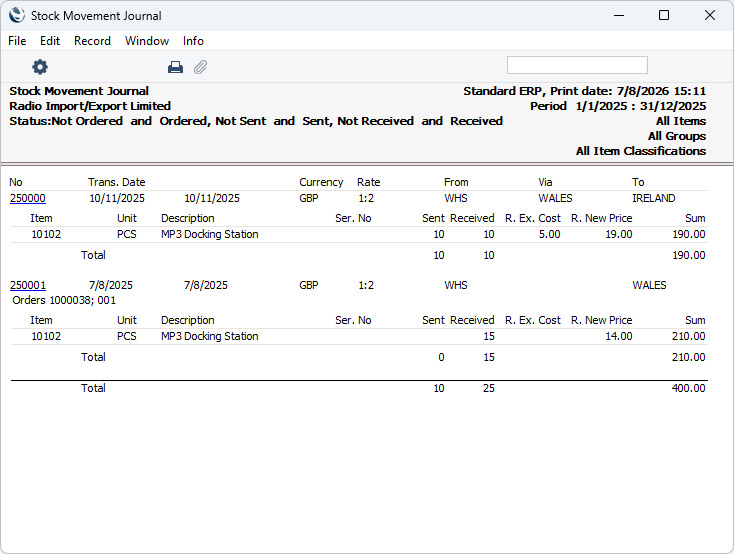
- Detailed
- As well as the information shown in the Overview, this report shows the Currency and exchange rate, and lists each Item in each Stock Movement individually, showing the Item Number and Name, Unit, Serial Number, Sent and Received Quantities, R. Extra Cost (per unit) and, depending on which Values option below you have selected, R. New Price, R. Old Price or Base Price per unit and total for the row. You can use this report as an archive file instead of printing a copy of each Stock Movement.
- Values
- Choose one of these options to specify which values are to be printed in the report.
- New Unit Price
- The R. New Unit Price of each Item will be printed in the report.
- Old Unit Price
- The R. Old Unit Price of each Item in each Stock Movement will be printed in the report.
- Base Price
- Base Prices from flip C of each Stock Movement row will be printed in the report.
- Confirmed Status
- Specify whether you want the report to list Stock Movements that have or have not been Confirmed, or both.
- Sent Status
- Specify whether you want the report to list Stock Movements that have or have not been Sent, or both. A Stock Movement that does not need to be Sent (i.e. one that does not have a Via Location) will not be included in the report if you choose the Sent Only option.
- Received Status
- Specify whether you want the report to list Stock Movements that have or have not been Received, or both.
- All between Locations
- If you enter both a From and a To Location to the fields above, the report will only list those Stock Movements that satisfy both requirements. If you want to list the Stock Movements where a particular Location is either the From or the To Location, specify that Location in either field and select this option.
- Received not matching Sent
- Select this option if you want to list Stock Movements in which there is at least one row where the Sent and Received Quantities are not the same. A Stock Movement that does not need to be Sent (i.e. one that does not have a Via Location) will be included in the report if you choose this option as all Sent Quantities will be blank.
- If you produce the Overview version of the report, the figures in the report for each Stock Movement will be calculated from the rows in which the Sent and Received Quantities are not the same. If you produce the Detailed report, only the rows in which the Sent and Received Quantities are not the same will be listed.
---
Go back to:
|


 Introduction to Reports in the Stock Module
