Entering a Delivery - Freight Card
This page describes the fields on the 'Freight' card in the Delivery window. Please follow the links below for descriptions of the other cards:
---
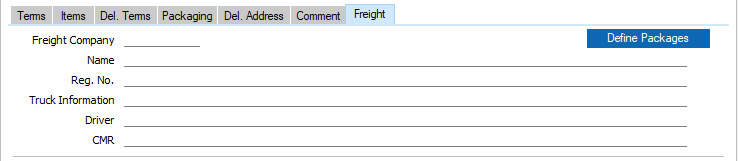
- Freight Company
- Paste Special
Freight Companies setting, Stock module
- You can use the Freight Companies setting to store information about the courier or haulage companies that your business uses to deliver goods to its Customers. In some countries, it is a legal requirement that this information is printed on Delivery documentation.
- Specify here the Freight Company that you will use for the Delivery. The Freight Company Registration Number, Freight Company, Truck Information, Driver and CMR Text will then be brought in to the fields below from the Freight Companies setting. You can change these details in individual Deliveries. For descriptions of these fields, please refer to the page describing that setting here.
- The Freight Companies of Deliveries can be used by the Trip Sheet report in the Stock module. When running the report, you can specify that it will produce a list of the Deliveries, Stock Movements and Returned Goods to Supplier records with a particular Freight Company that can be transported on a specified date or during a specified period.
- If you have an account with a Freight Company and will register the Delivery with them to instruct them to collect the shipment, you should first specify that Freight Company here, use the [Define Packages] to create a list of the boxes, envelopes and other packaging that make up the Delivery and then select the 'Register Electronic Shipment' function from the Operations menu (Windows/macOS) or Tools menu (iOS/Android) to register the Delivery with the Freight Company. At the time of writing, you can only use this feature if you are located in the US, with FedEx as the Freight Company and for US domestic shipments.
- [Define Packages]
- The [Define Packages] button allows you to create a list of the boxes, envelopes and other packaging that make up the Delivery.
- On pressing the [Define Packages] button, a 'Delivery Packages: New' window will open (if it does not, the probable reason is that you haven't saved all changes to the Delivery i.e. the window title is 'New' or 'Update'). List the packages as appropriate, using 'Paste Special' from the Pack Type field to choose a record from the Pack Types setting:

- When you save, a record will be created in the Delivery Packages setting in the Stock module. The Packages field on the 'Packaging' card of the Delivery and the Declared Value field on the 'Del. Terms' card will be both updated from the Delivery Packages. If necessary, specify a Currency for the Declared Value on the 'Packaging' card.
- If necessary, press the [Define Packages] button again if you need to edit the Delivery Packages record. Again, you must save the Delivery first.
- Usually, creating a list of packages in this way will be for information only. However, if you are in the US, you will need to create such a list before using the 'Register Electronic Shipment' function on the Operations menu (Windows/macOS) or Tools menu (iOS/Android) to register a Delivery with FedEx to instruct them to collect the Items from you and to deliver them to the Customer.
---
The Delivery register in Standard ERP:
Go back to:


 Introduction to the Delivery Register
