Introduction to Settings in the Stock Module
Account Usage Stock
Barcodes
Base Price Changes
Batch Specifications
Cost Accounting - Part 1
Cost Accounting - Part 2
Delivery Packages
Freight Companies
Item Varieties
Item Variety Groups
Items
Location Accounts
Location Classification Types
Location Classifications
Location Groups
Locations
Minimum Stock Levels
Number Series - Deliveries
Number Series - Goods Receipts
Number Series - Returned Goods
Number Series - Returned Goods to Supplier
Number Series - Stock Depreciations
Number Series - Stock Movement Invoices
Number Series - Stock Movements
Number Series - Stock Revaluations
Number Series - Stocktaking
Pack Types
Positions
Picking Lists
Recipes
Returned Goods Settings
Routes, Routes/Locations
Serial Number Tracking
Sources
Stock Movement Durations
Stock Revaluation Settings
Stock Settings - Part 1
Stock Settings - Part 2
Structured Items
Supersession Items
User Defined Field Labels - Extra Costs
Variety Masks
Variety Sets
Variety Settings
Variety Subsets
Weighted Average
Winedi Introduction to Settings in the Stock Module
Account Usage Stock
Barcodes
Base Price Changes
Batch Specifications
Cost Accounting - Part 1
Cost Accounting - Part 2
Delivery Packages
Freight Companies
Item Varieties
Item Variety Groups
Items
Location Accounts
Location Classification Types
Location Classifications
Location Groups
Locations
Minimum Stock Levels
Number Series - Deliveries
Number Series - Goods Receipts
Number Series - Returned Goods
Number Series - Returned Goods to Supplier
Number Series - Stock Depreciations
Number Series - Stock Movement Invoices
Number Series - Stock Movements
Number Series - Stock Revaluations
Number Series - Stocktaking
Pack Types
Positions
Picking Lists
Recipes
Returned Goods Settings
Routes, Routes/Locations
Serial Number Tracking
Sources
Stock Movement Durations
Stock Revaluation Settings
Stock Settings - Part 1
Stock Settings - Part 2
Structured Items
Supersession Items
User Defined Field Labels - Extra Costs
Variety Masks
Variety Sets
Variety Settings
Variety Subsets
Weighted Average
Winedi
 Tutorials for Standard Accounts Tutorials for Standard Accounts
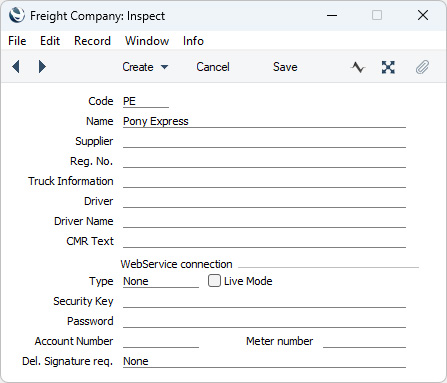
Search HansaManuals.com HansaManuals Home >> Standard ERP >> Stock >> Settings Previous Next Entire Chapter in Printable Form Search This text refers to program version 2026-06-25 Freight Companies This page describes the Freight Companies setting in the Stock module.--- If your company is one that uses courier or haulage companies to deliver goods to your Customers, to receive goods into stock or to move stock from one Location to another, you can record those companies in this setting. When you enter a Delivery, Goods Receipt, Returned Goods to Supplier or Stock Movement, you can specify a Freight Company on the 'Freight' card, and similarly when you enter an Invoice you can specify a Freight Company on the 'Del. Terms' card. Information about the Freight Company can then be printed on documentation. In the case of the Delivery, this is a legal requirement in some countries. More precise information about printing on documentation can be found towards the end of this page. You can also produce a Trip Sheet report if you need a list of the Deliveries, Stock Movements and/or Returned Goods to Supplier records that can be transported by a particular Freight Company on a specified date or during a specified period. To work with Freight Companies, first ensure you are in the Stock module. Then, if you are using Windows or macOS, click the [Settings] button in the Home Screen and double-click 'Freight Companies' in the resulting list. If you are using iOS or Android, select 'Settings' from the Tools menu (with 'wrench' icon) and tap 'Freight Companies' in the 'Settings' list. The 'Freight Companies: Browse' window will open, listing the Freight Companies that you have already entered. Double-click or tap one to modify it or select 'New' from the Create menu (Windows/macOS) or + menu (iOS/Android) to create a new record. When the record is complete, click the [Save] button (Windows/macOS) or tap √ (iOS/Android) in the Button Bar to save changes. Close the window using the close box (Windows/macOS) or by tapping < (iOS/Android), or click the close box or tap < if you don't want to save changes.
If you need Freight Company information to be printed on documentation, include the following fields in your Form Template designs:
You can use these fields in the Form Templates that will be used when you print Delivery Notes, Goods Receipts, Invoices, Picking Lists, Proforma Deliveries, Returned Goods to Supplier records and Stock Movements. --- Go back to:
|