Introduction to the Budget Register
The budgeting process is a means of planning future revenue and expenditure. Once you have decided your company's goals and objectives for a future period, the budgeting process should help you plan how much you need to spend to achieve those objectives, what you should spend it on and how you will fund that expenditure.Once you have completed the planning process and the fiscal year has begun, you can then use your budgets to monitor your company's performance. Regular reporting will bring any variations from the budget to your attention, which you can then investigate. For example, a shortfall in sales will quickly be revealed if you routinely compare actual sales to budget. Investigation may reveal changing market conditions: you can then both change the focus of your sales force if necessary, and you can adjust your expenditure plans to compensate for the reduced funding.
The Budget register in Standard ERP allows you to enter detailed Budgets for each Account. You can also use Tags/Objects to break these Budgets down by department or other cost centre. You can enter Budgets for a period (e.g. one year) and then divide them into sub-periods (e.g. calendar months, quarters or four-week periods).
Once you have finalised a Budget, you can change it at any time during the current accounting year. This may be tempting if the actual performance begins to differ greatly from the Budget. It is, however, advisable to leave the Budget unchanged. Changing a Budget will mean that the original planning objectives will be lost. You will no longer be able to compare performance to budget as the year progresses, and so the divergence from the original plan may increase. Simply explaining the divergence as poor budgeting may also hide the real cause. Changing a Budget will also prevent a realistic evaluation of the quality of the budgeting process. More than just predicting the future, budgeting is a way of planning that future. Good budgeting is a sign that the manager or company both understands their business and market and knows how to plan for and achieve objectives.
If you do need to make changes to a Budget during the current year, you should therefore not change the Budget itself. Instead, you should record the changes in the Revised Budget register provided for this purpose. To encourage this practice, you can mark each Budget record as OK, after which you will not be able to change it.
Having entered your Budgets, three reports allow you to compare Budgets (or Revised Budgets) with actual figures: the Balance Sheet, the Nominal Ledger report, the Tag/Object/Quantity Results report (which provides this analysis separately for each Account-Tag/Object combination) and the Profit & Loss report.
The Budget register in Standard ERP:
- Introduction
- Entering a Budget
- Entering a Budget - Example
- Printing Budget Definitions
- Operations menu
Go back to:
- Home page for Nominal Ledger manual
- Home page for Standard ERP manual
Entering a Budget
This page describes entering records to the Budget register in the Nominal Ledger.---
You should enter a separate Budget record for each Account for a particular period (e.g. fiscal year). If you will be using Tags/Objects to set Budgets for various departments or cost centres, you should enter separate Budget records for each Account-Tag/Object combination. You should then enter an overall master Budget for the Account, which will be the sum of the various Account-Tag/Object Budgets. This is described in step 5 below.
- To open the Budget register, first ensure you are in the Nominal Ledger module. Then, if you are using Windows or macOS, click the [Registers] button in the Navigation Centre and double-click 'Budgets' in the resulting list. If you are using iOS or Android, tap the [Registers] button in the Navigation Centre and then tap 'Budgets' in the 'Registers' list.
The 'Budget - Accounts: Browse' window is opened, listing the Accounts for which you have already entered Budgets.
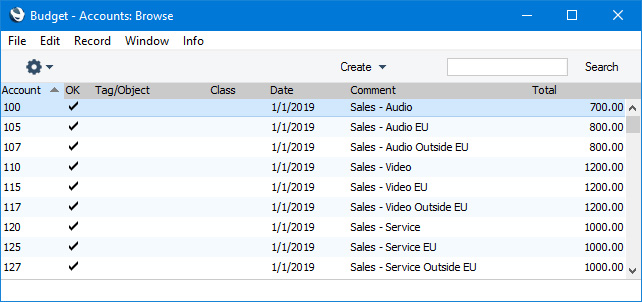
- Select 'New' from the Create menu (Windows/macOS) or + menu (iOS/Android) or highlight a Budget record similar to the one you want to enter and select 'Duplicate' from the same menu.
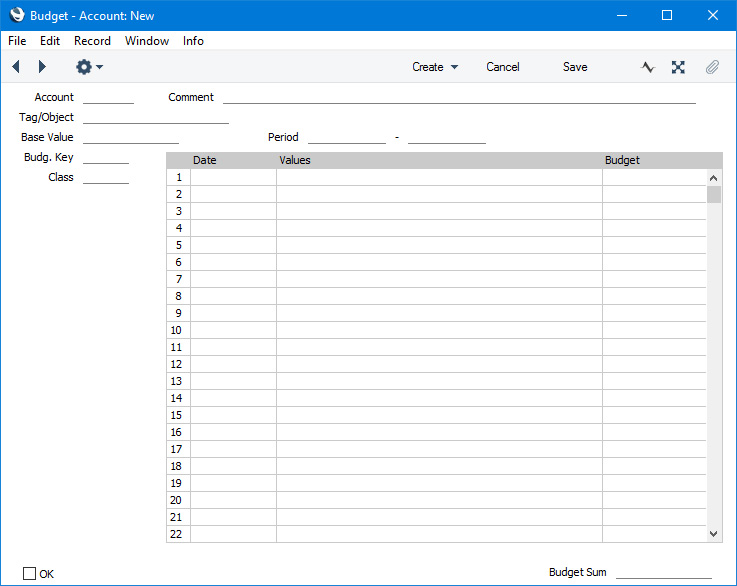
The 'Budget - Account: New' window will be opened, empty if you selected 'New' or containing a duplicate of the highlighted Budget record.

- Account
- Paste Special
Account register, Nominal Ledger/System module
- Specify the Account for which you are entering a Budget. You cannot change the Account after you have saved the Budget for the first time.
- Comment
- The Account Name will be placed in this field when you specify the Account above.
- Tag/Object
- Paste Special
Tag/Object register, Nominal Ledger/System module
- If you are creating a Budget for a particular Tag/Object-Account combination, specify the Tag/Object here. This allows you easily to create Budgets for different departments. You cannot enter or change the Tag/Object after you have saved the Budget for the first time.
- If you are entering Budgets for various Tags/Objects in combination with a particular Account, you should also enter an overall Budget for the Account. This should be the sum of the individual Tag/Object Budgets. If you enter the overall Budget after those for the various Tags/Objects, you can use the 'Calculate Sum from Account-Tag/Object Budget' function on the Operations menu (Windows/macOS) or Tools menu (iOS/Android) to calculate this sum. This is described in step 5 below.
- If you are entering Budgets for various Tags/Objects in combination with a particular Account, you should also enter an overall Budget for the Account. This should be the sum of the individual Tag/Object Budgets. If you enter the overall Budget after those for the various Tags/Objects, you can use the 'Calculate Sum from Account-Tag/Object Budget' function on the Operations menu (Windows/macOS) or Tools menu (iOS/Android) to calculate this sum. This is described in step 5 below.
- Base Value
- Enter the total Budget value for the Period as a whole. Remember to enter sales and income values, liabilities and equity as negative (credit) values, and assets and costs as positive (debit) values.
- You can treat this figure as a control total for the period. If the period is a year, for example, you can break the figure down into monthly or quarterly totals in the grid area. You can enter these monthly or quarterly figures yourself (in the Values column), aiming to ensure the Budget Sum underneath the grid matches the Base Value, or you can have them calculated from the Base Value using a Budget Key that you will specify in the field below.
- You can treat this figure as a control total for the period. If the period is a year, for example, you can break the figure down into monthly or quarterly totals in the grid area. You can enter these monthly or quarterly figures yourself (in the Values column), aiming to ensure the Budget Sum underneath the grid matches the Base Value, or you can have them calculated from the Base Value using a Budget Key that you will specify in the field below.
- Period
- Paste Special
Choose date
- Enter the start and end dates of the Budget Period.
- Budg. Key
- Paste Special
Budget Keys setting, Nominal Ledger
- The Budget Key is a useful tool for breaking a total budget figure down to monthly or quarterly totals a formula. For example, experience may show that sales of a particular product always follow a set pattern with a certain percentage of the total in each month. You can enter this pattern in a Budget Key record. Alternatively, and more simply, you can use a Budget Key to break an annual rent figure down into twelve equal divisions.
- Setting up Budget Keys is fully described here.
- To apply a Budget Key to a Budget record, first enter a figure in the Base Value field above. This should be the total Budget figure for the whole period (perhaps a year). Then, specify an appropriate Budget Key and enter the start dates of each month or quarter on separate rows in the grid area. You should have the same number of period divisions (i.e. rows in the grid) as you have entered in the Budget Key record. Then, choose 'Recalculate' from the Operations menu (Windows/macOS) or Tools menu (iOS/Android). Budget figures for each period (e.g. monthly or quarterly figures) will be placed in the Budget column. These will be calculated by apportioning the Base Value using the ratios in the Budget Key. Finally, save the record.
- Setting up Budget Keys is fully described here.
- Class
- Paste Special
Budget Classes setting, Nominal Ledger
- The Budget Class field allows you to enter more than one Budget record for a particular Account-Tag/Object combination for a particular period. This allows you to budget for different market or other scenarios. When you produce a Balance Sheet or Profit & Loss report using the Budget Comparison, you will be able to choose a Budget Class, allowing you to compare the budgets for the different scenarios with actual results.
Use the grid area to divide the Budget Period specified above into sub-periods. You can define a define any number of periods, but, if you are using a Budget Key, you should have the same number as you have entered for the Budget Key. If the Budget and Budget Keys have different numbers of periods, the Base Value and Budget Sum figures will not match after you have used the 'Recalculate' function.
Budget sub-periods will help you monitor actual performance against budget. You should carry out this comparison regularly in order for it to be effective and to identify any discrepancies quickly and as they occur. Some Accounts will require closer monitoring than others: for these Accounts, you should define a greater number of sub-periods, and you should produce regular comparison reports more frequently. For example, you may need to monitor Sales Accounts more closely and more frequently than Office Furniture Accounts.
- Date
- Paste Special
Choose date
- Enter the start date for each Budget sub-period. To save labour and reduce the chance for error, the easiest way to enter Budget records is to use the 'Duplicate' function to copy a Budget record with the dates already entered.
- Values
- Enter absolute values for each period.
- If you have specified a Budget Key and Base Value, these Values will be treated as extra amounts to be added to the calculated figures when you use the 'Recalculate' function. Depending on the Values that you enter, this may result in the Budget Sum differing from the Base Value.
- If you have not specified a Budget Key, these Values will be moved to the right-hand column when you select 'Recalculate' from the Operations menu (Windows/macOS) or Tools menu (iOS/Android). Alternatively, you can enter figures directly in the right-hand column.
- If you have specified a Budget Key and Base Value, these Values will be treated as extra amounts to be added to the calculated figures when you use the 'Recalculate' function. Depending on the Values that you enter, this may result in the Budget Sum differing from the Base Value.
- Budget
- The Budget amount for the sub-period. This value will be calculated each time you select the 'Recalculate' command from the Operations or Tools menu.
- If you have not specified a Budget Key, you can enter figures for each sub-period in this column.
- If you have not specified a Budget Key, you can enter figures for each sub-period in this column.
- OK
- You can approve a Budget by ticking this check box and saving. Once you have done this, you will no longer be able to change the Budget record. If you do need to change an approved Budget, first remove the tick from the OK box and save.
- You do not have to mark a Budget as OK to activate it (i.e. for it to be included in reports). Nevertheless, once you have finalised a Budget, it is recommended that you mark it as OK. If it becomes necessary to change a Budget, you should not do so in the Budget itself. Instead, you should enter a new record in the Revised Budget register. This ensures you keep a record of your original Budget forecast. Marking Budgets as OK will help ensure you follow this practice.
- You can use Access Groups to control who can mark Budgets as OK and who can reverse the marking of Budgets as OK. To do this, deny access to the 'OK Budget' and 'UnOK Budget' Actions respectively.
- You do not have to mark a Budget as OK to activate it (i.e. for it to be included in reports). Nevertheless, once you have finalised a Budget, it is recommended that you mark it as OK. If it becomes necessary to change a Budget, you should not do so in the Budget itself. Instead, you should enter a new record in the Revised Budget register. This ensures you keep a record of your original Budget forecast. Marking Budgets as OK will help ensure you follow this practice.
- Budget Sum
- This field shows the total budget for the year. Unlike the figure that you entered in the Base Value field, this figure will be calculated automatically: it is the sum of the Budget figures in the grid. Therefore, if you revise the Budget and recalculate it using the 'Recalculate' function on the Operations or Tools menu, the Base Value will remain unchanged, so you can make a comparison between the original budgeted figure and the final one. The Budget Sum will also take into account any extra amounts in the Values column.
- If you cannot explain the difference between the Base Value and the Budget Sum, the probable cause is that the Budget has a different number of periods (rows in the grid) to the Budget Key.
- Account
- When you have entered Values in as many rows in the grid as you need, or you have chosen a Budget Key, select 'Recalculate' from the Operations or Tools menu. Then click [Save] (Windows/macOS) or tap √ (iOS/Android) to save, or [Cancel] or < to cancel.
- Repeat steps 1 to 3 to set Budgets for each Account-Tag/Object combination, perhaps with different Classes if you need to budget for different scenarios. Use the 'Duplicate' function to assist with the data entry. You can only save one Budget record for each Account-Tag/Object-Period-Class combination.
!
For a Budget record to be included in Nominal Ledger reports for comparison purposes, you must have added at least one row with a date in the grid area of the Budget window.
- After you have entered a Budget for each Account-Tag/Object combination, you should set an overall Budget for each Account for the same period. This overall Budget record should contain the sum of the separate Budgets for each Tag/Object and will be used when you produce a Balance Sheet or Profit & Loss report without specifying a Tag/Object. To do this, create a new Budget record and enter the Account and Period. Leave the Tag/Object field empty. Save the record and then select 'Calculate Sum from Account-Tag/Object Budget' from the Operations or Tools menu. Overall Budget figures will be calculated by adding together the Budgets featuring the Account with the various Tags/Objects that fall in the relevant period.
The Budget register in Standard ERP:
- Introduction
- Entering a Budget
- Entering a Budget - Example
- Printing Budget Definitions
- Operations menu
- Home page for Nominal Ledger manual
- Home page for Standard ERP manual
Entering a Budget - Example
This section describes the process of entering a Budget record using an illustrated example. Follow these steps:- Ensure you are in the Nominal Ledger and then open the 'Budget - Accounts: Browse' window. If you are using Windows or macOS, click the [Registers] button in the Navigation Centre and double-click 'Budgets' in the resulting list. If you are using iOS or Android, tap the [Registers] button in the Navigation Centre and then tap 'Budgets' in the subsequent list.
- If you are using Windows or macOS, select 'New' from the Create menu or press Ctrl-N/⌘-N to create a new Budget record. If you are using iOS or Android, select 'New' from the + menu. An empty 'Budget: New' window will open:
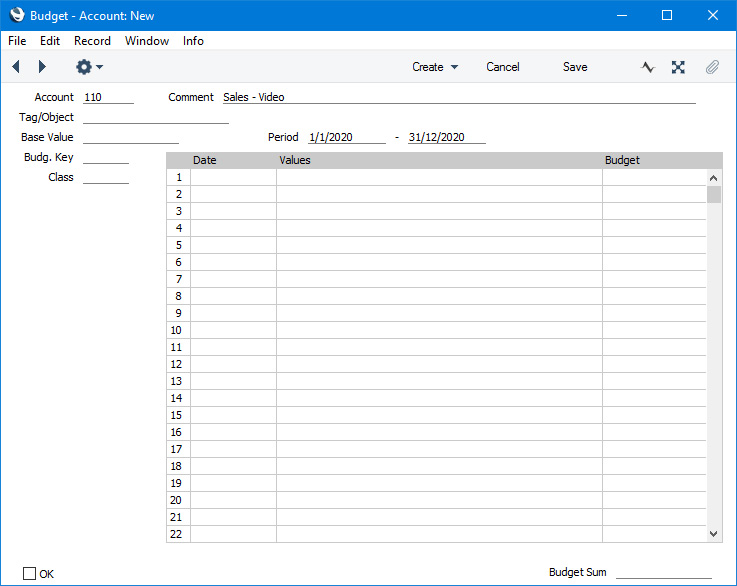
- Using 'Paste Special', specify the Account for which you are entering a Budget and the period for the Budget:
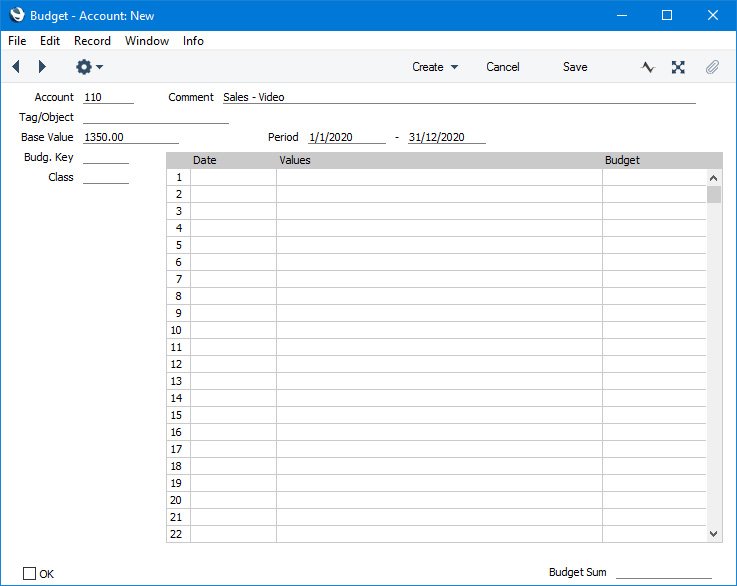
- In the Base Value field. enter the figure that you are budgeting for the full Budget period:
- Divide the Budget period into sub-periods (e.g. months or quarters) by listing the first dates of each sub-period in the matrix:
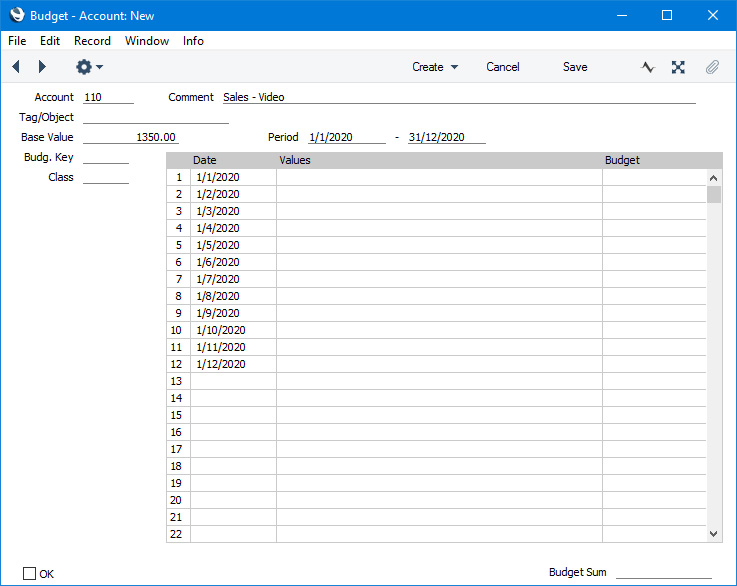
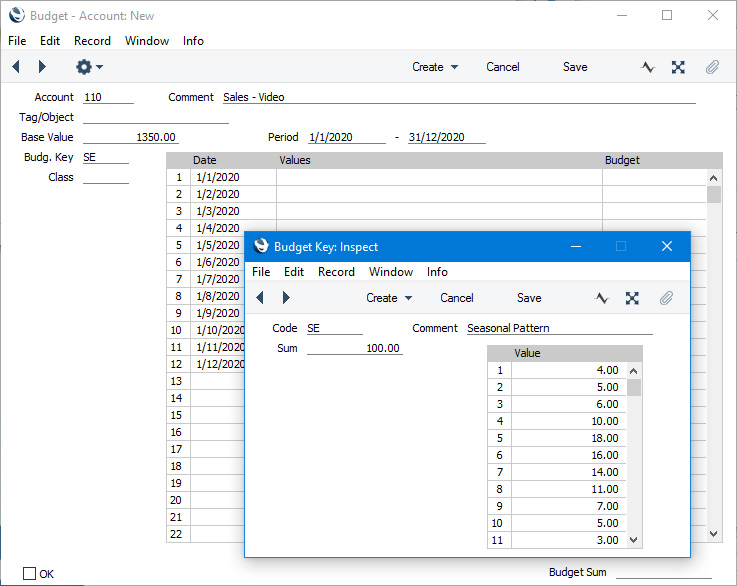
- Specify a Budget Key using 'Paste Special'. The Budget Key is the formula that will distribute the Base Value to the sub-periods. For example, the Budget Key that you use with a particular Sales Account may distribute the Base Value that reflects higher expected sales in the summer months. The Budget Key should contain the same number of sub-periods that you listed in the Budget record in the previous step.
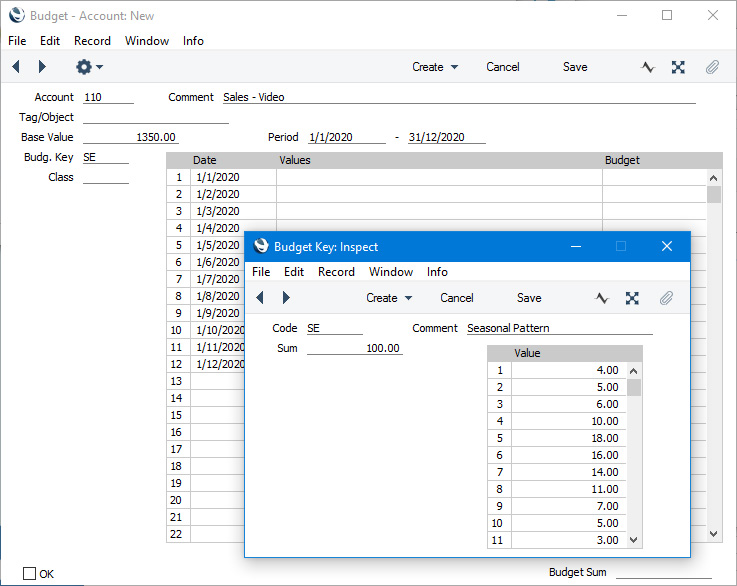
- Choose 'Recalculate' from the Operations menu (Windows/macOS) or Tools menu (iOS/Android). The Base Value will be distributed to the sub-periods, with sub-period budget values being placed in the Budget column in the matrix:
The total of the sub-period budget values will be placed in the Budget Sum field below the matrix. If the Budget Sum is not the same as the Base Value, the probable reason is that the numbers of sub-periods in the matrix and the Budget Key are not the same. For this reason (to check the number of sub-periods is correct), it is a good idea to 'Recalculate' before entering any adjustments in step 8.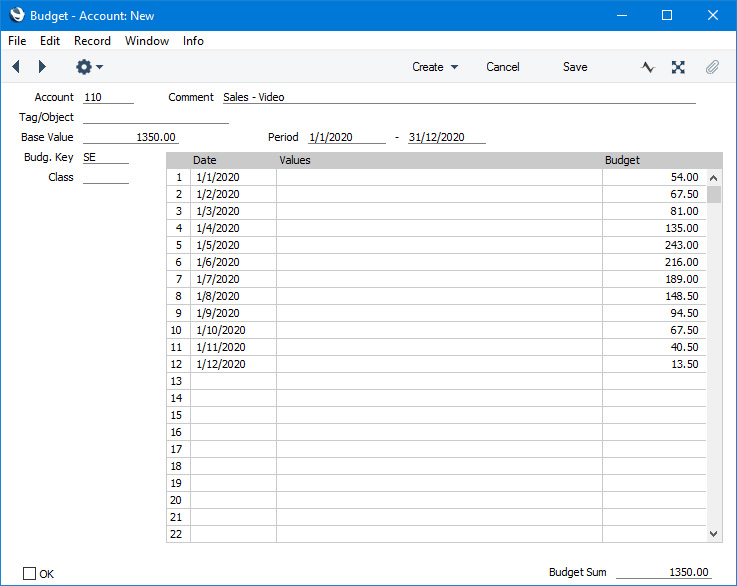
- If you need to adjust any of the sub-period budget values, enter a positive or negative adjusting figure in the Values field in the relevant row and then choose 'Recalculate' again. Ideally, after adjustments the Budget Sum should still match the Base Value.
You can adjust a sub-period budget value by changing it in the Budgeted column. But this is not recommended because the empty Values field will mean that the adjustment is less visible and because the adjustment will be lost if you select 'Recalculate' again later.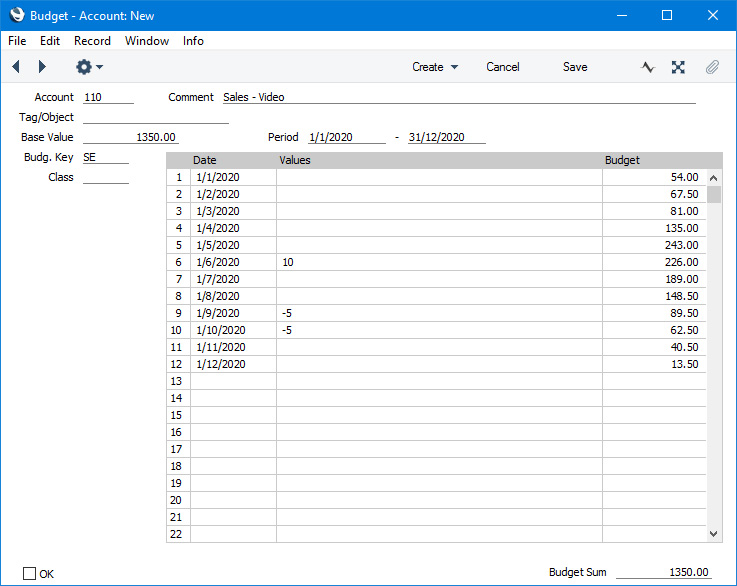
- Save the Budget record. It will now be available to the Balance Sheet, Nominal Ledger and Profit & Loss reports. Budget figures in these reports will be calculated from the sub-period Budgeted figures for the relevant periods.
- If you need to set Budgets for an Account in combination with various Tags/Objects, you should also enter an overall Budget for the Account as a whole. Enter the Budgets with the Tags/Objects first:
When entering the overall Budget for the Account as a whole, specify the Account and the period and then choose 'Calculate Sum from Account-Tag/Object Budget' from the Operations or Tools menu: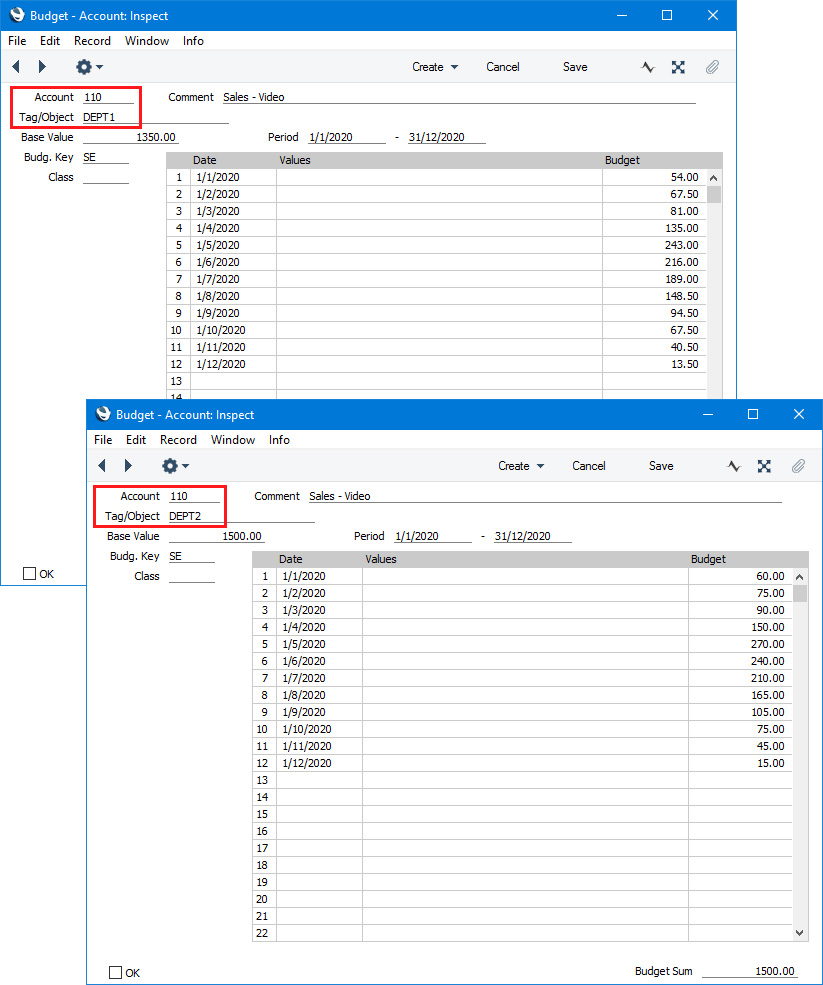
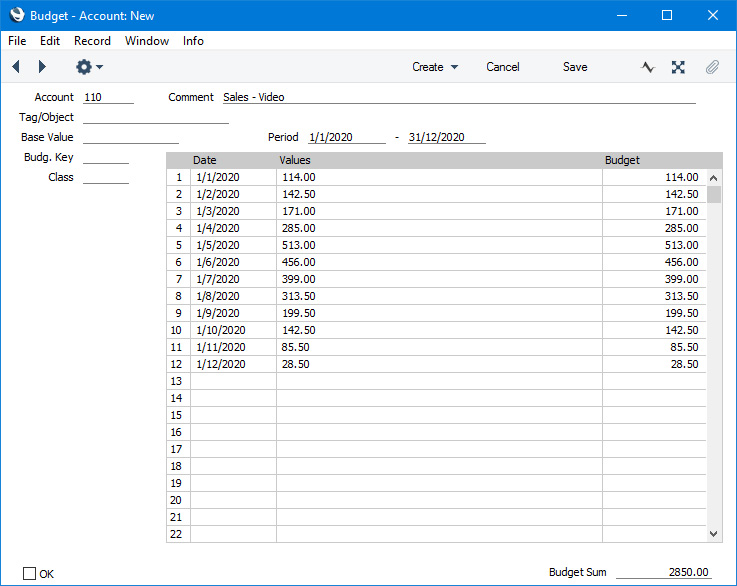
Dates and values will be calculated from the Budgets with the Tags/Objects and brought in to the matrix: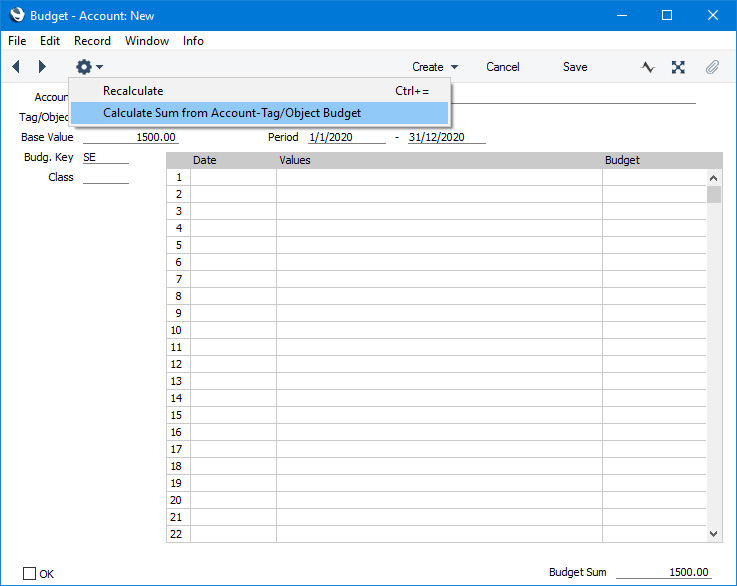
- Once you have finalised a Budget, it is not recommended that you change it. You should instead create a Revised Budget record. Alternatively, if you are budgeting for different market or other scenarios, you can create Budget records with different Classes, with each Class representing a different scenario.
- If you need to delete a Budget record, select the 'Delete' function from the Record menu (which has a 'cog' icon if you are using iOS or Android). Remember that you cannot undo a deletion of a record. You cannot delete a Budget record that has been marked as OK but subject to access rights you can deselect the OK check box, save and then delete.
- You can remove the budget values from every Budget record using the 'Remove Values from Budgets' Maintenance function.
The Budget register in Standard ERP:
- Introduction
- Entering a Budget
- Entering a Budget - Example
- Printing Budget Definitions
- Operations menu
- Home page for Nominal Ledger manual
- Home page for Standard ERP manual
Printing Budget Definitions
You can print a list of Budget definitions by following these steps:- Ensure you are in the Nominal Ledger and click (Windows/macOS) or tap (iOS/Android) the [Reports] button in the Navigation Centre.
- Double-click or tap 'Budget Journal' in the list.
- In the following window, enter the report period that you need and specify whether you need Budget records that have been marked as OK, not marked as OK or both to be listed in the report.
- Press [Run] to produce the report. A list of Budgets will be printed. If you chose the Detailed option, each row in each Budget record will be listed separately in the report.
The Budget register in Standard ERP:
- Introduction
- Entering a Budget
- Entering a Budget - Example
- Printing Budget Definitions
- Operations menu
- Home page for Nominal Ledger manual
- Home page for Standard ERP manual
Operations Menu - Budgets

If you are using Windows or macOS, you can open the Operations menu by clicking the button with the 'cog' icon (shown highlighted in the illustration above). If you are using iOS or Android, you can access the Operations menu functions through the Tools menu (with 'wrench' icon).
Before using the function on the Operations menu in the 'Budgets: Browse' window, you should highlight a record or records in the browse window. The function will then be applied to that record or records. If you are using Windows or macOS, you can highlight several Budgets in the list by holding down the Shift key while clicking. If you need to apply the function to a number of Budgets that aren't in a range, highlight them while holding the Ctrl (Windows) or ⌘ (macOS) keys before selecting the function. If you are using iOS or Android, you can highlight a single record in the browse window by searching for it, so you can only apply these functions to a single record at a time.
Please follow the links below for details about each function on the Operations menu:
The Budget register in Standard ERP:
- Introduction
- Entering a Budget
- Entering a Budget - Example
- Printing Budget Definitions
- Operations menu
- Home page for Nominal Ledger manual
- Home page for Standard ERP manual
Operations Menu - Budgets - OK
This page describes the 'OK' function on the Operations menu in the 'Budgets: Browse' window. If you are using iOS or Android, the 'OK' function is on the Tools menu (with 'wrench' icon).---
The 'OK' command is only available on the Operations menu for the 'Budgets: Browse' window. It allows you to mark Budgets as OK from the browse window.
If you are using Windows or macOS, you can use this function to mark Budgets as OK in batches. Simply highlight a number of Budgets in the browse window and select the function. To highlight a range of Budgets, click the top one in the range and then hold down the Shift key and click the last one. If you need to apply the function to a number of Budgets that aren't in a range, highlight them while holding the Ctrl (Windows) or ⌘ (macOS) keys before selecting the function.
If you are using iOS or Android, you can only highlight a single Budgets at a time, by searching for it, so you can only mark a single Budgets as OK at a time.
When you select the function, each highlighted Budgets will be marked as OK immediately. Remember that after you mark a Budget as OK you will no longer be able to modify that Budget record.
You can use Access Groups to prevent certain users from marking Budgets as OK. To do this, deny them access to the 'OK Budget' Action.
---
The Budget register in Standard ERP:
- Introduction
- Entering a Budget
- Entering a Budget - Example
- Printing Budget Definitions
- Operations menu, including:
- Home page for Nominal Ledger manual
- Home page for Standard ERP manual
Operations Menu - Budget - Recalculate
This page describes the 'Recalculate' function on the Operations menu in the Budget record window. If you are using iOS or Android, the 'Recalculate' function is on the Tools menu (with 'wrench' icon).---
The 'Recalculate' function will be useful when you are entering a Budget record in which you will be using a Budget Key. The function will use the Budget Key to distribute the Base Value to the sub-periods that you have listed in the matrix.
To use the 'Recalculate' function, follow these steps:
- Add a new record to the Budget record or open an existing one for modification.
- In a new record, specify the following information:
- The Account for which you are entering a Budget.
- If necessary, a Tag/Object.
- The period for the Budget.
- The Base Value (the figure that you are budgeting for the full Budget period).
- The Budget Key (the formula that distributes the Base Value to the sub-periods that you will list in the matrix in the next step).
- The Account for which you are entering a Budget.
- Divide the Budget period into sub-periods (e.g. months or quarters) by listing the first dates of each sub-period in the matrix. The number of sub-periods that you list should be the same as the number of sub-periods in the Budget Key.
- Choose 'Recalculate' from the Operations or Tools menu. The Base Value will be distributed to the sub-periods, with sub-period budget values being placed in the Budget column in the matrix:
The total of the sub-period budget values will be placed in the Budget Sum field below the matrix. If the Budget Sum is not the same as the Base Value, the probable reason is that the numbers of sub-periods in the matrix and the Budget Key are not the same. For this reason (to check the number of sub-periods is correct), it is a good idea to 'Recalculate' before entering any adjustments in step 5.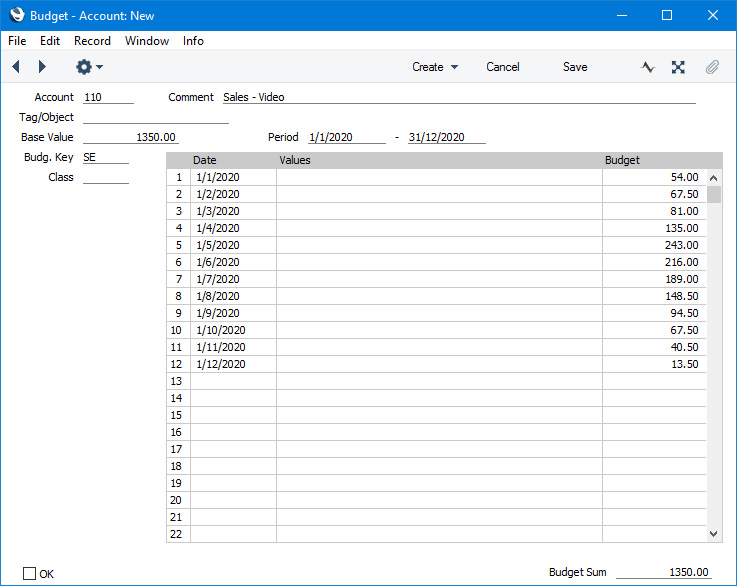
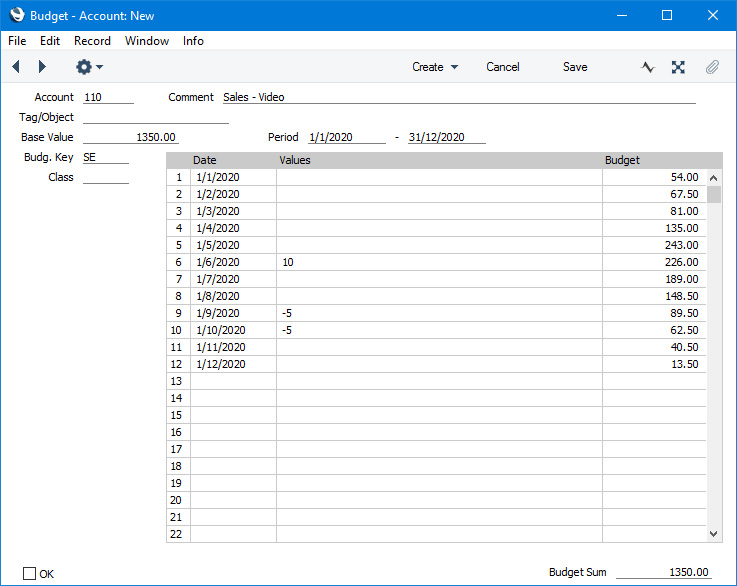
- If you need to adjust any of the sub-period budget values, enter a positive or negative adjusting figure in the Values field in the relevant row and then choose 'Recalculate' again. Ideally, after adjustments the Budget Sum should still match the Base Value.
---
The Budget register in Standard ERP:
- Introduction
- Entering a Budget
- Entering a Budget - Example
- Printing Budget Definitions
- Operations menu, including:
- OK
- Recalculate
- Calculate Sum from Account-Tag/Object Budget
- OK
- Home page for Nominal Ledger manual
- Home page for Standard ERP manual
Operations Menu - Budget - Calculate Sum from Account-Tag/Object Budget
This page describes the 'Calculate Sum from Account-Tag/Object Budget' function on the Operations menu in the Budget record window. If you are using iOS or Android, the 'Calculate Sum from Account-Tag/Object Budget' function is on the Tools menu (with 'wrench' icon).---
The 'Calculate Sum from Account-Tag/Object Budget' function will be useful if you need to set Budgets for an Account in combination with various Tags/Objects. Follow these steps:
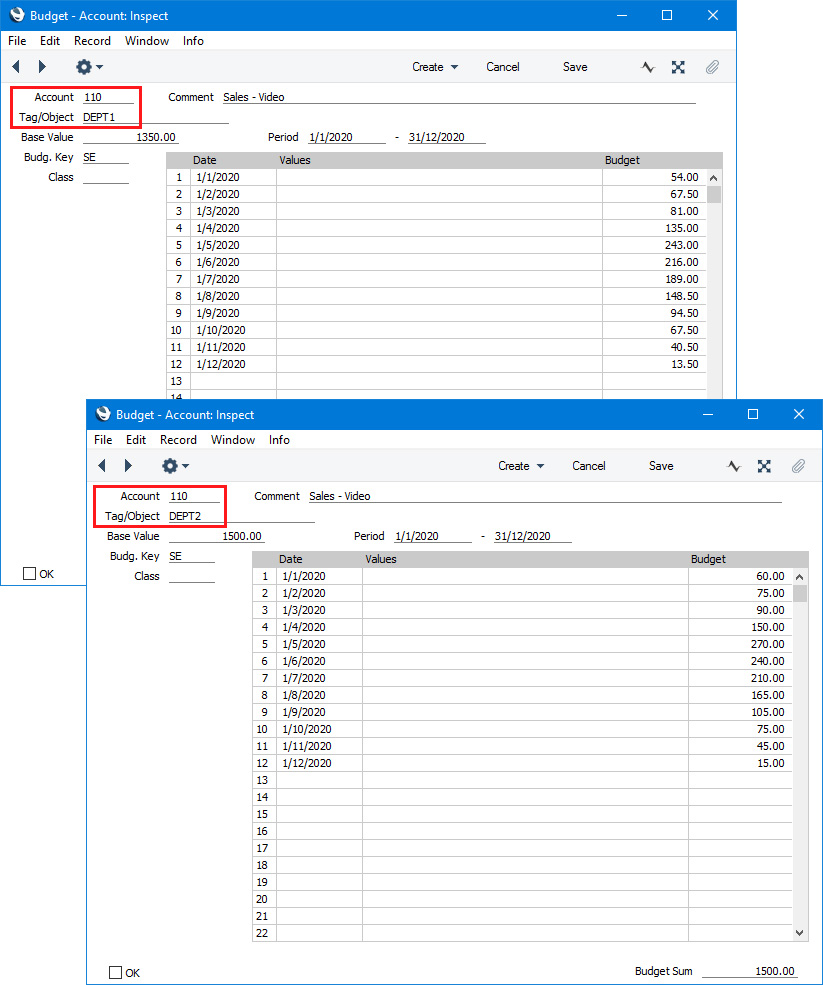
- Enter the Budgets with the Tags/Objects first:
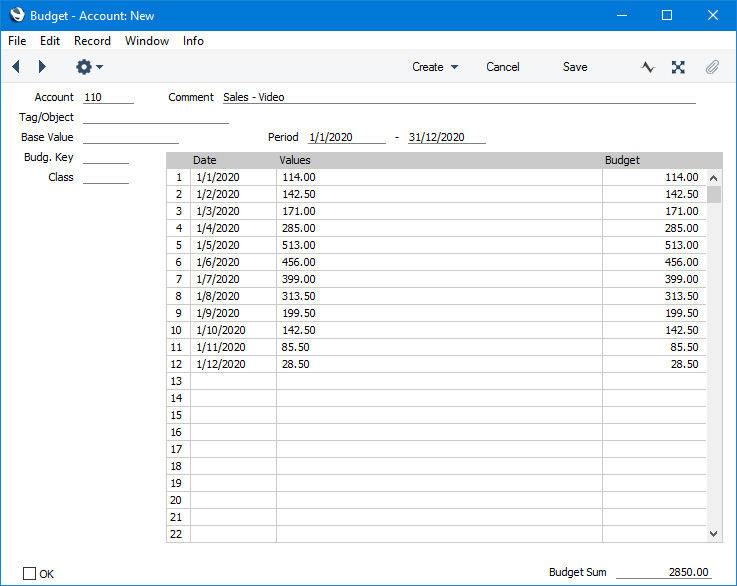
- After entering all the Budgets with the Tags/Objects, you should enter an overall Budget for the Account as a whole. In this record, specify the Account and the period and then choose 'Calculate Sum from Account-Tag/Object Budget' from the Operations or Tools menu:
Dates and values will be calculated from the Budgets with the Tags/Objects and brought in to the matrix: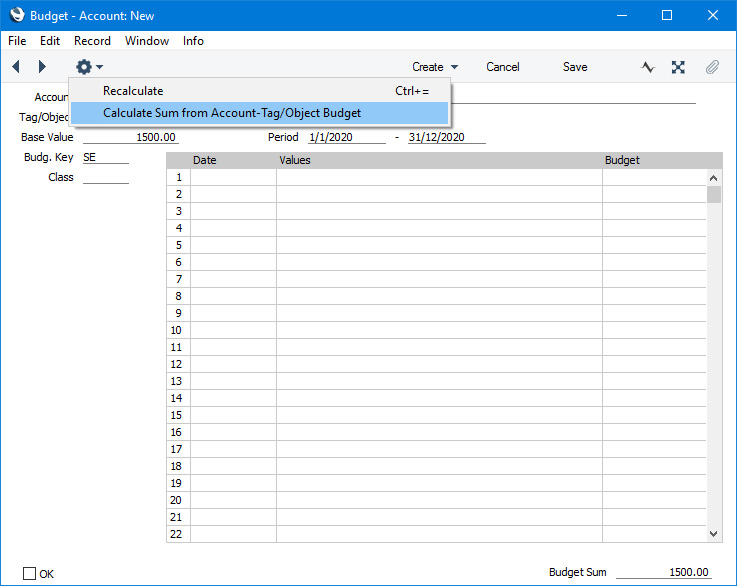
The Budget register in Standard ERP:
- Introduction
- Entering a Budget
- Entering a Budget - Example
- Printing Budget Definitions
- Operations menu, including:
- OK
- Recalculate
- Calculate Sum from Account-Tag/Object Budget
- OK
- Home page for Nominal Ledger manual
- Home page for Standard ERP manual