Introduction to the Stock Movement Register
Entering a Stock Movement
Nominal Ledger Transactions from Stock Movements
Operations Menu
- Stock Movements - Receive
- Stock Movement - Cost Price in Old Unit Price
- Stock Movement - Item Search
- Stock Movement - Open NL Transaction Sent
- Stock Movement - Open NL Transaction Received
- Stock Movement - Print Stock Movement Invoices
Row Menu - Stock Movements Introduction to the Stock Movement Register
Entering a Stock Movement
Nominal Ledger Transactions from Stock Movements
Operations Menu
- Stock Movements - Receive
- Stock Movement - Cost Price in Old Unit Price
- Stock Movement - Item Search
- Stock Movement - Open NL Transaction Sent
- Stock Movement - Open NL Transaction Received
- Stock Movement - Print Stock Movement Invoices
Row Menu - Stock Movements
 Tutorials for Standard Accounts Tutorials for Standard Accounts
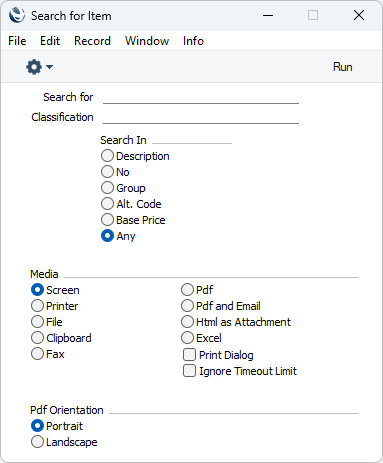
Search HansaManuals.com HansaManuals Home >> Standard ERP >> Stock >> Stock Movement Register Previous Next Entire Chapter in Printable Form Search This text refers to program version 2026-06-25 Operations Menu - Stock Movement - Item Search This page describes the 'Item Search' function on the Operations menu in the Stock Movement record window. If you are using iOS or Android, the 'Item Search' function is on the Tools menu (with 'wrench' icon).--- You can use the 'Item Search' function to search for Items that you can then add to the Stock Movement. This function is therefore an alternative to the 'Paste Special' feature. Place the insertion point in the Item field in any row and then select 'Search' from the Operations menu (Windows/macOS) or Tools menu (iOS/Android). The following window opens:
--- The Stock Movement register in Standard ERP:
|