Introduction to the Delivery Register
Entering a Delivery
Inspecting Deliveries, Marking as OK and Posting to the Nominal Ledger
Nominal Ledger Transactions From Deliveries
Deliveries from the Sales Ledger
Printing Picking Lists and Delivery Notes
Operations Menu - Deliveries
Create Menu - Deliveries
y - Invoice
y - Returned Goods
Row Menu - Deliveries Introduction to the Delivery Register
Entering a Delivery
Inspecting Deliveries, Marking as OK and Posting to the Nominal Ledger
Nominal Ledger Transactions From Deliveries
Deliveries from the Sales Ledger
Printing Picking Lists and Delivery Notes
Operations Menu - Deliveries
Create Menu - Deliveries
y - Invoice
y - Returned Goods
Row Menu - Deliveries
 Tutorials for Standard Accounts Tutorials for Standard Accounts
Search HansaManuals.com HansaManuals Home >> Standard ERP >> Stock >> Delivery Register Предыдущая Следующая Вариант всей главы для печати Поиск Данный текст относится к версии программы 2026-06-25 Create Menu - Delivery - Returned Goods This page describes the 'Returned Goods' function on the Create menu in the Delivery record window. If you are using iOS or Android, the 'Returned Goods' function is on the + menu.--- The Returned Goods register allows you to manage Customer returns. Each time a Customer returns goods that you have previously delivered to them, you should add a new record to the Returned Goods register to manage the process. You can do this using one of two methods:
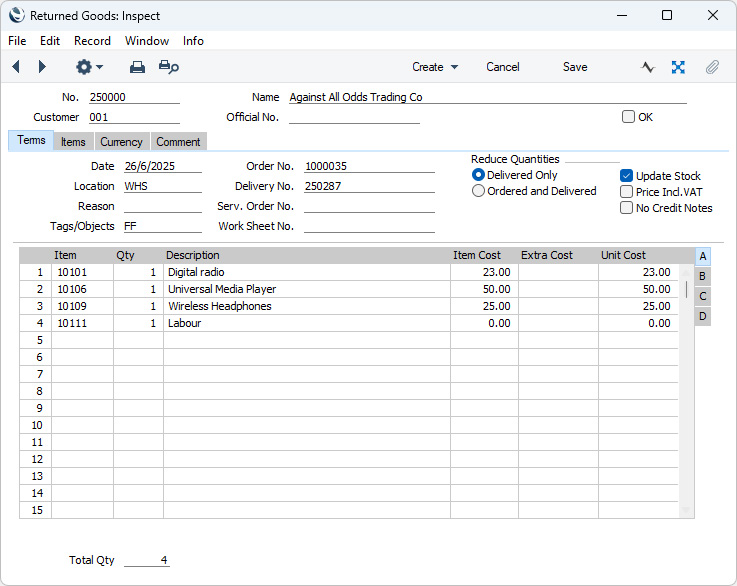
The difficulty with the returning of goods to stock is to establish the actual value of the goods being returned. The purpose of the Returned Goods register is to allow you to record values that are as accurate as possible. The Original Cost on Returned Goods option in the Cost Accounting setting will help you achieve this. For example, if you are using the Queued Cost Model (FIFO or LIFO) Cost Model, you should receive the Item back into stock with the value it had when you delivered it. If you are using the Weighted Average or Cost Price Cost Models, the Weighted Average or Cost Price may have changed in the time between delivery and return. For these reasons, it is usually recommended that you create Returns from Deliveries rather than from Orders. Doing so will make it more likely that you will be able to receive Items back into stock with the value they had when you delivered them, especially if you have issued more than one Delivery for a particular Item from the same Order and the Item is one with a fluctuating value. To create a Return from a Delivery, open the Delivery in a record window and select 'Returned Goods' from the Create menu (Windows/macOS) or + menu (iOS/Android). For the function to have any effect, you must already have marked the Delivery as OK and saved it. A new record will be created in the Returned Goods register (in the Stock module). It will be opened in a new window, entitled 'Returned Goods: Inspect', which means that it has been created and saved and is being opened for amendment and approval.
The Location in the Return will be the Default Return Location specified in the Local Machine setting in the User Settings module. Specifying a Default Return Location in the Local Machine setting will be useful if you only have a single Location into which you receive Returned Items. Note that the Local Machine setting is specific to the client machine you are working on and therefore if you need to use the Default Return Location feature you should specify it in the Local Machine setting separately on each client machine. If you have not specified a Default Return Location, then the Location in the Return will be copied from the originating Delivery You can specify a Location in any of the Return rows (flip B) if necessary. Enter the returned Quantity for each Item and remove any Items not returned by clicking on the row number to the left and pressing the Backspace key (if you are using iOS or Android, long tap on the row number on the left of the row and select 'Delete Row' from the resulting menu). If you are not using the Original Cost on Returned Goods option in the Cost Accounting setting and/or you are not using the option to insert Returned Goods at their original position in the FIFO/LIFO cost queue in the same setting, you can change the Item Cost of a Returned Item, although this is not recommended. If you have incurred any costs in receiving an Item back into stock, it is recommended that you do not change the Item Cost but instead enter an Extra Cost. By default, you cannot enter a Quantity that is greater than the quantity delivered, and you cannot add rows to a Return. Both will be possible if you are using the Allow Returned Goods Not Linked to Orders option in the Returned Goods Settings setting. Using this option therefore means that the Quantity in a Return will not be checked against the quantity that was delivered. If you are using this option, you can use Access Groups to prevent individual users from adding rows to Returns, by denying them access to the 'Add Items to Returned Goods' Action. If an Item being returned is a Structured Item, you should list its components in the Return, not the Structured Item itself. Structured Items are built the moment the Delivery is made and are not kept in stock themselves. Therefore, you should not include them in a Return. You should only list the components in the Return: this will ensure they are correctly received back into stock. If the goods were returned because they were faulty (i.e. the Customer requires a replacement), choose to reduce the Delivery Quantity in the originating Sales Order rows using the Reduce Quantities options on the right-hand side of the window. Then, after marking the Returned Goods record as OK and saving, you can return to the Order and raise another Delivery for the appropriate quantity to fulfil the Order. In this situation you may choose not to update the stock levels and to treat the Item as written off. If you need to return the Items to your Supplier, it is recommended that you update stock levels and then enter a Returned Goods to Supplier record (if you originally purchased the Items using a Purchase Order) or a Stock Depreciation record (if there is no originating Purchase Order). Alternatively, the goods may have been returned without a replacement being required (perhaps the Customer cancelled the Order). In this case, choose to reduce the ordered quantity and to update stock levels. When you view the originating Sales Order after marking the Returned Goods record as OK and saving, both the Order Quantity and the Delivery Quantity in each row will have been reduced. If the Order has been invoiced, you can credit the Invoice from the Returned Goods record by selecting 'Credit Note' from the Create menu (Windows/macOS) or + menu (iOS/Android) (you can locate the original Invoice from the Delivery or Order using the Attachments feature). This will create a Credit Note with appropriate Payment Terms and a reference to the Invoice being credited. If you have created more than one Invoice from the Sales Order, you will not be able to create the Credit Note from the Returned Goods and instead will need to do so from the Order or from the Invoice to be credited. When you have checked that the Returned Goods record is complete and correct, click the OK check box and save. This signifies that the Return has been approved. Once you have done this, you will no longer be able to modify the record (with the exception of the No Credit Notes check box and the Comment field). If you have selected the Update Stock option on the 'Terms' card of the Return, stock levels of the Items in the Return will be updated. A stock transaction in the Nominal Ledger will be created if you have so determined using the Sub Systems setting in the Nominal Ledger and the Number Series - Returned Goods setting and if you have selected the Update Stock option. You must mark a Return as OK and save before you can raise a Credit Note for the goods that have been returned. If you are using the Create Credit Note when OKing Returned Goods option in the Order Settings setting in the Sales Orders module, a Credit Note will be created automatically. This Credit Note will also be marked as OK immediately and automatically. A possible method of working might be to generate a Returned Goods record when the Customer contacts you to send back the delivered Items. You can issue the Number of the Returned Goods record to the Customer for use as a Returns Number. When the Items arrive, you can mark the Return as OK and save: this will alter the stock levels accordingly. Please refer here for a full description of the Returned Goods window, including detailed information about any Nominal Ledger Transactions created when you mark the Return as OK. To close the Returned Goods window and return to the Delivery, click the close box (Windows/macOS) or tap < (IOS/Android). You will be asked if you want to save any changes. The Del. and Del. OK figures in the originating Order (visible on flip D of each row) will be updated automatically (as will the Order Quantity on flip A if you have so chosen). You may need to close the Order and re-open it to see these changes. The Return and the Delivery will be connected to each other through the Link Manager facility. This allows you to open the Delivery quickly and easily when reviewing the Return, or to open the Return from the Delivery. --- The Delivery register in Standard ERP:
|