Delivery List
This page describes the Delivery List report in the Stock module.
---
The Delivery List report is similar to the Delivery Journal. One advantage the Delivery List has over the Delivery Journal is that you can open the originating Sales Orders from the Delivery List, something that is not possible from the Delivery Journal.
When printed to screen, the Delivery Journal has the Standard ERP Drill-down feature. Click (Windows/macOS) or tap (iOS/Android) on any Delivery or Order Number in the report to open the corresponding Delivery or Order record.
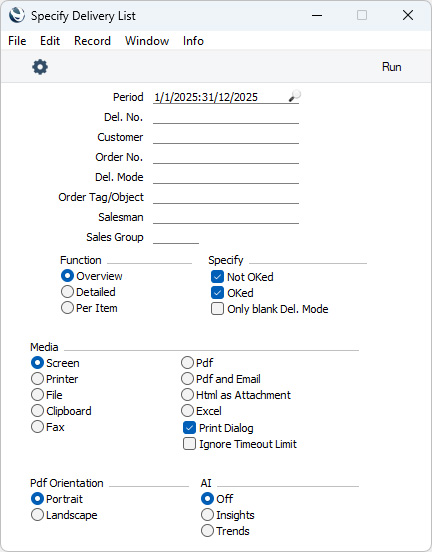
- Period
- Paste Special
Reporting Periods setting, System module
- Enter the start and end date of the report period. The report will list Deliveries with Dates that fall within the period specified here. The first record in the Reporting Periods setting will be used as the default.
- Del No.
- Range Reporting
Numeric
- Enter a Delivery Number or a range of Numbers here separated by a colon (:)if you would like specific Deliveries to be listed in the report.
- Customer
- Paste Special
Customers in Contact register
- If you would like the report to list Deliveries made to a particular Customer, enter the Contact Number of that Customer here.
- Order No.
- Range Reporting
Numeric
- If you need the report to list Deliveries created from a particular range of Orders, enter their Order Numbers here. Use a colon (:) to separate the first and last numbers.
- Del. Mode
- Paste Special
Delivery Modes setting, Sales Orders module
- Specify a Delivery Mode here if you would like the report to list Deliveries with a particular Delivery Mode.
- Order Tag/Object
- Paste Special
Tag/Object register, Nominal Ledger/System module
- Enter a Tag/Object here if you need the report to list Deliveries created from Orders with a particular Tag/Object. If you enter a number of Tags/Objects separated by commas, only Deliveries created from Orders featuring all the Tags/Objects listed will be listed in the report. If you enter a number of Tags/Objects separated by plus signs (+), Deliveries created from Orders featuring at least one of the Tags/Objects listed will be shown in the report. If you enter a Tag/Object preceded by an exclamation mark (!), Deliveries created from Orders featuring any Tag/Object except the one listed will be shown.
- For example:
- 1,2
- Lists Deliveries created from Orders with Tags/Objects 1 and 2 (including Orders with Tags/Objects 1, 2 and 3).
- 1+2
- Lists Deliveries created from Orders with Tags/Objects 1 or 2.
- !2
- Lists all Deliveries except those created from Orders with Tag/Object 2.
- 1,!2
- Lists Deliveries created from Orders with Tag/Object 1 but excludes those from Orders with Tag/Object 2 (i.e. Deliveries created from Orders with Tags/Objects 1 and 2 will not be shown). Note the comma before the exclamation mark in this example.
- !1,!2
- Lists all Deliveries except those created from Orders with Tag/Object 1 or 2 or both. Again, note the comma.
- !(1,2)
- Lists all Deliveries except those created from Orders with Tag/Object 1 and 2 (Deliveries created from Orders with Tags/Objects 1, 2 and 3 will not be listed).
- !1+2
- Lists Deliveries created from Orders without Tag/Object 1 and from those with Tag/Object 2 (Deliveries created from Orders with Tags/Objects 1 and 2 will be listed).
- (1,2)+(3,4)
- Lists Deliveries created from Orders with Tags/Objects 1 and 2, and from those with Tags/Objects 3 and 4.
- 1*
- Lists Deliveries created from Orders with Tags/Objects beginning with 1 (e.g. 1, 10, 100).
- 1*,!1
- Lists Deliveries created from Orders with Tags/Objects beginning with 1 but not 1 itself.
- *1
- Lists Deliveries created from Orders with Tags/Objects ending with 1 (e.g. 1, 01, 001).
- 1*,*1
- Lists Deliveries created from Orders with Tags/Objects beginning and ending with 1.
- This refers to the Tags/Objects entered at Order level, not to any that you may have entered in Order rows.
- Salesman
- Paste Special
Person register, System module and Global User register, Technics module
- To list Deliveries created from Orders with a particular Salesman, enter that Salesman's Signature here. This refers to Salesmen entered at Order level, not to any that you may have entered in Order rows.
- If you are using the Limited Access feature and the user producing the report is only able to see their own records, their Signature will appear here by default and can't be changed. Please refer to the description of the 'Access' card of the Person register for full details about the Limited Access feature.
- Sales Group
- Paste Special
Sales Groups setting, System module
- To list Deliveries created from Orders with Salesmen belonging to a particular Sales Group, enter that Sales Group here.
- If you are using the Limited Access feature and the user producing the report is only able to see records belonging to members of their Sales Group, their Sales Group will appear here by default and can't be changed. Please refer to the section description of the 'Access' card of the Person register for full details about the Limited Access feature.
- Function
- Use these options to specify the level of detail that you need to be shown in the report.
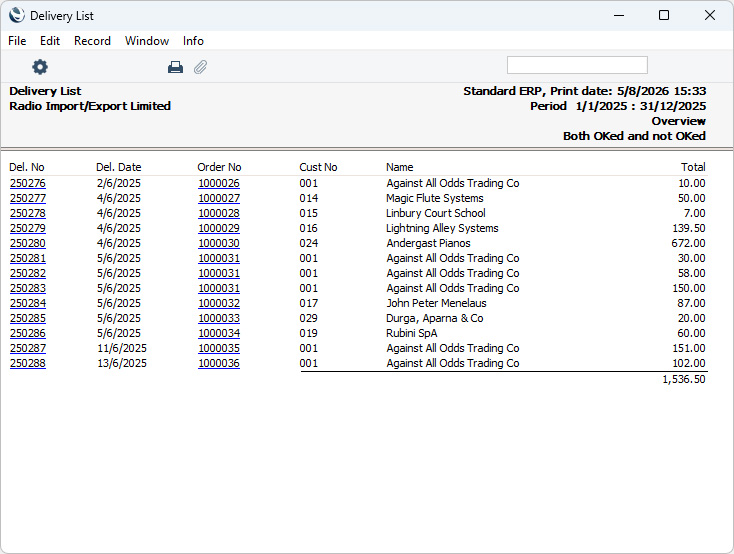
- Overview
- This option produces a report with a single row for each Delivery, showing Delivery Number and Date, Order Number, Customer Number and Name and sales value of the Delivery.
- Detailed
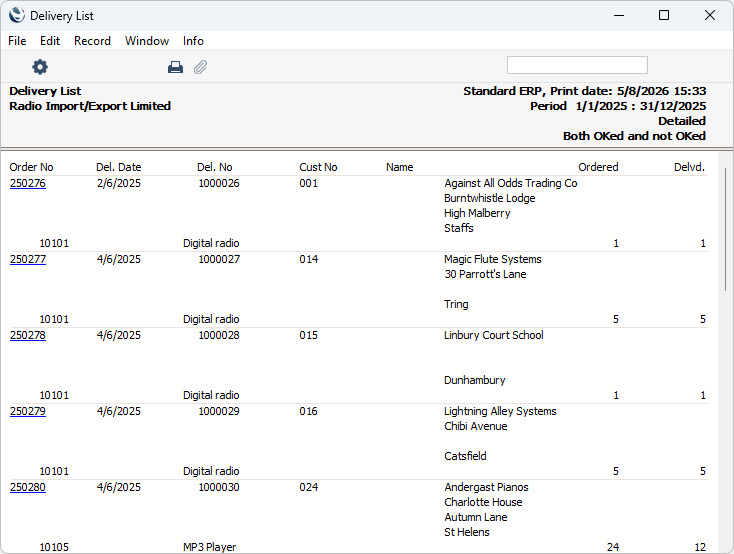
- In addition to the information shown in the Overview, this option lists the Items on each Delivery with Ordered and Delivered quantities. The full Delivery Address is also shown as is the Delivery Mode, but no values are included.
- Per Item
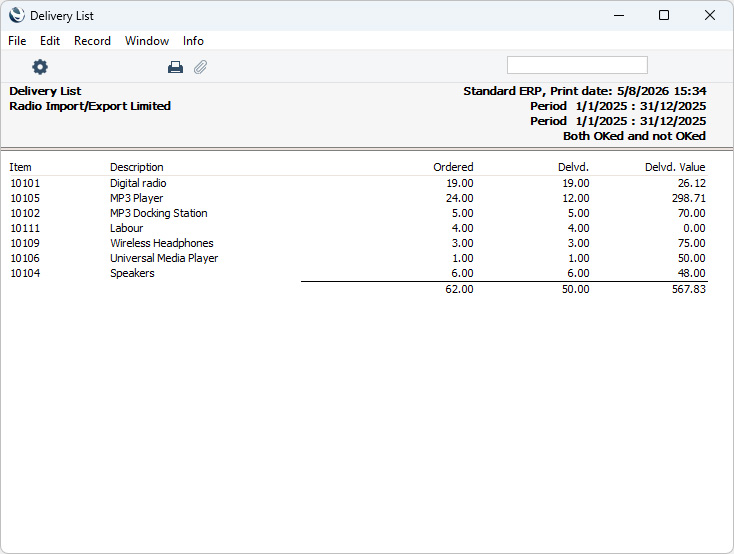
- This option produces a report with a single line for each row in each Delivery, showing Item Number and Name, Ordered and Delivered quantities and cost value.
- Specify
- Use these options to specify whether Deliveries that have or have not been marked as OK or both are to be included in the report. You can also specify that the report should only include Deliveries that do not have Delivery Modes.
---
Go back to:
|


 Introduction to Reports in the Stock Module
