Stock List
This page describes the 'Stock List' Export function in the Stock module.
---
The 'Stock List' Export function creates a tab-delimited text file containing for each selected Item the Item Number, Unit, Barcode, VAT Code, quantity in stock, Cost and Base Prices from the Item record, value and Item Group. The calculation of the value will depend on which Valuation Method you select when producing the export file.
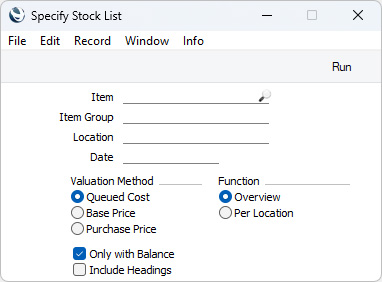
- Item
- Paste Special
Item register
- Range Reporting Alpha
- Enter an Item Number (or range of Numbers) here if you need the exported file to include specific Item(s). Use a colon (:) to separate the first and last numbers.
- Only Stocked Items in the range will be included in the export file (not Plain, Service or Structured Items).
- Item Group
- Paste Special
Item Group register, Sales Ledger
- Range Reporting Alpha
- Enter an Item Group Code here if you only need the Stocked Items belonging to a particular Item Group to be included in the exported file.
- Location
- Paste Special
Locations setting, Stock module
- If you need to export stock levels in a particular stock Location, specify that Location here. If you do not specify a Location but need separate stock levels for each Location to be included in the export file, select the Per Location option below.
- Date
- Paste Special
Choose date
- Enter a date here if you need to export stock levels as they were on a specific date. If you leave the field blank, the current date will be used.
- Valuation Method
- Select one of these options to specify how the figures in the Value column in the export file will be calculated:
- Queued Cost
- The Value for each Item will be calculated using the FIFO Cost Model.
- Base Price
- The Value for each Item will be its Base Price multiplied by the quantity in stock.
- Purchase Price
- The Value for each Item will be its Cost Price multiplied by the quantity in stock.
- In all cases, the Cost Price column in the export file will contain the Cost Price from each Item record.
- Function
- By default, the export file will contain a single line for each Item showing the total quantity in stock. Select this option if you need the file to include separate stock levels for each Location. The file will contain an extra column showing the Location in each case.
- Only with Balance
- Select this option if you want to exclude Items that you do not have in stock (positive or negative) from the exported file.
- Include Headings
- By default, the export file will be a tab-delimited text file containing stock level information. Select this option if you need column headings to be included in the file as well.
Click the [Run] button in the Button Bar to proceed. A dialogue box will open, allowing you to name the export file and specify where it is to be saved. Enter a name for the file, and click [Save] or press the Enter key. A message window will inform you about the progress of the export process. When the export finishes, you can close the 'Export' window using the close box.
---
Go back to:



