Stock List
This page describes the Stock List report in the Stock module.
---
The Stock List report shows the stock situation, balances etc. for all or selected Items, stock Locations etc. Various stock valuation models are available for calculating stock values. Be careful when comparing the results of this report with the balance on the Stock Account in the Nominal Ledger: the latter may be based on a different stock valuation to the one selected here.
Items with Varieties will immediately be recognisable in the report when it is printed to screen because their Item Numbers will have the Standard ERP drill-down feature. Click (Windows/macOS) or tap (iOS/Android) on one of these Item Numbers to open the Varieties in Stock report for the Item in question. You can also click or tap on an Item Name to open an Item record.
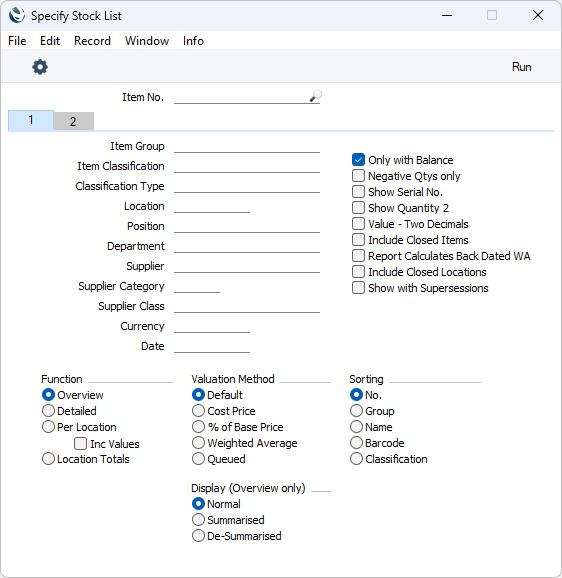
Header- Item No.
- Paste Special
Item register
- Range Reporting Alpha
- Enter an Item Number (or range of Numbers) here if you need to produce a Stock List for specific Item(s). Use a colon (:) to separate the first and last numbers.
- Only Stocked Items in the range will be shown in the report (not Plain, Service or Structured Items).
Card 1- Item Group
- Paste Special
Item Group register, Sales Ledger
- Range Reporting Alpha
- Enter an Item Group Code here if you need to produce a report that includes the Stocked Items that belong to particular Item Group.
- Item Classification
- Paste Special
Item Classifications setting, Sales Ledger
- Enter an Item Classification in this field if you want the report to list Items with a particular Classification. If the field is empty, all Items, with and without Classification, will be included in the report. If you enter a number of Classifications separated by commas, the report will only include Items featuring all the Classifications that you have listed. If you enter a number of Classifications separated by plus signs (+), all Items featuring at least one of the Classifications listed will be included in the report. If you enter a Classification preceded by an exclamation mark (!), the report will include Items featuring any Classification except the one listed.
- For example:
- 1,2
- Includes Items with Classifications 1 and 2 (including Items with Classifications 1, 2 and 3).
- 1+2
- Includes Items with Classifications 1 or 2.
- !2
- Includes all Items except those with Classification 2.
- 1,!2
- Includes Items with Classification 1 but excludes those with Classification 2 (i.e. Items with Classifications 1 and 2 will not be included). Note the comma before the exclamation mark in this example.
- !1,!2
- Includes all Items except those with Classification 1 or 2 or both. Again, note the comma.
- !(1,2)
- Includes all Items except those with Classifications 1 and 2 (Items with Classifications 1, 2 and 3 will not be included).
- !1+2
- Includes Items without Classification 1 and those with Classification 2 (Items with Classifications 1 and 2 will be included).
- (1,2)+(3,4)
- Includes Items with Classifications 1 and 2, and those with Classifications 3 and 4.
- 1*
- Includes Items with Classifications beginning with 1 (e.g. 1, 10, 100).
- 1*,!1
- Includes Items with Classifications beginning with 1 but not 1 itself.
- *1
- Includes Items with Classifications ending with 1 (e.g. 1, 01, 001).
- 1*,*1
- Includes Items with Classifications beginning and ending with 1.
- Classification Type
- Paste Special
Classification Types setting, CRM module
- Enter a Classification Type in this field if you want to list Items with a Classification belonging to that Type. If the field is empty, all Items, with and without Classification, are included. If you enter a number of Classification Types separated by commas, Items featuring a Classification belonging to any of those Types will be included in the report.
- Location
- Paste Special
Locations setting Stock module
- To produce a Stock List for a particular stock Location, specify that Location here.
- Position
- Paste Special
Position register, Warehouse Management module
- To produce a Stock List for a particular stock Position specify that Position here.
- Department
- Paste Special
Departments setting, Assets/Human Resources Management/System module
- Enter a Department Code if you need to include in the report only those Items assigned to a particular Department. You can assign Items to Departments using the Department field on the 'Stock' card of each Item record.
- Supplier
- Paste Special
Suppliers in Contact register
- Enter the Contact Code of a Supplier here if you need the report to list the Items that can be purchased from that Supplier (i.e. Items with Default Purchase Items in the name of that Supplier).
- Supplier Category
- Paste Special
Supplier Categories setting, Purchase Ledger
- Range Reporting Alpha
- Enter a Supplier Category here if you need the report to list the Items that can be purchased from Suppliers belonging to that Supplier Category (i.e. Items with Default Purchase Items in the names of Suppliers belonging to that Supplier Category).
- You can also enter a range of Supplier Categories separated by a colon (:). Note however that the field will only accept five characters so you may prefer to specify the range using only the first characters (e.g. "A:M").
- Supplier Class
- Paste Special
Contact Classifications setting, CRM module
- Enter a Contact Classification here if you need the report to list the Items that can be purchased from Suppliers with that Classification (i.e. Items with Default Purchase Items in the names of Suppliers with that Classification). If you enter a number of Classifications separated by commas, the report will only include Items that can be purchased from Suppliers featuring all the Classifications that you have listed. You can also construct a complex search string using the +, ! and * characters as described under Item Classification above.
- Date
- Paste Special
Choose date
- Enter a date here if you need to produce a Stock List for a specific date. If you leave the field blank, the current date will be used.
- Only with Balance
- Select this option if you want to exclude Items that you do not have in stock (positive or negative) from the report.
- Negative Qtys only
- Use this option if you need the report only to list Items with negative stock. This can help you find irregularities in stock levels quickly and easily.
- Show Serial No.
- Use this option if you require Serial Numbers to be shown in the report.
- You should only use this option if you are producing a current Stock List (i.e. if you do not enter a Date in the field above). The Serial Numbers shown in a backdated Stock List may not be correct.
- Show Quantity 2
- Selecting this option will add an extra column to the report that will display stock quantities using a second unit of measurement (for example, litres and gallons). This new column will only display figures for Items that have a Unit 2 and a Unit Coefficient specified on their 'Stock' cards. Please refer to the description of the Unit 2 and a Unit Coefficient fields here for more details.
- Value - Two Decimals
- Select this option if you want the total stock value of each Item (i.e. unit value multiplied by quantity) always to be shown to two decimal places. If the Valuation Method (below) is FIFO, this will override the Round Off setting in the System module.
- Include Closed Items
- Use this option if you would like Closed Items to be shown in the report. You may still have stock of Closed Items, especially if you are producing a Stock List for a past date.
- Report Calculates Back Dated WA
- This option will be useful if you use the Weighted Average Cost Model, if you are producing a Stock List for a past date and if you have entered stock transactions out of sequence (i.e. if you have entered a stock transaction with a particular date and then one with an earlier date). In this situation the report may use the Weighted Average figure that was calculated on the date of the latest transaction before the report date. This figure may have been rendered incorrect by the subsequent recording of a transaction with an earlier date. Selecting this option will cause the Weighted Average figure to be recalculated using the full history of the Item to the report date in date order. There is no need to use this option if you have followed strict chronology when entering stock transactions.
- Include Closed Locations
- If you specify a Closed Location in the Location field above, the result will usually be a report containing only a "Location closed" message . Select this option (as well as specifying the Location in the Location field) to confirm that you need to produce a report for a Closed Location. Usually this will only be useful if you are producing a Stock List for a past date because you can only mark a Location as Closed when it contains no stock.
- Show with Supersessions
- Please refer to the description of the Supersession Items setting for details about this option.
- Function
- Use these options to specify the level of detail that you need to be shown in the report. The values in each version of the report will be calculated using the Valuation Method below that you have chosen.
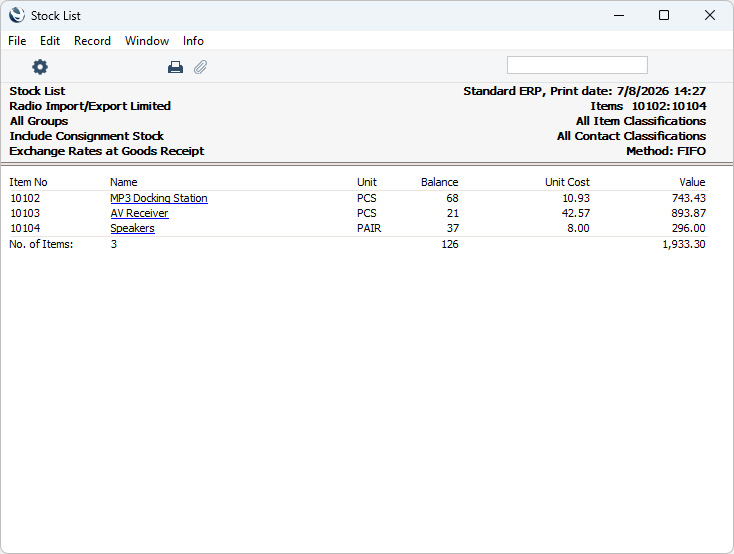
- Overview
- This option produces a report with a single line for each Item, showing Item Number and Name, Unit, quantity in stock, unit cost and value.
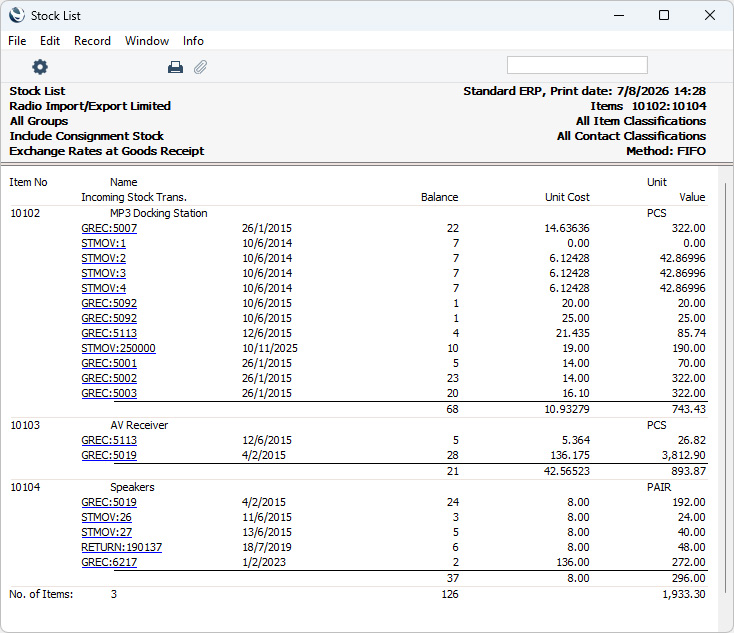
- Detailed
- The Detailed version of the report lists the Goods Receipts that received the individual units of each Item into stock together with quantities remaining in stock, unit cost and values. You can open individual Goods Receipts by drilling down.
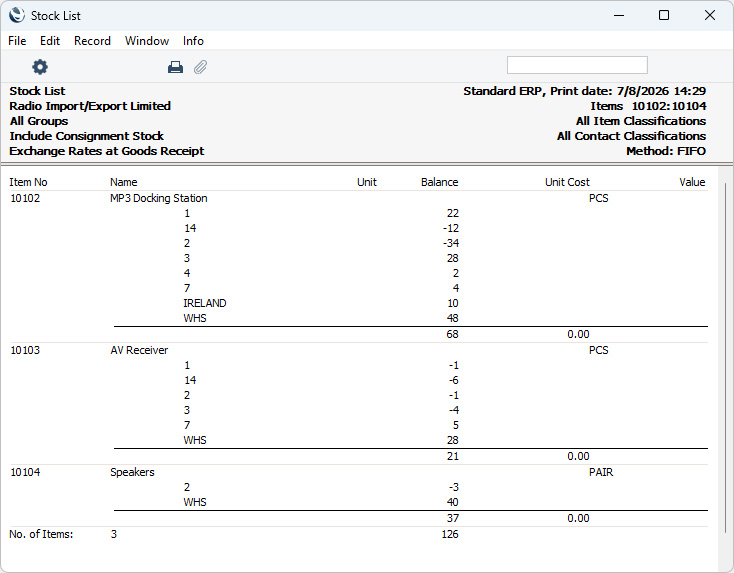
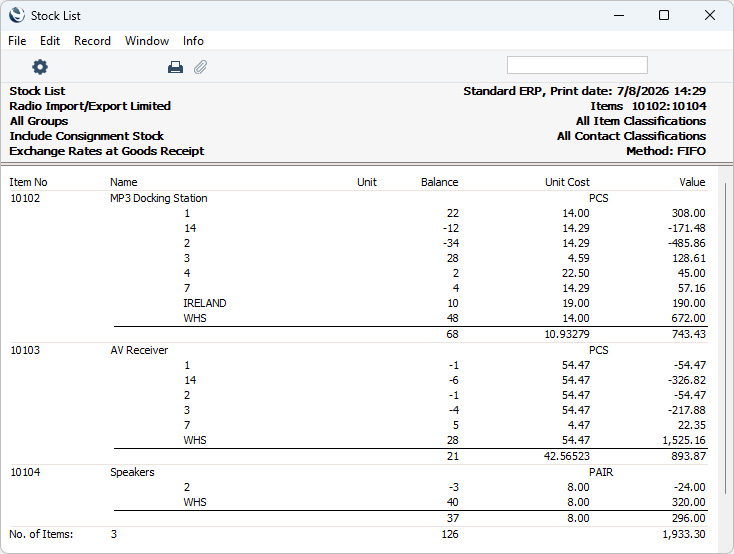
- Per Location
- This option produces a similar report to the Overview, but shows the quantities of each Item that are in stock in each Location.
- Inc Values
- If you are using the Per Location option above, select this option if you want to show values as well as quantities.
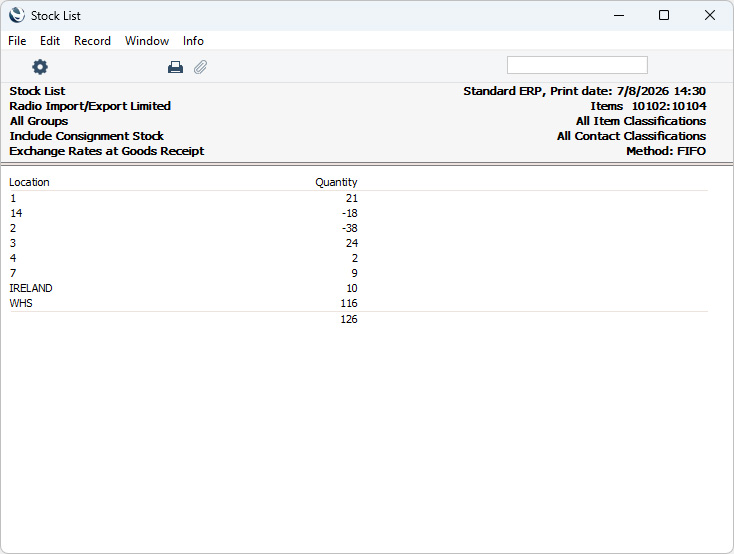
- Location Totals
- This option produces a short report that simply shows the total number of units that are in stock in each Location.
- Valuation Method
- Select one of these options to specify how stock will be valued in the report.
- Default
- Select this option to calculate the stock value using the Cost Model specified in each Item. If the Cost Model in a particular Item record is Default and if you are using the Use Item Groups for Cost Model option in the Cost Accounting setting, the Cost Model in the Item Group to which it belongs will be used. If you are not using the Use Item Groups for Cost Model option or the Cost Model in the Item Group is also Default, the Primary Cost Model in the Cost Accounting setting will be used. The header of the report will show the Cost Model specified in the Cost Accounting setting, which may not be correct for every Item.
- Cost Price
- Select this option to value the stock balance using the Cost Price shown on the 'Costs' card of each Item record.
- % of Base Price
- Select this option to produce a stock balance valued by applying a percentage to the Base Prices (sales prices) of each Item recorded in the Item register. The percentage will be taken from the 'Cost Model' card of each Item record, from the Item Group to which an Item belongs (if you are using the Use Item Groups for Cost Model option in the Cost Accounting setting) or from the Cost Accounting setting. If you have not set a percentage anywhere, it will be assumed to be 100%.
- Weighted Average
- Select this option to value the stock balance using the Weighted Average Cost Model. If you are using the Weighted Average per Location option for an Item (i.e. you have selected this option in the Item record, in and Item Group or in the Cost Accounting setting), the Weighted Average figure for the Item will be calculated using the records for the Item in the Weighted Average setting. If you are not using the Weighted Average per Location option for an Item, the Weighted Average will be taken from the 'Costs' card of the Item record.
- Queued
- This option will calculate the value of the stock balance using each Item's FIFO or LIFO queue. The choice between FIFO or LIFO will be taken from each Item record, from the Item Group to which the Item belongs (if you are using the Use Item Groups for Cost Model option in the Cost Accounting setting) or from the Cost Accounting setting. The Queued Cost Model per Location option in each Item and Item Group and in the Cost Accounting setting will be taken into account. The number of decimal places used in the unit value and total value columns will be determined using the Value - Two Decimals option above if selected or the Round Off setting in the System module (Cost Price round off).
- If you are using the Cost Price for Serial Number option in the Cost Accounting setting, Items with Serial Numbers will always be valued according to that option, not using the valuation method chosen above.
- Sorting
- Five sorting options are available.
- Display (Overview only)
- These options are only operational in the Overview version of the report. Other versions of the report will always behave as though you had selected the Normal option.
- The Auto Production Items setting in the MRP and Production modules allows you to include generic Items in Sales Forecasts and in Recipes, and to connect those generic Items to more specific Items for including in Purchase Orders. For example, you might have a generic Item for "flour" that is connected to two specific Items "Flour - 10 kg bag" and "Flour - 25 kg bag". You would use the generic Item in Recipes, but would use one of the specific Items when ordering from your Suppliers.
- If you are using Auto Production Items, use these options to choose whether generic or specific Items will be shown in the report.
- Normal
- Both generic and specific Items will be included in the report. For example, if you have units of the generic Item "flour" in stock and you also have units of "Flour - 10 kg bag" and "Flour - 25 kg bag" in stock, they will be shown as separate Items in the report.
- Summarised
- Only generic Items will be included in the report. Continuing the example, the units of "Flour - 10 kg bag" and "Flour - 25 kg bag" that you have in stock will be included in the stock figure for the generic Item "flour", and "Flour - 10 kg bag" and "Flour - 25 kg bag" themselves will not be listed in the report. The quantities in stock of "Flour - 10 kg bag" and "Flour - 25 kg bag" will be converted to a quantity of "flour" using the Unit Coefficients in the relevant Auto Production Item records.
- De-Summarised
- Only specific Items will be included in the report. In the example, the units of the generic Item "flour" that you have in stock will be included in the figures for "Flour - 10 kg bag" or "Flour - 25 kg bag", depending on which Auto Production Item has been marked as the Default. The quantity of "flour" will be converted using the Unit Coefficient in the Default Auto Production Item record. The generic Item "flour" will not be listed in the report.
Card 2
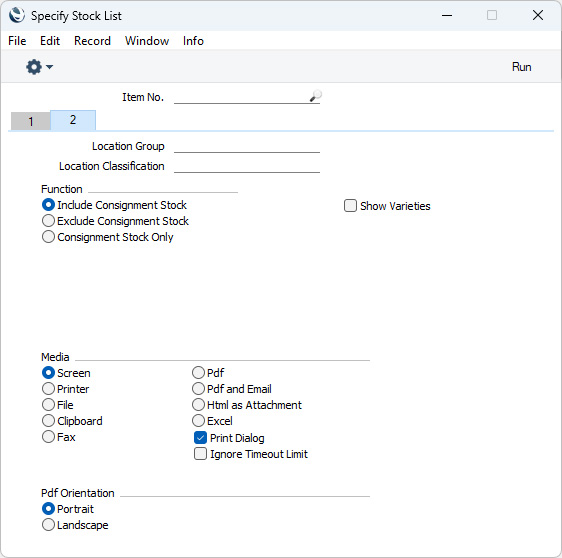
- Location Group
- Paste Special
Location Groups setting, Stock module
- If you need to produce a Stock List that covers the Locations belonging to a particular Location Group, specify that Location Group here.
- Location Classification
- Paste Special
Location Classifications setting, Stock module
- Enter a Location Classification here if you need to produce a Stock List that covers Locations with that Location Classification. If you enter a number of Classifications separated by commas, the report will list the stock in Locations featuring all the Classifications that you have listed. You can also construct a complex search string using the +, ! and * characters as described under Item Classification on card 1.
- Function
- A Consignment Stock Item is one that you receive from a Supplier that will remain the property of the Supplier until you sell it. The Supplier will therefore not issue a Purchase Invoice until you sell the Item. The Item never belongs to you: it remains the property of the Supplier until you sell it.
- Choose one of these options to specify whether Consignment Stock Items should be included in the report, as follows:
- Include Consignment Stock
- The report will include all Items i.e. Consignment Stock Items and Purchased Items will all be included.
- An individual stock unit will be treated as a Consignment Stock Item if it was received in to stock through a Goods Receipt row in which the Stock Type field on flip E is set to "Consignment". Otherwise it will be treated as a Purchased Item.
- Exclude Consignment Stock
- The report will not include Consignment Stock Items.
- Consignment Stock Only
- The report will only include Consignment Stock Items.
- Please refer here for more information about Consignment Stock.
- Show Varieties
- If an Item is one that has Varieties, the report will usually display the stock level of the Item as a whole. Select this option if you would like it to display the stock levels of each Variety individually.
- This option will be ticked by default if you are using the Default to 'Show Varieties' in all Reports option in the Variety Settings setting in the Stock module.
---
Go back to:
|


 Introduction to Reports in the Stock Module
