Deficiency List per Location
This page describes the Deficiency List per Location report in the Stock module.
---
An Item is said to be in deficiency if its stock level after all outstanding Sales, Purchase and Production Orders have been fulfilled is less than a specified stock level.
Standard ERP contains two reports that list Items in deficiency: the Deficiency List (in the Purchase Orders and Stock modules); and the Deficiency List per Location (in the Stock module). The differences between these reports are as follows:
- The Deficiency List report lists overall deficiency figures for each Item. If you have more than one Location, these deficiency figures will be calculated by adding the deficiencies in each Location together.
- The Deficiency List per Location report lists the deficiencies in each Location separately. From this report you can add Items to the Deficiency Stock list, a shopping list from which you can create Purchase Orders. Please refer here for more details about Deficiency Stock.
The deficiency of an Item will be calculated slightly differently in the two reports. In the Deficiency List, the deficiency will be calculated using the following formula:
- Minimum Stock Level - stock balance + unfulfilled Sales Orders - unfulfilled Purchase Orders + unfulfilled Production Orders
When you first produce a Deficiency List per Location report, it will usually show the same deficiency figures as the Deficiency List, broken down by Location. However, there may be discrepancies between the two reports if you used the
Skip Items without Balance option when producing the Deficiency List per Location report. This option will remove an individual Item/Location combination from the report if there is no stock of the relevant Item in the Location, but the Item/Location combination will be included in the calculation of the overall deficiency figure in the Deficiency List report. In addition, as previously mentioned, you can add Items to the Deficiency Stock list from the Deficiency List per Location report. If you add an Item/Location combination to the Deficiency Stock list with the full deficiency quantity, that Item/Location combination will no longer be treated as having a deficiency by the Deficiency List per Location report. The Deficiency List does not refer to the Deficiency Stock list, so the Item/Location combination will still be included in the deficiency calculation in that report.
A deficiency is not necessarily the same as a purchasing suggestion. A purchasing suggestion takes the requirements of the Supplier into account. For example, if the Minimum Stock Level of an Item is 10 and there is only one in stock, the deficiency is nine. But if the Supplier has a minimum order requirement of 15, the deficiency will still be nine, but the purchasing suggestion will be 15.
As their names suggest, the Deficiency List and Deficiency List per Location reports display deficiency figures for each Item. The Purchase Suggestion report in the Purchase Orders module shows purchasing suggestions, while the Reordering Requirements report also in the Purchase Orders module shows purchasing suggestions that take future sales predictions into account.
To make full use of the Deficiency Stock per Location report, set Minimum Stock Levels for each Item as follows:
- If you are not using Locations, specify a Minimum Stock Level for each Item using the Minimum Level field in the Item record. If you do not specify a Minimum Stock Level for a particular Item, its Minimum Stock Level will be deemed to be zero.
- If you have a single Location (i.e. you have a single record in the Locations setting and you have specified a Main Location in the Stock Settings setting), you can either specify a Minimum Stock Level for each Item using the Minimum Level field in the Item record as in the previous point or you can create separate records in the Minimum Stock Levels setting in the Stock module for each Item. Specify the Location in these records.
- If you have more than one Location, specify a Minimum Stock Level for each Item by creating separate records in the Minimum Stock Levels setting in the Stock module. You should enter separate Minimum Stock Level records for each Item for each Location.
If you will use the Deficiency Stock per Location report to add Items to the
Deficiency Stock list, prepare Purchase Items as follows:
- If you are not using Location, ensure each Item has a related Default Purchase Item.
- If you have a single Location, you should again ensure each Item has a related Default Purchase Item. If you specified a Minimum Stock Level for each Item using the Minimum Level field in the Item record, leave the Location field in the Default Purchase Items empty. If you created separate records in the Minimum Stock Levels setting in the Stock module for each Item, specify the Location in the Default Purchase Items.
- If you have more than one Location, enter separate Default Purchase Items for each Item for each Location.
In all cases, if you do not specify a Default Purchase Item for a particular Item or for a particular Item/Location combination, the Item/Location combination will be added to the
Deficiency Stock list with no Supplier. This will cause the 'Create Purchase Orders from Deficiency Stock' Maintenance function to create a Purchase Order with no Supplier.
When printed to screen, the Deficiency List per Location report has the Standard ERP Drill-down feature. Click (Windows/macOS) or tap (iOS/Android) on any Item Number to open an individual Item record, and on a figure in the "Defncy" column to add an Item/Location combination to the Deficiency Stock list. If you would like to add every Item/Location combination in the report to the Deficiency Stock list, click or tap the [Put All Items in Deficiency Stock] text link at the top of the report.
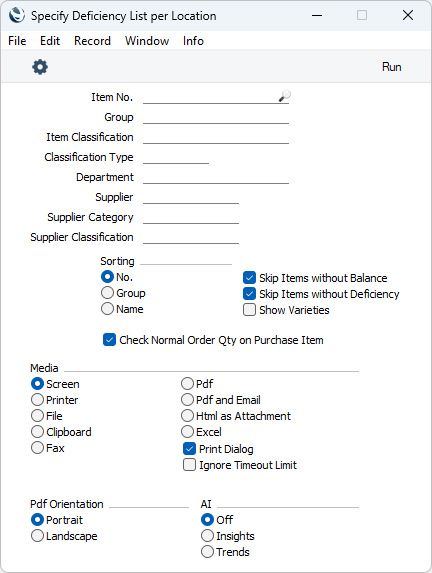
- Item No.
- Paste Special
Item register
- Range Reporting Alpha
- Use this field to restrict the report to a particular Item or range of Items. Only Stocked Items will be shown in the report. Closed Items will not be shown.
- Group
- Paste Special
Item Group register, Sales Ledger
- Range Reporting Alpha
Use this field to restrict the report to Items belonging to a particular Item Group or range of Groups.
- Item Classification
- Paste Special
Item Classifications setting, Sales Ledger
- Enter an Item Classification in this field if you want the report to list Items with a particular Classification. If the field is empty, all Items, with and without Classification, will be included in the report. If you enter a number of Classifications separated by commas, the report will only include Items featuring all the Classifications that you have listed. If you enter a number of Classifications separated by plus signs (+), all Items featuring at least one of the Classifications listed will be included in the report. If you enter a Classification preceded by an exclamation mark (!), the report will include Items featuring any Classification except the one listed.
- For example:
- 1,2
- Includes Items with Classifications 1 and 2 (including Items with Classifications 1, 2 and 3).
- 1+2
- Includes Items with Classifications 1 or 2.
- !2
- Includes all Items except those with Classification 2.
- 1,!2
- Includes Items with Classification 1 but excludes those with Classification 2 (i.e. Items with Classifications 1 and 2 will not be included). Note the comma before the exclamation mark in this example.
- !1,!2
- Includes all Items except those with Classification 1 or 2 or both. Again, note the comma.
- !(1,2)
- Includes all Items except those with Classifications 1 and 2 (Items with Classifications 1, 2 and 3 will not be included).
- !1+2
- Includes Items without Classification 1 and those with Classification 2 (Items with Classifications 1 and 2 will be included).
- (1,2)+(3,4)
- Includes Items with Classifications 1 and 2, and those with Classifications 3 and 4.
- 1*
- Includes Items with Classifications beginning with 1 (e.g. 1, 10, 100).
- 1*,!1
- Includes Items with Classifications beginning with 1 but not 1 itself.
- *1
- Includes Items with Classifications ending with 1 (e.g. 1, 01, 001).
- 1*,*1
- Includes Items with Classifications beginning and ending with 1.
- Classification Type
- Paste Special
Classification Types setting, CRM module
- Enter a Classification Type in this field if you want to list Items with a Classification belonging to that Type. If the field is empty, all Items, with and without Classification, are included. If you enter a number of Classification Types separated by commas, Items featuring a Classification belonging to any of those Types will be shown.
- Department
- Paste Special
Departments setting, Assets/Human Resources Management/System module
- If the report is to list Items belonging to a particular Department (specified on the 'Stock' card of the Item record), enter that Department here.
- Supplier
- Paste Special
Suppliers in Contact register
- If you need the report to list Items that you can purchase from a particular Supplier, enter the Contact Code for that Supplier here. These are Items with Default Purchase Items in the name of the specified Supplier.
- Supplier Category
Error in Link (HW0105SETTINGS_Supplier_Categories,Supplier Categories setting, Purchase Ledger
- If you need the report to list Items that you can purchase from Suppliers with a particular Supplier Category, specify that Supplier Category here.
- Supplier Classification
- Paste Special
Contact Classifications setting, CRM module
- Enter a Contact Classification here if you need the report to list the Items that can be purchased from Suppliers with that Classification (i.e. Items with Default Purchase Items in the names of Suppliers with that Classification). If you enter a number of Classifications separated by commas, the report will only include Items that can be purchased from Suppliers featuring all the Classifications that you have listed. You can also construct a complex search string using the +, ! and * characters as described under Item Classification above.
- Sorting
- You can sort the report by Item Number, Item Group or Description.
- Skip Items without Balance
- This option excludes from the report Item/Location combinations for which the stock balance after all Sales, Purchase and Production Orders have been fulfilled will be zero. If you use this option, any Item/Location combination with a zero balance that has a Minimum Stock Level will not be listed in the report, even though there is a deficiency of the Item in the Location. Therefore, you should not use this option if you want to list every Item/Location combination with a deficiency.
- Skip Items without Deficiency
- Select this option if you want the report only to list the Items that you need to purchase (i.e. the Items of which you have a deficiency). There is a deficiency if the stock balance after all Sales, Purchase and Production Orders have been fulfilled is less than the Minimum Stock Level.
- If you deselect both the Skip Items without Balance and Skip Items without Deficiency options, the report will list every Item/Location combination individually.
- Show Varieties
- If an Item is one that has Varieties, the report will usually display a deficiency figure for the Item as a whole. Select this option if you would like it to display deficiency figures for each Variety individually.
- If you need to use this option, you should consider how to specify the Minimum Stock Levels for each Variety. If you are not using Locations and if the Minimum Stock Level for each Variety is the same, you can enter it in the Item record (in the Minimum Level field on the 'Stock' card). If you need different Minimum Stock Levels for each Variety, enter separate records in the Minimum Stock Levels setting for each one. Otherwise (i.e. if you have one or more Locations), you should enter separate records in the Minimum Stock Levels setting for each Variety/Location combination. If you will use the Deficiency Stock per Location report to add Items to the Deficiency Stock list, you should also add Default Purchase Items for each Variety/Location combination.
- This option will be ticked by default if you are using the Default to 'Show Varieties' in all Reports option in the Variety Settings setting in the Stock module.
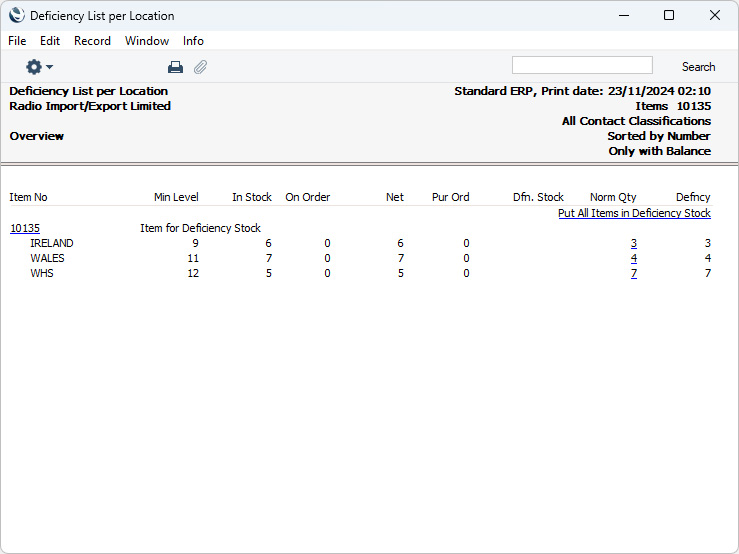
The report will be constructed as follows:
- The report will loop through the Stocked Items in the Item register.
- For each Stocked Item, the report will loop through the Locations in the Locations setting.
- Deficiencies will be calculated for each Item/Location combination. The calculation for each Item/Location combination will include the Minimum Stock Level for the combination, taken from the Minimum Stock Levels setting.
- If there is a deficiency for an Item/Location combination, the Item/Location combination will be listed in the report, subject to the Skip Items without Balance and Skip Items without Deficiency options. In addition, if you specified a Supplier, Supplier Category and/or Supplier Classification, an Item/Location combination will only be included in the report if the Supplier in the Default Purchase Item for the Item/Location combination matches your specification. If there is no Default Purchase Item for the Item/Location combination, the Item/Location combination will not be listed in the report as it will be assumed that the Item cannot be purchased from the specified Supplier.
If you choose to add an Item/Location combination to the Deficiency Stock list, it will be added with the Supplier specified in the Default Purchase Item for the Item/Location combination. If there is no Default Purchase Item for the Item/Location combination, the Item/Location combination will be added to the Deficiency Stock list without a Supplier. Refer to point 6 for details about specifying Suppliers if needed.
- If an Item does not have a deficiency in any Location, an overall deficiency will be calculated. This calculation will include the Minimum Stock Level specified in the Item record, and Supplier checks will be carried out using the Default Purchase Item for the Item in which the Location is empty.
If you choose to add the Item to the Deficiency Stock list, it will be added with the Supplier specified in the Default Purchase Item for the Item in which the Location is blank. If there is no such Default Purchase Item, the Item combination will be added to the Deficiency Stock list without a Supplier. Refer to point 6 for details about specifying Suppliers if needed.
If you have more than one Location but have not used the Minimum Stock Levels setting, it will be this point 5 that will cause Items to be included in the report. Items will be added to the Deficiency Stock list without Locations. Refer to point 6 for details about specifying Locations if needed.
- If you add an individual Item/Location combination to the Deficiency Stock list by clicking (Windows/macOS) or tapping (iOS/Android) on a figure in the "Defncy" column in the report, a Deficiency Stock record will be opened immediately. This will allow you to specify or change the Supplier and/or Location as needed. If you used the [Put All Items in Deficiency Stock] text link at the top of the report to add every Item/Location combination in the report to the Deficiency Stock list, you can check what was added to the list by running the report in the Purchase Orders module. You can click or tap figures in the "Quant" column in this report to open the relevant Deficiency Stock records, where you can specify or change the Supplier and/or Location as needed.
- To create Purchase Orders from Deficiency Stock records, run the 'Create Purchase Orders from Deficiency Stock' Maintenance function in the Purchase Orders module. If there are still Deficiency Stock records without Suppliers and/or Locations, they will result in Purchase Orders that also do not have Suppliers and/or Locations.
Please refer
here for more details about Deficiency Stock including an illustrated example.
---
Go back to:


 Introduction to Reports in the Stock Module
