Entering a Stock Movement - Items Card
This page describes the fields on the 'Items' card in the Stock Movement window. Please follow the links below for descriptions of the other cards:
---
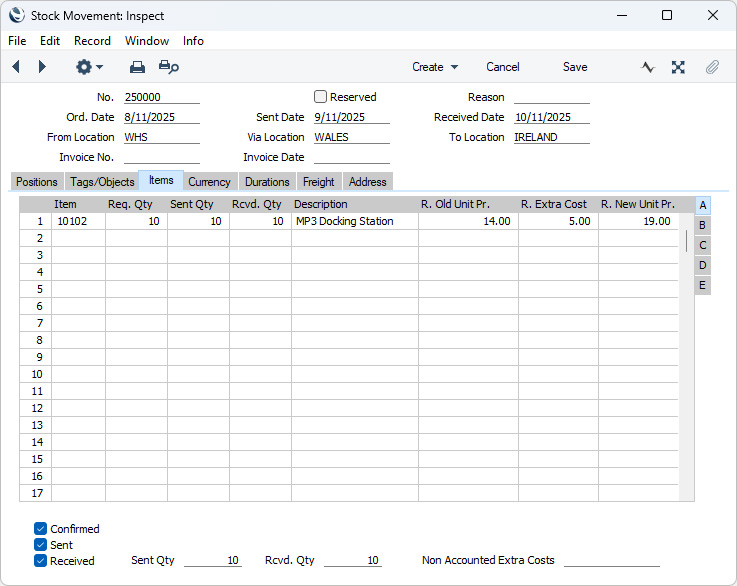
Use the grid on the 'Items' card to list the Items that are to be subject to the Stock Movement. This grid is divided into five horizontal flips. When you click (Windows/macOS) or tap (iOS/Android) on a flip tab (marked A-D), the two or three right-hand columns of the grid will be replaced.
If you are using Windows or macOS, you can add rows to a Stock Movement by clicking in any field in the first blank row and entering appropriate text. To remove a row, click on the row number on the left of the row and press the Backspace key. To insert a row, click on the row number where the insertion is to be made and press Return.
If you are using iOS or Android, you can add rows by tapping the + button below the matrix. To remove a row, long tap on the row number on the left of the row and select 'Delete Row' from the resulting menu. To insert a row, long tap on the row number where the insertion is to be made and select 'Insert Row' from the resulting menu.
Flip A - Item
- Paste Special
Item register
- Enter the Item Number, Alternative Code or Bar Code of the Item that is to be moved. You can also add Items to a Stock Movement using the 'Item Search' function on the Operations menu (Windows/macOS) or Tools menu (iOS/Android). In all cases, descriptive and other information will be brought in from the Item record.
- Req. Qty
- The quantity of the Item that you need to be moved (the "Requested Quantity").
- Once you have marked the Stock Movement as Confirmed and saved it, you will not be able to change the Requested Quantity. You will not be able to save a Stock Movement that you have marked as Confirmed if the Requested Quantity in at least one row is negative.
- Sent Qty
- The quantity sent from the From Location and received in the Via Location. This figure cannot be greater than the Requested Quantity, but it can be lower.
- You can leave this field empty when you mark the Stock Movement as Confirmed, but you must specify a Sent Quantity when you mark the Stock Movement as Sent, providing there is a Via Location. If there is no Via Location, leave this field empty.
- If you enter a quantity that is greater than the stock level of the Item in the From Location and if you are using the Queued Cost Model (FIFO or LIFO), only the value of the units in stock will be included in the resulting Nominal Ledger Transaction. The FIFO/LIFO value of the units that are not in stock will not be known and can't be calculated and so will not be included in the Transaction. As the stock balance of the Item will be reduced in full (i.e. negative stock will be created in the From Location), this will create an imbalance between the Stock List and the stock valuation in the Nominal Ledger. If you are using one of the other Cost Models, the value of all the removed units will be included in the Nominal Ledger Transaction, so the risk of an imbalance is reduced (but not removed). It is therefore recommended that you prevent the creation of negative stock by selecting the Do Not Allow Over Delivery option in the Stock Settings setting. You must select this option if you are using the Queued Cost Model (FIFO or LIFO) because of the consequences just described.
- If you are using the Do Not Allow Over Delivery option and you enter a quantity that is greater than the stock level of the Item in the From Location, you will be able to save the Stock Movement providing you have not marked it as Sent. You will not be able to save the record after marking it as Sent.
- Negative quantities are not allowed.
- Rcvd. Qty
- The quantity sent from the Via Location if there is one or from the From Location in other cases and received in the To Location.
- If there is a Via Location, this figure cannot be greater than the Sent Quantity, but it can be lower. If this quantity is lower than the Sent Quantity (i.e. some Items were lost in transit), you will need to record this using a Stock Depreciation for the Via Location. If there is no Via Location, this figure cannot be greater than the Requested Quantity, but it can be lower.
- You can leave this field empty when you mark the Stock Movement as Confirmed and Sent, but you must specify a Received Quantity when you mark the Stock Movement as Received.
- If you enter a quantity that is greater than the stock level of the Item in the source Location (i.e. in the From or Via Location) and if you are using the Queued Cost Model (FIFO or LIFO), only the value of the units in stock will be included in the resulting Nominal Ledger Transaction. The FIFO/LIFO value of the units that are not in stock will not be known and can't be calculated and so will not be included in the Transaction. As the stock balance of the Item will be reduced in full (i.e. negative stock will be created in the source Location), this will create an imbalance between the Stock List and the stock valuation in the Nominal Ledger. If you are using one of the other Cost Models, the value of all the removed units will be included in the Nominal Ledger Transaction, so the risk of an imbalance is reduced (but not removed). It is therefore recommended that you prevent the creation of negative stock by selecting the Do Not Allow Over Delivery option in the Stock Settings setting. You must select this option if you are using the Queued Cost Model (FIFO or LIFO) because of the consequences just described.
- If you are using the Do Not Allow Over Delivery option and you enter a quantity that is greater than the stock level of the Item in the source Location, you will be able to save the Stock Movement providing you have not marked it as Received. You will not be able to save the record after marking it as Received.
- Negative quantities are not allowed.
- Description
- The Item Name is brought in from the Item register when you enter the Item Number. You can change it if necessary.
- R. Old Unit Pr.
- The Item's unit stock value will be placed in this field when you save the Stock Movement, providing there is a Received Quantity. This figure will be used in the Nominal Ledger Transaction generated when you mark the Stock Movement as Received and save it. If the Received Quantity is greater than one, this field will show the average unit stock value.
- If you change the Item Number or specify or change the Received Quantity, the R. Old Unit Price will not always be updated immediately. If you need to update the figure, use the 'Cost Price in Old Unit Price' function on the Operations menu (Windows/macOS) or Tools menu (iOS/Android). In any case, the figure will be updated each time you save the Stock Movement providing there is a Received Quantity (and, if there is a Via Location, if there is stock of the Item in that Location).
- This figure will be calculated using the Cost Model specified in the relevant Item or Item Group record. If that Cost Model is Default, the Primary Cost Model specified in the Cost Accounting setting will be used. If there is a Via Location, this field may remain blank until you mark the Stock Movement as Sent and save it. There may be no stock in the Via Location until you do this, so the Cost Model calculation may not be possible until then.
- You can prevent certain users from changing all costs in Stock Movements including the R. Old Unit Price using Access Groups, by denying them access to the 'Change Cost on Stock Movements' Action.
- R. Extra Cost
- Sometimes the value of an Item can change when it is transferred to another Location. Use this field to a positive or negative figure by which the cost price is to be adjusted: the figure that you enter should be per unit. The R. New Unit Price will be updated immediately.
- You can enter the value of the Extra Cost or a percentage, as follows:
| Old Price | Extra Cost | New Price | | 50 | 10 | 60 | | 50 | -10 | 40 | | 50 | 10% | 55 | | 50 | -10% | 45 |
- In the Nominal Ledger Transaction generated when you mark the Stock Movement as Received and save it, the adjustment will be credited to the Stock Gain Account specified in the Account Usage Stock setting (if it is an increase in value) or debited to the Stock Loss Account specified in the same setting (if it is a decrease). The value of the unit(s) in the FIFO/LIFO queue will be adjusted to include the R. Extra Cost, as will the overall Weighted Average figure for the Item, shown on the 'Costs' card of the Item record. The R. Extra Cost will also be included in the Weighted Average figure for the Item in the To Location.
- If an Item is Serial Numbered at the Batch level, you can only specify an R. Extra Cost if you are moving the entire quantity of the batch that you have in stock (in all Locations). This is because every unit with the same batch number must have the same value.
- You can prevent certain users from changing all costs in Stock Movements including the R. Extra Cost using Access Groups, by denying them access to the 'Change Cost on Stock Movements' Action.
- R. New Unit Pr.
- The new unit cost price including the cost of the stock transfer to the To Location. This will become the new stock value of the unit(s) moved. The New Unit Price cannot be negative.
- The 'Cost Price in Old Unit Price' function on the Operations menu will recalculate this figure by adding any R. Extra Cost to the updated R, Old Unit Price. The figure will also be recalculated each time you save the Stock Movement providing there is a Received Quantity (and, if there is a Via Location, if there is stock of the Item in that Location).
- You can prevent certain users from changing all costs in Stock Movements including the R. New Unit Price using Access Groups, by denying them access to the 'Change Cost on Stock Movements' Action.
Flip B- S. Old Unit Pr.
- The Item's unit stock value will be placed in this field when you save the Stock Movement, providing there is a Sent Quantity. This figure will be used in the Nominal Ledger Transaction generated when you mark the Stock Movement as Sent and save it. If the Sent Quantity is greater than one, this field will show the average unit stock value.
- If you change the Item Number or specify or change the Sent Quantity, the S. Old Unit Price will not always be updated immediately. If you need to update the figure, use the 'Cost Price in Old Unit Price' function on the Operations menu (Windows/macOS) or Tools menu (iOS/Android). In any case, the figure will be updated each time you save the Stock Movement providing there is a Sent Quantity, up to and including the time when you mark it as Sent.
- This figure will be calculated using the Cost Model specified in the relevant Item or Item Group record. If that Cost Model is Default, the Primary Cost Model specified in the Cost Accounting setting will be used.
- You can prevent certain users from changing all costs in Stock Movements including the S. Old Unit Price using Access Groups, by denying them access to the 'Change Cost on Stock Movements' Action.
- S. Extra Cost
- Sometimes the value of an Item can change when it is transferred to another Location. Use this field to a positive or negative figure by which the cost price is to be adjusted: the figure entered should be per unit. The S. New Unit Price will be updated immediately.
- You can enter the value of the Extra Cost or a percentage, as follows:
| Old Price | Extra Cost | New Price | | 50 | 10 | 60 | | 50 | -10 | 40 | | 50 | 10% | 55 | | 50 | -10% | 45 |
- In the Nominal Ledger Transaction generated when you mark the Stock Movement as Sent and save it, the adjustment will be credited to the Stock Gain Account specified in the Account Usage Stock setting as a credit (if it is an increase in value) or debited to the Stock Loss Account specified in the same setting (if it is a decrease). The value of the unit(s) in the FIFO/LIFO queue will be adjusted to include the S. Extra Cost, as will the overall Weighted Average figure for the Item, shown on the 'Costs' card of the Item record. The S. Extra Cost will also be included in the Weighted Average figure for the Item in the Via Location.
- If an Item is Serial Numbered at the Batch level, you can only specify an S. Extra Cost if you are moving the entire quantity of the batch that you have in stock (in all Locations). This is because every unit with the same batch number must have the same value.
- You can prevent certain users from changing all costs in Stock Movements including the S. Extra Cost using Access Groups, by denying them access to the 'Change Cost on Stock Movements' Action.
- S. New Unit Pr.
- The new unit cost price including the cost of the stock transfer to the Via Location. This will become the new stock value of the unit(s) moved. The New Unit Price cannot be negative.
- The 'Cost Price in Old Unit Price' function on the Operations menu will recalculate this figure by adding any S. Extra Cost to the updated S. Old Unit Price. The figure will also be recalculated each time you save the Stock Movement providing there is a Sent Quantity, up to and including the time when you mark it as Sent.
- You can prevent certain users from changing all costs in Stock Movements including the S. New Unit Price using Access Groups, by denying them access to the 'Change Cost on Stock Movements' Action.
Flip C- Tags/Objects
- Paste Special
Tag/Object register, Nominal Ledger/System module
- Default taken from Item or Item Group
- You can assign up to 20 Tags/Objects, separated by commas, to a row in a Stock Movement, to be transferred to the consequent Nominal Ledger Transaction. Usually these Tags/Objects will represent the Item.
- In the Nominal Ledger Transaction generated from a row in a Stock Movement, any Tags/Objects specified here will be assigned to all postings resulting from the row i.e. the credit and debit postings to the Stock Accounts of the From, Via and To Locations (if you are using the Tag/Object on Stock Account option in the Cost Accounting setting), and to any posting to the Stock Gain or Stock Loss Account. For both of these assignments, these Tags/Objects will be merged with those of the parent Stock Movement (shown on the 'Tags/Objects' card).
- By default, you will not be able to specify Tags/Objects belonging to the same Tag/Object Type in the header (on the 'Tags/Objects' card) and in any of the rows. If you need to be able to do this, select the `Allow Tag/Objects of same type on Header and Rows option in the Account Usage Stock setting. As just mentioned, the header and row Tags/Objects will be merged for all postings: if the merged set of Tags/Objects includes Tags/Objects belonging to the same Tag/Object Type, the Tag/Object from the row will be used and the one from the header will be discarded.
- Serial No.
- Paste Special
Serial Numbers of Items in stock
- If the Item uses Serial Numbers or batch numbers, you must enter a valid number here before marking the Stock Movement as Sent or Received and saving, unless you are using the No Serial No. on Goods Receipts option mentioned later in this description. You must also enter a Serial Number before marking the Stock Movement as Confirmed if there is a Requested Quantity in the row, but you will be able to change it later providing you have not also marked the Stock Movement as Sent.
- Usually you must enter Items with Serial Number at the Unit level on separate rows each with a quantity of one, to allow you to enter Serial Numbers individually. The exception is that you can use a single row for a quantity greater than one if you are using the Generate Bulk Serial Numbers automatically option: this exception is described two paragraphs below.
- If you enter a Serial Number in a new row, other details such as the Item Number and Name, pricing information, From Location and, if appropriate, Position will be brought in automatically.
- If you are using the Generate Bulk Serial Numbers automatically option in the Serial Number Tracking setting, you will be able to enter a range of Serial Numbers in this field. If you have already entered a Rcvd. Qty and then enter the first Serial Number in this field, it will be overwritten by a range of Serial Numbers, separated by a colon (:). If you change the Rcvd. Qty, the number of Serial Numbers in the range will be updated automatically. If you change the last Serial Number in the range, the Rcvd. Qty will be updated. This field can only contain a range if you are using the Generate Bulk Serial Numbers automatically option.
- If you try to enter a Serial Number before specifying a From Location, the 'Paste Special' list will show the Serial Numbers of Items in every Location, with an indication of the Location in which each Item is stored. However, after specifying a From Location, the 'Paste Special' list will only show the Serial Numbers stored in that Location.
- If you would like the Best Before Date and/or Batch Status of each Serial Number to be shown in the 'Paste Special' list, select the Show Best Before Dates and/or Show Batch Status options respectively in the Item Settings setting in the Sales Ledger. You can record Best Before Dates from Goods Receipts and Production records and using the Batch Specifications setting in the Stock module, and you can update Best Before Dates and record the Batch Status of each Serial Number using the Batch Quality Control setting in the Service Orders module.
- The 'Paste Special' list will not be shown if you are using the No Serial No. on Goods Receipts option in the Stock Settings setting. In this case, it will not be compulsory to enter Serial Numbers, and quantities greater than one will be allowed.
- Base Price
- This field shows the unit Base Price (retail price) of the Item in your home Currency, taken from the Item record.
- Coeff
- Default taken from
Item
- The Unit Coefficient of the Item is shown here, taken from the 'Stock' card of the Item record. If you are maintaining stock quantities using different units of measurement, this coefficient is the ratio between those units of measurement.
Flip D- Width, Height, Depth
- Default taken from
Item
- These fields contain the dimensions of the Item.
- If the Item is one that is bought and sold by area or volume, you can have the Rcvd. Qty calculated by multiplying the dimensions together. If you would like to use this feature, follow these steps:
- Item Settings setting in the Sales Ledger.
- Select the Calculate Quantity option in the Unit that you have assigned to the Item. If the Item is bought and sold by area, choose the Two Dimensions option in the Unit record. If the Item is bought and sold by volume, choose the Three Dimensions option.
- In the Stock Movement row, enter the Width and Height (if the Item is bought and sold by area) or the Width, Height and Depth (if the Item is sold by volume). The Rcvd. Qty in the row will be calculated automatically.
- Please refer to the page describing the Units setting for details and an example.
- OR Row
- In a Stock Movement created from a Sales Order, this field will show the row in the Order from which the Stock Movement row was generated.
Flip E- From Position, To Position
- Paste Special
Position register, Warehouse Management module
- If you are using the Warehouse Management module, you can enter individual From and/or To Locations for each row, to override those entered for the Stock Movement overall (on the 'Positions' card). You must specify a Position here or on the 'Positions' card if you have selected the Require Position option in the Location in question (e.g. you must specify a From Position if you have selected Require Position in the From Location).
- The 'Paste Special' list for the From Position will only list Used Positions, while the 'Paste Special' list for the To Position will only list Free Positions.
Footer

- Confirmed
- Approving a Stock Movement is a two- or three-stage process, depending on whether there is a Via Location. The first stage, when you are sure the Items and Requested Quantities are correct, is to mark the Stock Movement as Confirmed and to save it. You must specify From, To and, if appropriate, Via Locations before you can Confirm. After confirming, you will not be able to change the Locations, Order Date, the Reserved check box, Item Numbers or Requested Quantities, and you will not be able to add, insert or remove Items.
- If the Stock Movement includes a row for an Item with Serial Numbers and with a Requested Quantity, you will need to specify the Serial Number before Confirming, but you will not be able to change the Serial Number later, until you mark the Stock Movement as Sent.
- You can use Access Groups to prevent particular users from marking Stock Movements as Confirmed. To do this, deny them access to the 'Confirming Stock Movements' Action. You can also allow particular users to reverse the Confirming of a Stock Movement (i.e. to remove the tick from the Confirmed box) by granting them Full access to the 'Unconfirming Stock Movements' Action.
- Sent
- If the Stock Movement contains a Via Location, enter Sent Quantities in each row and tick this box when the stock has passed from the From Location to the Via Location. Once you have done this and saved the Stock Movement, you will no longer be able to change the Sent Quantities, Serial Numbers or the Sent Date. Stock levels in the From and Via Locations will be adjusted.
- If there is no Via Location (i.e. the stock is being moved directly from the From Location to the To Location), do not mark the Stock Movement as Sent. In this situation, you should only use the Confirmed and Received check boxes.
- If you have so determined in the Sub Systems setting in the Nominal Ledger and in the Number Series - Stock Movements setting, a Nominal Ledger Transaction will be created in the Transaction register. The postings in this Transaction are described on the Nominal Ledger Transactions from Stock Movements page.
- You can use Access Groups to prevent particular users from marking Stock Movements as Sent. To do this, deny them access to the 'Sending Stock Movements' Action.
- Received
- When the stock arrives at the To Location, enter Received Quantities in each row and tick this box. Once you have done this and saved, you will no longer be able to change the Stock Movement. If the Stock Movement has a Via Location, stock levels in the Via and To Locations will be adjusted. Otherwise, stock levels in the From and To Locations will be adjusted.
- If you have so determined in the Sub Systems setting in the Nominal Ledger and in the Number Series - Stock Movements setting, a Nominal Ledger Transaction will be created in the Transaction register. The postings in this Transaction are described on the Nominal Ledger Transactions from Stock Movements page.
- If the Stock Movement has a Via Location, you will not be able to Receive it until you have marked it as Sent and saved.
- You can use Access Groups to prevent particular users from marking Stock Movements as Received. To do this, deny them access to the 'Receive Stock Movements' Action.
- Sent Qty
- This shows the total Sent Quantity in the Stock Movement (i.e. the sum of the quantities in the Sent Qty field in the rows).
- Rcvd Qty
- This shows the total Received Quantity in the Stock Movement (i.e. the sum of the quantities in the Rcvd. Qty field in the rows).
- Non Accounted Extra Costs
- If there are any costs associated with the Stock Movement that are not to be posted to the Stock Gain or Stock Loss Account or included in the FIFO/LIFO or Weighted Average values of the Items being moved, enter them here. This is for information only.
- You can prevent certain users from changing all costs in Stock Movements including the Non Accounted Extra Costs using Access Groups, by denying them access to the 'Change Cost on Stock Movements' Action.
---
The Stock Movement register in Standard ERP:
Go back to:
|



