Transaction Records
A transaction record is the proof of a transaction, e.g. a receipt for something you have bought, or a bank statement showing that an invoice has been paid by one of your customers. Every event in the business that involves its finances should be supported by a transaction record.You should record all financial events in date order as they occur. When you record an event in your accounting system, you will do so by creating a set of journal postings known as a "transaction". This transaction will classify the event according to certain accounting rules, allowing it to be included in the correct area of your reports and ensuring you can recollect the event later. Each transaction will be distinguished by a unique sequence number. You should keep their supporting documents (the hard copies of the transactions) in a file, marked with the same sequence numbers (and with the date on which the transaction occurred). The transaction should also contain a code, or account, classifying its nature. This is where your Chart of Accounts comes in as a tool for the systematic recording of financial events.
---
In this chapter:
- Introduction
- Transactions in Enterprise by HansaWorld
- Sales Invoices
- Receipts
- Purchase Invoices
- Payments
- Expenses
- Stock
- Home page for Accounting Principles manual
- Home page for Enterprise by HansaWorld manual
Transactions in Enterprise by HansaWorld
Enterprise by HansaWorld features a high level of integration between the different modules and the Nominal Ledger, where all transactions are recorded.Whenever you process a transaction in the Sales or Purchase Ledgers in Enterprise by HansaWorld, an equivalent Nominal Ledger Transaction will normally be created automatically. For example, when you approve an Invoice and send it to a Customer, a Nominal Ledger Transaction will be created automatically to post amounts to the Sales, Debtor and VAT Accounts. Simultaneously, the Sales Ledger and all reports will be updated. Similarly, when you receive a payment, you will update the Sales Ledger, and an automatic Nominal Ledger Transaction will update the Debtor Account and the Bank or Cash Account as appropriate. In general terms, a record that causes a Nominal Ledger Transaction to be created (e.g. an Invoice or Stock Movement) is usually referred to as a "Sub System record" or "Sub System transaction" in Enterprise by HansaWorld and in these web pages.
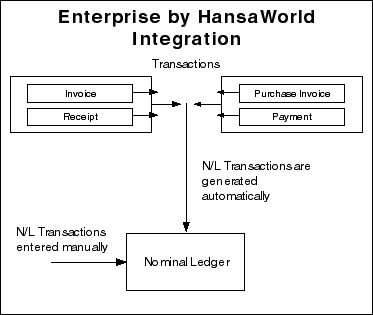
The more common Sub System transactions are described on the following pages:
- Home page for Accounting Principles manual
- Home page for Enterprise by HansaWorld manual
Transactions in Enterprise by HansaWorld - Sales Invoices
Invoices are demands for payment sent to Customers. You will create ("raise") them in the Sales Ledger, which therefore will keep track of how much is owed to your business by whom. The raising of an Invoice causes a Nominal Ledger Transaction to be created that debits the Debtor Account (which keeps a tally of how much your company is owed), credits a Sales Account (it is normal practice to maintain more than one Sales Account to keep a record of the sales of different types of product) and, in most cases, credits a VAT Account. This creation of a Nominal Ledger Transaction will be handled automatically. Below is shown a typical such Transaction.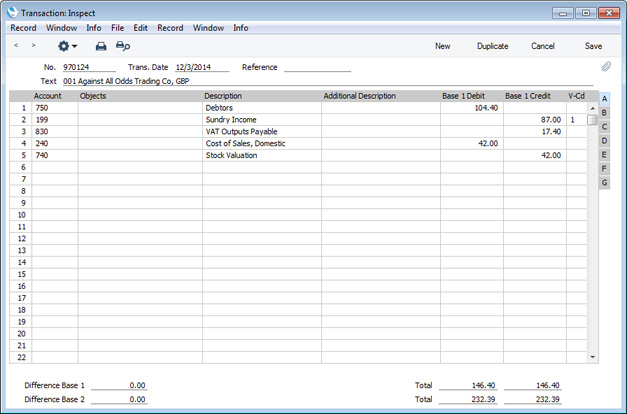
Each individual Invoice, when approved, determines how the consequent Nominal Ledger Transaction is to be structured. The Accounts used are chosen as follows:
Sales Account
Sales Accounts record the sales levels of different types of Items in the Nominal Ledger. To view and, if necessary, change the Sales Account that will be used when you sell an Item, click flip B when you enter an Invoice. The column marked 'A/C' shows the Sales Accounts that will be used for each Item.
When you specify an Item Number in an Invoice row, a default Sales Account will be placed in the A/C field. You can overwrite this default if necessary. The default will be chosen as follows:
- When you enter an Item Number, if there is a Price List shown on the 'Price List' card of the Invoice and there is a record in the Price register for the Item/Price List combination, the Sales Account will be taken from that Price record. If this Sales Account is blank, or there is no appropriate record in the Price register:
- The Sales Account will be taken from the relevant Item record (in the Item register). If this is blank:
- The Sales Account will be taken from the Item Group specified for the Item. If this is blank, or if no Item Group has been specified for the Item, or if you have not entered an Item Number in the Invoice row:
- The Sales Account entered in the Account Usage S/L setting.
If the selected Account is missing from the Account register, you will be given the message "Sales Account missing, check Account Usage S/L" when you mark the Invoice as OK and try to save it.
VAT Account
When you enter an Invoice, you must specify a VAT Code in each row. This code refers to a specific VAT Code record, which will determine the Output VAT Account in the subsequent Nominal Ledger Transaction and the rate at which VAT will be charged. Before entering Invoices, you should have entered the VAT Code records that you will need in the VAT Codes setting in the Nominal Ledger.
When you enter Invoice rows, you cannot leave the VAT Code field (marked 'V-Cd', visible on flip B) blank. A default will be placed in this field, chosen as follows:
- The Sales VAT Code in the record for the Customer in the Contact register will be used. Usually, you should only specify a Sales VAT Code for an individual Customer if for some reason your usual VAT accounting method does not apply to them (e.g. the Customer is a charity). If this is blank:
- The VAT Code will be taken from the appropriate row for the Item or Item Group in the Customer's Price List. If this is blank, the Item is not listed in the Customer's Price List, or the Customer doesn't have a Price List:
- The VAT Code will be taken from the relevant Item record in the Item register. If this is blank:
- The VAT Code will be taken from the Item Group specified for the Item. If this is blank, or if no Item Group has been specified for the Item, or if you have not entered an Item Number in the Invoice row:
- The VAT Code entered in the Account Usage S/L setting will be used.
If the selected VAT Code is missing from the VAT Codes setting, you will be given the message "Code not registered" when you try to save the Invoice.
As shown in the illustration above, the VAT Code will be copied to the Transaction row crediting the Sales Account. If you would like it to be copied to the Transaction row crediting the Output VAT Account as well, use the Add VAT Code to VAT A/C rows option in the Transaction Settings setting in the Nominal Ledger.
Debtor Control Account
When you specify the Customer in an Invoice, a Debtor Account will be chosen and shown on the 'Price List' card. You can overwrite this default if necessary. This Account will be chosen as follows:
- The Debtors Account specified in the Customer Category to which the Customer belongs will be used. If this is blank, or if the Customer does not belong to a Customer Category:
- The Debtors Account entered in the Account Usage S/L setting will be used.
- The Cash Account will be taken from the Payment Term specified in the Invoice. If this is blank:
- The Cash Account entered in the Account Usage S/L setting will be used.
Stock Account and Cost Account
When you sell goods from stock, the Nominal Ledger Transaction created from an Invoice can include postings for the cost of goods, and for the stock outtake (together these two postings are known as "Cost Accounting" or "Cost of Sales" postings in Enterprise by HansaWorld). You can specify that these postings will be made when you approve Invoices or when you approve Deliveries, or you can choose not to make these postings at all.
Cost accounting postings will usually only be made for Stocked Items. If you have specified that cost accounting postings will be made when you approve Invoices, this will mean that, in addition to posting to the Sales, VAT and Debtor Accounts, Nominal Ledger Transactions generated from Invoices will debit the specified Cost of Sales Account and credit the specified Stock Account. Further settings controlling the operation of cost accounting are discussed here and here.
The Cost of Sales Account debited by such cost accounting postings will be determined as follows:
- If you are not using the Use Item Groups for Cost Accounts option in the Cost Accounting setting in the Stock module, the Cost Account for the Item will be used. If you are using this option, the Cost Account specified on the 'A/C' card of the Item Group to which the Item belongs will be used.
- In all other circumstances (e.g. the Cost Account for the Item or Item Group is blank), the Cost Account specified in the Account Usage Stock setting will be used.
The Stock Account credited by such cost accounting postings will be determined as follows:
- The Stock Account specified for the stock Location will be used. If this is blank, or if no stock Location is specified in the Invoice:
- If you are using the Use Item Groups for Cost Accounts option, the Stock Account specified on the 'A/C' card of the Item Group record will be used.
- In all other circumstances, the Stock Account specified in the Account Usage Stock setting will be used.
If any of the selected Accounts do not exist in the Account register, you will be given the messages "Cost Account missing" or "Stock Account missing" when you try to save the Invoice.
Round Off Account
If you are using the option to round the Invoice amount to the nearest whole monetary unit (Euro, Pound etc.), you must specify a Round Off Gain Account in the Account Usage S/L setting. Optionally you can also specify a Round Off Loss Account in the same setting: if you do not, rounding gains and losses will both be posted to the Round Off Gain Account. To switch the rounding option on, use the Round Off and Currency Round Off settings in the System module.
This chapter describes the more common transactions as follows:
- Sales Invoices
- Receipts
- Purchase Invoices
- Payments
- Expenses
- Stock
- Home page for Accounting Principles manual
- Home page for Enterprise by HansaWorld manual
Transactions in Enterprise by HansaWorld - Receipts
When a Customer makes a payment against an Invoice, the transaction is known as a Receipt. In the Nominal Ledger, the raising of a Receipt credits the Debtor Account and debits the Bank or Cash Account. As with Invoices, you will usually enter Receipts in the Sales Ledger, where you will allocate them to the appropriate Invoice(s), and the consequences in the Nominal Ledger will be handled automatically. Normally, a Receipt will generate a Nominal Ledger Transaction like this: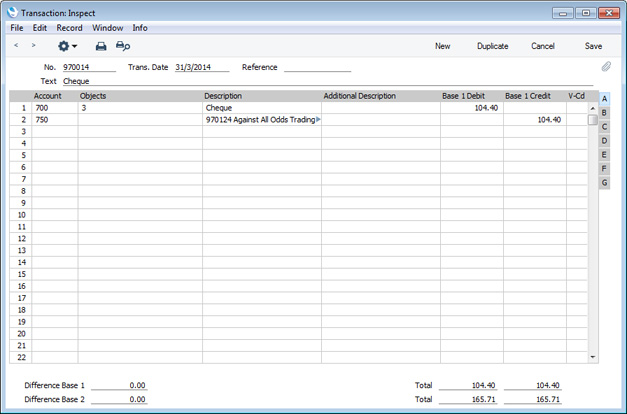
Debtor Control Account
The Debtor Control Account for the Invoice being paid will be transferred to the Receipt. For details of how this is calculated, please refer to the 'Debtor Control Account' section of the Sales Invoices page.
If you do not allocate the Receipt to a specific Invoice (i.e. it is an "On Account" or "Prepayment" Receipt)), the Debtors On Account A/C entered in the Customer Category or the On Account A/C specified in the Account Usage S/L setting (in order of priority) will be credited.
Bank or Cash Account
The Cash or Bank Account posting will be determined by the Payment Mode that you specify in the Receipt. This will refer to a record in the Payment Modes setting, available in the Sales and Purchase Ledgers. You should list in this setting the various payment methods that you and your Customers use, such as cheque, cash and credit card. You can attach a different Account to each payment method, allowing you to receive payments into different bank and cash accounts.
If you receive a payment in a foreign currency, the Rate Loss, Rate Gain and Rate Round Off Accounts will be used. Cash discounts will be posted to the relevant Cash Discount Accounts, and write-offs from the Sales Ledger will use the Write Offs Account. You should specify these Accounts in the Account Usage S/L setting.
If any of the selected Accounts do not exist in the Account register, you will be given a message when you try to save the Receipt informing you which Account is missing.
This chapter describes the more common transactions as follows:
- Sales Invoices
- Receipts
- Purchase Invoices
- Payments
- Expenses
- Stock
- Home page for Accounting Principles manual
- Home page for Enterprise by HansaWorld manual
Transactions in Enterprise by HansaWorld - Purchase Invoices
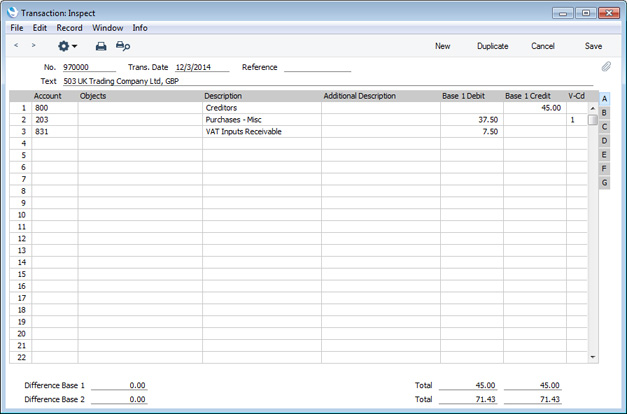
Purchase Invoices are demands for your company to make payments. You will usually record them in the Purchase Ledger, which you will use to monitor these invoices and to record payments against them. The Purchase Ledger allows you to find out how much money you owe to your creditors, and you can use it to make a forecast of future payments.Most transactions in the Purchase Ledger mirror similar transactions in the Sales Ledger. Therefore, as with a Sales Invoice, a Nominal Ledger Transaction created from a Purchase Invoice will normally affect three Accounts: the Creditor Account will be credited, one or more Purchase Accounts will be debited and, in most cases, the VAT Account will also be debited. Defaults for the Accounts affected are taken from the Account Usage P/L setting, and they are selected using the priority rules described below.
Purchase Accounts (also known as Cost Accounts) record the levels of purchases of different types of Items. When you enter a Purchase Invoice, you should enter a Purchase Account in each row (in the column marked 'A/C'). Different rows can have different Purchase Accounts.
In some instances a default Purchase Account will be placed in the A/C field in the first row of a Purchase Invoice. This default will if you have specified a Cost Account on the 'Accounts' card of the Contact record for the Supplier. You might specify such a default for Suppliers of services (such as electricity or telephone services), whose Purchase Invoices will always be posted to the same Account.
When you create Purchase Invoices from Purchase Orders and Goods Receipts, the Purchase Account in each row will depend on the set of Purchase Order Item Transfer Control options in the Purchase Invoice Settings setting in the Purchase Ledger. These options operate in the following manner:
- Consolidate Items to Supplier Cost Account
- The ordered Items will be grouped together in a single row in the Invoice indicating that they are to be posted to the same Cost Account (taken from the Cost Account on the 'Accounts' card of the Contact record for the Supplier). If the Items on the Purchase Order have different VAT Codes, there will be a separate row on the Invoice for each VAT Code. Objects specified in Purchase Order rows will not be transferred to the Invoice.
- Consolidate by Items and Project
- The Purchase Invoice will feature a separate row for each received Item/Project/Object combination on the Purchase Order. The Cost Accounts will be the Purchase Accruals Accounts for the Item Groups to which the Items belong (if you are using the Use Item Groups for Cost Accounts option in the Cost Accounting setting in the Stock module) or the Purchase Accruals Account on the 'Purchase Cost' card of the Account Usage Stock setting (otherwise). If there is no Purchase Accruals Account, the Cost Account on the 'Accounts' card of the Contact record for the Supplier will be used. Objects specified in Purchase Order rows will be transferred to the corresponding rows in the Invoice.
- Transfer Each Row Separately
- Each ordered Item will have its own row on the Invoice. The Cost Accounts will be the Purchase Accruals Account on flip B of the Purchase Order, the Purchase Accruals Accounts for the Item Groups to which the Items belong (if you are using the Use Item Groups for Cost Accounts option in the Cost Accounting setting in the Stock module) or that on the 'Purchase Cost' card of the Account Usage Stock setting (otherwise), or the Cost Account on the 'Accounts' card of the Contact record for the Supplier. Objects specified in Purchase Order rows will be transferred to the corresponding rows in the Invoice.
When you enter a Purchase Invoice, you must specify a VAT Code in each row. This code refers to a specific VAT Code record, which will determine the Input VAT Account in the subsequent Nominal Ledger Transaction and the rate at which VAT will be charged. Before entering Purchase Invoices, you should have entered the VAT Code records that you will need in the VAT Codes setting in the Nominal Ledger.
When you enter Purchase Invoice rows, you cannot leave the VAT Code field (marked 'V-Cd') blank. A default will be placed in this field, chosen as follows:
- The Purchase VAT Code in the record for the Supplier in the Contact register will be used. If this is blank:
- The VAT Code specified for the relevant Account in the Account register will be used. If this is blank:
- The VAT Code specified in the Account Usage P/L setting will be used.
Although you can specify VAT Codes for both Suppliers and Accounts (as described in points 1 and 2 above), it is important you do not mix these methods of setting default VAT Accounts. You should only specify a VAT Code for a Supplier if for some reason the standard VAT rates will not apply to them.
If the selected VAT Code is missing from the VAT Codes setting, you will be given the message "Code not registered" when you try to save the Purchase Invoice.
As shown in the illustration above, the VAT Code will be copied to the Transaction row debiting the Purchase/Cost Account. If you would like it to be copied to the Transaction row debiting the Input VAT Account as well, use the Add VAT Code to VAT A/C rows option in the Transaction Settings setting in the Nominal Ledger.
Creditor Control Account
When you specify the Supplier in a Purchase Invoice, a Creditor Account will be chosen and shown on the 'Comment' card. You can overwrite this default if necessary. This Account will be chosen as follows:
- The Creditor Account specified for the Supplier in the Contact register will be used. If this is blank:
- The Creditor Account will be taken from the Supplier Category to which the Supplier belongs. If the Supplier does not belong to a Supplier Category but instead belongs to a Customer Category, the Creditor Account will be taken from there. If these Accounts are blank, or the Supplier does not belong to a Category of either type:
- The default Creditors Account entered in the Account Usage P/L setting will be used.
- If you have switched on the Prel. Book check box on the Purchase Invoice, a Preliminary Creditors Account will be used, taken from the Account Usage P/L setting. When you finally approve the Purchase Invoice, this preliminary transaction will be replaced with a final transaction, using the correct Creditor Account determined as above.
- The Cash Account will be taken from the Payment Term specified in the Invoice. If this is blank:
- The Cash Account entered in the Account Usage P/L setting will be used.
This chapter describes the more common transactions as follows:
- Sales Invoices
- Receipts
- Purchase Invoices
- Payments
- Expenses
- Stock
- Home page for Accounting Principles manual
- Home page for Enterprise by HansaWorld manual
Transactions in Enterprise by HansaWorld - Payments
A Payment is the Purchase Ledger equivalent of a Receipt: it is the transaction that occurs when you pay a Supplier's Purchase Invoice. In the Nominal Ledger, the raising of a Payment debits the Creditor Account and credits the Bank or Cash Account. You will usually record Payments in the Purchase Ledger, where you will allocate them to the appropriate Invoice(s), and the consequences in the Nominal Ledger will be handled automatically. Normally, a Payment will generate a Nominal Ledger Transaction like this: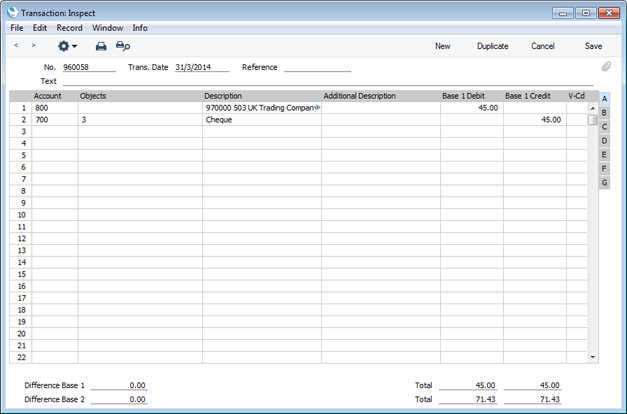
Creditor Control Account
The Creditor Control Account for the Purchase Invoice being paid will be transferred to the Payment. For details of how this is calculated, please refer to the 'Creditor Control Account' section of the Purchase Invoices page.
If you do not make the Payment against a specific Purchase Invoice (i.e. it is an "On Account" or a "Prepayment" Payment)), the Creditors On Account A/C entered in the Contact record for the Supplier will be debited. If this is blank, the On Account A/C in the Supplier Category to which the Supplier belongs will be used. If the Supplier does not belong to a Supplier Category but instead belongs to a Customer Category, the Creditors On Account A/C in that Customer Category will be used. If these Accounts are blank, or the Supplier does not belong to a Category of either type, the On Account A/C in the Account Usage P/L setting will be debited.
Bank or Cash Account
The Bank or Cash Account posting will be determined by the Payment Mode that you specify in the Payment. This will refer to a record in the Payment Modes setting, available in both the Sales and Purchase Ledgers. You should list in this setting the various payment methods that you use, such as cheque, cash and credit card. You can attach a different Account to each payment method, allowing you to issue payments from different bank and cash accounts.
If you need to make a payment in a foreign currency, the Rate Loss, Rate Gain and Rate Round Off Accounts will be used. Cash discounts will be posted to the relevant Cash Discount Accounts. You should specify these Accounts in the Account Usage P/L setting.
If any of the selected Accounts do not exist in the Account register, when you try to save the Payment you will be given a message informing you which Account is missing.
This chapter describes the more common transactions as follows:
- Sales Invoices
- Receipts
- Purchase Invoices
- Payments
- Expenses
- Stock
- Home page for Accounting Principles manual
- Home page for Enterprise by HansaWorld manual
Transactions in Enterprise by HansaWorld - Expenses
The Expenses module functions as a creditors/debtors ledger for employees. Here you can record advances and settlements for each individual, and Enterprise by HansaWorld can post each event to the Nominal Ledger automatically. To use the Expenses ledger, you must assign an Account for advances and settlements to each Person. Normally, you will use the same Account for each employee, separating the individuals with the help of Objects. Enter this Account Number on the 'Accounts' card of each Person record. Having done this, you can record expense claims in the Expense register in a similar manner to Purchase Invoices, and advances and payments to employees in the Personnel Payment register in a similar manner to Payments.This chapter describes the more common transactions as follows:
- Sales Invoices
- Receipts
- Purchase Invoices
- Payments
- Expenses
- Stock
- Home page for Accounting Principles manual
- Home page for Enterprise by HansaWorld manual
Transactions in Enterprise by HansaWorld - Stock
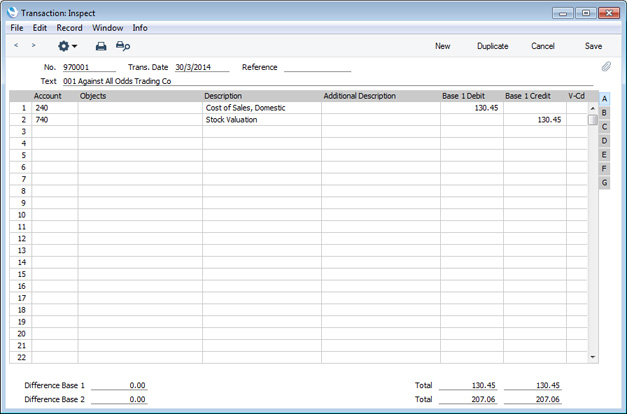
In every business where stocks are kept, there are by necessity differences between recorded stocks, physical stocks and stock values, for the simple reasons that things break or disappear or that mistakes are made in shipping, recording etc. In Enterprise by HansaWorld, stock values are kept both in the Stock module and as Account balances in the Nominal Ledger. It is very difficult to have absolute agreement between FIFO stock levels and Nominal Ledger Stock Account balances, and every business must decide for itself how important it is to minimise differences. There is a price to be paid for precision. The smaller the tolerance for errors, the greater the control apparatus will be, and the greater the cost. There is a trade-off of control costs against precision that every company must decide for itself.The Stock module contains separate registers for Goods Received, Deliveries, Stock Movements (internal stock transfers between Locations) and Stock Depreciations. Whenever you enter and approve a new record in any of these registers, the physical stock levels of the Items involved and the stock valuation in the Nominal Ledger will both be updated automatically. In the second case, each stock record causes a Nominal Ledger Transaction to be generated, thus updating the stock valuation in the Nominal Ledger. Stock levels and valuations can also be updated automatically from Invoices.
Whenever you remove an Item from stock (e.g. using a Delivery or Stock Depreciation), the value of that Item will be calculated using a Cost Model. This value will be subtracted from the stock valuation in the Nominal Ledger. The Cost Model is also used by the Stock List report to calculate the value of your stock. You can choose the Cost Model that is most suitable for your business: the available options are Cost Price, % of Base Price (i.e. % of sales price), Weighted Average, FIFO ("First In First Out") and LIFO ("Last In First Out"). In the case of Items with Serial Numbers, you can also use a Cost Model that connects the actual value of an Item to its Serial Number. Please refer here for more details about Cost Models.
The following examples illustrate the receiving of Items into stock, valuing them and delivering them. The values in the illustrations are calculated using the FIFO Cost Model: if you are using a different Cost Model, the workflow will be the same but the values may differ.
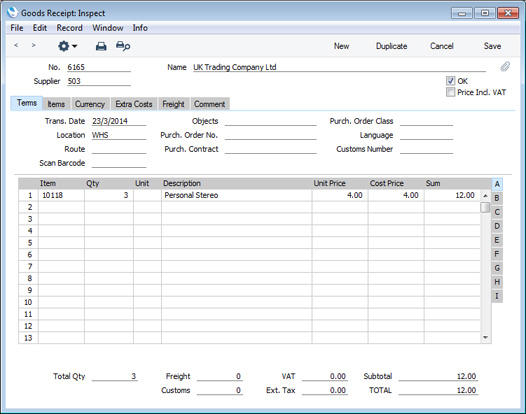
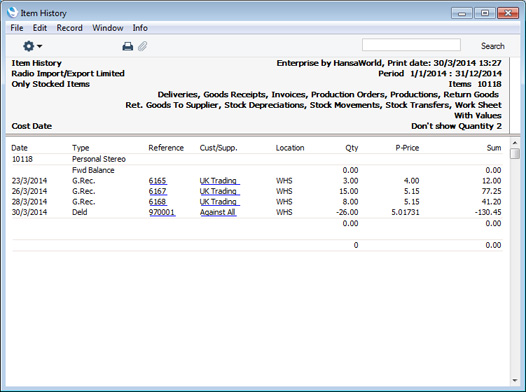
Illustrated below is an example Goods Receipt, recording the arrival of three units of Item 10118 into stock at a price of 4.00 each:
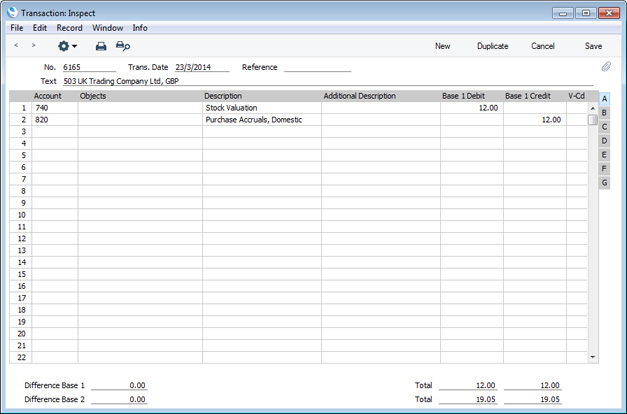
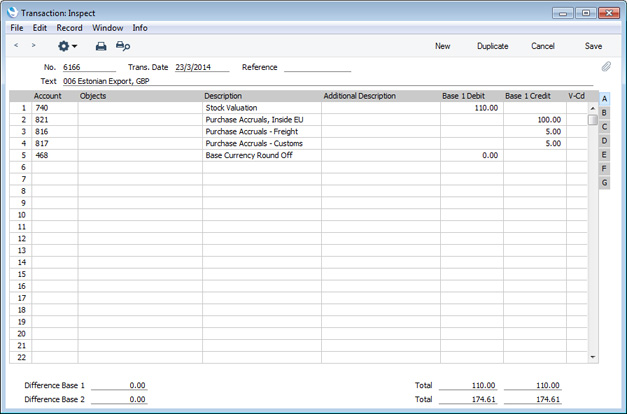
Depending on local accounting conventions, you can add purchase costs, freight and customs costs to the stock value in the Goods Receipt record, or leave them out until the Purchase Invoice arrives. If you add them at the time of receipt into stock, their values will be added to the Stock Account, and credited against the Freight and Customs Accrual Accounts specified in the Account Usage Stock setting:
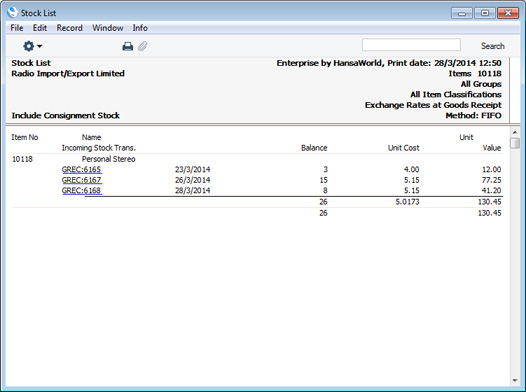
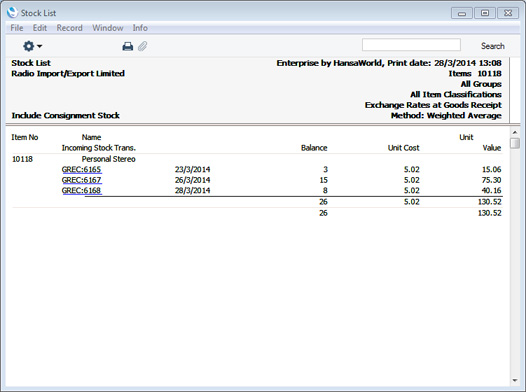
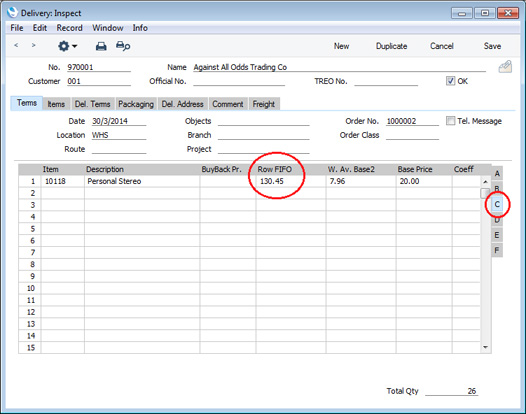
In the following example, we will sell and ship all 26 units of Item 10118. In the Delivery record that records this shipment, the total FIFO value of these 26 units will be placed automatically in the Row FIFO field on flip C when we mark the Delivery as OK and save it. (Although this field is named "Row FIFO", it actually shows the cost of sales value of the delivered Items and therefore shows the total FIFO, LIFO, Weighted Average or other value of the delivered Items, depending on the Cost Model. The example currently being described uses the FIFO Cost Model.)
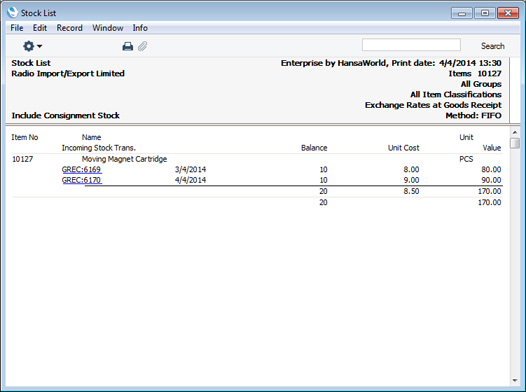
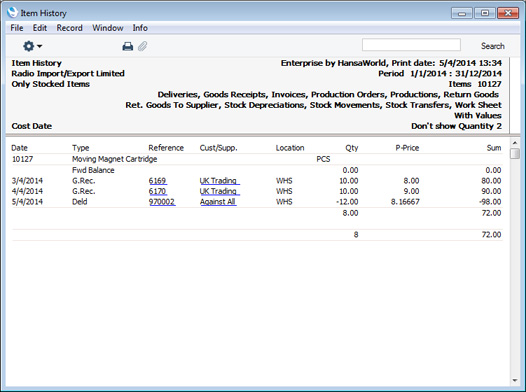
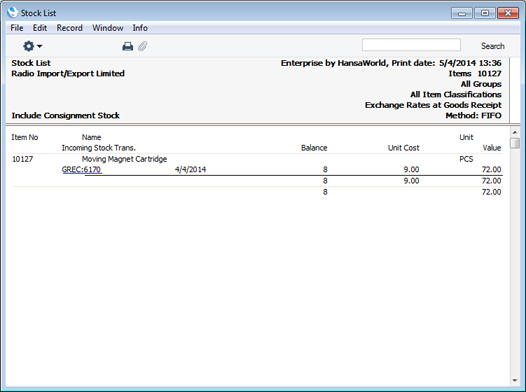
In the following example, we have received into stock twenty units of Item 10127 using two separate Goods Receipt records. The first Goods Receipt records the receiving of ten units at a price of 8.00 per unit, and the second records the receiving of ten at a price of 9.00 per unit:
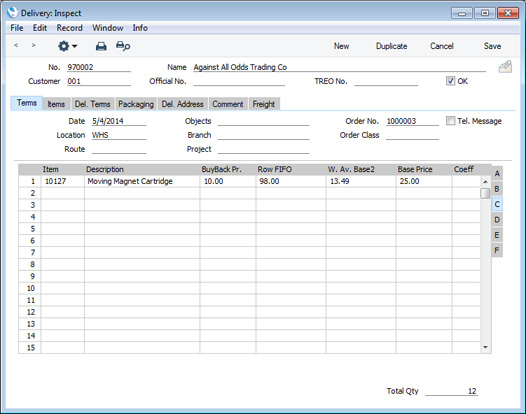
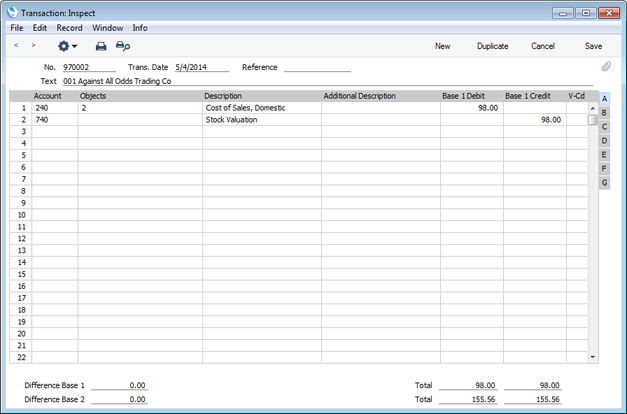
(10 x 8) + (2 x 9) = 8.1667 12
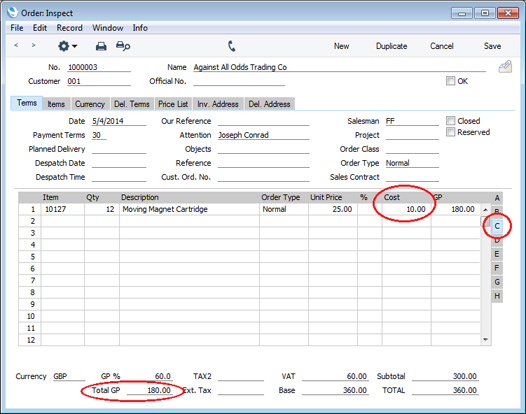
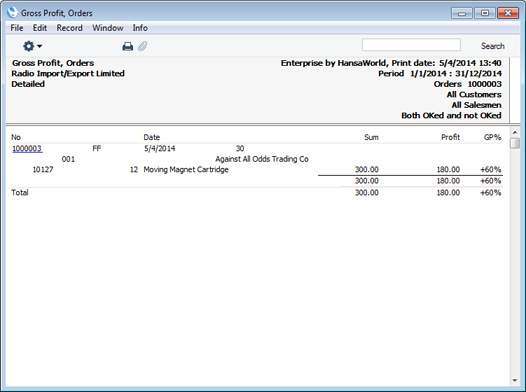
- The Stock module contains an 'Update Item Cost Price' Maintenance function. This is not an automatic function: it is your decision whether and when to use it. Each time you run this function, it will transfer the last purchase price to the Cost Price field of each Item record.
- If you would like the Cost Price of an Item to be updated automatically with the latest purchase price each time you enter and approve a Goods Receipt, use one of the Upd. Cost Price At Goods Receipt options in each Item record ('Costs' card).
This chapter describes the more common transactions as follows:
- Home page for Accounting Principles manual
- Home page for Enterprise by HansaWorld manual