Introduction to Exports in the Assets Module
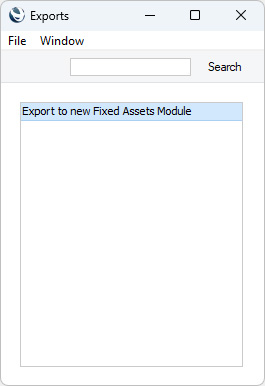
The 'Exports' function allows you to export information from your Standard ERP database to tab-delimited text files from where you can incorporate it in word processing programs for mailmerge, in spreadsheets for further statistical analysis or in page make-up programs for incorporation in publicity material or published reports. Alternatively and depending on which Export option you choose, you can often import the information into other Standard ERP databases or Companies using the 'Automatic' and 'Manual file search' Import functions in the System module. Remember that you can also print reports to disk, so most of the information that is stored in a Standard ERP database is available to other applications via the medium of the text file.To begin exporting, click the [Routines] button in the Navigation Centre. A list of routines appears: click the [Exports] button in the list of routines to open the 'Exports' window illustrated below. This lists the Exports that you can produce from the Assets module. Double-click the option in the list that you need. A specification window will then appear, where you can decide the contents of the exported text file. Click [Run] and a 'Save File' dialogue box will appear, where you can name the file and determine where it is to be saved.
- Introduction
- Export to new Fixed Assets Module
- Home page for Assets module manual
- Home page for Standard ERP manual
Export to new Fixed Assets Module
This page describes the 'Export to new Fixed Assets Module' Export function in the Assets module.---
The Assets module was rewritten in version 3.8 of the application. The old Fixed Asset register was replaced by the Asset register. If you were using the application prior to this version, you should convert your Fixed Assets to Assets. To do this, follow these steps:
- Referring to the Updating from Previous Versions of Standard ERP page, update your database to the new version of Standard ERP.
- Back up your database in the usual fashion.
- Change to the Assets module and click the [Routines] button in the Navigation Centre. A list of routines appears: click the [Exports] button in the list of routines to open the 'Exports' window.
- When the 'Exports' list window appears, double-click 'Export to new Fixed Assets Module'. Create an export file in the usual way.
- Change to the System module and import the file created in step 4 using the 'Automatic' or 'Manual file search' options.
- Check that the Asset register contains your Assets as expected.
- The old Fixed Assets module did not have Asset Categories. Each Asset belonged to an Asset Class. In the new Assets module, each Asset belongs to an Asset Category which in turn belongs to an Asset Class. You will need to create Asset Categories and re-create Asset Classes before being able to calculate depreciation.
- If any of the old Fixed Assets contained a Last ST Date, they will be included in a new record in the Asset Status register, of Type "Inventory". A separate Asset Status record will be created for each Asset. These records will be created as part of the import process, but they will not be marked as OK.
- If any of the old Fixed Assets contained a Sales Date, they will be included in a new record in the Disposal register. This record will be created as part of the import process, but it will not be marked as OK. If the old record had a Sales Value as well, the Type of the Disposal record will be "Sale". Otherwise, it will be "Write off". The Sales Date will appear in the End Date field in the new Asset record.
- The information in the first row of the matrix on card 2 of the old Fixed Asset records will be copied to the equivalent fields in the new Asset records. This matrix only had one Start Date field, so this date will be copied to both the Start Date 1 and 2 fields in the new Asset records. If the matrix had more than one row, Revaluation records will be created for the second and subsequent rows.
Go back to:
- Home page for Export functions in the Assets module
- Home page for Assets module manual
- Home page for Standard ERP manual