Introduction to the Disposal Register
If you need to dispose of an Asset, you should do so by creating a record in the Disposal register in the Assets module. You will be able to specify in the Disposal record whether the Asset was written off or sold. Saving the Disposal record after marking it as OK will have the following consequences for the Asset:- If allowed by the Sub Systems setting in the Nominal Ledger and the Number Series - Asset Disposals setting, a Nominal Ledger Transaction will be created, recording the write-off or sale of the Asset in the Nominal Ledger.
- When you calculate depreciation for the period during which you disposed of the Asset, you will be able to choose whether to depreciate the disposed Asset.
- When you calculate depreciation for the periods after the disposal of the Asset, depreciation will not be calculated for the disposed Asset.
- Introduction
- Entering a Disposal record
- Nominal Ledger Transactions from Disposal records
- Invalidating Disposal records
- Operations menu
Go back to:
- Home page for Assets module manual
- Home page for Standard ERP manual
Entering a Disposal record
This page describes entering a record in the Disposal register in the Assets module.---
To open the Disposal register, first ensure you are in the Assets module. Then, if you are using Windows or macOS, click the [Registers] button in the Navigation Centre and double-click 'Disposals' in the resulting list. If you are using iOS or Android, tap the [Registers] button in the Navigation Centre and then tap 'Assets' in the 'Registers' list.
The 'Disposals: Browse' window will be opened, showing the Disposal records that you have already entered.
By default, the Disposal records in the list will be shown in transaction number order. If you are using Windows or macOS, you can change the sort order by clicking on one of the other column headings. To reverse any sort, simply click once again on the column heading. The current sort order is marked by the column heading being coloured blue. If you are using iOS or Android, tap on the column heading and choose the sort order you need. Repeat the procedure to reverse the sort.
To enter a new Disposal record, select 'New' from the Create menu (Windows/macOS) or from the + menu (iOS/Android). You can also use the Ctrl-N (Windows) or z-N (macOS) keyboard shortcuts. Alternatively, if a Disposal that is similar to the one you are about to enter already exists, find it in the list, highlight it and select 'Duplicate' from the same menu.
The 'Disposal: New' window will be opened, empty if you selected 'New' or containing a duplicate of the highlighted Disposal record. In the case of the duplicate, the Date of the new Disposal record will be the current date, not the date of the original record.
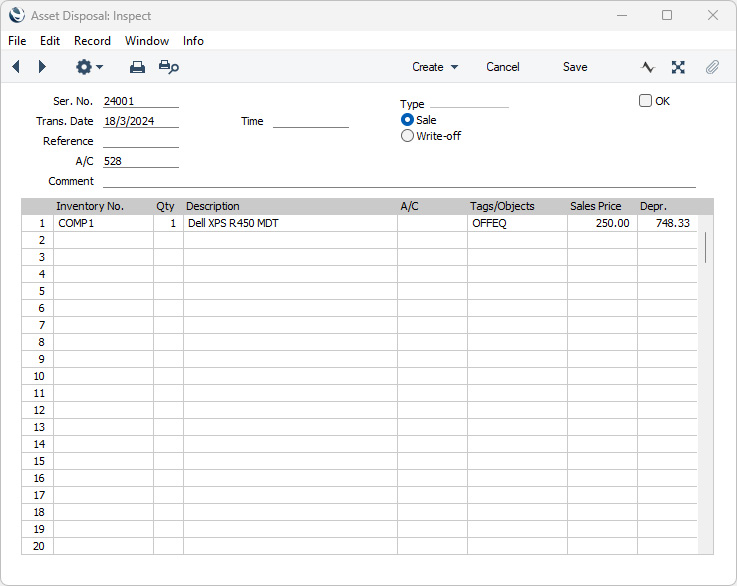
- Ser. No.
- Paste Special
Select from another Number Series
- The unique number of the Disposal record. The default will be chosen as follows:
- It will be taken from the first valid row in the Number Series - Asset Disposals setting.
- It will be the next number following on from the last Disposal entered.
- You may change the default, but not to a number that has already been used. If you have defined at least one number sequence in the Number Series - Asset Disposals setting, the number you change to must be inside a valid number sequence.
- You will not be able to save a Disposal record if the No. does not belong to a valid number sequence. A valid number sequence is one for the period in which the Trans. Date falls and with unused numbers, so this problem will most usually occur at the beginning of a new calendar or financial year.
- If you are working in a multi-user system, the Disposal Number will be assigned when you first save the Disposal record.
- It will be taken from the first valid row in the Number Series - Asset Disposals setting.
- Trans. Date
- Paste Special
Choose date
- The date when you sold or wrote off the Assets listed in the matrix below. This date will be used as the Transaction date in the Nominal Ledger Transaction that will be created from the Disposal record. The current date will be entered as a default.
- When you save a Disposal, the total depreciation to date of each Asset will be placed in the Depr. field in each row. The calculation of depreciation will depend on this Trans. Date: please refer to the description below of the Depr. field for more details.
- When you save a Disposal, the total depreciation to date of each Asset will be placed in the Depr. field in each row. The calculation of depreciation will depend on this Trans. Date: please refer to the description below of the Depr. field for more details.
- Time
- Paste Special
Current Time
- The time of the Disposal, recorded for information only.
- Reference
- Any reference or other text that you enter here will be copied to the Reference field in the Nominal Ledger Transaction that will be created from the Disposal record, so it will be shown in the 'Transactions: Browse' window.
- A/C
- Paste Special
Account register, Nominal Ledger/System module
- Specify here the Account that is to be used for the gain or loss on disposal of the Assets listed in the matrix below. The postings to this Account will depend on which Post from Write-off option you have selected in the Account Usage Assets setting, as follows:
- Asset Value and Remaining Depreciation
- The Starting Value from the latest Revaluation record or, if there aren't any Revaluations, the original Purchase Value of each Asset will be debited to this Account.
- The depreciation to date of each Asset will be debited to this Account.
- The depreciation to date of each Asset will be debited to this Account.
- Accumulated and Remaining Depreciation
- Future depreciation of each Asset will be debited to this Account.
- Asset Value and Accumulated Depreciation
- The Starting Value from the latest Revaluation record or, if there aren't any Revaluations, the original Purchase Value of each Asset will be debited to this Account.
- The depreciation to date of each Asset will be credited to this Account.
- In all three cases, if the Type (below) is "Sale", this Account will also be credited with the Sales Price(s) entered in the matrix.
- You can specify an Account in any of the Disposal rows, to override the one entered here.
- Asset Value and Remaining Depreciation
- Comment
- Record any comment about the Disposal record here, such as the reason for its entry. This comment will be shown in the 'Disposals: Browse' window and will be copied to the Text field in the Nominal Ledger Transaction that will be created from the Disposal record. It will therefore be shown in the 'Transactions: Browse' window as well.
- Type
- Choose one of these options to specify whether you have sold the Assets entered in the matrix below or written them off. Choosing the "Sale" option will cause two extra postings to be added to the Nominal Ledger Transaction that will be created when you save the Disposal record after marking it as OK. Please refer to the Nominal Ledger Transactions from Disposal records page for more details.
- OK
- Tick the OK box and save the Disposal record when you have checked the details in the record and found them to be correct and complete. After saving, you will no longer be able to change the record.
- If you have so determined in the Sub Systems setting in the Nominal Ledger and in the Number Series - Asset Disposals setting, a Nominal Ledger Transaction will be created in the Transaction register. The posting in this Transaction are described on the Nominal Ledger Transactions from Disposal records page.
- When you save a Disposal record that you have marked as OK, the Assets that it contains will be treated as having been disposed of, but they will not be marked as Inactive automatically. You might not want to remove those Assets from reports immediately. You should mark them as Inactive yourself in the Asset register when appropriate.
- You can use Access Groups to prevent particular uses from marking Disposal records as OK. To do this, deny them to the 'OK Asset Disposals' Action.
- If you save a Disposal that you have marked as OK and then realise this was a mistake you can invalidate the Disposal. To do this, open the Disposal in a record window and select 'Invalidate' from the Record menu (which has a 'cog' icon if you are using iOS or Android). The Assets listed in the Disposal record will no linger be treated as having been disposed of. Please refer to the Invalidating Disposals page for more details.
- If you have so determined in the Sub Systems setting in the Nominal Ledger and in the Number Series - Asset Disposals setting, a Nominal Ledger Transaction will be created in the Transaction register. The posting in this Transaction are described on the Nominal Ledger Transactions from Disposal records page.
If you are using Windows or macOS, you can add rows to a Disposal record by clicking in If you are using iOS or Android, you can add rows by tapping the + button below the matrix. To remove a row, long tap on the row number on the left of the row and select 'Delete Row' from the resulting menu. To insert a row, long tap on the row number where the insertion is to be made and select 'Insert Row' from the resulting menu.
- Inventory No.
- Paste Special
Asset register, Assets module
- Enter the Inventory Number of the Asset that you are selling or writing off.
- After you have marked the Disposal record as OK and saved it, the Asset will usually no longer be included in reports and depreciation calculations, although you can explicitly choose to include it if you wish.
- After you have marked the Disposal record as OK and saved it, the Asset will usually no longer be included in reports and depreciation calculations, although you can explicitly choose to include it if you wish.
- Qty
- The quantity that you need to sell or write off. The default figure is taken from the Quantity field on the 'Owner' card of the Asset. You can change it if necessary.
- Description
- The Asset Name will be placed in this field when you specify the Inventory No.: you can change it if necessary.
- A/C
- Paste Special
Account register, Nominal Ledger/System module
- You can enter an individual Account number for each row, to be used instead of the one entered for the Disposal overall.
- Tags/Objects
- Paste Special
Tag/Object register, Nominal Ledger/System module
- Default taken from Asset
- Any Tags/Objects that you have specified in the Asset record will be copied here as a default. You can add further Tags/Objects here, separated by commas. In the Nominal Ledger Transaction generated from this Disposal record, any Tags/Objects specified here will be assigned to all debit and credit postings resulting from the row (except the debit posting to the Sales Transit Account). Tags/Objects specified in the Tags/Objects field in the Asset Class to which the Asset belongs will not be shown here, but will be assigned to each posting (except that to the Sales Transit Account) in the Nominal Ledger Transaction as well. Please refer to the Nominal Ledger Transactions from Disposal records page for more details about Tag/Object assignment.
- Any Tags/Objects that you have specified in the Asset record will be copied here as a default. You can add further Tags/Objects here, separated by commas. In the Nominal Ledger Transaction generated from this Disposal record, any Tags/Objects specified here will be assigned to all debit and credit postings resulting from the row (except the debit posting to the Sales Transit Account). Tags/Objects specified in the Tags/Objects field in the Asset Class to which the Asset belongs will not be shown here, but will be assigned to each posting (except that to the Sales Transit Account) in the Nominal Ledger Transaction as well. Please refer to the Nominal Ledger Transactions from Disposal records page for more details about Tag/Object assignment.
- Sales Price
- If the Type of the Disposal is "Sale", enter the price for which the Asset was sold here. The default figure will be the Starting Value from the latest Revaluation record or, if there aren't any Revaluations, the Purchase Value from the Asset record. If the Quantity is greater than one, this should be a total figure, not a figure per unit (the default value will be a total figure).
- In the Nominal Ledger Transaction generated from this Disposal record, this figure will be debited to the Sales Transit Account specified in the Account Usage Assets setting and credited to the Account specified in the Disposal record (i.e. to the Account specified in the A/C field in the row or, if that field is empty, to the Account specified in the header).
- If the Type of the Disposal is "Write-off", any figure entered here will not be used in the resulting Nominal Ledger Transaction.
- In the Nominal Ledger Transaction generated from this Disposal record, this figure will be debited to the Sales Transit Account specified in the Account Usage Assets setting and credited to the Account specified in the Disposal record (i.e. to the Account specified in the A/C field in the row or, if that field is empty, to the Account specified in the header).
- Depr.
- The total depreciation of the Asset from its Start. Date 1 to the Transaction Date of the Disposal, calculated using Depreciation Model 1. This figure will be brought in automatically when you save the Disposal record for the first time, and it will be updated each time you save if you change the date of the Disposal or the Quantity being sold or written off.
- Depending on the Post from Write-off option that you have selected in the Account Usage Assets setting, in the Nominal Ledger Transaction that will be created from the Disposal this figure will be posted to the Acc. Depr or Acc. Depr 2 Account in the Asset Class, to the Asset or Asset 2 Account specified in the Asset Class and/or credited to the Account specified in the Disposal record. Please refer to the Nominal Ledger Transactions from Disposal records page for more details about the postings in this Transaction.
- If the Quantity is greater than one, this will be a total figure, not a figure per unit.
- The Depr. figure will be calculated from the Start. Date 1 of the Asset to a date chosen as follows:
- Straight Line Depreciation Model and Period = Day
- Depreciation will be calculated to the Trans. Date.
- Straight Line Depreciation Model and Period = Month
- Depreciation will be calculated to the end of the month containing the Trans. Date.
- Straight Line Depreciation Model and Period = Quarter
- Depreciation will be calculated to the end of the month containing the Trans. Date.
- Straight Line Depreciation Model and Period = Year
- Depreciation will be calculated to the end of the calendar year containing the Trans. Date.
- Declining Balance Depreciation Model and Period = Day
- Depreciation will be calculated to the end of the month containing the Trans. Date.
- Declining Balance Depreciation Model and Period = Month
- Depreciation will be calculated to the end of the month containing the Trans. Date.
- Declining Balance Depreciation Model and Period = Quarter
- Depreciation will be calculated in retrospect to the end of the quarter containing the Trans. Date. For example, if the Asset Start Date is in January the Depr. figure will be 0.00 if the Asset is disposed of in January or February but it will be the first quarter's deprecation if the Asset is disposed of in March. The Depr. figure will continue to be the first quarter's deprecation if the Asset is disposed of in April or May, and it will be the depreciation for the first two quarters if the Asset is disposed of in June.
- Straight Line Depreciation Model and Period = Year
- Depreciation will be calculated to the end of the calendar year containing the Trans. Date.
- Depending on the Post from Write-off option that you have selected in the Account Usage Assets setting, in the Nominal Ledger Transaction that will be created from the Disposal this figure will be posted to the Acc. Depr or Acc. Depr 2 Account in the Asset Class, to the Asset or Asset 2 Account specified in the Asset Class and/or credited to the Account specified in the Disposal record. Please refer to the Nominal Ledger Transactions from Disposal records page for more details about the postings in this Transaction.
The Disposal register in Standard ERP:
- Introduction
- Entering a Disposal record
- Nominal Ledger Transactions from Disposal records
- Invalidating Disposal records
- Operations menu
- Home page for Assets module manual
- Home page for Standard ERP manual
Nominal Ledger Transactions from Disposal records
This page describes the Nominal Ledger Transactions that can be created from Disposal records in the Assets module.---
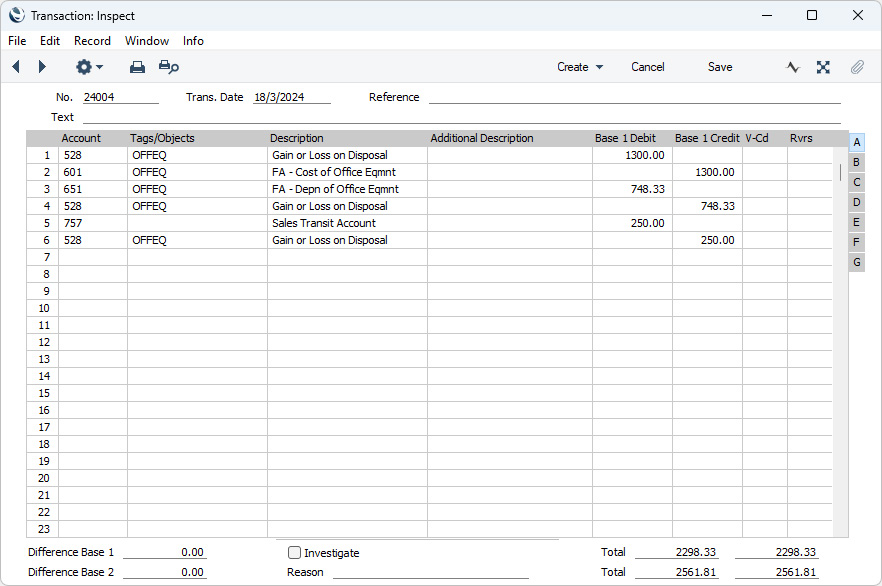
When you mark a Disposal record as OK and save, a Nominal Ledger Transaction will be generated automatically if you have so determined in the Sub Systems setting in the Nominal Ledger and in the Number Series - Disposals setting. The postings in this Transaction will depend on the Post from Write-off option that you have selected in the Account Usage Assets setting: several options are offered to cater for differing accounting rules in various countries. If the Type of the Disposal is "Sale", two further postings will be added to the Transaction. Details of the postings can be found below.
As described below, the Transaction will include postings to an Asset Account and an Acc. Depr Account. The choice of Asset and Acc. Depr Accounts (and associated Tags/Objects) will depend on the Model for Disposals option that you have selected in the Account Usage Assets setting. The Asset and Acc. Depr Accounts and the Asset and Acc. Depr Tags/Objects in the Asset Class to which the Asset belongs will be used if you have selected "Model 1" as the Model for Disposals, and the Asset 2 and Acc. Depr 2 Accounts and the Asset 2 and Acc. Depr 2 Tags/Objects will be used if you have selected "Model 2".
The Transaction will also include postings to an Account specified in the Disposal record. This Account will be taken from the A/C field in the row specifying the Asset being disposed of or, if the A/C field in the row is empty, from the A/C field in the header of the Disposal record.
Once the Transaction has been generated, you can open it from the Disposal by selecting 'Open NL Transaction' from the Operations menu (Windows/macOS) or Tools menu (iOS/Android) (subject to access rights).
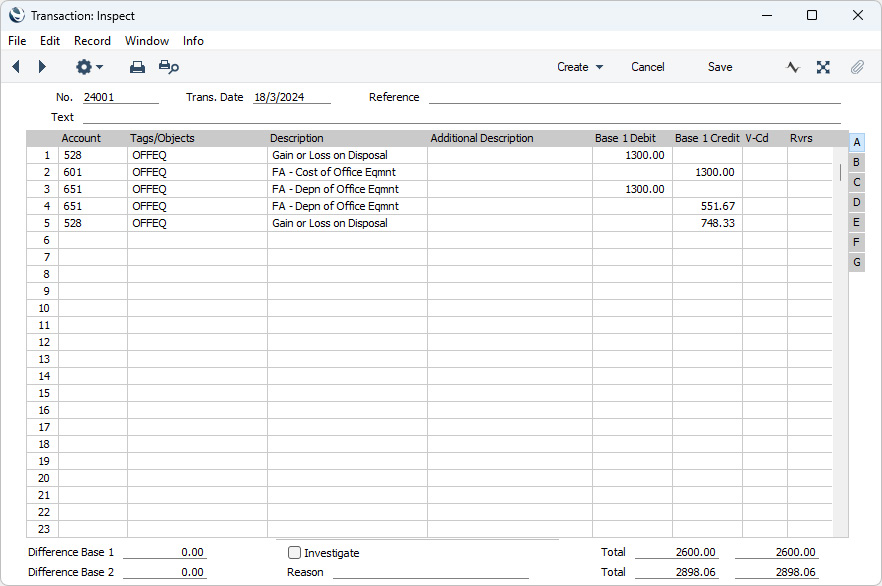
Write-off, and Asset Value and Remaining Depreciation
If the Type of the Disposal is "Write-off" and you are using the Asset Value and Remaining Depreciation option in the Account Usage Assets setting, the Transaction will include the following postings:
- The Starting Value from the latest Revaluation record or, if there aren't any Revaluations, the original Purchase Value of the Asset will be debited to the Account specified in the Disposal record and credited to the Asset or Asset 2 Account specified in the Asset Class to which the Asset belongs. The Asset or Asset 2 Tags/Objects specified in the Asset Class will be assigned to the credit posting.
- The Starting Value from the latest Revaluation record or, if there aren?t any Revaluations, the original Purchase Value of the Asset will be debited to the Acc. Depr or Acc. Depr 2 Account specified in the Asset Class, and the value of the Asset when disposed of will be credited to the same Account. The Acc. Depr or Acc. Depr 2 Tags/Objects specified in the Asset Class will be assigned to both postings. The net effect of these two postings is that the depreciation to date will be debited to the Acc. Depr or Acc. Depr 2 Account.
- The depreciation of the Asset over its lifetime to date will be credited to the Account specified in the Disposal record.
- The Tags/Objects specified in the Disposal row (which by default will have been copied from the Asset record) and in the Tags/Objects field in the Asset Class will be assigned to all postings.
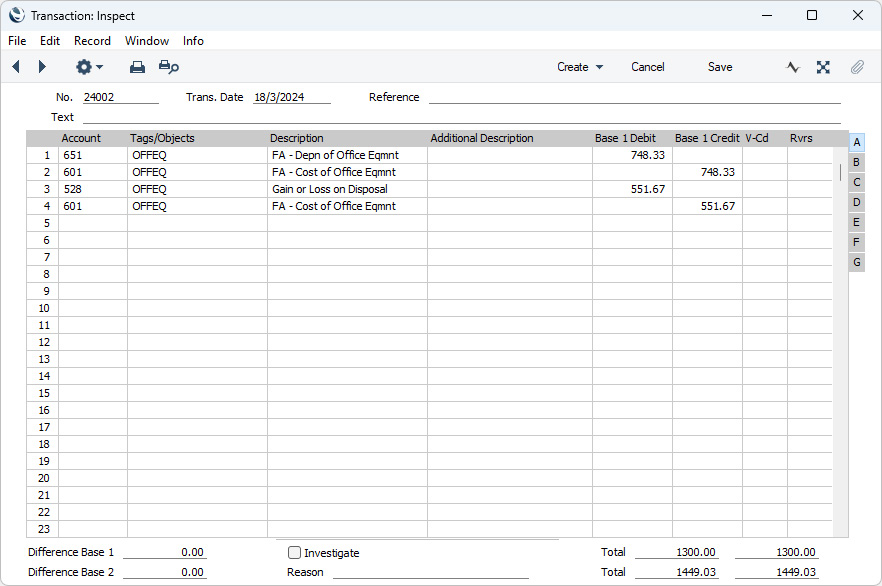
Write-off, and Accumulated and Remaining Depreciation
If the Type of the Disposal is "Write-off" and you are using the Accumulated and Remaining Depreciation option in the Account Usage Assets setting, the Transaction will include the following postings:- The depreciation of the Asset to date will be debited to the Acc. Depr or Acc. Depr 2 Account specified in the Asset Class to which the Asset belongs. The Acc. Depr or Acc. Depr 2 Tags/Objects specified in the Asset Class will be assigned to this posting.
- The depreciation to date will be credited to the Asset or Asset 2 Account specified in the Asset Class. The Asset or Asset 2 Tags/Objects specified in the Asset Class will be assigned to this posting.
- The value of the Asset when disposed of will be debited to the Account specified in the Disposal record.
- The value of the Asset when disposed of will be credited to the Asset or Asset 2 Account specified in the Asset Class. The Asset or Asset 2 Tags/Objects specified in the Asset Class will be assigned to this posting.
- The Tags/Objects specified in the Disposal row (which by default will have been copied from the Asset record) and in the Tags/Objects field in the Asset Class will be assigned to all postings.
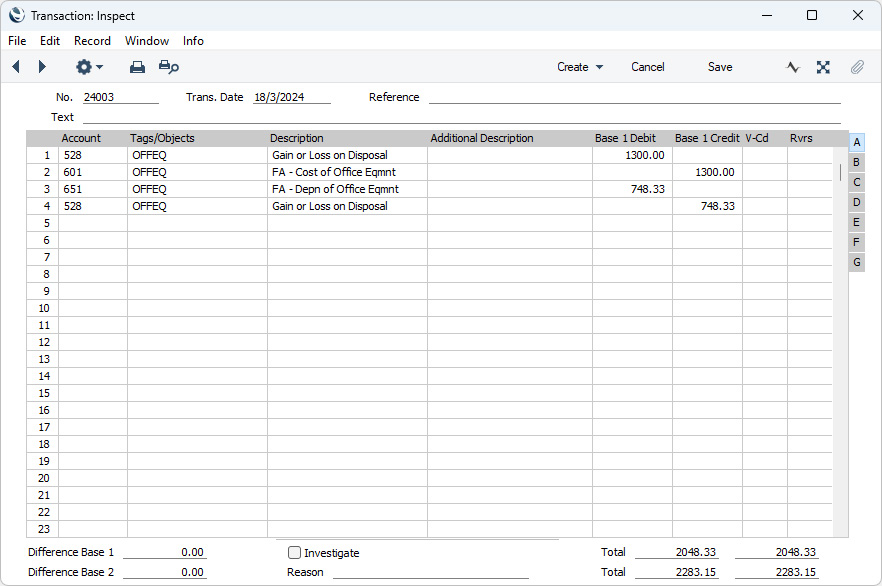
Write-off, and Asset Value and Accumulated Depreciation
If the Type of the Disposal is "Write-off" and you are using the Asset Value and Accumulated Depreciation option in the Account Usage Assets setting, the Transaction will include the following postings:- The Starting Value from the latest Revaluation record or, if there aren't any Revaluations, the original Purchase Value of the Asset will be debited to the Account specified in the Disposal record.
- The Starting Value from the latest Revaluation record or, if there aren't any Revaluations, the original Purchase Value of the Asset will be credited to the Asset or Asset 2 Account specified in the Asset Class to which the Asset belongs. The Asset or Asset 2 Tags/Objects specified in the Asset Class will be assigned to this posting.
- The depreciation of the Asset to date will be debited to the Acc. Depr or Acc. Depr 2 Account specified in the Asset Class. The Acc. Depr or Acc. Depr 2 Tags/Objects specified in the Asset Class will be assigned to this posting.
- The depreciation to date will be credited to the Account specified in the Disposal record.
- The Tags/Objects specified in the (which by default will have been copied from the Asset record) and in the Tags/Objects field in the Asset Class will be assigned to all postings.
Sale
If the Type of the Disposal is "Sale", the Transaction will be as described in the three sections above, but will have two extra postings:- The Sales Price will be debited to the Sales Transit Account specified in the Account Usage Assets setting and credited to the Account specified in the Disposal record. The Tags/Objects specified in the (which by default will have been copied from the Asset record) and in the Tags/Objects field in the Asset Class will be assigned to the credit posting only.
The Disposal register in Standard ERP:
- Introduction
- Entering a Disposal record
- Nominal Ledger Transactions from Disposal records
- Invalidating Disposal records
- Operations menu
- Home page for Assets module manual
- Home page for Standard ERP manual
Invalidating Disposal Records
This page describes invalidating Disposal records.---
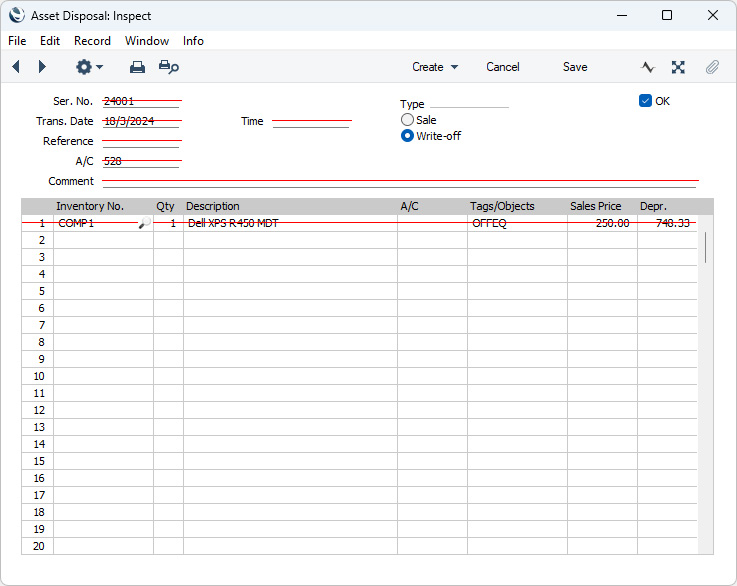
In some circumstances it can be appropriate to invalidate a Disposal record. To do this, open the Disposal in a record window and select 'Invalidate' from the Record menu (which has a 'cog' icon if you are using iOS or Android). This function will remove the Disposal record from all reports; and any associated Nominal Ledger Transaction will be marked as invalidated as well. The Assets listed in the Disposal record will no longer be treated as having been disposed. An invalidated Disposal record is easily distinguished because all fields have red lines drawn through them. These red lines are also shown in the 'Disposals: Browse' window.
You can use Access Groups to prevent certain users from invalidating Expense records. To do this, deny them access to the 'Invalidate Asset Disposals' Action.
---
The Disposal register in Standard ERP:
- Introduction
- Entering a Disposal record
- Nominal Ledger Transactions from Disposal records
- Invalidating Disposal records
- Operations menu
- Home page for Assets module manual
- Home page for Standard ERP manual
Operations Menu - Disposals
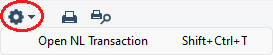
If you are using Windows or macOS, you can open the Operations menu by clicking the button with the 'cog' icon (shown highlighted in the illustration above). If you are using iOS or Android, you can access the Operations menu functions through the Tools menu (with 'wrench' icon).
Please follow the link below for details about the single function on the Operations menu:
The Disposal register in Standard ERP:
- Introduction
- Entering a Disposal record
- Nominal Ledger Transactions from Disposal records
- Invalidating Disposal records
- Operations menu
- Home page for Assets module manual
- Home page for Standard ERP manual
Operations Menu - Disposal - Open NL Transaction
This page describes the 'Open NL Transaction' function on the Operations menu in the Disposal record window. If you are using iOS or Android, the 'Open NL Transaction' function is on the Tools menu (with 'wrench' icon).---
When you have mark a Disposal record as OK and save it, a Nominal Ledger Transaction will be created (if you have so defined in the Sub Systems setting in the Nominal Ledger and in the Number Series - Asset Disposals setting). The 'Open NL Transaction' function allows you to view that Transaction from the Disposal record.
When you select the function from the Operations menu (Windows/macOS) or Tools menu (iOS/Android), the Transaction will be opened in a new window.
You can use Access Groups to prevent certain users from opening Nominal Ledger Transactions from Disposal records. To do this, deny them access to the 'Open Transactions from Operations Menu' Action or to the Nominal Ledger altogether.
---
The Disposal register in Standard ERP:
- Introduction
- Entering a Disposal record
- Nominal Ledger Transactions from Disposal records
- Invalidating Disposal records
- Operations menu, including:
- Open NL Transaction
- Home page for Assets module manual
- Home page for Standard ERP manual