Introduction
A Hansa database can contain more than one Company. This feature can be useful if your business is one where there are separate departments or subsidiary companies that keep separate accounts. These can be set up as separate accounting entities in Hansa. Each department or subsidiary is termed a 'Company'.Note that you should only use this feature to differentiate between different departments if you intend to account for each of them separately. If you keep a single set of accounts covering your whole organisation, you only need have a single Company in your database.
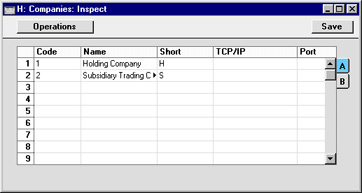
Companies are stored in the Company register in the System module. New Companies can be added at any time: this process is described on the Changing and Adding Companies page. If you have more than one Company in your Company register, it is recommended that you specify a Short Code for each one:
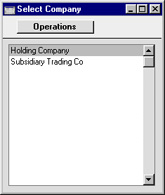
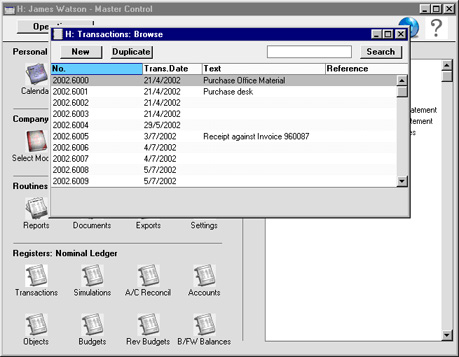
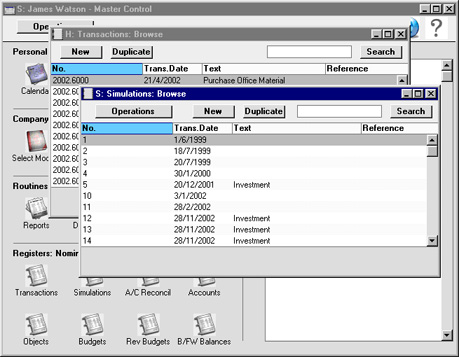
Once you have logged in, the Short Code of the Company ("H" in the example illustrated) will be included in the title of every window:
Usually, each Company will be completely separate: there will be no common information. If you want to copy information from one Company to another, you can do so using one of two methods:
- by dragging and dropping. For example, to copy a Customer record from one Company to another, open the 'Customers: Browse' window in the first Company, change to the second Company using the 'Company' function on the File menu, and open the 'Customers: Browse' window in that Company as well. Then click on the relevant Customer record and drag it from one browse window to the other. This method is suitable for copying individual records.
- using the export and import functions in the System module. This method is suitable for transferring the entire contents of a register or setting from one Company to another.
Shared Registers
You can choose to make the information in certain registers available to every Company in your database. Such registers are termed "Shared Registers". For example, you may choose to make the Customer register a Shared Register so that you use the same Customer list in all your Companies. This will mean that all Customers will be available to all Companies. You will not be able to isolate a particular single Customer so that it can only be used by a particular single Company. Nor will you be able to make the same Customer list available to four of your Companies and have a completely separate Customer list in a fifth Company.To set up a Shared Register, follow these steps:
- Working in any Company, enter the Technics module by selecting 'Technics' from the Modules menu. To be able to do this, you should have logged in as a Person that has access to the Technics module: this is controlled using Access Groups.
- Open the 'Settings' list by clicking the [Settings] button in the Master Control panel or by selecting 'Settings' from the File menu.
- Double-click 'Shared Registers' in the list. The following window opens:
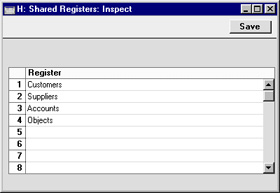
- List the registers that you want to be shared. Use the 'Paste Special' feature (Ctrl-Enter/⌘-Enter) to ensure each register is spelt correctly (an incorrect spelling will mean that the register will not be shared). Click the [Save] button to save and close the window, or click the close box if you don't want to save changes.
If any of these registers in any Company contained any records before they were shared, these records will no longer be available. For example, you will no longer be able to use any Customers already in Company S. If you want to carry on using these Customers, you should export them before sharing the register and then import them after sharing the register. To export them, use the 'Base Registers' Export function in the System module. To import them, use the 'Automatic' or 'Automatic manual file search' Import functions, also in the System module. If you have Customers in several Companies and want to carry on using them all, you should export them from each Company in turn, creating several export files. On import, if a Customer Number has been used more than once, it will end up being used for the Customer in the last file imported. For example, Customer Number 001 refers to Customer Name A in Company 1 and to Customer Name AA in Company 2. Having shared the Customer register and assuming you import the Customers from Company 1 followed by those from Company 2, Customer Number 001 will now refer to Customer Name AA.
Sharing the Account register only means that the static information in the Account register (e.g. Account Number and Name, Account Type and so on) will be shared. It does not mean that there will be a single balance for each Account made up from the Transactions in all Companies. Separate account balances will be maintained for each Account in each Company. If you want there to be a single balance for each Account made up from the Transactions in all Companies, use the Consolidation module.
It is possible to remove a register from the Shared Registers setting, but this is not recommended. Depending on the register in question, you may cause your database to be corrupted. If you do follow this course of action, you will no longer be able to use any records entered since you first shared the register, but you will regain access to any records that were previously in each Company.