Introduction to Item Exports
The 'Exports' function allows you to export certain information from your Standard ERP database to tab-delimited text files from where you can incorporate it in word processing programs for mailmerge, in spreadsheets for further statistical analysis or in page make-up programs for incorporation in publicity material or published reports. In many cases, you can also import the information into other Standard ERP databases or Companies using the 'Automatic' and 'Manual file search' Import functions in the System module. Remember that you can also print reports to disk, so most of the information that is stored in Standard ERP is available to other applications via the medium of the text file.To export information from a Standard ERP database, you must log in as a Global User or Person whose Access Group explicitly grants full access to the Integration module. Change to the Integration module, then click the [Routines] button in the Navigation Centre. In the subsequent window, click the [Exports] button. After changing to the Integration module, you can also use the Ctrl-E (Windows) or ⌘-E (macOS) keyboard shortcuts.
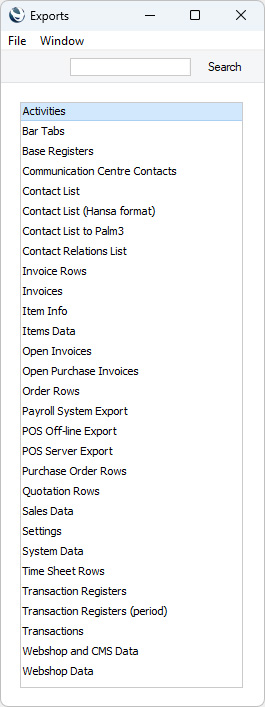
The window illustrated below appears. This is a list of all the Export functions in the Integration module, of which two are relevant to Items. Double-click the option in the list that you need: a specification window will then appear, where you can decide the contents of the exported text file. Click [Run] and a 'Save File' dialogue box will appear, where you can name the file and determine where it is to be saved. If you are exporting with the intention of importing the information into another Standard ERP database or Company using the 'Automatic' and 'Manual file search' Import routines, do not name the file with two leading minus signs/hyphens (e.g. --Data.txt). Information will not be imported from files named in this way.
---
Go back to:
- Home page for Items and Pricing manual
- Home page for Standard ERP manual
Item Info
This page describes the 'Item Info' Export function in the Integration module.---
The 'Item Info' Export function in the Integration module exports information from the Item register. Items will be listed in Item Number order in the export file.
This function creates a file with the correct format to be imported into another Standard ERP Company or database. The file will not contain every field in the Item register: in particular, information from the 'Texts' card of each Item record will not be included. If you need to export this information, use the . Referring to that report, the export file will contain every field from Code to RentalItem.
To use the 'Item Info' Export function, you must log in as a Global User or Person whose Access Group explicitly grants full access to the Integration module. Ensure you are in the Integration module and open the 'Exports' list by clicking the [Routines] button in the Navigation Centre and the [Exports] button in the subsequent 'Routines' window. Then double-click 'Items Info' in the 'Export' list to open the 'Specify Items Data' window.
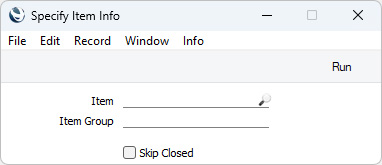
- Item No.
- Paste Special
Item register
- Range Reporting Alpha
- Use this field if you need to export specific Items from the Item register.
- Use this field if you need to export specific Items from the Item register.
- Item Group
- Paste Special
Item Group register, Sales Ledger
- Range Reporting Alpha
- To export the Items that belong to a particular Item Group, specify that Item Group here.
- If you specify both a range of Items and a range of Item Groups, only those Items in the range that are members of the specified Item Groups will be included in the export file.
- To export the Items that belong to a particular Item Group, specify that Item Group here.
- Skip Closed
- Select this option if you do not want to export any Items in the range that have been marked as Closed.
Enter a name for the file, and click [Save] or press the Enter key. If you are exporting with the intention of importing the information into another Standard ERP database or Company using the 'Automatic' and 'Manual file search' Import routines, do not name the file with two leading minus signs/hyphens (e.g. --Data.txt). Information will not be imported from files named in this way.
A message window informs you about the progress of the export process. You can interrupt the process at any time by pressing Esc (Windows) or ⌘-Full Stop (macOS).
---
Go back to:
- Home page for Export functions concerned with Items and Pricing
- Home page for Items and Pricing manual
- Home page for Standard ERP manual
Items Data
This page describes the 'Items Data' Export function in the Integration module.---
You can use the 'Items Data' Export function in the Integration module to export Item information from your database. This is a practical tool for when you want to create a new Company or database that will need this information.
This function creates a file with the correct format to be imported into another Standard ERP Company or database. The file will contain separate sections for each register or setting that you choose to export. You can produce an Export/Import Format report in the Technics module if you need to see the format (field order) that will be used in each section. To produce this report for a single register or setting, enter one of the following values in the Vc (View Code) field (and select the Include Blocks option for the settings marked with *):
| Register/Setting | Vc (View Code) |
| Barcodes | BarcodeVc |
| Base Price Changes | BPCVc |
| Batch Specifications | BatchTextVc |
| Commodity Codes | CommodityVc |
| Default Items | CompItemVc |
| Discount Matrices | RebVc |
| Item Classifications | DIVc |
| Item Formulae | CPMVc |
| Item Groups | ITVc |
| Item Varieties | VARVc |
| Item Variety Groups | VARGVc |
| Items | INVc |
| Locations | LocationVc |
| Minimum Stock Levels | MinPerLocVc |
| Price Formulae | PFormVc |
| Price Lists | PLDefVc |
| Prices | PLVc |
| Purchase Items | PIVc |
| Quantity Dependent Discounts | StaffVc |
| Quantity Dependent Prices | PLQVc |
| Recipes | RecVc |
| Units | UnitVc |
| Variety Sets | VARMasksVc |
| Variety Subsets | VARSubsetsVc |
| Weighted Average | WeigAvVc |
| Item Settings | ItemSettingBlock* |
| Item Status Settings | ItemStatusSetBlock* |
| Structured Items | StructPrintBlock* |
| Variety Masks | VARMaskBlock* |
| Variety Settings | VarietyBlock* |
Please refer to the Exporting Settings and Registers - Index page for a list of the Export functions that you can use to export information from other settings and registers.
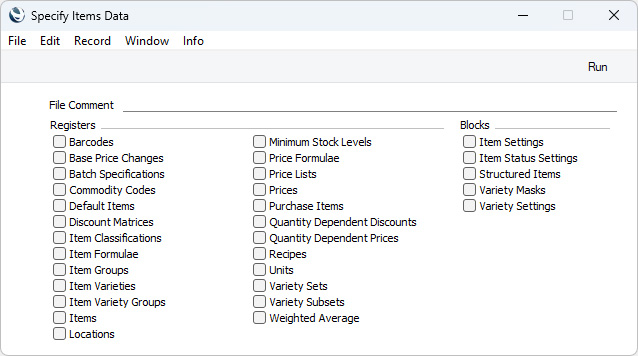
To use the 'Items Data' Export function, you must log in as a Global User or Person whose Access Group explicitly grants full access to the Integration module. Ensure you are in the Integration module and open the 'Exports' list by clicking the [Routines] button in the Navigation Centre and the [Exports] button in the subsequent 'Routines' window. Then double-click 'Items Data' in the 'Export' list to open the 'Specify Items Data' window.
- File Comment
- Enter a short comment describing the contents of the export file (up to 40 characters are permitted). If you try to import the resulting file to another Company or database using the 'Automatic' import function in the System module, this description will be shown in the list of importable files.
- Check boxes
- Check one or more boxes to specify the registers and/or settings from where records are to be exported.
Enter a name for the file, and click [Save] or press the Enter key. If you are exporting with the intention of importing the information into another Standard ERP database or Company using the 'Automatic' and 'Manual file search' Import routines, do not name the file with two leading minus signs/hyphens (e.g. --Data.txt). Information will not be imported from files named in this way.
A message window informs you about the progress of the export process. You can interrupt the process at any time by pressing Esc (Windows) or ⌘-Full Stop (macOS).
---
Go back to:
- Home page for Export functions concerned with Items and Pricing
- Home page for Items and Pricing manual
- Home page for Standard ERP manual