Introduction to Varieties
The Varieties feature in Standard ERP allows you to buy and sell Items with different sizes, colours or styles, in any combination. This feature allows you to have a single record in the Item register for each overall Item, while maintaining stock levels for each style. Examples might be clothes and shoes in different sizes and colours, and furniture with different finishes.In this section, we will illustrate the use of the Varieties using two examples: shirts that can be sold in different sizes, colours and styles (short- and long-sleeved); and trousers that can be sold with different waist sizes, leg lengths and fit options.
Please refer to the following pages for more details about using Varieties in Standard ERP:
- Introduction
- Defining Varieties
- Item Numbers of Items with Varieties
- Using Items with Varieties in Transactions
- Pricing of Varieties
- Varieties and Reports
- Varieties and Barcodes
Go back to:
- Home page for Items and Pricing manual
- Home page for Standard ERP manual
Defining Varieties
This page outlines the steps you should follow to define Item Varieties in Standard ERP.---
There are several settings that you will use when configuring an Item to use Varieties. All these settings are in the Stock module.
We will illustrate the use of these settings using two examples: shirts that can be sold in different sizes, colours and styles (short- and long-sleeved); and trousers that can be sold with different waist sizes, leg lengths and fit options.
Using the [Switch Module] button in the Navigation Centre, ensure you are in the Stock module and follow these steps:
- Use the Item Variety Groups setting to define the types of Variety that you sell. In the example, we need three Item Variety Groups for the shirt (Colour, Size and Style) and three for the trousers (Fit, Leg Length and Waist Size):

- In the Item Varieties setting, define all the possible Varieties that you sell. For example, Small, Medium and Large will all be Item Varieties belonging to the "Size" Variety Group, and Short-sleeved and Long-sleeved will be Item Varieties belonging to the "Style" Variety Group:
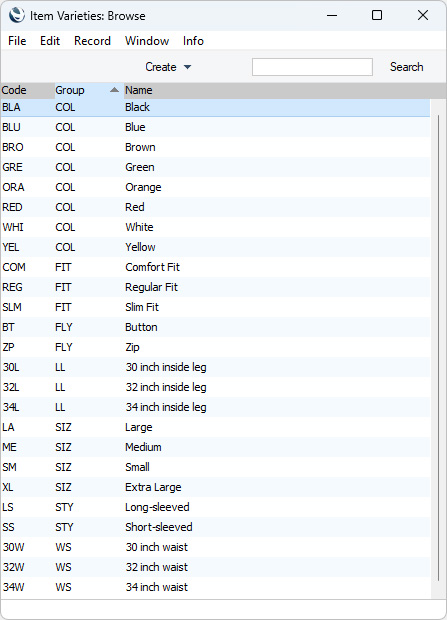
- You cannot use Varieties with Items that you have already used at least once in a sales or stock transaction. Doing so will cause your stock records to become corrupted. So, working in the Item register, you should now enter in the normal way the Items that you will be using with Varieties.
!
Do not use Varieties with Items that you have used before.
- An optional step is to define sets of Variety Groups that can be used with each Item. For example, you might sell many different styles of trousers (e.g. jeans, slacks, chinos, suit trousers). Each style of trouser will have its own Item record. All styles of trousers will have the same three Variety Groups (Waist Size, Fit and Leg Length). If you enter a record in the Variety Sets setting in which you list the three Variety Groups, you won't need to remember them each time a new style of trouser becomes available and you need to enter a new Item record. Instead, you can quote the Variety Set in the Item record, ensuring all three Variety Groups will be attached to the new style of trouser in the correct order.
- Specify the Variety Groups that can be used with each Item (the Item's "Variety Mask"). You can specify Variety Groups for a range of Items using the Variety Masks setting, and then specify different Variety Groups for particular Items in the range using the 'Varieties' card in the Item record.
- The Variety Settings setting contains some options allowing you to specify how you will work with Varieties.
- Please also refer here for details about pricing and Varieties.
---
Varieties in Standard ERP:
- Introduction
- Defining Varieties
- Item Numbers of Items with Varieties
- Using Items with Varieties in Transactions
- Pricing of Varieties
- Varieties and Reports
- Varieties and Barcodes
- Home page for Items and Pricing manual
- Home page for Standard ERP manual
Defining Varieties - Item Variety Groups
This page describes the Item Variety Groups setting in the Stock module.---
The first step in configuring Varieties is to list the types of Variety that you sell, using the Item Variety Groups setting. Examples might be Colour, Size, Style, Veneer or Finish.
Do not enter the Varieties themselves in the Item Variety Groups setting. For example, when selling clothes, an appropriate Item Variety Group might be Size: you should enter the sizes themselves (e.g. Small, Medium, Large, etc) in the Item Varieties setting.
To define a new Item Variety Group, first move into the Stock module using the [Switch Module] button in the Navigation Centre. Then, if you are using Windows or macOS, click the [Settings] button that's also in the Navigation Centre and double-click 'Item Variety Groups' in the resulting list. If you are using iOS or Android, select 'Settings' from the Tools menu (with 'wrench' icon) and tap 'Item Variety Groups' in the 'Settings' list. The 'Item Variety Groups: Browse' window will appear, showing the Item Variety Groups that you have previously entered. You can add a new record by selecting 'New' from the Create menu (Windows/macOS) or the + menu (iOS/Android). When the record is complete, save it by clicking the [Save] button (Windows/macOS) or tapping √ (iOS/Android) in the Button Bar. To close it without saving changes, click the close box (Windows/macOS) or tap < (iOS/Android).
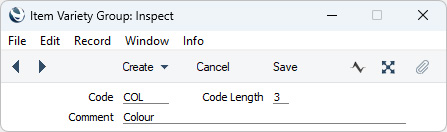
- Code
- Enter a code by which the Item Variety Group can be identified. You can use up to five alphanumeric characters.
- Code Length
- When you use an Item that has Varieties in a transaction of any kind, you will use a combined Item/Variety Number. This consists of the Item Number itself, from the Item register, and a suffix that indicates the Variety. This suffix is divided into sections, one for each Variety Group.
- If you need the section of the combined Item/Variety Number that represents this Variety Group always to contain a certain number of characters, enter that number here. If the number of characters will vary, enter a full stop or a number of characters here.
- If you enter a number of characters, you must also enter a number of characters (not necessarily the same number) as the Length in all other Variety Groups that will be used by a particular Item. You should also enter a numeric Length in all Variety Masks that will use the Variety Group. Similarly, if you enter a full stop, you should also enter a full stop in other Variety Groups and Variety Masks.
- If you enter a number of characters, every Variety that belongs to this Variety Group should have a Code that consists of exactly this number of characters. In the example Variety Group illustrated above, all Colours should have three-character Codes.
- If you enter a full stop, the number of characters in each Variety Code will not matter.
- Please refer to the Item Numbers of Items with Varieties page for more details and an example.
- If you need the section of the combined Item/Variety Number that represents this Variety Group always to contain a certain number of characters, enter that number here. If the number of characters will vary, enter a full stop or a number of characters here.
- Comment
- Specify a name for the Variety Group.
---
Varieties in Standard ERP:
- Introduction
- Defining Varieties, including:
- Item Variety Groups
- Item Varieties
- Variety Sets
- Variety Subsets
- Variety Masks
- Variety Settings
- Item Variety Groups
- Item Numbers of Items with Varieties
- Using Items with Varieties in Transactions
- Pricing of Varieties
- Varieties and Reports
- Varieties and Barcodes
- Home page for Settings in the Stock module
- Home page for Items and Pricing manual
- Home page for Stock manual
- Home page for Standard ERP manual
Defining Varieties - Item Varieties
This page describes the Item Varieties setting in the Stock module.---
Having entered your Item Variety Groups as described here, the next step in defining Varieties is to use the Item Varieties setting in the Stock module to list the Varieties themselves i.e. to list the different Varieties that you sell.
To define a new Item Variety, first ensure you are in the Stock module using the [Switch Module] button in the Navigation Centre. Then, if you are using Windows or macOS, click the [Settings] button that's also in the Navigation Centre and double-click 'Item Varieties' in the resulting list. If you are using iOS or Android, select 'Settings' from the Tools menu (with 'wrench' icon) and tap 'Item Varieties' in the 'Settings' list. The 'Item Varieties: Browse' window will appear, showing the Item Varieties that you have previously entered. You can add a new record by selecting 'New' from the Create menu (Windows/macOS) or the + menu (iOS/Android). When the record is complete, save it by clicking the [Save] button (Windows/macOS) or tapping √ (iOS/Android) in the Button Bar. To close it without saving changes, click the close box (Windows/macOS) or tap < (iOS/Android).
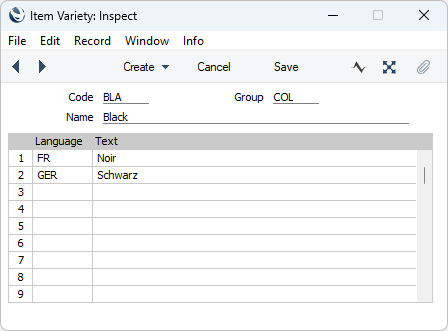
- Code
- Enter a code by which the Item Variety can be identified.
- If you specified a number of characters in the Code Length field in the parent Variety Group, you should enter a Code consisting of exactly that number of characters. The example Variety shown above belongs to the Variety Group illustrated on the Item Variety Groups page and so has a three-character Code. It is recommended that you use the 'Paste Special' feature when entering the Variety Group in the field to the right, the required number of characters will be shown in the 'Paste Special' list as a reminder.
- If you entered a full stop in the Code Length field in the parent Variety Group, you can enter up to five characters here (the exact number will not matter).
- If you specified a number of characters in the Code Length field in the parent Variety Group, you should enter a Code consisting of exactly that number of characters. The example Variety shown above belongs to the Variety Group illustrated on the Item Variety Groups page and so has a three-character Code. It is recommended that you use the 'Paste Special' feature when entering the Variety Group in the field to the right, the required number of characters will be shown in the 'Paste Special' list as a reminder.
- Group
- Paste Special
Item Variety Groups setting, Stock module
- Specify here the Variety Group to which the Variety belongs.
- Name
- Specify a name for the Variety. This will be included in the Item description whenever you use the Variety in transactions (e.g. in Invoices, Orders and Goods Receipts).
- Language, Text
- Use the table in the lower part of the window if you need to enter translations of the name of the Item Variety. Specify a Language in the first column using 'Paste Special' if necessary, and the appropriate translation in the second column. There is no need to enter a row for your home Language.
- When you specify the Variety in a transaction (e.g. in an Order or Invoice), the Language of the transaction will determine which translation will be included in the Item Description. If a transaction does not have a Language or has a Language with no translation listed in this table, the Name (above) will be used.
---
Varieties in Standard ERP:
- Introduction
- Defining Varieties, including:
- Item Variety Groups
- Item Varieties
- Variety Sets
- Variety Subsets
- Variety Masks
- Variety Settings
- Item Variety Groups
- Item Numbers of Items with Varieties
- Using Items with Varieties in Transactions
- Pricing of Varieties
- Varieties and Reports
- Varieties and Barcodes
- Home page for Settings in the Stock module
- Home page for Items and Pricing manual
- Home page for Stock manual
- Home page for Standard ERP manual
Defining Varieties - Variety Sets
This page describes the Variety Sets setting in the Stock module.---
The Variety Sets setting in the Stock module will be useful if you have many Items that use the same set of Variety Groups (i.e. the same Variety Mask). For example, you might sell many different styles of trousers (e.g. jeans, slacks, chinos, suit trousers). Each style of trouser will have its own Item record. All styles of trousers will have the same three Variety Groups (Waist Size, Fit and Leg Length). If you enter a record in the Variety Sets setting in which you list the three Variety Groups, you won't need to remember them each time a new style of trouser becomes available and you need to enter a new Item record. Instead, you can choose the relevant Variety Set using 'Paste Special' from the Variety Mask field in the Item record. This will ensure all three Variety Groups will be attached to the new style of trouser in the correct order. Similarly, when creating a new Variety Mask, you can choose the relevant Variety Set using 'Paste Special' from the Mask field.
To define a new Variety Set, first ensure you are in the Stock module using the [Switch Module] button in the Navigation Centre. Then, if you are using Windows or macOS, click the [Settings] button that's also in the Navigation Centre and double-click 'Variety Sets' in the resulting list. If you are using iOS or Android, select 'Settings' from the Tools menu (with 'wrench' icon) and tap 'Variety Sets' in the 'Settings' list. The 'Variety Sets: Browse' window will appear, showing the Variety Sets that you have previously entered. You can add a new record by selecting 'New' from the Create menu (Windows/macOS) or the + menu (iOS/Android). When the record is complete, save it by clicking the [Save] button (Windows/macOS) or tapping √ (iOS/Android) in the Button Bar. To close it without saving changes, click the close box (Windows/macOS) or tap < (iOS/Android).
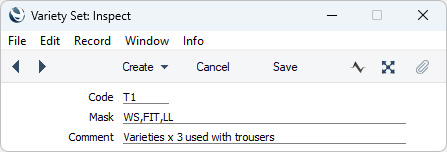
- Code
- Enter a code by which the Variety Set can be identified. You can use up to ten characters.
- Mask
- Paste Special Item Variety Groups setting, Stock module
- List here the Variety Groups that are to be included in the Variety Set.
- You can enter as many Variety Groups as necessary, separated by commas. If you need to use 'Paste Special' to enter several Variety Groups, type the comma before opening the 'Paste Special' list. This will cause the next Variety Group to be added to those already entered. Otherwise, the previous Variety Group will be overwritten.
- In the example illustration, we have defined a Variety Set to be used with trousers, consisting of three Variety Groups: Fit, Leg Length and Waist Size. Whenever we enter a new Item record for a new type of trouser, we can access this Variety Set using 'Paste Special' from the Variety Mask field. This will bring these three Variety Groups into the new Item record, helping ensure the correct Variety Groups are there and in the correct order.
- List here the Variety Groups that are to be included in the Variety Set.
- Comment
- Specify a name for the Variety Set. This name will be shown in the 'Paste Special' list: it should therefore be descriptive enough to make the selection of the correct Variety Set easy for all users.
Varieties in Standard ERP:
- Introduction
- Defining Varieties, including:
- Item Numbers of Items with Varieties
- Using Items with Varieties in Transactions
- Pricing of Varieties
- Varieties and Reports
- Varieties and Barcodes
- Home page for Settings in the Stock module
- Home page for Items and Pricing manual
- Home page for Stock manual
- Home page for Standard ERP manual
Defining Varieties - Variety Subsets
This page describes the Variety Subsets setting in the Stock module.---
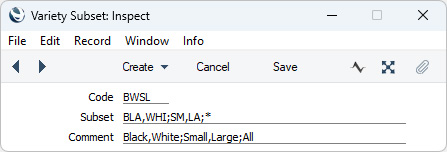
A Variety Subset is a list of the Varieties that can be used with a particular Item. For example, an Item might have "COL,SIZ,STY" (Colour, Size, Style) as its Mask. Using a Subset would allow you to specify that the Item is only available in certain colours such as black and white, and will help prevent you using other colours with the Item by mistake. In this example, a suitable Subset might be "BLA,WHI;*;*", signifying that the Item is available in black or white, in all sizes and in any style.
As Subsets can be fairly complex strings, you may prefer to enter them in the Variety Subsets setting in the Stock module if it is likely you will use them with more than one Item or more than one Variety Mask. When you enter a new Item, you can choose the relevant Variety Subset using 'Paste Special' from the Variety Subsets field in the Item record. Similarly, when creating a new Variety Mask, you can choose the relevant Variety Subset using 'Paste Special' from the Subsets field on flip C in the Variety Masks setting.
To define a new Variety Subset, first ensure you are in the Stock module using the [Switch Module] button in the Navigation Centre. Then, if you are using Windows or macOS, click the [Settings] button that's also in the Navigation Centre and double-click 'Variety Subsets' in the resulting list. If you are using iOS or Android, select 'Settings' from the Tools menu (with 'wrench' icon) and tap 'Variety Subsets' in the 'Settings' list. The 'Variety Subsets: Browse' window will appear, showing the Variety Subsets that you have previously entered. You can add a new record by selecting 'New' from the Create menu (Windows/macOS) or the + menu (iOS/Android). When the record is complete, save it by clicking the [Save] button (Windows/macOS) or tapping √ (iOS/Android) in the Button Bar. To close it without saving changes, click the close box (Windows/macOS) or tap < (iOS/Android).
- Code
- Enter a code by which the Variety Subset can be identified. You can use up to ten characters.
- Subset
- Paste Special
Item Varieties setting, Stock module
- List here the Varieties that are to be included in the Variety Subset.
- The example illustrated above is a Subset that can be used with a Mask "COL,SIZ,STY" (Colour, Size, Style). Start by listing the allowable Varieties for the first Variety Group ("COL" in this case). Separate these Varieties with commas. Then, enter a semi-colon (;) to mark the division between the first and second Variety Groups. Then enter the allowable Varieties for the second Variety Group, again separated by commas, and so on. If every Variety in a particular Group can be used, enter an asterisk (*).
- In the example illustrated above, the Subset is "BLA,WHI;SM,LA;*". The first part of this Subset (up to the first semi-colon) signifies that the only colours available are BLA and WHI (black and white). The second part signifies that the only sizes available are SM and LA (small and large). The final part is an asterisk, signifying that all styles are available.
- Whenever we enter a new Item record for which the Variety Subset is suitable, we can access it using 'Paste Special' from the Subsets field in the Item record. This will bring the Subset into the new Item record, helping ensure the correct Varieties are there and in the correct order.
- If you need to use 'Paste Special' to enter several Varieties, type the comma or semi-colon before opening the 'Paste Special' list. This will cause the next Variety to be added to those already entered. Otherwise, the previous Variety will be overwritten.
- The example illustrated above is a Subset that can be used with a Mask "COL,SIZ,STY" (Colour, Size, Style). Start by listing the allowable Varieties for the first Variety Group ("COL" in this case). Separate these Varieties with commas. Then, enter a semi-colon (;) to mark the division between the first and second Variety Groups. Then enter the allowable Varieties for the second Variety Group, again separated by commas, and so on. If every Variety in a particular Group can be used, enter an asterisk (*).
- Comment
- Specify a name for the Variety Subset. This name will be shown in the 'Paste Special' list: it should therefore be descriptive enough to make the selection of the correct Variety Subset easy for all users.
Varieties in Standard ERP:
- Introduction
- Defining Varieties, including:
- Item Variety Groups
- Item Varieties
- Variety Sets
- Variety Subsets
- Variety Masks
- Variety Settings
- Item Variety Groups
- Item Numbers of Items with Varieties
- Using Items with Varieties in Transactions
- Pricing of Varieties
- Varieties and Reports
- Varieties and Barcodes
- Home page for Settings in the Stock module
- Home page for Items and Pricing manual
- Home page for Stock manual
- Home page for Standard ERP manual
Defining Varieties - Variety Masks
This page describes the Variety Masks setting in the Stock module and the 'Varieties' card in the Item record window.---
After entering your Item Variety Groups and Item Varieties, you should specify which Variety Groups can be used with each Item. The set of Variety Groups that can be used with an Item is known as the Item's "Variety Mask". For example, Variety Groups that can be used with trousers might be Waist Size, Fit and Leg Length, so, "Waist Size, Fit, Leg Length " will be the Variety Mask for trousers. The Variety Mask for shirts might be "Shirt Size, Sleeve Style, Colour".
Use the Variety Masks setting in the Stock module to specify a Variety Mask for each Item. The setting allows you to specify that the same Variety Mask is to be used with a range of Items. You can also specify a Variety Mask for an individual Item using the 'Varieties' card in the Item record.
Once you have entered a Variety Mask for a particular Item using either method, and have then used the Item in at least one sales or stock transaction, you should not change the Mask. Doing so will cause your stock records to become inaccurate. If the Mask contains an error, or the specification of the Item changes, you should not change or remove the Mask. Instead, you should enter a new Item and Mask. However, you can change the Report Order on flip B and the Subsets on flip C if necessary.
! | Do not change a Variety Mask once you have used an Item. |
To edit Variety Masks, ensure you are in the Stock module, open the 'Settings' list and double-click (Windows/macOS) or tap (iOS/Android) 'Variety Masks'. The following window appears:
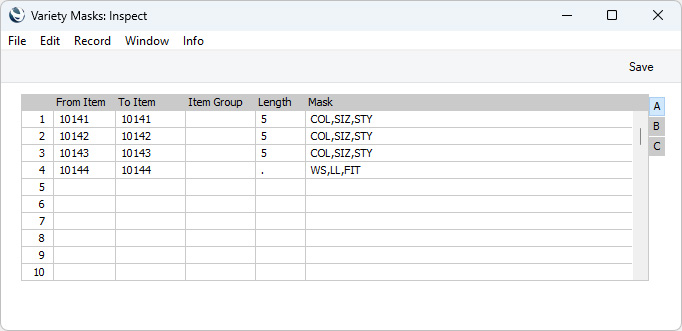
If you are using Windows or macOS, you can add a new Variety Mask record simply by typing in the first blank line. If you are using iOS or Android, you can add rows by tapping the + button below the matrix.
The information required for each Variety Mask record is as follows:
Flip A
- From Item, To Item
- Paste Special
Item register
- Use these two fields to specify the range of Items that will use the Mask.
- Item Group
- Paste Special
Item Group register, Sales Ledger
- If every Item belonging to a particular Item Group will use the same Mask, specify that Item Group here.
- If you have specified a range of Items in the fields to the left, any Item Group that you specify as well will be ignored. Any Items in the range that do not belong to the Item Group will use the Mask.
- If you have specified a range of Items in the fields to the left, any Item Group that you specify as well will be ignored. Any Items in the range that do not belong to the Item Group will use the Mask.
- Length
- When you use an Item that has Varieties in a transaction of any kind, you will use a combined Item/Variety Number. This consists of the Item Number itself, from the Item register, and a suffix that indicates the Variety. This suffix is divided into sections, one for each Variety Group.
- You can separate the various constituent parts of a combined Item/Variety Number using full stops, or you can specify the length (number of characters) of each part. Depending on which option you want to use for the section of the combined Item/Variety Number that represents the Item Number, enter a full stop or a number of characters here.
- If you enter a number of characters, every Item in the range specified in the From Item and To Item fields should have an Item Number that consists of exactly this number of characters. In the example illustration, the Items in the first three rows should all have five-character Codes.
- If you enter a full stop (as in the fourth row in the illustration), the number of characters in each Item Number will not matter.
- If you enter a number of characters, you must also enter a number of characters (not necessarily the same number) as the Length in all the Variety Groups that you specify in the Mask field to the right. Similarly, if you enter a full stop, you should also enter a full stop in the Variety Groups.
- Please refer to the Item Numbers of Items with Varieties page for more details and an example.
- You can separate the various constituent parts of a combined Item/Variety Number using full stops, or you can specify the length (number of characters) of each part. Depending on which option you want to use for the section of the combined Item/Variety Number that represents the Item Number, enter a full stop or a number of characters here.
- Mask
- Paste Special
Variety Sets setting, Stock module
- Specify here the Variety Groups that should be used with the Items in the range.
- You can enter as many Variety Groups as necessary, separated by commas.
- Use 'Paste Special' to bring in a pre-defined set of Variety Groups from the Variety Sets setting.
- In the example illustration, we have specified that the first three Items should all be used with the Variety Groups "COL" (Colour), "SIZ" (Size) and "STY" (Style). This means that whenever we buy or sell these Items, we must specify a colour, a size and a style, in that order. So, for example, we will not be able to sell any of these Items without knowing the size.
- Once you have entered a Variety Mask for a particular Item, and have then used the Item in at least one sales or stock transaction, you should not change the Mask. Doing so will cause your stock records to become inaccurate.
- If you need to specify a Variety Group that can be used with an Item but want to prevent the use of a particular Variety (e.g. a shirt is only available in black and white), use the Subsets field on flip C.
- You can enter as many Variety Groups as necessary, separated by commas.
Flip B
- Report Order
- Paste Special
Variety Sets setting, Stock module
- Out of the Variety Groups listed in the Mask field on flip A, specify here which ones you would like to be included in the Varieties in Stock report. You must make an entry here, otherwise the report will be empty. Please refer to the description of the Varieties in Stock report for details and an example.
- Use 'Paste Special' to bring in a pre-defined set of Variety Groups from the Variety Sets setting.
Flip C
- Subsets
- Paste Special
Variety Subsets setting, Stock module
- Considering each Variety Group in the order in which they were entered in the Mask field on flip A, you should use this field to list the Varieties that can be used with the Items in the range.
- Start by listing the allowable Varieties for the first Variety Group. Separate these Varieties with commas. Then, enter a semi-colon (;) to mark the division between the first and second Variety Groups. Then enter the allowable Varieties for the second Variety Group, again separated by commas, and so on.
- If every Variety in a particular Group can be used, enter an asterisk (*). If every Variety in every Group can be used, you can leave the field blank.
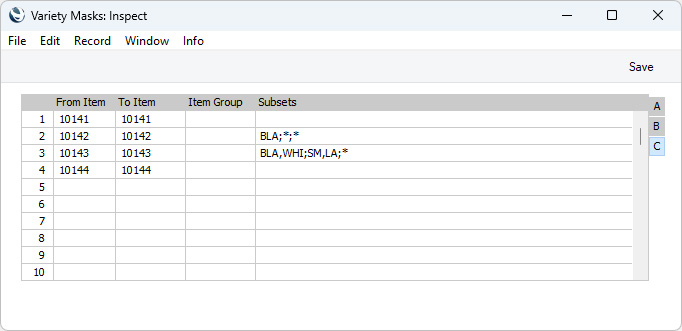
- In the example illustrated above, the first three Items have the same Mask: "COL" (Colour), "SIZ" (Size) and "STY" (Style). The Subset for the first Item has been left blank, meaning it is available in all colours, sizes and styles. The second Item has a Subset of "BLA;*;*", so it can only be sold in black, but in any size and style. The Subset of the third Item is "BLA,WHI;SM,LA;*". This Item is available in black and white, small and large, and in any style.
- Unlike the Mask, you can change the Subset after having used the Item in a transaction.. For example, if the second Item becomes available in white as well, you can change the Subset from "BLA;*;*" to "BLA,WHI;*;*". Similarly, if the black version is discontinued, you can change again to "WHI;*;*", but you will only be able to make this change if you have no black versions in stock.
- Use 'Paste Special' to bring in a pre-defined set of allowable Varieties from the Variety Subsets setting.
- Start by listing the allowable Varieties for the first Variety Group. Separate these Varieties with commas. Then, enter a semi-colon (;) to mark the division between the first and second Variety Groups. Then enter the allowable Varieties for the second Variety Group, again separated by commas, and so on.

---
Varieties in Standard ERP:
- Introduction
- Defining Varieties, including:
- Item Numbers of Items with Varieties
- Using Items with Varieties in Transactions
- Pricing of Varieties
- Varieties and Reports
- Varieties and Barcodes
- Home page for Settings in the Stock module
- Home page for Items and Pricing manual
- Home page for Stock manual
- Home page for Standard ERP manual
Defining Varieties - Variety Settings
This page describes the Variety Settings setting in the Stock module.---
The Variety Settings setting in the Stock module contains some options allowing you to specify how you will work with Varieties.
To work with this setting, ensure you are in the Stock module, open the 'Settings' list and double-click (Windows/macOS) or tap (iOS/Android) 'Variety Settings'. The following window appears:
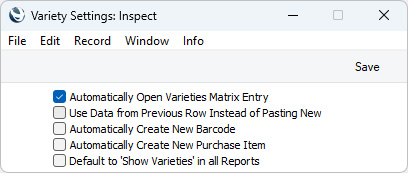
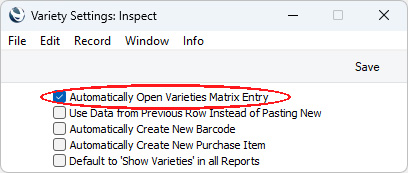
- Automatically Open Varieties Matrix Entry
- When you specify an Item that requires one or two Varieties in a transaction (e.g. in a Quotation, Order or Invoice), you can activate 'Paste Special' from the Qty field to open a matrix (the 'Variety Matrix Entry' window) where you can specify the quantity of each Variety as appropriate. When you press the [Paste] button or the Shift-Enter key combination, each Variety will be added to the transaction in a separate row with the specified quantity. Select this option if you would like the 'Variety Matrix Entry' window to open automatically. The 'Variety Matrix Entry' window is illustrated in step 5 on the Using 'Paste Special' with Items with Varieties page.
- Use Data from Previous Row Instead of Pasting New
- This option can be useful if you need to enter an Item with many different Varieties (e.g. many different styles of shirt) in a transaction, and you need to change one of the values. In this situation, you can enter one of the Varieties in the transaction, change the value (e.g. change the Unit Price or the Sales Account), and then use the 'Variety Matrix Entry' window from the next row to bring in the other Varieties. If you are using this option, the second and subsequent rows will have the new value (in this example, the new Unit Price or Sales Account). If you are not using this option, the second and subsequent rows will have the standard value (in this example, the standard Unit Price or Sales Account brought in from the relevant Price List or from the Item record).
- A second effect of using this option will occur after you choose Varieties in the 'Variety Matrix Entry' window. A check will be made to see if you have already added the same Varieties to the transaction. For example, you add a Blue Long-Sleeved Shirt to a transaction with quantity 5. Then from a later row you open the 'Variety Matrix Entry' window where you specify the Blue Long-Sleeved Shirt with quantity 6 and a Green Long-Sleeved Shirt with quantity 1. If you are using this option, the quantity in the original row with the Blue Long-Sleeved Shirt will be changed from 5 to 6. If you are not using this option, the original row will be unchanged and a second row for the Blue Long-Sleeved Shirt with quantity 6 will be added to the transaction.
- This option will not be used in Goods Receipts.
- Please refer here for more details about the 'Variety Matrix Entry' window.
- A second effect of using this option will occur after you choose Varieties in the 'Variety Matrix Entry' window. A check will be made to see if you have already added the same Varieties to the transaction. For example, you add a Blue Long-Sleeved Shirt to a transaction with quantity 5. Then from a later row you open the 'Variety Matrix Entry' window where you specify the Blue Long-Sleeved Shirt with quantity 6 and a Green Long-Sleeved Shirt with quantity 1. If you are using this option, the quantity in the original row with the Blue Long-Sleeved Shirt will be changed from 5 to 6. If you are not using this option, the original row will be unchanged and a second row for the Blue Long-Sleeved Shirt with quantity 6 will be added to the transaction.
- Automatically Create New Barcode
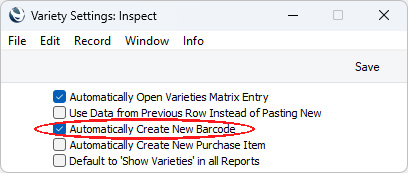
- Select this option if you would like a Barcode to be generated automatically for a Variety when you use it for the first time in a Quotation, Purchase Order or Sales Order and save the record. Please refer to the 'Varieties and Barcodes' page for more details.
- Automatically Create New Purchase Item
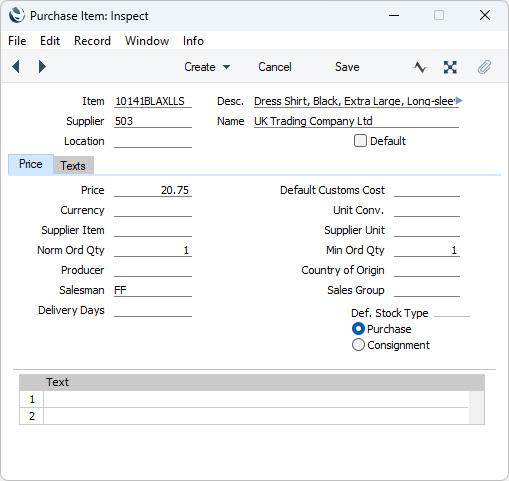
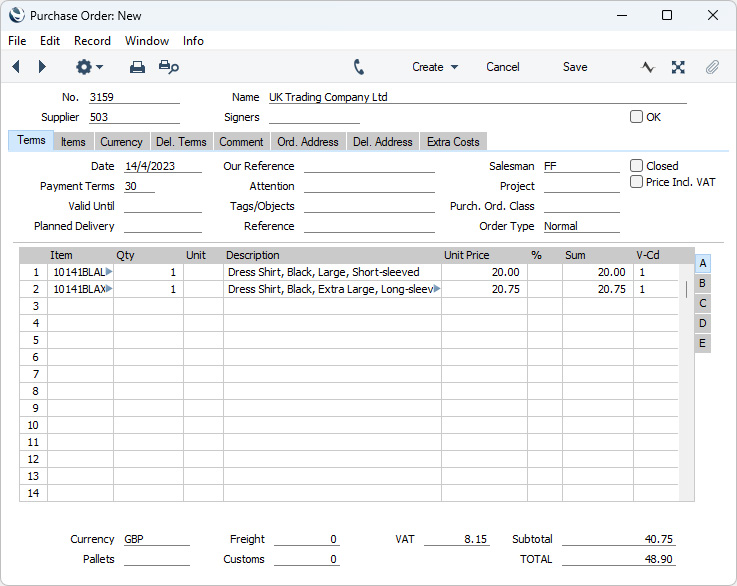
- Select this option if you would like a Purchase Item to be generated automatically for a Variety when you use it for the first time in a Quotation, Purchase Order or Sales Order and save the record.
- In the new Purchase Item, the Supplier will be the Default Supplier specified in the Purchase Order Settings setting. If you have not specified a Default Supplier and you first used the Variety in a Purchase Order, the Supplier in the Purchase Item will be copied from the Purchase Order. Otherwise, there will be no Supplier in the Purchase Item. If there is a Supplier, the Default box will be ticked. The Cost Price in the Item record will be copied to the Price field in the Purchase Item. The Normal and Minimum Order Quantities will both be set to 1.
- In the new Purchase Item, the Supplier will be the Default Supplier specified in the Purchase Order Settings setting. If you have not specified a Default Supplier and you first used the Variety in a Purchase Order, the Supplier in the Purchase Item will be copied from the Purchase Order. Otherwise, there will be no Supplier in the Purchase Item. If there is a Supplier, the Default box will be ticked. The Cost Price in the Item record will be copied to the Price field in the Purchase Item. The Normal and Minimum Order Quantities will both be set to 1.
- Default to 'Show Varieties' in all Reports
- Several reports offer a Show Varieties option, which allows you to display statistics at the Variety level rather than the Item level. For example, the Stock List will usually display the stock level of an Item as a whole, but if you produce it using the Show Varieties option it will display the stock levels of each Variety.
- The following reports offer the Show Varieties option: Customer/Item Statistics, Deficiency List, Deficiency List per Location, Item Sales Statistics, Item Turnover History, Price List, Reordering Requirements, Stock List, Stock Reservations and Supplier/Item Statistics.
- Select this option if you would like the Show Varieties option to be selected by default when producing any of the reports listed above.
- The following reports offer the Show Varieties option: Customer/Item Statistics, Deficiency List, Deficiency List per Location, Item Sales Statistics, Item Turnover History, Price List, Reordering Requirements, Stock List, Stock Reservations and Supplier/Item Statistics.
---
Varieties in Standard ERP:
- Introduction
- Defining Varieties, including:
- Item Variety Groups
- Item Varieties
- Variety Sets
- Variety Subsets
- Variety Masks
- Variety Settings
- Item Variety Groups
- Item Numbers of Items with Varieties
- Using Items with Varieties in Transactions
- Pricing of Varieties
- Varieties and Reports
- Varieties and Barcodes
- Home page for Settings in the Stock module
- Home page for Items and Pricing manual
- Home page for Stock manual
- Home page for Standard ERP manual
Item Numbers of Items with Varieties
This page describes how the Item Numbers of Items with Varieties are constructed.---
When you use an Item that has Varieties in a transaction of any kind, you should use a combined Item/Variety Number. This combined number will consist of the Item Number itself, from the Item register, and a suffix that indicates the Variety. The suffix will be divided into sections, one for each Variety Group.
You can separate the various constituent parts of a combined Item/Variety Number using full stops, or you can specify the length (number of characters) of each part. The full stop method can be easier to manage if you will be typing combined Item/Variety Numbers in to your transactions, as you will not need to remember how many characters are required in each part of the Number. This method also produces Item/Variety Numbers that are easier to read. However, the length method might be preferable if you are using certain types of bar code reader.
If you want to use full stops, you should enter a full stop in the Length field in the Variety Masks setting and in the Code Length field in each Item Variety Group record.
If you want to specify the number of characters of each part of the combined Item/Variety Number, you should enter the length of the first part (the Item Number) in the Length field in the Variety Masks setting, and the number of characters of each section of the suffix in the Code Length field in each Item Variety Group record.
The example combined Item/Variety Numbers illustrated in the diagram below use the Varieties, Variety Groups and Variety Masks illustrated on their respective pages. Item 10141 is one where we have specified the length (number of characters) of each part. The Item Number is five characters, the first Variety is three characters, and the second and third Varieties are two characters each. Item 10144 is one where the various constituent parts of the combined Item/Variety Number are separated using full stops: the numbers of characters in the Item Number and the Varieties do not matter:
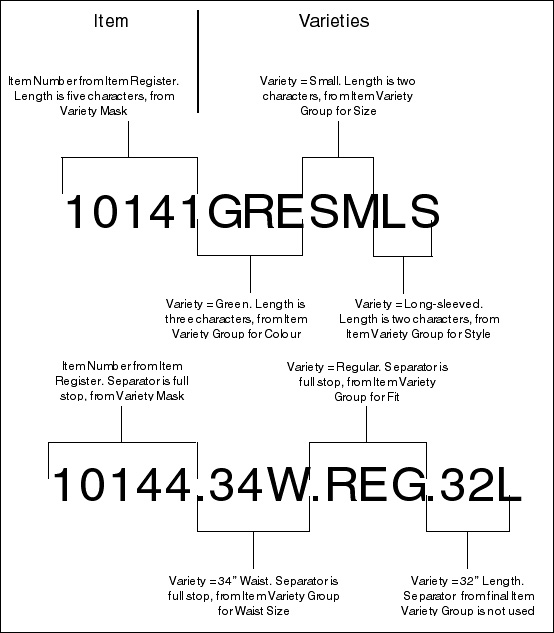
- The order of the Variety Groups (Colour, Size, Style in the case of Item 10141; Waist Size, Fit, Leg Length in the case of Item 10144) is the same as was listed on flip A of the Variety Masks setting.
- If you are specifying the length (number of characters) of each part, as in Item 10141, the number of characters in the first part (the Item Number) must be the same as recorded in the Variety Masks setting. This must therefore be the number of characters in the Item Number in the Item register. Similarly, the number of characters in each section of the second part must be the same as recorded in the Item Variety Groups setting. If there is any variation, Standard ERP will not be able to interpret the combined Item/Variety Number correctly.
- If you are separating each section with a full stop, the number of characters does not matter.
- It is recommended that you do not mix the two separation methods. In the example above, the Variety Group for Colour cannot be used with the full stop separator, and so cannot be used with Item 10144.
- Bear in mind when entering your Varieties that the maximum number of characters that can be used in a combined Item/Variety Number is 20. This includes full stops if you are using that separation method. Depending on the length of your Item Numbers, this imposes a practical limit of three or four Variety Groups for each Item.
Varieties in Standard ERP:
- Introduction
- Defining Varieties
- Item Numbers of Items with Varieties
- Using Items with Varieties in Transactions
- Pricing of Varieties
- Varieties and Reports
- Varieties and Barcodes
- Home page for Items and Pricing manual
- Home page for Standard ERP manual
Using Items with Varieties in Transactions
This page describes using Items with Varieties in transactions of all kinds (e.g. Quotations, Orders, Invoices, Sales and Purchase Orders, Goods Receipts).---
When you use an Item with Varieties in a transaction, you should usually enter the combined Item/Variety Number, as follows:
- You should always enter the combined Item/Variety Number in any stock transaction (e.g. Delivery or Goods Receipt) and in an Invoice. If you only enter an Item Number, you will not be able to save the record.
- There is no requirement to enter the combined Item/Variety Number in a Quotation. When you issue a Quotation, the Customer might not know precisely which Varieties they want. However, you can enter this information in a Quotation if it is known.
- You should always enter the combined Item/Variety Number in a Sales Order.
- There is no requirement to enter the combined Item/Variety Number in a Purchase Order. When you create a Goods Receipt from a Purchase Order, you will not be able to mark the Goods Receipt as OK and save until you have entered the combined Item/Variety Number.
- You can use Items with Varieties in the Production module (i.e. as components and as assembled Items). You must enter the combined Item/Variety Number in Recipes and Productions. There is no requirement to enter the combined Item/Variety Number in a Production Order if its Status is Created, but you must enter the combined Item/Variety Number before you can change its Status to Accepted or Started.
---
Varieties in Standard ERP:
- Introduction
- Defining Varieties
- Item Numbers of Items with Varieties
- Using Items with Varieties in Transactions, including:
- Pricing of Varieties
- Varieties and Reports
- Varieties and Barcodes
- Home page for Items and Pricing manual
- Home page for Standard ERP manual
Using Items with Varieties in Transactions - Using 'Paste Special' with Items with Varieties
This page describes using the 'Paste Special' feature to add Items with Varieties to transactions of all kinds (e.g. Quotations, Orders, Invoices, Sales and Purchase Orders, Goods Receipts).---
When you need to use an Item with Varieties in a transaction, the 'Paste Special' feature gains some extra features to help you choose the correct Variety. In this example, we will choose an Item and Variety in an Invoice:
- Place the insertion point in the Item Number field and open the familiar Item 'Paste Special' list.
When you select the Item, the Item Number will be copied to the Invoice row.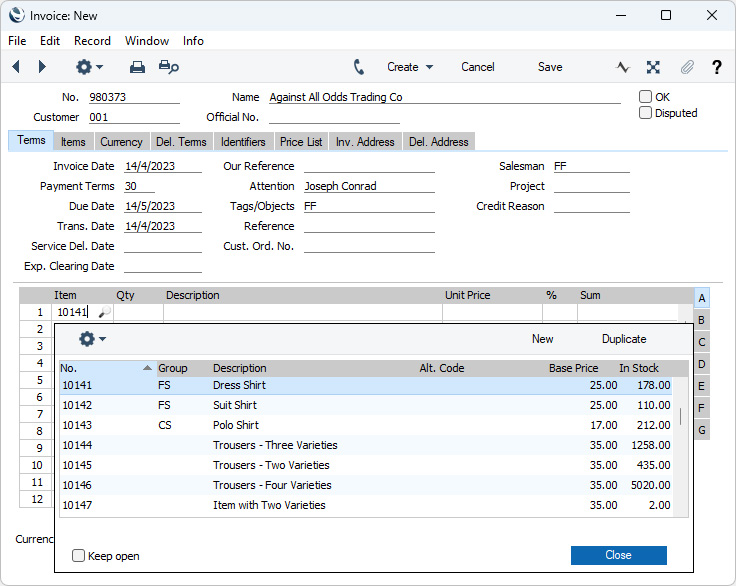
- Leave the insertion point in the Item Number field and activate the 'Paste Special' feature for a second time. This time, instead of the usual 'Paste Special' list, the 'Assisted Variety Entry' window will open.
In this example, Item 10141 requires Varieties belonging to three different Variety Groups. As a result, the 'Assisted Variety Entry' window has three fields, one for each required Variety Group.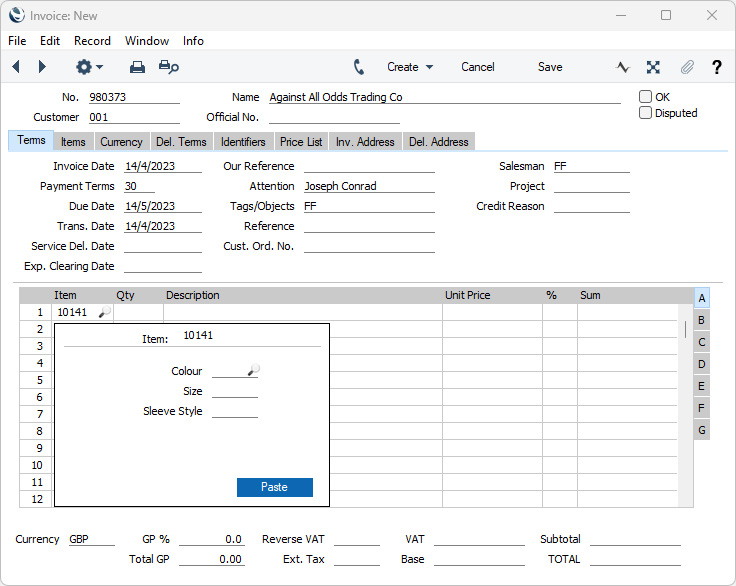
- Using 'Paste Special' in the usual way from each of these three fields in turn, enter a Variety belonging to each Group in the appropriate field.
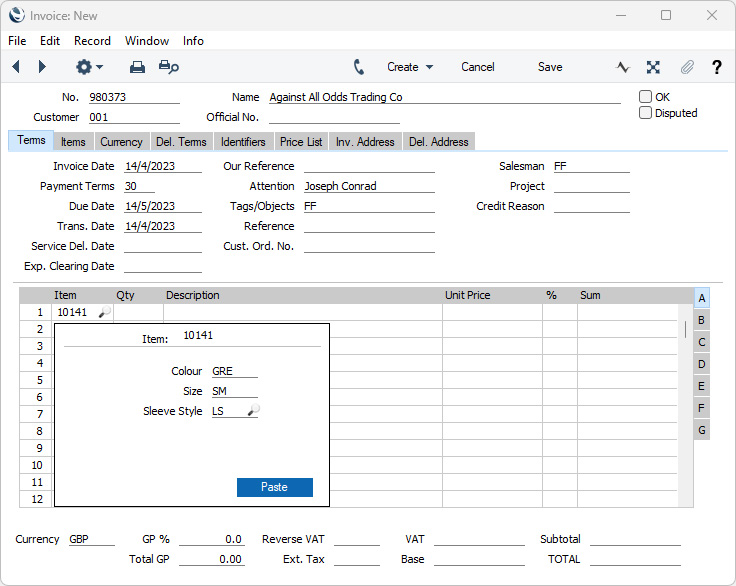
- Close the 'Assisted Variety Entry' window by pressing the [Paste] button or using the Shift-Enter key combination. The combined Item/Variety Number will be pasted into the Invoice. When you move the insertion point to the Quantity field, the names of each Variety will be added to the Item Name in the Description field:
If the Item is one that only requires Varieties belonging to one or two different Variety Groups, an alternative to activating the 'Paste Special' feature for the second time in step 2 above is to move the insertion point immediately to the Quantity field and to activate 'Paste Special' from there. The 'Variety Matrix Entry' window will open: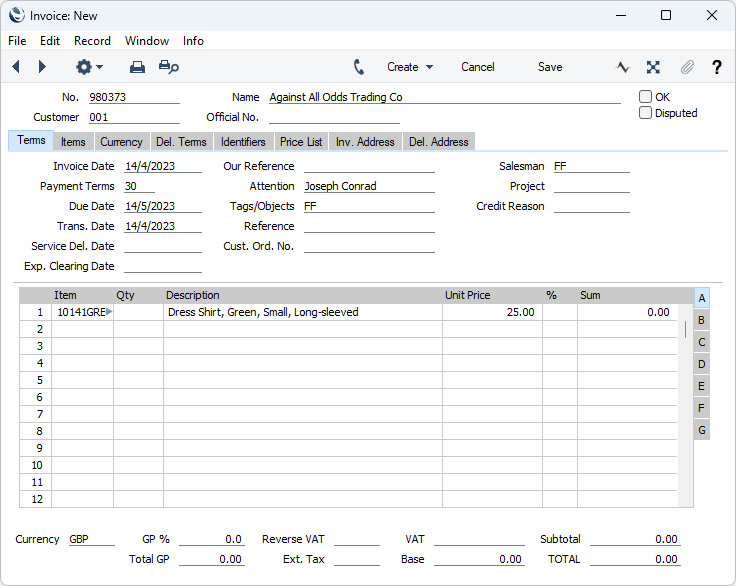
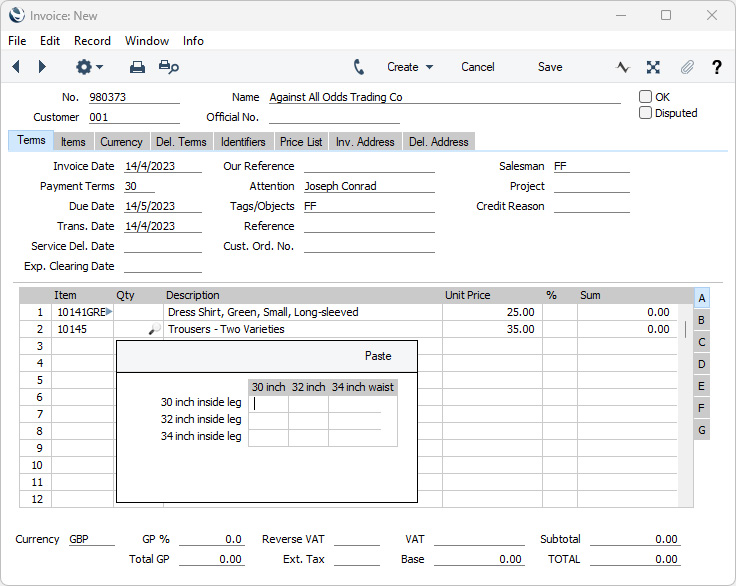
- Enter the quantity of each Variety as appropriate:
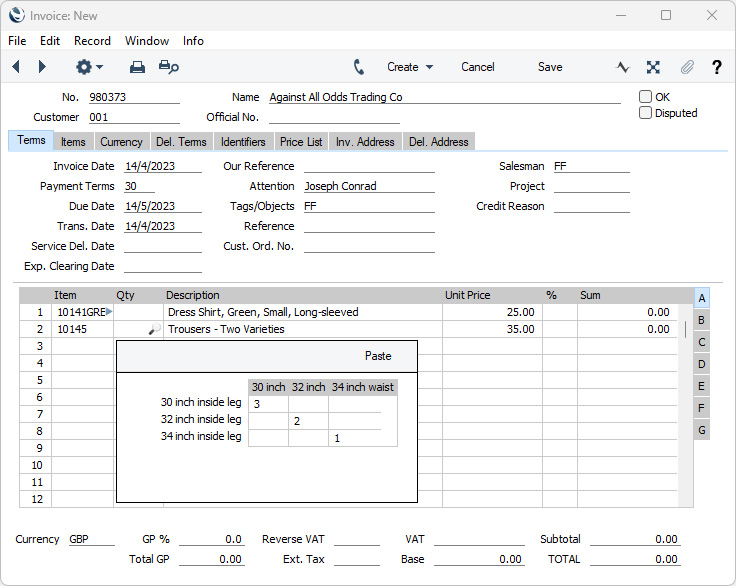
- Press the [Paste] button or use the Shift-Enter key combination. Each Variety will be added to the transaction in a separate row with the specified quantity:
If you would like the 'Variety Matrix Entry' window to open automatically from the Quantity field whenever you specify an Item that requires one or two Varieties, select the Automatically Open Varieties Matrix Entry option in the Variety Settings setting: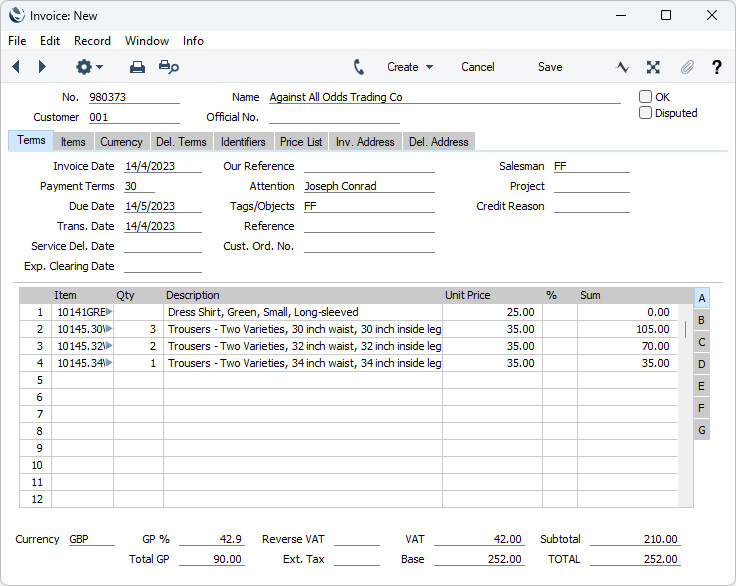
- If you need to enter an Item with many different Varieties (e.g. many different styles of shirt) in a transaction, and you need to change one of the values, the Use Data from Previous Row Instead of Pasting New option in the Variety Settings setting may be useful.
In this example, we have entered one of the Varieties in the first row of an Invoice: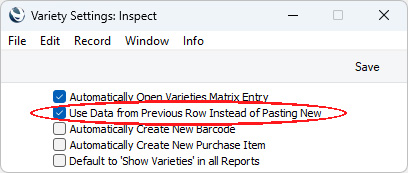
After changing the Unit Price, we will open the 'Variety Matrix Entry' window from the next row: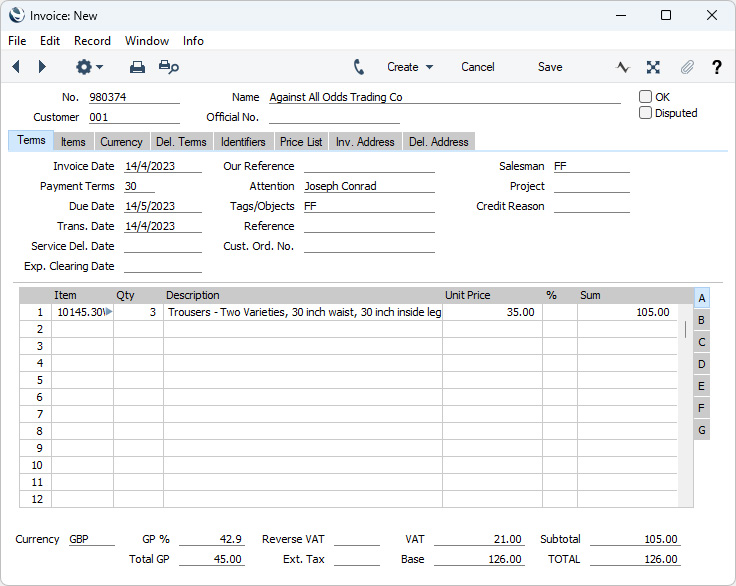
We enter the required quantity of each Variety and press the [Paste] button to add them to the Invoice. If we are using the Use Data from Previous Row Instead of Pasting New option, the new rows will all have the new Unit Price.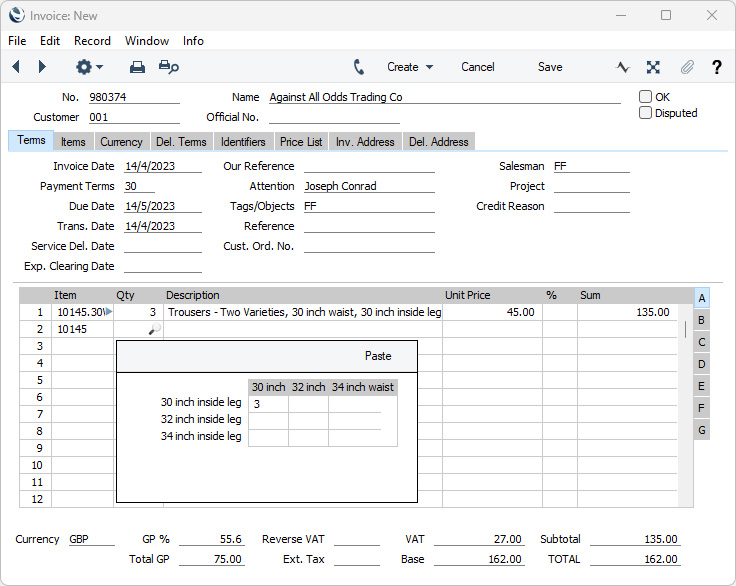
If we had changed the Sales Account, VAT Code and/or Objects as well as the Unit Price in the first row, those changes would be copied to the new rows as well.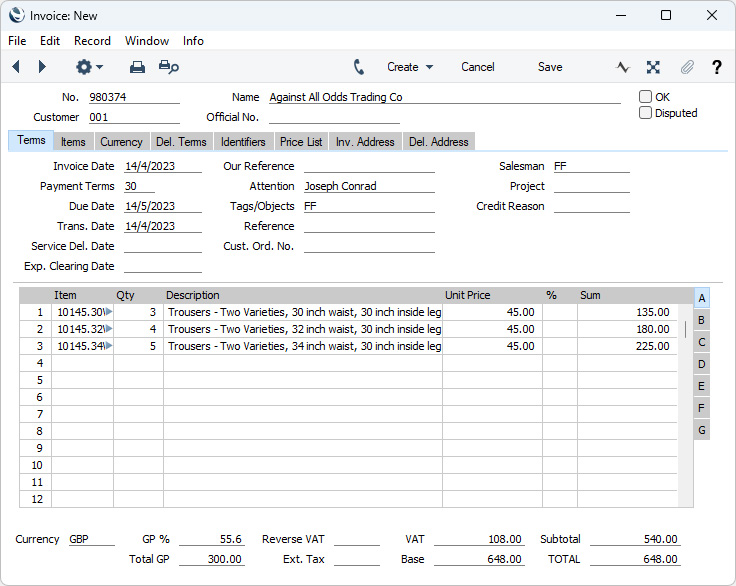
Note that when the 'Variety Matrix Entry' window opened, the quantity of 3 from the first row was included. This is another effect of using the Use Data from Previous Row Instead of Pasting New option. In this example, we did not change this quantity. If we had done so, the change would be copied back to the first row in the Invoice. If we were not using the Use Data from Previous Row Instead of Pasting New option, the quantity from the first row would not be included in the 'Variety Matrix Entry' window. If we then enter a quantity for the same Variety, a new row would be added to the Invoice for that quantity.
The Use Data from Previous Row Instead of Pasting New option only works with the 'Variety Matrix Entry' window as illustrated, not with the 'Assisted Variety Entry' window (step 2 above).
Varieties in Standard ERP:
- Introduction
- Defining Varieties
- Item Numbers of Items with Varieties
- Using Items with Varieties in Transactions, including:
- Using 'Paste Special' with Items with Varieties
- Varieties and the 'Item Status' Window
- Using 'Paste Special' with Items with Varieties
- Pricing of Varieties
- Varieties and Reports
- Varieties and Barcodes
- Home page for Items and Pricing manual
- Home page for Standard ERP manual
Using Items with Varieties in Transactions - Varieties and the 'Item Status' Window
This page describes how Items with Varieties are shown in the 'Item Status' window.---
The 'Item Status' window displays the current status (for example, the quantity in stock, the quantity on order, how many can be shipped and the current gross profit) of an Item.
You can open the 'Item Status' window can be opened from the 'Items: Browse' window by highlighting an Item in the list and then choosing 'Item Status' from the Operations menu. The window will display information about the Item highlighted in the list. This information will change as you click on different Items in the list. The figures shown in the 'Item Status' window will refer to the Item as a whole (i.e. all Varieties).
You can also open the 'Item Status' window from many record windows, including the Sales Order, Purchase Order, Invoice, Quotation, Delivery, Stock Depreciation and Stock Movement record windows. To do so, first click in any field in the row containing the Item you are interested in, then right-click (Windows) or ctrl-click (macOS) the row number and select the 'Item Status' function from the resulting menu. The 'Item Status' window will display information about the Item in the row where you clicked. The information will change as you click in different rows. The window will respond to Item Numbers and to combined Item/Variety Numbers. For example, entering an Item Number in an Invoice row and then selecting 'Item Status' from the Row menu will produce the following result:
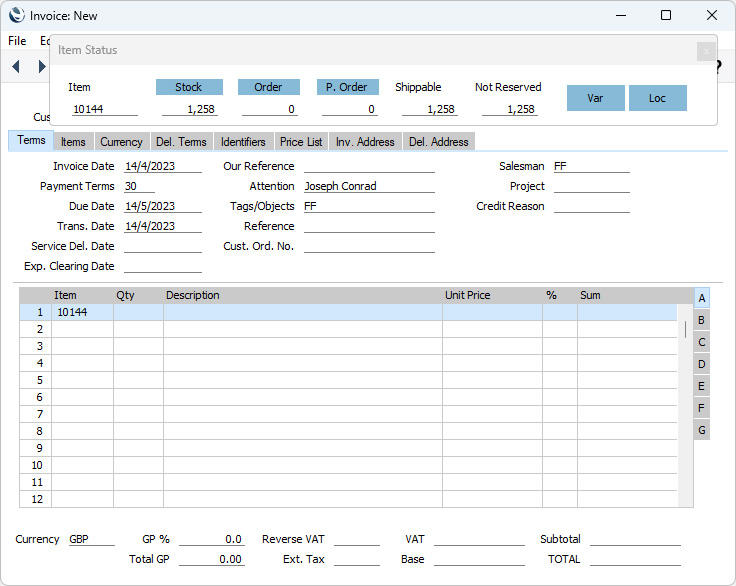
If we enter the combined Item/Variety Number in the Invoice row, the result will be as follows:
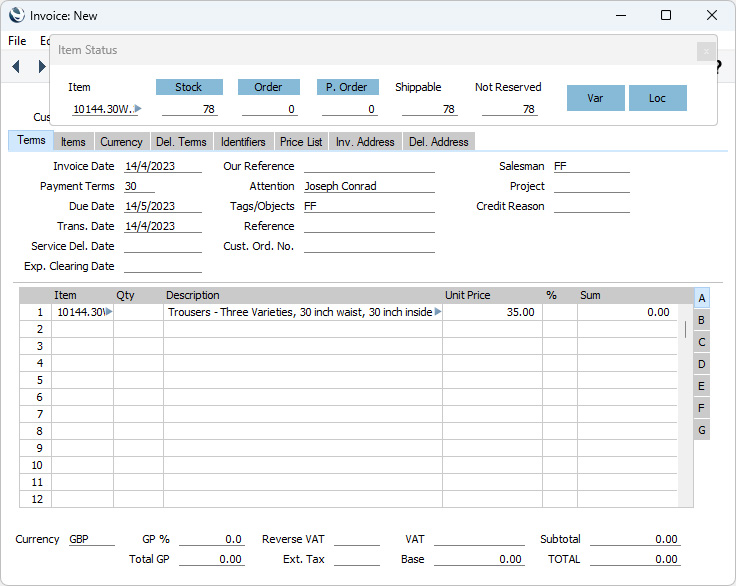
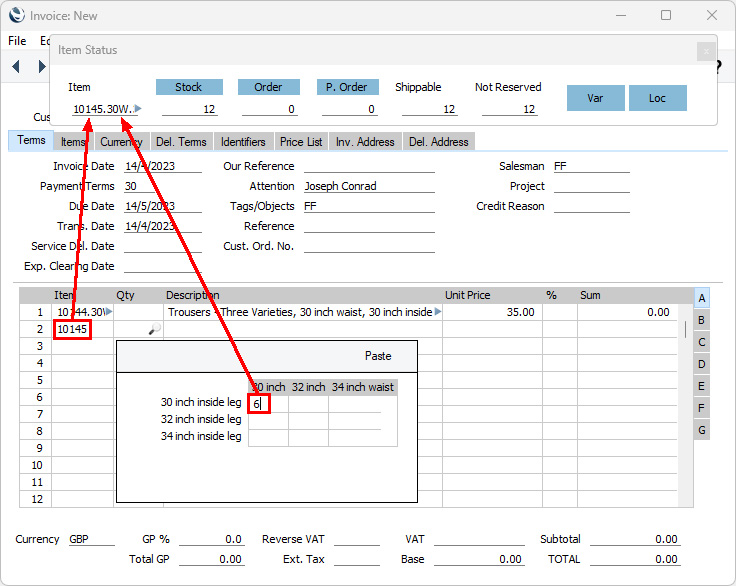
If the 'Item Status' and 'Variety Matrix Entry' windows are both open, you can move the insertion point from cell to cell in the 'Variety Matrix Entry' window. As you do so, the 'Item Status' window will display figures relating to each Variety. In the illustration below, the insertion point is in the top left-hand cell (Item 10145, 30 inch waist, 30 inch inside leg). The 'Item Status' window shows that we have 12 of this Variety in stock:
Varieties in Standard ERP:
- Introduction
- Defining Varieties
- Item Numbers of Items with Varieties
- Using Items with Varieties in Transactions, including:
- Using 'Paste Special' with Items with Varieties
- Varieties and the 'Item Status' Window
- Using 'Paste Special' with Items with Varieties
- Pricing of Varieties
- Varieties and Reports
- Varieties and Barcodes
- Home page for Items and Pricing manual
- Home page for Standard ERP manual
Pricing of Varieties
This page describes setting different sales and purchase prices for individual Varieties.---
As the Varieties feature allows you to have a single record in the Item register for each overall Item, you can only have a single Base Price and a single Cost Price for each Item. The default behaviour will therefore be that you will sell every Variety of an Item at the same sales price and you will also purchase every Variety at the same cost price.
If you need to sell Varieties at different prices, you can do so using Price Lists. Follow these steps:
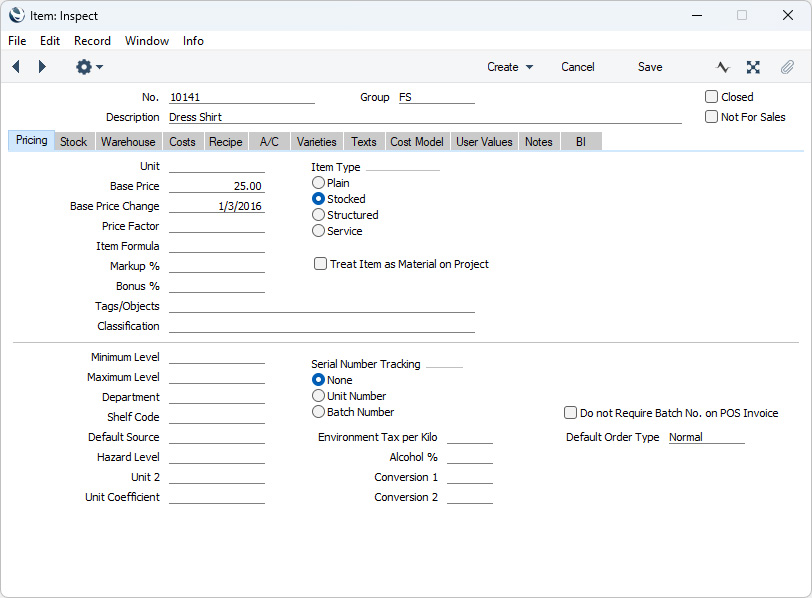
- Create a record in the Item register for the overall Item as normal. Enter the most common sales price (i.e. the sales price that is appropriate for most Varieties or for the Varieties that you sell most often) in the Base Price field:
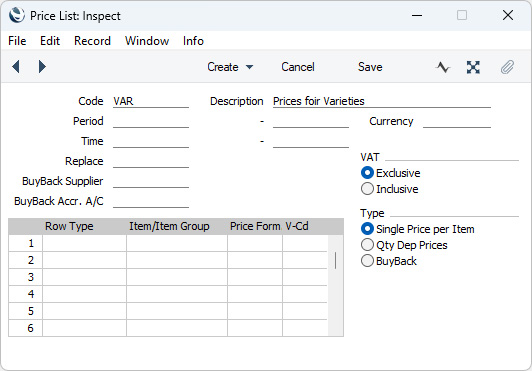
- In the Pricing module, create a Price List for the non-standard prices:
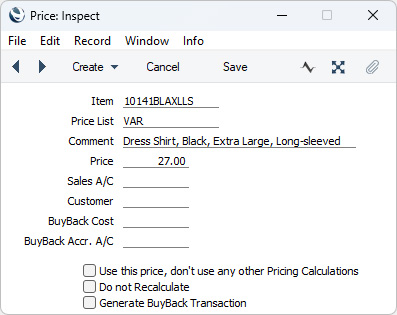
- Remaining in the Pricing module, create individual records in the Price register for each Variety with a non-standard price. Specify the full combined Item/Variety Number in the Item field and, in the Price List field, the Price List from step 2:
- Assign the Price List to Customers and/or Customer Categories as appropriate. A useful tool might be to specify the Price List on the 'Misc' card of each record in the Countries setting in the System module. When you add records to the Contact register for new Customers and specify the Country in those records, the Price List will be brought in automatically.
- When you create a sales transaction (e.g. Quotation, Order or Invoice) and specify the Customer, the Price List will be brought in. This will allow the various Varieties to be priced correctly:
If a record exists in the Price register for a particular Item/Variety/Price List combination, the sales price will be brought in from that record. Otherwise (i.e. if there is no suitable record in the Price register), the sales price will be the Base Price in the Item record, hence the recommendation that this should be the most common sales price.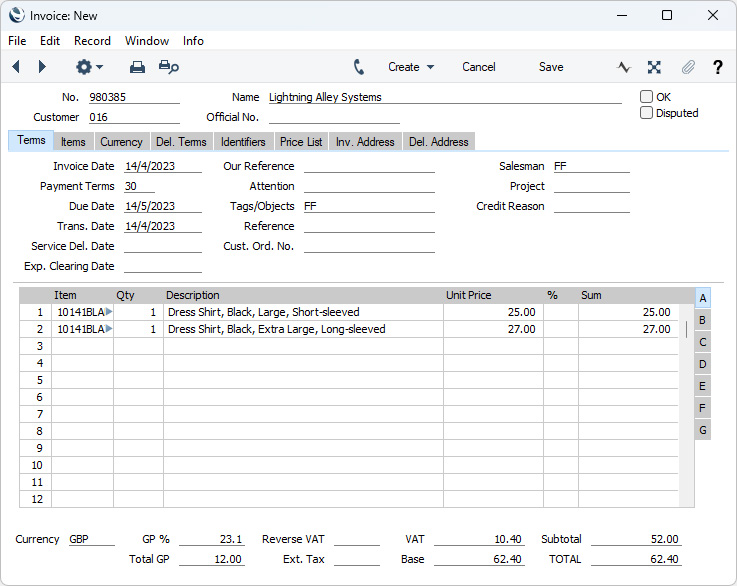
Varieties in Standard ERP:
- Introduction
- Defining Varieties
- Item Numbers of Items with Varieties
- Using Items with Varieties in Transactions
- Pricing of Varieties
- Varieties and Reports
- Varieties and Barcodes
- Home page for Items and Pricing manual
- Home page for Standard ERP manual
Varieties and Reports
Standard ERP contains the following reports to help you work with Varieties: please follow the links for details about each one:- Introduction to producing Item reports
- Varieties Control
- Varieties Enquiry
- Varieties in Stock
- Stock List
Varieties in Standard ERP:
- Introduction
- Defining Varieties
- Item Numbers of Items with Varieties
- Using Items with Varieties in Transactions
- Pricing of Varieties
- Varieties and Reports
- Varieties and Barcodes
- Home page for Items and Pricing manual
- Home page for Standard ERP manual
Varieties and Reports - Varieties Control
This page describes the Varieties Control report in the Stock module.---
Once you have entered a Variety Mask for a particular Item, and have then used the Item in at least one sales or stock transaction, you should not change the Mask. Doing so will cause your stock records to become inaccurate.
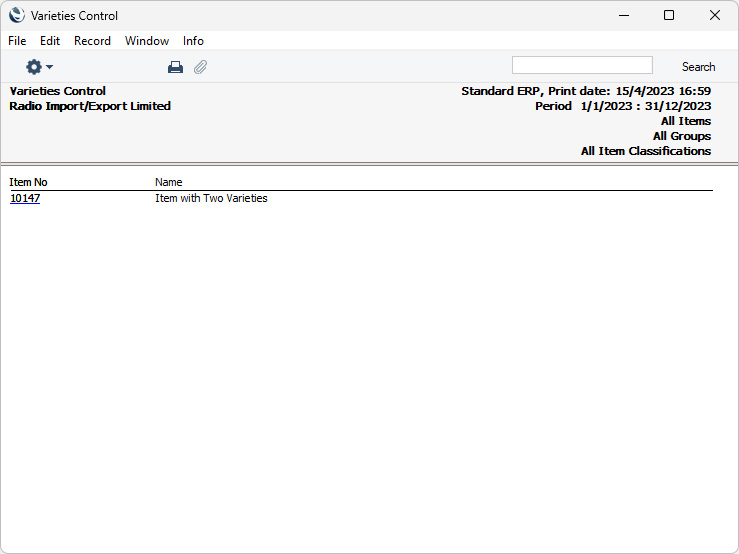
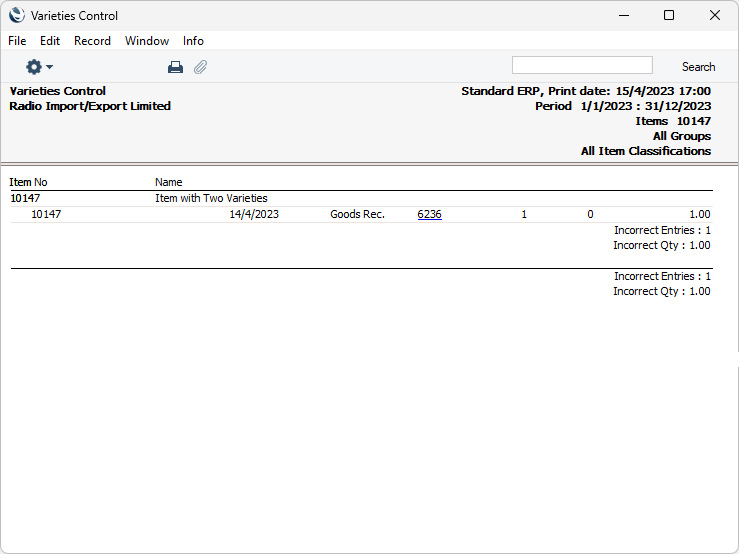
For example, you might have an Item 10147 representing a particular style of trouser whose Variety Mask is "WS,LL" (waist size, leg length). When you enter a Goods Receipt to receive the first consignment into stock, you will use combined Item/Variety Numbers such as 10147.30W.30L. If for some reason you change the Mask to "LL,WS", the combined Item/Variety Numbers of the units already in stock will be rendered unrecognisable, because "30W" is not a leg length and "30L" is not a waist size. This will mean that you cannot sell these units or otherwise remove them from stock. It may also mean that these units are excluded from some reports.
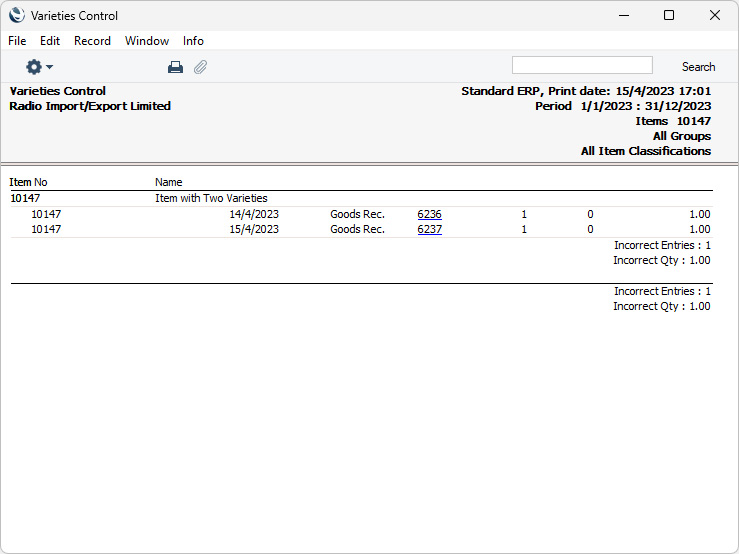
The Varieties Control report in the Stock module can help find combined Item/Variety Numbers that are not constructed correctly. Usually this will be because the Mask has been changed, as previously described. Continuing the example, running this report with the default options will produce the following result:
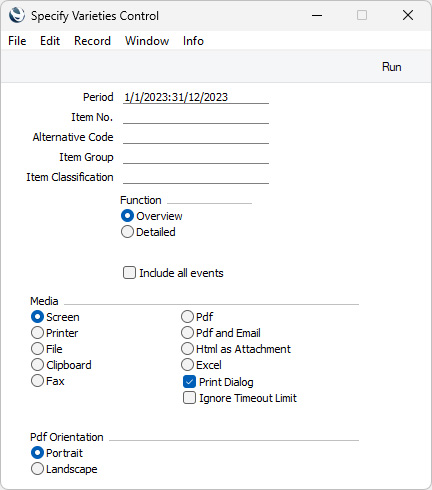
To produce the Varieties Control report, ensure you are in the Stock module using the [Switch Module] button in the Navigation Centre, then click (Windows/macOS) or tap (iOS/Android) the [Reports] button, also in the Navigation Centre. When the 'Reports' list opens, double-click or tap 'Varieties Control'. The 'Specify Varieties Control' window illustrated below will appear. Once you have entered the reporting criteria as described below the illustration, click or tap the [Run] button to produce the report.
- Period
- Paste Special
Reporting Periods setting, System module
- Specify the period to be covered by the report. Every stock transaction from this period will be checked for incorrect combined Item/Variety Numbers i.e. for Item/Variety Numbers that do not match the relevant Variety Masks.
- Item No.
- Paste Special
Item register
- Range Reporting Alpha
- Enter an Item Number here if you need to check whether an incorrect Item/Variety Number relating to a particular Item has been used in a stock transaction. You can also enter a range of Item Numbers separated by a colon (:).
- If the resulting report is empty (and you did not select the Include all events option below), this signifies either that the Item was not used at all during the report period, or that it was always used with correct combined Item/Variety Numbers.
- Enter an Item Number here if you need to check whether an incorrect Item/Variety Number relating to a particular Item has been used in a stock transaction. You can also enter a range of Item Numbers separated by a colon (:).
- Alternative Code
- You can also produce a report for a specific Item by specifying its Alternative Code here.
- Group
- Paste Special
Item Group register, Sales Ledger
- Range Reporting Alpha
- Enter an Item Group here if you need to check whether an incorrect Item/Variety Number relating to any Item belonging to a particular Item Group has been used in a stock transaction.
- Enter an Item Group here if you need to check whether an incorrect Item/Variety Number relating to any Item belonging to a particular Item Group has been used in a stock transaction.
- Item Classification
- Paste Special
Item Classifications setting, Sales Ledger
Enter an Item Classification here if you need to check whether an incorrect Item/Variety Number relating to any Item with a particular Item Classification has been used in a stock transaction. If you enter a number of Classifications separated by commas, only Items featuring all the Classifications listed will be checked. If you enter a number of Classifications separated by plus signs (+), every Item featuring at least one of the Classifications listed will be checked. If you enter a Classification preceded by an exclamation mark (!), every Item featuring any Classification except the one listed will be checked.
- For example:
- 1,2
- Checks Items with Classifications 1 and 2 (including Items with Classifications 1, 2 and 3).
- 1+2
- Checks Items with Classifications 1 or 2.
- !2
- Checks all Items except those with Classification 2.
- 1,!2
- Checks Items with Classification 1 but excludes those with Classification 2 (i.e. Items with Classifications 1 and 2 will not be checked). Note the comma before the exclamation mark in this example.
- !1,!2
- Checks all Items except those with Classification 1 or 2 or both. Again, note the comma.
- !(1,2)
- Checks all Items except those with Classifications 1 and 2 (Items with Classifications 1, 2 and 3 will not be checked).
- !1+2
- Checks Items without Classification 1 and those with Classification 2 (Items with Classifications 1 and 2 will be checked).
- (1,2)+(3,4)
- Checks Items with Classifications 1 and 2, and those with Classifications 3 and 4.
- 1*
- Checks Items with Classifications beginning with 1 (e.g. 1, 10, 100).
- 1*,!1
- Checks Items with Classifications beginning with 1 but not 1 itself.
- *1
- Checks Items with Classifications ending with 1 (e.g. 1, 01, 001).
- 1*,*1
- Checks Items with Classifications beginning and ending with 1.
- 1,2
- Function
- Use these options to control the level of detail shown in the report.
- Overview
- This option simply lists any Items in the range that have been used in at least one transaction with an incorrect combined Item/Variety Number (i.e. one that does not match the relevant Mask).
- Detailed
- This option lists the transactions in which an Item in the range has been used with an incorrect combined Item/Variety Number.
- If you print the Overview to screen, you can click (Windows/macOS) or tap (iOS/Android) an Item Number to produce the Detailed version of the report for a particular Item.
- Overview
- Include all events
- By default, the Detailed version of the report only lists transactions in which an Item in the range has been used with an incorrect combined Item/Variety Number. Select this option if you would like to list every transaction in which the Items in the range have been used (i.e. you would like transactions with correct combined Item/Variety Numbers to be included in the report).
Varieties in Standard ERP:
- Introduction
- Defining Varieties
- Item Numbers of Items with Varieties
- Using Items with Varieties in Transactions
- Pricing of Varieties
- Varieties and Reports, including:
- Introduction
- Varieties Control
- Varieties Enquiry
- Varieties in Stock
- Stock List
- Introduction
- Varieties and Barcodes
- Home page for Items and Pricing manual
- Home page for Standard ERP manual
Varieties and Reports - Varieties Enquiry
This page describes the Varieties Enquiry report in the Stock module.---
The Varieties Enquiry report in the Stock module displays the stock levels of each Variety of a particular Item or Items.
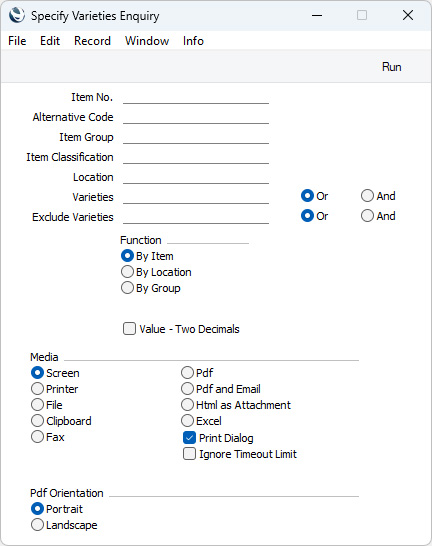
To produce this report, ensure you are in the Stock module using the [Switch Module] button in the Navigation Centre, then click (Windows/macOS) or tap (iOS/Android) the [Reports] button, also in the Navigation Centre. When the 'Reports' list opens, double-click or tap 'Varieties Enquiry'. The 'Specify Varieties Enquiry' window illustrated below will appear. Once you have entered the reporting criteria as described below the illustration, click or tap the [Run] button to produce the report.
- Item No.
- Paste Special
Item register
- Range Reporting Alpha
- Enter an Item Number (or range of numbers) to produce a report for specific Item(s). Use a colon (:) to separate the first and last number in the range.
- The report will list every Variety of the specified Item(s) that you have in stock, together with quantities in stock and stock values. Any Varieties that you do not have in stock will not be listed.
- You must specify an Item or a range of Items, otherwise the report will be empty.
- Enter an Item Number (or range of numbers) to produce a report for specific Item(s). Use a colon (:) to separate the first and last number in the range.
- Alternative Code
- You can also produce a report for a specific Item by specifying its Alternative Code here. The Alternative Code must belong to an Item whose Item Number falls in the range that you specify in the field above.
- Item Group
- Paste Special
Item Group register, Sales Ledger
- Range Reporting Alpha
- Enter an Item Group Code to produce a report listing the Items in a particular Item Group.
- Enter an Item Group Code to produce a report listing the Items in a particular Item Group.
- Item Classification
- Paste Special
Item Classifications setting, Sales Ledger
- Select an Item Classification. Every Item with that Classification will be included in the report. If you enter a number of Classifications separated by commas, only Items featuring all the Classifications listed will be shown. If you enter a number of Classifications separated by plus signs (+), every Item featuring at least one of the Classifications listed will be shown. If you enter a Classification preceded by an exclamation mark (!), every Item featuring any Classification except the one listed will be shown.
- For example:
- 1,2
- Lists Items with Classifications 1 and 2 (including Items with Classifications 1, 2 and 3).
- 1+2
- Lists Items with Classifications 1 or 2.
- !2
- Lists all Items except those with Classification 2.
- 1,!2
- Lists Items with Classification 1 but excludes those with Classification 2 (i.e. Items with Classifications 1 and 2 are not shown). Note the comma before the exclamation mark in this example.
- !1,!2
- Lists all Items except those with Classification 1 or 2 or both. Again, note the comma.
- !(1,2)
- Lists all Items except those with Classifications 1 and 2 (Items with Classifications 1, 2 and 3 will not be listed).
- !1+2
- Lists Items without Classification 1 and those with Classification 2 (Items with Classifications 1 and 2 will be listed).
- (1,2)+(3,4)
- Lists Items with Classifications 1 and 2, and those with Classifications 3 and 4.
- 1*
- Lists Items with Classifications beginning with 1 (e.g. 1, 10, 100).
- 1*,!1
- Lists Items with Classifications beginning with 1 but not 1 itself.
- *1
- Lists Items with Classifications ending with 1 (e.g. 1, 01, 001).
- 1*,*1
- Lists Items with Classifications beginning and ending with 1.
- For example:
- Location
- Paste Special
Locations setting Stock module
- To produce a report for one stock Location, enter its Location Code here.
- If you leave this field empty, the report will contain separate stock figures for each Variety in each Location.
- If you leave this field empty, the report will contain separate stock figures for each Variety in each Location.
- Varieties, Or, And
- Paste Special
Item Varieties setting, Stock module
- If you need to know the stock level of a particular Variety, specify that Variety here.
- You can enter a number of Varieties separated by commas. If you also select the And option on the right, only those Items featuring all the Varieties listed will be shown in the report. If you select the Or option on the right, any Item featuring at least one of the Varieties listed will be shown in the report.
- For example, if you need to know the stock level of small blue shirts, enter the Item Number for the shirt in the Item No. field above and the Varieties for small and blue in this field, and select the And option on the right. If you need to know many shirts you have that are either small or blue, select the Or option on the right.
- If you leave this field empty, the report will contain separate stock figures for each Variety of the specified Item(s).
- You can enter a number of Varieties separated by commas. If you also select the And option on the right, only those Items featuring all the Varieties listed will be shown in the report. If you select the Or option on the right, any Item featuring at least one of the Varieties listed will be shown in the report.
- Exclude Varieties, Or, And
- If you need to exclude particular Varieties from the report, specify those Varieties here.
- For example, if you need to know the stock level of all shirts except those that are small and blue, enter the Item Number for the shirt in the Item No. field above and the Varieties for small and blue in this field (separated by commas), and select the And option on the right. If you need to know the stock level of all shirts except those that are either small or blue, select the Or option on the right.
- For example, if you need to know the stock level of all shirts except those that are small and blue, enter the Item Number for the shirt in the Item No. field above and the Varieties for small and blue in this field (separated by commas), and select the And option on the right. If you need to know the stock level of all shirts except those that are either small or blue, select the Or option on the right.
- Function
- Three versions of the report are available, as follows:
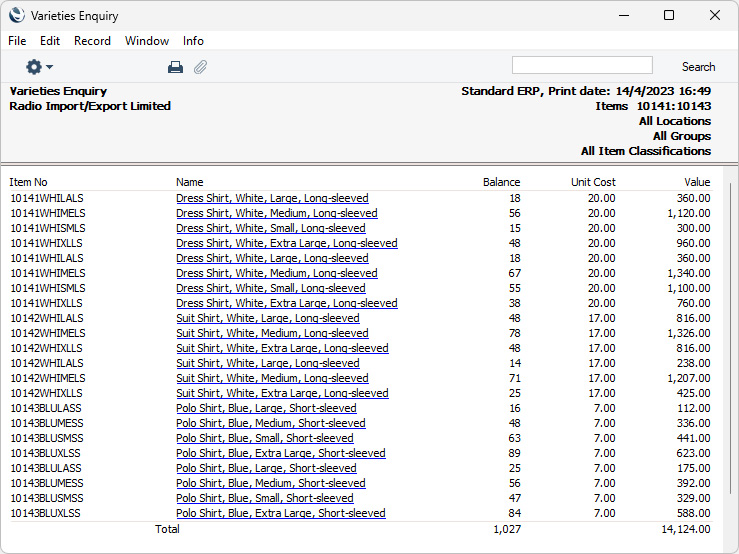
- By Item
- This version of the report is a simple list of Items sorted by combined Item/Variety Number and then by Location.
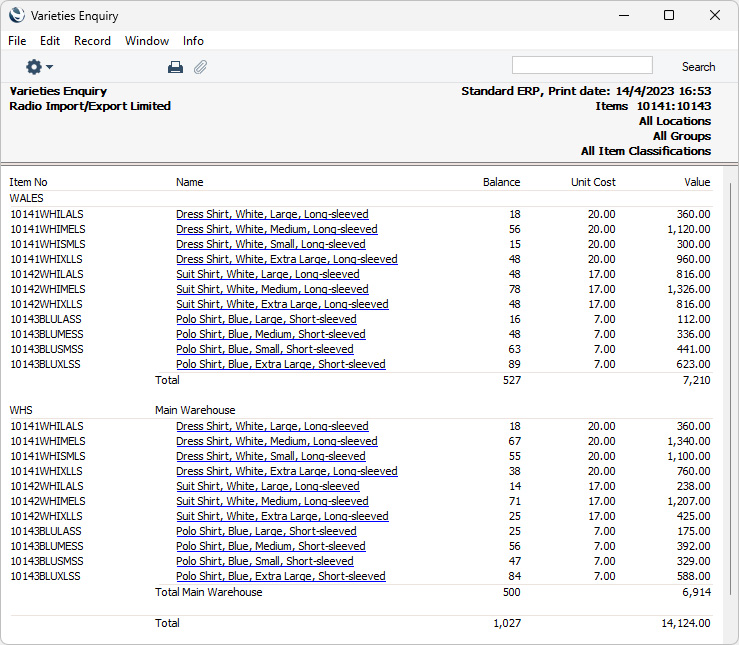
- By Location
- Select this option if you would like the report to be sorted by Location and then by combined Item/Variety Number, with separate sections for each Location.
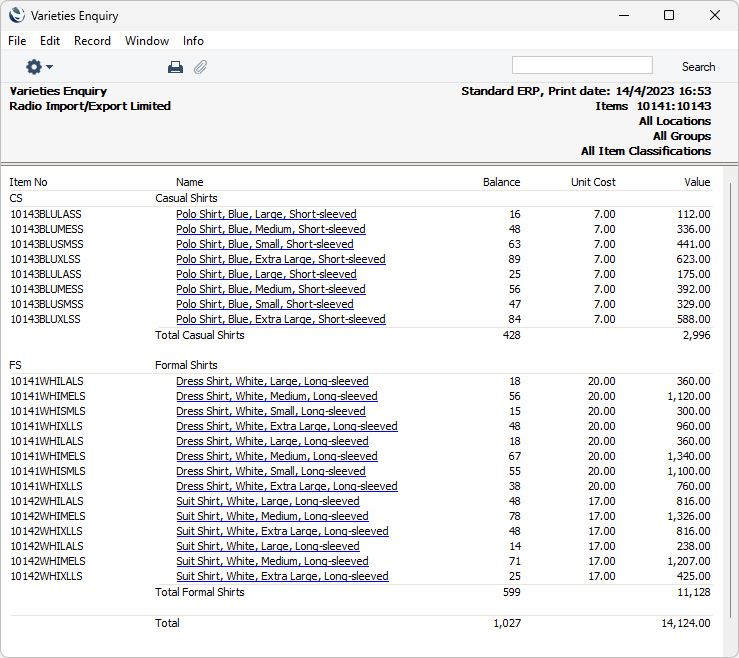
- By Group
- Select this option if you would like the report to be sorted by Item Group and then by combined Item/Variety Number and Location, with separate sections for each Item Group.
- By Item
- Value - Two Decimals
- Select this option if you would like the total stock value of each Item (i.e. unit value multiplied by quantity) always to be shown to two decimal places.
Varieties in Standard ERP:
- Introduction
- Defining Varieties
- Item Numbers of Items with Varieties
- Using Items with Varieties in Transactions
- Pricing of Varieties
- Varieties and Reports, including:
- Introduction
- Varieties Control
- Varieties Enquiry
- Varieties in Stock
- Stock List
- Introduction
- Varieties and Barcodes
- Home page for Items and Pricing manual
- Home page for Standard ERP manual
Varieties and Reports - Varieties in Stock
This page describes the Varieties in Stock report in the Stock module.---
The Varieties in Stock report in the Stock module provides similar information to the Varieties Enquiry report. However, where that report is a simple list of Varieties, this one displays the information in a table format.
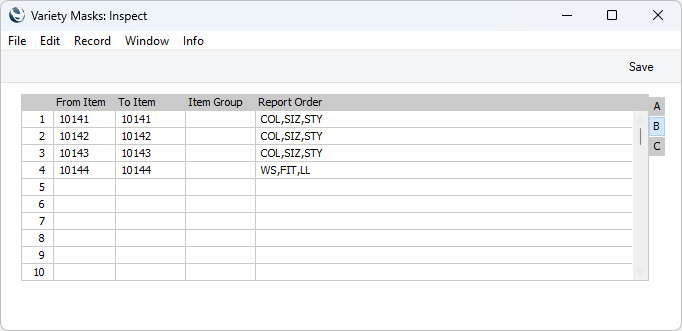
Before producing this report, you must specify a Report Order for the relevant Item(s) on the 'Varieties' card of the Item record(s) or on flip B of the Variety Masks setting. If you have not done this, the report will be empty.
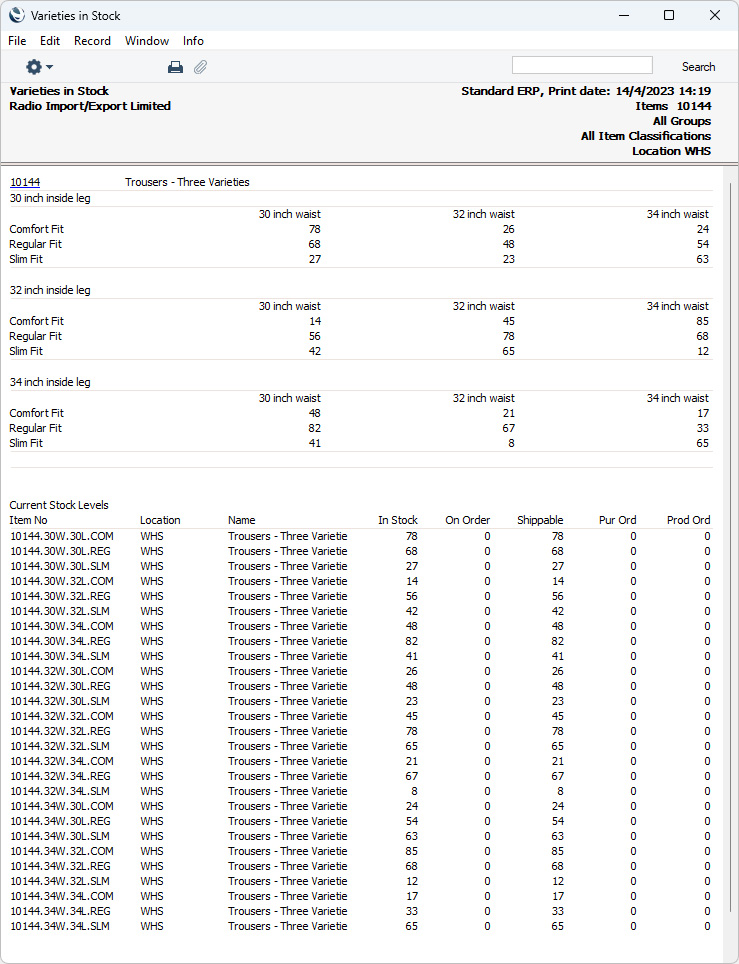
In this example, the Report Order for Item 10144 is "WS,FIT,LL" (waist size, fit, leg length):
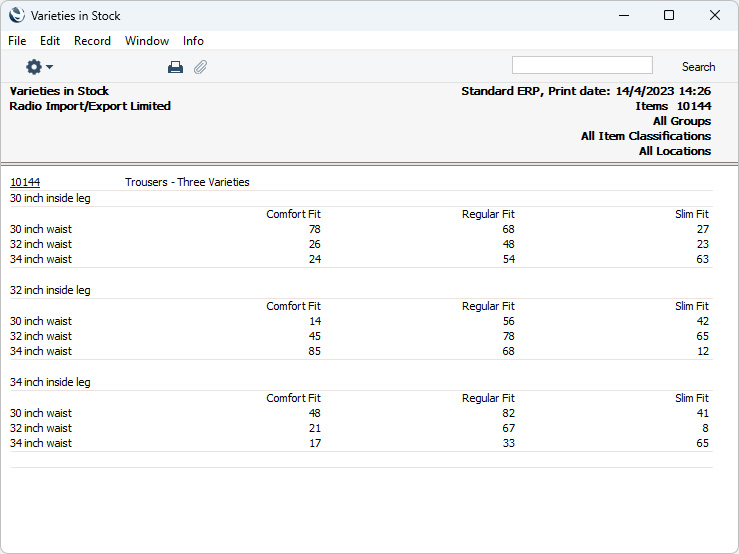
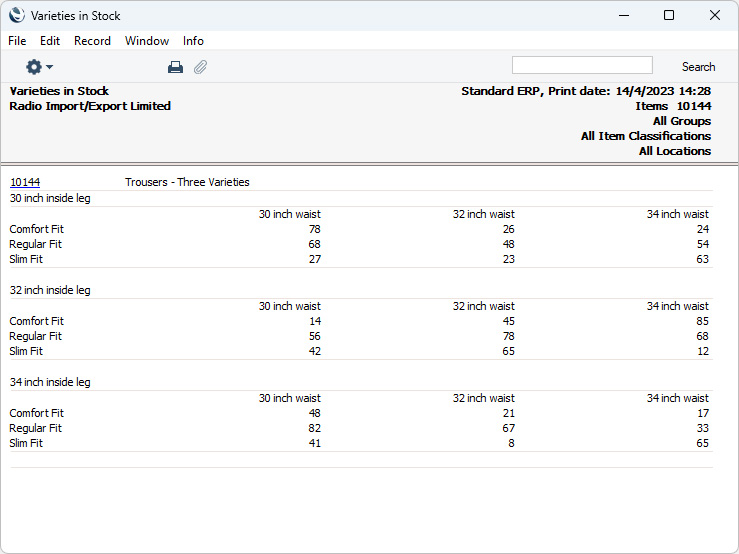
Changing the Report Order from "WS,FIT,LL" to "FIT,WS,LL" produces this report:
In this final example, there are four Variety Groups in the Report Order field: "WS,FIT,LL,FLY" (waist size, fit, leg length, fly type):
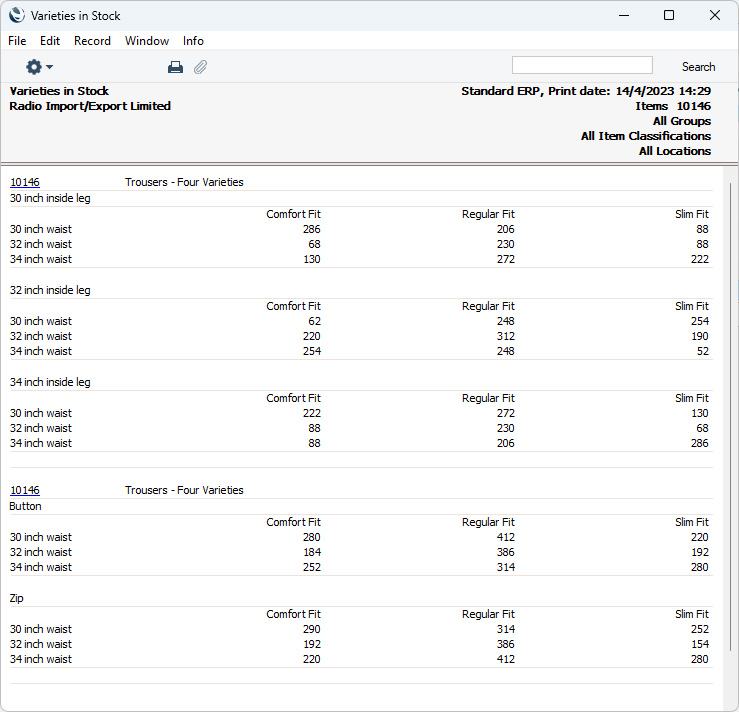
Unlike the Mask field on flip A of the Variety Masks setting, you can change the Report Order field at any time, so you can produce different reports. One option is that if, for example, there are four Variety Groups in the Mask field, you do not need to quote all four in the Report Order field.
To produce this report, ensure you are in the Stock module using the [Switch Module] button in the Navigation Centre, then click (Windows/macOS) or tap (iOS/Android) the [Reports] button, also in the Navigation Centre. When the 'Reports' list opens, double-click or tap 'Varieties in Stock'. The 'Specify Varieties in Stock report' window illustrated below will appear. Once you have entered the reporting criteria as described below the illustration, click or tap the [Run] button to produce the report.
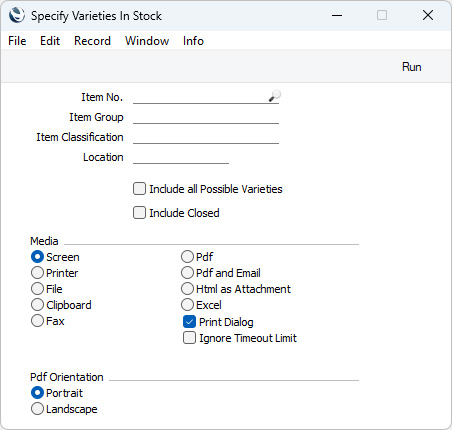
- Item No.
- Paste Special
Item register
- Range Reporting Alpha
- Enter an Item Number (or range of numbers) to produce a report for specific Item(s). Use a colon (:) to separate the first and last number.
- Enter an Item Number (or range of numbers) to produce a report for specific Item(s). Use a colon (:) to separate the first and last number.
- Item Group
- Paste Special
Item Group register, Sales Ledger
- Enter an Item Group Code to produce a report listing the Items in a particular Item Group.
- Item Classification
- Paste Special
Item Classifications setting, Sales Ledger
Select an Item Classification. Every Item with that Classification will be included in the report. If you enter a number of Classifications separated by commas, only Items featuring all the Classifications listed will be shown. If you enter a number of Classifications separated by plus signs (+), every Item featuring at least one of the Classifications listed will be shown. If you enter a Classification preceded by an exclamation mark (!), every Item featuring any Classification except the one listed will be shown.
- For example:
- 1,2
- Lists Items with Classifications 1 and 2 (including Items with Classifications 1, 2 and 3).
- 1+2
- Lists Items with Classifications 1 or 2.
- !2
- Lists all Items except those with Classification 2.
- 1,!2
- Lists Items with Classification 1 but excludes those with Classification 2 (i.e. Items with Classifications 1 and 2 are not shown). Note the comma before the exclamation mark in this example.
- !1,!2
- Lists all Items except those with Classification 1 or 2 or both. Again, note the comma.
- !(1,2)
- Lists all Items except those with Classifications 1 and 2 (Items with Classifications 1, 2 and 3 will not be listed).
- !1+2
- Lists Items without Classification 1 and those with Classification 2 (Items with Classifications 1 and 2 will be listed).
- (1,2)+(3,4)
- Lists Items with Classifications 1 and 2, and those with Classifications 3 and 4.
- 1*
- Lists Items with Classifications beginning with 1 (e.g. 1, 10, 100).
- 1*,!1
- Lists Items with Classifications beginning with 1 but not 1 itself.
- *1
- Lists Items with Classifications ending with 1 (e.g. 1, 01, 001).
- 1*,*1
- Lists Items with Classifications beginning and ending with 1.
- 1,2
- Location
- Paste Special
Locations setting Stock module
- To produce a report for one stock Location, enter its Location Code here.
- Include all Possible Varieties
- Usually the report will only show the Varieties that you have in stock. Select this option if you would like every Variety to be shown.
Varieties in Standard ERP:
- Introduction
- Defining Varieties
- Item Numbers of Items with Varieties
- Using Items with Varieties in Transactions
- Pricing of Varieties
- Varieties and Reports, including:
- Introduction
- Varieties Control
- Varieties Enquiry
- Varieties in Stock
- Stock List
- Introduction
- Varieties and Barcodes
- Home page for Items and Pricing manual
- Home page for Standard ERP manual
Varieties and Reports - Stock List
This page describes displaying Items with Varieties in the Stock List report in the Stock module.---
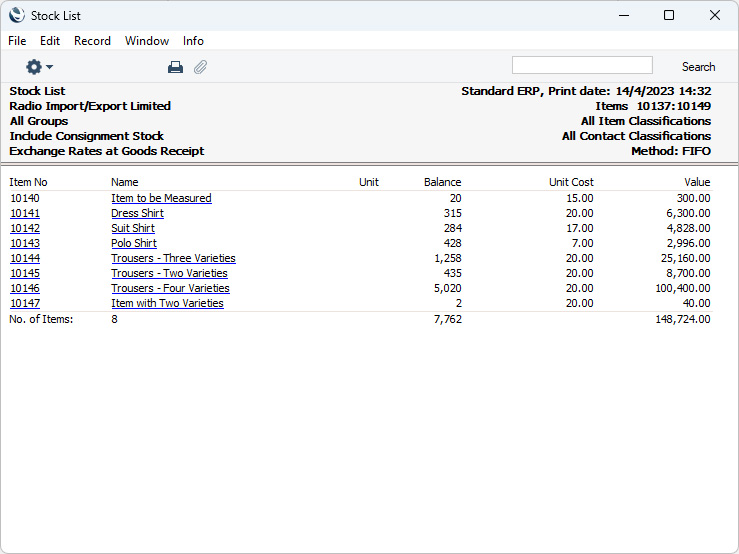
When an Item with Varieties is included in the Stock List report, it will immediately be recognisable because its Item Number will be underlined, signifying that you can drill down to obtain extra information. As with all Items (with and without Varieties), the Item Name will also be underlined, allowing you to open the Item record itself.
An example Stock List report (Overview option) is illustrated below. The first Item in the report (10134) does not have Varieties, so its Item Number does not have a drill-down. The other Items all have Varieties:
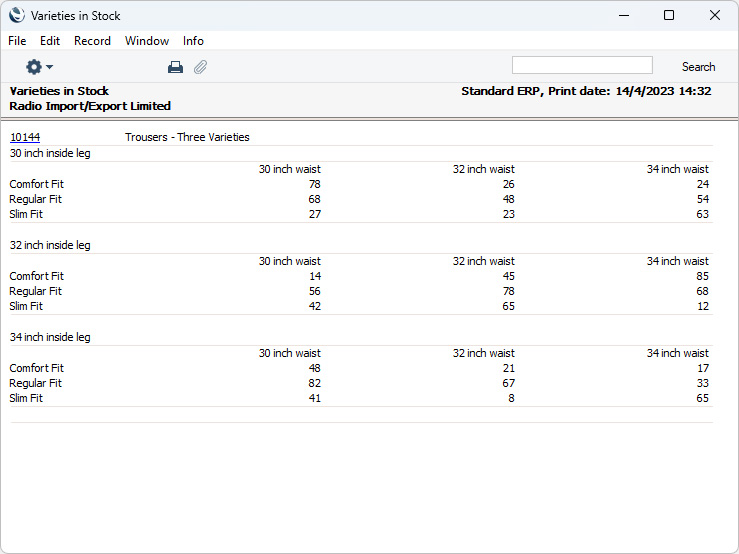
The Varieties in Stock report also has a drill-down feature. Clicking or tapping once again on the Item Number opens the Varieties Enquiry report for the Item:
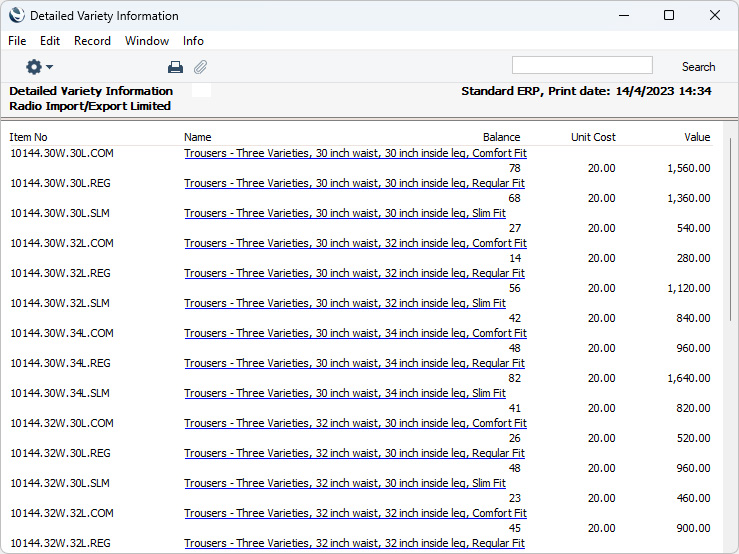
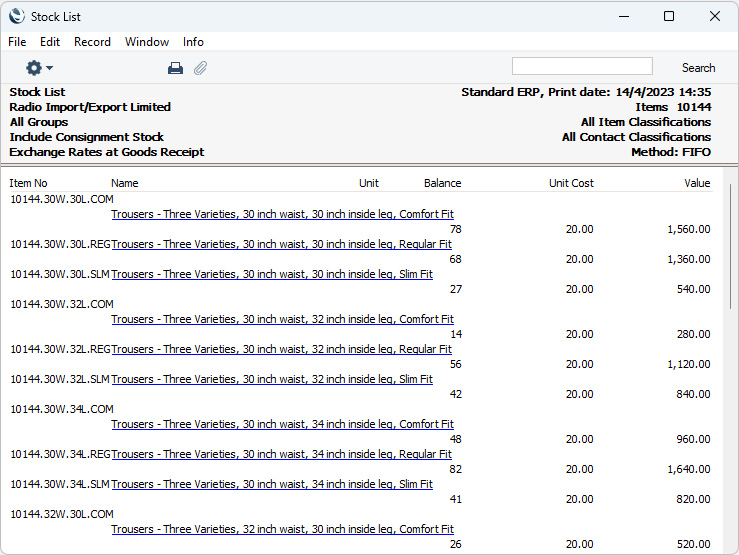
The Stock List is described in full here.
—
Varieties in Standard ERP:
- Introduction
- Defining Varieties
- Item Numbers of Items with Varieties
- Using Items with Varieties in Transactions
- Pricing of Varieties
- Varieties and Reports, including:
- Varieties and Barcodes
- Home page for Items and Pricing manual
- Home page for Standard ERP manual
Varieties and Barcodes
As the Item register will only contain one record for an Item with Varieties, it is only possible to enter one Barcode for such an Item. If you need separate Barcodes for each Variety, use the Barcodes setting in the Stock module. As with the Barcode in the Item record, you can enter a Barcode from this setting instead of an Item Number whenever you need to use a Variety (in Orders or Invoices, for example).To define a new Barcode, first move into the Stock module using the [Switch Module] button in the Navigation Centre. Then, if you are using Windows or macOS, click the [Settings] button that's also in the Navigation Centre and double-click 'Barcodes' in the resulting list. If you are using iOS or Android, select 'Settings' from the Tools menu (with 'wrench' icon) and tap 'Barcodes' in the 'Settings' list. The 'Barcodes: Browse' window will appear. You can add a new record by selecting 'New' from the Create menu (Windows/macOS) or the + menu (iOS/Android). When the record is complete, save it by clicking the [Save] button (Windows/macOS) or tapping √ (iOS/Android) in the Button Bar. To close it without saving changes, click the close box (Windows/macOS) or tap < (iOS/Android).
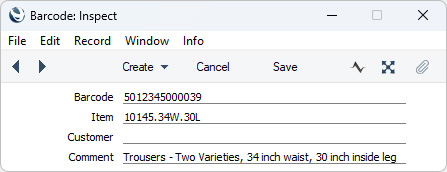
- Barcode
- Enter the Barcode of the Variety here. You can only enter one record for a particular Barcode.
- If you need to ensure that each Barcode contains at least a certain number of characters, enter this number in the Barcode Length Excl. Checksum field in the Item Settings setting in the Sales Ledger. Any Barcodes with fewer than this number of characters will be given the appropriate number of leading zeroes when you save the record. For example, if your Barcode Length is five, a Barcode of "4256" will be converted to "04256".
- If you need to ensure that each Barcode contains at least a certain number of characters, enter this number in the Barcode Length Excl. Checksum field in the Item Settings setting in the Sales Ledger. Any Barcodes with fewer than this number of characters will be given the appropriate number of leading zeroes when you save the record. For example, if your Barcode Length is five, a Barcode of "4256" will be converted to "04256".
- Item
- Paste Special
Item register
Specify the Item using the 'Paste Special' function or by entering the Item Number. Having done this, activate 'Paste Special' once again to specify the Variety, as described in step 2 on the Using 'Paste Special' with Items with Varieties page.
- Comment
- The Variety Name will appear here after you have specified the Item and Variety Number in the field above.
- Select the Automatically Create New Barcode option in the Variety Settings setting in the Stock module.
- Change to the Sales Ledger and open the Item Settings setting:
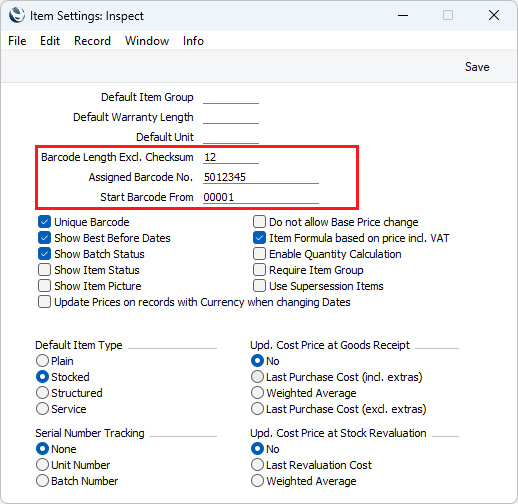
- Barcode Length Excl. Checksum
- Specify the number of digits that should be included in every Barcode.
- Assigned Barcode No.
- Specify the country number and your manufacturer code, concatenated to form a single number that will be used in the new Barcodes. You will be given a manufacturer code when you purchase an EAN licence. In the example illustration, 50 is the country number for the United Kingdom and 12345 is the manufacturer code.
- Start Barcode From
- Enter the first number in the Barcode number sequence. Ensure you enter the correct number of leading zeros (in the example illustration, the four leading zeros will produce a 13-digit Barcode, as specified in the Barcode Length field above and conforming to the EAN-13 standard).
- Barcode Length Excl. Checksum
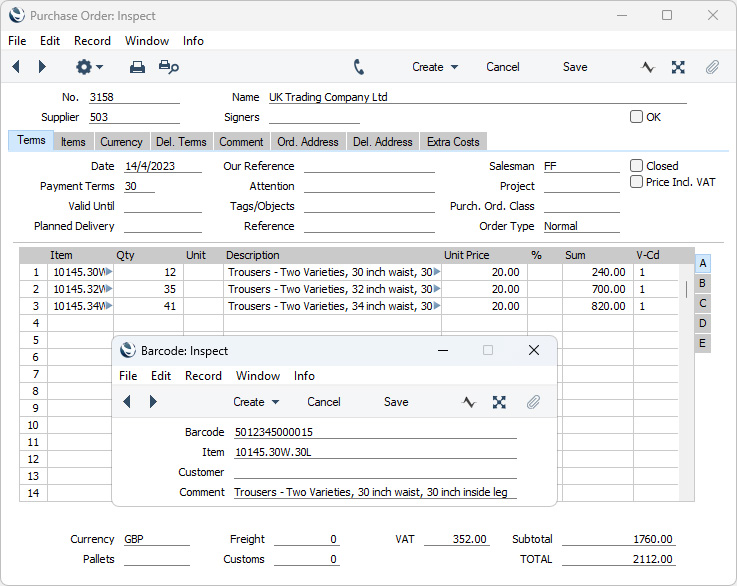
- When you first use a Variety in a Quotation, Purchase Order or Sales Order and save the record, a Barcode will be generated for that Variety, made up of the country number, the manufacturer code, the product code and a check digit.
Varieties in Standard ERP:
- Introduction
- Defining Varieties
- Item Numbers of Items with Varieties
- Using Items with Varieties in Transactions
- Pricing of Varieties
- Varieties and Reports
- Varieties and Barcodes
- Home page for Items and Pricing manual
- Home page for Standard ERP manual