Introduction to Documents in the Sales Ledger
The 'Documents' function permits the printing in batches of particular documents or Forms. It is selected using the 'Documents' item on the File menu or by clicking the [Documents] button in the Master Control panel.On selecting the function, the window illustrated below appears, listing the documents which can be printed from the Sales Ledger. Each item in the list ("Document") will be printed using a different Form.
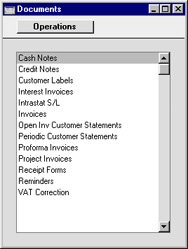
- Highlight the appropriate item in the list.
- Using the Operations menu, determine the print destination of the documents. The default is to print to the chosen printer. Other options available are the Print Queue or Fax (if your hardware can support this feature).
- Double-click the document name or press the Enter key. A specification window will then appear, where you can determine the information that is to be included in the printed documents (e.g. which Invoices or Receipts are to be printed). The specification window for each document is described in detail on the pages describing each document.
- Click [Run] to print the documents.
- Close the 'Documents' window using the close box.
- For each option, design a Form (or change the sample Form supplied to reflect your own requirements) using the Form register in the System module.
- Change to the Sales Ledger and open the 'Documents' window using the 'Documents' item on the File menu or by clicking the [Documents] button in the Master Control panel.
- Highlight each item in the list and select 'Define Document' from the Operations menu. The subsequent window is used to assign a Form (or more than one Form) to each document and is fully described here For example, each option can use different Forms determined perhaps by the Language of the Customer or the Number Series of the Invoice or Receipt.
- For each document, the 'Define Document' function only needs be used once. After this has been done, Form selection will be automatic.
It is often possible to report on a selection range, such as a range of Invoice Numbers. To do this, enter the lowest and highest values of the range, separated by a colon. For example, to report on Customers 001 to 010, enter "001:010" in the Customer field. Depending on the field, the sort used might be alpha or numeric. In the case of an alpha sort, a range of 1:2 would also include 100, 10109, etc.
Cash Notes, Credit Notes, Interest Invoices, Project Invoices
These options behave in the same manner as the 'Invoices' document. They are provided to enable you to assign a separate Form for each Invoice type. To do this, highlight each option in turn in the 'Documents' list and select 'Define Document' from the Operations menu. This should be done for each document that you are likely to use. Otherwise Hansa will give the warning "Can't find document" when you try to print an Invoice of a type that has no Form. If you get this warning, check the type of the Invoice before looking to see which document is missing its Form.Credit Notes
Every Invoice in Standard ERP will belong to one of five types: Invoice, Cash Note, Credit Note, Interest Invoice or Project Invoice.One implication of this classification is that Invoices can be printed using different Form Templates, depending on type. You must therefore connect a Form Template to each Invoice type before you can begin printing. It may be that you decide to use the same Form Template for each Invoice type, but if so, you must still explicitly connect the Form Template to each Invoice type separately.
The primary purpose of this option is to allow you to specify the Form Template that will be used when you print Credit Notes. To do this, highlight 'Credit Notes' in the 'Forms' list and select 'Define Form' from the Operations menu. In the subsequent 'Form Definition' window, specify a Form Template using 'Paste Special' if necessary. The 'Form Definition' window is fully described here.
If you have not specified a Form Template for Credit Notes, the message "No form defined. Please check the form definition" will be displayed when you try to print a Credit Note. If you are shown this message when printing a range of Invoices, check the type of the Invoice to see which one is missing its Form Template.
Although you can design different Form Templates for use with Invoices of the different types, the fields that you can use are the same in each case. Please click here for a list of the header fields and here for the row fields. Amounts in Credit Notes will usually be printed as positive figures. As described on those pages, in some fields you can specify that amounts will be printed as negative figures by specifying a minus sign as the Field Argument.
You can also use this option when you need to print Credit Notes. If you double-click 'Credit Notes' in the 'Forms' list, the 'Specify Credit Notes' window will open:
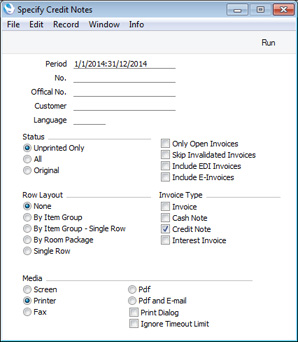
By default, all figures in Credit Notes will be printed as positive. If you would like them to be printed as negative, use the Negative Amounts on Credit Notes Printout option on the 'Credit' card of the Account Usage S/L setting.
---
Forms in the Sales Ledger:
- Introduction
- Cash Notes
- Credit Notes
- Customer/Supplier Labels
- Debtors Letter
- EU VAT Sales
- Gift Vouchers
- Interest Invoices
- Internal Invoices
- Intrastat S/L
- Invoices
- Open Invoice Customer Statement
- Periodic Customer Statement
- Proforma Invoices
- Project Invoices
- Receipt Forms
- Reminders
- VAT Corrections S/L
- Home page for Sales Ledger manual
- Home page for Standard ERP manual
Customer Labels
This document prints name and address labels to Customers. The Invoice Address on the 'Contact' card of the Customer screen is used. Please click here for full details.Debtors Letter
The Debtors Letter is a variation of the Open Invoice Customer Statement. Its primary purpose is to allow you to print statement information using two different Form Templates, without the need to change the Form Definition each time. The fields that you can include in the two Form Templates are the same and work in the same way.One reason for having alternative forms is to provide flexibility over the sending of reminders. You can use the following forms when you need to send reminders to Customers:
- Reminders
- Will send a separate reminder for each outstanding Invoice, so a single Customer may receive several reminders.
- Open Invoice Customer Statement
- Will send a single reminder to each Customer with at least one outstanding Invoice.
- Debtors Letter
- Will send a single reminder to each Customer with at least one outstanding Invoice.
Please refer to the description of the Open Invoice Customer Statement here for details about the specification window and for a list of the fields you can include in the Form Template.
---
Forms in the Sales Ledger:
- Introduction
- Cash Notes
- Credit Notes
- Customer/Supplier Labels
- Debtors Letter
- EU VAT Sales
- Gift Vouchers
- Interest Invoices
- Internal Invoices
- Intrastat S/L
- Invoices
- Open Invoice Customer Statement
- Periodic Customer Statement
- Proforma Invoices
- Project Invoices
- Receipt Forms
- Reminders
- VAT Corrections S/L
- Home page for Sales Ledger manual
- Home page for Standard ERP manual
EU VAT Sales
The EU VAT Sales form produces a list of Customers, showing sales totals excluding VAT for each one for the specified period. You will usually use it to produce a list of all non-domestic EU sales, for the purpose of satisfying the EU VAT reporting requirements. This form has the same selection options and prints the same information as the report of the same name, but as it is a form you can design the printed output to meet your requirements using the Form Template register in the System module.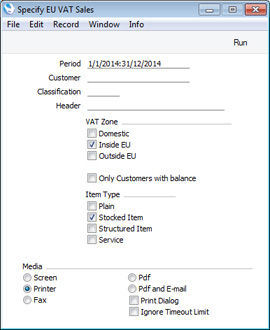
- Period
- Paste Special
Reporting Periods setting, System module
- Sales figures for each Customer will be calculated from Invoices falling in the period specified here.
- Customer
- Paste Special
Customers in Contact register
- Range Reporting Alpha
- If necessary, enter here the Customer Number of the Customer (or range of Customers) you wish to have included in the printout.
- If necessary, enter here the Customer Number of the Customer (or range of Customers) you wish to have included in the printout.
- Classification
- Paste Special
Contact Classifications setting, CRM module (if installed)
- If you want to restrict the printout to Customers with a particular Classification, specify that Classification here. If you enter a number of Classifications separated by commas, the printout will only list those Customers with all the Classifications listed.
- VAT Zone
- The printout can list Customers from any or all of the three Zones. Use these options to specify which ones. The Inside EU option includes the Inside EU (Post VAT) Zone, while the Outside EU option includes the Outside EU (Post VAT) Zone. You must choose at least one option, otherwise the printout will be empty.
- Only Customers with balance
- By default the printout will list all the Customers in the specified range and in the specified VAT Zone(s). Use this option to exclude Customers with no turnover during the report period. A Customer with an Invoice and Credit Note of equal value will be excluded.
- Item Type
- Use these options to include or exclude Items of various Types in the sales figure calculations. In some countries, only goods should be included in the report, not services.
- If you do not check any of these boxes, the sales figure calculations will include Items of all Types.
- Fields that will be printed once. These fields will print date information and a total.
- Row fields. A separate row will be printed for each Customer.
| Field in Form Template | Prints |
| Header Fields (these print once per form) | |
| Day | The day from the current date. For example, the day from 22/12/2014 will be printed as "22" |
| Month | The month from the current date. For example, the month from 22/12/2014 will be printed as "12" |
| Month in words | The name of the month in the current date, taken from the record in the Days and Months setting in the System module for the Language in the current user's Person record |
| Sum | Sum of the values in the "Row Sum" row field |
| Year | The year from the current date. For example, the year from 22/12/2014 will be printed as "2014" |
| Row Fields (these print once for each Customer, so remember to specify a Line Height and to set the Format to "Matrix") | |
| Country Code | Country from the Contact record for the Customer |
| Customer Name | Name from the Contact record for the Customer |
| Customer Registration No. 1 | Reg. No. 1 from the Contact record for the Customer |
| Customer Registration No. 2 | Reg. No. 2 from the Contact record for the Customer |
| Customer VAT Reg. Number | VAT Reg. No. from the Contact record for the Customer |
| Ordering Customer Name | No. from the Contact record for the Customer |
| Row Number | Line number in the document |
| Row Sum | Each Customer's overall sales turnover excluding VAT for the period (if you have not selected any of the Item Type options in the specification window) or the value of sales of selected Item Types excluding VAT (otherwise) |
Please click here for details of the standard fields that you can also include in the Form Template.
---
Forms in the Sales Ledger:
- Introduction
- Cash Notes
- Credit Notes
- Customer/Supplier Labels
- Debtors Letter
- EU VAT Sales
- Gift Vouchers
- Interest Invoices
- Internal Invoices
- Intrastat S/L
- Invoices
- Open Invoice Customer Statement
- Periodic Customer Statement
- Proforma Invoices
- Project Invoices
- Receipt Forms
- Reminders
- VAT Corrections S/L
- Home page for Sales Ledger manual
- Home page for Standard ERP manual
Gift Vouchers
The Gift Vouchers form allows you to print Issued Gift Vouchers.You can also print this form by clicking on the Printer icon when viewing an Issued Gift Voucher record, or print it to screen by clicking the Preview icon.
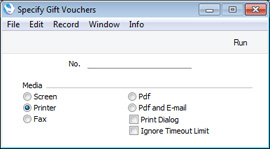
- No.
- Range Reporting
Numeric
- Enter a Gift Voucher Number if you wish to print a single Gift Voucher, or a range of numbers separated by a colon (:) if you wish to print several. You must enter a Gift Voucher number or a range of numbers: if you leave this field empty, no Gift Vouchers will be printed.
| Field in Form Template | Prints (from Issued Gift Voucher) |
| Amount | Value |
| Amount in Text | Prints the Value as a phrase, constructed using the relevant record in the Values in Text setting for the Language in the current user's Person record or in the Company Info setting |
| Balance | Outstanding balance on the Gift Voucher |
| Barcode | Barcode. If you need this to be printed as a barcode, you should give this field a Style in which the Barcode has been set to the relevant option (Code 128, Code 39 or EAN 13) and that uses a suitable barcode font. Fonts in the IDAutomation family are supported |
| Description 1 | Comment |
| End Date | Expiry Date |
| Serial Number (Number Series) | No. |
| Transaction Date | Trans. Date |
Please click here for details of the standard fields that you can also include in the Form Template.
---
Forms in the Sales Ledger:
- Introduction
- Cash Notes
- Credit Notes
- Customer/Supplier Labels
- Debtors Letter
- EU VAT Sales
- Gift Vouchers
- Interest Invoices
- Internal Invoices
- Intrastat S/L
- Invoices
- Open Invoice Customer Statement
- Periodic Customer Statement
- Proforma Invoices
- Project Invoices
- Receipt Forms
- Reminders
- VAT Corrections S/L
- Home page for Sales Ledger manual
- Home page for Standard ERP manual
Interest Invoices
Every Invoice in Standard ERP will belong to one of five types: Invoice, Cash Note, Credit Note, Interest Invoice or Project Invoice.One implication of this classification is that Invoices can be printed using different Form Templates, depending on type. You must therefore connect a Form Template to each Invoice type before you can begin printing. It may be that you decide to use the same Form Template for each Invoice type, but if so, you must still explicitly connect the Form Template to each Invoice type separately.
The primary purpose of this option is to allow you to specify the Form Template that will be used when you print Interest Invoices. An Interest Invoice is one created using the 'Create Interest Invoices' Maintenance function or one entered directly to the Invoice register with a Payment Term of the "Manual Interest Inv." type. To do this, highlight 'Interest Invoices' in the 'Forms' list and select 'Define Form' from the Operations menu. In the subsequent 'Form Definition' window, specify a Form Template using 'Paste Special' if necessary. The 'Form Definition' window is fully described here.
If you have not specified a Form Template for Interest Invoices, the message "No form defined. Please check the form definition" will be displayed when you try to print an Interest Invoice. If you are shown this message when printing a range of Invoices, check the type of the Invoice to see which one is missing its Form Template.
Although you can design different Form Templates for use with Invoices of the different types, the fields that you can use are the same in each case. Please click here for a list of the header fields and here for the row fields.
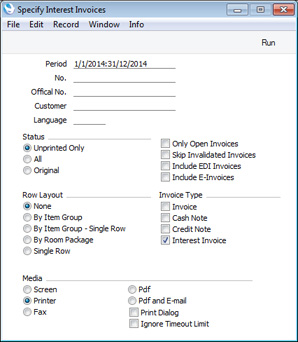
You can also use this option when you need to print Interest Invoices. If you double-click 'Interest Invoices' in the 'Forms' list, the 'Specify Interest Invoices' window will open:
---
Forms in the Sales Ledger:
- Introduction
- Cash Notes
- Credit Notes
- Customer/Supplier Labels
- Debtors Letter
- EU VAT Sales
- Gift Vouchers
- Interest Invoices
- Internal Invoices
- Intrastat S/L
- Invoices
- Open Invoice Customer Statement
- Periodic Customer Statement
- Proforma Invoices
- Project Invoices
- Receipt Forms
- Reminders
- VAT Corrections S/L
- Home page for Sales Ledger manual
- Home page for Standard ERP manual
Internal Invoices
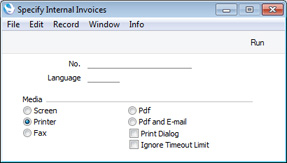
You can use this function when you need to print records from the Internal Invoice register in batches.You can also print this form by clicking on the Printer icon when viewing an Internal Invoice record, or print it to screen by clicking the Preview icon.
- No.
- Range Reporting
Numeric
- Enter an Internal Invoice Number to print a single Internal Invoice, or a range of Internal Invoice Numbers, separating the first and last number with a colon (:). You must specify an Internal Invoice Number or range of Numbers: if you leave this field empty, no forms will be printed.
| Field in Form | Prints (from Internal Invoice) |
| Header Fields (these print once per Internal Invoice) | |
| Amount in Text | Prints the TOTAL as a phrase. The phrase is constructed using the relevant record in the Values in Text setting for the Language of the Internal Invoice or, if that is blank, the Language in the current user’s Person record or in the Company Info setting |
| Department | Department from the Person record of the user who created the Internal Invoice |
| Invoice No. | No. |
| Invoice Number 2 | Purchase Inv. No. |
| Payment Number for Russia | Prints the No. of the Internal Invoice with the first three characters removed |
| Reference | Reference |
| Round Off | Prints the amount lost or gained by the process of rounding the TOTAL according to the Total rounding rules set for the Currency/Payment Term combination in the Currency Round Off setting or in the Round Off setting (i.e. when the TOTAL is rounded to fewer decimal places than the Default). A loss will be printed as a negative figure |
| Salesman A | User |
| Salesman Name | Name |
| Supplier | Supplier from the Purchase Invoice from which the Internal Invoice was created |
| Supplier Address | Name and Invoice Address from the Contact record for the Supplier in the Purchase Invoice from which the Internal Invoice was created. This information will be printed on separate lines, so you should specify a Line Height for this field |
| Supplier Name | Name from the Purchase Invoice from which the Internal Invoice was created |
| Supplier VAT Reg. Number | VAT Reg. No. from the Contact record for the Supplier in the Purchase Invoice from which the Internal Invoice was created |
| To Pay | TOTAL. |
| The number of decimal places will be as shown on screen in the Internal Invoice record, although you can overrule this by entering "0" or a positive number as the Field Argument. For example, to round to the nearest whole number, enter "0", or to round to one decimal place, enter "1" | |
| To Pay in Text | Prints TOTAL as a phrase. The phrase is constructed using the relevant record in the Values in Text setting for the Language of the Internal Invoice or, if that is blank, the Language in the current user’s Person record or in the Company Info setting |
| Total Row Total | Sum of (Sum + VAT) in each row |
| Total Sum | TOTAL |
| Total VAT Base | Sum of Sum in each row |
| Total VAT Value | Sum of VAT in each row |
| Transaction Date (transdate) | Trans. Date |
| VAT | VAT. |
| The number of decimal places will be as shown on screen in the Internal Invoice record, although you can overrule this by entering "0" or a positive number as the Field Argument. For example, to round to the nearest whole number, enter "0", or to round to one decimal place, enter "1" | |
| VAT in Text | Prints the VAT as a phrase. The phrase is constructed using the relevant record in the Values in Text setting for the Language of the Internal Invoice or, if that is blank, the Language in the current user’s Person record or in the Company Info setting |
| Row Fields (these print once per row, so remember to specify a Line Height and to set the Format to "Matrix") | |
| Description 1 | Description |
| Item Code | Item |
| Item Code 2 | Item |
| Quantity | Qty |
| Row Number | Row number |
| Row Number in text | Row number in text, taken from the Values in Text record for the Language of the Invoice or the Language in the Company Info setting |
| Row Sum | Sum |
| Row Sum including VAT | Sum + row VAT |
| Unit Code | Unit from the Item record |
| Unit Comment | If the Item has a Unit, the Comment from the Units setting or the Unit Code |
| Unit Price | Unit Price. |
| This figure will be rounded to a maximum of three decimal places if, in the Round Off setting, you have set Discount Calculation to Row Sum. If you have set Discount Calculation to Unit Price, rounding will obey the Default for Calculated Values rounding rules in the same setting. However, you can overrule this by entering "0" or a positive number as the Field Argument. For example, to round to the nearest whole number, enter "0", or to round to one decimal place, enter "1" | |
| VAT %, row | VAT rate |
| VAT Code | V-Cd |
| VAT Value, row | Row VAT |
| The following fields allow you to add a table to the Form listing the VAT Codes used in the Internal Invoice together with various totals. These fields will each be printed once for each VAT Code used in an Internal Invoice. "Sum, including VAT", "VAT Base", "VAT Total" and "VAT Value" will print negative figures if you specify a minus sign as the Field Argument. You should specify a Line Height in these fields, and set the Format to "Header": | |
| Excl. VAT Percentage | VAT percentage |
| Sum, including VAT | Total excluding VAT |
| VAT % | VAT percentage |
| VAT Base | Total excluding VAT |
| VAT Code Total | VAT Code |
| VAT Comment | Description from the VAT Codes setting |
| VAT Total | Total including VAT |
| VAT Value | VAT value |
Please click here for details of the standard fields that you can also include in the Form Template.
---
Forms in the Sales Ledger:
- Introduction
- Cash Notes
- Credit Notes
- Customer/Supplier Labels
- Debtors Letter
- EU VAT Sales
- Gift Vouchers
- Interest Invoices
- Internal Invoices
- Intrastat S/L
- Invoices
- Open Invoice Customer Statement
- Periodic Customer Statement
- Proforma Invoices
- Project Invoices
- Receipt Forms
- Reminders
- VAT Corrections S/L
- Home page for Sales Ledger manual
- Home page for Standard ERP manual
Intrastat S/L
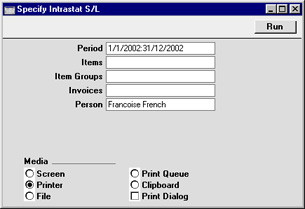
The Intrastat system is used to collect statistics on the physical trade in goods (i.e. the actual movement of goods) between the various member countries of the European Union (EU). If your business is situated in an EU country and its trade with companies in other EU countries is greater than the threshold value, it will be necessary to send an Intrastat report periodically to the relevant authorities.This document lists the Items sold to Customers in the EU Zone during the relevant period together with quantities and values. The Form should be designed to conform to official requirements.
You can also export this information to a text file using the 'Intrastat Invoices' Export function.
- Period
- Paste Special
Reporting Periods setting, System module
- Specify the period for the report.
- Items
- Paste Special
Item register
- Range Reporting Alpha
- Enter an Item Number or range of Item Numbers separated by a colon to have those Items listed in the report.
- Enter an Item Number or range of Item Numbers separated by a colon to have those Items listed in the report.
- Item Groups
- Paste Special
Item Group register, Sales Ledger
- Range Reporting Alpha
- Enter an Item Group or range of Item Groups separated by a colon to have Items from those Item Groups listed in the report.
- Enter an Item Group or range of Item Groups separated by a colon to have Items from those Item Groups listed in the report.
- Invoices
- Range Reporting
Numeric
- To gather statistics from a particular range of Invoices, enter the first and last Invoice Number in the range, separated by a colon. This can be useful if you have used a separate Number Series for Invoices to Customers in the EU Zone.
Invoices
There are several occasions when you may want to print an Invoice: to view a test print-out to check the Invoice before you finally approve it; to produce a copy for your own files, or to send the original Invoice to the Customer.For a sample printout, click the Printer icon in the Button Bar while you are working with an Invoice, and before you click the OK check box. Hansa will print an Invoice marked "Test Printout" diagonally across the page. Since you have not yet committed the Invoice by clicking the OK check box, you can check it and change it if necessary. This is true also for Cash Notes, Interest Invoices and Credit Notes. If you want to print to screen, click the Preview icon.
When you want to print the final Invoice, follow the instructions below.
- Click [Documents] in the Master Control panel, or select 'Documents' from the File menu. Double-click the Invoice type you want to use.
The 'Specify Invoices' window is opened.
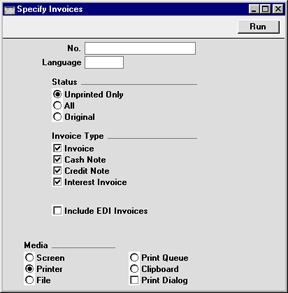
- Enter the Invoice Number to print a single Invoice, or a range of Invoice Numbers separated by a colon. Enter a Language if you only want to print Invoices that have a particular Language entered on the 'Identifiers' card. Use the Status options to control which Invoices are printed, as follows:
- Unprinted Only
- This option ignores any Invoices in the range that have already been printed. Only approved Invoices in the range will be printed.
- All
- Prints all Invoices in the range. Any Invoices previously printed will have the word "Copy" printed diagonally across the page. Invoices in the range that have not been approved will be printed.
- Original
- This option also prints all Invoices in range. However, any Invoices previously printed will be printed again as though they were original copies, without the word "Copy". Invoices in the range that have not been approved will be printed.
- Invoice
- The standard Invoice uses the Invoice document.
- Select this option to print Project Invoices as well (those whose Project field on the 'Identifiers' card contains a value). These use the Project Invoice document instead of the standard Invoice document.
- Select this option to print Project Invoices as well (those whose Project field on the 'Identifiers' card contains a value). These use the Project Invoice document instead of the standard Invoice document.
- Cash Note
- A Cash Note is an Invoice with Payment Terms of the "Cash" type. The Cash Note document is used instead of the Invoice document.
- Credit Note
- A Credit Note is an Invoice with Payment Terms of the "Credit Note" type. The Credit Note document is used instead of the Invoice document.
- Interest Invoice
- An Interest Invoice is one created using the 'Create Interest Invoices' Maintenance function. The Interest Invoice document is used instead of the Invoice document.
- Unprinted Only
- Press [Run] in the Button Bar to start the printing, or cancel by closing the window.
Invoices - Header Fields Part 1
The Header fields that you can use when you design the Form Template to be used by the Invoice form are listed on five pages, as follows:- Part 1:
- Basic Invoice Information
- Basic Invoice Information
- Part 2:
- Invoice - Address Information
- Invoice - Official Serial Number information
- Customer Information
- Customer Bank Information
- Contact Person Information
- Branch Information
- Part 3:
- Delivery Address Information
- Freight Company Information
- Original Invoice Information in Credit Notes
- Location Information
- Loyalty Card Information
- Order Information
- Payment Information
- Delivery Address Information
- Part 4:
- Project Information
- Reservation Information
- Settlement Discount Information
- Tax Template Summary
- Transaction Information
- VAT Summary
- Project Information
- Part 5:
- Country-Specific Fields - Argentina
- Country-Specific Fields - Bolivia
- Country-Specific Fields - Brazil
- Country-Specific Fields - Croatia
- Country-Specific Fields - Denmark
- Country-Specific Fields - Finland
- Country-Specific Fields - Mexico
- Country-Specific Fields - Norway
- Country-Specific Fields - Portugal
- Country-Specific Fields - Russia
- Country-Specific Fields - Slovenia
- Country-Specific Fields - Sweden
- Country-Specific Fields - Argentina
---
Header fields will be printed once per Invoice. If you do not want to print the decimal places in numeric fields, choose the Cut Decimals option in the record in the Values in Text setting for the Language specified in the Company Info setting. This will remove the decimals even in fields where you have used the Field Argument to control the rounding.
For brevity, the term "VAT" has been used in the descriptions: it should be read as including other sales taxes (e.g. sales tax calculated using Tax Templates if you are using the Use Tax Templates for Tax Calculation option in the Transaction Settings setting in Nominal Ledger).
Basic Invoice Information
The following fields print information taken directly from the Invoice being printed:| Field in Form Template | Prints (from Invoice) |
| Amount in Text | Prints the TOTAL as a phrase. The phrase is constructed using the relevant record in the Values in Text setting for the Language of the Invoice or, if that is blank, the Language in the current user's Person record or in the Company Info setting |
| Amount in Text, Basecurrency 1 | Prints the TOTAL converted to Base Currency 1 as a phrase. The phrase is constructed using the relevant record in the Values in Text setting for the Language of the Invoice or, if that is blank, the Language in the current user's Person record or in the Company Info setting |
| Amount in Text, Basecurrency 2 | Prints the TOTAL converted to Base Currency 2 as a phrase. The phrase is constructed using the relevant record in the Values in Text setting for the Language of the Invoice or, if that is blank, the Language in the current user's Person record or in the Company Info setting |
| Amount without Discount | TOTAL |
| Authorisation Code 2 | Authorisation |
| Balance | Prints the current balance for the Customer |
| Catalog Serialnumber (K-xxxx) | If the first character of the Item Number in the first row is "K", prints the No. of the Invoice with "K-" as a prefix. Otherwise, prints the No. |
| Credit Card Number | Credit Card |
| Credit Card Type | Type from the record in the Credit Card register for the Credit Card specified in the Invoice |
| Currency | Currency |
| Current User | Signature of current user |
| Current User Name | Name from the current user's Global User or Person record |
| Customer Fax Number | Fax from the Invoice or, if blank, from the Contact record for the Customer |
| Customer Name | Name |
| Customer Number | Customer |
| Customer Order number from Invoice | Cust. Ord. No. |
| Customer Telephone Number | Telephone from the Invoice or, if blank, from the Contact record for the Customer |
| Customer VAT Reg. Number | VAT Reg. No. from the Invoice or, if blank, from the Contact record for the Customer |
| Date with Month In Words | Transaction Date, with the month as a word. For example, 22/12/2014 will be printed as "22 December 2014". The Date Order (e.g. day, month, year) will be taken from the Company Date and Numeric Format setting |
| Day | The day from the Transaction Date. For example, the day from 22/12/2014 will be printed as "22" |
| Delivery Mode | Delivery Mode |
| Delivery Mode (levsatt) | In an Invoice created from an Order or Delivery, the Delivery Mode from the last Delivery created from the relevant Order or, if that is blank or the Invoice was not created from an Order or Delivery, the Delivery Mode from the Invoice |
| Delivery Mode Text (levsattext) | The correct translation for the Language of the Invoice of the Delivery Mode Comment from the Delivery Modes setting, or the Delivery Mode Comment itself. This refers to the Delivery Mode printed by the "Delivery Mode (levsatt)" field |
| Delivery Term | Delivery Terms |
| Delivery Term Text | The correct translation for the Language of the Invoice of the Delivery Term Comment from the Delivery Terms setting, or the Delivery Term Comment itself |
| Delivery Term Text (shiptermtext) | The correct translation for the Language of the Invoice of the Delivery Term Comment from the Delivery Terms setting, or the Delivery Term Comment itself |
| Delivery Term (shipterm) | Delivery Terms |
| Discount Message | If any of the rows in an Invoice have a discount, this field will print the phrase that you enter as the Field Argument |
| Discount Total | Sum of ((Qty * Unit Price) - Sum) for each row |
| Discount Total,BC1 | Sum of ((Qty * Unit Price) - Sum) for each row, converted to Base Currency 1 |
| Discount Total,BC2 | Sum of ((Qty * Unit Price) - Sum) for each row, converted to Base Currency 2 |
| Document Type | Type of the Invoice (prints "Sales Invoice", "Cash Note", "Credit Note" or "Interest Invoice" as appropriate) |
| Duplicate | Prints "Duplicate as of " followed by the current date (only prints if the Invoice has previously been printed and if it has been marked as OK) |
| Email Address from the Salesman's Person record | |
| Freight | Freight |
| Goods Recipient GLN | Delivery GLN |
| Instalment Date | If an Invoice is payable in Instalments, prints as a list the Due Dates of each Instalment. As it prints a list, you should specify a Line Height for this field. If an Invoice is not payable in Instalments, nothing will be printed. An Invoice will be payable in instalments if it has a Payment Term that is connected to a record in the Instalments setting |
| Instalment Sum | If an Invoice is payable in Instalments, prints as a list the values of each Instalment. As it prints a list, you should specify a Line Height for this field. If an Invoice is not payable in Instalments, nothing will be printed. Together with the previous field, this allows you to add a table to the Form Template listing the Instalments |
| Interest Rate | Interest (only printed for "normal" Invoices and Down Payment Invoices, i.e. not printed for Cash Notes, Credit Notes or Interest Invoices) |
| Invoice Comment | Comment |
| Invoice Date | Invoice Date |
| Invoice Date (Hijri) | Invoice Date (Hijri calendar) |
| Invoice Due Date | Due Date |
| Invoice Due Date (Hijri) | Due Date (Hijri calendar) |
| Invoice Header | Comment |
| Invoice No. | No. |
| Invoice Type | Type of the Invoice (prints "Invoice", "Cash Note", "Credit Note" or "Interest Invoice" as appropriate) |
| Invoice Type (short) | Type of the Invoice (prints "Invoice", "Cash Note", "Credit Note" or "Interest Invoice" as appropriate) |
| Local Machine | Machine (field not visible in the interface, the Code of the machine or till on which the Invoice was created, taken from the Local Machine setting in the User Settings module) |
| Location | Location |
| Month | The month from the Transaction Date. For example, the month from 22/12/2014 will be printed as "12" |
| Month in words | The name of the month in the current date, taken from the record in the Days and Months setting in the System module for the Language in the Invoice or, if that is blank, the Language in the current user's Person record |
| Note | Prints the text of the first Note attached to the Invoice. If you specify a Field Argument, the Note whose Comment is the same as the Field Argument will be printed |
| Number of Items in Text | Prints the number of different Items in the Invoice as a phrase. The phrase is constructed using the relevant record in the Values in Text setting for the Language of the Invoice or, if that is blank, the Language in the Company Info setting. For example, if the Items in an Invoice are 10101, 10102, 10103 and 10101, three different Items are being sold so "three" will be printed |
| Object | Objects |
| Object Text (objekttext) | Names from each Object, separated by commas, up to a maximum of 250 characters |
| Order Number | Order No. |
| Order Number (ordnummer) | Service Order No. |
| Ordering Customer Name | Name (if the Invoice has an Original Customer) or Name from the Order from which the Invoice was created (otherwise) |
| Ordering Customer Number | Original Customer or, if blank, the Customer from the Order from which the Invoice was created |
| Original/Copy | Prints "Original" (if the Invoice has not previously been printed) or "Copy" (otherwise) |
| Our Reference | Our Reference |
| Own Bank Account (IBAN) 2 | Account (IBAN) from the record in the Banks setting for the Account Operator specified in the Invoice or, if there is no Account (IBAN) specified, the Bank 1 specified in the Company Info setting |
| Own Bank Name 2 | Name from the record in the Banks setting for the Account Operator specified in the Invoice or, if there is no Name specified, the Bank Code specified in the Company Info setting |
| Payment Terms | The correct translation for the Language of the Invoice of the Payment Term Text from the Payment Terms setting, or the Payment Term Text itself |
| Planned Arrival Date | Plan. Arrival Date |
| Planned Arrival Time | Plan. Arrival Time |
| Planned Sent Date | Plan. Sent Date |
| Planned Sent Time | Plan. Sent Time |
| Postitve/Negative in text | Prints "Amount positive" (if TOTAL is positive) or "Amount negative" (if TOTAL is negative) |
| Prepaid | Total value of any Prepayments connected to the Invoice |
| Price Text | Prints "Gross Price" (if prices in the Invoice exclude VAT) or "Nett Price" (otherwise) |
| Project Number | Project |
| Quantity 2 Total | Sum of the values in the "Quantity Out" row field |
| Quantity in Text | Prints the sum of Qty in each row as a phrase. The phrase is constructed using the relevant record in the Values in Text setting for the Language of the Invoice or, if that is blank, the Language in the Company Info setting |
| Quotation Number | No. from the Quotation from which the Invoice was created |
| Rate | Exchange Rate, expressed as a ratio |
| Rate for Base Currency | Base Currency Rate, expressed as a ratio |
| Reason | Credit Reason |
| Reason Text | Description from the record in the Standard Problems setting for the Credit Reason. This information will be printed on separate lines, so you should specify a Line Height for this field |
| Recipient GLN | GLN |
| Reference (Invoice) | Reference |
| RF Reference | International Creditor Reference number (ISO 11649 RF Reference), constructed from the Customer Number and the Invoice Number |
| Round Off | Prints the amount lost or gained by the process of rounding the TOTAL according to the Total rounding rules set for the Currency/Payment Term combination in the Currency Round Off setting or in the Round Off setting (i.e. when the TOTAL is rounded to fewer decimal places than the Default). A loss will be printed as a negative figure |
| Salesman A | Salesman |
| Salesman Name | Name from the Salesman's Person record |
| Service Delivery Date | Service Del. Date |
| Service Order Number | Service Order No. |
| Subtotal in Base Currency 1 | Subtotal, converted to Base Currency 1. If you enter "-" (i.e. a minus sign) as the Field Argument, this figure will be printed as a negative value |
| Subtotal in Base Currency 2 | Subtotal, converted to Base Currency 2. If you enter "-" (i.e. a minus sign) as the Field Argument, this figure will be printed as a negative value |
| Subtotal with VAT | Subtotal + VAT (if prices in the Invoice exclude VAT) or Subtotal (otherwise) |
| Subtotal without discount | Sum of (Qty * Unit Price) for each row |
| Subtotal without packages | Sum of Sum in each row in which the Item belongs to an Item Group in which the Type is "Default" or "Transport" and in each row in which the Item does not belong to an Item Group |
| Sum | Subtotal. |
| The number of decimal places will be as shown on screen in the Invoice record, although you can overrule this by entering "0" or a positive number as the Field Argument. For example, to round to the nearest whole number, enter "0", or to round to one decimal place, enter "1" | |
| Sum, excluding Freight | Subtotal - Freight |
| sum, Freight | Subtotal - Freight |
| Sum, VAT | TOTAL - VAT |
| Sum VAT-base incl. zero rate | Subtotal - Freight (if prices in the Invoice exclude VAT) or TOTAL - VAT - Freight (otherwise) |
| TAX 1 | Ext. Tax |
| TAX Sum | Ext. Tax |
| TAX Sum 2 | Tax2 |
| Terminal ID | Terminal ID (field not visible in the interface, the Terminal ID of the machine or till on which the Invoice was created, taken from the Local Machine setting in the User Settings module) |
| To Pay | TOTAL. |
| The number of decimal places will be as shown on screen in the Invoice record, although you can overrule this by entering "0" or a positive number as the Field Argument. For example, to round to the nearest whole number, enter "0", or to round to one decimal place, enter "1" | |
| To Pay after Prepayments | TOTAL - the total value of any Prepayments connected to the Invoice |
| To Pay after Prepayments in Base Currency 2 | TOTAL - the total value of any Prepayments connected to the Invoice, converted to Base Currency 2 |
| To Pay excluding Freight | Subtotal - Freight + VAT |
| To Pay in Base Currency 1 | TOTAL, converted to Base Currency 1. If you enter "-" (i.e. a minus sign) as the Field Argument, this figure will be printed as a negative value |
| To Pay in Base Currency 2 | TOTAL, converted to Base Currency 2. If you enter "-" (i.e. a minus sign) as the Field Argument, this figure will be printed as a negative value |
| To Pay in Text | Prints as a phrase (TOTAL - the total value of any Prepayments connected to the Invoice). The phrase is constructed using the relevant record in the Values in Text setting for the Language of the Invoice or, if that is blank, the Language in the current user's Person record or in the Company Info setting |
| To Pay only Decimals | Prints the first two decimals from the TOTAL (for example, 1,234.56 will be printed as 56) |
| To Pay without Decimals | TOTAL, with decimals removed (for example, 1,234.56 will be printed as 1,234) |
| To Pay, with Sign Argument | TOTAL. If you enter "-" (i.e. a minus sign) as the Field Argument, this figure will be printed as a negative value |
| To Pay/To Pay Back Amount | If the Invoice being printed is a Credit Note, the TOTAL (otherwise blank) |
| To Pay/To Pay Back Text | If the Invoice being printed is a Credit Note, prints "To Pay" (if the TOTAL is negative) or "To Pay back" (if the TOTAL is positive) (otherwise blank) |
| Total Cost | Sum of (Qty * Cost) for each row |
| Total Discount | Sum of (Qty * Unit Price) for each row - Subtotal |
| Total Discount Base Currency 2 | Sum of (Qty * Unit Price) for each row - Subtotal, converted to Base Currency 2 |
| Total Discount for Pensioners | Sum of (Qty * Unit Price) for each row - Subtotal. This figure will only be printed if the Age Status in the Contact record for the Customer is "Pensioner" |
| Total Discount without packages | Sum of the discount in each row in which the Item belongs to an Item Group in which the Type is "Default" or "Transport" and in each row in which the Item does not belong to an Item Group |
| Total for Packages Item | Sum of Sum in each row in which the Item belongs to an Item Group in which the Type is "Packages" |
| Total FIFO | Sum of Row FIFO in each row (flip D) |
| Total Goods | Sum of Sum in each row in which the Item belongs to an Item Group in which the Type is "Default" and in each row in which the Item does not belong to an Item Group |
| Total Internal Taxes | Sum of Ext. Tax in each row in which the VAT Code has a Tax Rule belonging to the "Normal with Internal Taxes" Type |
| Total Non Taxable | TOTAL - Subtotal - Freight + VAT. You should only use this field in Invoices in which prices include VAT |
| Total Quantity (totqty) | Sum of Qty in each row |
| Total Row Total | Sum of (Sum + VAT) in each row (will not include rows with a VAT Code in which the Tax Calculation Rule (on flip F of the VAT Codes setting) is set to "Skip Calculation"). If you enter "-" (i.e. a minus sign) as the Field Argument, this figure will be printed as a negative value |
| Total Sum Excl. VAT | Subtotal (if prices in the Invoice exclude VAT) or TOTAL - VAT (otherwise) |
| Total Taxable Including VAT | Subtotal - Freight + VAT. You should only use this field in Invoices in which prices exclude VAT |
| Total Transport Cost | Sum of Sum in each row in which the Item belongs to an Item Group in which the Type is "Transport" |
| Total VAT Base | Sum of Sum in each row (will not include Sums from rows with a VAT Code in which the Tax Calculation Rule (on flip F of the VAT Codes setting) is set to "Skip Calculation"). If you enter "-" (i.e. a minus sign) as the Field Argument, this figure will be printed as a negative value |
| Total VAT Perceptions | Sum of Ext. Tax in each row in which the VAT Code has a Tax Rule belonging to the "Normal with VAT Perceptions" Type |
| Total VAT Value | Sum of VAT in each row (will not include VAT from rows with a VAT Code in which the Tax Calculation Rule (on flip F of the VAT Codes setting) is set to "Skip Calculation"). If you enter "-" (i.e. a minus sign) as the Field Argument, this figure will be printed as a negative value |
| Total VAT Value for VAT with Skip Calculation | Sum of VAT in each row with a VAT Code in which the Tax Calculation Rule (on flip F of the VAT Codes setting) is set to "Skip Calculation". If you enter "-" (i.e. a minus sign) as the Field Argument, this figure will be printed as a negative value |
| Total Volume | Sum of (Qty * Item Volume from the Item record) for each row |
| Total Weight | Sum of (Qty * Weight from the Item record) for each row |
| Total without Withholding Taxes | TOTAL - the value of any Withholding Tax rows |
| Transaction Date (transdate) | Trans. Date |
| Transaction Date (transdate) (Hijri) | Trans. Date (Hijri calendar) |
| Transaction Time (transtime) | Trans. Time |
| VAT | VAT. |
| The number of decimal places will be as shown on screen in the Invoice record, although you can overrule this by entering "0" or a positive number as the Field Argument. For example, to round to the nearest whole number, enter "0", or to round to one decimal place, enter "1" | |
| VAT in Base Currency 1 | VAT, converted to Base Currency 1. If you enter "-" (i.e. a minus sign) as the Field Argument, this figure will be printed as a negative value |
| VAT in Base Currency 2 | VAT, converted to Base Currency 2. If you enter "-" (i.e. a minus sign) as the Field Argument, this figure will be printed as a negative value |
| VAT in Text | Prints the VAT as a phrase. The phrase is constructed using the relevant record in the Values in Text setting for the Language of the Invoice or, if that is blank, the Language in the current user's Person record or in the Company Info setting |
| Year | The year from the Transaction Date. For example, the year from 22/12/2014 will be printed as "2014" |
| Your (customers) Reference | Attention |
---
Go to:
- Part 1
- Header Fields - Part 2
- Header Fields - Part 3
- Header Fields - Part 4
- Header Fields - Part 5
- Row Fields - Part 1
- Row Fields - Part 2
- Standard Fields
- Introduction
- Cash Notes
- Credit Notes
- Customer/Supplier Labels
- Debtors Letter
- EU VAT Sales
- Gift Vouchers
- Interest Invoices
- Internal Invoices
- Intrastat S/L
- Invoices
- Open Invoice Customer Statement
- Periodic Customer Statement
- Proforma Invoices
- Project Invoices
- Receipt Forms
- Reminders
- VAT Corrections S/L
- Home page for Sales Ledger manual
- Home page for Standard ERP manual
Invoices - Header Fields Part 2
The Header fields that you can use when you design the Form Template to be used by the Invoice form are listed on five pages, as follows:- Part 1:
- Basic Invoice Information
- Part 2:
- Invoice - Address Information
- Invoice - Official Serial Number information
- Customer Information
- Customer Bank Information
- Contact Person Information
- Branch Information
- Invoice - Address Information
- Part 3:
- Delivery Address Information
- Freight Company Information
- Original Invoice Information in Credit Notes
- Location Information
- Loyalty Card Information
- Order Information
- Payment Information
- Delivery Address Information
- Part 3:
- Project Information
- Reservation Information
- Settlement Discount Information
- Tax Template Summary
- Transaction Information
- VAT Summary
- Project Information
- Part 5:
- Country-Specific Fields - Argentina
- Country-Specific Fields - Bolivia
- Country-Specific Fields - Brazil
- Country-Specific Fields - Croatia
- Country-Specific Fields - Denmark
- Country-Specific Fields - Finland
- Country-Specific Fields - Mexico
- Country-Specific Fields - Norway
- Country-Specific Fields - Portugal
- Country-Specific Fields - Russia
- Country-Specific Fields - Slovenia
- Country-Specific Fields - Sweden
- Country-Specific Fields - Argentina
---
Header fields will be printed once per Invoice. If you do not want to print the decimal places in numeric fields, choose the Cut Decimals option in the record in the Values in Text setting for the Language specified in the Company Info setting. This will remove the decimals even in fields where you have used the Field Argument to control the rounding.
Invoice - Address Information
The following fields print address information from the Invoice being printed:| Field in Form Template | Prints (from Invoice) |
| Address | Name (if you are using the Organisation Name option in the Form Settings setting) and Invoice Address. This information will be printed on separate lines, so you should specify a Line Height for this field |
| Address 2 | First line of Invoice Address |
| Address 3 | Second line of Invoice Address |
| Address 4 | Third line of Invoice Address |
| Address 5 | Fourth line of Invoice Address |
| Address 6 | Fifth line of Invoice Address |
| Address with Attention | Name, Attention and Invoice Address. This information will be printed on separate lines, so you should specify a Line Height for this field |
| Delivery Address | In an Invoice created from an Order or Delivery, the Name (if you are using the Organisation Name option in the Form Settings setting) and Delivery Address from the last Delivery created from the relevant Order or, if the Invoice was not created from an Order or Delivery, the Delivery Address from the Invoice (the first line of this address will only be printed if you are using the Organisation Name option). This information will be printed on separate lines, so you should specify a Line Height for this field |
| Delivery Address 5 | Fifth line of the Delivery Address or, if the first line of the Delivery Address is blank, the fourth line of the Invoice Address. Use the "Shipment Address 3-6" fields to print the first lines of the Delivery Address |
| Delivery Address 6 | Sixth line of the Delivery Address or, if the first line of the Delivery Address is blank, the fifth line of the Invoice Address |
| Ordering Customer Name and Address | If the Invoice has an Original Customer, the Name (if you are using the Organisation Name option in the Form Settings setting) and Invoice Address from the Order from which the Invoice was created or, otherwise, the Name (depending on the Organisation Name option) and Delivery Address from the last Delivery created from that Order. Prints blank from Invoices that were not created from Orders or Deliveries. This information will be printed on separate lines, so you should specify a Line Height for this field |
| Shipment Address | Delivery Address. The first line of this address will only be printed if you are using the Organisation Name option in the Form Settings setting. This information will be printed on separate lines, so you should specify a Line Height for this field |
| Shipment Address 2 | Delivery Address or, if the first line of the Delivery Address is blank, the Name and Invoice Address. This information will be printed on separate lines, so you should specify a Line Height for this field |
| Shipment Address 3 | First line of the Delivery Address or, if blank, the Name |
| Shipment Address 4 | Second line of the Delivery Address or, if the first line of the Delivery Address is blank, the first line of the Invoice Address |
| Shipment Address 5 | Third line of the Delivery Address or, if the first line of the Delivery Address is blank, the second line of the Invoice Address |
| Shipment Address 6 | Fourth line of the Delivery Address or, if the first line of the Delivery Address is blank, the third line of the Invoice Address. Use "Delivery Address 5" and "Delivery Address 6" to print the remaining two lines of the Delivery Address |
Invoice - Official Serial Number information
The following fields print information regarding the Official No. of an Invoice, taken from the Invoice being printed or from the relevant row in the Legal Record Numbers setting for the Official No.:| Field in Form Template | Prints (from Invoice or Legal Record Numbers setting) |
| Legal Invoice No. Approval Number | Approval No. in the relevant row in the Legal Record Numbers setting |
| Legal Invoice No. Approval Year | Approval Year in the relevant row in the Legal Record Numbers setting |
| Legal Invoice No. Certificate Number | Certificate No. in the relevant row in the Legal Record Numbers setting |
| Official Serial Number | In Portugal (i.e. if the VAT Law in the Company Info setting is set to "Portuguese"), prints the Official No. in the correct format. Elsewhere, prints the Official No. 2 if there is one or the Official No. otherwise. |
| If Official Nos. are generated from a row in the Legal Record Numbers setting in which the No. per Page field contains "Official No per Page" (i.e. if each page in a multi-page Invoice will have a separate Official No.), do not use this field and instead use the "Official Serial Number per Page" field | |
| Official Serial Number 2 | Official No. 2 |
| Official Serial Number per Page | If the Official No. of an Invoice was generated from a row in the Legal Record Numbers setting in which the No. per Page field contains "Official No per Page", each page in a multi-page Invoice will have a separate Official No. The Official No. field in the header of the Invoice record will display the first and last Official Nos separated by a colon. This field will print the relevant Official No. on each page. |
| If you have some rows in the Legal Record Numbers setting in which the No. per Page field contains "Official No per Page" and some in which it contains "Default", it is recommended that you specify a Classification in each row, and that you assign the relevant Classification to each Customer. You should also specify a Language for each Customer. Then design a separate Invoice Form Template for each Language, including the "Official Serial Number per Page" or "Official Serial Number" fields as appropriate | |
| Official Serial Number Serie | Serie in the relevant row in the Legal Record Numbers setting |
| Official Serial Number without Serie | Official No. (without the Serie specified in the relevant row in the Legal Record Numbers setting) |
Customer Information
The following fields print information taken from the record in the Contact register for the Customer:| Field in Form Template | Prints (from Customer) |
| ANA Code | ANA Code |
| Country Code (Customer) | ISO Code from the record in the Countries setting for the Country or the Country itself |
| Country Name | Country Name from the record in the Countries setting for the Country |
| Customer Comment | Comment ('Company' card) |
| Customer Name, jewellery | Prints Salutation 1 + Salutation 2 + Salutation 3 + ANA Code, separated by spaces (these fields are renamed Title, First Name, Last Name and Suffix respectively in the Jewellery interface) |
| Customer Registration No. 1 | Reg. No. 1 |
| Customer Registration No. 2 | Reg. No. 2 |
| Department | Department |
| E-mail Customer | |
| From Address | Name, Invoice Address and Country. This information will be printed on separate lines, so you should specify a Line Height for this field |
| Invoice To | Name and Invoice Address. This information will be printed on separate lines, so you should specify a Line Height for this field |
| Mobile | Mobile |
| User Date Customer 1 | The first user defined date field |
| User Date Customer 2 | The second user defined date field |
| User Date Customer 3 | The third user defined date field |
| User Text Customer 1 | The first user defined text field |
| User Text Customer 2 | The second user defined text field |
| User Text Customer 3 | The third user defined text field |
| User Text Customer 4 | The fourth user defined text field |
| User Text Customer 5 | The fifth user defined text field |
| User Value Customer 1 | The first user defined value field |
| User Value Customer 2 | The second user defined value field |
| User Value Customer 3 | The third user defined value field |
Note: use the "Balance" field if you need to print the current balance for the Customer.
Customer Bank Information
The following fields print information taken from the record in the Contact register for the Customer:| Field in Form Template | Prints (from Customer) |
| Account Operator | Account Operator |
| Bank Account | Bank Account |
The following fields print information taken from the record in the Banks setting for the Account Operator specified in the Contact record for the Customer:
| Field in Form Template | Prints (from Bank) |
| Account Operator Name | Name |
| Bank Corresponding Account | Expense Account |
The following fields print information taken from the record in the Banks setting for the Account Operator specified in the Invoice or, if blank, in the Bank Account 2 field in the Contact record for the Customer:
| Field in Form Template | Prints (from Bank) |
| Account Operator 2 | Code |
| Bank Account 2 | Account (IBAN) |
| Bank BIC/SWIFT 2 | BIC (SWIFT) |
| Bank Corresponding Account 2 | Expense Account |
| Bank Name 2 | Name |
If the Invoice has an Original Customer (on the 'Price List' card), the following fields print information from the record in the Contact register for that Original Customer:
| Field in Form Template | Prints (from Original Customer or Bank) |
| Account Operator Name (Ord. Customer) | Code from the record in the Banks setting for the Account Operator |
| Bank Account (Ord. Customer) | Bank Account or, if blank, Account (IBAN) from the record in the Banks setting for the Account Operator |
| Bank BIC/SWIFT (Ord. Customer) | BIC (SWIFT) from the record in the Banks setting for the Account Operator |
| Bank Corresponding Account (Ord. Customer) | Expense Account from the record in the Banks setting for the Account Operator |
| Bank Name (Ord. Customer) | Name from the record in the Banks setting for the Account Operator |
Contact Person Information
The following fields print information from the record in the Contact register for the Contact Person specified in the Attention field in the Invoice or, if there is no record for the Contact Person, from the Contact record for the Customer:| Field in Form Template | Prints (from Contact Person or Customer) |
| Contact Person Title | Courtesy Title |
| Salutation 1 | Salutation 1 |
| Salutation 2 | Salutation 2 |
| Salutation 3 | Salutation 3 |
Note: use the "Your (customers) Reference" field to print the name of the Contact Person, taken from the Attention field in the Invoice.
Branch Information
The following fields print information from the record in the Contact register for the Branch specified in the Invoice (on the 'Del. Terms' card):| Field in Form Template | Prints (from Branch) |
| Branch Account Operator | Account Operator |
| Branch Address | Name and Address. This information will be printed on separate lines, so you should specify a Line Height for this field |
| Branch Bank Account | Bank Account |
| Branch Bank Account 2 | Bank Account 2 |
| Branch E-mail | |
| Branch Fax | Fax |
| Branch IBAN | IBAN Code |
| Branch Phone | Telephone |
| Branch Primary Contact | Primary Contact |
| Branch Registration No. 1 | Reg. No. 1 |
| Branch Registration No. 2 | Reg. No. 2 |
| Branch WWW Address | Web Site |
---
Go to:
- Header Fields - Part 1
- Part 2
- Header Fields - Part 3
- Header Fields - Part 4
- Header Fields - Part 5
- Row Fields - Part 1
- Row Fields - Part 2
- Standard Fields
- Introduction
- Cash Notes
- Credit Notes
- Customer/Supplier Labels
- Debtors Letter
- EU VAT Sales
- Gift Vouchers
- Interest Invoices
- Internal Invoices
- Intrastat S/L
- Invoices
- Open Invoice Customer Statement
- Periodic Customer Statement
- Proforma Invoices
- Project Invoices
- Receipt Forms
- Reminders
- VAT Corrections S/L
- Home page for Sales Ledger manual
- Home page for Standard ERP manual
Invoices - Header Fields Part 3
The Header fields that you can use when you design the Form Template to be used by the Invoice form are listed on five pages, as follows:- Part 1:
- Basic Invoice Information
- Part 2:
- Invoice - Address Information
- Invoice - Official Serial Number information
- Customer Information
- Customer Bank Information
- Contact Person Information
- Branch Information
- Invoice - Address Information
- Part 3:
- Delivery Address Information
- Freight Company Information
- Original Invoice Information in Credit Notes
- Location Information
- Loyalty Card Information
- Order Information
- Payment Information
- Delivery Address Information
- Part 4:
- Project Information
- Reservation Information
- Settlement Discount Information
- Tax Template Summary
- Transaction Information
- VAT Summary
- Project Information
- Part 5:
- Country-Specific Fields - Argentina
- Country-Specific Fields - Bolivia
- Country-Specific Fields - Brazil
- Country-Specific Fields - Croatia
- Country-Specific Fields - Denmark
- Country-Specific Fields - Finland
- Country-Specific Fields - Mexico
- Country-Specific Fields - Norway
- Country-Specific Fields - Portugal
- Country-Specific Fields - Russia
- Country-Specific Fields - Slovenia
- Country-Specific Fields - Sweden
- Country-Specific Fields - Argentina
---
Header fields will be printed once per Invoice. If you do not want to print the decimal places in numeric fields, choose the Cut Decimals option in the record in the Values in Text setting for the Language specified in the Company Info setting. This will remove the decimals even in fields where you have used the Field Argument to control the rounding.
Delivery Address Information
The following fields print information from the record in the Delivery Addresses setting for the Address Code specified in the Invoice (on the 'Del. Address' card):| Field in Form Template | Prints (from Delivery Address) |
| Site | Del.Code |
| Site Address | Address. This information will be printed on separate lines, so you should specify a Line Height for this field |
| Site Contact | Contact |
| Site Fax | Fax |
| Site Name | Comment |
| Site Telephone | Telephone |
Freight Company Information
The following fields print information from the record in the Freight Companies setting for the Freight Comp. specified in the Invoice (on the 'Del. Terms' card):| Field in Form Template | Prints (from Freight Company) |
| CMR Text | CMR Text |
| Driver | Driver |
| Freight Company | Name |
| Freight Company Code | Code |
| Freight Company's Reg. Number | Reg. No. |
| Truck Information | Truck Information |
Original Invoice Information from a Credit Note
If the Invoice being printed is a Credit Note, the following fields print information from the Invoice being credited:| Field in Form Template | Prints (from original Invoice) |
| Credited Invoice Inv. Date | Invoice Date |
| Credited Invoice Number | Prints "Regarding Invoice " followed by the No. of the Invoice being credited |
| Credited Invoice Service Date | Service Del. Date |
| Credited Invoice Transaction Date | Transaction Date |
| Official Serial Number of Orig. Invoice | Official No. |
| Rate for Base Currency of Orig. Invoice | Base Currency Rate, expressed as a ratio |
| Rate of Orig. Invoice | Exchange Rate, expressed as a ratio |
| To Pay in Base Currency 1 of Orig. Invoice | TOTAL, converted to Base Currency 1 using the Exchange Rate in the Invoice. If you enter "-" (i.e. a minus sign) as the Field Argument, the TOTAL will be printed as a negative value |
| To Pay of Orig. Invoice | TOTAL. If you enter "-" (i.e. a minus sign) as the Field Argument, the TOTAL will be printed as a negative value |
Location Information
The following fields print information from the record in the Locations setting for the Location specified in the Invoice (on the 'Del. Terms' card):| Field in Form Template | Prints (from Location) |
| Location Address | Address. This information will be printed on separate lines, so you should specify a Line Height for this field |
| Location Contact | Contact |
| Location E-mail | |
| Location Fax | Fax |
| Location Name | Name |
| Location Phone | Telephone |
Note: use the "Location" field to print the Location itself, taken from the Location field in the Invoice.
Loyalty Card Information
The following fields print information relating to the Loyalty Card specified in the Invoice being printed:| Field in Form Template | Prints |
| Loyalty Card Level | Membership Level from the Invoice |
| Loyalty Card Number | Card Number |
| Points Earned | Loyalty Points from the Invoice |
| Points End Balance | Loyalty Points on the Loyalty Card after the Invoice was saved (Forward Balance + Points Earned - Points Redeemed) |
| Points Forward Balance | Loyalty Points on the Loyalty Card prior to the Invoice being entered |
Order Information
In an Invoice that was created from an Order or Delivery, the following fields will print information from the relevant record in the Order register:| Field in Form Template | Prints (from Order) |
| Customer Order Number | Cust. Ord. No. (the "Customer Order number from Invoice" field will print the Cust. Ord. No. from the Invoice, which will usually be the same) |
| Deliveries made from Order | The Nos of each Delivery created from the Order, printed as a string separated by commas |
| Number of Order Rows | Number of rows in the Order (including header lines, subtotal lines etc) |
| Official Serial Number of Order | Official No. |
| Order Address | Name and Invoice Address. This information will be printed on separate lines, so you should specify a Line Height for this field |
| Order Base Currency Rate | Base Currency Rate, expressed as a ratio |
| Order Comment | Comment |
| Order Date (orddatum) | Date |
| Order Delivery Address | Delivery Address. This information will be printed on separate lines, so you should specify a Line Height for this field |
| Ordering Customer Name | Name from the Invoice (if the Invoice has an Original Customer) or Name from the Order from which the Invoice was created (otherwise) |
| Ordering Customer Name and Address | If the Invoice has an Original Customer, the Name (if you are using the Organisation Name option in the Form Settings setting) and Invoice Address from the Order from which the Invoice was created or, otherwise, the Name (depending on the Organisation Name option) and Delivery Address from the last Delivery created from that Order. Prints blank from Invoices that were not created from Orders or Deliveries. This information will be printed on separate lines, so you should specify a Line Height for this field |
| Ordering Customer Number | Original Customer from the Invoice or, if blank, the Customer from the Order from which the Invoice was created |
| Planned Delivery Date (planship) | Planned Delivery |
| Total Order Quantity | Total Quantity |
Note: use the "Order Number" field to print the Order Number, taken from the Order No. field in the Invoice.
In an Invoice that was created from an Order, the fields listed below will print information from the last Delivery created from that Order. In an Invoice created from a Delivery, these fields will print information from that Delivery:
| Field in Form Template | Prints (from Delivery) |
| Delivery Address | Name (if you are using the Organisation Name option in the Form Settings setting) and Delivery Address from the last Delivery created from the relevant Order or, if the Invoice was not created from an Order or Delivery, the Delivery Address from the Invoice (the first line of this address will only be printed if you are using the Organisation Name option). This information will be printed on separate lines, so you should specify a Line Height for this field |
| Delivery Date | Date |
| Official Serial Number of Last Delivery | Official No. |
| Ordering Customer Name and Address | If the Invoice has an Original Customer, the Name (if you are using the Organisation Name option in the Form Settings setting) and Invoice Address from the Order from which the Invoice was created or, otherwise, the Name (depending on the Organisation Name option) and Delivery Address from the last Delivery created from that Order. Prints blank from Invoices that were not created from Orders or Deliveries. This information will be printed on separate lines, so you should specify a Line Height for this field |
| Supplier Code | No. |
| Transport Number | Transport No. |
If the Invoice being printed was created from an Order or Delivery and contains at least one Down Payment row (i.e. a row deducting the value of a Down Payment Invoice previously created from the same Order), the fields listed below will print information from those rows and the connected Down Payment Invoices. The fields named "Downpay VAT..." (except Downpay VAT %) will print negative figures: if you need positive figures, enter "-" (i.e. a minus sign) as the Field Argument.
In all cases, you should specify a Line Height for these fields in case there is more than one Down Payment Invoice and/or in case more than one VAT Code was used. Note that these fields are not printed once per Down Payment row. Instead, the first two fields alphabetically will be printed once per Down Payment Invoice (allowing you to add a table to the Form Template listing Down Payment Invoices with dates), while the others will be printed once per VAT Code (allowing you to add a table to the Form Template listing various totals for each VAT Code used in Down Payment rows).
| Field in Form Template | Prints |
| Downpayment Date | Prints as a list the Transaction Date(s) of the Down Payment Invoice(s) connected to the Down Payment row(s). |
| This field will only print a value if you are using the Details on Invoice option in the Down Payments setting | |
| Downpayment No. | Prints as a list the No(s). of the Down Payment Invoice(s) connected to the Down Payment row(s). |
| This field will only print a value if you are using the Details on Invoice option in the Down Payments setting | |
| Downpay VAT % | Prints as a list the VAT percentage(s) from the VAT Code(s) used in the Down Payment row(s) |
| Downpay VAT Base | The sum of the values excluding VAT from the Down Payment row(s), printed as a list with one figure for each VAT Code |
| Downpay VAT Base in Base Currency 1 | The sum of the values excluding VAT from the Down Payment row(s), printed as a list with one figure for each VAT Code, converted to Base Currency 1 |
| Downpay VAT Base in Base Currency 2 | The sum of the values excluding VAT from the Down Payment row(s), printed as a list with one figure for each VAT Code, converted to Base Currency 2 |
| Downpay VAT Total | The sum of the values including VAT from the Down Payment row(s), printed as a list with one figure for each VAT Code |
| Downpay VAT Total in Base Currency 1 | The sum of the values including VAT from the Down Payment row(s), printed as a list with one figure for each VAT Code, converted to Base Currency 1 |
| Downpay VAT Total in Base Currency 2 | The sum of the values including VAT from the Down Payment row(s), printed as a list with one figure for each VAT Code, converted to Base Currency 2 |
| Downpay VAT Value | The sum of the VAT values from the Down Payment row(s), printed as a list with one figure for each VAT Code |
| Downpay VAT Value in Base Currency 1 | The sum of the VAT values from the Down Payment row(s), printed as a list with one figure for each VAT Code, converted to Base Currency 1 |
| Downpay VAT Value in Base Currency 2 | The sum of the VAT values from the Down Payment row(s), printed as a list with one figure for each VAT Code, converted to Base Currency 2 |
If the Invoice being printed was created from an Order or Delivery and contains at least one Down Payment row (i.e. a row deducting the value of a Down Payment Invoice previously created from the same Order), the following fields will print various totals that take the Down Payment rows into account:
| Field in Form Template | Prints |
| Down Paid | The total value of the Down Payment rows, excluding VAT |
| Down Paid VAT | The total VAT value of the Down Payment rows |
| Down Paid without VAT | The total value of the Down Payment rows, excluding VAT |
| Sum After Down Payment | Sum + the total value of the Down Payment rows, excluding VAT |
| To Pay Before Down Payment | TOTAL + the total value of the Down Payment rows, including VAT |
| VAT After Down Payment | Sum + the total VAT value of the Down Payment rows |
Payment Information
When printing an SL Touch-Screen Invoice or a standard Invoice in which there is a payment that was added using the 'Add Cash Line' or 'Add Credit Card Line' functions, the following fields print the amounts paid using various payment methods:| Field in Form Template | Prints |
| Cash Value | Prints the amount paid by cash or cheque or the redemption of Loyalty Card points |
| Credit Card Total | Prints the amount paid by credit card |
| Gift Voucher Received Total | Prints the amount paid by the redemption of Gift Vouchers |
| Payment Rows Total | Prints the total amount paid (i.e. the sum of the figures printed by the "Cash Value", "Credit Card Total" and "Gift Voucher Received Total" fields) |
| Returned Value | Prints the value of change given to the Customer as a positive figure (or the amount still owing as a negative figure if the Customer did not pay the full amount). In the case of an Invoice without any payment lines, this field will print the TOTAL as a negative figure |
The following fields allow you to add a table to the Form listing the Payment Modes (i.e. payment methods) used in the Invoice together with total amounts. These fields will each be printed once for each Payment Mode used in an Invoice. You should specify a Line Height in these fields, and set the Format to "Header":
| Field in Form Template | Prints |
| Payment Mode Summary (Amount) | Amount paid using the Payment Mode |
| Payment Mode Summary (Text) | Comment from the Payment Modes setting |
Credit card information:
| Field in Form Template | Prints |
| Credit Card Slip Note, Credit Card Slip Note 2 | If you process credit card payments through PC EFTPOS (Australia and New Zealand), Point or Rahaxi (Finland) or SteriaPay (Norway), records will be created in the Credit Card Slip register from each Invoice paid by credit card. Attached to each Credit Card Slip will be two Notes (these are effectively the Customer and Merchant copies). If an Invoice has a related Credit Card Slip, these fields will print the text of these Notes. Enter "CUSTOMER" as the Field Argument to print the text of the Customer Note, and "MERCHANT" as the Field Argument to print the text of the Merchant Note. The text of the Notes will be printed over several lines, so you should specify a Line Height for these fields |
---
Go to:
- Header Fields - Part 1
- Header Fields - Part 2
- Part 3
- Header Fields - Part 4
- Header Fields - Part 5
- Row Fields - Part 1
- Row Fields - Part 2
- Standard Fields
- Introduction
- Cash Notes
- Credit Notes
- Customer/Supplier Labels
- Debtors Letter
- EU VAT Sales
- Gift Vouchers
- Interest Invoices
- Internal Invoices
- Intrastat S/L
- Invoices
- Open Invoice Customer Statement
- Periodic Customer Statement
- Proforma Invoices
- Project Invoices
- Receipt Forms
- Reminders
- VAT Corrections S/L
- Home page for Sales Ledger manual
- Home page for Standard ERP manual
Invoices - Header Fields Part 4
The Header fields that you can use when you design the Form Template to be used by the Invoice form are listed on five pages, as follows:- Part 1:
- Basic Invoice Information
- Part 2:
- Invoice - Address Information
- Invoice - Official Serial Number information
- Customer Information
- Customer Bank Information
- Contact Person Information
- Branch Information
- Invoice - Address Information
- Part 3:
- Delivery Address Information
- Freight Company Information
- Original Invoice Information in Credit Notes
- Location Information
- Loyalty Card Information
- Order Information
- Payment Information
- Delivery Address Information
- Part 4:
- Project Information
- Reservation Information
- Settlement Discount Information
- Tax Template Summary
- Transaction Information
- VAT Summary
- Project Information
- Part 5:
- Country-Specific Fields - Argentina
- Country-Specific Fields - Bolivia
- Country-Specific Fields - Brazil
- Country-Specific Fields - Croatia
- Country-Specific Fields - Denmark
- Country-Specific Fields - Finland
- Country-Specific Fields - Mexico
- Country-Specific Fields - Norway
- Country-Specific Fields - Portugal
- Country-Specific Fields - Russia
- Country-Specific Fields - Slovenia
- Country-Specific Fields - Sweden
- Country-Specific Fields - Argentina
---
Header fields will be printed once per Invoice. If you do not want to print the decimal places in numeric fields, choose the Cut Decimals option in the record in the Values in Text setting for the Language specified in the Company Info setting. This will remove the decimals even in fields where you have used the Field Argument to control the rounding.
Project Information
In an Invoice that was created from a Project, the following fields will print information from the relevant record in the Project register:| Field in Form Template | Prints (from Project) |
| Class | Class |
| Comment | Text (from the 'Terms' card). All three lines of Text will be printed, so you should specify a Line Height for this field |
| Name | Project Manager 1 Name |
| Name 2 | Project Manager 2 Name |
| Name 3 | Project Manager 3 Name |
| Name 4 | Project Manager 4 Name |
| Name 5 | Project Manager 5 Name |
| Project Manager | Project Manager 1 |
| Project Manager 2 | Project Manager 2 |
| Project Manager 3 | Project Manager 3 |
| Project Manager 4 | Project Manager 4 |
| Project Manager 5 | Project Manager 5 |
| Project Name | Description |
| Text | Text (from the 'Text' card). Each line of Text will be printed, so you should specify a Line Height for this field |
| Textrows from Project | Text (from the 'Text' card). Each line of Text will be printed, so you should specify a Line Height for this field |
| To Contact | Contact Note: use the "Project Number" field to print the Project Number, taken from the Project field in the Invoice. |
Reservation Information
In an Invoice that was created from a Hotel Reservation, the following fields print information from the relevant record in the Reservation register:| Field in Form Template | Prints (from Reservation) |
| Check In Date | Check In |
| Check Out Date | Check Out |
| Reservation Name | Name |
Settlement Discount Information
The following fields print information relating to Settlement Discounts:| Field in Form Template | Prints |
| Discounted VAT | VAT - VAT on Settlement Discount (i.e. the VAT total of the Invoice - the VAT element in the Settlement Discount) (will print the VAT total in Invoices with no Settlement Discount). You should only use this field if you have specified a Settl. Discount VAT Account and are not using the Exclude VAT on Settl. Discount option (both in the Account Usage S/L setting) |
| If Settlement Discount | If an Invoice qualifies for a Settlement Discount, this field will print the phrase that you enter as the Field Argument |
| If Settlement Discount 2 | If an Invoice qualifies for a second Settlement Discount, this field will print the phrase that you enter as the Field Argument |
| Settlement Discount | Settlement Discount amount |
| Settlement Discount Date | Prints the date on which the Settlement Discount expires |
| Settlement Discount in Base 1 | Settlement Discount amount, converted to Base Currency 1 |
| Settlement Discount in Base 2 | Settlement Discount amount, converted to Base Currency 2 |
| Settlement Discount Total | TOTAL - Settlement Discount amount |
| Settlement Discount 2 | Second Settlement Discount amount |
| Settlement Discount 2 Date | Prints the date on which the second Settlement Discount expires |
| Settlement Discount 2 in Base 1 | Second Settlement Discount amount, converted to Base Currency 1 |
| Settlement Discount 2 in Base 2 | Second Settlement Discount amount, converted to Base Currency 2 |
| Settlement Discount 2 Total | TOTAL - second Settlement Discount amount |
| To Pay after Settlement Discount | TOTAL - Settlement Discount amount |
| To Pay after Settlement Discount in Base 1 | TOTAL - Settlement Discount amount, converted to Base Currency 1 |
| To Pay after Settlement Discount in Base 2 | TOTAL - Settlement Discount amount, converted to Base Currency 2 |
| To Pay after Half Settlement Discount | TOTAL - (Settlement Discount amount / 2) |
| Total VAT of Settlement Discount | VAT on Settlement Discount (i.e. the VAT element in the Settlement Discount) (will be empty in Invoices with no Settlement Discount). You should only use this field if you have specified a Settl. Discount VAT Account and are not using the Exclude VAT on Settl. Discount option (both in the Account Usage S/L setting) |
Tax Template Summary
If you are using Tax Templates (i.e. you are using the Use Tax Templates for Tax Calculation option in the Transaction Settings setting), you can use the following fields to add a table to the Form listing the VAT Codes used in the Tax Templates in the Invoice together with various totals. These fields will each be printed once for each VAT Code used in an Invoice. "VAT Base" and "VAT Value" will print negative figures if you specify a minus sign as the Field Argument. You should specify a Line Height in these fields, and set the Format to "Header":| Field in Form Template | Prints |
| Excl. VAT Percentage | VAT percentage |
| VAT Base | Total excluding VAT |
| VAT Code | VAT Code |
| VAT Comment | Description from the VAT Codes setting |
| VAT Value | VAT value |
If you are not using Tax Templates, please refer to the 'VAT Code Summary' section below for a list of the fields you can include in a table listing the VAT Codes used in an Invoice.
Transaction Information
The following fields print information from the rows in the Nominal Ledger Transaction generated from the Invoice being printed. In all cases, you should specify a Line Height for these fields:| Field in Form Template | Prints (from Transaction) |
| Transaction Account | Account |
| Transaction Credit Value | Base 1 Credit |
| Transaction Debit Value | Base 1 Debit |
VAT Code Summary
The following fields allow you to add a table to the Form listing the VAT Codes used in the Invoice together with various totals. Any VAT Codes in which the Tax Calculation Rule (on flip F of the VAT Codes setting) is set to "Skip Calculation" will not be included in the list. These fields will each be printed once for each VAT Code used in an Invoice. In all cases except "Excl. VAT Percentage", "Sum, including VAT", "VAT %", "VAT Code Total" and "VAT Comment", these fields will print negative figures if you specify a minus sign as the Field Argument. You should specify a Line Height in these fields, and set the Format to "Header":| Field in Form Template | Prints |
| Excl. VAT Percentage | VAT percentage |
| Sum, including VAT | Total. This figure will include VAT in Invoices in which prices include VAT, or exclude VAT otherwise |
| VAT % | VAT percentage |
| VAT Base | Total excluding VAT |
| VAT Base in Base Currency 1 | Total excluding VAT, converted to Base Currency 1 |
| VAT Base in Base Currency 2 | Total excluding VAT, converted to Base Currency 2 |
| VAT Base without Down Payment | Total before the subtraction of the values in any Down Payment rows with the same VAT Code. This figure will include VAT in Invoices in which prices include VAT, or exclude VAT otherwise |
| VAT Code Total | VAT Code |
| VAT Comment | Description from the VAT Codes setting |
| VAT of Settlement Discount | VAT on Settlement Discount (i.e. the VAT element in the Settlement Discount). You should only use this field if you have specified a Settl. Discount VAT Account and are not using the Exclude VAT on Settl. Discount option (both in the Account Usage S/L setting) |
| VAT Total | Total including VAT |
| VAT Total in Base Currency 1 | Total including VAT, converted to Base Currency 1 |
| VAT Total in Base Currency 2 | Total including VAT, converted to Base Currency 2 |
| VAT Value | VAT value |
| VAT Value in Base Currency 1 | VAT value, converted to Base Currency 1 |
| VAT Value in Base Currency 2 | VAT value, converted to Base Currency 2 |
| VAT Value without Down Payment | VAT value, calculated on the figure in the "VAT Base without Down Payment" field |
If you are using Tax Templates, please refer to the ‘Tax Template Summary’ section above for a list of the fields you can include in a table listing the VAT Codes used in an Invoice.
---
Go to:
- Header Fields - Part 1
- Header Fields - Part 2
- Header Fields - Part 3
- Part 4
- Header Fields - Part 5
- Row Fields - Part 1
- Row Fields - Part 2
- Standard Fields
- Introduction
- Cash Notes
- Credit Notes
- Customer/Supplier Labels
- Debtors Letter
- EU VAT Sales
- Gift Vouchers
- Interest Invoices
- Internal Invoices
- Intrastat S/L
- Invoices
- Open Invoice Customer Statement
- Periodic Customer Statement
- Proforma Invoices
- Project Invoices
- Receipt Forms
- Reminders
- VAT Corrections S/L
- Home page for Sales Ledger manual
- Home page for Standard ERP manual
Invoices - Header Fields Part 5
The Header fields that you can use when you design the Form Template to be used by the Invoice form are listed on five pages, as follows:- Part 1:
- Basic Invoice Information
- Part 2:
- Invoice - Address Information
- Invoice - Official Serial Number information
- Customer Information
- Customer Bank Information
- Contact Person Information
- Branch Information
- Invoice - Address Information
- Part 3:
- Delivery Address Information
- Freight Company Information
- Original Invoice Information in Credit Notes
- Location Information
- Loyalty Card Information
- Order Information
- Payment Information
- Delivery Address Information
- Part 4:
- Project Information
- Reservation Information
- Settlement Discount Information
- Tax Template Summary
- Transaction Information
- VAT Summary
- Project Information
- Part 5:
- Country-Specific Fields - Argentina
- Country-Specific Fields - Bolivia
- Country-Specific Fields - Brazil
- Country-Specific Fields - Croatia
- Country-Specific Fields - Denmark
- Country-Specific Fields - Finland
- Country-Specific Fields - Mexico
- Country-Specific Fields - Norway
- Country-Specific Fields - Portugal
- Country-Specific Fields - Russia
- Country-Specific Fields - Slovenia
- Country-Specific Fields - Sweden
- Country-Specific Fields - Argentina
---
Header fields will be printed once per Invoice. If you do not want to print the decimal places in numeric fields, choose the Cut Decimals option in the record in the Values in Text setting for the Language specified in the Company Info setting. This will remove the decimals even in fields where you have used the Field Argument to control the rounding.
Country-Specific Fields - Argentina
| Field in Form Template | Prints |
| Argentinean Invoice Barcode | Prints as a normal string the figures in the barcode constructed from the VAT Reg. No. specified in the Company Info setting, the Document Type and Branch from the Official No., the CAE/CAEA and CAE Expiry, and a check digit. |
| Argentinean Invoice Barcode (Interleaved 2 of 5 Encoded) | Prints as a barcode the barcode constructed from the VAT Reg. No. specified in the Company Info setting, the Document Type and Branch from the Official No., the CAE/CAEA and CAE Expiry, and a check digit. You must include this field in the Form Template that you will use to print Invoices to paper. You should give this field a Style that uses the IDAutomationSHI25M.ttf barcode font, and this font should be present on each computer that will print the form. In this Style, leave the Barcode field empty |
| Argentinean Invoice CAE/CAEA | CAE/CAEA |
| Argentinean Invoice CAE Expiry Date | CAE Expiry |
| Argentinean Invoice CAEA End Date | CAEA Expiry |
| Argentinean Invoice CAEA Start Date | CAEA Start |
| Argentinean Invoice Number | No. |
| Credited Invoice Inv. Date | If the Invoice being printed is a Credit Note, prints the Invoice Date of the Invoice being credited |
| Official Serial Number | Official No. |
| If Official Nos. are generated from a row in the Legal Record Numbers setting in which the No. per Page field contains “Official No per Page” (i.e. if each page in a multi-page Invoice will have a separate Official No.), do not use this field and instead use the “Official Serial Number per Page” field | |
| Official Serial Number of Orig. Invoice | If the Invoice being printed is a Credit Note, prints the Official No. of the Invoice being credited |
| Official Serial Number per Page | If the Official No. of an Invoice was generated from a row in the Legal Record Numbers setting in which the No. per Page field contains “Official No per Page”, each page in a multi-page Invoice will have a separate Official No. The Official No. field in the header of the Invoice record will display the first and last Official Nos separated by a colon. This field will print the relevant Official No. on each page. |
| If you have some rows in the Legal Record Numbers setting in which the No. per Page field contains “Official No per Page” and some in which it contains “Default”, it is recommended that you specify a Classification in each row, and that you assign the relevant Classification to each Customer. You should also specify a Language for each Customer. Then design a separate Invoice Form Template for each Language, including the “Official Serial Number per Page” or “Official Serial Number” fields as appropriate | |
| TAX Sum 2 | Tax2 (i.e. sum of Perception Taxes, shown in the Tax2 field in the Invoice footer) |
| Total Internal Taxes | Sum of Ext. Tax in each row in which the VAT Code has a Tax Rule belonging to the “Normal with Internal Taxes” Type |
| Total VAT Perceptions | Sum of Ext. Tax in each row in which the VAT Code has a Tax Rule belonging to the “Normal with VAT Perceptions” Type |
Please refer to the “Perception Tax” Rows” section on this page for a list of the row fields that can be printed from “Perception Tax” rows in an Invoice.
Country-Specific Fields - Bolivia
| Field in Form Template | Prints |
| Official Serial Number (Bolivia) | Official No. This field only prints if the VAT Law in the Company Info setting is set to "Bolivian" |
| Official Serial Number of Orig.Invoice (Bolivia) | In the case of a Credit Note, the Official No. of the Invoice being credited (otherwise blank). This field only prints if the VAT Law in the Company Info setting is set to "Bolivian" |
| TAX Authority ID | Tax Auth. ID |
| TAX Authority ID Control Code | Control Code |
| TAX Authority ID Control Code of Orig. Invoice | In the case of a Credit Note, the Control Code of the Invoice being credited (otherwise blank) |
| TAX Authority ID of Orig. Invoice | In the case of a Credit Note, the Tax Auth. ID of the Invoice being credited (otherwise blank) |
| TAX Authority ID To Date | To Date in the relevant row in the Legal Record Numbers setting for the Official No. of the Invoice |
Country-Specific Fields - Brazil
| Field in Form Template | Prints |
| E-invoice ID (Brazil) | Constructs and prints the e-invoice ID of an Invoice |
| Import/Export (Brazil) | Items in from the record in the Brazilian Invoice Types setting for the Invoice Type of the Invoice. Prints "1" if Items in is ticked, "0" if it is not ticked or blank if an Invoice does not have an Invoice Type. |
| Operation Nature (Brazil) | Description from the record in the Brazilian Invoice Types setting for the Invoice Type of the Invoice. The Brazilian Invoice Types setting is only available and the Invoice Type field is only visible in the Invoice record if the VAT Law in the Company Info setting is set to "Brazilian" |
Country-Specific Fields - Croatia
| Field in Form Template | Prints |
| Control Code (Croatia) | Prints the Control Code of an Invoice. This is generated automatically when the Invoice is marked as OK and contains unique identifying data for each Invoice, encrypted and presented in hexadecimal format |
| Tax Administration Service Seal | Tax Seal (Tax Seal is only visible on the 'Terms' card of the Invoice record when the VAT Law in the Company Info setting is set to "Croatian") |
Country-Specific Fields - Denmark
| Field in Form Template | Prints |
| Danish Reference Number | Price List |
Country-Specific Fields - Finland
| Field in Form Template | Prints |
| Delivery Site Code | Delivery Site Code (Delivery Site Code is only visible in the Invoice record if the VAT Law in the Company Info setting is set to "Finnish") |
| Reference | Payment Ref (Payment Ref is only visible in the Invoice record if the VAT Law in the Company Info setting is set to "Finnish") |
| Work Site Number | Work Site Number (Work Site Number is only visible in the Invoice record if the VAT Law in the Company Info setting is set to "Finnish") |
Country-Specific Fields - Mexico
When sending an e-Invoice, it will first be sent electronically to the tax authority for approval. Approval will arrive in the form of an xml file. The fields listed below (except "Mexican E-Invoice QR Barcode") will print information taken from the <tfd:TimbreFiscalDigital> tag in the approving xml file:| Field in Form Template | Prints |
| Digital Seal | selloCFD |
| Mexican E-Invoice QR Barcode | Prints a QR barcode constructed from the VAT Reg. No. of the Customer, the Invoice TOTAL and the Official No. You should give this field a Style in which the Barcode has been set to "QR Code" and the QR Version to an appropriate value for the size of the QR Code on the page. This field only prints if the VAT Law in the Company Info setting is set to "Mexican" |
| Official Serial Number | UUID (i.e. the Official No. in the Invoice) |
| Tax Administration Service Certificate No. | noCertificadoSAT |
| Tax Administration Service Chain | Prints a string constructed from the following information in the in the <tfd:TimbreFiscalDigital> tag: version, UUID, FechaTimbrado, selloCFD, noCertificadoSAT. The length of the service chain means it will be printed over several lines, so you should specify a Line Height for this field |
| Tax Administration Service Receipt No | selloCFD |
| Tax Administration Service Seal | selloSAT (visible in the Tax Seal field on the 'Terms' card of the Invoice record when the VAT Law in the Company Info setting is set to "Mexican") |
| Tax Administration Service Signature Timestamp | FechaTimbrado |
Country-Specific Fields - Norway
| Field in Form Template | Prints |
| KID Checksum | KID Code checksum |
| KID Code | KID Code (formatted depending on the Bank, Client Code (OCR) and OCR Code option specified on the 'OCR' card of the Bank Transfer setting) |
| KID code with no Checksum | KID Code without checksum |
| To Pay without Decimals for KID | TOTAL, with thousands separator and decimals removed (for example, 1,234.56 will be printed as 1234) |
Country-Specific Fields - Poland
| Field in Form Template | Prints |
| Print Date | Print Date (from the 'Identifiers' card of the Invoice) |
Country-Specific Fields - Portugal
| Field in Form Template | Prints |
| Copy of the original document (SAFT portugal) | If the Status of the Invoice is "Manual" or "Recovered from Damaged Database", prints "Cópia do documento original-" followed by characters signifying the Invoice Type (i.e. Invoice, Cash Note, Credit Note or Interest Invoice) and the Status (i.e. Manual or Recovered) followed by the Official No. 2. This field only prints if the VAT Law in the Company Info setting is set to "Portuguese" |
| Customer Type | Prints "Not VAT registered" if the Type on the 'Company' card of the Contact record for the Customer is "Person" (otherwise blank). This field only prints if the VAT Law in the Company Info setting is set to "Portuguese" |
| Global Transport Date | Global Transport Date. This field only prints if the VAT Law in the Company Info setting is set to "Portuguese" |
| Global Transport No. | Global Transport No. This field only prints if the VAT Law in the Company Info setting is set to "Portuguese" |
| Portuguese SAFT Hash Control | Prints a string constructed from characters 1, 11, 21 and 31 of the hash signature of the Invoice, a hyphen and the phrase "Processado por programa certificado nº 2020 /AT Standard ERP" |
Country-Specific Fields - Russia
| Field in Form Template | Prints |
| Payment Number for Russia | Prints the No. of the Invoice with the first three characters removed |
| Receipt Info | Receipt Info (Receipt Info is only visible in the Invoice record if the VAT Law in the Company Info setting is set to "Russian". In an Invoice created from a Prepayment Receipt using the 'Prepayment Invoice' function on the Create menu, the Receipt Info field will contain the Prepayment Number and Date) |
| Subtotal in Base Currency 2 including commission | Sum of the values in the "Price in Base Currency 2 including commission, row" row field (you must include the "Price in Base Currency 2 including commission, row" row field in the Form Template for the sum to be calculated) |
| VAT in Base Currency 2 including commission | Sum of the values in the "VAT Value in Base Currency 2 incl commission, row" row field (you must include the "VAT Value in Base Currency 2 incl commission, row" row field in the Form Template for the sum to be calculated) |
Country-Specific Fields - Slovenia
| Field in Form Template | Prints |
| Reference (Slovenian) | Prints Salutation 1 + Salutation 2 + Salutation 3 + ANA Code from the Contact record for the Customer, separated by spaces |
Country-Specific Fields - Sweden
| Field in Form Template | Prints |
| Fiscal Device Sequence Number | Fiscal Device Sequence Number (sequence number of each Invoice recorded on CleanCash fiscal control unit) |
| Freight Note Number | Prints the No. of the Order from which the Invoice was created, prefixed by "983 " and with a check digit as a suffix. Any text that you specify as the Field Argument will be used both as a prefix and a suffix |
| Terminal ID | Terminal ID (i.e. serial number of CleanCash fiscal control unit) |
---
Go to:
- Header Fields - Part 1
- Header Fields - Part 2
- Header Fields - Part 3
- Header Fields - Part 4
- Part 5
- Row Fields - Part 1
- Row Fields - Part 2
- Standard Fields
- Introduction
- Cash Notes
- Credit Notes
- Customer/Supplier Labels
- Debtors Letter
- EU VAT Sales
- Gift Vouchers
- Interest Invoices
- Internal Invoices
- Intrastat S/L
- Invoices
- Open Invoice Customer Statement
- Periodic Customer Statement
- Proforma Invoices
- Project Invoices
- Receipt Forms
- Reminders
- VAT Corrections S/L
- Home page for Sales Ledger manual
- Home page for Standard ERP manual
Invoices - Row Fields Part 1
The Row fields that you can use when you design the Form Template to be used by the Invoice form are listed on two pages, as follows:- This page:
- Basic row fields
- Part 2:
- Item Information
- Batch Specification Information (Jewellery module)
- "Credit of Invoice" Rows
- "Interest" Rows
- Payment rows - Cash
- Payment rows - Credit Card
- "Perception Tax" Rows
- "Prepayment" Rows
- SL Touch-Screen Invoices - Receiving Gift Vouchers in Payment
- SL Touch-Screen Invoices - Selling Gift Vouchers
- "Subtotal" Rows
- "Withholding Tax" Rows
- Item Information
---
Row fields will be printed once for each Invoice row, so in each one you should specify a Line Height and set the Format to "Matrix". If you do not want to print the decimal places in numeric fields, choose the Cut Decimals option in the record in the Values in Text setting for the Language specified in the Company Info setting. This will remove the decimals even in fields where you have used the Field Argument to control the rounding.
For brevity, the term "VAT" has been used in the descriptions: it should be read as including other sales taxes (e.g. sales tax calculated using Tax Templates if you are using the Use Tax Templates for Tax Calculation option in the Transaction Settings setting in Nominal Ledger).
The list on this page describes the row fields that will be printed from "normal" Invoice rows: please refer here for other types of row (e.g. "Credit of Invoice" rows in Credit Notes, "Interest" rows in Interest Invoices, "Prepayment" rows added by the 'Connect to Prepayment' function, etc). An Invoice that contains rows of one of more of these types will usually contain "normal" rows as well. You can include row fields of all kinds in a Form Template: they will be printed as appropriate from each row, printing the appropriate information for the type of row.
If you need fields in rows of different types to be printed with different Styles and Line Heights, use the 'Row Styles' function on the Operations menu of the Form Template window.
| Field in Form Template | Prints (from Invoice) |
| Coefficient | Coeff (from flip F) |
| Cost Price | Cost (from flip C) |
| Country of Origin | The correct translation for the Language of the Invoice from the Countries setting of the Country of Origin (from flip G), or the Country Text itself. If there is no Country of Origin but there is a Serial Number on flip D of the Invoice row, the correct translation of the Country of O. on flip F of the Goods Receipt row that brought the Serial Number into stock |
| Country of Origin 1 | If there is a Serial Number on flip D of the Invoice row, the correct translation for the Language of the Invoice of the Country of O. on flip F of the Goods Receipt row that brought the Serial Number into stock, or the Country Text itself. Blank if there is no Serial Number |
| Country of Origin (origincountry) | Country of Origin (from flip G) or, if blank and if the Item has a Default Purchase Item, Country of Origin from that Purchase Item. The Default Purchase Item will be chosen in this order: with the Location from the Invoice row, with the Location from the Invoice header, with no Location. |
| Custom Number, row | If there is a Serial Number on flip D of the Invoice row, the Customs No. from flip F of the Goods Receipt row that brought the Serial Number into stock. Blank if there is no Serial Number |
| Customs Declaration Date | If there is a Serial Number on flip D of the Invoice row, the Customs Date from flip F of the Goods Receipt row that brought the Serial Number into stock. Blank if there is no Serial Number |
| Customs Declaration Number | Customs No. (from flip G) or, if blank and if there is a Serial Number on flip D of the Invoice row, the Customs No. from flip F of the Goods Receipt row that brought the Serial Number into stock |
| Customer Item Code | Cust. Item No. (from flip F) |
| Delivered Quantity | In an Invoice that was created from an Order or Delivery, Del. in the relevant Order row (i.e. the quantity delivered, including Deliveries that are OK and not OK yet) |
| Delivery Date, row | If you are not using the Invoice Based on Delivery option in the Order Settings setting and you created the Invoice from an Order, prints the Date of the last Delivery created from that Order (i.e. the same date will be printed for each Invoice row). If you are using the Invoice Based on Delivery option, the Date of the Delivery connected to the Invoice row will be printed (i.e. different dates will be printed for each Invoice row if appropriate). If you created the Invoice from a Delivery, the Date of that Delivery will be printed |
| Depth per unit | Depth from the Invoice row (flip E) |
| Description 1 | Description |
| Discount | %. |
| The number of decimal places will be as shown on screen in the Invoice record, although you can overrule this by entering "0" or a positive number as the Field Argument. For example, to round to the nearest whole number, enter "0", or to round to one decimal place, enter "1" | |
| Environment Tax | Environ. Tax (from flip F) |
| Height per unit | Height from the Invoice row (flip E) |
| Item Code | Item |
| Item Code 2 | Item |
| Item Price | If the prices in an Invoice include VAT, this field will print the Unit Price including discount but excluding VAT. If the prices in an Invoice do not include VAT, it will print the Unit Price excluding discount but including VAT. |
| Usually, the figure will obey the Default for Currency rounding rules set in the Currency Round Off or Round Off settings. However, you can overrule this by entering "0" or a positive number as the Field Argument. For example, to round to the nearest whole number, enter "0", or to round to one decimal place, enter "1" | |
| Item Varieties | The portion of the Item Description representing Varieties. For example, if the Item Description is "Shirt, Green, Small", "Green, Small" will be printed. If the Item does not have Varieties, nothing will be printed |
| Item Without Varieties | The basic Item Number, without any portion representing Varieties. For example, if the Item Number is "10126.GRE.SM", "10126" will be printed |
| Location, row | Location (from flip B) |
| Number of Boxes | In an Invoice that was created from an Order, prints the total number of Packages from the 'Packaging' card of the relevant Delivery or Deliveries |
| Object, row | Objects (from flip B) |
| Object Name, row | Names from each Object in the row, separated by commas, up to a maximum of 250 characters |
| Ordered Quantity | In an Invoice that was created from an Order or Delivery, Qty in the relevant Order row (i.e. the quantity ordered) |
| Packages, row | In an Invoice that was created from an Order or Delivery, prints the number of Packages specified on flip F of the relevant Delivery row |
| Price Factor | P. Factor (from flip F) |
| Price in Base Currency 1 | Unit Price, converted to Base Currency 1 |
| Price in Base Currency 1, row | Sum, converted to Base Currency 1 |
| Price in Base Currency 2 | Unit Price, converted to Base Currency 2 |
| Price in Base Currency 2, row | Sum, converted to Base Currency 2 |
| Price in Base Currency 2 including commission, row | Unit Price including Commission, converted to Base Currency 2 (Commission from the 'Price List' card of the Invoice will be distributed proportionally based on Qty * Unit Price, and the Unit Price + Commission figure will then be converted to Base Currency 2) |
| Price including Discount, row | Prints the Unit Price including discount, calculated using the formula (Unit Price / Price Factor) - (Unit Price / Price Factor) * Discount / 100). This figure will include VAT in Invoices in which prices include VAT, or exclude VAT otherwise. |
| This figure will be rounded to a maximum of three decimal places if, in the Round Off setting, you have set Discount Calculation to Row Sum. If you have set Discount Calculation to Unit Price, rounding will obey the Default for Calculated Values rounding rules in the same setting. However, you can overrule this by entering "0" or a positive number as the Field Argument. For example, to round to the nearest whole number, enter "0", or to round to one decimal place, enter "1" | |
| Price per Unit (incl. Price Factor) | Unit Price / Price Factor (if there is a Price Factor) or Unit Price |
| Quantity | Qty ("0" will be printed for zero quantities, use "Quantity In" if you need blank to be printed) |
| Quantity 2 | Qty * Unit Coefficient from the Item record, or Qty / Unit Coefficient from the Item record (depends on the Unit 2 Conversion Calculation options in the Stock Settings setting) |
| Quantity Conversion 1, Quantity Conversion 2, Quantity Conversion 3 | If the Item record has a Conversion 1 and a Conversion 2, these fields print the relevant quantities. Please refer to the description of these fields here for details and an example. |
| Quantity In | Qty (blank will be printed for zero quantities, use "Quantity" if you need "0" to be printed) |
| Quantity Out | Qty * Coeff or Qty / Coeff (depends on the Unit 2 Conversion Calculation options in the Stock Settings setting) |
| Remaining Quantity | In an Invoice that was created from an Order or Delivery, Qty - Del. in the relevant Order row (i.e. the quantity remaining to be delivered) |
| Row Base | Sum excluding VAT (i.e. prints Sum in Invoices in which prices exclude VAT, or Sum - VAT otherwise). |
| Usually, the number of decimal places will obey the Default for Currency rounding rules set in the Currency Round Off or Round Off settings. However, you can overrule this by entering "0" or a positive number as the Field Argument. For example, to round to the nearest whole number, enter "0", or to round to one decimal place, enter "1" | |
| Row Base in Base Currency 1 | Sum excluding VAT (i.e. Sum in Invoices in which prices exclude VAT, or Sum - VAT otherwise), converted to Base Currency 1. |
| Usually, the number of decimal places will obey the Default for Currency rounding rules set in the Currency Round Off or Round Off settings. However, you can overrule this by entering "0" or a positive number as the Field Argument. For example, to round to the nearest whole number, enter "0", or to round to one decimal place, enter "1". The rounding resulting from the Field Argument will occur before the conversion to Base Currency 1 | |
| Row Base in Base Currency 2 | Sum excluding VAT (i.e. Sum in Invoices in which prices exclude VAT, or Sum - VAT otherwise), converted to Base Currency 2. |
| Usually, the number of decimal places will obey the Default for Currency rounding rules set in the Currency Round Off or Round Off settings. However, you can overrule this by entering "0" or a positive number as the Field Argument. For example, to round to the nearest whole number, enter "0", or to round to one decimal place, enter "1". The rounding resulting from the Field Argument will occur before the conversion to Base Currency 2 | |
| Row Number | Row number (only printed if a row has an Item) |
| Row Number in text | Row number in text (only printed if a row has an Item), taken from the Values in Text record for the Language of the Invoice or the Language in the Company Info setting |
| Row Sum | Sum |
| Row Sum excl. Discount | Qty * Unit Price. This figure will include VAT in Invoices in which prices include VAT, or exclude VAT otherwise |
| Row Sum If No VAT | Sum. This field will only be printed if the VAT value of a row is zero |
| Row Sum If VAT | Sum excluding VAT (i.e. prints Sum in Invoices in which prices exclude VAT, or Sum - VAT otherwise). This field will only be printed if the VAT value of a row is greater than zero |
| Row Sum Total | Sum including VAT and Extra Tax |
| Row Sum with VAT | VAT value of the row |
| Row Sum without VAT | Sum excluding VAT (i.e. prints Sum in Invoices in which prices exclude VAT, or Sum - VAT otherwise) |
| Row Text | Prints "Cash". "Credit Card", "Gift Received", "Gift Sold", "Loyalty Points", "Perception Tax", "Void" or "Withholding Tax", depending on the Invoice row |
| Sales Account | A/C (from flip B) |
| Securities ISIN Code | Prints the Unit Price including discount, calculated using the formula Row Sum / Qty. This figure will exclude VAT |
| Serial Number (serienr) | Serial No (from flip D) |
| Sum, excluding VAT | Sum excluding VAT (i.e. prints Sum in Invoices in which prices exclude VAT, or Sum - VAT otherwise) |
| Sum, FIFO | Row FIFO (from flip D). |
| The number of decimal places will be as shown on screen in the Invoice record, although you can overrule this by entering "0" or a positive number as the Field Argument. For example, to round to the nearest whole number, enter "0", or to round to one decimal place, enter "1" | |
| TAX Value, row | Extra Tax value of the row (calculated using the Tax % on flip B of the VAT Code) |
| To Pay in Base Currency 2 inc commission | Total Incl. Com. (from the 'Price List' card), converted to Base Currency 2 |
| Total If No VAT, row | Sum. This field will only be printed if the VAT value of a row is zero |
| Total If VAT, row | Sum including VAT (i.e. prints Sum in Invoices in which prices include VAT, or Sum + VAT otherwise). This field will only be printed if the VAT value of a row is greater than zero |
| Total in Base Currency 1, row | Sum including VAT (i.e. Sum in Invoices in which prices include VAT, or Sum + VAT otherwise), converted to Base Currency 1 |
| Total in Base Currency 2, row | Sum including VAT (i.e. Sum in Invoices in which prices include VAT, or Sum + VAT otherwise), converted to Base Currency 2 |
| Total in Base Currency 2 including commission, row | Row sum including Commission, converted to Base Currency 2 (Commission from the 'Price List' card of the Invoice will be distributed proportionally based on Qty * Unit Price, and the (Qty * Unit Price) + Commission figure will then be converted to Base Currency 2) |
| Total Row | Sum including VAT (i.e. prints Sum in Invoices in which prices include VAT, or Sum + VAT otherwise). |
| Usually, the number of decimal places will obey the Default for Currency rounding rules set in the Currency Round Off or Round Off settings. However, you can overrule this by entering "0" or a positive number as the Field Argument. For example, to round to the nearest whole number, enter "0", or to round to one decimal place, enter "1" | |
| Unit | If the Item has a Unit, the correct translation for the Language of the Invoice of the Comment from the Units setting, the Comment itself or the Unit Code |
| Unit Code | Unit (from flip E) |
| Unit Comment | If the Invoice row has a Unit (on flip E), the correct translation for the Language of the Invoice of the Comment from the Units setting, the Comment itself or the Unit Code |
| Unit Price | Unit Price. This field prints the Unit Price as shown on screen in the Invoice record (i.e. including VAT in Invoices in which prices include VAT, excluding VAT otherwise). |
| This figure will be rounded to a maximum of three decimal places if, in the Round Off setting, you have set Discount Calculation to Row Sum. If you have set Discount Calculation to Unit Price, rounding will obey the Default for Calculated Values rounding rules in the same setting. However, you can overrule this by entering "0" or a positive number as the Field Argument. For example, to round to the nearest whole number, enter "0", or to round to one decimal place, enter "1" | |
| Unit Price excl VAT | Unit Price excluding VAT (i.e. prints Unit Price - VAT in Invoices in which prices include VAT, or Unit Price otherwise). |
| This figure will be rounded to a maximum of three decimal places if, in the Round Off setting, you have set Discount Calculation to Row Sum. If you have set Discount Calculation to Unit Price, rounding will obey the Default for Calculated Values rounding rules in the same setting. However, you can overrule this by entering "0" or a positive number as the Field Argument. For example, to round to the nearest whole number, enter "0", or to round to one decimal place, enter "1" | |
| Unit Price Including Discount | Prints the Unit Price including discount, calculated using the formula Row Sum / Qty. This figure will include VAT in Invoices in which prices include VAT, or exclude VAT otherwise. |
| Usually, the number of decimal places will obey the Default for Currency rounding rules set in the Currency Round Off or Round Off settings. However, you can overrule this by entering "0" or a positive number as the Field Argument. For example, to round to the nearest whole number, enter "0", or to round to one decimal place, enter "1". The maximum number of decimal places you can display is three | |
| Unit Price of Unit | Unit Pr. of Unit (from flip E) |
| Unit Quantity | Unit Qty (from flip E) |
| VAT Code | V-Cd (from flip B) |
| VAT % excl., row | VAT rate, with "%" character, only with decimals if necessary |
| VAT %, row | VAT rate, without "%" character, always with two decimals |
| VAT Value, row | VAT value of the row |
| Usually, the number of decimal places will obey the Default for Currency rounding rules set in the Currency Round Off or Round Off settings. However, you can overrule this by entering "0" or a positive number as the Field Argument. For example, to round to the nearest whole number, enter "0", or to round to one decimal place, enter "1" | |
| VAT Value in Base Currency 1, row | VAT value of the row, converted to Base Currency 1 |
| VAT Value in Base Currency 2, row | VAT value of the row, converted to Base Currency 2 |
| VAT Value in Base Currency 2 incl commission, row | VAT value of the row including Commission, converted to Base Currency 2 (Commission from the 'Price List' card of the Invoice will be distributed proportionally based on Qty * Unit Price, VAT will then be calculated on (Qty * Unit Price) + Commission, and that VAT value will be converted to Base Currency 2) |
| Volume, row | Qty * Item Volume from the Item record |
| Weight | Qty * Weight from the Item record |
| Width per unit | Width from the Invoice row (flip E) |
---
Go to:
- Row Fields - Part 1
- Row Fields - Part 2
- Header Fields - Part 1
- Header Fields - Part 2
- Header Fields - Part 3
- Header Fields - Part 4
- Header Fields - Part 5
- Standard Fields
- Introduction
- Cash Notes
- Credit Notes
- Customer/Supplier Labels
- Debtors Letter
- EU VAT Sales
- Gift Vouchers
- Interest Invoices
- Internal Invoices
- Intrastat S/L
- Invoices
- Open Invoice Customer Statement
- Periodic Customer Statement
- Proforma Invoices
- Project Invoices
- Receipt Forms
- Reminders
- VAT Corrections S/L
- Home page for Sales Ledger manual
- Home page for Standard ERP manual
Invoices - Row Fields Part 2
The Row fields that you can use when you design the Form Template to be used by the Invoice form are listed on two pages, as follows:- Part 1:
- Basic row fields
- This page:
- Item Information
- Batch Specification Information (Jewellery module)
- "Credit of Invoice" Rows
- "Interest" Rows
- Payment rows - Cash
- Payment rows - Credit Card
- "Perception Tax" Rows
- "Prepayment" Rows
- SL Touch-Screen Invoices - Receiving Gift Vouchers in Payment
- SL Touch-Screen Invoices - Selling Gift Vouchers
- "Subtotal" Rows
- "Withholding Tax" Rows
- Item Information
---
Row fields will be printed once for each Invoice row, so in each one you should specify a Line Height and set the Format to "Matrix". If you do not want to print the decimal places in numeric fields, choose the Cut Decimals option in the record in the Values in Text setting for the Language specified in the Company Info setting. This will remove the decimals even in fields where you have used the Field Argument to control the rounding.
The list on this page describes the row fields that will be printed from "special" Invoice rows (e.g. "Credit of Invoice" rows in Credit Notes, "Interest" rows in Interest Invoices, "Prepayment" rows added by the 'Connect to Prepayment' function, etc). Please refer here for descriptions of the row fields that will be printed from "normal" Invoice rows: An Invoice that contains rows of one of more of the "special" rows will usually contain "normal" rows as well. You can include row fields of all kinds in a Form Template: they will be printed as appropriate from each row, printing the appropriate information for the type of row.
Item Information
The following fields print information from the records in the Item register for the Items specified in each Invoice row. In these fields, you should specify a Line Height and set the Format to "Matrix":| Field in Form Template | Prints (from Item) |
| Alternative Code | Alternative Code |
| Barcode | Barcode. If you need this to be printed as a barcode, you should give this field a Style in which the Barcode has been set to the relevant option (Code 128, Code 39 or EAN 13) and that uses a suitable barcode font. Fonts in the IDAutomation family are supported |
| Classification of Products and Services | Classification of Products and Services |
| Commodity Code | Commodity Code |
| Conversion 1 | Conversion 1 |
| Conversion 2 | Conversion 2 |
| Depth | Depth (use the "Depth per unit" row field if you need this information to be taken from the Invoice row) |
| EKN code | EKN Code |
| EU Code | Commodity Code |
| Has Excise | Prints "No Excise" if the Has Excise box is not ticked, otherwise blank |
| Height | Height (use the "Height per unit" row field if you need this information to be taken from the Invoice row) |
| Item Department | Department |
| Item Group | Group |
| Item Group Name, row | Name from the Item Group |
| Item Group, row | Group |
| Sales Price | Base Price |
| Shelf Code | Shelf Code |
| Unit | If the Item has a Unit, the correct translation for the Language of the Invoice of the Comment from the Units setting, the Comment itself or the Unit Code (use the "Unit Comment" row field if you need this information to be taken from the Invoice row) |
| User Date Item 1 | The first user defined date field |
| User Date Item 2 | The second user defined date field |
| User Date Item 3 | The third user defined date field |
| User Text Item 1 | The first user defined text field |
| User Text Item 2 | The second user defined text field |
| User Text Item 3 | The third user defined text field |
| User Text Item 4 | The fourth user defined text field |
| User Text Item 5 | The fifth user defined text field |
| User Value Item 1 | The first user defined value field |
| User Value Item 2 | The second user defined value field |
| User Value Item 3 | The third user defined value field |
| Volume | Item Volume |
| Warranty | Warranty Months |
| Weight, Item | Weight |
| Width | Item Width (use the "Width per unit" row field if you need this information to be taken from the Invoice row) |
| XItemCode | If the Item has a Recipe, the Code from the Recipe. This field will only be printed if the Item is a Structured Item in which Paste Components during Entry has been ticked |
| XItemName | If the Item has a Recipe, the Comment from the Recipe. This field will only be printed if the Item is a Structured Item in which Paste Components during Entry has been ticked |
| XItemUnit | If the Item has a Unit, the correct translation for the Language of the Invoice of the Comment from the Units setting, the Comment itself or the Unit Code. This field will only be printed if the Item is a Structured Item in which Paste Components during Entry has been ticked |
Note: use the "Item Code" and "Description 1" fields to print the Number and Description of each Item, taken from the Invoice rows.
Batch Specification Information (Jewellery module)
If there is a Serial Number on flip D of an Invoice row, the following row fields will print information from the record in the Batch Specifications setting for the Item/Serial Number combination (from fields in the Batch Specifications setting that will only be visible if you are using the Jewellery module). In these fields, you should specify a Line Height and set the Format to "Matrix":| Field in Form Template | Prints (from Batch Specification record) |
| Bracelet/Strap | Bracelet/Strap |
| Certificate | Certificate |
| Clarity | Clarity |
| Colour | Colour |
| Gender | Gender |
| Length | Length |
| Major Stone | Major Stone Detail |
| Metal | Metal |
| Minor Stone | Minor Stone Detail |
| Movement | Movement |
| Other Comment | Other |
| Other Comment 2 | Other2 |
| Size | Size |
| Style Name | Style Name |
| Supplier Serial No. | Supplier Serial No. |
| Watch Brand | Watch Brand |
| Watch Metal | Watch Metal |
| Weight | Weight |
"Credit of Invoice" Rows
The following field will only be printed from "Credit of Invoice" rows in Credit Notes:| Field in Form Template | Prints |
| Description | Prints the Invoice Number of the Invoice being credited, prefixed by any text you have entered in the row to the right of the Invoice Number (this text should have a trailing space). |
| If you have included this field in the Form Template, the "Description 1" row field will not print anything from a "Credit of Invoice" row. If you have not included this field in the Form Template, the "Description 1" row field will print "Regarding Invoice " followed by the Invoice Number of the Invoice being credited. | |
| If necessary for alignment purposes, you can place the "Description" field on top of the "Description 1" field in the Form Template. Only one of the fields will be printed from a particular row, so there is no danger of overlapping text. |
No other fields will be printed from "Credit of Invoice" rows.
If you need fields in "Credit of Invoice" rows to be printed using a different Style and Line Height to the fields in "normal" rows, use the 'Row Styles' function on the Operations menu of the Form Template window.
"Interest" Rows
The following row fields will only be printed from "Interest" rows in Interest Invoices. You should specify a Line Height and set the Format to "Matrix" in these fields:| Field in Form Template | Prints |
| Due Date | Due Date of the Invoice on which Interest is being charged (taken from that Invoice) |
| Original Invoice Value | Amount on which Interest is being charged (i.e. the outstanding amount on the Invoice) |
| Reminder Level (remlevel) | Reminder Level of the Invoice on which Interest is being charged |
The following standard row fields will also be printed from "Interest" rows. You may have included some of these fields in the Form Template as a matter of course, because of the information that they print from "normal" rows. Row fields not listed will not be printed from "Interest" rows.
| Field in Form Template | Prints |
| Cost Price | Amount on which Interest is being charged (i.e. the outstanding amount on the Invoice). Note: this row field will print the Item's Cost Price from a "normal" Invoice row, which is usually not desirable. So you will usually only include it in the Interest Invoice Form Template if that is different to the "normal" Invoice Form Template. If you will use the same Form Template for both types of Invoice, use the "Original Invoice Value" row field instead, as this will not print anything from a "normal" row |
| Description 1 | Due Date of the Invoice on which Interest is being charged (taken from the "Interest" row) |
| Discount | Interest Rate (annual) |
| Item Code | Invoice Number of the Invoice on which Interest is being charged |
| Item Code 2 | Invoice Number of the Invoice on which Interest is being charged |
| Quantity | Number of days for which Interest is being charged |
| Quantity In | Number of days for which Interest is being charged |
| Row Sum | Sum (i.e. the Interest being charged) |
| Row Sum If No VAT | Sum. This field will only be printed if the VAT value of a row is zero |
| Row Sum If VAT | Sum excluding VAT (i.e. prints Sum in Invoices in which prices exclude VAT, or Sum - VAT otherwise). This field will only be printed if the VAT value of a row is greater than zero |
| Total If No VAT, row | Sum. This field will only be printed if the VAT value of a row is zero |
| Total If VAT, row | Sum including VAT (i.e. prints Sum in Invoices in which prices include VAT, or Sum + VAT otherwise). This field will only be printed if the VAT value of a row is greater than zero |
| VAT Code | VAT Code |
| VAT % excl., row | VAT rate, only with decimals if necessary |
Payment rows - Cash
The following additional field will only be printed from rows recording cash payments, added to standard Invoices using the 'Add Cash Line' function and to Invoices entered using the Touch-Screen interface. You should specify a Line Height and set the Format to "Matrix" in this field:| Field in Form Template | Prints |
| Received Currency | Currency |
| Field in Form Template | Prints |
| Description 1 | The Comment from the relevant Payment Mode |
| Row Sum | Cash payment amount |
| Row Text | Prints "Cash" |
Note: these four fields will not be printed (i.e. nothing will be printed from cash payment rows) if you have included the "Payment Mode Summary (Amount)" or the "Payment Mode Summary (Text)" fields in the Form Template.
Payment rows - Credit Card
The following additional field will only be printed from rows recording credit card payments, added to standard Invoices using the 'Add Credit Card Line' function and to Invoices entered using the Touch-Screen interface. You should specify a Line Height and set the Format to "Matrix" in these fields:| Field in Form Template | Prints |
| Authorisation Code, row | Credit Card authorisation code, printed from rows registering payments by credit card |
| Credit Card Number, row | Credit Card Number, printed from rows registering payments by credit card |
| Credit Card Type, row | Credit Card Type, printed from rows registering payments by credit card |
The following standard row fields will also be printed from credit card payment rows. You may have included some of these fields in the Form Template as a matter of course, because of the information that they print from "normal" rows. Row fields not listed will not be printed from credit card payment rows.
| Field in Form Template | Prints |
| Description 1 | The Comment from the relevant Payment Mode |
| Row Sum | Credit card payment amount |
| Row Text | Prints "Credit Card" |
Note: these six fields will not be printed (i.e. nothing will be printed from credit card payment rows) if you have included the "Payment Mode Summary (Amount)" or the "Payment Mode Summary (Text)" fields in the Form Template.
"Perception Tax" Rows
The following additional fields will only be printed from "Perception Tax" rows (added to Invoices automatically for Customers with records in the Regional Perception Taxes for Customers setting). You should specify a Line Height and set the Format to "Matrix" in these fields:| Field in Form Template | Prints |
| Region, row | Region Code |
| Region Name, row | Name from the Region record |
| TAX 2 %, row | Perception Tax rate |
The following standard row fields will also be printed from "Perception Tax" rows. You may have included some of these fields in the Form Template as a matter of course, because of the information that they print from "normal" rows. Row fields not listed will not be printed from "Perception Tax" rows.
| Field in Form Template | Prints |
| Description 1 | The text in the "Perception Tax" row (the default is the phrase "Perception Tax " followed by the name of the Region) |
| Row Sum | Perception Tax amount |
| Row Text | Prints "Perception Tax" |
| Sales Account | Perception Tax Account |
"Prepayment" Rows
The following additional fields will only be printed from "Prepayment" rows (rows added to Invoices using the 'Connect to Prepayment' function). You should specify a Line Height and set the Format to "Matrix" in these fields:| Field in Form Template | Prints |
| Prepaid Invoice Number | Prepayment Number |
| Prepayment Date | Date of the Prepayment |
The following standard row fields will also be printed from "Prepayment" rows. You may have included these fields in the Form Template as a matter of course, because of the information that they print from "normal" rows. Row fields not listed will not be printed from "Prepayment" rows.
| Field in Form Template | Prints |
| Description 1 | Prints "Prepayment Invoice" |
| Row Sum | The value of the Prepayment including VAT, printed as a negative figure |
If you need fields in "Prepayment" rows to be printed using a different Style and Line Height to the fields in "normal" rows, use the 'Row Styles' function on the Operations menu of the Form Template window.
SL Touch-Screen Invoices - Receiving Gift Vouchers in Payment
The following additional fields will only be printed from rows recording the receiving of Gift Vouchers in payment, added to Invoices when using the Touch-Screen interface. You should specify a Line Height and set the Format to "Matrix" in these fields:| Field in Form Template | Prints |
| Gift Voucher No. | Gift Voucher Number |
The following standard row fields will also be printed from rows recording the receiving of Gift Vouchers in payment. You may have included some of these fields in the Form Template as a matter of course, because of the information that they print from "normal" rows. Row fields not listed will not be printed from rows recording the receiving of Gift Vouchers in payment.
| Field in Form Template | Prints |
| Description 1 | The Label of the "Gift Voucher" button that was used to receive the Gift Voucher in payment, as defined in the POS Buttons setting |
| Quantity | Prints "1" |
| Row Sum | Gift Voucher payment amount |
| Row Text | Prints "Gift Received" |
| Unit Price | Gift Voucher payment amount |
Note: these six fields will not be printed (i.e. nothing will be printed from these rows) if you have included the "Payment Mode Summary (Amount)" or the "Payment Mode Summary (Text)" fields in the Form Template.
SL Touch-Screen Invoices - Selling Gift Vouchers
The following additional fields will only be printed from rows recording the sale of Gift Vouchers, added to Invoices when using the Touch-Screen interface. You should specify a Line Height and set the Format to "Matrix" in these fields:| Field in Form Template | Prints |
| Gift Voucher No. | Gift Voucher Number |
The following standard row fields will also be printed from rows recording the sale of Gift Vouchers. You may have included some of these fields in the Form Template as a matter of course, because of the information that they print from "normal" rows. Row fields not listed will not be printed from rows recording the sale of Gift Vouchers.
| Field in Form Template | Prints |
| Description 1 | The Comment from the relevant Gift Voucher |
| Quantity | Prints "1" |
| Row Sum | Value of the sold Gift Voucher |
| Row Sum Total | Value of the sold Gift Voucher |
| Row Text | Prints "Gift Sold" |
| Unit Price | Value of the sold Gift Voucher |
| Unit Price excl VAT | Value of the sold Gift Voucher. This field will only be printed if you have not included the "Unit Price" field in the Form Template |
"Subtotal" Rows
The following additional field will only be printed from "Subtotal" rows (rows added to Invoices using the 'Add Subtotal' function). You should specify a Line Height and set the Format to "Matrix" in this field:| Field in Form Template | Prints |
| Subtotal Amount | Sum (i.e. the subtotal figure) (will also be printed by the "Row Sum" row field) |
The following standard row fields will also be printed from "Subtotal" rows. You may have included these fields in the Form Template as a matter of course, because of the information that they print from "normal" rows. Row fields not listed will not be printed from "Subtotal" rows.
| Field in Form Template | Prints |
| Description 1 | Prints the text entered in the "Subtotal" row, to the right of the word "Subtotal" |
| Row Sum | The subtotal |
If you need fields in "Subtotal" rows to be printed using a different Style and Line Height to the fields in "normal" rows, use the 'Row Styles' function on the Operations menu of the Form Template window.
"Withholding Tax" Rows
The following additional fields will only be printed from "Withholding Tax" rows (added to Invoices automatically for Items belonging to Item Groups with records in the Item Group Withholdings setting). You should specify a Line Height and set the Format to "Matrix" in these fields:| Field in Form Template | Prints |
| Region, row | Region Code |
| Region Name, row | Name from the Region record |
| TAX 2 %, row | Withholding Tax rate |
The following standard row fields will also be printed from "Withholding Tax" rows. You may have included some of these fields in the Form Template as a matter of course, because of the information that they print from "normal" rows. Row fields not listed will not be printed from "Withholding Tax" rows.
| Field in Form Template | Prints |
| Description 1 | The text in the "Withholding Tax" row (to the right of the Withholding Tax amount) or, if no text has been entered, the phrase "Withholding Tax " followed by the Withholding Tax Code) |
| Row Sum | Withholding Tax amount |
| Row Text | Prints "Withholding Tax" |
If you need fields in "Withholding Tax" rows to be printed using a different Style and Line Height to the fields in "normal" rows, use the 'Row Styles' function on the Operations menu of the Form Template window.
---
Go to:
- Row Fields - Part 1
- Row Fields - Part 2
- Header Fields - Part 1
- Header Fields - Part 2
- Header Fields - Part 3
- Header Fields - Part 4
- Header Fields - Part 5
- Standard Fields
- Introduction
- Cash Notes
- Credit Notes
- Customer/Supplier Labels
- Debtors Letter
- EU VAT Sales
- Gift Vouchers
- Interest Invoices
- Internal Invoices
- Intrastat S/L
- Invoices
- Open Invoice Customer Statement
- Periodic Customer Statement
- Proforma Invoices
- Project Invoices
- Receipt Forms
- Reminders
- VAT Corrections S/L
- Home page for Sales Ledger manual
- Home page for Standard ERP manual
Open Invoice Customer Statement
The Customer Statements document contains a summary of the open (unpaid) Invoices issued to a Customer. It is similar to the report of the same name, but the design of the document is different, and can be modified by the user in the Form register in the System module. Whereas the report is intended for internal use, the document is to be sent to the Customer.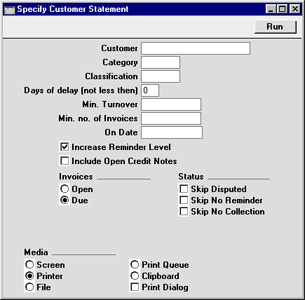
- Customer
- Paste Special
Customer register
- Range Reporting Alpha
- If necessary, enter here the Customer Number of the Customer (or range of Customers) for whom you wish to print statements.
- If necessary, enter here the Customer Number of the Customer (or range of Customers) for whom you wish to print statements.
- Category
- Paste Special
Customer Categories setting, Sales Ledger
- If you want to print statements for Customers of a particular Category, specify that Category here.
- Classification
- Paste Special
Customer Classifications setting, CRM module
- Enter a Classification Code in this field if you want to print statements for Customers with a certain Classification. If you enter a number of Classifications separated by commas, statements will only be printed for those Customers featuring all the Classifications listed.
- Days of delay (not less than)
- If you only wish to include Invoices in the statements that are overdue by more than a certain number of days, enter that number here.
- Min. Turnover
- If you only want to print statements for Customers with a certain level of turnover, enter that turnover figure here (in the home Currency). Each Customer's turnover is calculated from approved Invoices entered during the first period in the Reporting Periods setting in the System module, and the figure includes VAT.
- Min. no. of Invoices
- If you only want to print statements for Customers to whom you have issued at least a certain number of Invoices, enter that number here.
- On Date
- Paste Special
Current Date
- Enter a date to produce statements for a specific date. All Invoices that were open or due (depending on the choice made below) on that date will be included in the statements, while Invoices and Receipts since that date will not be included. If the field is left blank, the current date will be used.
- Increase Reminder Level
- Each Invoice contains a code (the Reminder Level) that indicates the number of times it has been subject to a reminder, or included on a Customer statement. Check this box if you want the Reminder Level to be increased when the statement is printed.
- When sending Reminders, the Reminder Level determines the text to be used in the reminder letter.
- The Reminder Level for each Invoice is shown on the statement and is visible on the 'Delivery' card of the Invoice screen.
- When sending Reminders, the Reminder Level determines the text to be used in the reminder letter.
- Include Open Credit Notes
- Check this box if you would like to include in the statement Credit Notes that have not yet been allocated to specific Invoices.
- Invoices
- Determine here which Invoices are to be included on the statement.
- Open
- This option lists all unpaid Invoices on the statement.
- Due
- This option lists only Invoices due for payment on the statement. These are Invoices whose Payment Terms have expired.
- Open
- Status
- Check the boxes to remove Invoices marked as Disputed, No Reminder and No Collection from the statements.
Open Invoice Customer Statement - Fields
This page lists the fields that you can use when you design the Form Template to be used by the Open Invoice Customer Statement form. Please refer here for details about printing the Open Invoice Customer Statement.---
When you print statements for a range of Customers, separate statements will be printed for each Customer. So, when you design the Form Template, the fields that you can use fall into two broad categories:
- Fields that will be printed once per statement. These fields will print information about a Customer, and statement totals.
- Row fields that will list the open Invoices in a statement.
| Field in Form Template | Prints (from Customer) |
| Header Fields (these print once per Customer) | |
| Account Balance Currency | Prints as a list the Currencies used in the statement. So, if you print the statement using the Base Currency option, only the Base Currency will be listed, otherwise all used Currencies will be listed. As it prints a list, you should specify a Line Height for this field. You should also set the Format to "Header" |
| Account Balance per Currency | Prints as a list the sums of the Invoice outstanding amounts in each Currency. As it prints a list, you should specify a Line Height for this field. You should also set the Format to "Header". Together with the previous field, this allows you to add a table to the Form Template showing the sums of the outstanding amounts in each Currency used |
| Address | Name (if you are using the Organisation Name option in the Form Settings setting) and Invoice Address from the Contact record for the Customer. This will be printed on separate lines, so you should specify a Line Height for this field. Use the Form Settings setting to set the format of this field (e.g. to specify whether blank lines will be printed, whether parts of the address will be printed on the same line, etc.) |
| Aged Current | If you are using Accounting Periods to determine your ageing periods, the "Aged Value 0" field will include Invoices that are not yet due for payment and Invoices that became due on the date of printing ("Current" Invoices). You can use the Show Invoices Due on Specified Date as Current Invoices option in the Age Limits setting to split this figure into two. This will mean that the "Aged Value 0" field will only include Invoices that are not yet due for payment, while this field will print the "Current" amount (i.e. the amount that became due on the date of printing). Please refer to the description of the Age Limits setting for more details and an example |
| Aged On Date Current | As "Aged Current" above, but will print the amount that is current on the On Date specified in the specification window or, if the On Date is blank, on the date of printing |
| Aged Total | The total amount that is outstanding on the date specified in the On Date field in the specification window or, if the On Date is blank, on the date of printing. |
| This includes open and overdue Invoices, irrespective of whether you print the statements using the Open option or the Overdue option. So, if you print the statements using the Overdue option, the Aged Total may not be the same as the statement total printed in the "Sum" field. | |
| This figure also includes open Credit Notes, irrespective of whether you use the Include Open Credit Invoices option in the specification window. "Sum", "Sum Due" and "Sum Not Due" do not include Credit Notes if they are not listed in the statement. | |
| This figure will also include open Prepayment and On Account values. | |
| This figure will always be in the Sales Currency specified in the Contact record for the Customer. If the Sales Currency is blank, this figure will be in Base Currency 1. | |
| Aged On Date Total | As "Aged Total" above |
| Aged Value 0 | The amount that is not yet due for payment on the date the statement is printed. This figure will include open Prepayment and On Account values, which are not subject to aging. |
| Aged On Date Value 0 | As "Aged Value 0" above, but will print the amount that is not yet due for payment on the On Date specified in the specification window or, if the On Date is blank, on the date of printing |
| Seven fields from Aged Value 1 to Aged Value 7 | These fields print the overdue amounts divided into ageing periods. The ageing periods are determined by the Age Limits setting or the Accounting Periods setting. |
| For example, if you have specified age limits in the Age Limits setting of 30, 60, 90 and 120 days, Aged Value 1 will print the amount outstanding for between 0 and 30 days, Aged Value 2 will print the amount outstanding for between 31 and 60 days, and so on. In this example, as there are four ageing periods, Aged Value 5 will print the amount outstanding for longer than 120 days. | |
| If you want the ageing periods to be determined by the Accounting Periods setting, use the Use Accounting Periods instead of Age Limits option in the Age Limits setting, and specify how many Accounting Periods you want to use. | |
| Even if you specify an On Date in the specification window, the age of an Invoice for the purposes of the Aged Value 0-7 fields will be the number of days between its Due Date and the date the statement is printed. If you need the age of an Invoice to be the number of days between its Due Date and the On Date, use the Aged Value On Date 0-7 fields. If you need the age of an Invoice to be calculated from its Invoice Date (instead of its Due Date), use the Aged based on Invoice Date option in the specification window. | |
| The figures in the Aged Value 0-7 fields will always be in the Sales Currency specified in the Contact record for the Customer. If the Sales Currency is blank, they will be in Base Currency 1. | |
| Seven fields from Aged On Date Value 1 to Aged On Date Value 7 | As Aged Value 1-7 above, but will age Invoices to the On Date specified in the specification window or, if the On Date is blank, to the date of printing |
| Change during the Period | Final value in the "Balance" row field, in the Currency chosen in the specification window |
| Contact Person | Primary Contact from the Contact record for the Customer |
| Customer Currency | Sales Currency from the Contact record for the Customer or, if blank, Base Currency 1 |
| Customer Fax Number | Fax from the Contact record for the Customer |
| Customer Name | Name from the Contact record for the Customer |
| Customer Number | No. from the Contact record for the Customer |
| Customer Registration No. 1 | Reg. No. 1 from the Contact record for the Customer |
| Customer Registration No. 2 | Reg. No. 2 from the Contact record for the Customer |
| Customer Telephone Number | Telephone from the Contact record for the Customer |
| Customer VAT Reg. Number | VAT Reg. No from the Contact record for the Customer |
| Delayed plus Interest | The value in the "Sum, Due" field + the sum of the values in the "Interest" row field |
| Document Type | Prints "Periodic Customer Statement". This field only prints if the VAT Law in the Company Info setting is set to "Portuguese" |
| Extra Cost | Additional Cost from the specification window |
| Interest Fee | Base Price from the Item quoted in the Invoicing Fee field in the Interest setting |
| Interest from day | On Date from specification window or, if blank, the date of printing |
| Interest Sum | Sum of the values in the "Interest" row field |
| Invalid Invoice | Prints "Document not valid as an Invoice". This field only prints if the VAT Law in the Company Info setting is set to "Portuguese" |
| Number of Delayed | Number of Invoices in the statement that are overdue. This figure will not include Credit Notes if you do not use the Include Open Credit Invoices option when printing a statement |
| Number of Not Delayed | Number of Invoices in the statement that are not yet due for payment. This figure will not include Credit Notes if you do not use the Include Open Credit Invoices option when printing a statement |
| Prepayments / Unallocated Cash | Total open Prepayment and On Account value, in the Currency chosen in the specification window, printed as a negative figure |
| Reminder Level (remtext) | Checks the Reminder Levels in the Invoices in the statement and prints the Reminder Text for the highest Level, taken from the Reminder Texts record for the Language of the Customer. A Reminder Text can occupy up to three lines, so you should specify a Line Height for this field |
| Start Date | On Date from specification window or, if blank, the date of printing |
| Sum | Final value in the "Balance" row field + Additional Cost from the specification window, in the Currency chosen in the specification window |
| Sum, Due | The total amount that is overdue on the date specified in the On Date field in the specification window or, if the On Date is blank, on the date of printing, in the Currency chosen in the specification window. This figure will not include Credit Notes if you do not use the Include Open Credit Invoices option when printing a statement |
| Sum, Not Due | The total amount that is not yet due for payment on the date specified in the On Date field in the specification window or, if the On Date is blank, on the date of printing, in the Currency chosen in the specification window. This figure will not include Credit Notes if you do not use the Include Open Credit Invoices option when printing a statement. If you print the statement using the Overdue option, it will not include Invoices that are not yet due for payment and so nothing will be printed in this field |
| Sum + interest | Final value in the "Balance" row field + sum of the values in the "Interest" row field + Additional Cost from the specification window |
| Sum + interest fee | Final value in the "Balance" row field + the value in the "Interest Fee" field |
| Sum + interest + interest fee | Final value in the "Balance" row field + sum of the values in the "Interest" row field + the value in the "Interest Fee" field |
| Total including Prepayments/unalloc. cash | Final value in the "Balance" row field + sum of the values in the "Interest" row field + the (negative) value in the "Prepayments / Unallocated Cash" field |
| Total Sum | Final value in the "Balance" row field + the (negative) value in the "Prepayments / Unallocated Cash" field |
| Row Fields (these print once per row (i.e. once for each open Invoice), so remember to specify a Line Height and to set the Format to "Matrix"): | |
| Balance | Accumulating outstanding amount, in the Currency chosen in the specification window (i.e. in the second line in the statement, prints the total outstanding from the first and second lines; in the third line, prints the total outstanding from the first three lines, and so on) |
| Comment | Comment |
| Comment 2 | Comment from the relevant row for the Invoice in the Number Series - Invoices setting |
| Customer Order number from Invoice | Cust. Ord. No. |
| Currency | Currency (if you use the Currency option in the specification window) or Base Currency 1 (otherwise) |
| Delayed | Number of days by which the Invoice is outstanding (i.e. number of days from the Due Date to the date specified in the On Date field in the specification window or, if the On Date is blank, to the date of printing). |
| If you need the age of an Invoice to be calculated from its Invoice Date (instead of its Due Date), use the Aged based on Invoice Date option in the specification window. | |
| If you are using the Open and Overdue option in the Age Limits setting, a positive figure will be printed for an Invoice that is not due for payment on the On Date/date of printing (i.e. one whose Due Date is later than the On Date/date of printing), while a negative figure will be printed for one that is overdue (i.e. one whose Due Date is earlier than the On Date/date of printing). If you are using the Overdue Only option in the same setting, 0 will be printed for an Invoice that is not due for payment, while a positive figure will be printed for one that is overdue | |
| Interest | Interest payable on the Invoice for the number of late days, calculated using the Rate in the Interest setting and the outstanding amount in the Currency chosen in the specification window. The field will be blank if the Interest box is not ticked for the Customer or if the No Interest box is ticked in a particular Invoice |
| Invoice Amount | TOTAL |
| Invoice Day | Invoice Date |
| Invoice Due Date | Due Date |
| Invoice Number | No. |
| Invoice Text | String made up of the Type of the Invoice (i.e. "Invoice", "Interest Invoice", "Receipt" (for Down Payment Invoices), "Cash Note" or "Credit Note") + space + No. |
| Invoice Type | Type of the Invoice (i.e. "Invoice", "Interest Invoice", "Receipt" (for Down Payment Invoices), "Cash Note" or "Credit Note") |
| Invoice Type (short) | Type of the Invoice, abbreviated (i.e. "INV", "INT" (for Interest Invoices), "DPT" (for Down Payment Invoices), "CASH" or "CRED") |
| KID Checksum | KID Code checksum |
| KID Code | KID Code (formatted depending on the Bank, Client Code (OCR) and OCR Code option specified on the 'OCR' card of the Bank Transfer setting) |
| KID code with no Checksum | KID Code without checksum |
| Official Serial Number | Official No. |
| Open Invoice Value | Outstanding amount, in the Currency chosen in the specification window |
| Open Invoice Value in Base 1 | Outstanding amount, converted to Base Currency 1 |
| Our Reference (ourref) | Our Reference |
| Received Value | TOTAL - Outstanding amount (i.e. amount already paid or credited), in the Currency chosen in the specification window |
| Reminder Level | Reminder Level. If you select the Increase Reminder Level option in the specification window, the increased Level will be printed |
| Transaction Number | No. |
Please refer here for details of the standard fields that you can also include in the Form Template.
---
Forms in the Sales Ledger:
- Introduction
- Cash Notes
- Credit Notes
- Customer/Supplier Labels
- Debtors Letter
- EU VAT Sales
- Gift Vouchers
- Interest Invoices
- Internal Invoices
- Intrastat S/L
- Invoices
- Open Invoice Customer Statement, including:
- Fields for inclusion in the Form Template)
- Periodic Customer Statement
- Proforma Invoices
- Project Invoices
- Receipt Forms
- Reminders
- VAT Corrections S/L
- Home page for Sales Ledger manual
- Home page for Standard ERP manual
Periodic Customer Statement
This document shows a record of all sales transactions for each Customer during a specified period. It differs from the Open Invoice Customer Statement in that paid Invoices and Receipts are shown in addition to unpaid Invoices. This document is similar to the report with the same name, but the design of the document is different.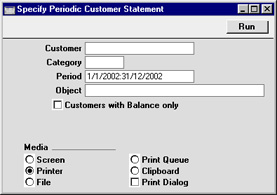
- Customer
- Paste Special
Customer register
- Range Reporting Alpha
- If necessary, enter here the Customer Number of the Customer (or range of Customers) for whom you wish to print statements.
- If necessary, enter here the Customer Number of the Customer (or range of Customers) for whom you wish to print statements.
- Category
- Paste Special
Customer Categories setting, Sales Ledger
- If you want to print statements for Customers of a particular Category, specify that Category here.
- Period
- Paste Special
Reporting Periods setting, System module
- Specify a period to be covered by the statements.
- Object
- Paste Special
Object register, Nominal Ledger/System module
- You can specify that the statements only include Invoices with a certain combination of Objects.
- Customers with Balance Only
- Check this box to exclude Customers with no current balance.
Proforma Invoices
A Proforma Invoice is usually printed when it is necessary to get payment in advance. A Proforma Invoice differs from a normal Invoice in that the Invoice Number is preceded by the word "Proforma" and in that, even for Invoices that have not been approved, the words "Test Printout" will not appear.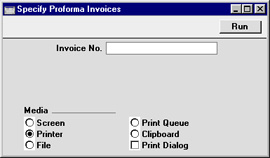
An individual Proforma can also be printed when an Invoice is open on screen, using the 'Print Proforma Invoice' function on the Operations menu.
Project Invoices
Every Invoice in Standard ERP will belong to one of five types: Invoice, Cash Note, Credit Note, Interest Invoice or Project Invoice.One implication of this classification is that Invoices can be printed using different Form Templates, depending on type. You must therefore connect a Form Template to each Invoice type before you can begin printing. It may be that you decide to use the same Form Template for each Invoice type, but if so, you must still explicitly connect the Form Template to each Invoice type separately.
The primary purpose of this option is to allow you to specify the Form Template that will be used when you print Project Invoices. A Project Invoice is one created using the 'Create Project Invoices' Maintenance function in the Job Costing module and which therefore has a Project specified on its 'Terms' card. To do this, highlight 'Project Invoices' in the 'Forms' list and select 'Define Form' from the Operations menu. In the subsequent 'Form Definition' window, specify a Form Template using 'Paste Special' if necessary. The 'Form Definition' window is fully described here.
If you have not specified a Form Template for Project Invoices, the message "No form defined. Please check the form definition" will be displayed when you try to print a Project Invoice. If you are shown this message when printing a range of Invoices, check the type of the Invoice to see which one is missing its Form Template.
Although you can design different Form Templates for use with Invoices of the different types, the fields that you can use are the same in each case. Please click here for a list of the header fields and here for the row fields.
You can also use this option when you need to print Project Invoices. If you double-click 'Project Invoices' in the 'Forms' list, the 'Specify Project Invoices' window will open:
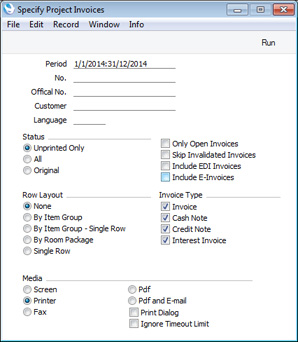
---
Forms in the Sales Ledger:
- Introduction
- Cash Notes
- Credit Notes
- Customer/Supplier Labels
- Debtors Letter
- EU VAT Sales
- Gift Vouchers
- Interest Invoices
- Internal Invoices
- Intrastat S/L
- Invoices
- Open Invoice Customer Statement
- Periodic Customer Statement
- Proforma Invoices
- Project Invoices
- Receipt Forms
- Reminders
- VAT Corrections S/L
- Home page for Sales Ledger manual
- Home page for Standard ERP manual
Receipt Forms
The Receipt Form is a document that can be used if you need a hard copy of each Receipt for your records. If a Receipt contains more than one payment, these will be printed on the same form if they are from the same Customer.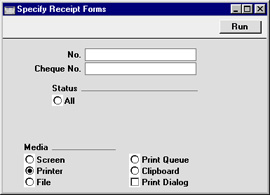
- No.
- Range Reporting
Numeric
- Enter a Receipt Number print a single Receipt, or a range of Receipt Numbers, separating the first and last number with a colon (:).
- Cheque No.
- Use this field to print a Receipt with a particular cheque number, perhaps to see if that cheque has been received.
- Status
- You can choose to print previously unprinted Receipts in the chosen range, or all Receipts.
Reminders
Whereas statements show a Customer's current credit position on a single page, if possible, Reminders show that position by printing a single page for each overdue Invoice. This might be useful in cases where a Customer has several overdue Invoices, since these documents can contain Reminder messages of increasing severity depending on the number of previous Reminders.Note that for a particular Customer to receive Reminders, the Reminder check box on the 'Terms' card of their Customer record must be switched on. You can prevent the printing of Reminders for individual Invoices made out to such Customers by checking the No Reminder box on the 'Delivery' card of the Invoice screen.
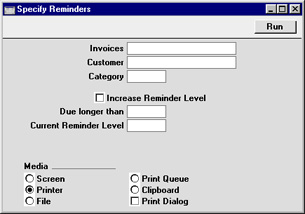
- Invoices
- Paste Special
Open, approved Invoices, Invoice register
- Range Reporting Numeric
- If necessary, enter here the Invoice Number (or range of Invoice Numbers) of the Invoice(s) for which you wish to print Reminders. Reminders will not be printed for Invoices that are not yet due for payment.
- If necessary, enter here the Invoice Number (or range of Invoice Numbers) of the Invoice(s) for which you wish to print Reminders. Reminders will not be printed for Invoices that are not yet due for payment.
- Customer
- Paste Special
Customer register
- If necessary, enter here the Customer Number of the Customer for whom you wish to print Reminders.
- Category
- Paste Special
Customer Categories setting, Sales Ledger
- If you want to print Reminders for Customers belonging to a particular Category, specify that Category here.
- Increase Reminder Level
- Each Invoice contains a Reminder Level (visible on the 'Delivery' card) that indicates the number of times it has been subject to a Reminder, or included on a Customer statement. Check this box if you want the Reminder Level to be increased before the Reminder is printed.
- When you print a Reminder for an Invoice, it will contain one of three messages of increasing severity that will be chosen depending on the Reminder Level of the Invoice. These messages are defined in the Texts for Reminders setting. For example, if the Reminder Level of an Invoice is 2, the message will be taken from the Reminder 2 field in the Texts for Reminders setting, and so on. If this Increase Reminder Level box is checked, the Reminder Level in this example will be increased to 3 before the Reminder is printed, so the message will be taken from the Reminder 3 field in the setting.
- When an Invoice is first approved, its Reminder Level will usually be blank. If a Reminder is printed for such an Invoice, it will not contain a message. If this Increase Reminder Level box is checked, the Reminder Level will be increased from blank to 1, so when the Reminder is printed it will contain the first message.
- When you print a Reminder for an Invoice, it will contain one of three messages of increasing severity that will be chosen depending on the Reminder Level of the Invoice. These messages are defined in the Texts for Reminders setting. For example, if the Reminder Level of an Invoice is 2, the message will be taken from the Reminder 2 field in the Texts for Reminders setting, and so on. If this Increase Reminder Level box is checked, the Reminder Level in this example will be increased to 3 before the Reminder is printed, so the message will be taken from the Reminder 3 field in the setting.
- Due Longer Than
- By entering a number of days here, you can limit the reminders to Invoices due for longer than a certain period.
- Current Reminder Level
- Enter a Reminder Level here to limit the reminders produced to those for Invoices of a particular Reminder Level.
VAT Correction
This document can be used to print records from the 'VAT Corrections' setting. When the specification window opens, enter the Serial Number (or range of numbers) of the VAT Correction to be printed, and click the [Run] button.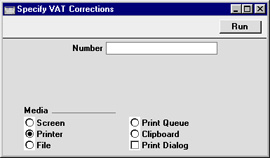
VAT Corrections S/L - Header Fields
The fields that you can use when you design the Form Template to be used by the VAT Correction form are listed on two pages, as follows:- Header Fields
- Row Fields
Header fields will be printed once per VAT Correction. If you do not want to print the decimal places in numeric fields, choose the Cut Decimals option in the record in the Values in Text setting for the Language specified in the Company Info setting. This will remove the decimals even in fields where you have used the Field Argument to control the rounding.
Basic Information
The following fields print information taken directly from the VAT Correction being printed:| Field in Form Template | Prints (from VAT Correction) |
| Amount in Text | Prints the TOTAL as a phrase. The phrase will be constructed using the relevant record in the Values in Text setting for the Language of the VAT Correction or, if that is blank, the Language in the current user's Person record or in the Company Info setting |
| Amount in Text, Basecurrency 1 | Prints the TOTAL converted to Base Currency 1 as a phrase. The phrase will be constructed using the relevant record in the Values in Text setting for the Language of the VAT Correction or, if that is blank, the Language in the current user's Person record or in the Company Info setting |
| Amount in Text, Basecurrency 2 | Prints the TOTAL converted to Base Currency 1 as a phrase. The phrase will be constructed using the relevant record in the Values in Text setting for the Language of the VAT Correction or, if that is blank, the Language in the current user's Person record or in the Company Info setting |
| Amount without Discount | TOTAL |
| Credited Invoice Number | If the VAT Correction was created from a Credit Note, and the Credit Note was created from an Invoice that also has a connected VAT Correction, prints the No. from that VAT Correction |
| Credited Invoice Transaction Date | If the VAT Correction was created from a Credit Note, and the Credit Note was created from an Invoice that also has a connected VAT Correction, prints the Trans. Date from that VAT Correction |
| Currency | Currency |
| Customer Fax Number | Fax from the VAT Correction or, if blank, from the Contact record for the Customer |
| Customer Number | Customer |
| Customer Telephone Number | Telephone from the VAT Correction or, if blank, from the Contact record for the Customer |
| Customer VAT Reg. Number | VAT Reg. No. from the VAT Correction or, if blank, from the Contact record for the Customer |
| Day | The day from the Transaction Date. For example, the day from 22/12/2014 will be printed as "22" |
| Email Address from the Salesman's Person record | |
| Freight | Freight |
| Invoice Comment | Comment |
| Invoice Date | Inv. Trans. Date. If you need to use a different date format (e.g. in Ukraine, it is best practice to print this date without separators), you can enter it as the Field Argument (e.g. YYYYMMDD, YY/MM/DD, etc) |
| Invoice Due Date | Inv. Due Date. If you need to use a different date format (e.g. in Ukraine, it is best practice to print this date without separators), you can enter it as the Field Argument (e.g. YYYYMMDD, YY/MM/DD, etc) |
| Invoice Header | Comment |
| Invoice No. | Invoice (i.e. No. of the Invoice from which the VAT Correction was created) |
| Invoice Type | Type of the VAT Correction (prints "Invoice", "Cash Note", "Credit Note" or "Interest Invoice" as appropriate) |
| Invoice Type (short) | Type of the VAT Correction (prints "Invoice", "Cash Note", "Credit Note" or "Interest Invoice" as appropriate) |
| Month | The month from the Transaction Date. For example, the month from 22/12/2014 will be printed as "12" |
| Month in words | The name of the month in the current date, taken from the record in the Days and Months setting in the System module for the Language in the Invoice or, if that is blank, the Language in the current user's Person record |
| Note | Prints the text of the first Note attached to the VAT Correction. If you specify a Field Argument, the Note whose Comment is the same as the Field Argument will be printed |
| Object | Object |
| Object Text (objekttext) | Names from each Object, separated by commas, up to a maximum of 250 characters |
| Ordering Customer Name | Name |
| Ordering Customer Number | Customer |
| Our Reference | Our Ref. |
| Payment Number for Russia | Prints the No. of the VAT Correction with the first three characters removed |
| Postitve/Negative in text | Prints "Amount positive" (if TOTAL is positive) or "Amount negative" (if TOTAL is negative) |
| Rate | Exchange Rate, expressed as a ratio |
| Rate for Base Currency | Base Currency Rate, expressed as a ratio |
| Round Off | Prints the amount lost or gained by the process of rounding the TOTAL according to the Total rounding rules set for the Currency/Payment Term combination in the Currency Round Off setting or in the Round Off setting (i.e. when the TOTAL is rounded to fewer decimal places than the Default). A loss will be printed as a negative figure |
| Salesman A | Salesman |
| Salesman Name | Name from the Salesman's Person record |
| Serial Number (Number Series) | No. |
| Subtotal in Base Currency 1 | Subtotal, converted to Base Currency 1. If you enter "-" (i.e. a minus sign) as the Field Argument, this figure will be printed as a negative value |
| Subtotal in Base Currency 2 | Subtotal, converted to Base Currency 2. If you enter "-" (i.e. a minus sign) as the Field Argument, this figure will be printed as a negative value |
| Subtotal with VAT | Subtotal + VAT (if prices in the VAT Correction exclude VAT) or Subtotal (otherwise) |
| Sum | Subtotal. |
| The number of decimal places will be as shown on screen in the Invoice record, although you can overrule this by specifying a Field Argument. For example, to round to one decimal place, enter "1" as the Field Argument, or to round to the nearest ten, enter "-1" | |
| Sum, excluding Freight | Subtotal - Freight (if prices in the Invoice exclude VAT) or Subtotal - VAT - Freight (otherwise) |
| sum, Freight | Subtotal - Freight |
| Sum, VAT | TOTAL - VAT |
| Sum VAT-base incl. zero rate | Subtotal - Freight (if prices in the Invoice exclude VAT) or TOTAL - VAT - Freight (otherwise) |
| TAX 1 | Ext. Tax |
| TAX Sum | Ext. Tax |
| To Pay | TOTAL. |
| The number of decimal places will be as shown on screen in the Invoice record, although you can overrule this by entering "0" or a positive number as the Field Argument. For example, to round to the nearest whole number, enter "0", or to round to one decimal place, enter "1"" | |
| To Pay excluding Freight | Subtotal - Freight + VAT |
| To Pay in Base Currency 1 | TOTAL, converted to Base Currency 1. If you enter "-" (i.e. a minus sign) as the Field Argument, this figure will be printed as a negative value |
| To Pay in Base Currency 2 | TOTAL, converted to Base Currency 2. If you enter "-" (i.e. a minus sign) as the Field Argument, this figure will be printed as a negative value |
| To Pay in Text | Prints the TOTAL as a phrase. The phrase will be constructed using the relevant record in the Values in Text setting for the Language of the VAT Correction or, if that is blank, the Language in the current user's Person record or in the Company Info setting |
| To Pay without Decimals | TOTAL, with decimals removed (for example, 1,234.56 will be printed as 1,234) |
| To Pay without Decimals for KID | TOTAL, with thousands separator and decimals removed (for example, 1,234.56 will be printed as 1234) |
| To Pay/To Pay Back Amount | If the VAT Correction being printed was created from a Credit Note, the TOTAL (otherwise blank) |
| To Pay/To Pay Back Text | If the VAT Correction being printed was created from a Credit Note, prints "To Pay" (if the TOTAL is negative) or "To Pay back" (if the TOTAL is positive) (otherwise blank) |
| Total Non Taxable | TOTAL - Subtotal - Freight + VAT. You should only use this field in VAT Corrections in which prices include VAT |
| Total Quantity (totqty) | Sum of Qty in each row |
| Total Taxable Including VAT | Subtotal - Freight + VAT. You should only use this field in VAT Corrections in which prices exclude VAT |
| Total Volume | Sum of (Qty * Item Volume from the Item record) for each row |
| Total Weight | Sum of (Qty * Weight from the Item record) for each row |
| Transaction Date (transdate) | Trans. Date. If you need to use a different date format (e.g. in Ukraine, it is best practice to print this date without separators), you can enter it as the Field Argument (e.g. YYYYMMDD, YY/MM/DD, etc) |
| VAT | VAT. |
| The number of decimal places will be as shown on screen in the Invoice record, although you can overrule this by entering "0" or a positive number as the Field Argument. For example, to round to the nearest whole number, enter "0", or to round to one decimal place, enter "1" | |
| VAT in Base Currency 1 | VAT, converted to Base Currency 1. If you enter "-" (i.e. a minus sign) as the Field Argument, this figure will be printed as a negative value |
| VAT in Base Currency 2 | VAT, converted to Base Currency 2. If you enter "-" (i.e. a minus sign) as the Field Argument, this figure will be printed as a negative value |
| VAT in Text | Prints the VAT as a phrase. The phrase is constructed using the relevant record in the Values in Text setting for the Language of the VAT Correction or, if that is blank, the Language in the current user's Person record or in the Company Info setting |
| Year | The year from the Transaction Date. For example, the year from 22/12/2014 will be printed as "2014" |
| Your (customers) Reference | Attn. |
VAT Correction - Address Information
The following fields print address information from the VAT Correction being printed:| Field in Form Template | Prints (from VAT Correction) |
| Address | Name (if you are using the Organisation Name option in the Form Settings setting) and Invoice Address. This information will be printed on separate lines, so you should specify a Line Height for this field |
| Address 2 | First line of Invoice Address |
| Address 3 | Second line of Invoice Address |
| Address 4 | Third line of Invoice Address |
| Address 5 | Fourth line of Invoice Address |
| Address 6 | Fifth line of Invoice Address |
| Address with Attention | Name, Attn. and Invoice Address. This information will be printed on separate lines, so you should specify a Line Height for this field |
| Shipment Address 2 | Name and Invoice Address. This information will be printed on separate lines, so you should specify a Line Height for this field |
Customer Information
The following fields print information taken from the record in the Contact register for the Customer:| Field in Form Template | Prints (from Customer) |
| Country Name | Country Name from the record in the Countries setting for the Country |
| Customer Comment | Comment ('Company' card) |
| Customer Registration No. 1 | Reg. No. 1 |
| Customer Registration No. 2 | Reg. No. 2 |
| Department | Department |
| From Address | Name, Invoice Address and Country. This information will be printed on separate lines, so you should specify a Line Height for this field |
| Invoice To | Name and Invoice Address. This information will be printed on separate lines, so you should specify a Line Height for this field |
Contact Person Information
The following fields print information from the record in the Contact register for the Contact Person specified in the Attn. field in the VAT Correction or, if there is no record for the Contact Person, from the Contact record for the Customer:| Field in Form Template | Prints (from Contact Person or Customer) |
| Contact Person Title | Courtesy Title |
Sales Contract Information
The following fields print information from the Sales Contract specified in the VAT Correction. The Sales Contract field is only visible in the VAT Correction record if the VAT Law in the Company Info setting is set to "Ukrainian"):| Field in Form Template | Prints (from Sales Contract) |
| Sales Contract Date | Date |
| Sales Contract No. | No. |
| Sales Contract Pay. Term | Pay. Term |
| Sales Contract Type | Type |
VAT Code Summary
The following fields allow you to add a table to the Form listing the VAT Codes used in a VAT Correction together with various totals. These fields will each be printed once for each VAT Code used in an Invoice. In all cases except "Excl. VAT Percentage", "Sum, including VAT", "VAT Code Total" and "VAT Comment", these fields will print negative figures if you specify a minus sign as the Field Argument. You should specify a Line Height in these fields, and set the Format to "Header":| Field in Form Template | Prints |
| Excl. VAT Percentage | VAT percentage |
| Sum, including VAT | Total. This figure will include VAT in VAT Corrections in which prices include VAT, or exclude VAT otherwise |
| VAT Base | Total excluding VAT |
| VAT Base in Base Currency 1 | Total excluding VAT, converted to Base Currency 1 |
| VAT Base in Base Currency 2 | Total excluding VAT, converted to Base Currency 2 |
| VAT Code Total | VAT Code |
| VAT Comment | Description from the VAT Codes setting |
| VAT Total | Total including VAT |
| VAT Total in Base Currency 1 | Total including VAT, converted to Base Currency 1 |
| VAT Total in Base Currency 2 | Total including VAT, converted to Base Currency 2 |
| VAT Value | VAT value |
| VAT Value in Base Currency 1 | VAT value, converted to Base Currency 1 |
| VAT Value in Base Currency 2 | VAT value, converted to Base Currency 2 |
Country-Specific Fields - Ukraine
| Field in Form Template | Prints |
| Description 2 | Prints "X" if Org. at our Comp. is not empty (Org. at our Comp. is only visible in the VAT Correction record if the VAT Law in the Company Info setting is set to "Ukrainian") |
| Reason | Org. at our Comp. (Org. at our Comp. is only visible in the VAT Correction record if the VAT Law in the Company Info setting is set to "Ukrainian") |
| Sequence | Month Seq. No. (Month Seq. No. is only visible in the VAT Correction record if the VAT Law in the Company Info setting is set to "Ukrainian") |
| Total Sum Excl. VAT | Sum of the values in the "Total Sum Excl. VAT,Normal 20%", "Total Sum Excl. VAT,Normal 0%", "Total Sum Excl. VAT, No VAT" and "Total Sum Excl. VAT, Export" fields (described immediately below) |
| Total Sum Excl. VAT,Normal 20% | Sum of the values in the "Row Sum excl. VAT,Normal 20%" row field |
| Total Sum Excl. VAT,Normal 0% | Sum of the values in the "Row Sum excl. VAT,Normal 0%" row field |
| Total Sum Excl. VAT, Export | Sum of the values in the "Row Sum excl. VAT, Export" row field |
| Total Sum Excl. VAT, No VAT | Sum of the values in the "Row Sum excl. VAT, No VAT" row field. The phrase "No VAT" will be printed under the total, so you should specify a Line Height in this field |
| Total Freight excl. VAT,Normal 20% | Total Freight value attributed to rows in which the VAT Code has a Tax Rule belonging to the "Normal" Type and in which the VAT rate is 20% (the Freight figure from the footer of the VAT Correction record will be distributed proportionally to each row based on row sums) |
| Total Freight excl. VAT,Normal 0% | Total Freight value attributed to rows in which the VAT Code has a Tax Rule belonging to the "Normal" Type and in which the VAT rate is not 20% |
| Total Freight excl. VAT. Export | Total Freight value attributed to rows in which the VAT Code has a Tax Rule belonging to the "Export with Deductable VAT" Type |
| Total Freight excl. VAT. No VAT | Total Freight value attributed to rows in which the VAT Code has a Tax Rule belonging to the "No VAT" Type |
| Total Discount Excl. VAT | Sum of the values in the "Total Discount excl. VAT,Normal 20%", "Total Discount excl. VAT,Normal 0%", "Total Discount excl. VAT. No VAT" and "Total Discount excl. VAT. Export" fields (described immediately below) |
| Total Discount excl. VAT,Normal 20% | Sum of ((Qty * Unit Price) - Sum) from each row in which the VAT Code has a Tax Rule belonging to the "Normal" Type and in which the VAT rate is 20% |
| Total Discount excl. VAT,Normal 0% | Sum of ((Qty * Unit Price) - Sum) from each row in which the VAT Code has a Tax Rule belonging to the "Normal" Type and in which the VAT rate is not 20% |
| Total Discount excl. VAT. Export | Sum of ((Qty * Unit Price) - Sum) from each row in which the VAT Code has a Tax Rule belonging to the "Export with Deductable VAT" Type |
| Total Discount excl. VAT. No VAT | Sum of ((Qty * Unit Price) - Sum) from each row in which the VAT Code has a Tax Rule belonging to the "No VAT" Type |
| Total Sum Excl. VAT with Discount and Freight | Sum of the values in the "Total Sum Excl. VAT with Discount and Freight,Normal 20%", "Total Sum Excl. VAT with Discount and Freight,Normal 0%", "Total Sum Excl. VAT with Discount and Freight, No VAT" and "Total Sum Excl. VAT with Discount and Freight, Export" fields (described immediately below) |
| Total Sum Excl. VAT with Discount and Freight,Normal 20% | Value in the "Total Sum Excl. VAT,Normal 20%" field - value in the "Total Discount excl. VAT,Normal 20%" field + value in the "Total Freight excl. VAT,Normal 20%" field |
| Total Sum Excl. VAT with Discount and Freight,Normal 0% | Value in the "Total Sum Excl. VAT,Normal 0%" field - value in the "Total Discount excl. VAT,Normal 0%" field + value in the "Total Freight excl. VAT,Normal 0%" field |
| Total Sum Excl. VAT with Discount and Freight, Export | Value in the "Total Sum Excl. VAT, Export" field - value in the "Total Discount excl. VAT. Export" field + value in the "Total Freight excl. VAT. Export" field |
| Total Sum Excl. VAT with Discount and Freight, No VAT | Value in the "Total Sum Excl. VAT, No VAT" field - value in the "Total Discount excl. VAT. No VAT" field + value in the "Total Freight excl. VAT. No VAT" field |
| Total VAT Sum | Sum of the values in the "Total VAT Sum,Normal 20%", "Total VAT Sum,Normal 0%", "Total VAT Sum, No VAT" and "Total VAT Sum, Export" fields (described immediately below) |
| Total VAT Sum,Normal 20% | Total VAT calculated from row sums in rows in which the VAT Code has a Tax Rule belonging to the "Normal" Type and in which the VAT rate is 20% |
| Total VAT Sum,Normal 0% | Total VAT calculated from row sums in rows in which the VAT Code has a Tax Rule belonging to the "Normal" Type and in which the VAT rate is not 20% |
| Total VAT Sum, Export | Total VAT calculated from row sums in rows in which the VAT Code has a Tax Rule belonging to the "Export with Deductable VAT" Type |
| Total VAT Sum, No VAT | Total VAT calculated from row sums in rows in which the VAT Code has a Tax Rule belonging to the "No VAT" Type |
| Total Sum Incl. VAT with Discount and Freight | Sum of the values in the "Total Sum Incl. VAT with Discount and Freight,Normal 20%", "Total Sum Incl. VAT with Discount and Freight,Normal 0%", "Total Sum Incl. VAT with Discount and Freight, No VAT" and "Total Sum Incl. VAT with Discount and Freight, Export" fields (described immediately below) |
| Total Sum Incl. VAT with Discount and Freight,Normal 20% | Value in the "Total Sum Excl. VAT with Discount and Freight,Normal 20%" field + value in the "Total VAT Sum,Normal 20%" field |
| Total Sum Incl. VAT with Discount and Freight,Normal 0% | Value in the "Total Sum Excl. VAT with Discount and Freight,Normal 0%" field + value in the "Total VAT Sum,Normal 0%" field |
| Total Sum Incl. VAT with Discount and Freight, Export | Value in the "Total Sum Excl. VAT with Discount and Freight, Export" field + value in the "Total VAT Sum, Export" field |
| Total Sum Incl. VAT with Discount and Freight, No VAT | Value in the "Total Sum Excl. VAT with Discount and Freight, No VAT" field + value in the "Total VAT Sum, No VAT" field |
---
Go to:
- Header Fields
- Row Fields
- Standard Fields
- Introduction
- Cash Notes
- Credit Notes
- Customer/Supplier Labels
- Debtors Letter
- EU VAT Sales
- Gift Vouchers
- Interest Invoices
- Internal Invoices
- Intrastat S/L
- Invoices
- Open Invoice Customer Statement
- Periodic Customer Statement
- Proforma Invoices
- Project Invoices
- Receipt Forms
- Reminders
- VAT Corrections S/L
- Home page for Sales Ledger manual
- Home page for Standard ERP manual
VAT Corrections S/L - Row Fields
The fields that you can use when you design the Form Template to be used by the VAT Correction form are listed on two pages, as follows:- Header Fields
- Row Fields
Row fields will be printed once for each VAT Correction row, so in each one you should specify a Line Height and set the Format to "Matrix": If you do not want to print the decimal places in numeric fields, choose the Cut Decimals option in the record in the Values in Text setting for the Language specified in the Company Info setting. This will remove the decimals even in fields where you have used the Field Argument to control the rounding.
| Field in Form Template | Prints (from VAT Correction) |
| Cost Price | Cost |
| Description 1 | Description |
| Description with EKN Code | Prints Description from the VAT Correction row + the EKN Code from the Item record, separated by a space |
| Discount | % |
| Document Date, row | Trans. Date (from the header) |
| Item Code | Item |
| Item Code 2 | Item |
| Item Price | If the prices in a VAT Correction include VAT, this field will print the Unit Price including discount but excluding VAT. If the prices in a VAT Correction do not include VAT, it will print the Unit Price excluding discount but including VAT |
| Object, row | Objects (from flip B) |
| Object Name, row | Names from each Object in the row, separated by commas, up to a maximum of 250 characters |
| Price in Base Currency 1 | Unit Price, converted to Base Currency 1 |
| Price in Base Currency 1, row | Sum, converted to Base Currency 1 |
| Price in Base Currency 2 | Unit Price, converted to Base Currency 2 |
| Price in Base Currency 2, row | Sum, converted to Base Currency 2 |
| Price including Discount, row | Prints the Unit Price including discount, calculated using the formula (Unit Price / Price Factor) - (Unit Price / Price Factor) * Discount / 100). This figure will include VAT in VAT Corrections in which prices include VAT, or exclude VAT otherwise. |
| This figure will be rounded to a maximum of three decimal places if, in the Round Off setting, you have set Discount Calculation to Row Sum. If you have set Discount Calculation to Unit Price, rounding will obey the Default for Calculated Values rounding rules in the same setting. However, you can overrule this by entering "0" or a positive number as the Field Argument. For example, to round to the nearest whole number, enter "0", or to round to one decimal place, enter "1" | |
| Quantity | Qty ("0" will be printed for zero quantities, use "Quantity In" if you need blank to be printed) |
| Quantity Conversion 1, Quantity Conversion 2, Quantity Conversion 3 | If the Item record has a Conversion 1 and a Conversion 2, these fields print the relevant quantities. Please refer to the description of these fields here for details and an example. |
| Quantity In | Qty (blank will be printed for zero quantities, use "Quantity" if you need "0" to be printed) |
| Row Base | Sum excluding VAT (i.e. prints Sum in VAT Corrections in which prices exclude VAT, or Sum - VAT otherwise). |
| Usually, the number of decimal places will obey the Default for Currency rounding rules set in the Currency Round Off or Round Off settings. However, you can overrule this by entering "0" or a positive number as the Field Argument. For example, to round to the nearest whole number, enter "0", or to round to one decimal place, enter "1" | |
| Row Base in Base Currency 1 | Sum excluding VAT (i.e. Sum in VAT Corrections in which prices exclude VAT, or Sum - VAT otherwise), converted to Base Currency 1. |
| Usually, the number of decimal places will obey the Default for Currency rounding rules set in the Currency Round Off or Round Off settings. However, you can overrule this by entering "0" or a positive number as the Field Argument. For example, to round to the nearest whole number, enter "0", or to round to one decimal place, enter "1". The rounding resulting from the Field Argument will occur before the conversion to Base Currency 1 | |
| Row Base in Base Currency 2 | Sum excluding VAT (i.e. Sum in VAT Corrections in which prices exclude VAT, or Sum - VAT otherwise), converted to Base Currency 2. |
| Usually, the number of decimal places will obey the Default for Currency rounding rules set in the Currency Round Off or Round Off settings. However, you can overrule this by entering "0" or a positive number as the Field Argument. For example, to round to the nearest whole number, enter "0", or to round to one decimal place, enter "1". The rounding resulting from the Field Argument will occur before the conversion to Base Currency 2 | |
| Row Number | Row number (only printed if a row has an Item) |
| Row Number in text | Row number in text (only printed if a row has an Item), taken from the Values in Text record for the Language of the VAT Correction or the Language in the Company Info setting |
| Row Sum | Sum |
| Row Sum If No VAT | Sum. This field will only be printed if the VAT value of a row is zero |
| Row Sum If VAT | Sum excluding VAT (i.e. prints Sum in VAT Corrections in which prices exclude VAT, or Sum - VAT otherwise). This field will only be printed if the VAT value of a row is greater than zero |
| Row Sum Total | Sum including VAT and Extra Tax |
| Row Sum with VAT | VAT value of the row |
| Sales Account | A/C (from flip B) |
| Sum, FIFO | Row FIFO. |
| The number of decimal places will be as shown on screen in the Invoice record, although you can overrule this by entering "0" or a positive number as the Field Argument. For example, to round to the nearest whole number, enter "0", or to round to one decimal place, enter "1" | |
| TAX Value, row | Extra Tax value of the row (calculated using the Tax % on flip B of the VAT Code) |
| To Pay in Base Currency 2 inc commission | Total Incl. Com. (from the 'Price List' card of the Invoice from which the VAT Correction was created), converted to Base Currency 2 |
| Total If No VAT, row | Sum. This field will only be printed if the VAT value of a row is zero |
| Total If VAT, row | Sum including VAT (i.e. prints Sum in VAT Corrections in which prices include VAT, or Sum + VAT otherwise). This field will only be printed if the VAT value of a row is greater than zero |
| Total in Base Currency 1, row | Sum including VAT (i.e. Sum in VAT Corrections in which prices include VAT, or Sum + VAT otherwise), converted to Base Currency 1 |
| Total in Base Currency 2, row | Sum including VAT (i.e. Sum in VAT Corrections in which prices include VAT, or Sum + VAT otherwise), converted to Base Currency 2 |
| Total Row | Sum including VAT (i.e. prints Sum in VAT Corrections in which prices include VAT, or Sum + VAT otherwise). |
| Usually, the number of decimal places will obey the Default for Currency rounding rules set in the Currency Round Off or Round Off settings. However, you can overrule this by entering "0" or a positive number as the Field Argument. For example, to round to the nearest whole number, enter "0", or to round to one decimal place, enter "1" | |
| Unit Price | Unit Price. This field prints the Unit Price as shown on screen in the VAT Correction record (i.e. including VAT in VAT Corrections in which prices include VAT, excluding VAT otherwise). |
| This figure will be rounded to a maximum of three decimal places if, in the Round Off setting, you have set Discount Calculation to Row Sum. If you have set Discount Calculation to Unit Price, rounding will obey the Default for Calculated Values rounding rules in the same setting. However, you can overrule this by entering "0" or a positive number as the Field Argument. For example, to round to the nearest whole number, enter "0", or to round to one decimal place, enter "1" | |
| Unit Price Including Discount | Prints the Unit Price including discount, calculated using the formula Row Sum / Qty. This figure will include VAT in VAT Corrections in which prices include VAT, or exclude VAT otherwise |
| VAT Code | V-Cd (from flip B) |
| VAT % excl., row | VAT rate, with "%" character, only with decimals if necessary |
| VAT %, row | VAT rate, without "%" character, always with two decimals |
| VAT Value, row | VAT value of the row |
| Usually, the number of decimal places will obey the Default for Currency rounding rules set in the Currency Round Off or Round Off settings. However, you can overrule this by entering "0" or a positive number as the Field Argument. For example, to round to the nearest whole number, enter "0", or to round to one decimal place, enter "1" | |
| VAT Value in Base Currency 1, row | VAT value of the row, converted to Base Currency 1 |
| VAT Value in Base Currency 2, row | VAT value of the row, converted to Base Currency 2 |
| Volume, row | Qty * Item Volume from the Item record |
| Weight | Qty * Weight from the Item record |
Item Information
The following fields print information from the records in the Item register for the Items specified in each VAT Correction row. In these fields, you should specify a Line Height and set the Format to "Matrix":| Field in Form Template | Prints (from Item) |
| Alternative Code | Alternative Code |
| Barcode | Barcode. If you need this to be printed as a barcode, you should give this field a Style in which the Barcode has been set to the relevant option (Code 128, Code 39 or EAN 13) and that uses a suitable barcode font. Fonts in the IDAutomation family are supported |
| Commodity Code | Commodity Code |
| Conversion 1 | Conversion 1 |
| Conversion 2 | Conversion 2 |
| Country of Origin (origincountry) | If the Item has a Default Purchase Item, Country of Origin from that Purchase Item |
| Depth | Depth |
| EU Code | Commodity Code |
| Item Department | Department |
| Item Group | Group |
| Item Group Name, row | Name from the Item Group |
| Item Group, row | Group |
| Height | Height |
| Shelf Code | Shelf Code |
| Sales Price | Base Price |
| Unit | If the Item has a Unit, the correct translation for the Language of the VAT Correction of the Comment from the Units setting, the Comment itself or the Unit Code |
| Volume | Item Volume |
| Warranty | Warranty Months |
| Weight, Item | Weight |
| Width | Item Width |
| XItemCode | If the Item has a Recipe, the Code from the Recipe. This field will only be printed if the Item is a Structured Item in which Paste Components during Entry has been ticked |
| XItemName | If the Item has a Recipe, the Comment from the Recipe. This field will only be printed if the Item is a Structured Item in which Paste Components during Entry has been ticked |
| XItemUnit | If the Item has a Unit, the correct translation for the Language of the VAT Correction of the Comment from the Units setting, the Comment itself or the Unit Code. This field will only be printed if the Item is a Structured Item in which Paste Components during Entry has been ticked |
Country-Specific Row Fields - Ukraine
In these fields, you should specify a Line Height and set the Format to "Matrix":| Field in Form Template | Prints (from VAT Correction) |
| Row Sum excl. VAT,Normal 20% | Sum excl. VAT, 20% i.e. prints Unit Price * Qty if the VAT Code has a Tax Rule belonging to the "Normal" Type and if the VAT rate is 20% |
| Row Sum excl. VAT,Normal 0% | Sum excl. VAT, 0% i.e. prints Unit Price * Qty if the VAT Code has a Tax Rule belonging to the "Normal" Type and if the VAT rate is not 20% |
| Row Sum excl. VAT, Export | Sum excl. VAT, Export i.e. prints Unit Price * Qty if the VAT Code has a Tax Rule belonging to the "Export with Deductable VAT" Type |
| Row Sum excl. VAT, No VAT | Sum excl. VAT, No VAT i.e. prints Unit Price * Qty if the VAT Code has a Tax Rule belonging to the "No VAT" Type |
| The following fields will only be used when printing VAT Corrections created from Credit Notes or Returned Prepayments: | |
| Quantity Difference | From a row in a VAT Correction created from a Credit Note, Qty as a negative figure. |
| From a correction row in a VAT Correction created from a Correction Invoice, prints (Qty in the correction row - Qty in the corresponding row in the original Invoice) | |
| Price Difference | From a row in a VAT Correction created from a Credit Note, Unit Price as a negative figure. |
| From a correction row in a VAT Correction created from a Correction Invoice, prints (Unit Price in the correction row - Unit Price in the corresponding row in the original Invoice). | |
| From a row in a VAT Correction created from a Prepayment in which the Sum is negative, Unit Price as a negative figure | |
| Corrected Row Sum excl. VAT,Normal 20% | Corrected row sum, 20% VAT. |
| From a row in a VAT Correction created from a Credit Note, prints (Unit Price * Qty) if the VAT Code has a Tax Rule belonging to the "Normal" Type and if the VAT rate is 20%. | |
| From a correction row in a VAT Correction created from a Correction Invoice, prints ((Unit Price * Qty in the correction row) - (Unit Price * Qty in the corresponding row in the original Invoice)) if the VAT Code has a Tax Rule belonging to the "Normal" Type and if the VAT rate is 20%. | |
| From a row in a VAT Correction created from a Prepayment in which the Sum is negative, prints (Unit Price * Qty) if the VAT Code has a Tax Rule belonging to the "Normal" Type and if the VAT rate is 20% | |
| Corrected Row Sum excl. VAT,Normal 0% | Corrected row sum, 0% VAT. |
| From a row in a VAT Correction created from a Credit Note, prints (Unit Price * Qty) if the VAT Code has a Tax Rule belonging to the "Normal" Type and if the VAT rate is not 20%. | |
| From a correction row in a VAT Correction created from a Correction Invoice, prints ((Unit Price * Qty in the correction row) - (Unit Price * Qty in the corresponding row in the original Invoice)) if the VAT Code has a Tax Rule belonging to the "Normal" Type and if the VAT rate is not 20%. | |
| From a row in a VAT Correction created from a Prepayment in which the Sum is negative, prints (Unit Price * Qty) if the VAT Code has a Tax Rule belonging to the "Normal" Type and if the VAT rate is not 20% | |
| Corrected Row Sum excl. VAT,No VAT | Corrected row sum, no VAT. |
| From a row in a VAT Correction created from a Credit Note, prints (Unit Price * Qty) if the VAT Code has a Tax Rule belonging to the "No VAT" Type. | |
| From a correction row in a VAT Correction created from a Correction Invoice, prints ((Unit Price * Qty in the correction row) - (Unit Price * Qty in the corresponding row in the original Invoice)) if the VAT Code has a Tax Rule belonging to the "No VAT" Type. | |
| From a row in a VAT Correction created from a Prepayment in which the Sum is negative, prints (Unit Price * Qty) if the VAT Code has a Tax Rule belonging to the "No VAT" Type | |
| Corrected Negative VAT Sum,Normal 20% | Negative Corrected row. |
| From a row in a VAT Correction created from a Credit Note, prints the VAT on (Unit Price * Qty) if the VAT Code has a Tax Rule belonging to the "Normal" Type, if the VAT rate is 20% and if the VAT figure is negative. | |
| From a correction row in a VAT Correction created from a Correction Invoice, prints the VAT on ((Unit Price * Qty in the correction row) - (Unit Price * Qty in the corresponding row in the original Invoice)) if the VAT Code has a Tax Rule belonging to the "Normal" Type, if the VAT rate is 20% and if the VAT figure is negative. | |
| From a row in a VAT Correction created from a Prepayment in which the Sum is negative, prints the VAT on (Unit Price * Qty) if the VAT Code has a Tax Rule belonging to the "Normal" Type, if the VAT rate is 20% and if the VAT figure is negative | |
| Corrected Positive VAT Sum,Normal 20% | Positive Corrected row. |
| From a row in a VAT Correction created from a Credit Note, prints the VAT on (Unit Price * Qty) if the VAT Code has a Tax Rule belonging to the "Normal" Type, if the VAT rate is 20% and if the VAT figure is positive. | |
| From a correction row in a VAT Correction created from a Correction Invoice, prints the VAT on ((Unit Price * Qty in the correction row) - (Unit Price * Qty in the corresponding row in the original Invoice)) if the VAT Code has a Tax Rule belonging to the "Normal" Type, if the VAT rate is 20% and if the VAT figure is positive. | |
| From a row in a VAT Correction created from a Prepayment in which the Sum is negative, prints the VAT on (Unit Price * Qty) if the VAT Code has a Tax Rule belonging to the "Normal" Type, if the VAT rate is 20% and if the VAT figure is positive | |
---
Go to:
- Header Fields
- Row Fields
- Standard Fields
- Introduction
- Cash Notes
- Credit Notes
- Customer/Supplier Labels
- Debtors Letter
- EU VAT Sales
- Gift Vouchers
- Interest Invoices
- Internal Invoices
- Intrastat S/L
- Invoices
- Open Invoice Customer Statement
- Periodic Customer Statement
- Proforma Invoices
- Project Invoices
- Receipt Forms
- Reminders
- VAT Corrections S/L
- Home page for Sales Ledger manual
- Home page for Standard ERP manual