Introduction to the Purchase Order Plan Register
A Purchase Order Plan is a scheduling tool that you can use to plan future purchases based on the predicted future sales in Sales Forecast records.Usually you will create Purchase Order Plans using the 'Create Purchase Order Plan' Maintenance function in the MRP module, but you can also enter them directly to the Purchase Order Plan register yourself.
The 'Create Purchase Order Plan' Maintenance function will create Purchase Order Plans as follows:
- It will check Sales Forecasts from the specified period for Items that need to be purchased (i.e. for Stocked Items without Recipes). Only Sales Forecasts that have been marked as OK will be checked.
- Each Stocked Item without a Recipe in Sales Forecasts will be included in its own row in the resulting Purchase Order Plan. The Needed Date for each Item will be the first day in the Sales Forecast period i.e. the first day in a week or month.
- The function will also check the Recipes used in Production Plan rows from the specified period for Items that need to be purchased (i.e. for components required by the Recipes). Again, only Production Plans that have been marked as OK will be checked. Each component that needs to be purchased will be added to the Purchase Order Plan.
- The calculation of the required quantity for each Item in a Purchase Order Plan will take into account the quantity in the Sales Forecast (i.e. the estimated quantity that will be sold during the Forecast period), the quantity currently in stock (or estimated to be in stock at the beginning of the Forecast period) and the quantity that is required to be in stock at the end of the period (taken from the Stock Policies setting).
The calculation of the required quantity for an Item that needs to purchased because it is a component in a Recipe in a Production Plan will similarly take into account the quantity currently in stock (or estimated to be in stock at the beginning of the Production Plan period) and the quantity on unfulfilled Purchase Orders that is scheduled to arrive during the Production Plan period. This calculation will not use Stock Policies, because the Stock Policy for the finished Item will already have been used in the calculation of the quantity in the Production Plan.
- Each Purchase Order Plan row will contain a date when the Item should be ordered, to ensure that all units will arrive by the Needed Date. The calculation of this Start Date requires there to be a Purchase Item for each Item in which you have specified a Delivery Days (the number of days needed for the Supplier to deliver the Item). Usually this should be a Default Purchase Item, but if you have specified a Supplier in the header of a Purchase Order Plan or in an individual row, then the Purchase Item need not be marked as Default.
After you have marked a Purchase Order Plan as OK and saved it and you are ready to create Purchase Orders from the Purchase Order Plan, you can either run the 'Create Purchase Orders' Maintenance function or you can open the Purchase Order Plan and select 'Purchase Order' from the Create menu.
---
The Purchase Order Plan register in Standard ERP:
- Introduction
- Entering a Purchase Order Plan
- Operations menu
- Create menu
- Row menu
- Home page for MRP manual
- Home page for Standard ERP manual
Entering a Purchase Order Plan
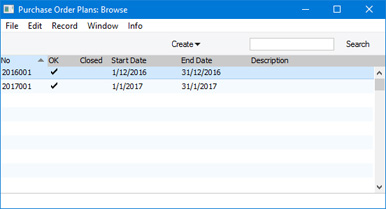
You can enter Purchase Order Plan records directly to the Purchase Order Plan register, or you can generate them from Sales Forecasts and Production Plans, using the 'Create Purchase Order Plan' Maintenance function.To open the Purchase Order Plan register, first ensure you are in the MRP module. Then, if you are using Windows or Mac OS X, click the [Registers] button in the Navigation Centre and then double-click 'Purchase Order Plans' in the resulting list. If you are using iOS or Android, tap the [Registers] button in the Navigation Centre and then tap 'Purchase Order Plans' in the 'Registers' list The 'Purchase Order Plans: Browse' window is opened, showing Purchase Order Plans already entered.
The 'Purchase Order Plan: New' window will be opened, empty if you selected 'New' or containing a duplicate of the selected Purchase Order Plan. Complete the Purchase Order Plan as appropriate and as described below, then save it using the [Save] button (Windows/Mac OS X) or by tapping √ (iOS/Android)
The Purchase Order Plan record window is illustrated below:
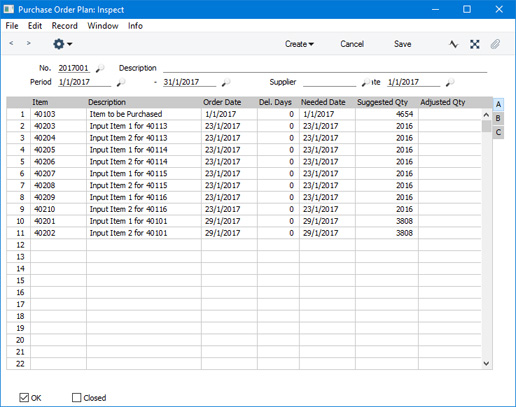
- No.
- Paste Special
Select from another Number Series
- The unique identifying number of the Purchase Order Plan. The default will be chosen as follows:
- It will be taken from the first valid row in the Number Series - Purchase Order Plans setting.
- It will be the next number following on from the last Purchase Order Plan entered.
- You will not be able to save a Purchase Order Plan if the No. does not belong to a valid number sequence. A valid number sequence is one for the period in which the Start Date of the Purchase Order Plan falls and with unused numbers, so this problem will most usually occur at the beginning of a new calendar or financial year.
- If you are working in a multi-user system, the Purchase Order Plan Number will be assigned when you save the record for the first time, chosen as described above and providing you have not already specified a number yourself.
- It will be taken from the first valid row in the Number Series - Purchase Order Plans setting.
- Description
- Enter a description of the Purchase Order Plan, to be shown in the 'Purchase Order Plans: Browse' window.
- Period
- Paste Special
Choose date
- If you are entering a Purchase Order Plan yourself, use these two fields to specify the Start and End Dates of the period covered by the Purchase Order Plan record.
- The default Start Date will be the first date of the current week (i.e. Monday) or the current month, depending on the Period Type that you have chosen in the Forecast Settings setting. The default End Date will be the last date of the current week or month. If you change the Start Date, the End Date will be updated automatically.
- Every Period must begin on the first day of a week (i.e. Monday) or month, and every Period should be a single week or month in duration (again, depending on the Period Type that you have chosen in the Forecast Settings setting).
- You can use the same Period in more than one Purchase Order Plan record, providing there is no common Item.
- If you use the 'Create Purchase Order Plan' Maintenance function to create the Purchase Order Plan from a Sales Forecast, the Period will be copied from that Sales Forecast. If you have more than one Sales Forecast for the same Period (with different Items and/or different Classes), they will be combined into a single Purchase Order Plan.
- The default Start Date will be the first date of the current week (i.e. Monday) or the current month, depending on the Period Type that you have chosen in the Forecast Settings setting. The default End Date will be the last date of the current week or month. If you change the Start Date, the End Date will be updated automatically.
- Supplier
- Paste Special
Suppliers in Contact register
- When you create Purchase Orders from a Purchase Order Plan, the Supplier will be chosen as follows:
- If you enter a Supplier in a particular Purchase Order Plan row (flip B), that Supplier will be used, providing there is a Purchase Item for the Item/Supplier combination. Pricing will be taken from that Purchase Item.
- If the Supplier field on flip B is empty, the Supplier specified here will be used, providing there is a Purchase Item for the Item/Supplier combination. Pricing will be taken from that Purchase Item.
- If both Supplier fields are empty, the Supplier and pricing will be taken from the Default Purchase Item for the Item, if there is one.
- If you enter a Supplier in a particular Purchase Order Plan row (flip B), that Supplier will be used, providing there is a Purchase Item for the Item/Supplier combination. Pricing will be taken from that Purchase Item.
- Date
- This field automatically records the earliest Order Date used in the Purchase Order Plan rows and cannot be changed.
Matrix
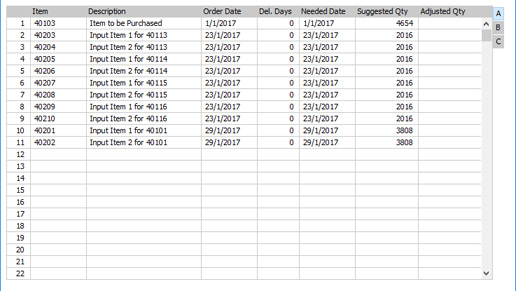
If you are using Windows or Mac OS X, you add rows to a Purchase Order Plan, click in any field in the first blank row and enter appropriate text. To remove a row, click on the row number on the left of the row and press the Backspace key. To insert a row, click on the row number where the insertion is to be made and press Return.
You can also bring Items into a Purchase Order Plan by opening the 'Items: Browse' window, selecting a range of Items by clicking while holding down the Shift key, and then dragging them to the Item field in the first empty Purchase Order Plan row.
If you are using iOS or Android, you can add rows by tapping the + button below the matrix. To remove a row, long tap on the row number on the left of the row and select 'Delete Row' from the resulting menu. To insert a row, long tap on the row number where the insertion is to be made and select 'Insert Row' from the resulting menu.
Flip A
- Item
- Paste Special
Item register
- Specify an Item to plan its purchase. This must be a Stocked Item.
- In a Purchase Order Plan created by the 'Create Purchase Order Plan' Maintenance function, Items will be added from two sources. First, Items without Recipes that you have included in Sales Forecast records for the same period will be listed in the Purchase Order Plan. Second, if there is a Production Plan for the same period that has been marked as OK, the components that are required to produce the Items in that Production Plan will be listed in the Purchase Order Plan.
- In a Purchase Order Plan created by the 'Create Purchase Order Plan' Maintenance function, Items will be added from two sources. First, Items without Recipes that you have included in Sales Forecast records for the same period will be listed in the Purchase Order Plan. Second, if there is a Production Plan for the same period that has been marked as OK, the components that are required to produce the Items in that Production Plan will be listed in the Purchase Order Plan.
- Description
- Default taken from
Item
- This field shows the name of the Item, brought in from the Item register.
- Order Date
- The date you should order the Item, calculated by subtracting the Del. Days from the Needed Date (both below).
- A Purchase Order Plan created by the 'Create Purchase Order Plan' Maintenance function may contain many Items that need to be ordered within a few days of each other. By specifying a number of Buffer Days in the Forecast Settings setting, you can instruct the function to use the same Order Date for these Items, so that they can be included in the same Purchase Order (if you will order them from the same Supplier). Please refer to the Order Dates in Purchase Order Plans page 32 for more details and an example.
- A Purchase Order Plan created by the 'Create Purchase Order Plan' Maintenance function may contain many Items that need to be ordered within a few days of each other. By specifying a number of Buffer Days in the Forecast Settings setting, you can instruct the function to use the same Order Date for these Items, so that they can be included in the same Purchase Order (if you will order them from the same Supplier). Please refer to the Order Dates in Purchase Order Plans page 32 for more details and an example.
- Del. Days
- The number of days the Supplier requires to deliver the Item. This is taken from the Delivery Days field in the relevant Purchase Item (i.e. the Purchase Item for the Item with the Supplier specified on flip B or in the header, or the Default Purchase Item for the Item). If there is an Item to Order on flip C, the Del. Days will be taken from the Purchase Item for that Item.
- Needed Date
- The date when the Item is required. This must be a date within the Period of the Purchase Order Plan.
- If an Item is placed in the Purchase Order Plan by the 'Create Purchase Order Plan' Maintenance function because the Item was included in a Sales Forecast, the Needed Date will be the start date of the Forecast period.
- If an Item is placed in the Purchase Order Plan by the 'Create Purchase Order Plan' Maintenance function because the Item is a component required to produce a finished Item in a Production Plan, the default Needed Date will be the Start Date in the relevant Production Plan row.
- In a Purchase Order Plan that you create yourself, you must specify a Needed Date in each row before being able to save.
- If an Item is placed in the Purchase Order Plan by the 'Create Purchase Order Plan' Maintenance function because the Item was included in a Sales Forecast, the Needed Date will be the start date of the Forecast period.
- Suggested Qty, Adjusted Qty
- If an Item is placed in the Purchase Order Plan by the 'Create Purchase Order Plan' Maintenance function because the Item was included in a Sales Forecast, the Suggested Qty field will contain the quantity of the Item that you need to order to satisfy the Sales Forecast for the relevant Period, taking the stock level at the beginning of the Period, unfulfilled Purchase Orders for the Item and the Stock Policy for the Item into account.
- If an Item is placed in the Purchase Order Plan by the 'Create Purchase Order Plan' Maintenance function because the Item is a component required to produce a finished Item in a Production Plan, the Suggested Qty field will contain the quantity of the Item that you need to order to produce the quantity of the finished Item in the Production Plan. Again, the calculation will take the stock level at the beginning of the Period and unfulfilled Purchase Orders for the Item into account, but it will not use the Stock Policy for the Item.
- In a Purchase Order Plan that you are entering yourself, enter the quantity of the Item that you think you need to order during the Period.
- You will not be able to change the Suggested Qty in an existing row or specify a Suggested Qty in a new row after you have saved the Purchase Order Plan for the first time. In both cases, enter the new figure in the Adjusted Qty field.
- When you create a Purchase Order from the Purchase Order Plan row, the quantity in the Purchase Order will be the Adjusted Qty if there is one, or the Suggested Qty if there is no Adjusted Qty. If there is also an Item to Order on flip C, the quantity in the Purchase Order will be the Adjusted or Suggested Qty divided by the Unit Coefficient in the Auto Production Item record that connects the Item and the Item to Order. These figures therefore show how many of the Item quoted on flip A you need, not the necessarily how many of the Item to Order on flip C you need. The calculation of the quantity in the Purchase Order will also take the Min Ord Qty in the Purchase Item into account.
- If an Item is placed in the Purchase Order Plan by the 'Create Purchase Order Plan' Maintenance function because the Item is a component required to produce a finished Item in a Production Plan, the Suggested Qty field will contain the quantity of the Item that you need to order to produce the quantity of the finished Item in the Production Plan. Again, the calculation will take the stock level at the beginning of the Period and unfulfilled Purchase Orders for the Item into account, but it will not use the Stock Policy for the Item.
Flip B
- Supplier
- Paste Special
Suppliers in Contact register
- If you want to order an Item from a particular Supplier, specify that Supplier here. The Del. Days field will change, to show the Delivery Days from the Purchase Item for the Supplier/Item combination, and the Order Date will be recalculated accordingly. If there is no Purchase Item for the Supplier/Item combination, a Purchase Order will not be created for the Item.
- If a Supplier cannot supply the full quantity that you need, you can use the 'Split Line' function. This will duplicate the row, preserving the Needed Date and other information in both. Then you can enter appropriate Adjusted Qtys and Suppliers in both rows.
Flip C
- Item to Order
- Paste Special
Item register
- If you need to order an alternative Item in place of the one specified on flip A, enter that alternative Item here. You will usually use this field when the Item on flip A is a generic Item used in a Recipe, and you need to be more specific when ordering from the Supplier. It will be this Item that will be included in any Purchase Orders that you create from the Purchase Order Plan.
- If the Item on flip A is the Produced Item in a Default Auto Production Item record, the Item from that record will be placed here as a default. You can enter a different Item to Order, but there must be an Auto Production Item record that connects the new Item to Order to the Item on flip A (if you choose an Item to Order that is not connected to the Item, it will not be accepted in the field).
- There should at least be a Purchase Item for the Item specified here (preferably there should be a Default Purchase Item), otherwise it will not be included in Purchase Orders. The Delivery Days in this Purchase Item will be copied to the Del. Days field in the Purchase Order Plan row.
- If the Item on flip A is the Produced Item in a Default Auto Production Item record, the Item from that record will be placed here as a default. You can enter a different Item to Order, but there must be an Auto Production Item record that connects the new Item to Order to the Item on flip A (if you choose an Item to Order that is not connected to the Item, it will not be accepted in the field).
- Purch. Ord. No
- When you create a Purchase Order from the Purchase Order Plan, its Purchase Order Number will be placed here automatically.
Footer

- OK
- When the Purchase Order Plan record is complete and correct, approve it by marking it as OK and saving it. When you use the 'Create Purchase Orders' Maintenance function to create Purchase Orders from Purchase Order Plans, you will have the option to create them only from Purchase Order Plans that have been marked as OK.
- When you create Purchase Orders from a Purchase Order Plan using either the 'Purchase Order' function on the Create menu or the 'Create Purchase Orders' Maintenance function, the Purchase Order Plan will be marked as OK automatically.
- Once you have marked a Purchase Order Plan record as OK and saved it, you will no longer be able to change it.
- You can use Access Groups to prevent certain users from marking Purchase Order Plans as OK. To do this, deny them access to the 'OK Purchase Order Plan' Action. This will also prevent those users from using the 'Purchase Order' function on the Create menu and from using the 'Create Purchase Orders' Maintenance function, since these functions will mark Purchase Order Plans as OK automatically.
- When you create Purchase Orders from a Purchase Order Plan using either the 'Purchase Order' function on the Create menu or the 'Create Purchase Orders' Maintenance function, the Purchase Order Plan will be marked as OK automatically.
- Closed
- If you mark a Purchase Order Plan as Closed and save it, you will not be able to create Purchase Orders from it.
The Purchase Order Plan register in Standard ERP:
- Introduction
- Entering a Purchase Order Plan
- Operations menu
- Create menu
- Row menu
- Home page for MRP manual
- Home page for Standard ERP manual
Operations Menu - Purchase Order Plan
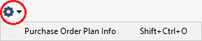
If you are using Windows or Mac OS X, you can open the Operations menu by clicking the button with the 'cog' icon (shown highlighted in the illustration above). If you are using iOS or Android, you can access the Operations menu functions through the Tools menu (with 'wrench' icon).
Note that in Standard ERP version 8.0, some functions that were previously on the Operations menu were moved to the Create and Row menus.
Please follow the link below for details about the single function on the Operations menu:
The Purchase Order Plan register in Standard ERP:
- Introduction
- Entering a Purchase Order Plan
- Operations menu
- Create menu
- Row menu
- Home page for MRP manual
- Home page for Standard ERP manual
Operations Menu - Purchase Order Plan - Purchase Order Plan Info
This page describes the Purchase Order Plan Info' function on the Operations menu in the Purchase Order Plan record window. If you are using iOS or Android, the 'Purchase Order Plan Info' function is on the Tools menu (with 'wrench' icon).---
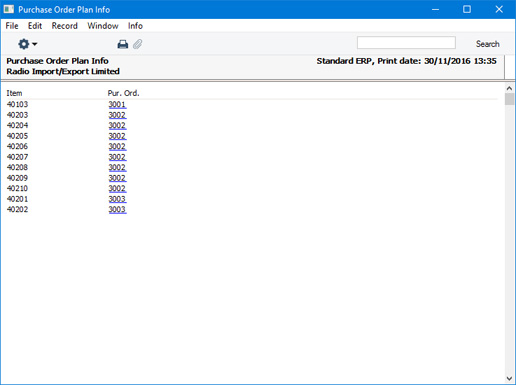
The 'Purchase Order Plan Info' command is available on the Operations menu from a Purchase Order Plan when it is open in a record window. The function prints a report to screen listing the Purchase Orders that have been created from the Purchase Order Plan.
---
The Purchase Order Plan register in Standard ERP:
- Introduction
- Entering a Purchase Order Plan
- Operations menu, including:
- Purchase Order Plan Info
- Create menu
- Row menu
- Home page for MRP manual
- Home page for Standard ERP manual
Create Menu - Purchase Order Plan

'New' and 'Duplicate' are standard functions that are provided on every Create and + menu. Use these functions to create new records, in this case in the Purchase Order Plan register. Please follow the link below for details about the other function:
The Purchase Order Plan register in Standard ERP:
- Home page for MRP manual
- Home page for Standard ERP manual
Create Menu - Production Plan - Purchase Order
This page describes the 'Purchase Order' function on the Create menu in the Purchase Order Plan record window. If you are using iOS or Android, the 'Purchase Order' function is on the + menu.---
When you are ready to create Purchase Orders from a Purchase Order Plan, open the Purchase Order Plan in a record window and select 'Purchase Order' from the Create menu.
Separate new Purchase Orders will usually be created for each row in the Purchase Order Plan, although Items that need to be ordered on the same day from the same Supplier will be added to the same Purchase Order. If a suitable Purchase Order for an Item already exists (i.e. a Purchase Order with the necessary Order Date, Needed Date and Supplier that has not been marked as OK and that has no connected Goods Receipts that have been marked as OK), the Item will be added to that Purchase Order.
As it is likely that several Purchase Orders will be created from a single Purchase Order Plan, they will not be opened for checking when you run the function. An easy way to find the resulting Purchase Orders from the Purchase Order Plan is to use the 'Purchase Order Plan Info' function on the Operations menu.
If you need to see a list of the Items that will be included in the Purchase Orders that will be created by this function together with quantities and dates, produce a Create Purchase Orders - Preview report.
The following information will copied to each Purchase Order from the originating Purchase Order row:
- The Supplier in the Purchase Order will be taken from flip B of the Purchase Order Plan row, from the header of the Purchase Order Plan or from the Default Purchase Item for the Item to Order or Item. In the first two cases, the Item will not be included in a Purchase Order if there is no Purchase Item for the Supplier/Item combination (this Purchase Item does not have to be a Default Purchase Item). In the last case, the Item will not be included in a Purchase Order if there is no Default Purchase Item for the Item to Order or Item.
- The Order Date in the Purchase Order Plan row will be copied to the Order Date field in the Purchase Order header.
- The Needed Date in the Purchase Order Plan row will be copied to the Planned Delivery Date field on the 'Terms' card in the Purchase Order.
- The Item in the Purchase Order will be the Item to Order on flip C of the Purchase Order Plan row or the Item from flip A if the Item to Order field is empty.
- Pricing, Supplier Item Number, Supplier Unit and other information will be taken from the relevant Purchase Item.
- The Adjusted Qty in the Purchase Order Plan row or, if blank, the Suggested Qty will be copied to the Purchase Order row.
If there is an Item to Order on flip C of the Purchase Order Plan row, the Adjusted or Suggested Quantity will be divided by the Unit Coefficient in the record in the Auto Production Item setting that connects the Item and the Item to Order before being copied to the Purchase Order.
If the quantity is lower than the Minimum Order Quantity in the Purchase Item, it will be increased to the Minimum Order Quantity.
If the function does not create Purchase Orders when expected, the probable reasons are:
- You have not saved the Purchase Order Plan.
- The Purchase Order Plan has been marked as Closed.
- You have already created Purchase Orders from the Purchase Order Plan (you can ascertain this by checking the Purch. Ord. No. field on flip C of each row or using the 'Purchase Order Plan Info' function on the Operations menu).
- You have logged in as a user that is not permitted to create Purchase Orders from Purchase Order Plans. This will be because your Person record belongs to an Access Group in which access to the 'OK Purchase Order Plan' Action has been denied. This Action prevents the creation of Purchase Orders because doing so will cause the Purchase Order Plan to be marked as OK automatically.
- There is no valid record in the Number Series - Purchase Orders setting. This problem will usually occur at the beginning of a new year.
If you need to create Purchase Orders from several Purchase Order Plans at once, use the 'Create Purchase Orders' Maintenance function.
Please refer here for full details about Purchase Orders.
---
The Purchase Order Plan register in Standard ERP:
- Introduction
- Entering a Purchase Order Plan
- Operations menu
- Create menu, including:
- Purchase Order
- Row menu
- Home page for MRP manual
- Home page for Standard ERP manual
Row Menu - Purchase Order Plan
The matrix in the Purchase Order Plan window has its own menu, which contains functions that refer to or affect an individual row in the matrix. This is sometimes known as the "Row Menu".If you are using Windows or Mac OS X, you can open the Row menu by first clicking in any field in the row in question (i.e. the row to which the function is to be applied), and then right-clicking (Windows) or Ctrl-clicking (Mac OS X) the row number (on the left of the row). A menu will appear, where you can select the function that you need:
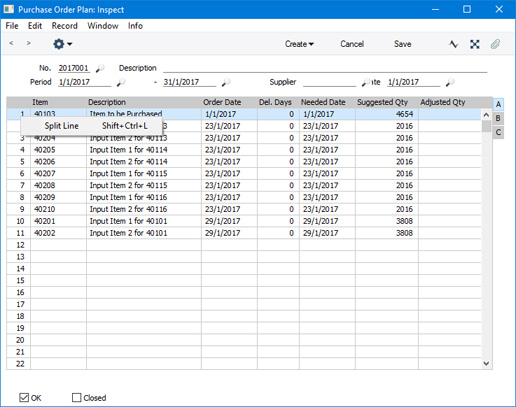
Please follow the link below for details about the function on the Row menu:
The Purchase Order Plan register in Standard ERP:
- Home page for MRP manual
- Home page for Standard ERP manual
Row Menu - Purchase Order Plan - Split Line
This page describes the 'Split Line' function on the Row menu in the Purchase Order Plan record window. If you are using iOS or Android, the 'Split Line' function is on the Tools menu (with 'wrench' icon).---
After entering a Purchase Order Plan or generating one using the 'Create Purchase Order Plan' Maintenance function, you may realise that you need to order a particular Item from two different Suppliers. For example, the default Supplier (i.e. the Supplier in the Default Purchase Item) may not be able to supply the full quantity in time, so you need to order the remainder from a second Supplier. If so, you can use this function to split the row into two.
First, place the insertion point in any field in the row in question. Open the Row menu by right-clicking (Windows) or ctrl-clicking (Mac OS X) on the row number and select 'Split Line' from the resulting menu. If you are using iOS or Android, select 'Split Line' from the Tools menu (with 'wrench' icon).
The row will be duplicated, with the new row being inserted underneath. The Adjusted Qty in the new row will be empty. Now you can change the Adjusted Qty in the original row, place the remaining quantity in the Adjusted Qty field in the new row, and change the Supplier in the new row as appropriate.
---
The Purchase Order Plan register in Standard ERP:
- Introduction
- Entering a Purchase Order Plan
- Operations menu
- Create menu
- Row menu, including:
- Split Line
- Home page for MRP manual
- Home page for Standard ERP manual