Introduction to the Workflow Overview Window in Standard ERP
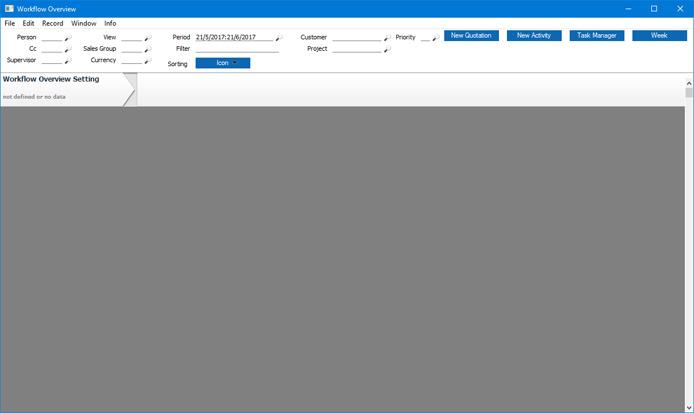
The 'Workflow Overview' window is a graphical display of your company's leads, quotations and sales orders. It allows you to monitor the progress of each prospect from initial lead through quotation to eventual sale. Prospects requiring immediate attention will be given priority of position, helping you to focus your attention where it's needed most. You can also use the Workflow Overview as a central control panel in your sales work. By moving a prospect from one column to another in the Workflow Overview, you can change its status, you can create a Quotation from an Activity, and you can create an Order from a Quotation.To open the Workflow Overview, click (Windows/Mac OS X) or tap (iOS/Android) the [Workflow Overview] button in the Navigation Centre (Windows/iOS/Android version on the left, Mac OS X on the right):

Go back to:
- Home page for CRM module manual
- Home page for Standard ERP manual
Using the Workflow Overview Window
This page describes using the Workflow Overview window. Please click the following links for details about:---
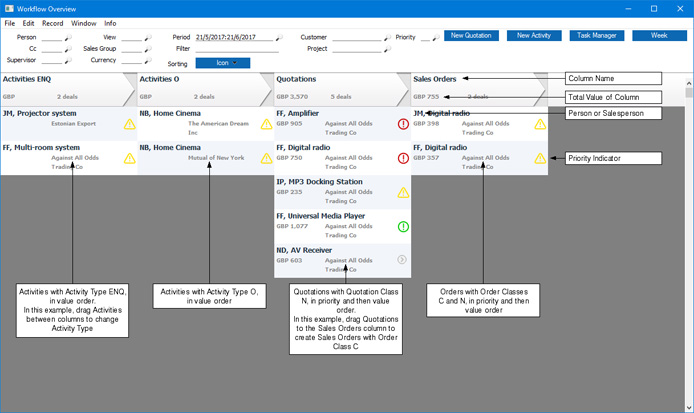
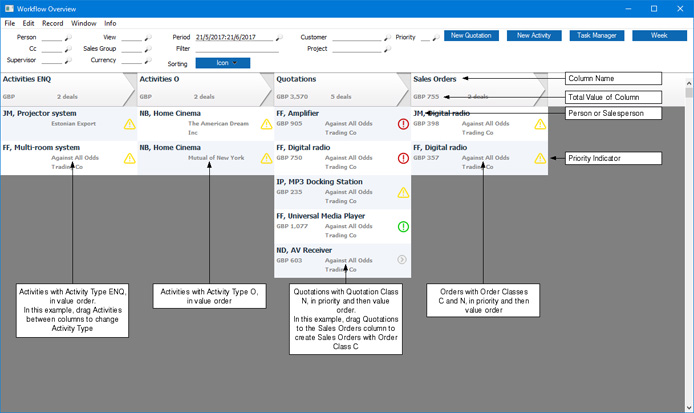
- The header area contains a number of fields that you can use to specify more precisely what information will be shown in the main part of the window.
- The main part of the window will contain a number of columns listing records of various types from the Activity, Quotation, Project, Sales Order and/or Kitchen Order registers. The number and content of these columns will be determined by the Company Workflow Overview and User Workflow Overview settings.
Header Fields
When you open the Workflow Overview, every qualifying record for the default period will be displayed. If necessary, you can use the fields in the header area to reduce the number of records shown in each column by specifying more precisely the records that you want to see. Some of these fields will not be available if you are using iOS or Android.- Person
- Paste Special
Persons and Global Users
- Specifying a Person's Signature in this field will have two effects.
- First, you will only shown records belonging to the specified Person. For example, a column displaying Quotations will only display Quotations with the specified Person as Salesman, while a column displaying Activities will only display Activities that have the specified Person in their Persons or Cc fields.
- If you are using the Limited Access feature, the Sales Orders and Quotations columns will follow the configuration of that feature. For example, if your Person record only allows you to see records belonging to other Persons in your Sales Group, entering the Signature of another Person will mean that no Sales Orders or Quotations will be displayed. Please click here for more details about the Limited Access module.
- The second effect of specifying a Person is that the columns displayed in the Workflow Overview will change to those specified in that Person's record in the User Workflow Overview setting, if there is one.
- First, you will only shown records belonging to the specified Person. For example, a column displaying Quotations will only display Quotations with the specified Person as Salesman, while a column displaying Activities will only display Activities that have the specified Person in their Persons or Cc fields.
- View
- Paste Special
Choices of possible entries
- You can configure the Workflow Overview so that it can display different sets of columns. Each set of columns is known as a "View". Use the View field to change between Views.
- For example, a View with the Name "SALES" might display Quotations and Activities with the Activity Type for Customer Meetings, while a View named "FINANCE" might display Activities with the Activity Types for Debt Collection and Expense Approvals.
- The 'Paste Special' list will contain your own Views. If you have a record in the User Workflow Overview setting, your own Views will be the ones listed in that record. If you do not have such a record, they will be the Views listed in the Company Workflow Overview setting.
- For example, a View with the Name "SALES" might display Quotations and Activities with the Activity Type for Customer Meetings, while a View named "FINANCE" might display Activities with the Activity Types for Debt Collection and Expense Approvals.
- Period
- Paste Special
Reporting Periods setting, System module
If you need records from a particular period to be listed in each column, specify that period here. The default is the month up to the current date.
- Customer
- Paste Special
Customers in Contact register
- If you need records relating to a particular Customer to be listed in each column, specify that Customer here.
- Priority
- Paste Special
Activity Priorities setting, CRM module
- If you need records belonging with a particular Priority to be listed in each column, specify that Priority here. This only applies to columns displaying Activities and Quotations.
- Cc
- Paste Special
Persons and Global Users
- If you need a column containing Activities to display Activities in which a particular Person has been entered in the Cc field, enter that Person’s Signature here. Columns containing other records will not be affected.
- Sales Group
- Paste Special
Sales Groups setting, System module
- If you need records belonging to Persons assigned to a particular Sales Group to be listed in each column, specify that Sales Group here. This only applies to columns displaying Projects, Quotations and Sales Orders.
- Filter
- Use this field if you would like a column containing Activities to display Activities in which the Text field contains a particular word or phrase. Columns containing other records will not be affected. This field is not available if you are using iOS or Android.
- Project
- Paste Special
Project register, Job Costing module
- Enter a Project in this field if you would like a column containing Activities to display Activities that are connected to a particular Project (using the Project field on the 'Contact' card). Columns containing other records will not be affected. This field is not available if you are using iOS or Android.
- Supervisor
- Paste Special
Persons and Global Users
- If you need a column containing Activities to display Activities in which a particular Person has been entered in the Supervisor field, enter that Person’s Signature here. Columns containing other records will not be affected.
- Currency
- Paste Special
Currency register, System module
- By default, all figures shown in the Workflow Overview will be in Currency. For example, the value of a Quotation issued in USD will be shown in USD, while the value of a Quotation issued in GBP will be shown in GBP. If you need all figures to be converted to and displayed in a particular Currency, specify that Currency here.
- [New Quotation]
- Click this button or select this function from the Tools menu to create a new Quotation.
- The Quotation Class in the new Quotation will be taken from the row in your record in the User Workflow Overview setting for the current View and in which the Register is "Quotations" If you do not have a record in the User Workflow Overview setting, it will be taken from the equivalent row in the Company Workflow Overview setting..
- The Quotation Class in the new Quotation will be taken from the row in your record in the User Workflow Overview setting for the current View and in which the Register is "Quotations" If you do not have a record in the User Workflow Overview setting, it will be taken from the equivalent row in the Company Workflow Overview setting..
- [New Activity]
- Click this button or select this function from the Tools menu to create a new Activity.
- The Activity Type in the new Activity will be taken from the row in your record in the User Workflow Overview setting for the current View and in which the Register is "Activities". If you do not have a record in the User Workflow Overview setting, it will be taken from the equivalent row in the Company Workflow Overview setting.
- The Activity Type in the new Activity will be taken from the row in your record in the User Workflow Overview setting for the current View and in which the Register is "Activities". If you do not have a record in the User Workflow Overview setting, it will be taken from the equivalent row in the Company Workflow Overview setting.
- [Task Manager]
- Click this button or select this function from the Tools menu to open your Task Manager.
- [Week]
- Click this button or select this function from the Tools menu to open the weekly view of the Calendar for the current week.
- Sorting
- Use this drop-down menu containing five options to change the sort order in each column. Please refer to the 'Sorting' section below for more details. These options are not available on iOS or Android.
Columns
The columns in the Workflow Overview can contain records from the Activity, Project, Quotation, Sales Order and Kitchen Order registers. To be included in the Workflow Overview, a record must meet the criteria that you specify in the header of the Workflow Overview (as described above), as well as the following:- Activities
- An Activity will be included in the Workflow Overview if:
- Its Activity Type is one specified in the Filter field in the Company Workflow Overview setting or in the relevant record in the User Workflow Overview setting.
- Its Activity State is one specified in the Filter 2 field in the Company Workflow Overview setting or in the relevant record in the User Workflow Overview setting, or its Activity State is blank.
- It has not been marked as Done.
- Its Task Type is not "Project".
You can use Activities to represent leads and prospects: enter an approximate value of an anticipated sale using the Currency and Amount fields on the 'Time' card. If you do not want such an Activity to appear in the Calendar or Task Manager, set the Task Type (also on the 'Time' card) to "Other".
- Its Activity Type is one specified in the Filter field in the Company Workflow Overview setting or in the relevant record in the User Workflow Overview setting.
- Project Activities
- A Project Activity is an Activity in which the Task Type is "Project". A Project Activity will be included in the Workflow Overview if:
- Its Activity State is one specified in the Filter field in the Company Workflow Overview setting or in the relevant record in the User Workflow Overview setting.
- Its Activity Type is one specified in the Filter 2 field in the Company Workflow Overview setting or in the relevant record in the User Workflow Overview setting.
You can use Project Activities to represent projects, repairs or other tasks that can pass through various states before being completed: enter an approximate value of an anticipated project or repair using the Currency and Amount fields on the 'Time' card.
- Its Activity State is one specified in the Filter field in the Company Workflow Overview setting or in the relevant record in the User Workflow Overview setting.
- Kitchen Orders
- Each individual row in a Kitchen Order will be shown separately in the Workflow Overview if:
- The Status in the row is one specified in the Filter field in the Company Workflow Overview setting or in the relevant record in the User Workflow Overview setting.
- The overall Kitchen Order has not been marked as OK.
- The Status in the row is one specified in the Filter field in the Company Workflow Overview setting or in the relevant record in the User Workflow Overview setting.
- Quotations
- A Quotation will be included in the Workflow Overview if:
- Its Quotation Class is one specified in the Filter field in the Company Workflow Overview setting or in the relevant record in the User Workflow Overview setting.
- Its Status is "Open" and it has not been marked as Closed.
- Its Quotation Class is one specified in the Filter field in the Company Workflow Overview setting or in the relevant record in the User Workflow Overview setting.
- Sales Orders
- A Sales Order will be included in the Workflow Overview if:
- Its Order Class is one specified in the Filter field in the Company Workflow Overview setting or in the relevant record in the User Workflow Overview setting.
- It has not been marked as Closed.
- Its Order Class is one specified in the Filter field in the Company Workflow Overview setting or in the relevant record in the User Workflow Overview setting.
Sorting
The Workflow Overview is a tool that you can use to monitor the sales process from initial lead through quotation to eventual sale. Prospects requiring immediate attention will be placed at the top of each column, helping you to focus your attention where it's needed most.When you open the Workflow Overview, the records in each column will be sorted in the date order of the oldest attached Activity that has not been marked as Done and then by value. Records that do not have attached Activities will be sorted as follows:
- Activities will be sorted by Start Date and then by value.
- Quotations will be sorted by Decision Date or by Quotation Date.
- Sales Orders will be sorted by Planned Delivery Date or by Order Date.

- The oldest Activity attached to the record (in its Workflow Manager) was due to be done in the past.

- The record has no attached Activities (its Workflow Manager is empty).

- The oldest Activity attached to the record is due to be done today.

- All Activities attached to the record are due to be done in the future.
- Icon
- The default sort order - sorts by colour-coding, as described above, in the order Red, Yellow, Green, Grey. In essence, records will be sorted in the date order of the oldest attached Activity that has not been marked as Done.
- Value
- Sorts by value.
- Caption
- Sorts by Person and then by Activity Text (in the case of Activities) or by Person and then by the first Item Description (in the case of Quotations and Orders).
- Date
- Similar to sorting by Icon, with the exception that Yellow records (records with no attached Activities) will not be grouped together but instead will be positioned according to their Start Date (Activities), Decision or Quotation Date (Quotations) or Planned Delivery or Order Date (Sales Orders).
- Customer
- Sorts by Customer Name.
Working from the Workflow Overview
The Workflow Overview is not merely a monitoring tool. The features that it offers mean that you can also use it as a central control panel in your sales work. Included in these features are the following:- Creating new Activities and Quotations
- Use the [New Activity] and [New Quotation] buttons in the top right-hand corner of the Workflow Overview to create Activities and Quotations. In each new record, the default Activity Type and Quotation Class will be taken from the first relevant row in your record in the User Workflow Overview setting. If you do not have a record in the User Workflow Overview setting, it will be taken from the equivalent row in the Company Workflow Overview setting.
- Opening records
- Double-click any record in the Workflow Overview to open it in a record window, where you can edit it in the normal way.
- Changing Activity Type, Quotation Class and Order Class
- If you have more than one column displaying records from the same register, you can drag records between those columns. For example, if you have different Quotation Classes representing different stages in the quotation process, you can drag a Quotation from one column to the next as the sale proceeds. As you do so, the Class of the Quotation will be updated automatically.
- If you have columns displaying Activities, you will only be able to drag Activities to columns with the same Activity State. For example, you will be able to drag an Activity from a Type A State 1 column to a Type B State 1 column (and the Activity Type in the Activity will be updated), but not to a Type A State 2 column. On the other hand, if you have columns displaying Project Activities, you will only be able to drag Activities to columns with the same Activity Type. For example, you will be able to drag an Activity from a Type A State 1 column to a Type A State 2 column (and the Activity State in the Activity will be updated), but not to a Type B State 1 column.
- If you have columns displaying Activities, you will only be able to drag Activities to columns with the same Activity State. For example, you will be able to drag an Activity from a Type A State 1 column to a Type B State 1 column (and the Activity Type in the Activity will be updated), but not to a Type A State 2 column. On the other hand, if you have columns displaying Project Activities, you will only be able to drag Activities to columns with the same Activity Type. For example, you will be able to drag an Activity from a Type A State 1 column to a Type A State 2 column (and the Activity State in the Activity will be updated), but not to a Type B State 1 column.
- Creating Quotations and Orders from Activities
- If you drag an Activity into a column containing Quotations or Orders, a new Quotation or Order window will open, where you can enter the details straightaway.
- Creating Orders from Quotations
- If you drag a Quotation into a column containing Orders, a new Order will be created immediately. The Status of the Quotation will be changed to "Accepted", removing it from the Workflow Overview. The Class of the new Order will depend on the Transfer Quotation Class to Order option in the Order Settings setting in the Sales Orders module. If you are using this option, the Quotation Class will be copied to the Order Class field in the Order. Otherwise, the Order Class will be determined by the column to which you drag the Quotation.
Kitchen Orders in the Workflow Overview
In a restaurant, you can use the Workflow Overview to monitor the progress of each Kitchen Order Item, and you can use it as a central control panel to progress each Kitchen Order Item through your system.For example, you might have different Statuses for Ordered, In Progress and Ready shown in separate columns in the Workflow Overview. You can drag Kitchen Order Items from one column to the next as they progress through the system. The Status of the last column ("Ready" in this example) should be the Finished Dish Status specified in the Restaurant Settings setting in the Restaurant module. When you have moved every Item on a Kitchen Order to this column, the Kitchen Order will be marked as OK automatically. This will cause it to be removed from the Workflow Overview.
Kitchen Order Items will be listed in time order, with the earliest at the top. They will also be colour-coded as follows:
- The Kitchen Order was placed less than five minutes ago.
- The Kitchen Order was placed between five and ten minutes ago.
- The Kitchen Order was placed more than ten minutes ago.
In this chapter:
- Introduction to the Workflow Overview window
- Using the Workflow Overview window
- Configuring the Workflow Overview window
- Home page for CRM module manual
- Home page for Standard ERP manual
Configuring the Workflow Overview Window
This page describes configuring the Workflow Overview window. Please click the following links for details about:---
There are two settings that you can use to configure the Workflow Overview window: the Company Workflow Overview and User Workflow Overview settings. These settings are both in the CRM module. The configuration that you define in the Company Workflow Overview setting will apply to every user, while the User Workflow Overview setting allows you to define a different configuration for a particular user.
When a user opens the Workflow Overview, the columns that they will see will be determined by their record in the User Workflow Overview setting. If the user doesn't have a record in the User Workflow Overview setting, the columns will be determined by the Company Workflow Overview setting.
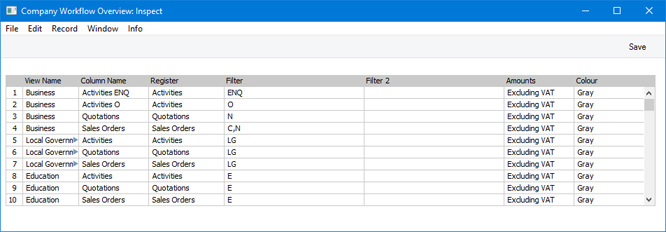
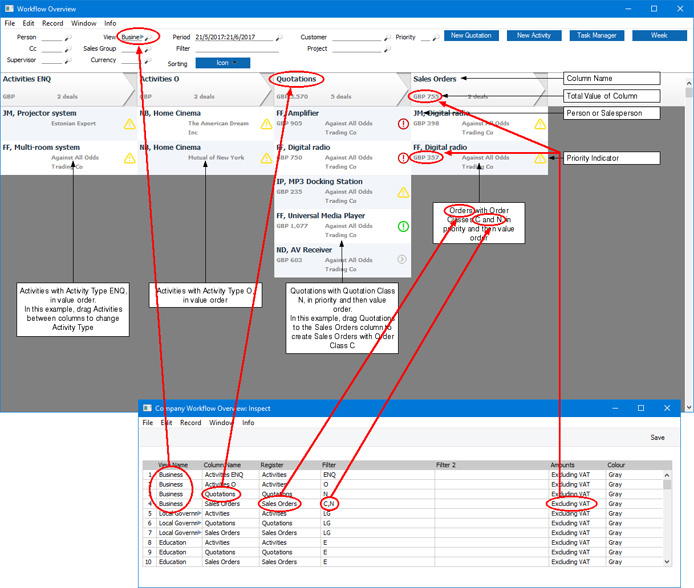
To open the Company Workflow Overview setting, ensure you are in the CRM module and click the [Settings] button in the Navigation Centre. Then, double-click 'Company Workflow Overview' in the 'Settings' list. The 'Company Workflow Overview' window illustrated below opens. After entering your Workflow Overview configuration as described below the illustration, click [Save] to save and close the window. Click the close box to close without saving changes.
- View Name
- A set of columns in the Workflow Overview is known as a "View".
- If you only need one View, you can leave this field blank in every row. When you open the Workflow Overview, every column will be displayed.
- If you need more than one View, use this field to specify the View to which each column belongs. Simply enter an arbitrary name for each View, using the same name for each row belonging to the same View. When you open the Workflow Overview, the columns belonging to the first View will be displayed. The first View is the one you have used in the first row in this setting ("Business" in the example illustrated above). After opening the Workflow Overview, use the View field in the header if you need to change Views.
- If you only need one View, you can leave this field blank in every row. When you open the Workflow Overview, every column will be displayed.
- Column Name
- Enter the name for the Workflow Overview column here.
- Register
- Paste Special
Choices of possible entries
- Each column in the Workflow Overview is effectively a list of records in a particular register. Use this field to specify the register whose records will be displayed in a particular column. The available options are Activities, Project Activities, Kitchen Orders, Projects, Quotations and Sales Orders.
- Filter
- Paste Special
Choices of possible entries
- Having specified the register in the previous field, use this field to enter a condition that records in the register must meet in order to be displayed in the column in the Workflow Overview.
- The condition is based on a single field in each register. For example, if the Register is "Quotations", you should enter a Quotation Class in this field. Quotations belonging to that Quotation Class will be displayed in the column in the Workflow Overview. If the register is "Sales Orders", enter an Order Class so that Orders belonging to that Order Class will be displayed.
- The options shown in the 'Paste Special' list will depend on the Register, as follows:
Register Paste Special Activities Activity Types Project Activities Activity States Kitchen Orders Dish Statuses Projects Project Phases Quotations Quotation Classes Sales Orders Order Classes You can enter several values in this field, separated by commas (for example, several Quotation Classes or several Order Classes).
- You must choose a Filter. If you leave this field empty, the column in the Workflow Overview will also be empty.
- If you create a new Quotation or Activity from the Workflow Overview, this Filter will be copied to the Quotation Class or Activity Type field in the new record. If you have entered more than one value separated by commas, the first value will be copied.
- The condition is based on a single field in each register. For example, if the Register is "Quotations", you should enter a Quotation Class in this field. Quotations belonging to that Quotation Class will be displayed in the column in the Workflow Overview. If the register is "Sales Orders", enter an Order Class so that Orders belonging to that Order Class will be displayed.
- Filter 2
- Paste Special
Choices of possible entries
- The Filter 2 field is only used if the Register is "Activities" or "Project Activities". You can use it if you want to specify a second condition that Activities and Project Activities must meet in order to be displayed in the Workflow Overview. The second condition is based on a different field to the first.
- The options shown in the 'Paste Special' list will depend on the Register, as follows:
Register Paste Special Activities Activity States Project Activities Activity Types Note that the Filter and Filter 2 conditions are transposed for Project Activities compared to Activities. In the Workflow Overview, you can drag Activities from one Activity Type column to another but not from one Activity State column to another. But you can drag Project Activities from one Activity State column to another. The Filter field contains the value that can be changed by dragging and dropping (Activity Types in the case of Activities, Activity States in the case of Project Activities). The value in the Filter 2 field cannot be changed by dragging and dropping.
- As with the Filter field, you can enter several values in this field, separated by commas, but unlike the Filter field you can leave the Filter 2 field empty.
- The options shown in the 'Paste Special' list will depend on the Register, as follows:
- Amounts
- Paste Special
Choices of possible entries
- Use this field to specify whether the figures shown in the Workflow Overview should include or exclude VAT.
- Colour
- Paste Special
Choices of possible entries
- Choose a colour for the column heading. This feature is restricted to Mac OS X.
In this chapter:
- Introduction to the Workflow Overview window
- Using the Workflow Overview window
- Configuring the Workflow Overview window
- Home page for CRM module manual
- Home page for Standard ERP manual