Introduction to Reports in the Consolidation Module
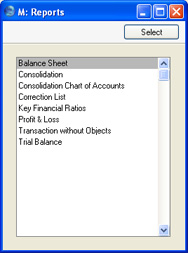
As with all modules, to print a report in the Consolidation module, select 'Reports' from the File menu or click [Reports] in the Master Control panel. You can also use the keyboard shortcut Ctrl-R or ⌘-R. Then, double-click the appropriate item in the list.The following reports are available in the Consolidation module:
It is often possible to report on a selection range, such as a range of Account Numbers. To do this, enter the lowest and highest values of the range, separated by a colon. For example, to report on Accounts 001 to 010, enter "001:010" in the Account Number field. Depending on the field, the sort used might be alpha or numeric. In the case of an alpha sort, a range of 1:2 would also include 100, 10109, etc.
Use the Media options at the bottom of the specification window to determine the print destination of the report. The default is to print to screen. You can initially print to screen and subsequently send the report to a printer by clicking the Printer icon at the top of the report window.
Once you have entered the reporting criteria and have chosen a print destination, click [Run].
With a report in the active window, use the 'Recalculate' command on the Operations menu to update the report after making alterations to background data. You can use the 'Reopen Report Specification' command on the same menu to update the report using different reporting criteria.
Balance Sheet
The Balance Sheet in the Consolidation module is very similar to that in the Nominal Ledger and uses the same report definition. Apart from the exception described below, please click for descriptions of the 'Specify Balance Sheet' window and of the report definition.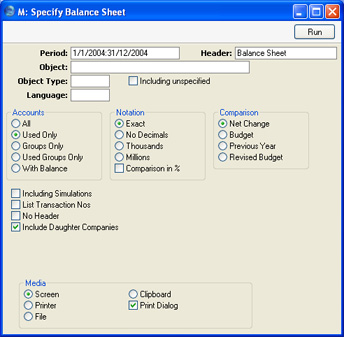
- Include Daughter Companies
- This check box is relevant when you produce the Balance Sheet from the Mother Company. Use this option if you want to produce a consolidated report, taking into account Transactions from the Daughter Companies as well as those in the Mother Company. If you do not check this box, a 'standard' Balance Sheet will be produced, from the Transactions in the Mother Company only.
Drill Down
When you print a Balance Sheet to screen using the Include Daughter Companies option, it will contain the same Drill-down feature as the standard version of the report. In this case, however, you will be able to drill down to individual Daughter Company Transactions from a report produced in the Mother Company.If you click on an Account number in the report, a Balance Sheet for that Account only is opened in a new window. This will contain separate Account balances for that Account from each Daughter Company. If you then click on an Account Number in this second report, a Nominal Ledger report for the same Account and period is then opened in a second new window, listing the Transactions from the selected Daughter Company that contribute to the Account balance on the Balance Sheet. If you then click on one of the Transaction Numbers in the Nominal Ledger report, the Transaction record will open, showing all the details recorded for the event. During this process, you will be asked to log in to any Daughter Companies that you have not yet used in the work session.
Consolidation
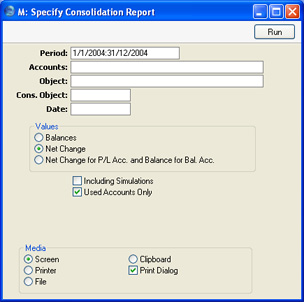
Hansa's Consolidation module is designed so that information in Daughter Companies can be made available to certain reports in the Mother Company without the need physically to transfer any Daughter Company information to the Mother Company. This makes it very easy to produce consolidated reports, and removes the risk of error inherent in copying information from one Company to another.However, the requirement to have the Mother and Daughter Companies in the same database may not be practical in every case. Where this is so, you can use the 'Consolidation' Export function to export Transaction information from a Daughter Company to a text file. This text file can then be imported to the Mother Company.
You can produce this report in a Daughter Company before using the Export function to see what will be included in the text file. The 'Specify Consolidation Report' window is similar to the 'Specify Consolidation Export' window: please click here for full details.
Consolidation Chart of Accounts
You can produce this report in a Daughter Company to list the Accounts in the Account register to check that they all have a Consolidation Account specified (i.e. they have all been linked to an Account in the Mother Company). The report also shows the status of the Reduce Minorities check box for each Account.Correction List
This report is similar to the Correction List in the Nominal Ledger, but lists corrected or updated Transactions from every Company in the database. Please click here for full details.Discount Statistics, Consolidated
This page describes the Discount Statistics, Consolidated report in the Consolidation module.---
The Discount Statistics report in the Consolidation module is very similar to the standard report in the Sales Ledger and Pricing module. Please refer here for full details about the standard report.
Compared to the standard version of the Discount Statistics report, the Discount Statistics, Consolidated report includes an additional Include Daughter Companies option. Use this option when you need to produce a consolidated Discount Statistics report that includes every Daughter Company.
---
Reports in the Consolidation module:
- Introduction
- Balance Sheet, Consolidated
- Consolidation
- Consolidation Chart of Accounts
- Correction List
- Discount Statistics, Consolidated
- Key Financial Ratios, Profit & Loss
- Trial Balance, Consolidated
- Home page for Consolidation manual
- Home page for Standard ERP manual
Key Financial Ratios, Profit & Loss, Trial Balance
With the exception of the Include Daughter Companies option, these reports in the Consolidation module are very similar to those in the Nominal Ledger and use the same report definitions. Please click the links for more details about:- the Definition and the specification window of the Key Financial Ratios report;
- the Definiton and the specification window of the Profit & Loss report;
- the Trial Balance;
- the description of the Balance Sheet for details of the Include Daughter Companies option in the specification windows of the three report; and
- the multi-company drill-down feature in the Profit & Loss report.
Transactions Without Objects
This report is a list of Transactions that do not have Objects.
You can run this report from any Company. If you run it from the Mother Company, it will contain separate sections for the Mother Company and each Daughter Company.
When printed to screen, this report has Hansa's Drill-down feature. Click on any Transaction Number in the report to open an individual Transaction record.
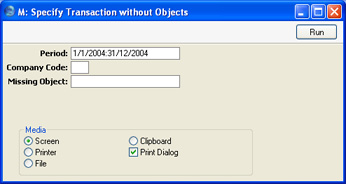
- Period
- Paste Special
Reporting Periods setting, System module
- The report will list all Transactions without Objects whose Transaction Date falls in the period entered here.
- Company Code
- If you run the report from the Mother Company with this field blank, it will contain separate sections for the Mother Company and each Daughter Company. If you specify a Daughter Company here, the report will contain one section for the Mother and one for the specified Daughter.
- Missing Object
- Paste Special
Object register, Nominal Ledger/System module
- If you want to list all Transactions that do not use a particular Object, enter that Object here. If you enter a number of Objects separated by commas, the report will list the Transactions that do not use any of those Objects.
Trial Balance, Consolidated
This page describes the Trial Balance, Consolidated report in the Consolidation module.
---
The Trial Balance report in the Consolidation module is very similar to the standard report in the Nominal Ledger. Please refer here for full details about the standard Trial Balance report.
Compared to the Nominal Ledger version of the Trial Balance, the Trial Balance, Consolidated report has the following differences :
- The specification window for the Trial Balance, Consolidated report contains an additional Include Daughter Companies option. Use this option when you need to produce a consolidated Trial Balance report that includes every Company in the group.
- The specification window for the Trial Balance, Consolidated report contains an additional Daughter Comp. field. If you are running the report from the Mother Company, this field allows you to produce a report showing the contribution made to the consolidated Trial Balance by an individual Daughter Company.
- The figures in the Trial Balance, Consolidated report will usually be in the Group Currency (depending on the Consolidation Exchange Rate option referred to below). When producing the report from the Nominal Ledger, you will be able to choose whether the report will be in Base Currency 1 or Base Currency 2.
- The specification window for the Trial Balance, Consolidated report contains a Consolidation Exchange Rate option. Please refer to the description of the Consolidation Settings setting here for details.
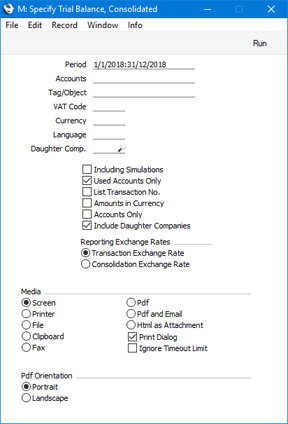
- Include Daughter Companies
- If you are producing a Trial Balance from the Mother Company, select this option if you want to produce a consolidated report that includes Transactions from the Daughter Companies as well as those in the Mother Company. If you do not select this option, a 'standard' Trial Balance will be produced, from the Transactions in the Mother Company only. If you are producing the report from a Company that does not have Daughters, selecting this option will not affect how the report is calculated.
- Daughter Comp.
- Paste Special
Daughter Companies
- If you are producing a Trial Balance from the Mother Company, use this field if you need to produce a report showing the contribution made to the consolidated Trial Balance by an individual Daughter Company. Enter the Company Code of the Daughter Company in this field. You must select the Include Daughter Companies option as well.
- You can only produce a report for a Daughter Company (i.e. for a Company that is listed in the Daughter Companies setting in the Company in which you are working). You cannot use this field to produce a report for a Company on a lower level, such as a Grand-Daughter Company.
- If you produce a report for a Daughter Company that itself has subsidiaries, the report will only include figures from the Daughter Company. It will not be a consolidated report that includes figures from the subsidiary Companies.
- The Accounts in the report will be taken from the Account register in the Mother Company from which you are producing the report. If you have not linked a Daughter Account to a Mother Account (i.e. you have not specified a Consolidation Account for the Daughter Account, or there is no Mother Account with the same Account Number as the Daughter Account), that Daughter Account will not be included in the report.
- If the Daughter Company is partially owned by the Mother, the balance of each Account in which you have selected the Reduce Minorities option will be reduced to the correct percentage in the report.
- You can only produce a report for a Daughter Company (i.e. for a Company that is listed in the Daughter Companies setting in the Company in which you are working). You cannot use this field to produce a report for a Company on a lower level, such as a Grand-Daughter Company.
Reports in the Consolidation module:
- Introduction
- Balance Sheet, Consolidated
- Consolidation
- Consolidation Chart of Accounts
- Correction List
- Discount Statistics, Consolidated
- Key Financial Ratios, Profit & Loss
- Trial Balance, Consolidated
- Home page for Consolidation manual
- Home page for Standard ERP manual
- Period