Introduction to Reports in the Cash Book Module
As with all modules, to print a report in the Cash Book module, click (Windows/macOS) or tap (iOS/Android) the [Reports] button in the Navigation Centre or use the Ctrl-R (Windows)/⌘-R (macOS) key combination. The 'Reports' window will open, listing the reports that are available in the Production module: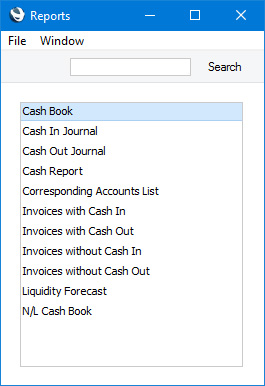
It is often possible to report on a selection range, such as a range of Cash In or Cash Out Numbers. To do this, enter the lowest and highest values of the range, separated by a colon. For example, to report on Cash in transactions 001 to 010, enter "001:010" in the Cash In Number field. Depending on the field, the sort used might be alpha or numeric. In the case of an alpha sort, a range of 1:2 would also include 100, 10109, etc.
Use the Media options at the bottom of the specification window to determine the print destination of the report. The default is to print to screen. You can initially print to screen and subsequently send the report to a printer by clicking the Printer icon at the top of the report window (Windows/macOS) or by selecting 'Recalculate and Print' from the Operations menu. If you are using iOS or Android, you will find this function on the Tools menu (with 'wrench' icon).
Once you have entered the reporting criteria and have chosen a print destination, click or tap [Run].
If you print a report to screen, you can use the 'Recalculate' command on the Operations menu in the report window to update the report after making alterations to background data. The 'Reopen Report Specification' command on the same menu allows you to produce a new report using different reporting criteria. If you are using iOS or Android, the 'Recalculate' function will be on the Tools menu. There will be no 'Reopen Report Specification' command: tap < to go back to the specification window instead.
Please follow the links below for details about the reports in the Cash Book module:
- Cash Book
- Cash Book (Lithuania)
- Cash In Journal
- Cash Out Journal
- Cash Report
- Corresponding Accounts List
- Invoices with Cash In
- Invoices with Cash Out
- Invoices without Cash In
- Invoices without Cash Out
- Liquidity Forecast
- N/L Cash Book
Go back to:
- Home page for Cash Book module manual
- Home page for Standard ERP manual
Cash Book
This page describes the Cash Book report in the Cash Book module.---
The Cash Book report is a chronological listing of the records entered to both the Cash In and Cash Out registers during the specified period. It also shows opening and closing balances for the period, and total amounts posted in each Currency during the period. The opening balance will be calculated from cash transactions from before the report period that meet the same specifications as the cash transactions listed in the report. Invalidated cash transactions will not be included.
When printed to screen, the Cash Book report has the Standard ERP Drill-down feature. Click (Windows/macOS) or tap (iOS/Android) on any Cash In or Cash Out Number in the report to open the corresponding record.
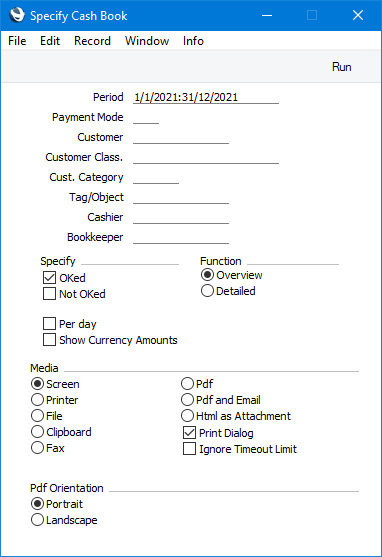
- Period
- Paste Special
Reporting Periods setting, System module
- Specify a report period, in the format "01-02-21:28-02-21". If you are using four-digit years as in the illustration, the leading digits will be inserted automatically. If your report period is a single day, just enter the date once and this will be converted to a period format automatically. The first period in the Reporting Periods setting will be offered as the default value.
- Payment Mode
- Paste Special
Payment Modes setting, Sales/Purchase Ledger, Cash Book module
- To list cash transactions with a particular Payment Mode, enter that Payment Mode here. This refers to the Payment Mode entered on the 'Amounts' card in each cash transaction, not to any Payment Mode that you may have entered on flip B of a row on the 'Payments' card.
- Customer
- Paste Special
Customers and Suppliers in Contact register
- Range Reporting Alpha
- To list cash transactions made to/from a particular Customer or Supplier, enter their Customer or Supplier Number here.
- To list cash transactions made to/from a particular Customer or Supplier, enter their Customer or Supplier Number here.
- Customer Class.
- Paste Special
Contact Classifications setting, CRM module
- Enter a Classification Code in this field if you only need Cash In records with Customers with a certain Classification to be included in the report. If you leave the field blank, Cash In records with any Customer, with and without Classification, will be included in the report. If you enter a number of Classifications separated by commas, Cash In records with Customers featuring all the Classifications entered will be included. If you enter a number of Classifications separated by plus signs (+), Cash In records with Customers featuring at least one of the Classifications entered will be included. If you enter a Classification preceded by an exclamation mark (!), Cash In records with Customers featuring any Classification except the one entered will be included.
- For example:
- 1,2
- Includes Cash In records with Customers with Classifications 1 and 2 (including Cash In records with Customers with Classifications 1, 2 and 3).
- 1+2
- Includes Cash In records with Customers with Classifications 1 or 2.
- !2
- Includes Cash In records with any Customer except those with Classification 2.
- 1,!2
- Includes Cash In records with Customers with Classification 1 but excludes those for Customers with Classification 2 (i.e. Cash In records with Customers with Classifications 1 and 2 are not included). Note the comma before the exclamation mark in this example.
- !1,!2
- Includes Cash In records with any Customer except those with Classification 1 or 2 or both. Again, note the comma.
- !(1,2)
- Includes Cash In records with any Customer except those with Classifications 1 and 2 (Cash In records with Customers with Classifications 1, 2 and 3 will not be included).
- !1+2
- Includes Cash In records with Customers without Classification 1 and those with Customers with Classification 2 (Cash In records with Customers with Classifications 1 and 2 will be included).
- (1,2)+(3,4)
- Includes Cash In records with Customers with Classifications 1 and 2, and those with Customers with Classifications 3 and 4.
- 1*
- Includes Cash In records with Customers with Classifications beginning with 1 (e.g. 1, 10, 100).
- 1*,!1
- Includes Cash In records with Customers with Classifications beginning with 1 but not 1 itself.
- *1
- Includes Cash In records with Customers with Classifications ending with 1 (e.g. 1, 01, 001).
- 1*,*1
- Includes Cash In records with Customers with Classifications beginning and ending with 1.
- Specifying a Customer Class. will not affect the Cash Out records that will be included in the report.
- For example:
- Cust. Category
- Paste Special
Customer Categories setting, Sales Ledger
- Range Reporting Alpha
- Enter a Customer Category here if you only need Cash In records with Customers belonging to a particular Customer Category to be included in the report.
- You can also enter a range of Customer Categories separated by a colon (:). Note however that the field will only accept five characters so you may prefer to specify the range using only the first characters (e.g. "A:M").
- Specifying a Customer Category will not affect the Cash Out records that will be included in the report.
- Enter a Customer Category here if you only need Cash In records with Customers belonging to a particular Customer Category to be included in the report.
- Tag/Object
- Paste Special
Tag/Object register, System module
- Specify a Tag/Object to list the cash transactions featuring that Tag/Object in the report. If you enter a number of Tags/Objects separated by commas, only those transactions featuring all the Tags/Objects that you have entered will be listed in the report.
- Cashier, Bookkeeper
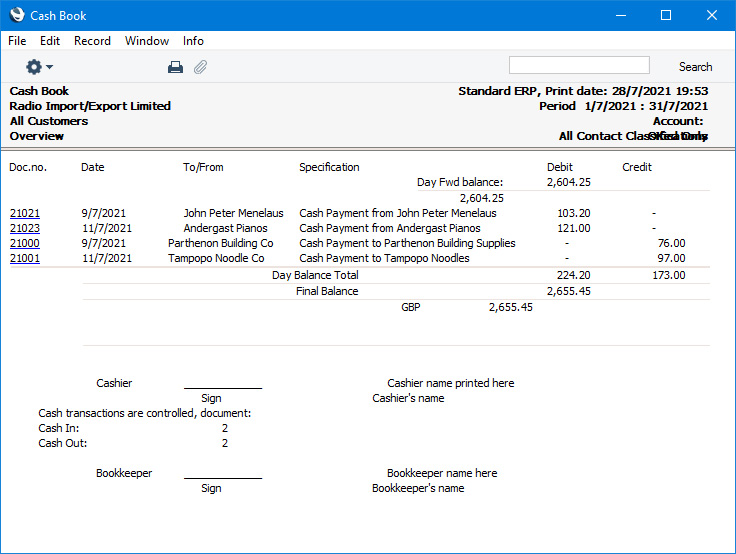
- The Overview version of the report contains spaces where it can be signed by the Cashier and Bookkeeper. If you enter their names in these fields, they will be printed to the right of these spaces ("Cashier name printed here" and "Bookkeeper name here" in the illustration below).
- Status
- You can include cash transactions that have been marked as OK, cash transactions that have not been marked as OK or both in the report. You must select at least one of these options, otherwise the report will be blank.
- Function
- Use these options to control the level of detail shown in the report.
- Overview
- This option is a simple list, showing for each cash transaction its Serial Number, Transaction Date, Customer or Supplier, Specification and Total debit or credit amount in Base Currency 1. The Overview also contains spaces where it can be signed by the Cashier and Bookkeeper.
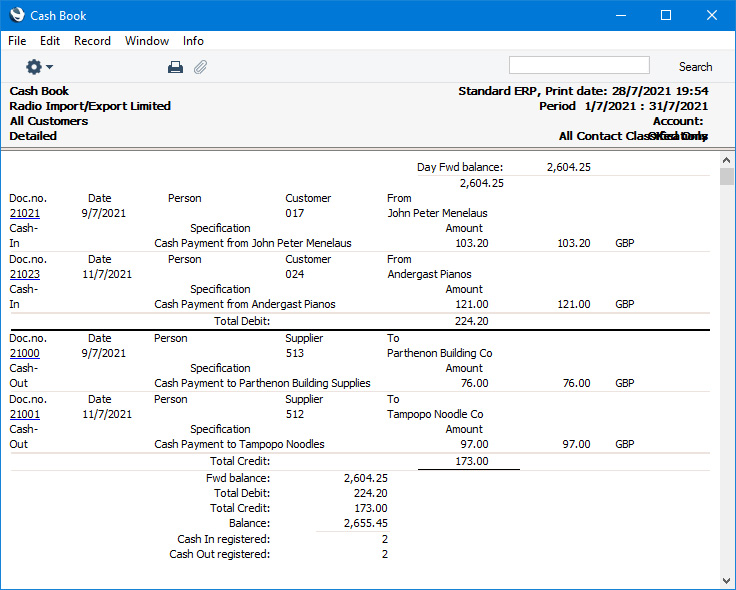
- Detailed
- In addition to the information included in the overview, this option also shows the Person and the debit or credit amount in Currency (as well as in Base Currency 1).
- Overview
- Per day
- By default the report lists Cash In transactions in date order followed by Cash Out transactions, also in date order. Select this option if you would like the report to be sorted by date only, so that Cash In and Cash Out transactions for the same day are listed together. As well as the opening and closing balances for the period, this option also shows closing balances for each day.
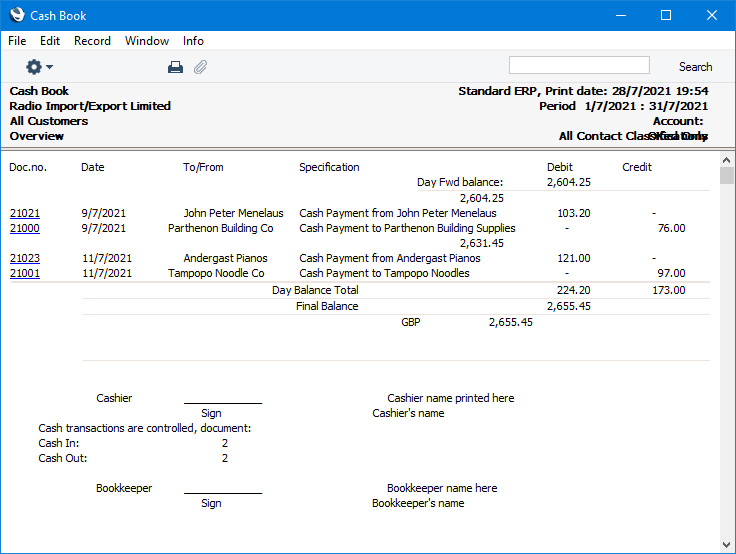
- Show Currency Amounts
- By default, the Overview version of the report is a list of Cash In and Cash Out records with amounts shown in the home Currency (Base Currency 1) only. If you have some cash transactions in foreign Currencies and you want to see the amounts from these transactions in Base Currency 1 and also in Currency, select this option.
- This option does not affect the Detailed version of the report, which always shows amounts in Base Currency 1 and in Currency.
Go back to:
- Home page for Reports in the Cash Book module
- Home page for Cash Book module manual
- Home page for Standard ERP manual
Cash Book (Lithuania)
The Cash Book (Lithuania) report satisfies a specific requirement of users in Lithuania and is only visible in the 'Reports' list when the VAT Law in the Company Info setting is "Lithuanian". Please refer to your HansaWorld representative for more details.---
Go back to:
- Home page for Reports in the Cash Book module
- Home page for Cash Book module manual
- Home page for Standard ERP manual
Cash In Journal
This page describes the Cash In Journal report in the Cash Book module.---
The Cash In Journal is a chronological listing of the records entered in the Cash In register during the specified period.
When printed to screen, the Cash In Journal has the Standard ERP Drill-down feature. Click (Windows/macOS) or tap (iOS/Android) on any Cash In Number in the report to open the corresponding record.
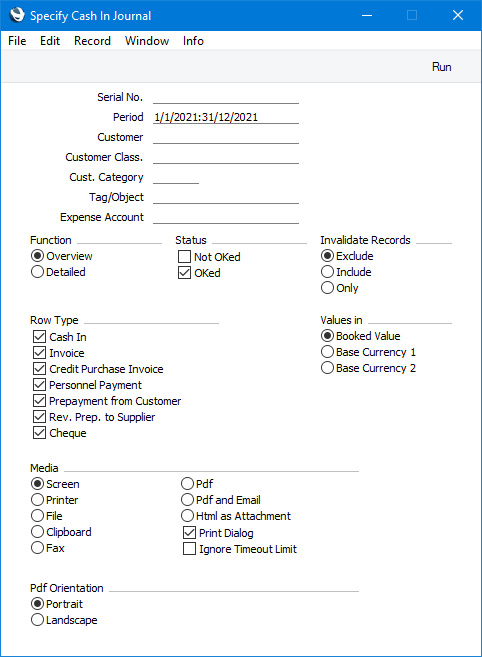
- Serial No.
- Range Reporting
Numeric
- If you want to list a certain range of Cash In transactions, enter the first and the last Serial Number of that range, separated by a colon (:). If you leave the field blank, every Cash In record from the selected period will be listed.
- Period
- Paste Special
Reporting Periods setting, System module
- Specify a report period, in the format "01-02-21:28-02-21". If you are using four-digit years as in the illustration, the leading digits will be inserted automatically. If your report period is a single day, just enter the date once and this will be converted to a period format automatically. The first period in the Reporting Periods setting will be offered as the default value.
- Customer
- Paste Special
Customers in Contact register
- Range Reporting Alpha
- To list cash payments received from a particular Customer (i.e. Cash In records with a particular Customer), enter their Customer Number here.
- To list cash payments received from a particular Customer (i.e. Cash In records with a particular Customer), enter their Customer Number here.
- Customer Class.
- Paste Special
Contact Classifications setting, CRM module
- Enter a Classification Code in this field if you only need only need the report to list cash payments received from Customers with a certain Classification. If you leave the field blank, cash payments received from any Customer, with and without Classification, will be listed in the report. If you enter a number of Classifications separated by commas, cash payments received from Customers featuring all the Classifications entered will be listed. If you enter a number of Classifications separated by plus signs (+), cash payments received from Customers featuring at least one of the Classifications entered will be listed. If you enter a Classification preceded by an exclamation mark (!), cash payments received from Customers featuring any Classification except the one entered will be listed.
- For example:
- 1,2
- Lists Cash In records with Customers with Classifications 1 and 2 (including Cash In records with Customers with Classifications 1, 2 and 3).
- 1+2
- Lists Cash In records with Customers with Classifications 1 or 2.
- !2
- Lists Cash In records with any Customer except those with Classification 2.
- 1,!2
- Lists Cash In records with Customers with Classification 1 but not those with Customers with Classification 2 (i.e. Cash In records with Customers with Classifications 1 and 2 will not be listed). Note the comma before the exclamation mark in this example.
- !1,!2
- Lists Cash In records with any Customer except those with Classification 1 or 2 or both. Again, note the comma.
- !(1,2)
- Lists Cash In records with any Customer except those with Classifications 1 and 2 (Cash In records with Customers with Classifications 1, 2 and 3 will not be included).
- !1+2
- Lists Cash In records with Customers without Classification 1 and those with Customers with Classification 2 (Cash In records with Customers with Classifications 1 and 2 will be included).
- (1,2)+(3,4)
- Lists Cash In records with Customers with Classifications 1 and 2, and those with Customers with Classifications 3 and 4.
- 1*
- Lists Cash In records with Customers with Classifications beginning with 1 (e.g. 1, 10, 100).
- 1*,!1
- Lists Cash In records with Customers with Classifications beginning with 1 but not 1 itself.
- *1
- Lists Cash In records with Customers with Classifications ending with 1 (e.g. 1, 01, 001).
- 1*,*1
- Lists Cash In records with Customers with Classifications beginning and ending with 1.
- For example:
- Cust. Category
- Paste Special
Customer Categories setting, Sales Ledger
- Range Reporting Alpha
- Enter a Customer Category here if you only need the report to list cash payments received from Customers belonging to a particular Customer Category.
- You can also enter a range of Customer Categories separated by a colon (:). Note however that the field will only accept five characters so you may prefer to specify the range using only the first characters (e.g. "A:M").
- Enter a Customer Category here if you only need the report to list cash payments received from Customers belonging to a particular Customer Category.
- Tag/Object
- Paste Special
Tag/Object register, System module
- Specify a Tag/Object here if you need the report to list Cash In transactions featuring that Tag/Object. If you enter a number of Tags/Objects separated by commas, only transactions featuring all the Tags/Objects that you have entered will be included in the report.
- Expense Account
- Paste Special
Expense Accounts setting, Cash Book module
- To list Cash In transactions with a particular Expense Account, enter that Expense Account here. This refers to the Expense Account entered on the 'Amounts' card in each Cash In transaction, not to any Expense Account that you may have entered on flip B of a row on the 'Payments' card.
- Function
- Use these options to control the level of detail shown in the report.
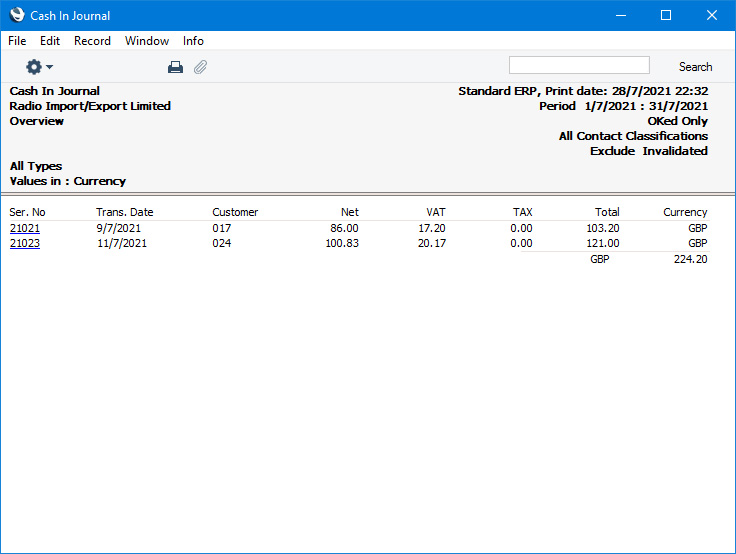
- Overview
- This option is a simple list, showing for each Cash In record its Serial Number, Transaction Date, Customer and Currency, and its Total, VAT and Net figures.
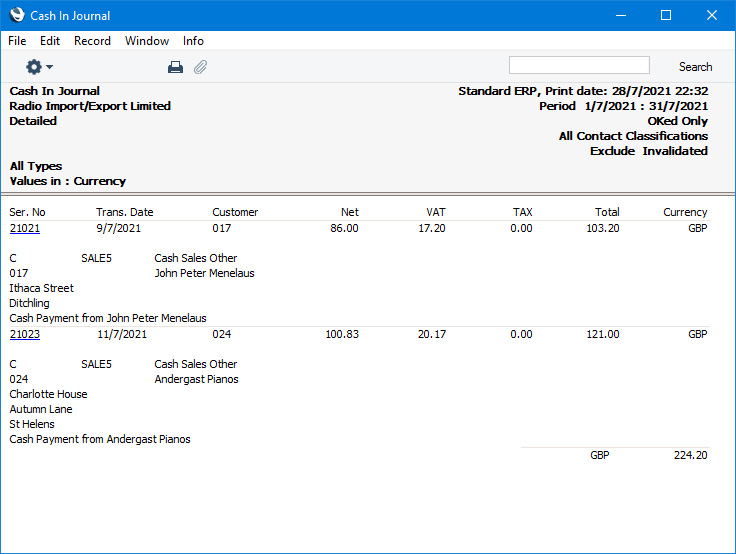
- Detailed
- In addition to the information included in the overview, this option also shows the Payment Mode, the Expense Account and the address of the Customer.
- Overview
- Status
- You can include Cash In transactions that have been marked as OK, cash transactions that have not been marked as OK or both in the report. You must select at least one of these options, otherwise the report will be blank.
- Invalidated Records
- Use these options to specify whether invalidated Cash In records are to be included in the report. An invalidated record will be shown in the report with a red line drawn through its Cash In Number.
- Row Type
- Use these options to specify whether a Cash In record with a row of a particular Type (on the 'Payments' card) is to be included in the report. If you want to list Cash In records where you have not used the 'Payments' card, use the Cash In option (this option will also show records with rows of Type "Cash In").
- Values in
- If you are using the Dual-Base system, use these options to specify whether the values in this report are to be shown in the original Currency of each Cash In record or in either Base Currency (converted using the Base Rate shown on each Cash In record).
- If you are not using the Dual-Base system, use the Base Currency 1 option to produce a report in your home Currency.
Go back to:
- Home page for Reports in the Cash Book module
- Home page for Cash Book module manual
- Home page for Standard ERP manual
Cash Out Journal
This page describes the Cash Out Journal report in the Cash Book module.---
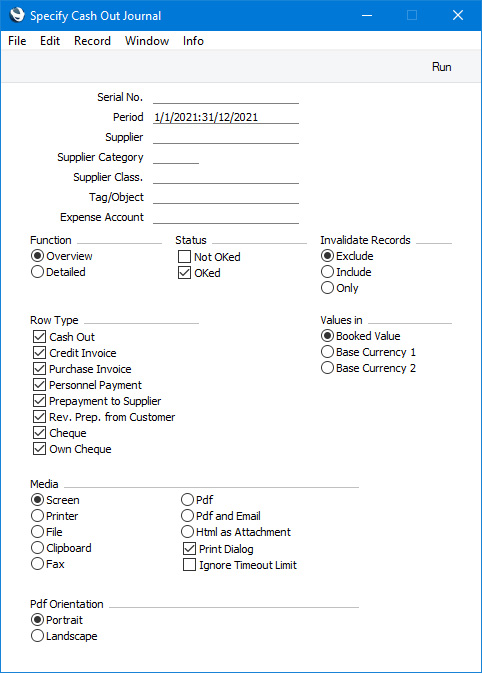
The Cash Out Journal is a chronological listing of the records entered to the Cash Out register during the specified period.
When printed to screen, the Cash Out Journal has the Standard ERP Drill-down feature. Click (Windows/macOS) or tap (iOS/Android) on any Cash Out Number in the report to open the corresponding record.
- Serial No.
- Range Reporting
Numeric
- If you want to list a certain range of Cash Out transactions, enter the first and the last Serial Number of that range, separated by a colon (:). If you leave the field blank, every Cash Out record from the selected period will be listed.
- Period
- Paste Special
Reporting Periods setting, System module
- Specify a report period, in the format "01-02-21:28-02-21". If you are using four-digit years as in the illustration, the leading digits will be inserted automatically. If your report period is a single day, just enter the date once and this will be converted to a period format automatically. The first period in the Reporting Periods setting will be offered as the default value.
- Supplier
- Paste Special
Suppliers in Contact register
- Range Reporting Alpha
To list cash payments made to a particular Supplier (i.e. Cash Out records with a particular Supplier), enter their Supplier Number here.
- Supplier Category
- Paste Special
Supplier Categories setting, Purchase Ledger
- Range Reporting Alpha
- Enter a Supplier Category here if you only need the report to list cash payments issued to Suppliers belonging to a particular Supplier Category.
- You can also enter a range of Supplier Categories separated by a colon (:). Note however that the field will only accept five characters so you may prefer to specify the range using only the first characters (e.g. "A:M").
- Enter a Supplier Category here if you only need the report to list cash payments issued to Suppliers belonging to a particular Supplier Category.
- Supplier Class.
- Paste Special
Contact Classifications setting, CRM module
- Enter a Classification Code in this field if you only need only need the report to list cash payments issued to Suppliers with a certain Classification. If you leave the field blank, cash payments issued to any Supplier, with and without Classification, will be listed in the report. If you enter a number of Classifications separated by commas, cash payments issued to Suppliers featuring all the Classifications entered will be listed. If you enter a number of Classifications separated by plus signs (+), cash payments issued to Suppliers featuring at least one of the Classifications entered will be listed. If you enter a Classification preceded by an exclamation mark (!), cash payments issued to Suppliers featuring any Classification except the one entered will be listed.
- For example:
- 1,2
- Lists Cash Out records with Suppliers with Classifications 1 and 2 (including Cash Out records with Suppliers with Classifications 1, 2 and 3).
- 1+2
- Lists Cash Out records with Suppliers with Classifications 1 or 2.
- !2
- Lists Cash Out records with any Supplier except those with Classification 2.
- 1,!2
- Lists Cash Out records with Suppliers with Classification 1 but not those with Suppliers with Classification 2 (i.e. Cash Out records with Suppliers with Classifications 1 and 2 will not be listed). Note the comma before the exclamation mark in this example.
- !1,!2
- Lists Cash Out records with any Supplier except those with Classification 1 or 2 or both. Again, note the comma.
- !(1,2)
- Lists Cash Out records with any Supplier except those with Classifications 1 and 2 (Cash Out records with Suppliers with Classifications 1, 2 and 3 will not be included).
- !1+2
- Lists Cash Out records with Suppliers without Classification 1 and those with Suppliers with Classification 2 (Cash Out records with Suppliers with Classifications 1 and 2 will be included).
- (1,2)+(3,4)
- Lists Cash Out records with Suppliers with Classifications 1 and 2, and those with Suppliers with Classifications 3 and 4.
- 1*
- Lists Cash Out records with Suppliers with Classifications beginning with 1 (e.g. 1, 10, 100).
- 1*,!1
- Lists Cash Out records with Suppliers with Classifications beginning with 1 but not 1 itself.
- *1
- Lists Cash Out records with Suppliers with Classifications ending with 1 (e.g. 1, 01, 001).
- 1*,*1
- Lists Cash Out records with Suppliers with Classifications beginning and ending with 1.
- For example:
- Tag/Object
- Paste Special
Tag/Object register, System module
- Specify a Tag/Object here if you need the report to list Cash Out transactions featuring that Tag/Object. If you enter a number of Tags/Objects separated by commas, only transactions featuring all the Tags/Objects that you have entered will be included in the report.
- Expense Account
- Paste Special
Expense Accounts setting, Cash Book module
- To list Cash Out transactions with a particular Expense Account, enter that Expense Account here. This refers to the Expense Account entered on the 'Amounts' card in each Cash In transaction, not to any Expense Account that you may have entered on flip B of a row on the 'Payments' card.
- Function
- Use these options to control the level of detail shown in the report.
- Overview
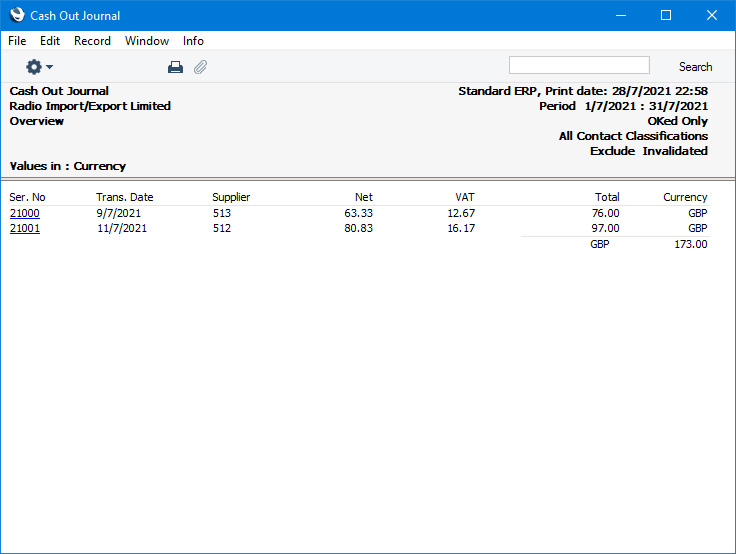
- This option is a simple list, showing for each Cash Out record its Serial Number, Transaction Date, Supplier and Currency, and its Total, VAT and Net figures.
- Detailed
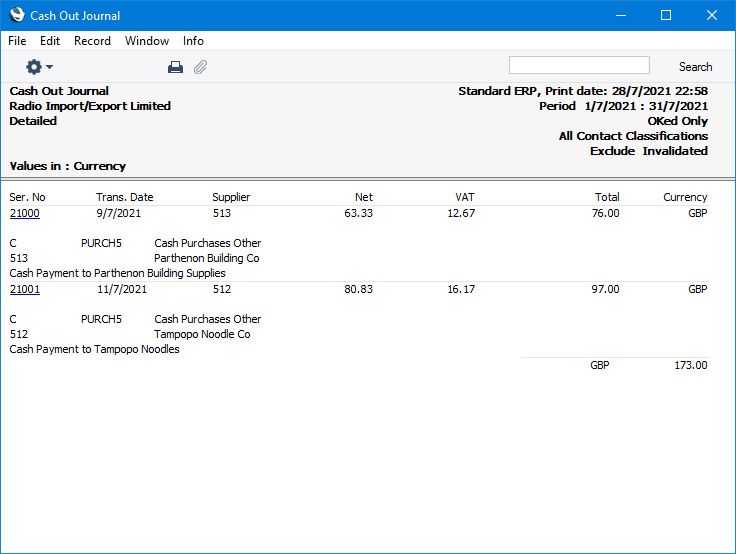
- In addition to the information included in the overview, this option also shows the Payment Mode, the Expense Account and the address of the Supplier.
- Overview
- Status
- You can include Cash Out transactions that have been marked as OK, cash transactions that have not been marked as OK or both in the report. You must select at least one of these options, otherwise the report will be blank.
- Invalidated Records
- Use these options to specify whether invalidated Cash Out records are to be included in the report. An invalidated record will be shown in the report with a red line drawn through its Cash Out Number.
- Row Type
- Use these options to specify whether a Cash Out record with a row of a particular Type (on the 'Payments' card) is to be included in the report. If you want to list Cash Out records where you have not used the 'Payments' card, use the Cash Out option (this option will also show records with rows of Type "Cash Out").
- Values in
- If you are using the Dual-Base system, use these options to specify whether the values in this report are to be shown in the original Currency of each Cash Out record or in either Base Currency (converted using the Base Rate shown on each Cash Out record).
- If you are not using the Dual-Base system, use the Base Currency 1 option to produce a report in your home Currency.
Go back to:
- Home page for Reports in the Cash Book module
- Home page for Cash Book module manual
- Home page for Standard ERP manual
Cash Report
This page describes the Cash Report in the Cash Book module.---
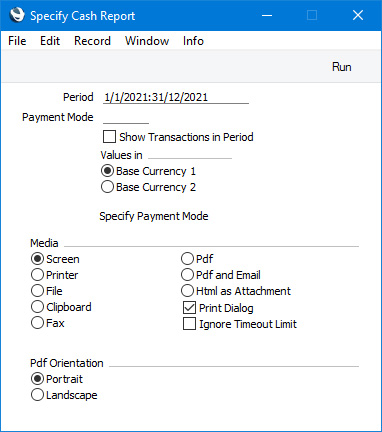
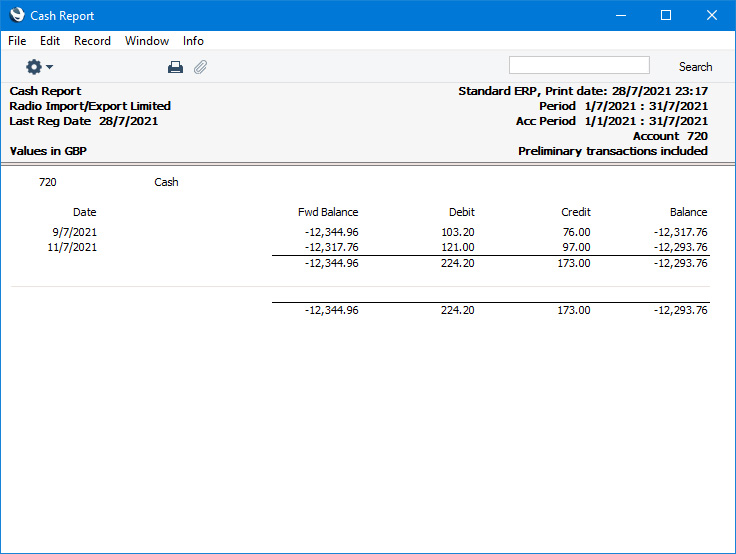
The Cash Report is a modified version of the Daily Balances report in the Nominal Ledger. It provides daily debit, credit and overall balances for the Account on flip A of the specified Payment Mode. If you would like an itemised list of the postings to the Payment Mode Account, use the N/L Cash Book report (or the Nominal Ledger report in the Nominal Ledger). The report is compiled using information in the Transaction register in the Nominal Ledger and will therefore include Cash Notes, Cash Receipts and Cash Payments that use the specified Payment Mode as well as Cash In and Cash Out records.
- Period
- Paste Special
Reporting Periods setting, System module
- Specify the period to be covered by the report. To obtain balances for a particular day, simply enter the date.
- If you specify a report period that is longer than one day, the report will provide debit and credit posting totals for each day in the specified period when the Account was used.
- If you specify a report period that is longer than one day, the report will provide debit and credit posting totals for each day in the specified period when the Account was used.
- Payment Mode
- Paste Special
Payment Modes setting, Sales/Purchase Ledger, Cash Book module
- Enter a Payment Mode: the report will show daily debit, credit and overall balances for the Account shown on flip A of this Payment Mode.
- The report will not be printed if you do not specify a Payment Mode.
- The report will not be printed if you do not specify a Payment Mode.
- Show Transactions in Period
- If you select this option, the Transaction Numbers of each Transaction that falls within the reporting period, together with debit and credit totals, will be listed at the end of the report.
- Values in
- If you are using the Dual-Base system, use these options to specify whether the values in the report are to be shown in Base Currency 1 or 2.
- If you are not using the Dual-Base system, use the Base Currency 1 option to produce a report in your home Currency.
Go back to:
- Home page for Reports in the Cash Book module
- Home page for Cash Book module manual
- Home page for Standard ERP manual
Corresponding Accounts List
This page describes the Corresponding Accounts List report in the Cash Book module.---
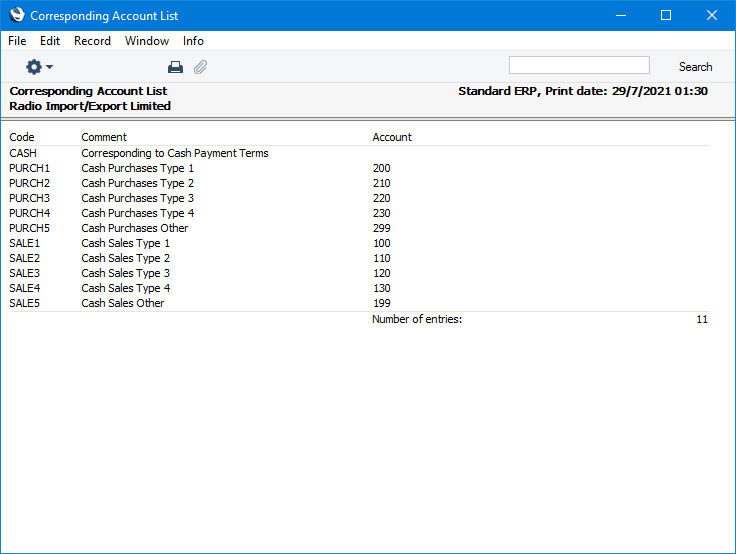
The Corresponding Accounts List report is a list of records in the Expense Accounts setting. When the blank specification window appears, click the [Run] button in the Button Bar to print the report.
Go back to:
- Home page for Reports in the Cash Book module
- Home page for Cash Book module manual
- Home page for Standard ERP manual
Invoices with Cash In
This page describes the Invoices with Cash In report in the Cash Book module.---
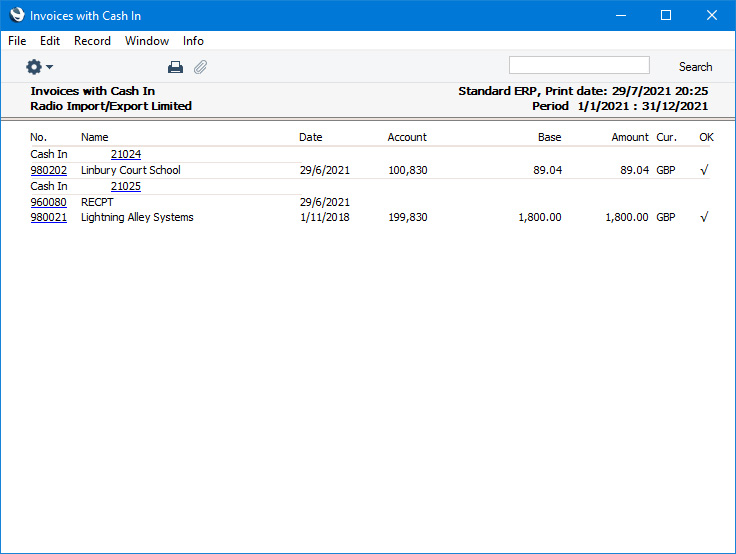
The Invoices with Cash In report is a list of the Cash In records that were created from Invoices and Receipts. For each Cash In record, the originating Invoices are listed, with the following information: Invoice Number, Date, Sales Accounts, and Totals including VAT in Base Currency 1 and in the Invoice Currency. If a Cash In record was created from a Receipt, the report will list the Invoices that were listed in the Receipt. Cash In records that were not created from Invoices or Receipts will not be listed in the report.
When printed to screen, this report has the Standard ERP Drill-down feature. Click (Windows/macOS) or tap (iOS/Android) on any Cash In or Invoice Number in the report to open the corresponding record. If you run the report using the Show Receipts option, you will also be able to open Receipts from the report by clicking or tapping Receipt Numbers.
- Period
- Paste Special
Reporting Periods setting, System module
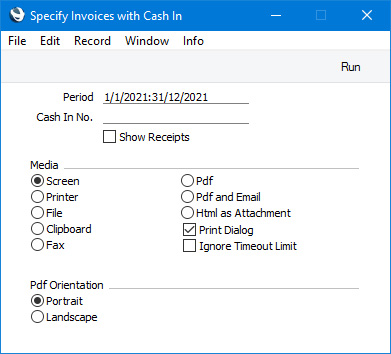
- Specify a report period, in the format "01-02-21:28-02-21". If you are using four-digit years as in the illustration, the leading digits will be inserted automatically. If your report period is a single day, just enter the date once and this will be converted to a period format automatically. The first period in the Reporting Periods setting will be offered as the default value. The report will list Cash In records whose Date falls in the period that you specify here.
- Cash In No.
- Range Reporting
Numeric
If you want to list a certain range of Cash In transactions, enter the first and the last Serial Number of that range, separated by a colon (:). If you leave the field blank, every Cash In record from the selected period that was created from an Invoice or Receipt will be listed.
- Show Receipts
- Cash In records created from Receipts will be shown in the report as being created by the original Invoices. Select this option if you would like the Receipt Numbers to be printed as well. The second Cash In record in the illustration below was created from a Receipt.
Go back to:
- Home page for Reports in the Cash Book module
- Home page for Cash Book module manual
- Home page for Standard ERP manual
Invoices with Cash Out
This page describes the Invoices with Cash Out report in the Cash Book module.---
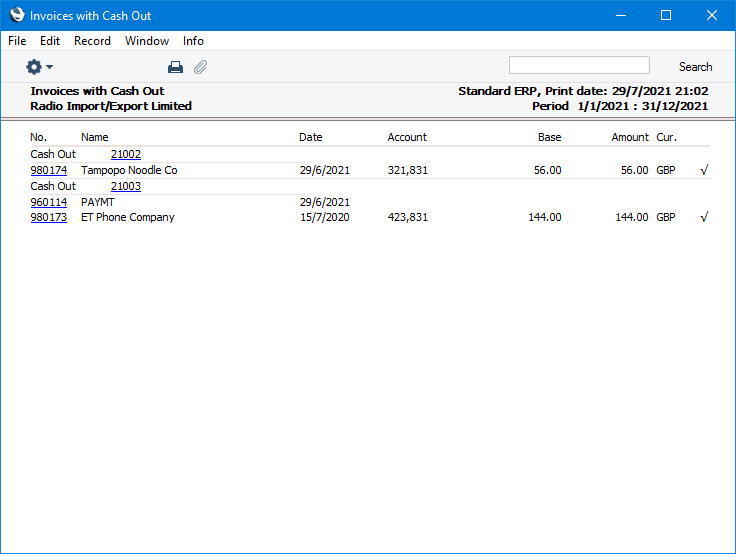
The Invoices with Cash Out report is a list of the Cash Out records that were created from Purchase Invoices and Payments. For each Cash Out record, the originating Purchase Invoices are listed, with the following information: Invoice Number, Date, Cost Accounts, and Totals including VAT in Base Currency 1 and in the Invoice Currency. If a Cash Out record was created from a Payment, the report will list the Purchase Invoices that were listed in the Payment. Cash Out records that were not created from Purchase Invoices or Payments will not be listed in the report.
When printed to screen, this report has the Standard ERP Drill-down feature. Click (Windows/macOS) or tap (iOS/Android) on any Cash Out or Purchase Invoice Number in the report to open the corresponding record. If you run the report using the Show Payments option, you will also be able to open Payments from the report by clicking or tapping Payment Numbers.
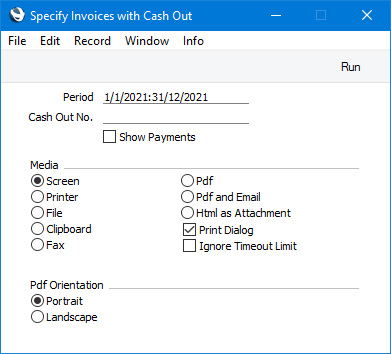
- Period
- Paste Special
Reporting Periods setting, System module
- Specify a report period, in the format "01-02-21:28-02-21". If you are using four-digit years as in the illustration, the leading digits will be inserted automatically. If your report period is a single day, just enter the date once and this will be converted to a period format automatically. The first period in the Reporting Periods setting will be offered as the default value. The report will list Cash Out records whose Date falls in the period that you specify here.
- Cash Out No.
- Range Reporting
Numeric
- If you want to list a certain range of Cash Out transactions, enter the first and the last Serial Number of that range, separated by a colon (:). If you leave the field blank, every Cash Out record from the selected period that was created from a Purchase Invoice or Payment will be listed.
- Show Payments
- Cash Out records created from Payments will be shown in the report as being created by the original Purchase Invoices. Select this option if you would like the Payment Numbers to be printed as well. The second Cash Out record in the illustration below was created from a Payment.
Go back to:
- Home page for Reports in the Cash Book module
- Home page for Cash Book module manual
- Home page for Standard ERP manual
Invoices without Cash In
This page describes the Invoices without Cash In report in the Cash Book module.---
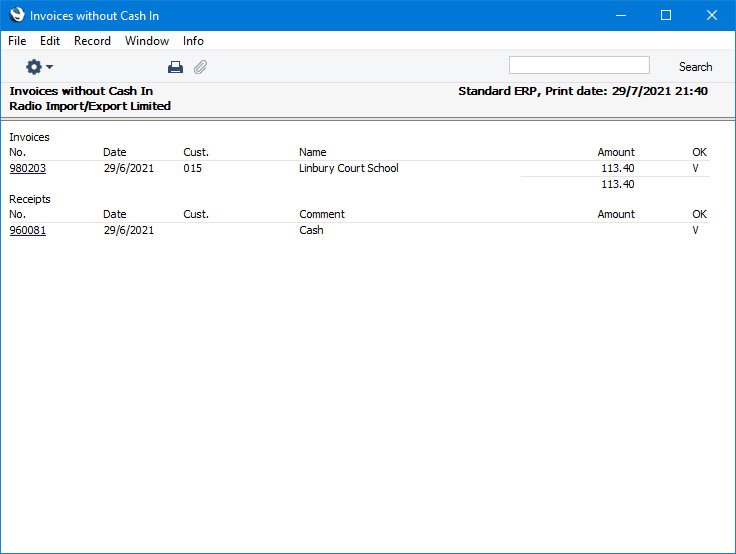
The Invoices without Cash In report is a list of Cash Notes (Invoices with Payment Terms of the "Cash" Type or with Payment Modes entered in the Payment Terms field) from which no Cash In records have been created. For each Invoice, the following information is shown: Invoice Number, Date, Customer Number and Name, and Total including VAT.
When printed to screen, this report has the Standard ERP Drill-down feature. Click (Windows/macOS) or tap (iOS/Android) on any Invoice Number in the report to open the corresponding record. If you run the report using the Include Receipts option, you will also be able to open Receipts from the report by clicking or tapping Receipt Numbers.
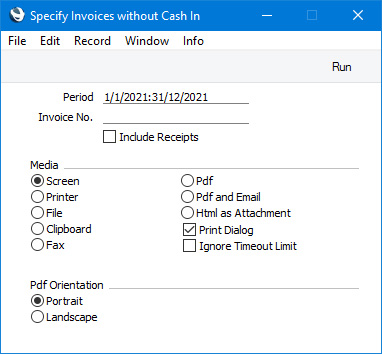
- Period
- Paste Special
Reporting Periods setting, System module
- Specify a report period, in the format "01-02-21:28-02-21". If you are using four-digit years as in the illustration, the leading digits will be inserted automatically. If your report period is a single day, just enter the date once and this will be converted to a period format automatically. The first period in the Reporting Periods setting will be offered as the default value.
- Serial No.
- Range Reporting
Numeric
- If you want to list a certain range of Invoices, enter the first and the last Serial Number of that range, separated by a colon (:). The report will list the Cash Notes in the range from which no Cash In records have been created.
- Show Receipts
- Select this option if, in addition to Cash Notes, you would like to list in the report Receipts from which no Cash In records have been created. Only Receipts from the report period whose Payment Mode is of the "Cash" Type will be included. You can specify the Payment Mode Type on flip B of the Payment Mode window.
Go back to:
- Home page for Reports in the Cash Book module
- Home page for Cash Book module manual
- Home page for Standard ERP manual
Invoices without Cash Out
This page describes the Invoices without Cash Out report in the Cash Book module.---
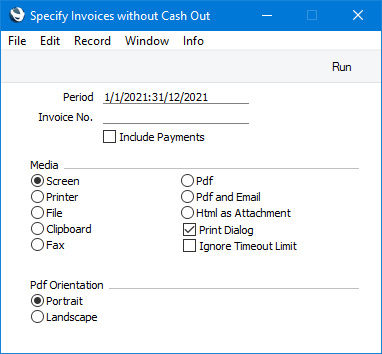
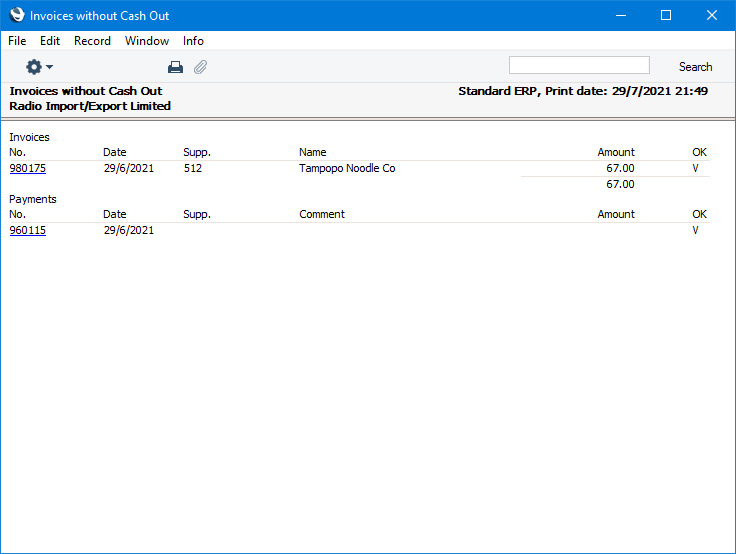
The Invoices without Cash Out report is a list of Cash Notes (Purchase Invoices with Payment Terms of the "Cash" Type or with Payment Modes entered in the Payment Terms field) from which no Cash Out records have been created. Invoices with Payment Modes entered in the Payment Terms field will also be listed. For each Purchase Invoice, the following information is shown: Invoice Number, Date, Supplier Number and Name, and Total including VAT.
When printed to screen, this report has the Standard ERP Drill-down feature. Click (Windows/macOS) or tap (iOS/Android) on any Purchase Invoice Number in the report to open the corresponding record. If you run the report using the Include Payments option, you will also be able to open Payments from the report by clicking or tapping Payment Numbers.
- Period
- Paste Special
Reporting Periods setting, System module
- Specify a report period, in the format "01-02-21:28-02-21". If you are using four-digit years as in the illustration, the leading digits will be inserted automatically. If your report period is a single day, just enter the date once and this will be converted to a period format automatically. The first period in the Reporting Periods setting will be offered as the default value.
- Serial No.
- Range Reporting
Numeric
- If you want to list a certain range of Purchase Invoices, enter the first and the last Serial Number of that range, separated by a colon (:). The report will list the Cash Notes in the range from which no Cash Out records have been created.
- Show Payments
- Select this option if, in addition to Cash Notes, you would like to list in the report Payments from which no Cash Out records have been created. Only Payments from the report period and whose Payment Mode is of the "Cash" Type will be included. You can specify the Payment Mode Type on flip B of the Payment Mode window.
Go back to:
- Home page for Reports in the Cash Book module
- Home page for Cash Book module manual
- Home page for Standard ERP manual
Liquidity Forecast
Please refer here for full details about the Liquidity Forecast report.---
Go back to:
- Home page for Reports in the Cash Book module
- Home page for Cash Book module manual
- Home page for Standard ERP manual
N/L Cash Book
This page describes the N/L Cash Book report in the Cash Book module.---
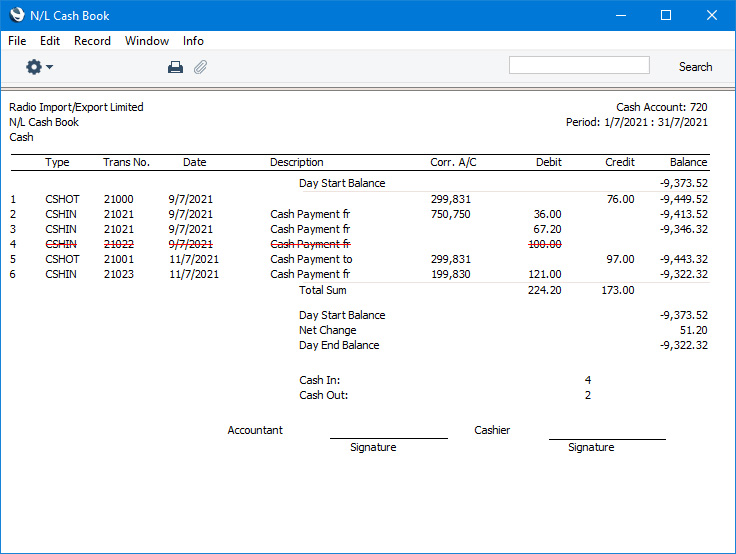
The N/L Cash Book report is a more detailed version of the Cash Report. Where the Cash Report provides daily debit, credit and overall balances for the Account on flip A of the specified Payment Mode, the N/L Cash Book is an itemised list of the postings made to the Payment Mode Account. The report is compiled using information in the Transaction register in the Nominal Ledger and is a list of the Transaction rows that post to the Payment Mode Account. It will therefore include Cash Notes, Cash Receipts and Cash Payments that use the specified Payment Mode as well as Cash In and Cash Out records.
- Period
- Paste Special
Reporting Periods setting, System module
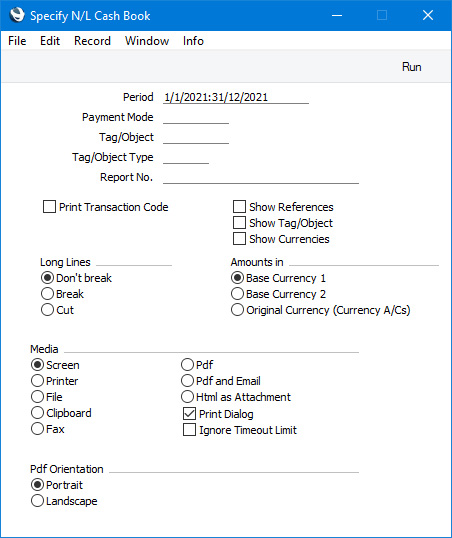
- Specify a report period, in the format "01-02-21:28-02-21". If you are using four-digit years as in the illustration, the leading digits will be inserted automatically. If your report period is a single day, just enter the date once and this will be converted to a period format automatically. The first row of the Reporting Periods setting will be offered as the default value.
- Payment Mode
- Paste Special
Payment Modes setting, Sales/Purchase Ledger, Cash Book module
- Enter a Payment Mode: the report will list the Transactions posting to the Account shown on flip A of this Payment Mode during the report period.
- The report will not be printed if you do not specify a Payment Mode.
- The report will not be printed if you do not specify a Payment Mode.
- Tag/Object
- Paste Special
Tag/Object register, Nominal Ledger/System module
- Enter a Tag/Object Code in this field if you want the report to list Transaction rows (postings) with a particular Tag/Object. If the field is empty, all postings to the Payment Mode Account, with and without Tags/Objects, will be included. If you enter a number of Tags/Objects separated by commas, only those postings featuring all the Tags/Objects that you have entered will be listed in the report.
- Tag/Object Type
- Paste Special
Tag/Object Types setting, Nominal Ledger
- Enter a Tag/Object Type Code in this field if you want the report to list postings to the Payment Mode Account with Tags/Objects belonging to a particular Tag/Object Type.
- Report No.
- In some countries, the N/L Cash Book should be printed with a Report Number at the top. Specify here the Report Number that you want to use.
- Print Transaction Code
- If you select this option, Transaction Numbers will be shown in the report (in the Trans. No. column) together with their fiscal year or Sub System prefixes (as shown in the 'Transactions: Browse' window). The Number of a Transaction that you entered directly to the Nominal Ledger, for example, will be shown as "2021.3" while the Number of a Transaction created from a Sub System will be shown as, for example, "S/INV.210003". If you do not want these prefixes to be shown in the report (i.e. in the examples, to omit "2021." and "S/INV."), do not select this option.
- Show References
- By default, the report shows the Text of each Transaction. Select this option if you would like the Reference and the Text to be shown.
- Show Tag/Object
- Select this option to print the Tags/Objects used in each Transaction row.
- Show Currencies
- In the case of Transaction rows in a foreign Currency (i.e. not Base Currency 1 or 2), select this option if you want to show amounts in Currency as well as in your home Currency.
- Long Lines
- Use these options to specify how Transaction Texts will be printed in the report if they contain many characters.
- If you use a landscape Page Setup and/or reduce the page magnification, the space available for long descriptions (i.e. the width of the description column) will be increased.
- Don't Break
- The full length of each Text will be printed on one line. If a Text interferes with figures in the next column, they will be moved to the next line.
- Break
- The full length of each Text will be printed, spread over several lines if necessary.
- Cut
- Only the first 15 characters of each Text will be printed, so that they fit in a single line in the allocated column.
- If you use a landscape Page Setup and/or reduce the page magnification, the space available for long descriptions (i.e. the width of the description column) will be increased.
- Amounts in
- Use these options to specify whether the figures in the report should be in Base Currency 1, Base Currency 2 or in the original Currency of the cash transaction. You should only use this last option when all cast transactions posting to a particular Payment Mode Account are in the same Currency (i.e. when you have specified a Currency in the Payment Mode Account record).
Go back to:
- Home page for Reports in the Cash Book module
- Home page for Cash Book module manual
- Home page for Standard ERP manual