Introduction to Exports in the CRM Module
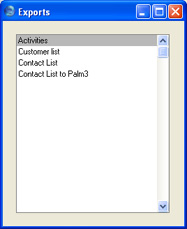
The 'Exports' function allows you to export certain information from your Hansa database to tab-delimited text files from where you can incorporate it in word processing programs for mailmerge, in spreadsheets for further statistical analysis or in page make-up programs for incorporation in publicity material or published reports. Alternatively, you can import the information into other Hansa databases or Companies using the 'Automatic' and 'Automatic manual file search' import functions in the System module. Remember that Reports can also be printed to disk, so most of the information that is stored in Hansa is available to other applications via the medium of the text file.To begin exporting, select 'Exports' from the File menu or click the [Exports] button in the Master Control panel. The window illustrated below appears. This lists the four Exports that you can produce from the CRM module. Double-click one of the items in the list: a specification window will then appear, where you can decide the contents of the exported text file. Click [Run]: the specification window will be closed and you will then be asked to name the file and to determine where it is to be saved.
Activities
This command exports data from one or more Activities.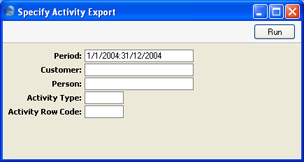
- Period
- Paste Special
Reporting Periods setting, System module
- Enter the start and end date of the reporting period.
- Customer
- Paste Special
Customers and Suppliers in Customer register
- Limit the selection to Activities recorded or scheduled for a single Customer.
- Person
- Paste Special
Person register, System module
- Enter a Person's initials to limit the selection to Activities recorded, scheduled or carried out by this person.
- Activity Type
- Paste Special
Activity Types setting, CRM module
- Enter an Activity Type to limit the export to Activities of that Type.
- Activity Row Code
- Paste Special
Text Types setting, CRM module
- Enter a Text Type to limit the export to Activities featuring that Type.
Contact List
This function exports information from the Contact Person register.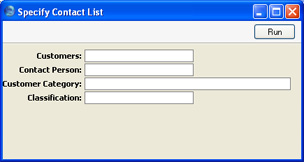
- Customers
- Paste Special
Customers and Suppliers in Customer register
- Range Reporting Alpha
- Enter a Customer Number to export the Contact Persons that work for that Customer.
- Enter a Customer Number to export the Contact Persons that work for that Customer.
- Contact Person
- Paste Special
Contact Person register, CRM module
- Enter the name of a Contact Person to export their details only.
- Customer Category
- Paste Special
Customer Categories setting, Sales Ledger
- Enter a Customer Category to export Contact Persons belonging to Customers with that Category.
- Classification
- Paste Special
Customer Classifications setting, CRM module
- Enter a Classification to export Contact Persons with that Classification. If you enter a number of Classifications separated by commas, only those Contact Persons featuring all the Classifications listed will be exported. If you enter a number of Classifications separated by plus signs (+), all Contact Persons featuring at least one of the Classifications listed will be exported. If you enter a Classification preceded by an exclamation mark (!), all Contact Persons featuring any Classification except the one listed will be exported.
For example:
- 1,2
- Exports Contact Persons with Classifications 1 and 2 (including Contact Persons with Classifications 1, 2 and 3).
- 1+2
- Exports Contact Persons with Classifications 1 or 2.
- !2
- Exports all Contact Persons except those with Classification 2.
- 1,!2
- Exports Contact Persons with Classification 1 but not those with Classification 2 (i.e. Contact Persons with Classifications 1 and 2 are not exported). Note the comma before the exclamation mark in this example.
- !1,!2
- Exports all Contact Persons except those with Classification 1 or 2 or both. Again, note the comma.
- 1,2
Contact List to Palm3
This function exports information from the Contact Person register in the correct format for importing into a Palm3.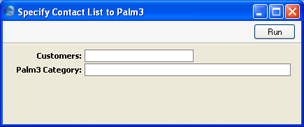
- Customers
- Paste Special
Customers and Suppliers in Customer register
- Range Reporting Alpha
- Enter a Customer Number to export the Contact Persons that work for that Customer. An entry must be made to this field otherwise the export file will be empty.
- Enter a Customer Number to export the Contact Persons that work for that Customer. An entry must be made to this field otherwise the export file will be empty.
- Palm3 Category
- Specify here the Category on your Palm3 into which you want the information to be imported. This is included in the export file to ensure it will be imported into the right place.
Customer List
Use this function to export Customers from the Customer register. If you need to export Suppliers from the Customer register, use the Base Register Export in the System module.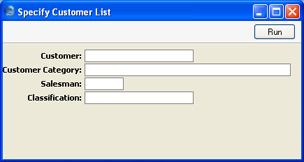
- Customer
- Paste Special
Customers in Customer register
- Range Reporting Alpha
- Choose the records to be exported by entering a Customer Number or a range of Numbers.
- Choose the records to be exported by entering a Customer Number or a range of Numbers.
- Customer Category
- Paste Special
Customer Categories setting, Sales Ledger
- Enter a Category Code to export Customers in a particular Category.
- Salesman
- Paste Special
Person register, System module
- Enter a Person's initials to export Customers with this Person as their Salesman.
- Classification
- Paste Special
Customer Classifications setting, CRM module
- Enter a Classification Code to export Customers with a particular Classification. If you enter a number of Classifications separated by commas, only those Customers featuring all the Classifications that you have entered will be exported. If you enter a number of Classifications separated by plus signs (+), all Customers featuring at least one of the Classifications listed will be exported. If you enter a Classification preceded by an exclamation mark (!), all Customers featuring any Classification except the one listed will be exported.
For example:
- 1,2
- Exports Customers with Classifications 1 and 2 (including Customers with Classifications 1, 2 and 3).
- 1+2
- Exports Customers with Classifications 1 or 2.
- !2
- Exports all Customers except those with Classification 2.
- 1,!2
- Exports Customers with Classification 1 but not those with Classification 2 (i.e. Customers with Classifications 1 and 2 are not exported). Note the comma before the exclamation mark in this example.
- !1,!2
- Exports all Customers except those with Classification 1 or 2 or both. Again, note the comma.
- 1,2