Introduction to Maintenance in the Stock Module
Maintenance functions tend to be used to carry out certain updating tasks, usually involving batch processing and encompassing all or many of the records in the affected register. There are three such functions available in the Stock module. To use them, select 'Maintenance' from the File menu. The following window appears: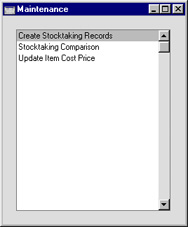
Cost Price Analysis Revaluation
If the Cost Price of an Item changes, there may be circumstances where you need to change the value of the examples of that Item that you hold in stock. If so, you can use the 'Cost Price Analysis Revaluation' Maintenance function to create a record in the Stock Revaluation register that you can then use to implement the change in value.The function will search for Stocked Items where the Last Purchase Cost or the Weighted Average is different to the Cost Price. If there are any Items in which this is the case, it will then create a Stock Revaluation record containing those Items.
To use this function, ensure you are in the Stock module and then open the 'Maintenance' list by clicking (Windows/Mac OS X) or tapping (iOS/Android) the [Routines] button in the Navigation Centre and then the [Maintenance] button in the subsequent window. Double-click or tap 'Cost Price Analysis Revaluation' in the resulting 'Maintenance' list.
If you need to see a list of the Items that will be revalued, produce a Cost Price Analysis report before running this function. You can run this function from that report when it is printed to screen, by clicking (Windows/Mac OS X) or tapping (iOS/Android) the [Stock Revaluation] text link at the top of the report.
In both cases (from the 'Maintenance' list and from the Cost Price Analysis report), the specification window illustrated below will open. If you ran the function from the Cost Price Analysis report, the window will be filled in with the specifications that you used when running the report.
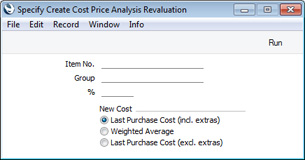
- Item No.
- Paste Special
Item register
- Range Reporting Alpha
- If you need a particular Item to be included in the new Stock Revaluation record, enter its Item Number here. You can also enter a range of Item Numbers separated by a colon (:). Only Stocked Items in the range will be included in the Stock Revaluation.
- If you need a particular Item to be included in the new Stock Revaluation record, enter its Item Number here. You can also enter a range of Item Numbers separated by a colon (:). Only Stocked Items in the range will be included in the Stock Revaluation.
- Group
- Paste Special
Item Group register, Sales Ledger
- If you need Items belonging to a particular Item Group to be included in the new Stock Revaluation record, specify that Item Group here.
- %
- By default, an Item will be included in the new Stock Revaluation record if its Last Purchase Cost or Weighted Average (as specified below) is different to its Cost Price. If you need this difference to be at least as much as a particular percentage of the Cost Price, enter that percentage here.
- The sign of the difference will be ignored. For example, if you enter "10" in this field, an Item will be included in the Stock Revaluation if its Last Purchase Cost or the Weighted Average is 10% higher than its Cost Price or 10% lower than its Cost Price.
- The sign of the difference will be ignored. For example, if you enter "10" in this field, an Item will be included in the Stock Revaluation if its Last Purchase Cost or the Weighted Average is 10% higher than its Cost Price or 10% lower than its Cost Price.
- New Cost
- In deciding whether an Item will be included in the new Stock Revaluation record, the function will compare its Last Purchase Cost (incl. extras), its Weighted Average or its Last Purchase Cost (excl. extras) with its Cost Price to see if there is a difference. Use these options to specify which of these figures will be compared with the Cost Price.
If the function does not create a Stock Revaluation when expected, the probable cause is that there is no valid record in the Number Series - Stock Revaluations setting. This problem will usually occur at the beginning of a new year.
---
Maintenance functions in the Stock module:
- Introduction
- Cost Price Analysis Revaluation
- Create Stocktaking Records
- Stocktaking Comparison
- Update Item Cost Price
- Update Recipes
- Rebuild Stock
- Home page for Stock module manual
- Home page for Standard ERP manual
Create Stocktaking Records
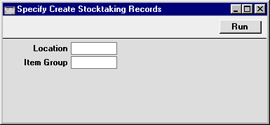
When you carry out a stocktake, the results should be entered to a new record in the Stocktaking register. You can enter this record yourself or, to minimise the typing load, you can create one using this Maintenance function. The new record will contain the current stock figures for each Stocked Item as known to Hansa. If you have several Locations, the function will create one new Stocktaking record per Location. These records will only include Stocked Items of which you have stock in the specified Location. Then, you should update the new records to match the results of your stocktake before approving them and printing the Stocktaking Comparison report.Selecting the 'Create Stocktaking Records' function brings up the following dialogue box:
- Location
- Paste Special
Locations setting, Stock module
- Specify here the Location for which a Stocktaking record is to be created.
- If this field is left blank and you have several Locations, a separate Stocktaking record will be created for each Location.
- If you have specified a Main Location in the Stock Settings setting, all Goods Receipts, Deliveries and other stock transactions without a Location will be treated as affecting the Main Location. The Main Location feature does not apply to Stocktaking records, so this function will create a Stocktaking record explicitly quoting the Main Location. For example, if the Main Location is 1, all stock transactions without a Location will be treated as adding stock to or removing stock from Location 1. This function will create a Stocktaking record with a Location of 1, not with a blank Location. If you have some stock transactions with a blank Location and some with a Location of 1, they will all contribute to the new Stocktaking record for Location 1.
- If this field is left blank and you have several Locations, a separate Stocktaking record will be created for each Location.
- Item Group
- Paste Special
Item Group register, Sales Ledger
- Enter an Item Group here if you would like the new Stocktaking record to contain Items belonging to that Item Group only.
Stocktaking Comparison
This function automates the final stage of the stocktaking process. It compares the Counted Quantities in the latest approved Stocktaking record with the current stock figures in Hansa. If there are any discrepancies, it will create appropriate unapproved Stock Depreciation transactions and Goods Receipts. As with the 'Create Stocktaking Records' Maintenance function, you should run this function once per Location. Before doing so, you can print a Stocktaking Comparison report that will list the discrepancies to be corrected.Note that if your stocktake revealed that a particular Item was in a different Location to that in which it is recorded as being stored, you would probably choose to make the correction using a Stock Movement. If you use this function, the Item will be removed from the original Location using a Stock Depreciation transaction and moved in to the new one using a Goods Receipt.
In the case of any Goods Receipts created by the function, the Unit Prices will be taken from the Cost Price fields on the 'Costs' card of the Item records. Since the new Goods Receipts will not be approved, you will be able to change these figures if necessary.
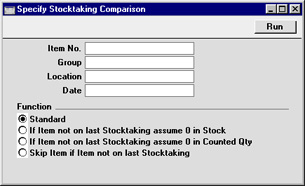
Selecting the 'Stocktaking Comparison' function brings up the following dialogue box:
- Item No.
- Paste Special
Item register
- Range Reporting Alpha
- Enter an Item Number (or range of numbers) if the function is to compare stock levels and Counted Quantities of specific Item(s) only. Use a colon (:) to separate the first and last number.
- This comparison will only be made for Stocked Items in the range (not Plain, Service or Structured Items).
- Enter an Item Number (or range of numbers) if the function is to compare stock levels and Counted Quantities of specific Item(s) only. Use a colon (:) to separate the first and last number.
- Group
- Paste Special
Item Group register, Sales Ledger
- Range Reporting Alpha
- Enter an Item Group Code if the function is to compare stock levels and Counted Quantities of the Stocked Items in a particular Item Group.
- Enter an Item Group Code if the function is to compare stock levels and Counted Quantities of the Stocked Items in a particular Item Group.
- Location
- Paste Special
Locations setting, Stock module
- To compare stock levels and Counted Quantities of Stocked Items in one stock Location, enter its Location Code here. This Location will also be quoted in any Stock Depreciation transactions and Goods Receipts created by the function.
- If you have more than one Location, you must make an entry to this field and run this function once for each Location (including once for the Main Location if you have one). If you do not have a Main Location and for some reason have some stock that is not in any Location, you should correct any discrepancies there by entering a Goods Receipt or Stock Depreciation transaction directly to the appropriate register yourself.
- If you have a single Location, it is recommended that you specify that Location here. If you do not specify a Location, results might not be as expected because the function will add the stock in the single Location to the stock that is not in any Location before calculating the discrepancies. If you do have some stock that is not in any Location, you should correct any discrepancies there by entering a Goods Receipt or Stock Depreciation transaction directly to the appropriate register yourself.
- If you have more than one Location, you must make an entry to this field and run this function once for each Location (including once for the Main Location if you have one). If you do not have a Main Location and for some reason have some stock that is not in any Location, you should correct any discrepancies there by entering a Goods Receipt or Stock Depreciation transaction directly to the appropriate register yourself.
- Date
- Paste Special
Current Date
- Current stock levels will always be used in the comparison with Counted Quantities. However, you can specify which Counted Quantities are used by entering a date here: they will be taken from the Stocktaking record with that date. If the field is left blank, they will be taken from the Stocktaking record with the latest date.
- If a date is specified for which no Stocktaking record exists, and the Standard option (below) is being used, the closest record prior to the specified date will be used. If the Standard option is not being used, no attempt will be made to find the closest record prior to the specified date. So, if you are not using the Standard option, it is recommended that you leave this date blank or that you specify a date for which you are certain that a Stocktaking record exists.
- The Date entered here will be copied to any Stock Depreciation transactions and Goods Receipts created by the function.
- If a date is specified for which no Stocktaking record exists, and the Standard option (below) is being used, the closest record prior to the specified date will be used. If the Standard option is not being used, no attempt will be made to find the closest record prior to the specified date. So, if you are not using the Standard option, it is recommended that you leave this date blank or that you specify a date for which you are certain that a Stocktaking record exists.
- Function
- Use these options to specify how the discrepancies are to be calculated.
- Standard
- In order to find the Counted Quantity of an Item, this option looks back through all Stocktaking records (from the date specified above) until it finds a reference to the Item in question.
- For example, the 'Stocktaking Comparison' function is run on May 31. An Item is not mentioned in the Stocktaking records for May 31 or April 30, but it was included in a Stocktaking record dated March 31 with a Counted Quantity of 2. The Counted Quantity is still assumed to be 2 at the end of May.
- Use this option if there is only one Stocktaking record, or if your Stocktaking records list all Stocked Items, with zero quantities where appropriate. This will not be the case for Stocktaking records created using the 'Create Stocktaking Records' Maintenance function. Use one of the other two options in this case.
- For example, the 'Stocktaking Comparison' function is run on May 31. An Item is not mentioned in the Stocktaking records for May 31 or April 30, but it was included in a Stocktaking record dated March 31 with a Counted Quantity of 2. The Counted Quantity is still assumed to be 2 at the end of May.
- If Item not on last Stocktaking assume 0 in Stock
- In order to find the Counted Quantity of an Item, this option looks to the Stocktaking record for the specified date to find a reference to the Item in question. If no date was specified, it looks to the most recent Stocktaking record. If the Item is not included in that Stocktaking record, it will assume the stock level in Hansa and the Counted Quantity are both zero. So, no Stock Depreciation transactions will be created.
- If you accidentally specify a date for which there is no Stocktaking record, the function will assume the stock levels and Counted Quantities for all Items are zero. So no Stock Depreciation records or Goods Receipts will be created, even when some are expected.
- This option might be used in the situation where you have not finished with the stocktaking process, so you do not want Stock Depreciation records or Goods Receipts created for Items that you have not counted yet.
- If you accidentally specify a date for which there is no Stocktaking record, the function will assume the stock levels and Counted Quantities for all Items are zero. So no Stock Depreciation records or Goods Receipts will be created, even when some are expected.
- If Item not on last Stocktaking assume 0 in Counted Qty
- In order to find the Counted Quantity of an Item, this option looks to the Stocktaking record for the specified date to find a reference to the Item in question. If no date was specified, it looks to the most recent Stocktaking record. If the Item is not included in that Stocktaking record, it will assume the Counted Quantity is zero. If the stock level in Hansa is not zero, a Stock Depreciation transaction will be created.
- Take care when using this option: if you accidentally specify a date for which there is no Stocktaking record, the function will assume the Counted Quantity for all Items is zero and so will create a Stock Depreciation record containing the entire stock for the specified Location
- Take care when using this option: if you accidentally specify a date for which there is no Stocktaking record, the function will assume the Counted Quantity for all Items is zero and so will create a Stock Depreciation record containing the entire stock for the specified Location
- Skip Item if Item not on last Stocktaking
- This is similar to the second option described above.
- Standard
Update Item Cost Price
This function allows the updating of all cost prices for Stocked Items in the Item register. The new cost prices are taken from the Goods Receipt register.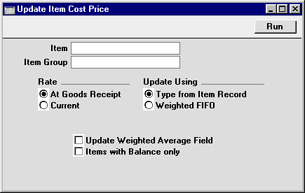
- Item
- Paste Special
Item register
- Enter an Item Number, or leave blank to update all Stocked Items.
- Item Group
- Paste Special
Item Group register, Sales Ledger
- Limit the updating to Stocked Items of a single Item Group.
- Rate
- These alternatives are used to control how the cost prices are set when Items are received in foreign currencies.
- At Goods Receipt
- The cost prices are calculated using the exchange rate applying on the date of each Goods Receipt. This is recommended, because it will give the same value as in the stock report.
- Current
- The cost prices are calculated using the current exchange rate.
- At Goods Receipt
- Update Using
- These alternatives are used to determine how the new cost prices are to be calculated.
- Type from Item Record
- The function will use the Update Cost Price at Purchase option specified on the 'Costs' card of each Item.
- Weighted FIFO
- A weighted FIFO method will be used for all Items.
- Type from Item Record
- Update Weighted Average Field
- Use this option to recalculate the Weighted Average of each Item.
- Only Items with Balance
- Use this option to limit the updating to Items with positive stock balances.
Update Recipes
This Maintenance function is also available in the Production module: please click here for full details.Rebuild Stock
The Stock module was rewritten in HansaWorld Enterprise version 5.1. As far as daily use of the Stock module is concerned, this rewriting will cause little or no difference. Most of these changes are behind the scenes, in the way information is stored. If you were using HansaWorld Enterprise prior to this version, you need to rebuild your stock information using this function before you can start using the Stock module.To rebuild your stock information, you will need to work in the Technics module. If you are working in a multi-user system and 'Technics' is not available when you click the [Select Module] button in the Master Control panel, the probable reason is that you have logged on as a Person that does not have access privileges for this module. If you are the system administrator, it is recommended that your Person record should belong to an Access Group that Starts from Full Access and that explicitly grants full access to the Technics module. In a single-user system, the probable reason is that the Server option is not checked in the Configuration setting in the System module.Follow these steps:
- Referring to the Updating from Previous Versions of HansaWorld Enterprise page, update your database to the new version of the program.
- Back up your database in the usual fashion.
- Prior to HansaWorld Enterprise 5.1, you would use the Cost Model setting in the Sales Ledger to choose the Cost Model. You could choose different Cost Models for Invoices and Deliveries. Various options controlling the Cost Model were to be found in the Cost Accounting setting in the Stock module. In version 5.1, these two settings were combined. The Cost Model setting was removed, and the choice of Cost Model was moved to the Cost Accounting setting. The option to have different Cost Models for Invoices and Deliveries was replaced by a single Cost Model.
Having updated to the new version of the program, the next step is to check the options in Cost Accounting setting are correct (e.g. that the correct Cost Model has been chosen). If, in the old Cost Model setting, your Cost Model, Delivery was set to None, make sure the Don't Post Cost on Deliveries option in the Cost Accounting setting is chosen.
- Once you are certain that the Cost Accounting setting has been configured correctly, change to the Technics module and select the 'Rebuild Stock' Maintenance function:

- If this is the first time you have used the 'Rebuild Stock' function, click the [Run] button. This will cause your stock information to be rebuilt.
- If you have more than one Company, repeat the process in each Company.
- It will occasionally be useful to run the 'Rebuild Stock' Maintenance function on subsequent occasions. For example, if you change the Queued Cost Model per Location, Weighted Average per Location or Cost Price per Serial Number options in the Cost Accounting setting or in an Item that has previously been used in a stock transaction, you should then run the 'Rebuild Stock' function to rebuild the FIFO/LIFO queue and recalculate the Weighted Average figures. In this case, check the check box in the 'Specify Rebuild Stock' window before clicking [Run].