Introduction to the Cash In and Cash Out Registers
Use the Cash In and Cash Out registers to record cash transactions where no supporting Invoice or Purchase Invoice is required. Use the Cash In register for cash receipts (money received by your business) and the Cash Out register for cash payments. The Nominal Ledger consequences of these transactions are handled automatically.You can choose to enter individual cash receipts on a Customer-by-Customer basis, or you can enter the day's receipts as a single transaction, providing the same Sales and Cash or Bank Account applies to them all. The same is true for cash payments.
Note that the Cash In and Cash Out registers are very similar in their behaviour. These web pages describe both registers, but the illustrations are taken from the Cash In register: where there are differences in the Cash Out register, these are noted.
You can enter records to the two registers in three ways:
- You can enter records directly to the Cash In and Cash Out registers;
- You can create cash transactions from Invoices, Purchase Invoices, Receipts and Payments using the 'Create Cash In' and 'Create Cash Out' functions on the Operations menus of those windows. This will be useful in countries where incoming cash transactions need to be recorded together using a sequential number series, and outgoing cash transactions need to be recorded together as well. If you want these functions to create cash transactions from Invoices that are Cash Notes (Invoices with Payment Terms of the "Cash" type) only and from Receipts and Payments with "Cash" type Payment Modes only, switch on the Cash Collection option in the Cash Book Settings setting; and
- You can create cash transactions from Invoices and Purchase Invoices in batches using the 'Create Collection Cash In' and 'Create Collection Cash Out' Maintenance functions.
To open the Cash Out register, ensure you are in the Cash Book module using the Modules menu and select 'Cash Out' from the Registers menu, or click the [Cash Out] button in the Master Control panel.
Depending on which register you have opened, the 'Cash In: Browse' or 'Cash Out: Browse' window appears, showing the cash transactions already entered.
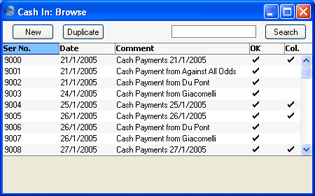
As in all browse windows you may sort the transactions by each column by clicking on the headings. To reverse any sort, simply click once again on the column heading. You can also scroll the list with the scroll bars. Finally, you can search for a record by entering a keyword in the field in the top right-hand corner. Hansa will search for the first record matching the keyword in the same column as the selected sorting order.
Entering a Cash Transaction
To enter a new cash transaction, first open the 'Cash In: Browse' or 'Cash Out: Browse' window as described here. Then click [New] in the Button Bar or use the Ctrl-N (Windows or Linux) or ⌘-N (Macintosh) keyboard shortcut. Alternatively, select a cash transaction similar to the one you want to enter and click [Duplicate] on the Button Bar.The 'Cash In: New' or 'Cash Out: New' window is opened, empty if you clicked [New] or containing a duplicate of the highlighted cash transaction. Complete the cash transaction record, then save it using the [Save] button and close the window by clicking the close box. Then, close the browse window using the close box again.
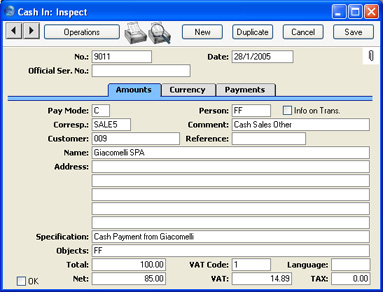

Entering a Cash Transaction - Header
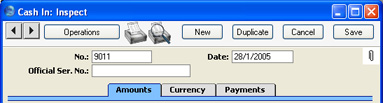
- No.
- Paste Special
Select from another Number Series
- The number of the cash transaction: Hansa will enter the next unused number from the first number sequence entered in the Number Series - Cash In or Number Series - Cash Out setting as appropriate. You can change this number, but not to one that has already been used.
- If you have used the Payment Modes setting to define separate number sequences for each Payment Mode and you are using the Common Number Series option in the Cash Book Settings setting, the number will be determined by the Payment Mode and will change if you change the Payment Mode. Number sequences defined in the Payment Modes setting are not shown in the 'Paste Special' list.
- If you have used the Payment Modes setting to define separate number sequences for each Payment Mode and you are using the Common Number Series option in the Cash Book Settings setting, the number will be determined by the Payment Mode and will change if you change the Payment Mode. Number sequences defined in the Payment Modes setting are not shown in the 'Paste Special' list.
- Date
- Paste Special
Choose date
- The date of the cash transaction: the current date according to the computer's clock is entered as a default. This date will also be the Transaction Date of the Nominal Ledger Transaction created when you approve and save this cash transaction.
- If you are using the Force Chronology for Cash In/Out option in the Cash Book Settings setting, you will not be able to change this date. All cash transactions will therefore use the current date, thus ensuring they are always recorded in date order.
- If you are using the Force Chronology for Cash In/Out option in the Cash Book Settings setting, you will not be able to change this date. All cash transactions will therefore use the current date, thus ensuring they are always recorded in date order.
- Official Ser. No.
- Paste Special
Legal Cash In No. setting, Cash Book module
- In Lithuania it is a legal requirement to allocate an official serial number to each Cash In record. You should enter the number sequence allocated to your company in the Legal Cash In No. setting: the next unused number from that sequence will appear here by default. This can be changed: Hansa will check when the Cash In record is saved that the new number is in the sequence.
- This field is used in the Cash In register only.
Entering a Cash Transaction - Amounts Card
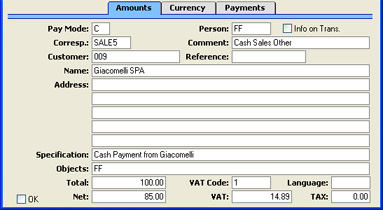
- Pay Mode
- Paste Special
Payment Modes setting, Sales/Purchase Ledger, Cash Book module
- Default taken from Cash Book Settings
- The Payment Mode determines the Nominal Ledger Account to be debited (Cash In) or credited (Cash Out) by the value of the cash transaction. Usually this will be a Cash or Bank Account.
- You can use a single cash transaction to record the day's cash receipts or payments, providing they have the same Payment Mode (i.e. affect the same Cash or Bank Account).
- You must specify a Payment Mode before the cash transaction can be saved.
- If you have used the Payment Modes setting to define separate number sequences for each Payment Mode and you are using the Common Number Series option in the Cash Book Settings setting, the transaction number will be determined by the default Payment Mode and will change if you change the Payment Mode.
- The Payment Mode determines the Nominal Ledger Account to be debited (Cash In) or credited (Cash Out) by the value of the cash transaction. Usually this will be a Cash or Bank Account.
- Person
- Paste Special
Person register, System module
- Enter the initials of the Person responsible for the cash transaction. When you press Return, their Name and Object will appear in the appropriate fields below.
- If you use a suitable Corresponding Mode, this field can be used to record cash payments made to or received from members of staff.
- If you use a suitable Corresponding Mode, this field can be used to record cash payments made to or received from members of staff.
- Info on Trans.
- This check box is only used in Cash In records that record the receiving of cash against Invoices or Purchase Credit Notes. Use this option in such a Cash In record if you would like to have the Invoice Number, Payment Date and Customer/Supplier shown on flip E of the resulting Nominal Ledger Transaction. This applies to the posting to the Debtor or Creditor Account only.
- This check box will be on by default if you are using the Invoice Info on N/L Transaction option on the 'Debtors' card of the Account Usage S/L setting.
- For details about using Cash In records to receive cash against Invoices or Purchase Credit Notes, please refer to the page describing the 'Payments' card.
- This check box will be on by default if you are using the Invoice Info on N/L Transaction option on the 'Debtors' card of the Account Usage S/L setting.
- Corresp.
- Paste Special
Corresponding Modes setting, Cash Book module
- Default taken from Cash Book Settings
- The Corresponding Mode determines the Nominal Ledger Account to be credited (Cash In) or debited (Cash Out) by the value of the cash transaction (or by the value of the cash transaction less VAT if a separate VAT posting is being made). In the case of transactions that you enter directly to the Cash In and Cash Out registers, this may be a Sales (Cash In) or Purchase (Cash Out) Account, or, in the case of cash payments made to or received from members of staff, an Expense Account. For payments of between your bank and petty cash, it will be your Bank Account (the Petty Cash Account will come from the Payment Mode). In the case of cash transactions that you create from Invoices, especially if you are using the Double Transaction method to create cash transactions from Invoices and Purchase Invoices, it may be a temporary holding Account for cash. A separate VAT posting will be made if the VAT field contains a value and if you are using the Post VAT option in the Cash Book Settings setting.
- You can use a single cash transaction to record the day's cash receipts or payments, providing they have the same Corresponding Mode (i.e. affect the same Sales or Purchase Account).
- In the case of a 'simple' cash transaction (i.e. one where the grid on the 'Payments' card is empty or contains at least one row of Type "Cash In" or "Cash Out"), you must specify a Corresponding Mode before the cash transaction can be saved.
- The Corresponding Mode determines the Nominal Ledger Account to be credited (Cash In) or debited (Cash Out) by the value of the cash transaction (or by the value of the cash transaction less VAT if a separate VAT posting is being made). In the case of transactions that you enter directly to the Cash In and Cash Out registers, this may be a Sales (Cash In) or Purchase (Cash Out) Account, or, in the case of cash payments made to or received from members of staff, an Expense Account. For payments of between your bank and petty cash, it will be your Bank Account (the Petty Cash Account will come from the Payment Mode). In the case of cash transactions that you create from Invoices, especially if you are using the Double Transaction method to create cash transactions from Invoices and Purchase Invoices, it may be a temporary holding Account for cash. A separate VAT posting will be made if the VAT field contains a value and if you are using the Post VAT option in the Cash Book Settings setting.
- Comment
- Default taken from
Corresponding Mode
- The text for the Corresponding Mode. You can change this text for a particular cash transaction.
- Customer
- Paste Special
Customers in Customer register
- To record a cash payment received from a particular Customer, enter their Customer Number or use the 'Paste Special' function. When you press Return, the Customer's name, address and other information will be entered into the appropriate fields. There is no need to enter a Customer Number: leave the field blank if you want to use a single Cash In record to record the day's cash receipts.
- This field is used in the Cash In register only.
- This field is used in the Cash In register only.
- Supplier
- Paste Special
Suppliers in Customer register
- To record a cash payment issued to a particular Supplier, enter their Supplier Number or use the 'Paste Special' function. When you press Return, the Supplier's name, address and other information will be entered into the appropriate fields. There is no need to enter a Supplier Number: leave the field blank if you want to use a single Cash Out record to record the day's cash payments.
- This field is used in the Cash Out register only.
- This field is used in the Cash Out register only.
- Reference
- Use this field if you need to identify the cash transaction by means other than the Serial Number. One purpose for the field might be to record the number used by the Customer or Supplier to identify the payment.
- Name
- The Person, Customer or Supplier Name is entered after you have entered a Person's initials or the Customer or Supplier Number.
- Address
- The Address of the Customer or Supplier is entered after you have entered the Customer or Supplier Number.
- Specification
- Any comment that you enter here (perhaps the circumstances of the cash transaction) will be copied to the Text field in the resulting Nominal Ledger Transaction, and will be shown in the 'Cash In: Browse' or 'Cash Out: Browse' window.
- In the case of the Cash Out register only, when you enter a Person above, their bank account number (from the 'Bonus' card of their Person record) will be copied here automatically.
- In the case of the Cash Out register only, when you enter a Person above, their bank account number (from the 'Bonus' card of their Person record) will be copied here automatically.
- Objects
- Paste Special
Object register, System module
- Default taken from Person, and Customer (Sales Objects) or Supplier (Purch. Objects)
- You can assign up to 20 Objects, separated by commas, to this cash transaction and therefore to any Nominal Ledger Transaction generated from it. You might define separate Objects to represent different departments, cost centres or product types. This provides a flexible method of analysis that can be used in Nominal Ledger reports.
- In any Nominal Ledger Transaction generated from this cash transaction, any Objects specified here will be assigned to the Account that is credited (Cash In) or debited (Cash Out) by the value of the cash transaction (or by the value of the cash transaction less VAT if a separate VAT posting is being made).
- You can assign up to 20 Objects, separated by commas, to this cash transaction and therefore to any Nominal Ledger Transaction generated from it. You might define separate Objects to represent different departments, cost centres or product types. This provides a flexible method of analysis that can be used in Nominal Ledger reports.
- Total
- The total for the cash transaction, including VAT. This figure should be in Currency (specify the Currency on the 'Currency' card).
- If you have used at least one row on the 'Payments' card, the Total figure will be updated automatically and will not be changeable.
- If you have used at least one row on the 'Payments' card, the Total figure will be updated automatically and will not be changeable.
- VAT Code
- Paste Special
VAT Codes setting, Nominal Ledger
- Default taken from Cash Book Settings
- The VAT Code entered here determines the rate at which VAT will be charged on this cash transaction and the VAT Account to be used.
- If you would like a VAT element to be included in the Nominal Ledger Transaction generated when you approve the cash transaction, check the Post VAT box in the Cash Book Settings setting. The VAT will be credited to the Output Account specified for the VAT Code record (Cash In) or debited to the Input Account (Cash Out). The Nominal Ledger Transaction will not include a VAT element if you have not checked the Post VAT box.
- If you are using the Cash In record to receive cash against an Invoice and you are also using the Post Receipt VAT option in the Account Usage S/L setting, the VAT Code from the first row of the Invoice will appear here when you enter the Invoice Number on the 'Payments' card. Please refer to the page describing the 'Payments' card for more details.
- The VAT Code entered here determines the rate at which VAT will be charged on this cash transaction and the VAT Account to be used.
- VAT
- The VAT total for the cash transaction: this figure is updated when you enter the Total or the Net figure and whenever you change the VAT Code. This figure should be in Currency.
- This figure is rounded up or down according to rounding rules set in the Round Off setting in the System module.
- This figure is rounded up or down according to rounding rules set in the Round Off setting in the System module.
- Language
- Paste Special
Languages setting, System module
- You can use the Language to determine the Form that will be used when you print the cash transaction, and the printer that will be used to print it. This can include sending the document to a fax machine, if your hardware can support this feature. Do this in the 'Define Document' window for the Cash In and Cash Out documents, as described here. You can change the Language before printing a cash transaction, to ensure it is printed on the correct printer or fax machine.
- Net
- The total for the cash transaction, excluding VAT. This figure is calculated automatically when the Total is entered and whenever the VAT Code is changed. This figure should be in Currency.
- This figure is rounded up or down according to rounding rules set in the Round Off setting in the System module. In the Nominal Ledger Transaction resulting from the cash transaction, any amounts lost or gained in this rounding process are posted to the Round Off Account specified in the Account Usage S/L setting, providing you are using the Post VAT option in the Cash Book Settings setting. If you are not using this option, the Total will be posted to both sides of the Transaction so there will be no rounding error.
- If you have used at least one row on the 'Payments' card, the Net figure will be updated automatically and will not be changeable.
- This figure is rounded up or down according to rounding rules set in the Round Off setting in the System module. In the Nominal Ledger Transaction resulting from the cash transaction, any amounts lost or gained in this rounding process are posted to the Round Off Account specified in the Account Usage S/L setting, providing you are using the Post VAT option in the Cash Book Settings setting. If you are not using this option, the Total will be posted to both sides of the Transaction so there will be no rounding error.
- TAX
- This field is intended for use in Russia, where a Sales Tax is levied on cash Receipts. It is in the Cash In register only.
- If the Cash In record uses a Payment Mode with a Tax %, Cash Account and Tax Account specified on flip D, a percentage of the Total (determined by the Tax %) will be placed in this field. When you approve the record, this figure will be credited to the Tax Account with a balancing debit to the Cash Account.
- If the Cash In record uses a Payment Mode with a Tax %, Cash Account and Tax Account specified on flip D, a percentage of the Total (determined by the Tax %) will be placed in this field. When you approve the record, this figure will be credited to the Tax Account with a balancing debit to the Cash Account.
- OK
- Checking this box approves the cash transaction. When you next save the record, a Nominal Ledger Transaction will be created in the Transaction register, if you have so determined in the Sub Systems setting in the Nominal Ledger. Because of this consequence, once you have checked this box and have saved the cash transaction, you will no longer be able to change it.
- The Nominal Ledger Transaction is described on the Nominal Ledger Transactions from Cash Transactions page.
- References in these web pages to approved cash transactions are to those whose OK check box has been checked.
- The Nominal Ledger Transaction is described on the Nominal Ledger Transactions from Cash Transactions page.
Entering a Cash Transaction - Currency Card
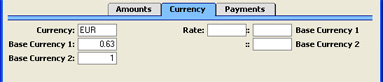
- Currency
- Paste Special
Currency register, System module
- Default taken from Customer (Sales Currency) or Supplier (Purchase Currency), or Default Base Currency
- The Currency of the cash transaction is shown together with the exchange rate, which you can modify only for this particular record if necessary. The Total, Net, VAT and TAX figures on the 'Amounts' card should all be in the Currency specified here. Leave the field blank to use the home Currency (unless you have set a Default Base Currency, in which case this will be offered as a default and should be treated as your home Currency).
- If the Customer has a Sales Currency (Cash In) or a Purchase Currency (Cash Out) specified, that Currency will be offered as a default, but you can use any other Currency if necessary.
- The Currency of the cash transaction is shown together with the exchange rate, which you can modify only for this particular record if necessary. The Total, Net, VAT and TAX figures on the 'Amounts' card should all be in the Currency specified here. Leave the field blank to use the home Currency (unless you have set a Default Base Currency, in which case this will be offered as a default and should be treated as your home Currency).
- Exchange Rates
- Default taken from
Base Currency Rates setting and/or Exchange Rate register, System module
- The current exchange rates for the specified Currency will be entered here by Hansa.
- One of two conversion methods will be used. The Dual-Base system will be useful for companies that have offices in two countries that need to report in both Currencies, for companies operating in countries where there is a second Currency (usually the US Dollar or Euro) in common use in addition to the national one, and for companies in the Euro zone who retain their old national Currency for comparison purposes. The second method is a simple conversion from the foreign Currency to the home Currency, applicable to the majority of worldwide Currency transactions. These are described below.
- Exchange Rates (Dual-Base System)
- In the example shown above, the Currency of the transaction is the Euro. Base Currency 1 is the home Currency (GBP, Pounds Sterling) and Base Currency 2 is the Euro. The fields on the left show in the form of a ratio the exchange rate between the two base Currencies (taken from the latest record in the Base Currency Rates setting). The illustration shows that GBP0.63 buys one Euro.
- Note that European Monetary Union (EMU) regulations specify that the ratios must always show how many units of the home or foreign Currency can be bought with one Euro.
- Note that European Monetary Union (EMU) regulations specify that the ratios must always show how many units of the home or foreign Currency can be bought with one Euro.
- Exchange Rates (Simple Currency Conversion System)
- In the case of a simple currency conversion system, the Rate and right-hand Base Currency 1 fields are used to show a simple exchange rate between the foreign and home Currencies. In the example shown below, the home Currency is US Dollars (USD) and the foreign Currency Japanese Yen (JPY). JPY122.15 buys USD1.00.

- One of two conversion methods will be used. The Dual-Base system will be useful for companies that have offices in two countries that need to report in both Currencies, for companies operating in countries where there is a second Currency (usually the US Dollar or Euro) in common use in addition to the national one, and for companies in the Euro zone who retain their old national Currency for comparison purposes. The second method is a simple conversion from the foreign Currency to the home Currency, applicable to the majority of worldwide Currency transactions. These are described below.
Entering a Cash Transaction - Payments Card
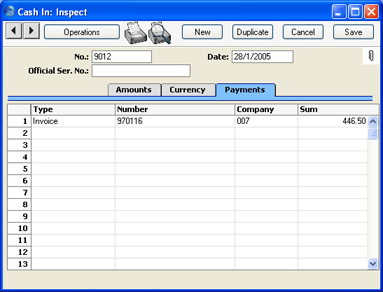
You can use the 'Payments' card of a Cash In or Cash Out record to pay off Sales and Purchase Invoices, providing the payments are made in cash. You can also pay Personnel Payments, Credit and Debit Notes and Prepayments, and reverse Cash In or Cash Out records.Invoices and Purchase Invoices paid off in this manner will no longer be treated as open, but records in the Receipt or Payment registers will not be created.
As you add rows to the 'Payments' card, the Total and Net fields on the 'Amounts' card will be updated automatically.
- Type
- Paste Special
Choices of possible entries
- Use this field to specify the type of cash transaction. You can mix Types in a single record, providing all cash payments use the same Customer/Supplier, Person and Objects.
- These are the choices available in a Cash In record:
- Cash In
- Use this option to record a standard cash receipt. Enter the value of the cash receipt in the Sum field.
- The resulting Nominal Ledger Transaction will debit the Account from the Payment Mode and credit the Account from the Corresponding Mode. If you have several rows with this Type, the Transaction will contain separate credit postings for each row.
- If you are using the Post VAT option in the Cash Book Settings setting, you cannot use the "Cash In" option here. Instead, you should enter the entire value of the cash receipt to the Total field on the 'Amounts' card and leave the grid on the 'Payments' card empty.
- The resulting Nominal Ledger Transaction will debit the Account from the Payment Mode and credit the Account from the Corresponding Mode. If you have several rows with this Type, the Transaction will contain separate credit postings for each row.
- Invoice
- Use this option to record a cash receipt against an existing outstanding Invoice. When you enter the Invoice Number in the Number field to the right (using 'Paste Special'), the Customer will be placed in the Company field, and the outstanding amount will be placed in the Sum field. The Customer and Address will also be placed in the appropriate fields on the 'Amounts' card. You can change the Sum if necessary.
- You can enter several Invoices in a single Cash In record, but they must all use the same Customer. If the Customer Number and outstanding amount are not placed in the Company and Sum fields when you enter an Invoice Number, this will be because the Customer is different to the one on the row above, or to the one already entered on the 'Amounts' card.
- The resulting Nominal Ledger Transaction will debit the Account from the Payment Mode and credit the Debtor Account from the Invoice. If you have several rows with this Type, the Transaction will contain separate credit postings for each row. If you are using the Post Receipt VAT option in the Account Usage S/L setting, the VAT value will be debited from the Output Account and credited to the O/P or VAT (C/A) Account. The VAT value will be calculated using the VAT Code on the first row of the Invoice. This VAT Code will be visible on the 'Amounts' card. If you are receiving cash against several Invoices in one Cash In, the VAT Code will be taken from the last Invoice that you enter in the grid, so take care that this VAT Code is appropriate for them all.
- The cash receipt will be included in the appropriate reports (e.g. the Sales Ledger report, the Periodic Customer Statement and the Open Invoice Customer Statement).
- You can enter several Invoices in a single Cash In record, but they must all use the same Customer. If the Customer Number and outstanding amount are not placed in the Company and Sum fields when you enter an Invoice Number, this will be because the Customer is different to the one on the row above, or to the one already entered on the 'Amounts' card.
- Credit Purchase Invoice
- Use this option to record a cash receipt against an existing outstanding Purchase Credit Note (a "debit note"). This might be useful when you have paid a Purchase Invoice and you then receive a debit note and a cash refund. When you enter the Number of the original Purchase Invoice (i.e. not the Number of the debit note) in the Number field to the right (using 'Paste Special'), the Supplier will be placed in the Company field, and the outstanding amount will be placed in the Sum field. The Supplier and Address will also be placed in the appropriate fields on the 'Amounts' card. You can change the Sum if necessary. If you are using the Post Payment VAT option in the Account Usage P/L setting, the VAT value will be debited from the Input Account and credited to the I/P or Prepayment VAT Account. The VAT value will be calculated using the VAT Code on the first row of the Purchase Invoice. This VAT Code will be visible on the 'Amounts' card. If you are receiving cash refunds against several Purchase Invoices in one Cash In, the VAT Code will be taken from the last Purchase Invoice that you enter in the grid, so take care that this VAT Code is appropriate for them all.
- You can enter several Invoices in a single Cash In record, but they must all use the same Supplier. If the Supplier Number and outstanding amount are not placed in the Company and Sum fields when you enter an Invoice Number, this will be because the Supplier is different to the one on the row above, or to the one already entered on the 'Amounts' card.
- The resulting Nominal Ledger Transaction will debit the Account from the Payment Mode and credit the Creditor Account from the Purchase Invoice. If you have several rows with this Type, the Transaction will contain separate credit postings for each row.
- The cash receipt will be included in the appropriate reports (e.g. the Purchase Ledger report, the Periodic Supplier Statement and the Open Invoice Supplier Statement).
- You can enter several Invoices in a single Cash In record, but they must all use the same Supplier. If the Supplier Number and outstanding amount are not placed in the Company and Sum fields when you enter an Invoice Number, this will be because the Supplier is different to the one on the row above, or to the one already entered on the 'Amounts' card.
- Personnel Payment
- Use this option to record a cash receipt from a member of staff. Enter the value of the cash receipt in the Sum field. You must enter a Person on the 'Amounts' card before you can save the Cash In record.
- The resulting Nominal Ledger Transaction will debit the Account from the Payment Mode and credit the Account from the Person record ('Bonus' card).
- The cash receipt will be included in the Periodic Personnel Statement report in the Expenses module.
- The resulting Nominal Ledger Transaction will debit the Account from the Payment Mode and credit the Account from the Person record ('Bonus' card).
- Prepayment
- Use this option to record the receiving of a cash deposit. You must also enter a Prepayment Number in the Number field, a Customer in the Company field, and the value of the deposit in the Sum field. The Prepayment Number can be a number of your own generation, the number allocated to the prepayment by the Customer or, preferably, the number of the Sales Order against which the deposit has been received. The Customer must be one whose On Account check box ('Terms' card) has been switched on.
- It is not necessary to use a unique number as the Prepayment Number. This allows you to receive more than one deposit against an individual Sales Order. However, using a Prepayment Number more than once may make the Prepayment History report difficult to understand, and may make it difficult to link a particular Prepayment to an Invoice using the 'Connect to Prepayment' function. Therefore you may wish to use the Force Unique Prepayment Numbers option, on the 'Debtors' card of the Account Usage S/L setting. This will mean that once a Prepayment Number has been used in an approved Prepayment, you will not be able to use it again.
- The resulting Nominal Ledger Transaction will debit the Account from the Payment Mode and credit the Debtors On Account A/C for the Customer Category to which the Customer belongs, or the On Account A/C on the 'Debtors' card of the Account Usage S/L setting. If you are using the Post Prepayment VAT option in the Account Usage S/L setting, the VAT value will be debited from the Prepayment VAT Account in the same setting and credited to the O/P or VAT (C/A) Account. The VAT value will be calculated using the VAT Code on the first row of the Order. This VAT Code will be visible on the 'Amounts' card. If you are receiving cash deposits against several Orders in one Cash In, the VAT Code will be taken from the last Order that you enter in the grid, so take care that this VAT Code is appropriate for them all.
- When you raise an Invoice to be set against the Prepayment, you can connect the two using the 'Connect to Prepayment' function on the Operations menu of the Invoice screen. This is fully described on the On Account Receipts and Prepayments page. The Prepayment will be shown in the Prepayment History report in the Sales Ledger.
- It is not necessary to use a unique number as the Prepayment Number. This allows you to receive more than one deposit against an individual Sales Order. However, using a Prepayment Number more than once may make the Prepayment History report difficult to understand, and may make it difficult to link a particular Prepayment to an Invoice using the 'Connect to Prepayment' function. Therefore you may wish to use the Force Unique Prepayment Numbers option, on the 'Debtors' card of the Account Usage S/L setting. This will mean that once a Prepayment Number has been used in an approved Prepayment, you will not be able to use it again.
- Reverse a Cash Out
- Use this option to reverse a previous Cash Out record.
- Cash Out
- Use this option to record a standard cash payment. Enter the value of the cash payment in the Sum field.
- The resulting Nominal Ledger Transaction will credit the Account from the Payment Mode and debit the Account from the Corresponding Mode. If you have several rows with this Type, the Transaction will contain separate debit postings for each row.
- If you are using the Post VAT option in the Cash Book Settings setting, you cannot use the "Cash Out" option here. Instead, you should enter the entire value of the cash payment to the Total field on the 'Amounts' card and leave the grid on the 'Payments' card empty.
- The resulting Nominal Ledger Transaction will credit the Account from the Payment Mode and debit the Account from the Corresponding Mode. If you have several rows with this Type, the Transaction will contain separate debit postings for each row.
- Credit Invoice
- Use this option to issue a cash payment against an existing outstanding Credit Note. This might be useful when a Customer has paid an Invoice and you then issue a Credit Note and a cash refund. When you enter the Number of the original Invoice (i.e. not the Number of the Credit Note) in the Number field to the right (using 'Paste Special'), the Customer will be placed in the Company field, and the outstanding amount will be placed in the Sum field. The Customer and Address will also be placed in the appropriate fields on the 'Amounts' card. You can change the Sum if necessary.
- You can enter several Invoices in a single Cash Out record, but they must all use the same Customer. If the Customer Number and outstanding amount are not placed in the Company and Sum fields when you enter an Invoice Number, this will be because the Customer is different to the one on the row above, or to the one already entered on the 'Amounts' card.
- The resulting Nominal Ledger Transaction will credit the Account from the Payment Mode and debit the Debtor Account from the Invoice. If you have several rows with this Type, the Transaction will contain separate debit postings for each row.
- The cash payment will be included in all appropriate reports (e.g. the Sales Ledger report, the Periodic Customer Statement and the Open Invoice Customer Statement).
- If you need to post VAT from a cash refund, you cannot use the "Credit Invoice" option here. Instead, you should make sure you are using the Book Receipt VAT option in the Account Usage S/L setting and then enter the cash refund in the Receipt register in the Sales Ledger, using an appropriate Payment Mode.
- You can enter several Invoices in a single Cash Out record, but they must all use the same Customer. If the Customer Number and outstanding amount are not placed in the Company and Sum fields when you enter an Invoice Number, this will be because the Customer is different to the one on the row above, or to the one already entered on the 'Amounts' card.
- Purchase Invoice
- Use this option to record a cash payment against an existing outstanding Purchase Invoice. When you enter the Invoice Number in the Number field to the right (using 'Paste Special'), the Supplier will be placed in the Company field, and the outstanding amount will be placed in the Sum field. The Supplier and Address will also be placed in the appropriate fields on the 'Amounts' card. You can change the Sum if necessary.
- You can enter several Purchase Invoices in a single Cash In record, but they must all use the same Supplier. If the Supplier Number and outstanding amount are not placed in the Company and Sum fields when you enter an Invoice Number, this will be because the Supplier is different to the one on the row above, or to the one already entered on the $MAILLNK(HW0402CASH_Entering_Amounts_Card,'Amounts') card.
- The resulting Nominal Ledger Transaction will credit the Account from the Payment Mode and debit the Creditor Account from the Invoice. If you have several rows with this Type, the Transaction will contain separate debit postings for each row.
- The cash payment will be included in all appropriate reports (e.g. the Purchase Ledger report, the Periodic Supplier Statement and the Open Supplier Customer Statement).
- If you need to post VAT from a cash payment, you cannot use the "Purchase Invoice" option here. Instead, you should first make sure you are using the Book Payment VAT option in the Account Usage P/L setting and then enter the cash payment in the Payment register in the Purchase Ledger, using an appropriate Payment Mode.
- You can enter several Purchase Invoices in a single Cash In record, but they must all use the same Supplier. If the Supplier Number and outstanding amount are not placed in the Company and Sum fields when you enter an Invoice Number, this will be because the Supplier is different to the one on the row above, or to the one already entered on the $MAILLNK(HW0402CASH_Entering_Amounts_Card,'Amounts') card.
- Personnel Payment
- Use this option to record a cash payment made to a member of staff. Enter the value of the cash payment in the Sum field. You must enter a Person on the 'Amounts' card before you can save the Cash Out record.
- The resulting Nominal Ledger Transaction will credit the Account from the Payment Mode and debit the Account from the Person record ('Bonus' card).
- The cash payment will be included in the Periodic Personnel Statement report in the Expenses module.
- The resulting Nominal Ledger Transaction will credit the Account from the Payment Mode and debit the Account from the Person record ('Bonus' card).
- Prepayment
- Use this option to record the issuing of a cash deposit. You must also enter a Prepayment Number in the Number field, a Supplier in the Company field, and the value of the deposit in the Sum field. The Prepayment Number can be a number of your own generation, the number allocated to the prepayment by the Customer or, preferably, the number of the Purchase Order against which the deposit is being issued. The Supplier must be one whose On Account check box ('Terms' card) has been switched on.
- It is not necessary to use a unique number as the Prepayment Number. This allows you to issue more than one deposit against an individual Purchase Order. However, using a Prepayment Number more than once may make the Prepayment History report difficult to understand, and may make it difficult to link a particular Prepayment to a Purchase Invoice using the 'Connect to Prepayment' function. Therefore you may wish to use the Force Unique Prepayment Numbers option, on the 'Creditors' card of the Account Usage P/L setting. This will mean that once a Prepayment Number has been used in an approved Prepayment, you will not be able to use it again.
- The resulting Nominal Ledger Transaction will credit the Account from the Payment Mode and debit the Creditors On Account A/C in the Customer record for the Supplier ('Accounts' card), the Creditors On Account A/C in the Customer Category to which the Supplier belongs, or the On Account A/C on the 'Creditors' card of the Account Usage P/L setting.
- When you create a Purchase Invoice to be set against the Prepayment, you can connect the two using the 'Connect to Prepayment' function on the Operations menu of the Invoice screen. This is fully described on the On Account Payments and Prepayments page. The Prepayment will be shown in the Prepayment History report in the Purchase Ledger.
- If you need to post VAT from a cash deposit, you cannot use the "Prepayment" option here. Instead, you should first make sure you are using the Book Prepayment VAT option in the Account Usage P/L setting and then enter the cash receipt in the Payment register in the Purchase Ledger using an appropriate Payment Mode.
- It is not necessary to use a unique number as the Prepayment Number. This allows you to issue more than one deposit against an individual Purchase Order. However, using a Prepayment Number more than once may make the Prepayment History report difficult to understand, and may make it difficult to link a particular Prepayment to a Purchase Invoice using the 'Connect to Prepayment' function. Therefore you may wish to use the Force Unique Prepayment Numbers option, on the 'Creditors' card of the Account Usage P/L setting. This will mean that once a Prepayment Number has been used in an approved Prepayment, you will not be able to use it again.
- Reverse a Cash In
- Use this option to reverse a previous Cash In record.
- The 'Paste Special' list attached to the Number field will vary, depending on what you have entered here.
- These are the choices available in a Cash In record:
- Number
- Paste Special
Open, approved Purchase or Sales Invoices
- If the Type (above) is Invoice or Credit Purchase Invoice (in a Cash In record), or Purchase Invoice or Credit Invoice (in a Cash Out record), enter the Sales or Purchase Invoice Number of the Invoice to be paid off. When you press the Tab or Enter key, its Customer or Supplier Number will appear in the Company field, and the outstanding amount will be placed in the Sum field.
- You can enter several Invoices in a single cash transaction, but they must all use the same Customer or Supplier. If the Customer or Supplier Number and outstanding amount are not placed in the Company and Sum fields when you enter an Invoice Number, this will be because the Customer or Supplier is different to the one on the row above, or to the one already entered on the 'Amounts' card.
- If the Type is Prepayment, you must enter a Prepayment Number here. This can be a number of your own generation, the number allocated to the prepayment by the Customer or Supplier or, preferably, the number of the Sales or Purchase Order against which the deposit has been received/issued. The Customer or Supplier must be one whose On Account check box ('Terms' card) has been switched on.
- It is not necessary to use a unique number as the Prepayment Number. However, using a Prepayment Number more than once may make the Prepayment History report difficult to understand, and may make it difficult to link a particular Prepayment to an Invoice using the 'Connect to Prepayment' function. Therefore you may wish to use the Force Unique Prepayment Numbers option, on the 'Debtors' card of the Account Usage S/L setting (on the Cash In side), and on the 'Creditors' card of the Account Usage P/L setting (on the Cash Out side). This will mean that once a Prepayment Number has been used in an approved Prepayment, you will not be able to use it again.
- You can enter several Invoices in a single cash transaction, but they must all use the same Customer or Supplier. If the Customer or Supplier Number and outstanding amount are not placed in the Company and Sum fields when you enter an Invoice Number, this will be because the Customer or Supplier is different to the one on the row above, or to the one already entered on the 'Amounts' card.
- Company
- Once you have entered a Sales or Purchase Invoice to the Number field, its Customer or Supplier will be shown here. This can't be changed.
- If the Type is Prepayment, you must specify the Customer from which the cash deposit was received or the Supplier to which it was issued.
- If the Type is Prepayment, you must specify the Customer from which the cash deposit was received or the Supplier to which it was issued.
- Sum
- Enter the value of the cash payment, including VAT if appropriate. As you add rows to the 'Payments' card, the Total and Net fields on the 'Amounts' card will be updated automatically.
Entering a Cash Transaction - Payments Card - Part 2
This page describes the fields on the 'Payments' card in the Cash In and Cash Out windows (apart from the Type field). Please follow the links below for descriptions of the other parts of the Cash In and Cash Out record windows:---
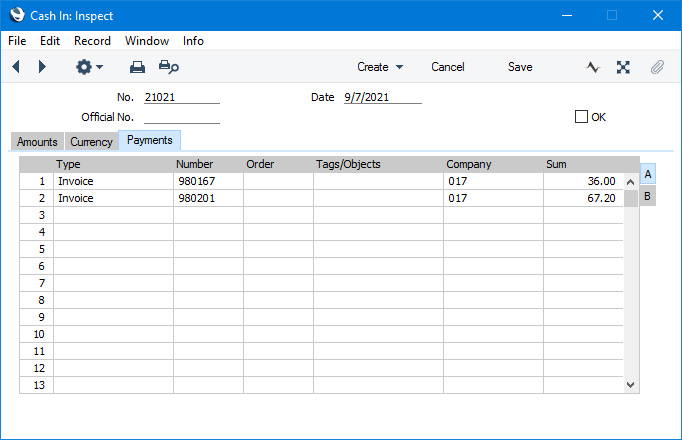
You can use the 'Payments' card in a Cash In or Cash Out record to pay off Sales and Purchase Invoices, providing the payments are made in cash. You can also pay Personnel Payments, Credit and Debit Notes and Prepayments, and reverse Cash In or Cash Out records.
Invoices and Purchase Invoices paid off in this manner will no longer be treated as open, but records in the Receipt or Payment registers will not be created.
As you add rows to the 'Payments' card, the Total and Net fields on the 'Amounts' card will be updated automatically.
Flip A
- Type
- Please refer here for details about the Type field.
- Number
- Paste Special
Depends on the Type
- If the Type (above) is "Invoice" or "Credit Purchase Invoice" (in a Cash In record), or "Purchase Invoice" or "Credit Invoice" (in a Cash Out record), enter the Sales or Purchase Invoice Number of the Invoice to be paid off or choose an Invoice Number using 'Paste Special'. When you press the Tab or Enter key, its Customer or Supplier Number will appear in the Company field, and the outstanding amount will be placed in the Sum field.
- If the Type is "Prepayment from Customer" (in a Cash In record) or "Prepayment to Supplier" (in a Cash Out record), you must enter a Prepayment Number here. This can be a number of your own generation, the number allocated to the prepayment by the Customer or Supplier or, preferably, the number of the Sales or Purchase Order against which the deposit has been received/issued. In the last case, if you enter the Sales or Purchase Order Number in the Order field to the right, it will be copied here automatically.
- If the Type is "Rev. Prep to Supplier" (in a Cash In record) or "Rev. Prep from Customer" (in a Cash Out record), enter the Prepayment Number of the Prepayment that you need to reverse, choosing one using 'Paste Special' if necessary.
- If the Type is "Cheque" (in a Cash In record) or "Cheque" or "Own Cheque" (in a Cash Out record), enter the Serial Number of the Cheque or Own Cheque, choosing one using 'Paste Special' if necessary.
- In all cases, when you press the Tab or Enter key, its Customer or Supplier Number will appear in the Company field, and the outstanding or open value will be placed in the Sum field. The Customer or Supplier and Address will also be placed in the appropriate fields on the 'Amounts' card.
- If the Type is "Prepayment from Customer" (in a Cash In record) or "Prepayment to Supplier" (in a Cash Out record), you must enter a Prepayment Number here. This can be a number of your own generation, the number allocated to the prepayment by the Customer or Supplier or, preferably, the number of the Sales or Purchase Order against which the deposit has been received/issued. In the last case, if you enter the Sales or Purchase Order Number in the Order field to the right, it will be copied here automatically.
- Order
- Paste Special
Sales or Purchase Orders
- If the Type is "Prepayment from Customer" (in a Cash In record) or "Prepayment to Supplier" (in a Cash Out record) and the cash transaction will register the receiving or issuing of a cash deposit connected to a Sales or Purchase Order, enter the Sales or Purchase Order Number here. When you press the Tab or Enter key, the Sales or Purchase Order Number will be copied to the Number field as a default Prepayment Number, the Customer or Supplier Number will appear in the Company field, and the value of the Order less any previous Prepayments will be placed in the Sum field. The Customer or Supplier and Address will also be placed in the appropriate fields on the 'Amounts' card.
- Company
- Once you have entered a Sales or Purchase Invoice Number, Prepayment Number or Serial Number of a Cheque or Own Cheque in the Number field or a Sales or Purchase Order Number in the Order field, the relevant Customer or Supplier will be shown here. This can't be changed.
- If the Type is "Prepayment from Customer" or "Prepayment to Supplier" and you have not entered a Sales or Purchase Order Number in the Order field, you must specify the Customer from whom you received the cash deposit or the Supplier to whom you issued it.
- If the Type is "Prepayment from Customer" or "Prepayment to Supplier" and you have not entered a Sales or Purchase Order Number in the Order field, you must specify the Customer from whom you received the cash deposit or the Supplier to whom you issued it.
- Sum
- Enter the value of the cash payment, including VAT if appropriate. As you add rows to the 'Payments' card, the Total and Net fields on the 'Amounts' card will be updated automatically.
Flip B
- Expense A/C
- Paste Special
Expense Accounts setting, Cash Book module
- Enter an Expense Account, if different from the Expense Account entered on the 'Amounts' card. This allows different cash payments in the same cash transaction to be credited (Cash In) or debited (Cash Out) to different Accounts.
- Please refer to the description of the Expense A/C field on the 'Amounts' card for more details.
- Please refer to the description of the Expense A/C field on the 'Amounts' card for more details.
- Pay, Mode
- Paste Special
Payment Modes setting, Sales/Purchase Ledger, Cash Book module
- Enter a Payment Mode, if different from the Payment Mode entered on the 'Amounts' card. This allows different cash payments in the same cash transaction to be debited (Cash In) or credited (Cash Out) to different Bank Accounts.
- Please refer to the description of the Pay. Mode field on the 'Amounts' card for more details.
- Please refer to the description of the Pay. Mode field on the 'Amounts' card for more details.
- Comment
- Use this field to record notes about the cash payment. If you specify an Expense Account in the field to the left, the Comment from the Expense Account record will be brought in automatically.
- Any Comment that you enter here will be included in the Description in the posting to the Account from the Expense Account record in the resulting Nominal Ledger Transaction.
Flip C (Cash Out only)
- Identifier
- Enter the Supplier's VAT Reg. No. from the supporting receipt or invoice or other identifying information. This is for information only.
- Supplier Name
- If the Type on flip A is "Cash Out", the Supplier's Name will be brought in to this field when you specify a Supplier in the field to the left or the Company field on flip A.
- Document No.
- If a cash payment is supported by a receipt or invoice, enter the receipt or invoice number here. This is for information only.
- V-Cd
- Paste Special
VAT Codes setting, Nominal Ledger
- Enter a VAT Code here if you need VAT to calculated on a cash payment. The VAT Code will be copied to the 'Amounts' card where the VAT value will be displayed. Each row should contain the same VAT Code.
- If you need VAT postings to be included in Nominal Ledger Transactions generated from Cash Out records, select the Post VAT option in the Cash Book Settings setting. The VAT will be debited to the input Account specified for the VAT Code record. The Nominal Ledger Transaction will not include a VAT element if you have not selected the Post VAT option.
The Cash In and Cash Out registers (Cash Transactions) in Standard ERP:
- Introduction
- Entering a Cash Transaction, including:
- Printing Cash Transactions
- Nominal Ledger Transactions from Cash Transactions
- Invalidating Cash Transactions
- Operations menu
- Home page for Cash Book module manual
- Home page for Standard ERP manual
Printing Cash Transactions
There are several occasions when you may want to print a cash transaction: to view a test print-out to check the transaction before you finally approve it; to produce a copy for your own files, or to send a receipt to the Customer.To print a single cash transaction, click on the Printer icon in the Button Bar when the transaction is open in a record window. If you want to print to screen, click the Preview icon.
If you want to print a range of cash transactions, follow the instructions below:
- Ensure you are in the Cash Book module and select 'Documents' from the File menu or click the [Documents] button in the Master Control panel. Then, double-click 'Cash In' or 'Cash Out' as appropriate in the 'Documents' list.
- The 'Specify Cash In Documents' or 'Specify Cash Out Documents' (depending on which option you selected in step 1 above) window is shown.
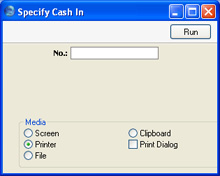
- Enter the Serial Number for a single cash transaction, or the highest and lowest Serial Numbers of a range of transactions separated by a colon (:).
- Press [Run] in the Button Bar to start the printing, or cancel by closing the window.
- Using the Form register in the System module, design the cash documents and name them "CASH_IN" and "CASH_OUT". Use the 'Properties' function on the Operations menu to assign Document Types of "Cash In" and "Cash Out" respectively. Sample Forms are supplied with Hansa: these can be modified to suit your requirements.
- Select the Cash Book module using the Modules menu.
- Click [Documents] in the Master Control panel or select 'Documents' from the File menu. The 'Documents' list window is opened: highlight 'Cash In' or 'Cash Out' as appropriate.
- Select 'Define Document' from the Operations menu.
- In the subsequent window, enter "CASH_IN" or "CASH_OUT" as appropriate in the Form field of the first line (you can use 'Paste Special' to ensure the spelling is correct).
- Click [Save] to save the Form definition. From now on, the Cash document that you have designed will be used, from the 'Documents' function and from the Printer icon, except as described in step 7 below.
- If you are using the Cash Collection option in the Cash Book Settings setting, repeat the previous six steps in turn for the Cash In Collection and Cash Out Collection documents. These will be used when you print a cash transaction by clicking the Printer icon instead of the standard Cash In or Cash Out document in the following circumstances:
- Cash In Collection
- If a Cash In record was created by the 'Create Collection Cash In' Maintenance function (i.e. it is marked with a tick (√) in the right-hand column of the 'Cash In: Browse' window), the Cash In Collection document will be used instead of the Cash In document when you print it by clicking the Printer icon, providing you are using the Cash Collection option in the Cash Book Settings setting. The Invoices from which the Cash In record was created can be listed in the Cash In Collection document.
- Cash Out Collection
- Similarly a Cash Out record created by the 'Create Collection Cash Out' Maintenance function will be printed from the Printer icon using the Cash Out Collection document instead of the Cash Out document if you are using the Cash Collection option.
- Cash In Collection
Nominal Ledger Transactions from Cash Transactions
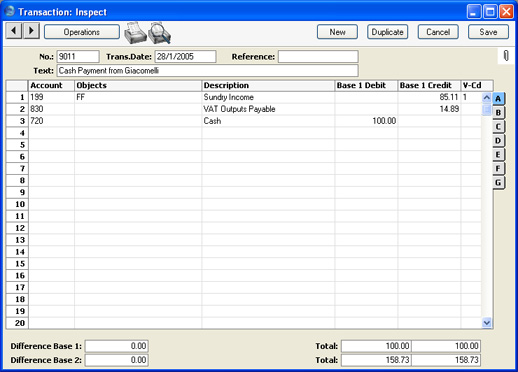
When you approve and save a cash transaction, a Nominal Ledger Transaction will be generated automatically if so determined in the Sub Systems setting in the Nominal Ledger and in the Payment Modes setting.If the cash transaction is in the Cash In register and you have left the 'Payments' card empty, this Transaction will debit the Account from the Payment Mode and credit the Account from the Corresponding Mode. If you are using the Post VAT option in the Cash Book Settings setting, there will also be a credit posting to the Output Account specified for the VAT Code record. Objects on the credit side will be taken from the Cash In record, while those on the debit side will be taken from the Payment Mode.
If the cash transaction is in the Cash Out register and you have left the 'Payments' card empty, this Transaction will credit the Account from the Payment Mode and debit the Account from the Corresponding Mode. If you are using the Post VAT option in the Cash Book Settings setting, there will also be a debit posting to the Input Account specified for the VAT Code record. Objects on the debit side will be taken from the Cash Out record, while those on the credit posting will be taken from the Payment Mode.
In both cases, the Specification from the cash transaction will be copied to the Text field in the Transaction.
If you are using the 'Payments' card, please refer to the description of that card here for details of the resulting Transactions.
If you created the cash transaction from an Invoice or Purchase Invoice using the 'Create Cash In' or 'Create Cash Out' Operations menu functions respectively, the Transaction will not include a VAT element even if you are using the Post VAT option, because VAT will already have been posted from the originating Invoice.
Shown below is an example of a Nominal Ledger Transaction created from a Cash In record where the Post VAT option is in use:
Invalidating Cash Transactions
In some circumstances it can be appropriate to invalidate a cash transaction using the 'Invalidate' command on the Record menu of the 'Cash In: Inspect' or 'Cash Out: Inspect' window. This function will remove the cash transaction from all reports, and any associated Nominal Ledger Transaction will be removed from the Nominal Ledger as well. An invalidated cash transaction is easily distinguished because all fields have red lines drawn through them. These red lines are also shown in the 'Cash In: Browse' and 'Cash Out: Browse' windows. If the 'Payments' card of the cash transaction contained a cash payment against an Invoice or Purchase Invoice, invalidating it will re-open the Invoice or Purchase Invoice. The value of the cash transaction will once again be outstanding.You cannot invalidate a cash transaction if it has not yet been approved or if its Transaction Date is earlier than the Lock Others date specified in the Locking setting in the System module.
Operations Menu
Operations Menu - Open NL Transaction
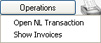
Once you have approved and saved a cash transaction, if so defined in the Sub Systems setting in the System module and in the Payment Modes setting, a Nominal Ledger Transaction is created. This function allows you to view that Transaction.When you select the function, the Transaction will be opened in a new window.
Operations Menu - Show Invoices
If you created a cash transaction from Invoices or Purchase Invoices using the 'Create Cash In' or 'Create Cash Out' Operations menu functions or the 'Create Collection Cash In' or 'Create Collection Cash Out' Maintenance functions, you can use this function to produce a report listing those Invoices or Purchase Invoices. If you created the cash transaction from a Receipt or Payment using the 'Create Cash In' or 'Create Cash Out' Operations menu functions, the report shows the original Invoice or Purchase Invoice.You can then open these Invoices by clicking the Invoice Numbers in the report.