Introduction to Maintenance in the Hotel Module
Maintenance functions allow you to carry out certain updating tasks, usually involving batch processing and encompassing all or many of the records in the affected register. There are nine such functions available in the Hotel module. To use them, ensure you are in the Hotel module and click (Windows/macOS) or tap (iOS/Android) the [Routines] button in the Navigation Centre. Then click or tap the [Maintenance] button in the subsequent window. The following window appears: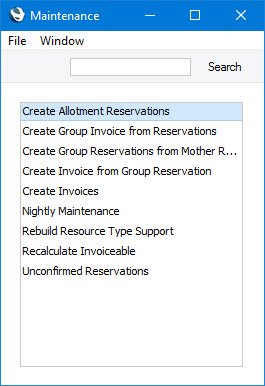
Please follow the links below for details about each Maintenance function:
- Introduction
- Create Allotment Reservations
- Create Group Invoice from Reservations
- Create Group Reservations from Mother Reservations
- Create Invoice from Group Reservation
- Nightly Maintenance
- Rebuild Resource Type Support
- Recalculate Invoiceable
- Unconfirmed Reservations
Go back to:
- Home page for Hotel module manual
- Home page for Standard ERP manual
Create Allotment Reservations
Please refer to the description of the Customer Allotments setting here for details about the Create Allotment Reservations function.---
Go back to:
- Home page for Maintenance functions in the Hotel module
- Home page for Hotel manual
- Home page for Standard ERP manual
Create Group Invoice from Reservations
This page describes the 'Create Group Invoice from Reservations' Maintenance function in the Hotel module.---
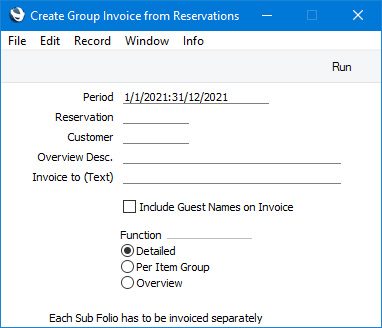
The 'Create Group Invoice from Reservations' Maintenance function will create an Invoice for a specified Guest Account. If that Guest Account has been used in more than one Reservation (usually as the Customer in those Reservations), the Items (e.g. Room charges, Package Items, Repetitive Items and/or any other Items) that have been assigned to the Guest Account in each Reservation will be gathered together in a single Invoice.
If Items have been assigned to any of the other Guest Accounts in the Reservations (i.e. to the Guest Accounts of the individual Guests), you will also need to create Invoices for those Guest Accounts. You can do this by running the function again for each Guest Account or you can do it from the individual Reservations, as described here. You will not be able to check out a Reservation until everything has been invoiced.
If you have created additional Guest Accounts using the 'Redistribute Folio Items' function, you will need to create Invoices for those Guest Accounts from the individual Reservations. The 'Create Group Invoice from Reservations' function will not create Invoices for these Guest Accounts.
- Period
- Paste Special
Reporting Periods setting, System module
- As mentioned above, if the Guest Account specified in the Customer field below has been used in more than one Reservation, the Items that have been assigned to the Guest Account in each Reservation will be gathered together in a single Invoice. For a Reservation to be included in this calculation, its Check In Date must be within the period specified here.
- Customer
- Paste Special
Customers in Contact register
- Use this field to specify the Guest Account that is to be invoiced.
- You must specify a Guest Account in this field. If you leave this field empty, running the function will have no effect.
- You must specify a Guest Account in this field. If you leave this field empty, running the function will have no effect.
- Invoice to (Text)
- If you need a particular name to appear in the Invoice, specify that name here. Otherwise, the Name of the Guest Account (i.e. from the relevant Contact record) will be used.
- Include Guest Names on Invoice
- Select this option if you need the Guests to be listed on the Invoice.
- Function
- Choose an option to specify how many rows the Invoice should have, as follows:
- Detailed
- This option will assign each daily Room charge and each Item to its own row in the Invoice. For example, if a Guest stays for three nights and takes a newspaper and breakfast each day, the Invoice will contain three rows for the Room charge for each night, three rows for the individual newspapers and three rows for the individual breakfasts.
- Overview
- This option will add a single row to the Invoice for each Item. Continuing the previous example, the Invoice will contain a single row for the Room charges, a single row for the newspapers and a single row for the breakfasts. The Qty in each row will be 3.
- Detailed
You can find and open the Invoice by opening any of the invoiced Reservations, pressing the [Show Account] button to open the Show Account report and finally clicking or tapping the Invoice Number in the report.
To print the Invoice, click the Printer icon (Windows/macOS) or select 'Print' from the File menu (all platforms). If you have not yet marked the Invoice as OK and if you are not using the No Test Printout option in the Optional Features setting in the System module, the printed Invoice will be marked as a test print, so that you cannot confuse it with the final version of the Invoice.
When the Invoice is complete, tick the OK check box and save. This signifies that the Invoice has been approved. Associated transactions in the Nominal Ledger (including cost of sales postings if you are using this option) will be created if you have so determined using the Sub Systems setting in the Nominal Ledger and in the Number Series - Invoices setting. You will no longer be able to modify the Invoice.
Please refer here for a full description of the Invoice window, including detailed information about marking Invoices as OK, printing them and generating Nominal Ledger Transactions.
---
Go back to:
- Home page for Maintenance functions in the Hotel module
- Home page for Hotel manual
- Home page for Standard ERP manual
Create Group Reservations from Mother Reservations
This page describes the 'Create Group Reservations from Mother Reservations' Maintenance function in the Hotel module.---
A Group Reservation is a special type of Reservation that you can use to gather several individual Reservations together for administrative purposes such as checking in, invoicing and checking out. For example, a family may create two Reservations to hire two Rooms for the parents and for the children. You can assign these two Reservations to a third Reservation (a "Group Reservation"), so that they will be invoiced together. They can be checked in together or separately, and checked out together or separately. The two Room Reservations will then become "Sub Reservations".
If you need an existing Reservation to be converted into a Group Reservation, follow these steps:
- Enter the Reservation Number of the future Group Reservation in the Group field in at least one Sub Reservation:
In the example illustrated above, we have entered Reservations 21198 and 21199. We need 21198 to become the Group Reservation, so we have entered "21198" in the Group field in 21199.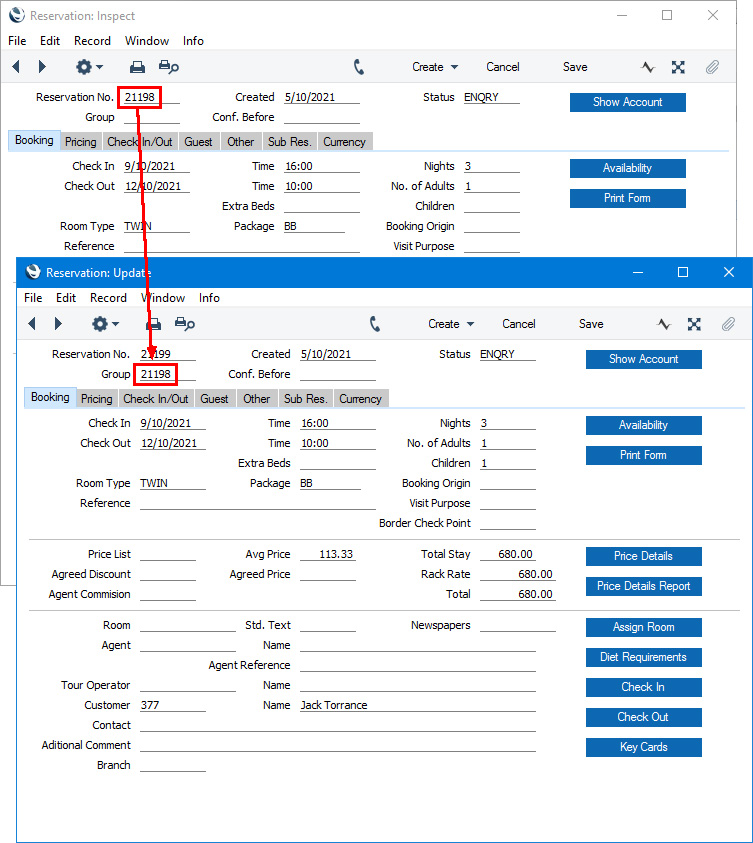
If the Sub Reservation doesn't exist yet, you can create it from the future Group Reservation by opening that Reservation in a record window and selecting 'Sub Reservation' from the Create menu (Windows/macOS) or + menu (iOS/Android). The Group field in the new Sub Reservation will be filled in automatically.
- Run the 'Create Group Reservations from Mother Reservations' Maintenance function:
Specify a period that includes the Check In Date of the future Group Reservation and press the [Run] button.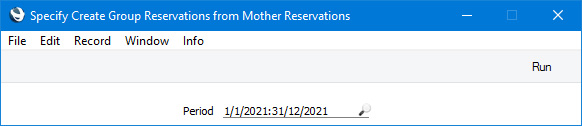
- The future Group Reservation will be converted to a Group Reservation. It will be removed from the 'Reservations: Browse' window, added to the 'Group Reservations: Browse' window and added to the 'Paste Special' list that allows you to choose Group Reservations. In the example illustrated above, 21198 will be converted to a Group Reservation.
- The future Group Reservation will also be duplicated, with the duplicate being added to the Group as a Sub Reservation. This will preserve any date, time, Guest, Room and Package information that you may have entered in the Reservation before converting it to a Group Reservation. In the example illustrated above, 21198 will be duplicated, and the new Reservation will be a Sub Reservation of 21198.
- The Reservation has already checked out (i.e. its Status is the Check Out Status specified in the Hotel Settings setting).
- The Reservation is a No Show Reservation (i.e. its Status is the No Show Status specified in the Hotel Settings setting).
- The Reservation is an online Reservation that the Customer deleted (i.e. its Status is the Deleted Status specified in the Hotel Settings setting).
Go back to:
- Home page for Maintenance functions in the Hotel module
- Home page for Hotel manual
- Home page for Standard ERP manual
Create Invoice from Group Reservation
The 'Create Invoice from Group Reservation' Maintenance function is the same function as the 'Invoice' function on the Create menu in the Group Reservation record. Please refer here for details.---
Go back to:
- Home page for Maintenance functions in the Hotel module
- Home page for Hotel manual
- Home page for Standard ERP manual
Nightly Maintenance
This page describes the 'Nightly Maintenance' Maintenance function in the Hotel module.---
The 'Nightly Maintenance' Maintenance function is a function that you should run daily to carry out various administrative tasks in the hotel.
Each time you run the function, you will need to choose the tasks that you need it to carry out. An easy way to do this is to select the tasks that you need in the Nightly Maintenance setting. The tasks you have chosen will be then selected by default whenever you run the function.
An additional task that the function will always carry out is to update the Check Out Date in checked in Reservations that have over-stayed. For example, if a Reservation is due to check out on October 2 but it is still checked in on October 3 when you next run the function, the Check Out Date will be updated to October 3.
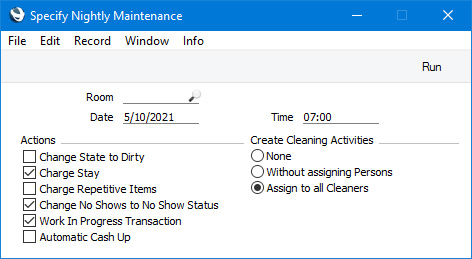
- Room
- Paste Special
Room register, Hotel module
- If you need to run the 'Nightly Maintenance' function for a particular Room, specify that Room here.
- Date
- Paste Special
Choose date
- Specify here the date for which the function is to be run. This Date will be used as described in the descriptions of the various options below.
- Time
- Paste Special
Current time
- Specify here the time for which the function is to be run.
- If you have selected the Charge Stay option and you have Rooms that are charged by the hour, they will be charged to the time specified here.
- If you have specified that the function will create cleaning Activities by selecting one of the Create Cleaning Activities options below, the time that you specify here will be used as the Start Time in the Activities.
- If you have selected the Charge Stay option and you have Rooms that are charged by the hour, they will be charged to the time specified here.
- Change State to Dirty
- Usually the Status of an occupied Room will not be changed to the Dirty Status specified in the Hotel Settings setting until the Reservation is checked out.
- If you need Rooms to be cleaned daily, select this option when running the 'Nightly Maintenance' function. This will change the Status of occupied Rooms to Dirty. An occupied Room is one connected to a checked-in Reservation.
- Changing the Status of occupied Rooms to Dirty will not affect the creation of cleaning Activities (which will be done if you selected one of the Create Cleaning Activities options below). However you may feel the need to change Room Statuses depending on how you use the Housekeeping report.
- If you need Rooms to be cleaned daily, select this option when running the 'Nightly Maintenance' function. This will change the Status of occupied Rooms to Dirty. An occupied Room is one connected to a checked-in Reservation.
- Charge Stay
- This option will run the 'Charge Stay' function for each Reservation with the Check In Status specified on the 'Check In/Out' card in the Hotel Settings setting and with a Room Type in which you have selected "Automatic" as the Charge option. Reservations will be charged to the Date specified above (and to the Time specified above in the case of Reservations for Rooms that are charged by the hour). Please refer here for more details.
- Note that the Charge Stay option will add Room charges, Package Items and Repetitive Items to Guest Accounts. You will therefore not need to select the Charge Repetitive Items option below as well, because doing so will mean that Repetitive Items will be added twice to Guest Accounts.
- Note that the Charge Stay option will add Room charges, Package Items and Repetitive Items to Guest Accounts. You will therefore not need to select the Charge Repetitive Items option below as well, because doing so will mean that Repetitive Items will be added twice to Guest Accounts.
- Change No Shows to No Show Status
- This option will find Reservations with the Default Status specified in the Hotel Settings setting and with a Check In Date that is earlier than the Date specified above by the number of days specified in the Days to No Show field also in the Hotel Settings setting. It will then change the Status in those Reservations to the No Show Status specified again in the Hotel Settings setting. Any Rooms specified in the Reservations will be removed.
- Use the No Show Accounts report if you need to see a list of Reservations with the No Show Status.
- Use the No Show Accounts report if you need to see a list of Reservations with the No Show Status.
- Work In Progress Transaction
- This option will create two Nominal Ledger Transactions posting the day's uninvoiced Room charges, Package Items and other Items as sales to Work in Progress Accounts. Please refer here for more details.
- Automatic Cash Up
- This option will run the 'Cash Up' Maintenance function in the Restaurant and Point of Sales modules for the Date specified above. Please follow the links in the previous sentence for details about the 'Cash Up' function in each module.
- Create Cleaning Activities
- This option will create Activities that will inform cleaning staff about the Rooms that are to be cleaned. Separate cleaning Activities will be created for each Room, with one of three Activity Types as follows:
- If a Room is occupied on the specified Date, the Cleaning Type specified in the Housekeeping setting will be used as the Activity Type.
- If a Room is due to be checked in on the specified Date, the Activity Check In Cleaning Type specified in the Housekeeping setting will be used as the Activity Type. The tasks listed in the Checklist specified in the Activity Check In Details field in the same setting will be listed on the 'Text' card in the Activity.
- If a Room is due to be checked out on the specified Date, the Activity Check Out Cleaning Type specified in the Housekeeping setting will be used as the Activity Type. The tasks listed in the Checklist specified in the Activity Check Out Details field in the same setting will be listed on the 'Text' card in the Activity.
- Choose the Assign to all Cleaners option if you need the cleaning Activities to be assigned to the members of the Cleaner Display Group specified in the Housekeeping setting. Choose the Without assigning Persons option if you need the function to create cleaning Activities that are not assigned to any members of staff.
- Please refer here for more details about the configuration that is needed for cleaning Activities to be created, and here for details about creating cleaning Activities.
- If a Room is occupied on the specified Date, the Cleaning Type specified in the Housekeeping setting will be used as the Activity Type.
Go back to:
- Home page for Maintenance functions in the Hotel module
- Home page for Hotel manual
- Home page for Standard ERP manual
Rebuild Resource Type Support
This page describes the 'Rebuild Resource Type Support' Maintenance function in the Hotel module.---
The Resource Type Support setting keeps a record of Room availability, for use by the 'Month Overview of Room Types' window (first Resource Planner window) and associated reports. It will be updated automatically whenever you save a Reservation. If you change the Include Unconfirmed in Availability option or the Check In Time in the Hotel Settings setting or if you change the Location in a Room Type or in a Room, you should then run this Maintenance function to recalculate the Room availability figures in this setting taking your changes into account.
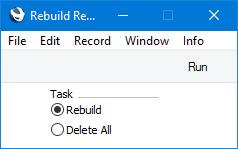
- Rebuild
- Select this option if you need to delete the existing records in the Resource Type Support setting and create new ones.
- Delete All
- Select this option if you need to delete the existing records in the Resource Type Support setting and leave the setting empty.
Go back to:
- Home page for Maintenance functions in the Hotel module
- Home page for Hotel manual
- Home page for Standard ERP manual
Recalculate Invoiceable
This page describes the 'Recalculate Invoiceable' Maintenance function in the Hotel module.---
Items on Guest Accounts are stored in the Shopping Basket register in the Webshop module. When you add a Room charge or an Item to a Guest Account, this will be accomplished behind the scenes by the addition of a record to the Shopping Basket register. When you create an Invoice from a Reservation, the Invoice will be constructed using the relevant Shopping Basket records (i.e. the Shopping Basket records for the Reservation and for the Customer being invoiced), and the Invoice Number will be copied to those Shopping Basket records. This will prevent those Shopping Basket records from being included again in future Invoices. If you delete the Invoice, the Invoice Number will be removed from the Shopping Basket records, allowing them to included in a new Invoice. However, there may be occasions when Shopping Basket records contain Invoice Numbers relating to Invoices that no longer exist, with the result that those Shopping Basket records will not be included in a future Invoice. In this situation, you can repair the Shopping Basket records by running the 'Recalculate Invoiceable' Maintenance function in the Hotel module.
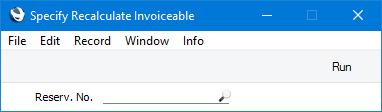
- Reserv. No.
- Paste Special
Reservation register, Hotel module
- Range Reporting Numeric
- Specify the Number of the Reservation whose connected Shopping Basket records are in need of repair. You can also enter a range of Reservation Numbers separated by a colon (:).
- The function will find the Shopping Basket records that are connected to the specified Reservation(s) and confirm that the Invoice Numbers in those Shopping Basket records relate to existing Invoices. If an Invoice does not exist, the Invoice Number will be removed from the Shopping Basket records.
- Specify the Number of the Reservation whose connected Shopping Basket records are in need of repair. You can also enter a range of Reservation Numbers separated by a colon (:).
Go back to:
- Home page for Maintenance functions in the Hotel module
- Home page for Hotel manual
- Home page for Standard ERP manual
Unconfirmed Reservations
This page describes the 'Unconfirmed Reservations' Maintenance function in the Hotel module.---
The 'Unconfirmed Reservations' Maintenance function allows you to delete Reservations that have remained unconfirmed after a specified period, or to change the Status of those Reservations. For example you might change the Status of those Reservations to a Cancelled Status.
An unconfirmed Reservation is one that has a Reservation Status in which the Type is Unconfirmed.
If you would like to see a list of the Reservations that will be deleted or whose Status will be changed, produce an Unconfirmed Reservations report before using this function.
Selecting the 'Unconfirmed Reservations' function brings up the following dialogue box:
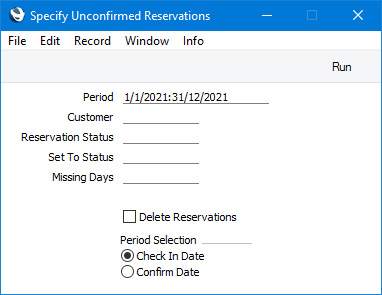
- Period
- Paste Special
Reporting Periods setting, System module
- You can delete or change the Status of Reservations whose Check In or Confirmation Dates fall in a particular period. Specify that period here. Use the Period Selection options below to specify whether you need to search by Check In Date or by Confirmation Date.
- If you need the period to be a single day, enter the date once and this will be converted to the period format automatically.
- If you need the period to be a single day, enter the date once and this will be converted to the period format automatically.
- Customer
- Paste Special
Customers in Contact register
- Range Reporting Alpha
- To delete or change the Status of Reservations made by a particular Customer, enter the Contact Code of that Customer here. You can also enter a range of Contact Codes separated by a colon (:).
- To delete or change the Status of Reservations made by a particular Customer, enter the Contact Code of that Customer here. You can also enter a range of Contact Codes separated by a colon (:).
- Reservation Status
- Paste Special
Reservation Status setting, Hotel module
- To delete or change the Status of Reservations with a particular Status, enter that Status here. This must be a Status in which the Type is Unconfirmed.
- If you leave this field empty, the function will only delete or change the Status of a Reservation if its current Status is Unconfirmed.
- If you leave this field empty, the function will only delete or change the Status of a Reservation if its current Status is Unconfirmed.
- Set To Status
- Paste Special
Reservation Status setting, Hotel module
- If you need the function to change the Status of unconfirmed Reservations, specify here the new Status that you need to be used. This might be a Status in which the Type is Cancelled.
- Missing Days
- If you need to delete or update Reservations that have remained unconfirmed for a particular number of days or longer, specify that number of days here.
- For example, if you enter "3" here, an unconfirmed Reservation in which the Confirmation Date is three or more days ago will be deleted or updated. If a Reservation does not have a Confirmation Date, it will be deleted or updated if its Check In Date is three or more days ago.
- For example, if you enter "3" here, an unconfirmed Reservation in which the Confirmation Date is three or more days ago will be deleted or updated. If a Reservation does not have a Confirmation Date, it will be deleted or updated if its Check In Date is three or more days ago.
- Delete Reservations
- Select this option if you need the function to delete unconfirmed Reservations.
- Period Selection
- Select one of these options to specify whether you need to delete or update Reservations with a particular Check In Date or Reservations with a particular Confirmation Date.
Go back to:
- Home page for Maintenance functions in the Hotel module
- Home page for Hotel manual
- Home page for Standard ERP manual
Update Reservations to New Matrix Format
This page describes the 'Update Reservations to New Matrix Format' Maintenance function in the Technics module.---
The format of the 'Guest' card in the Reservation window was changed in January 2025.. If you were using Reservations prior to this date, on updating to a version later than this date you will need to convert these Reservations to the new format before you can continue using them. The most obvious sign that Reservations need converting will be that Guest Names are missing.
To convert your Reservations, you will need to work in the Technics module. If you are working in a multi-user system and 'Technics' is not available when you click (Windows/macOS) or tap (iOS/Android) the [Switch Module] button in the Navigation Centre, the probable reason is that you have logged on as a Global User or Person that does not have access privileges for this module. If you are the system administrator, it is recommended that your Global User or Person record should belong to an Access Group that Starts from Full Access and that explicitly grants full access to the Technics module. In a single-user system, the probable reason is that the Server option is not ticked in the Configuration setting in the System module.
Follow these steps:
- Change to the Technics module and select the 'Update Reservations to New Matrix Format' Maintenance function:
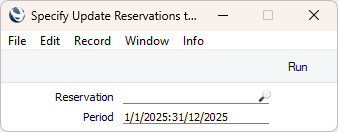
- Fill in the 'Specify Update Reservations to New Matrix Format' window as follows:
- Reservation
- Paste Special
Reservation register, Hotel module
- Range Reporting Numeric
- If you need to convert a particular Reservation to the new format, enter its Reservation Number here. You can also enter a range of Reservation Numbers separated by a colon (:) or leave the field empty to convert all Reservations.
- If you need to convert a particular Reservation to the new format, enter its Reservation Number here. You can also enter a range of Reservation Numbers separated by a colon (:) or leave the field empty to convert all Reservations.
- Period
- Paste Special
Reporting Periods setting, System module
- The function will update the format of Reservations with Check In Dates that fall in the period that you specify here.
- Reservation
- Click (Windows/macOS) or tap (iOS/Android) the [Run] button. This will cause the specified Reservations to be converted.
- If you have more than one Company, repeat the process in each Company.
Go back to:
- Home page for Maintenance functions in the Hotel module
- Home page for Hotel manual
- Home page for Standard ERP manual