Introduction to Settings in the Business Alerts Module
The Business Alerts module contains the following settings: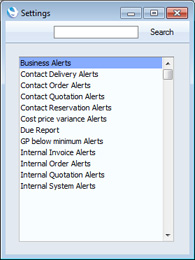
---
Please click the links below for details about each setting:
- Business Alerts
- Contact Delivery Alerts
- Contact Order Alerts
- Contact Quotation Alerts
- Contact Reservation Alerts
- Cost Price Variance Alerts
- Due Report
- GP Below Minimum Alerts
- Internal Invoice Alerts
- Internal Order Alerts
- Internal Quotation Alerts
- Internal System Alerts
- Home page for Business Alerts manual
- Home page for HansaWorld Enterprise manual
Business Alerts
The Business Alerts setting contains a number of preferences that are used by the following other settings in the Business Alerts module: Contact Delivery Alerts, Contact Order Alerts, Contact Quotation Alerts, Contact Reservation Alerts, Internal Order Alerts and Internal Quotation Alerts.If you have more than one Company in your database, you should configure this setting separately in each Company. For example, each Company can have a different phone or mobile number from which text (SMS) messages will be sent.
The Business Alerts setting contains the following options and fields:
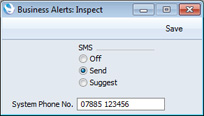
- SMS
- Use these options to control how text (SMS) messages will be sent, when triggered by the Contact Delivery Alerts, Contact Order Alerts, Contact Quotation Alerts, Contact Reservation Alerts, Internal Order Alerts and Internal Quotation Alerts. settings.
- Off
- Text (SMS) messages will not be sent.
- Send
- Text (SMS) messages will be sent automatically. Messages will not be opened on screen before they are sent, so you will not be given the opportunity to personalise the messages.
- Suggest
- Each Text (SMS) message will be opened in a 'Text SMS: New' window before it is sent. The window title ('New') signifies that the message has not yet been saved. You therefore have opportunities both to personalise the message and to decide whether to send it at all.
- Off
- System Phone No.
- The phone number that you specify here will be used as the source of each text (SMS) message. Bear in mind when specifying this number that Customers may use it to reply. If you do not specify a phone number here, the source phone number will be taken from the Internal System Alerts setting.
---
Settings in the Business Alerts module:
- Introduction
- Business Alerts
- Contact Delivery Alerts
- Contact Order Alerts
- Contact Quotation Alerts
- Contact Reservation Alerts
- Cost Price Variance Alerts
- Due Report
- GP Below Minimum Alerts
- Internal Invoice Alerts
- Internal Order Alerts
- Internal Quotation Alerts
- Internal System Alerts
- Home page for Business Alerts manual
- Home page for HansaWorld Enterprise manual
Contact Delivery Alerts
Whenever you approve and save a Delivery, a text (SMS) message can be sent automatically to the Customer, informing them that the arrival of their Items is imminent. If you want to use this feature, follow these steps:- Sending text (SMS) messages is a chargeable Cloud Service. To use it, ensure you have registered your database using the Automatic Internet Enabler method, as described on the Enabler Key page. Please contact your local HansaWorld representative to sign up for the service and for pricing details.
- Open the Business Alerts setting and set the SMS Type to "SMS" or "Suggest".
- Specify a System Phone No. in the Business Alerts setting or in the Internal System Alerts setting. This number will be used as the source of each text (SMS) message and Customers may use it to reply.
- Configure the Contact Delivery Alerts setting as described below.
- If the Contact Person quoted in the Attention field in the Order from which a Delivery was created has a Mobile Number, the text (SMS) message will be sent to that Mobile Number. The Contact Person must be connected to the Customer in the Contact Relations register (i.e. the name of the Contact Person must appear in the list at the bottom of the window when you are looking at the Contact record for the Customer).
- If the Customer quoted in the Order has a Mobile Number, the text (SMS) message will be sent to that Mobile Number.
- If the Contact Person quoted in the Order has a Mobile Number, the text (SMS) message will be sent to that Mobile Number. Compared to point (i), this will be a looser search: the search will be by Contact Person name only and the Contact Person will not be connected to the Customer in the Contact Relations register (i.e. there won't be a Contact Relations record connecting the Contact Person and the Customer).
For the text (SMS) message to be sent successfully, you must have entered the Mobile Number as an international number. You can place + or 00 at the beginning of a number, but + is to be preferred as it is the standard method of signifying international numbers and will not change.
If you have set the SMS Type to "SMS" in the Business Alerts setting, the sending of each text (SMS) message will be completely automatic. Therefore, you will not be given the opportunity to personalise the message. However, if you set the SMS Type to "Suggest", the 'Text SMS: New' window will open when you save an approved Delivery. This will give you the opportunity to personalise the message (e.g. to specify a delivery time). When you click the [Save] button, your Signature will appear in the Person field and the Sent box will be marked automatically, signifying that the message has been sent. If you click the [Cancel] button, the message will not be sent or saved.
The Contact Delivery Alerts setting contains the following options and fields:

- SMS from OKed Delivery
- Tick this box if you would like an automatic text (SMS) message to be sent to a Customer whenever you approve and save a Delivery.
- Cust. Class.
- Paste Special
Contact Classifications setting, CRM module
- If you would only like to send text (SMS) messages to Customers belonging to a particular Contact Classification, specify that Classification here. If you enter a number of Classifications separated by commas, text (SMS) messages will only be sent to Customers featuring all the Classifications listed.
- Std. Text
- Paste Special
Standard Text register, CRM module
- Specify here the Code of a record in the Standard Text register in the CRM module. This record should contain the text of the message that will be sent to the Customer.
---
Settings in the Business Alerts module:
- Introduction
- Business Alerts
- Contact Delivery Alerts
- Contact Order Alerts
- Contact Quotation Alerts
- Contact Reservation Alerts
- Cost Price Variance Alerts
- Due Report
- GP Below Minimum Alerts
- Internal Invoice Alerts
- Internal Order Alerts
- Internal Quotation Alerts
- Internal System Alerts
- Home page for Business Alerts manual
- Home page for HansaWorld Enterprise manual
Contact Order Alerts
Whenever you save an Order for the first time, a text (SMS) message can be sent automatically to the Customer, informing them that their Order has been received and registered in your database. If you want to use this feature, follow these steps:- Sending text (SMS) messages is a chargeable Cloud Service. To use it, ensure you have registered your database using the Automatic Internet Enabler method, as described on the Enabler Key page. Please contact your local HansaWorld representative to sign up for the service and for pricing details.
- Open the Business Alerts setting and set the SMS Type to "SMS" or "Suggest".
- Specify a System Phone No. in the Business Alerts setting or in the Internal System Alerts setting. This number will be used as the source of each text (SMS) message and Customers may use it to reply.
- Configure the Contact Order Alerts setting as described below.
- If the Contact Person quoted in the Attention field in an Order has a Mobile Number, the text (SMS) message will be sent to that Mobile Number. The Contact Person must be connected to the Customer in the Contact Relations register (i.e. the name of the Contact Person must appear in the list at the bottom of the window when you are looking at the Contact record for the Customer).
- If the Customer quoted in the Order has a Mobile Number, the text (SMS) message will be sent to that Mobile Number.
- If the Contact Person quoted in the Order has a Mobile Number, the text (SMS) message will be sent to that Mobile Number. Compared to point (i), this will be a looser search: the search will be by Contact Person name only and the Contact Person will not be connected to the Customer in the Contact Relations register (i.e. there won't be a Contact Relations record connecting the Contact Person and the Customer).
For the text (SMS) message to be sent successfully, you must have entered the Mobile Number as an international number. You can place + or 00 at the beginning of a number, but + is to be preferred as it is the standard method of signifying international numbers and will not change.
If you have set the SMS Type to "SMS" in the Business Alerts setting, the sending of each text (SMS) message will be completely automatic. Therefore, you will not be given the opportunity to personalise the message. However, if you set the SMS Type to "Suggest", the 'Text SMS: New' window will open when you save an Order. This will give you the opportunity to personalise the message (e.g. to specify a delivery time). When you click the [Save] button, your Signature will appear in the Person field and the Sent box will be marked automatically, signifying that the message has been sent. If you click the [Cancel] button, the message will not be sent or saved.
The Contact Order Alerts setting contains the following options and fields:

- SMS from Order
- Tick this box if you would like an automatic text (SMS) message to be sent to a Customer whenever you save an Order for the first time.
- Limit
- If you would only like text (SMS) messages to be sent to Customers who place Orders worth more than a certain amount, specify that amount here.
- A Customer will receive a message if they place an Order where the TOTAL (i.e. total including VAT) is greater than this figure.
- No Currency conversion will take place. So if the Limit is 1000.00 for example, Customers placing Orders worth GBP 1000.01 and USD 1000.01 will both receive messages.
- Remember that a message will only be sent from an Order when you save it for the first time. Therefore, if you set a Limit and are in the habit of saving Orders as you add Items to them, be aware that a message will not be sent if you save an Order before its TOTAL has reached the Limit.
- A Customer will receive a message if they place an Order where the TOTAL (i.e. total including VAT) is greater than this figure.
- Customer Class.
- Paste Special
Contact Classifications setting, CRM module
- If you would only like to send text (SMS) messages to Customers belonging to a particular Contact Classification, specify that Classification here. If you enter a number of Classifications separated by commas, text (SMS) messages will only be sent to Customers featuring all the Classifications listed.
- Order Class
- Paste Special
Order Classes setting, Sales Orders module
- If you would only like text (SMS) messages to be sent to the Customers of Orders with a particular Order Class, specify that Class here.
- Std. Text
- Paste Special
Standard Text register, CRM module
- Specify here the Code of a record in the Standard Text register in the CRM module. This record should contain the text of the message that will be sent to the Customer.
---
Settings in the Business Alerts module:
- Introduction
- Business Alerts
- Contact Delivery Alerts
- Contact Order Alerts
- Contact Quotation Alerts
- Contact Reservation Alerts
- Cost Price Variance Alerts
- Due Report
- GP Below Minimum Alerts
- Internal Invoice Alerts
- Internal Order Alerts
- Internal Quotation Alerts
- Internal System Alerts
- Home page for Business Alerts manual
- Home page for HansaWorld Enterprise manual
Contact Quotation Alerts
Whenever you mark a Quotation as Accepted and save it, a text (SMS) message can be sent automatically to the Customer, to confirm that you have received their acceptance of the Quotation. If you want to use this feature, follow these steps:- Sending text (SMS) messages is a chargeable Cloud Service. To use it, ensure you have registered your database using the Automatic Internet Enabler method, as described on the Enabler Key page. Please contact your local HansaWorld representative to sign up for the service and for pricing details.
- Open the Business Alerts setting and set the SMS Type to "SMS" or "Suggest".
- Specify a System Phone No. in the Business Alerts setting or in the Internal System Alerts setting. This number will be used as the source of each text (SMS) message and Customers may use it to reply.
- Configure the Contact Quotation Alerts setting as described below.
- If the Contact Person quoted in the Attention field in a Quotation has a Mobile Number, the text (SMS) message will be sent to that Mobile Number. The Contact Person must be connected to the Customer in the Contact Relations register (i.e. the name of the Contact Person must appear in the list at the bottom of the window when you are looking at the Contact record for the Customer).
- If the Customer quoted in the Quotation has a Mobile Number, the text (SMS) message will be sent to that Mobile Number.
- If the Contact Person quoted in the Quotation has a Mobile Number, the text (SMS) message will be sent to that Mobile Number. Compared to point (i), this will be a looser search: the search will be by Contact Person name only and the Contact Person will not be connected to the Customer in the Contact Relations register (i.e. there won't be a Contact Relations record connecting the Contact Person and the Customer).
For the text (SMS) message to be sent successfully, you must have entered the Mobile Number as an international number. You can place + or 00 at the beginning of a number, but + is to be preferred as it is the standard method of signifying international numbers and will not change.
If you have set the SMS Type to "SMS" in the Business Alerts setting, the sending of each text (SMS) message will be completely automatic. Therefore, you will not be given the opportunity to personalise the message. However, if you set the SMS Type to "Suggest", the 'Text SMS: New' window will open when you mark a Quotation as Accepted and save it. This will give you the opportunity to personalise the message. When you click the [Save] button, your Signature will appear in the Person field and the Sent box will be marked automatically, signifying that the message has been sent. If you click the [Cancel] button, the message will not be sent or saved.
The Contact Quotation Alerts setting contains the following options and fields:

- SMS when Quotation Accepted
- Tick this box if you would like an automatic text (SMS) message to be sent to a Customer whenever you mark a Quotation as Accepted and save it.
- Limit
- If you would only like text (SMS) messages to be sent to Customers when you accept Quotations worth more than a certain amount, specify that amount here.
- A Customer will receive a message if the TOTAL (i.e. total including VAT) in a Quotation is greater than this figure.
- No Currency conversion will take place. So if the Limit is 1000.00 for example, Customers accepting Quotations worth GBP 1000.01 and USD 1000.01 will both receive messages.
- A Customer will receive a message if the TOTAL (i.e. total including VAT) in a Quotation is greater than this figure.
- Customer Class.
- Paste Special
Contact Classifications setting, CRM module
- If you would only like to send text (SMS) messages to Customers belonging to a particular Contact Classification, specify that Classification here. If you enter a number of Classifications separated by commas, text (SMS) messages will only be sent to Customers featuring all the Classifications listed.
- Quotation Class
- Paste Special
Quotation Classes setting, Quotations module
- If you would only like text (SMS) messages to be sent to the Customers of Quotations with a particular Quotation Class, specify that Class here.
- Std. Text
- Paste Special
Standard Text register, CRM module
- Specify here the Code of a record in the Standard Text register in the CRM module. This record should contain the text of the message that will be sent to the Customer.
---
Settings in the Business Alerts module:
- Introduction
- Business Alerts
- Contact Delivery Alerts
- Contact Order Alerts
- Contact Quotation Alerts
- Contact Reservation Alerts
- Cost Price Variance Alerts
- Due Report
- GP Below Minimum Alerts
- Internal Invoice Alerts
- Internal Order Alerts
- Internal Quotation Alerts
- Internal System Alerts
- Home page for Business Alerts manual
- Home page for HansaWorld Enterprise manual
Contact Reservation Alerts
Whenever you confirm and save a Reservation, a text (SMS) message can be sent automatically to the Customer, to acknowledge that you have received their confirmation. If you want to use this feature, follow these steps:- Sending text (SMS) messages is a chargeable Cloud Service. To use it, ensure you have registered your database using the Automatic Internet Enabler method, as described on the Enabler Key page. Please contact your local HansaWorld representative to sign up for the service and for pricing details.
- Open the Business Alerts setting and set the SMS Type to "SMS" or "Suggest".
- Specify a System Phone No. in the Business Alerts setting or in the Internal System Alerts setting. This number will be used as the source of each text (SMS) message and Customers may use it to reply.
- Configure the Contact Reservation Alerts setting as described below.
For the text (SMS) message to be sent successfully, you must have entered the Mobile Number as an international number. You can place + or 00 at the beginning of a number, but + is to be preferred as it is the standard method of signifying international numbers and will not change.
If you have set the SMS Type to "SMS" in the Business Alerts setting, the sending of each text (SMS) message will be completely automatic. Therefore, you will not be given the opportunity to personalise the message. However, if you set the SMS Type to "Suggest", the 'Text SMS: New' window will open when you save a confirmed Reservation. This will give you the opportunity to personalise the message. When you click the [Save] button, your Signature will appear in the Person field and the Sent box will be marked automatically, signifying that the message has been sent. If you click the [Cancel] button, the message will not be sent or saved.
The Contact Reservation Alerts setting contains the following options and fields:

- SMS when Reservation is Confirmed
- Tick this box if you would like an automatic text (SMS) message to be sent to a Customer whenever you confirm and save a Reservation.
- Res. Status
- Paste Special
Reservation Status setting, Hotel and Resource Planning modules
- Specify here the Reservation Status that you are using to signify that Reservations are confirmed. When you enter this Status in a Reservation and save it, a text (SMS) message will be sent. If you do not specify a Status here, no messages will be sent.
- Std. Text
- Paste Special
Standard Text register, CRM module
- Specify here the Code of a record in the Standard Text register in the CRM module. This record should contain the text of the message that will be sent to the Customer.
---
Settings in the Business Alerts module:
- Introduction
- Business Alerts
- Contact Delivery Alerts
- Contact Order Alerts
- Contact Quotation Alerts
- Contact Reservation Alerts
- Cost Price Variance Alerts
- Due Report
- GP Below Minimum Alerts
- Internal Invoice Alerts
- Internal Order Alerts
- Internal Quotation Alerts
- Internal System Alerts
- Home page for Business Alerts manual
- Home page for HansaWorld Enterprise manual
Cost Price Variance Alerts
Use this setting if you would like a responsible Person or Persons to be notified every time an attempt is made to approve and save a Goods Receipt in which at least one Item is being received into stock with an unusual cost. The notification will be by Mail and Activity. An unusual cost is a Cost Price in a Goods Receipt row that is greater or less than the Weighted Average of the Item in question by a specified percentage.If you want to use this feature, follow these steps:
- Specify a Responsible Person or Persons in each Location. This Person or Persons will receive the Cost Price Variance Alerts.
- Ensure that every Person who will approve and save Goods Receipts has a Mailbox.
- Configure the Cost Price Variance Alerts setting as described below.
- If a Goods Receipt containing an unusual cost is entered and approved before saving for the first time, saving will be prevented by Full access to the 'Disallow Cost Price Variance on Goods Receipt' Access Group Action. As it is not possible to save the Goods Receipt, no notification Mail or Activity will be created as there will be no Goods Receipt to check. It will be possible to save the Goods Receipt in an unapproved state.
If the Person entering the Goods Receipt has None access to the 'Disallow Cost Price Variance on Goods Receipt' Action or belongs to an Access Group in which the Action is not listed, the Goods Receipt will be saved and no notifications will be issued.
- If an attempt is made to approve and save an existing Goods Receipt, saving will again be prevented by Full access to the 'Disallow Cost Price Variance on Goods Receipt' Access Group Action. This time, a Mail will be sent to the Responsible Person(s) in the Location, requesting them to check and approve the Goods Receipt. The sender of the Mail will be the Person attempting to approve the Goods Receipt. A To Do Activity will also be created for the Responsible Person(s) in the Location, ensuring the need to check and approve the Goods Receipt appears in their Task Manager as a reminder. The Goods Receipt will be attached to the Mail and the Activity.
If the Person approving the Goods Receipt has None access to the 'Disallow Cost Price Variance on Goods Receipt' Access Group Action or belongs to an Access Group in which the Action is not listed, the Goods Receipt will be saved, and notifications will be issued.
The Cost Price Variance Alerts setting contains the following options and fields:
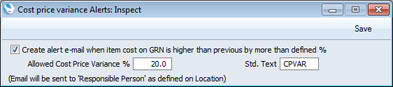
- Create alert e-mail when item cost on GRN is higher than previous by more than defined %
- Tick this box if you would like a Mail to be sent to the Responsible Person(s) in the relevant Location whenever an attempt is made to approve and save a Goods Receipt in which in which at least one Item is being received with an unusual cost. A To Do Activity for the Responsible Person(s) will always be created, irrespective of whether this box is ticked.
- Allowed Cost Price Variance %
- Specify here the variance percentage that should trigger the sending of a notification Mail and creation of a notification To Do Activity.
- For example if you enter 50% here, notifications will be sent when a Goods Receipt contains a Cost Price that is more than 50% higher or lower than the Weighted Average of the Item in question.
- If you do not enter a percentage, notifications will be sent from every Goods Receipt except those where all Cost Prices are the same as the Weighted Averages of the Items in question.
- For example if you enter 50% here, notifications will be sent when a Goods Receipt contains a Cost Price that is more than 50% higher or lower than the Weighted Average of the Item in question.
- Std. Text
- Paste Special
Standard Text register, CRM module
- Specify here the Code of a record in the Standard Text register in the CRM module. This record should contain the text of the message that will be included in the notification Mail and To Do Activity.
---
Settings in the Business Alerts module:
- Introduction
- Business Alerts
- Contact Delivery Alerts
- Contact Order Alerts
- Contact Quotation Alerts
- Contact Reservation Alerts
- Cost Price Variance Alerts
- Due Report
- GP Below Minimum Alerts
- Internal Invoice Alerts
- Internal Order Alerts
- Internal Quotation Alerts
- Internal System Alerts
- Home page for Business Alerts manual
- Home page for HansaWorld Enterprise manual
GP Below Minimum Alerts
Use the GP Below Minimum Alerts setting if you would like a responsible Person or Persons to be notified every time a sales person attempts to mark as OK and save a Sales Invoice or save a Quotation or Sales Order in which there is at least one Item with a gross profit that is lower than a specified percentage. The notification will be by Mail and Activity.If you want to use this feature, follow these steps:
- Specify a Responsible Person or Persons in each Location. This Person or Persons will receive the GP Below Minimum Alerts.
- Ensure that every Person who will approve and save Sales Orders and Invoices has a Mailbox.
- Configure the GP Below Minimum Alerts setting as described below.
- If such a Person enters and marks as OK an Invoice containing a low gross profit before saving for the first time, saving will be prevented by Full access to the 'Disallow Selling Below Minimum GP' Access Group Action. As it is not possible to save the Invoice, no notification Mail or Activity will be created as there will be no Invoice to check. It will be possible to save the Invoice without marking it as OK.
If the Person entering the Invoice has None access to the 'Disallow Selling Below Minimum GP' Action or belongs to an Access Group in which the Action is not listed, the Invoice will be saved, and notifications will also be issued.
- If such a Person marks an existing Invoice as OK and attempts to save, saving will again be prevented by Full access to the 'Disallow Selling Below Minimum GP' Access Group Action. This time, a Mail will be sent to the Responsible Person(s) in the Location, requesting them to check and approve the Invoice. The sender of the Mail will be the Person attempting to save the Invoice. A To Do Activity will also be created for the Responsible Person(s) in the Location, ensuring that the need to check and approve the Invoice will appear in their Task Manager as a reminder. The Invoice will be attached to the Mail and the Activity, so will be accessible through their Link Managers.
If the Person saving the Invoice has None access to the 'Disallow Selling Below Minimum GP' Access Group Action or belongs to an Access Group in which the Action is not listed, the Invoice will be saved, and notifications will also be issued.
- If such a Person tries to save an Order containing a low gross profit for the first time, saving will be prevented by Full access to the 'Disallow Selling Below Minimum GP' Access Group Action. As it is not possible to save the Order, no notification Mail or Activity will be created as there will be no Order to check.
If the Person entering the Order has None access to the 'Disallow Selling Below Minimum GP' Action or belongs to an Access Group in which the Action is not listed, the Order will be saved and notifications will also be issued.
Quotations will behave in the same manner.
- If such a Person tries to save an existing Order, saving will again be prevented by Full access to the 'Disallow Selling Below Minimum GP' Access Group Action. This time, a Mail will be sent to the Responsible Person(s) in the Location, requesting them to check the Order. The sender of the Mail will be the Person attempting to save the Order. A To Do Activity will also be created for the Responsible Person(s) in the Location, ensuring that the need to check and approve the Order will appear in their Task Manager as a reminder. The Order will be attached to the Mail and the Activity, so will be accessible through their Link Managers. A new Mail and Activity will be created each time an attempt is made to save the Order.
If the Person saving the Order has None access to the 'Disallow Selling Below Minimum GP' Access Group Action or belongs to an Access Group in which the Action is not listed, the Order will be saved, and notifications will be issued. New notifications will be issued each time the Order is saved.
Quotations will behave in the same manner.
Notifications will not be sent for Credit Notes, or for Invoices in which the CAE/CAEA field on the 'Identifiers' card contains a value. The CAE/CAEA field is used in Argentina to indicate that an Invoice has been approved by the tax authorities. After receiving this approval, an Invoice cannot be changed.
The GP Below Minimum Alerts setting contains the following options and fields:
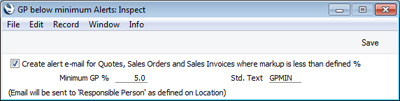
- Create alert e-mail for Quotes, Sales Orders and Sales Invoices where markup is less than defined %
- Tick this box if you would like a Mail to be sent to the Responsible Person(s) in the relevant Location whenever an attempt is made to approve and save a Sales Invoice or save a Quotation or Sales Order in which in which at least one Item is being sold with a low gross profit. A To Do Activity for the Responsible Person(s) will always be created, irrespective of whether this box is ticked.
- Minimum GP %
- Specify here the gross profit percentage that should trigger the sending of a notification Mail and creation of a notification To Do Activity.
- For example if you enter 50% here, notifications will be sent when at least one row in a Quotation, Order or Invoice contains a gross profit that is less than 50%.
- If you do not enter a percentage, notifications will only be sent from a Quotation, Order or Invoice where the gross profit of at least one row is negative.
- For example if you enter 50% here, notifications will be sent when at least one row in a Quotation, Order or Invoice contains a gross profit that is less than 50%.
- Std. Text
- Paste Special
Standard Text register, CRM module
- Specify here the Code of a record in the Standard Text register in the CRM module. This record should contain the text of the message that will be included in the notification Mail and To Do Activity.
---
Settings in the Business Alerts module:
- Introduction
- Business Alerts
- Contact Delivery Alerts
- Contact Order Alerts
- Contact Quotation Alerts
- Contact Reservation Alerts
- Cost Price Variance Alerts
- Due Report
- GP Below Minimum Alerts
- Internal Invoice Alerts
- Internal Order Alerts
- Internal Quotation Alerts
- Internal System Alerts
- Home page for Business Alerts manual
- Home page for HansaWorld Enterprise manual
Internal Invoice Alerts
Use this setting if you would like a responsible Person to be notified every time a Sales Credit Note is approved and saved. The notification will be by Mail.If you want to use this feature, you should ensure that every Person who will approve and save Credit Notes has a Mailbox. Whenever a Credit Note is approved, a notification Mail will be sent to the Person specified in this setting. The sender of the Mail will be the Person approving the Credit Note. If no notification Mail is created when expected, the probable reason will be that the Person approving the Credit Note does not have a Mailbox.
The Internal Invoice Alerts setting contains the following options and fields:

- E-mail from Credit Note
- Tick this box if you would like an automatic notification Mail to be sent to the Recipient specified below whenever you approve a Credit Note.
- Limit
- If you would only like notification Mails to be sent to the Recipient when you approve Credit Notes worth more than a certain amount, specify that amount here.
- The Recipient will receive a notification Mail if a Credit Note is approved where the TOTAL (i.e. total including VAT) is greater than this figure.
- No Currency conversion will take place. So if the Limit is 1000.00 for example, Credit Notes worth GBP 1000.01 and USD 1000.01 will both trigger Mails.
- The Recipient will receive a notification Mail if a Credit Note is approved where the TOTAL (i.e. total including VAT) is greater than this figure.
- Std. Text
- Paste Special
Standard Text register, CRM module
- Specify here the Code of a record in the Standard Text register in the CRM module. This record should contain the text of the message that will be included in the notification Mail.
- Recipient
- Paste Special
Person register, System module
- Enter the Signature (initials) of the Person to whom notification Mails are to be sent whenever Credit Notes are approved.
---
Settings in the Business Alerts module:
- Introduction
- Business Alerts
- Contact Delivery Alerts
- Contact Order Alerts
- Contact Quotation Alerts
- Contact Reservation Alerts
- Cost Price Variance Alerts
- Due Report
- GP Below Minimum Alerts
- Internal Invoice Alerts
- Internal Order Alerts
- Internal Quotation Alerts
- Internal System Alerts
- Home page for Business Alerts manual
- Home page for HansaWorld Enterprise manual
Internal Order Alerts
Whenever you save an Order for the first time, a text (SMS) message can be sent automatically to a responsible Person (i.e. member of staff), informing them that an Order has been received and registered. If you want to use this feature, follow these steps:- Sending text (SMS) messages is a chargeable Cloud Service. To use it, ensure you have registered your database using the Automatic Internet Enabler method, as described on the Enabler Key page. Please contact your local HansaWorld representative to sign up for the service and for pricing details.
- Open the Business Alerts setting and set the SMS Type to "SMS" or "Suggest".
- Specify a System Phone No. in the Business Alerts setting or in the Internal System Alerts setting. This number will be used as the source of each text (SMS) message and Customers may use it to reply.
- Configure the Internal Order Alerts setting as described below.
- If the Recipient has a Contact record in which there is a Mobile Number, the text (SMS) message will be sent to that Mobile Number. The Recipient's record in the Contact register is the one quoted in the Contact Code field on the 'Access' card of their Person record..
- If the Recipient does not have a record in the Contact register, or this record does not have a Mobile Number, it will be taken from the Phone 1 or Phone 2 fields (in that order) in their Person record.
For the text (SMS) message to be sent successfully, you must have entered the Mobile Number as an international number. You can place + or 00 at the beginning of a number, but + is to be preferred as it is the standard method of signifying international numbers and will not change.
If you have set the SMS Type to "SMS" in the Business Alerts setting, the sending of each text (SMS) message will be completely automatic. Therefore, you will not be given the opportunity to personalise the message. However, if you set the SMS Type to "Suggest", the 'Text SMS: New' window will open when you save an Order. This will give you the opportunity to personalise the message (e.g. to specify a delivery time). When you click the [Save] button, your Signature will appear in the Person field and the Sent box will be marked automatically, signifying that the message has been sent. If you click the [Cancel] button, the message will not be sent or saved.
The Internal Order Alerts setting contains the following options and fields:

- SMS from Order
- Tick this box if you would like an automatic text (SMS) message to be sent the Recipient specified below whenever you save an Order for the first time.
- Limit
- If you would only like text (SMS) messages to be sent to the Recipient when Customers place Orders worth more than a certain amount, specify that amount here.
- The Recipient will receive a message if an Order is placed where the TOTAL (i.e. total including VAT) is greater than this figure.
- No Currency conversion will take place. So if the Limit is 1000.00 for example, Orders worth GBP 1000.01 and USD 1000.01 will both trigger messages.
- Remember that a message will only be sent from an Order when you save it for the first time. Therefore, if you set a Limit and are in the habit of saving Orders as you add Items to them, be aware that a message will not be sent if you save an Order before its TOTAL has reached the Limit.
- The Recipient will receive a message if an Order is placed where the TOTAL (i.e. total including VAT) is greater than this figure.
- Customer Class.
- Paste Special
Contact Classifications setting, CRM module
- If you would only like to send text (SMS) messages when Orders are placed by Customers belonging to a particular Contact Classification, specify that Classification here. If you enter a number of Classifications separated by commas, text (SMS) messages will only be sent when Orders are placed by Customers featuring all the Classifications listed.
- GP Limit
- If you would only like a text (SMS) message to be sent to the Recipient when an Order is entered with a Total GP that is less than a certain amount, specify that amount here.
- Remember that a message will only be sent from an Order when it is saved for the first time. Therefore, if you set a GP Limit and are in the habit of saving Orders as you add Items to them, be aware that a message might be sent if you save an Order before its Total GP has reached the GP Limit.
- Remember that a message will only be sent from an Order when it is saved for the first time. Therefore, if you set a GP Limit and are in the habit of saving Orders as you add Items to them, be aware that a message might be sent if you save an Order before its Total GP has reached the GP Limit.
- Order Class
- Paste Special
Order Classes setting, Sales Orders module
- If you would only like text (SMS) messages to be sent when Orders with a particular Order Class are placed, specify that Class here.
- Std. Text
- Paste Special
Standard Text register, CRM module
- Specify here the Code of a record in the Standard Text register in the CRM module. This record should contain the text of the message that will be sent to the Recipient.
- Recipient
- Paste Special
Person register, System module
- Enter the Signature (initials) of the Person to whom text (SMS) messages are to be sent whenever Orders are placed.
---
Settings in the Business Alerts module:
- Introduction
- Business Alerts
- Contact Delivery Alerts
- Contact Order Alerts
- Contact Quotation Alerts
- Contact Reservation Alerts
- Cost Price Variance Alerts
- Due Report
- GP Below Minimum Alerts
- Internal Invoice Alerts
- Internal Order Alerts
- Internal Quotation Alerts
- Internal System Alerts
- Home page for Business Alerts manual
- Home page for HansaWorld Enterprise manual
Internal Quotation Alerts
Whenever you mark a Quotation as Accepted and save it, a text (SMS) message can be sent automatically to a responsible Person (i.e. a member of staff), informing them that a Quotation has been accepted. If you want to use this feature, follow these steps:- Sending text (SMS) messages is a chargeable Cloud Service. To use it, ensure you have registered your database using the Automatic Internet Enabler method, as described on the Enabler Key page. Please contact your local HansaWorld representative to sign up for the service and for pricing details.
- Open the Business Alerts setting and set the SMS Type to "SMS" or "Suggest".
- Specify a System Phone No. in the Business Alerts setting or in the Internal System Alerts setting. This number will be used as the source of each text (SMS) message and Customers may use it to reply.
- Configure the Internal Quotation Alerts setting as described below.
- If the Recipient has a Contact record in which there is a Mobile Number, the text (SMS) message will be sent to that Mobile Number. The Recipient's record in the Contact register is the one quoted in the Contact Code field on the 'Access' card of their Person record.
- If the Recipient does not have a record in the Contact register, or this record does not have a Mobile Number, it will be taken from the Phone 1 or Phone 2 fields (in that order) in their Person record.
For the text (SMS) message to be sent successfully, you must have entered the Mobile Number as an international number. You can place + or 00 at the beginning of a number, but + is to be preferred as it is the standard method of signifying international numbers and will not change.
If you have set the SMS Type to "SMS" in the Business Alerts setting, the sending of each text (SMS) message will be completely automatic. Therefore, you will not be given the opportunity to personalise the message. However, if you set the SMS Type to "Suggest", the 'Text SMS: New' window will open when you mark a Quotation as Accepted and save it. This will give you the opportunity to personalise the message. When you click the [Save] button, your Signature will appear in the Person field and the Sent box will be marked automatically, signifying that the message has been sent. If you click the [Cancel] button, the message will not be sent or saved.
The Internal Quotation Alerts setting contains the following options and fields:

- SMS when Quotation Accepted
- Tick this box if you would like an automatic text (SMS) message to be sent to the Recipient specified below whenever you mark a Quotation as Accepted and save it.
- Limit
- If you would only like text (SMS) messages to be sent to the Recipient when you accept Quotations worth more than a certain amount, specify that amount here.
- The Recipient will receive a message if the TOTAL (i.e. total including VAT) in a Quotation is greater than this figure.
- No Currency conversion will take place. So if the Limit is 1000.00 for example, Quotations worth GBP 1000.01 and USD 1000.01 will both trigger messages.
- The Recipient will receive a message if the TOTAL (i.e. total including VAT) in a Quotation is greater than this figure.
- Customer Class.
- Paste Special
Contact Classifications setting, CRM module
- If you would only like to send text (SMS) messages when Quotations are accepted by Customers belonging to a particular Contact Classification, specify that Classification here. If you enter a number of Classifications separated by commas, text (SMS) messages will only be sent when Quotations are accepted by Customers featuring all the Classifications listed.
- GP Limit
- If you would only like a text (SMS) message to be sent to the Recipient when a Quotation is accepted with a Total GP that is less than a certain amount, specify that amount here.
- Quotation Class
- Paste Special
Quotation Classes setting, Quotations module
- If you would only like text (SMS) messages to be sent when Quotations with a particular Quotation Class are accepted, specify that Class here.
- Std. Text
- Paste Special
Standard Text register, CRM module
- Specify here the Code of a record in the Standard Text register in the CRM module. This record should contain the text of the message that will be sent to the Recipient.
- Recipient
- Paste Special
Person register, System module
- Enter the Signature (initials) of the Person to whom text (SMS) messages are to be sent whenever Quotations are accepted.
- If you do not enter a Recipient here, the text (SMS) message will be sent to the Salesman specified in a Quotation when it is accepted.
---
Settings in the Business Alerts module:
- Introduction
- Business Alerts
- Contact Delivery Alerts
- Contact Order Alerts
- Contact Quotation Alerts
- Contact Reservation Alerts
- Cost Price Variance Alerts
- Due Report
- GP Below Minimum Alerts
- Internal Invoice Alerts
- Internal Order Alerts
- Internal Quotation Alerts
- Internal System Alerts
- Home page for Business Alerts manual
- Home page for HansaWorld Enterprise manual
Internal System Alerts
This page describes the Internal System Alerts setting in the Business Alerts module.---
The Business Alerts module includes two settings that allow you to be notified when certain database events occur. The differences between these two settings are:
- Internal System Alerts
- More than one Person can receive the notifications.
- Different Persons can receive notifications depending on the event.
- Notification can be by Mail and Activity together or by text (SMS) message.
- Different Persons can receive notifications depending on the event.
- Internal System Alerts Settings
- Only one Person can receive the notifications.
- The same Person will receive notifications for all events.
- Depending on the database event, notification will be by text (SMS) message or Activity.
- The same Person will receive notifications for all events.
If you have more than one Company in your database, bear in mind that the Internal System Alerts setting is stored in Company 0, a partition of the database that stores information available in every Company. This means that the setting is used by all Companies, that any change you make in this setting will immediately be available to all Companies, and that it doesn't matter in which Company you are working when you need to edit the setting.
When working with the Internal System Alerts setting, you should create a separate record for each database event about which you need to receive notifications. If more than one Person is to receive notifications about the same event, enter separate records for each Person.
Each record in the Internal System Alerts setting contains the following options and fields:
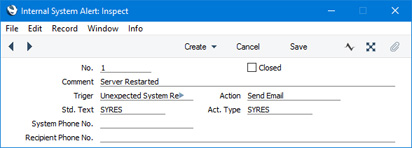
- No.
- A unique identifying number will be assigned to each Internal System Alert when you save it for the first time.
- Closed
- Tick this box in an Internal System Alert record that is no longer to be used. You can re-open the record at any time.
- Comment
- If the Action (below) is "Send Email", the Comment that you enter here will be used as the Subject in any Mails that are created as a result of the Internal System Alert.
- Trigger
- Paste Special
Choices of possible entries
- Use 'Paste Special' to specify the event that will cause notifications to be sent. The following options are available:
- Undefined
- Notifications will not be sent.
- Unexpected System Restart
- A notification will be sent if the server restarts unexpectedly.
- An unexpected restart will occur after the server closed in an improper way (e.g. it crashed or was force quit or there was a power failure). Such a restart will be marked by the comment "Last session was not properly terminated" appearing the log.
- An unexpected restart will occur after the server closed in an improper way (e.g. it crashed or was force quit or there was a power failure). Such a restart will be marked by the comment "Last session was not properly terminated" appearing the log.
- Emails queue stopped
- A notification will be sent if the Email Queue stops.
- The Email Queue contains external mail that is waiting to be sent to the relevant destination. External mail is Mail in which at least one recipient is an email address containing the @ character. If you need to check the contents of the Email Queue, you can do so by opening the Email Queue register in the Email and Conferences module.
- If you use this option, the Email Queue will be checked every minute. If the Queue contains an unsent Mail that has been waiting for at least two minutes, the Queue will be deemed to have stopped and the notification will be issued.
- The Email Queue contains external mail that is waiting to be sent to the relevant destination. External mail is Mail in which at least one recipient is an email address containing the @ character. If you need to check the contents of the Email Queue, you can do so by opening the Email Queue register in the Email and Conferences module.
- E-Invoices queue stopped
- A notification will be sent if the Cloud Service that sends Electronic Invoices stops.
- If the Electronic Data Exchange Stopped box in the Electronic Invoice Settings setting in the System module is ticked or if there is an unprocessed Electronic Invoice Cloud Service task, the Cloud Service will be deemed to have stopped and the notification will be issued.
- If the Electronic Data Exchange Stopped box in the Electronic Invoice Settings setting in the System module is ticked or if there is an unprocessed Electronic Invoice Cloud Service task, the Cloud Service will be deemed to have stopped and the notification will be issued.
- E-Invoices not sent during last 24h
- A notification will be sent if an Electronic Invoice has been waiting 24 hours or more to be sent.
- E-Tasks queue stopped
- A notification will be sent if the Etask Queue stops.
- The Etask Queue contains text (SMS) messages that are waiting to be sent.
- If you use this option, the Etask Queue will be checked every minute. If the Queue contains an unsent text (SMS) message that has been waiting for at least two minutes, the Queue will be deemed to have stopped and the notification will be issued.
- The Etask Queue contains text (SMS) messages that are waiting to be sent.
- Undefined
- Action
- Paste Special
Choices of possible entries
- Use 'Paste Special' to choose the type of notification that will be sent when the event specified above occurs. The following options are available:
- Send SMS
- The notification will take the form of a text (SMS) message being sent to the Recipient Phone No. specified below. The source of the message will be the System Phone No., also specified below.
- The message will consist of the text "Program not properly Terminated", "Email Queue has stopped", "Etasks Queue has stopped", "Cloud Service has stopped" or "EInvoices have not been sent for over 24h" (depending on the event) plus the text in the record in the Standard Text register in the CRM module that you can optionally specify in the Std. Text field.
- Sending text (SMS) messages is a chargeable Cloud Service. To use it, ensure you have registered your database using the Automatic Internet Enabler method, as described on the Enabler Key page. Please contact your local HansaWorld representative to sign up for the service and for pricing details.
- The message will consist of the text "Program not properly Terminated", "Email Queue has stopped", "Etasks Queue has stopped", "Cloud Service has stopped" or "EInvoices have not been sent for over 24h" (depending on the event) plus the text in the record in the Standard Text register in the CRM module that you can optionally specify in the Std. Text field.
- Send Email
- The notification will take the form of a Mail being sent to the Postmaster Mailbox specified in the Mail and Conferences Settings setting in the Email and Conferences module. The sender of the Mail will be the System Email Mailbox specified in the Business Alerts setting or, if that is blank, the From System Mailbox specified in the Mail and Conferences Settings setting. The Subject of the Mail will be the Comment specified above. The Mail Text will be taken from the record in the Standard Text register in the CRM module that you can optionally specify in the Std. Text field below.
- If you have more than one Company in your database, the Internal System Alerts setting is stored in Company 0, a partition of the database that stores information available in every Company. However, the Mail and Conferences Settings and Business Alerts settings are stored individually in each Company. You should configure these settings in each Company to ensure that notifications are sent correctly.
- A Calendar Activity will also be created, using the Activity Type specified below. The Text in the Activity will be "Program not properly Terminated", "Email Queue has stopped", "Etasks Queue has stopped", "Cloud Service has stopped" or "EInvoices have not been sent for over 24h" (depending on the event).
- Note that if you do not specify an Activity Type in the field below, the Mail and the Activity will both not be created.
- If you have more than one Company in your database, the Internal System Alerts setting is stored in Company 0, a partition of the database that stores information available in every Company. However, the Mail and Conferences Settings and Business Alerts settings are stored individually in each Company. You should configure these settings in each Company to ensure that notifications are sent correctly.
- Send SMS
- Std. Text
- Paste Special
Standard Text register, CRM module
- Use this field to connect the Internal System Alert to a record in the Standard Text register. If the Action (above) is "Send SMS", the text in this Standard Text record will be copied to any notification text (SMS) messages that are created. If the Action is "Send Email", the text in this Standard Text record will be copied to any notification Mails that are created.
- Act. Type
- Paste Special
Activity Types setting, CRM module
- If the Action is "Send Email", a notification Activity will be created as well as the Mail. The Activity Type that you specify here will be copied to the new Activity. If you have specified an Alarm Type and timing instructions in the Activity Type, these will also be copied to the new Activity. Therefore an option is to choose an Alarm Type in the Activity Type that will bring the notification to the Postmaster's attention.
- If the Action is "Send Email", you must specify an Activity Type in this field. If you leave this field empty, neither the Mail nor the Activity will be created.
- If the Action is "Send Email", you must specify an Activity Type in this field. If you leave this field empty, neither the Mail nor the Activity will be created.
- System Phone No.
- If the Action is "Send SMS", enter the source phone number from which notification text (SMS) messages are to be sent.
- If you do not enter a source phone number here, the System Phone No. will be taken from the Internal System Alerts Settings setting. If the System Phone No. is blank in that setting as well, no text (SMS) messages will be sent.
- If you do not enter a source phone number here, the System Phone No. will be taken from the Internal System Alerts Settings setting. If the System Phone No. is blank in that setting as well, no text (SMS) messages will be sent.
- Recipient Phone No.
- If the Action is "Send SMS", enter the phone number to which notification text (SMS) messages are to be sent.
- You must enter this number using the international format, including + or 00 as a prefix.
- No text (SMS) messages will be sent if you do not enter a number here.
- You must enter this number using the international format, including + or 00 as a prefix.
Settings in the Business Alerts module:
- Introduction
- Business Alerts
- Contact Delivery Alerts
- Contact Order Alerts
- Contact Quotation Alerts
- Contact Reservation Alerts
- Cost Price Variance Alerts
- GP Below Minimum Alerts
- Internal Invoice Alerts
- Internal Order Alerts
- Internal Quotation Alerts
- Internal System Alerts
- Internal System Alerts Settings
- Sales Ledger Due Report
- Home page for Business Alerts manual
- Home page for Standard ERP manual
Internal System Alerts
Use the Internal System Alerts setting if you would like to be notified when certain database events occur. Depending on the database event, notification will be by text (SMS) message or Activity.Sending text (SMS) messages is a chargeable Cloud Service. To use it, ensure you have registered your database using the Automatic Internet Enabler method, as described on the Enabler Key page. Please contact your local HansaWorld representative to sign up for the service and for pricing details.
If you have more than one Company in your database, bear in mind that the Internal System Alerts setting is stored in Company 0, a partition of the database that stores information available in every Company. This means that the setting is used by all Companies, that any change you make in this setting will immediately be available to all Companies, and it doesn't matter in which Company you are working when you need to edit the setting.
The Internal System Alerts setting contains the following options and fields:
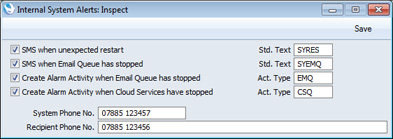
- SMS when unexpected restart, Std. Text
- Paste Special
Standard Text register, CRM module
- Use this option if you would like to be notified by text (SMS) message each time the server restarts unexpectedly.
- An unexpected restart will occur after the server closed in an improper way (e.g. it crashed or was force quit or there was a power failure). Such a restart will be marked by the comment "Last session was not properly terminated" appearing the log.
- The notification will take the form of a text (SMS) message being sent to the Recipient Phone No. specified below. The source of the message will be the System Phone No., also specified below.
- The message will consist of the text "Program not properly Terminated", plus the text in the record in the Standard Text register in the CRM module that you can optionally specify in the Std. Text field.
- An unexpected restart will occur after the server closed in an improper way (e.g. it crashed or was force quit or there was a power failure). Such a restart will be marked by the comment "Last session was not properly terminated" appearing the log.
- SMS when Email Queue has stopped, Std. Text
- Paste Special
Standard Text register, CRM module
- Use this option if you would like to be notified by text (SMS) message each time the E-mail Queue stops.
- The E-mail Queue contains external mail that is waiting to be sent to the relevant destination. External mail is Mail in which at least one recipient is an e-mail address containing the @ character. If you need to check the contents of the E-mail Queue, you can do so by opening the E-mail Queue register in the E-mail and Conferences module.
- If you use this option, the E-Mail Queue will be checked every five minutes. If the Queue contains an unsent Mail that has been waiting for at least two minutes, the Queue will be deemed to have stopped and the notification will be issued.
- The notification will take the form of a text (SMS) message being sent to the Recipient Phone No. specified below. The source of the message will be the System Phone No., also specified below.
- The message will consist of the text "E-mail Queue has stopped", plus the text in the record in the Standard Text register in the CRM module that you can optionally specify in the Std. Text field.
- The E-mail Queue contains external mail that is waiting to be sent to the relevant destination. External mail is Mail in which at least one recipient is an e-mail address containing the @ character. If you need to check the contents of the E-mail Queue, you can do so by opening the E-mail Queue register in the E-mail and Conferences module.
- Create Alarm Activity when Email Queue has stopped, Act. Type
- Paste Special
Activity Types setting, CRM module
- Use this option if you would like the Postmaster to be notified by message each time the E-mail Queue stops.
- As with the previous option, the E-Mail Queue will be checked every five minutes. If the Queue contains an unsent Mail that has been waiting for at least two minutes, the Queue will be deemed to have stopped and the notification will be issued.
- The notification will take the form of an Alarm Activity being created in the name of the Postmaster. The Alarm Type in the Activity will be Message, meaning that a message will appear on the Postmaster's screen, containing the phrase "E-mail Queue has stopped" and an [Open Activity] button that they can use to open the Activity. If the Postmaster is not logged in at the relevant time, they will be shown the message the next time they log in.
- The name of the Postmaster will be taken from the Mail and Conference Settings setting in the E-mail and Conferences module: no Activity will be created if you have not specified a Postmaster.
- As with the previous option, the E-Mail Queue will be checked every five minutes. If the Queue contains an unsent Mail that has been waiting for at least two minutes, the Queue will be deemed to have stopped and the notification will be issued.
- Create Alarm Activity when Cloud Services have stopped, Act. Type
- Paste Special
Activity Types setting, CRM module
- Use this option if you would like the Postmaster to be notified by message each time Cloud Services stop.
- The following Cloud Services will be monitored by this option: Sending Electronic Invoices, Receiving Electronic Invoices, Sending Electronic VAT Declarations, Sending Electronic Payments and Sending Direct Debits.
- These Cloud Services will be checked every five minutes. If the Electronic Data Exchange Stopped box in the Electronic Invoice Settings setting in the System module is ticked or if there is an unprocessed Cloud Service task, Cloud Services will be deemed to have stopped and the notification will be issued.
- The notification will take the form of an Alarm Activity being created in the name of the Postmaster. The Alarm Type in the Activity will be Message, meaning that a message will appear on the Postmaster's screen, containing the phrase "Cloud Service has stopped" and an [Open Activity] button that they can use to open the Activity. If only one Cloud Service has stopped (i.e. if the Electronic Data Exchange Stopped box is not ticked, but there is an unprocessed Cloud Service task), the message will include the name of the Cloud Service that has stopped. If the Postmaster is not logged in at the relevant time, they will be shown the message the next time they log in.
- The name of the Postmaster will be taken from the Mail and Conference Settings setting in the E-mail and Conferences module: no Activity will be created if you have not specified a Postmaster.
- The following Cloud Services will be monitored by this option: Sending Electronic Invoices, Receiving Electronic Invoices, Sending Electronic VAT Declarations, Sending Electronic Payments and Sending Direct Debits.
- System Phone No.
- Enter the source phone number from which notification text (SMS) messages are to be sent.
- No Text (SMS) messages will be sent if you do not enter a number here.
- No Text (SMS) messages will be sent if you do not enter a number here.
- Recipient Phone No.
- Enter the phone number to which notification text (SMS) messages are to be sent.
- You must enter this number using the international format, including + or 00 as a prefix.
- No Text (SMS) messages will be sent if you do not enter a number here.
- You must enter this number using the international format, including + or 00 as a prefix.
---
Settings in the Business Alerts module:
- Introduction
- Business Alerts
- Contact Delivery Alerts
- Contact Order Alerts
- Contact Quotation Alerts
- Contact Reservation Alerts
- Cost Price Variance Alerts
- Due Report
- GP Below Minimum Alerts
- Internal Invoice Alerts
- Internal Order Alerts
- Internal Quotation Alerts
- Internal System Alerts
- Home page for Business Alerts manual
- Home page for HansaWorld Enterprise manual
Due Report
The Due Report setting allows you to have the Aged version of the Sales Ledger report sent to a Mailbox or Conference every day.The report will be attached to a Mail, which will be sent from the From System Mailbox specified in the Mail and Conference Settings setting in the E-mail and Conferences module. If Due Report Mails are not placed in the relevant Mailbox or Conference when expected, the probable reason is that you have not specified a From System Mailbox in this setting.
Use the Due Report setting to configure this feature, as follows:
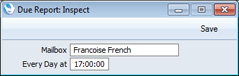
- Mailbox
- Paste Special
Mailboxes and Conferences
- Specify here the Mailbox or Conference to which a Due Report Mail is to be sent every day.
- Every Day at
- Specify here the time when a Due Report Mail is to be sent every day to the Mailbox of Conference specified above.
---
Settings in the Business Alerts module:
- Introduction
- Business Alerts
- Contact Delivery Alerts
- Contact Order Alerts
- Contact Quotation Alerts
- Contact Reservation Alerts
- Cost Price Variance Alerts
- Due Report
- GP Below Minimum Alerts
- Internal Invoice Alerts
- Internal Order Alerts
- Internal Quotation Alerts
- Internal System Alerts
- Home page for Business Alerts manual
- Home page for HansaWorld Enterprise manual