Introduction to Maintenance in the Consolidation Module
Maintenance functions allow you to carry out certain updating tasks, usually involving batch processing and encompassing all or many of the records in the affected register. There are two such functions available in the Consolidation module. To use them, select 'Maintenance' from the File menu. The following window appears: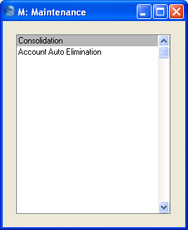
Auto Elimination
In some circumstances, each Daughter Company will be a separate cost centre that will be invoiced when it uses resources belonging to another Daughter Company. These internal costs and income usually should not be included in turnover figures in the consolidated accounts. They should be removed from the consolidated accounts so that the figures for the group as a whole are correct.In some cases, you can eliminate internal costs and income simply by using the same Account as the Sales Account in one Daughter and as the Cost Account in the second Daughter, or by consolidating the two Daughter Accounts to the same Account in the Mother Company. Otherwise, you can eliminate the balances of Accounts used for this purpose using the Auto Elimination setting in the Nominal Ledger together with the 'Account Auto Elimination' Maintenance function, available in both the Nominal Ledger and the Consolidation module. You might use this method when internal transactions have been entered as sales in one Daughter and as purchases in another with slightly different values due to exchange rate differences, data entry errors, etc.
You can use the 'Account Auto Elimination' function in two ways:
- You can use it in the Mother Company only. In this case you can run the function from the Nominal Ledger or from the Consolidation module. You should use this method if the Mother Company already contains the consolidated account balances from the Daughter Companies (i.e. if you have used the 'Consolidation' export function to export Transaction information from each Daughter Company which you have then imported to the Mother Company.
- You can use it in the Mother Company but apply it to all Companies in the database. In this case you must run the function from the Consolidation module. You should use this method if you have the Mother and Daughter Companies in the same database and you will be producing consolidated reports from the Mother Company without physically transferring any Daughter Company information to the Mother Company.
Auto Elimination - The Auto Elimination Setting
To enter a new Auto Elimination record or to edit an existing one, make sure you are in the Nominal Ledger and open the 'Settings' list by clicking the [Settings] button in the Master Control panel or by selecting 'Settings' from the File menu. Double-click 'Auto Elimination' in the list. The 'Auto Eliminations: Browse' window is displayed, showing all Auto Elimination records previously entered. Double-click a record in the list to edit it, or add a new record by clicking the [New] button in the Button Bar. When the record is complete, save it by clicking the [Save] button in the Button Bar or by clicking the close box and choosing to save changes. To close it without saving changes, click the close box.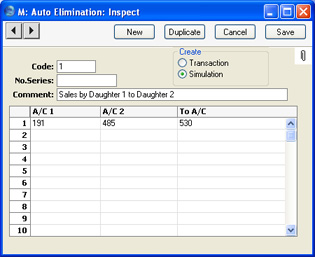
- Code
- Enter a unique Code by which the Auto Elimination record will be identified.
- Create
- Use these options to determine whether the 'Account Auto Elimination' Maintenance function will create a Simulation or a Transaction.
- If the function is to create a Simulation, you will be able to check it for accuracy before converting it into a Transaction using the 'Transactions' Operations menu function on the 'Simulations: Browse' window.
- If the function is to create a Simulation, you will be able to check it for accuracy before converting it into a Transaction using the 'Transactions' Operations menu function on the 'Simulations: Browse' window.
- No. Series
- You can specify that the Transaction or Simulation created by the 'Account Auto Elimination' Maintenance function will be numbered using a particular number sequence in the Number Series - Transactions or Number Series - Simulations settings. To do this, enter the first number of the number sequence here. If you leave this field empty, the function will use the first number sequence in the setting. If the number entered does not fall into a recognised or currently valid number sequence, the Maintenance function will not create a Simulation or a Transaction. This will occur most commonly when Number Series are tied to a period such as a calendar year and that period ends.
!
Be sure to specify a valid Number Series, otherwise no Simulations or Transactions will be created.
- Comment
- Enter a name for the Auto Elimination record, to be shown in the 'Auto Eliminations: Browse' window and the 'Paste Special' list. The Comment is also transferred to the Text field of any Simulation or Transaction created by the 'Account Auto Elimination' Maintenance function.
- A/C 1, A/C 2
- Paste Special
Account register, Nominal Ledger/System module
- Specify here the two Accounts whose balances are to be cancelled out or eliminated. For example, if one Daughter Company has invoiced another Daughter Company for the use of a particular resource, the two Accounts that you enter here will be the Sales Account in the first Daughter Company and the corresponding Cost Account in the second Daughter Company. You must specify both Accounts in a particular row, and both Accounts must exist in the current Company, otherwise the row will be ignored by the Maintenance function.
- To A/C
- Paste Special
Account register, Nominal Ledger/System module
- In case the balances of the two Accounts are not the same (i.e. they will not cancel each other out), specify here the Account that is to receive the difference. You must specify a To Account in a particular row and the Account must exist in the current Company, otherwise the row will be ignored by the Maintenance function.
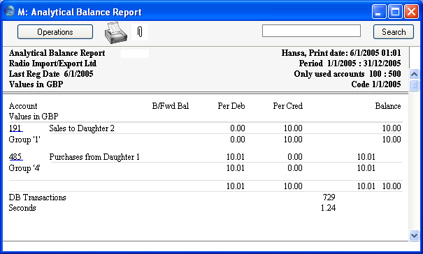
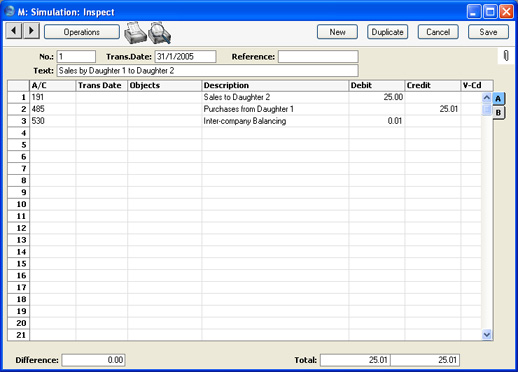
- In the example illustration, the Sales Account 191 and the Cost Account 485 will have their balances cancelled out. If their balances are not the same, the difference will be posted to Account 530.
- There should not be a balance in the difference Account after you have run the 'Account Auto Elimination' function. If there is a balance, it will usually be caused by an error in one of the Daughter companies. You should trace the error and correct it before producing the final consolidated accounts.
- In the example illustration, the Sales Account 191 and the Cost Account 485 will have their balances cancelled out. If their balances are not the same, the difference will be posted to Account 530.
Auto Elimination - The 'Account Auto Elimination' Maintenance Function
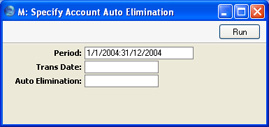
Once you have defined a set of rules using the Auto Elimination setting in the Nominal Ledger as described here, it will be used by the 'Account Auto Elimination' Maintenance function to create a new record in the Simulation or Transaction register containing the necessary postings.You can use the 'Account Auto Elimination' function from the Nominal Ledger and from the Consolidation module. To use it, ensure you are in one of these modules and open the 'Maintenance' list by selecting 'Maintenance' from the File menu. Double-click 'Account Auto Elimination' in the list. If you are in the Nominal Ledger, the following dialogue box appears:
- Period
- Paste Special
Reporting Periods setting, System module
- The balances to be eliminated will be the net changes in the balances of Accounts 1 and 2 over the period entered here.
- Trans Date
- Paste Special
Choose date
- Enter a date to be used as the Transaction Date in the Transaction or Simulation created by the function.
- If the function will create a Transaction, you must enter a date here, otherwise the function will have no effect. If the function will create a Simulation and you do not enter a date, the resulting Simulation will not have a date. You will not be able to convert this Simulation into a Transaction until you enter a date.
- If the function will create a Transaction, you must enter a date here, otherwise the function will have no effect. If the function will create a Simulation and you do not enter a date, the resulting Simulation will not have a date. You will not be able to convert this Simulation into a Transaction until you enter a date.
- Auto Elimination
- Paste Special
Auto Elimination setting, Nominal Ledger
- Enter the Code of a record in the Auto Elimination setting. This will determine whether the function will create a Simulation or a Transaction and will specify the Accounts whose balances are to be cancelled out and the Accounts that are to receive any differences.
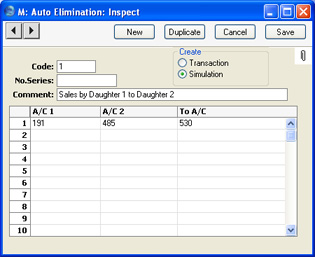
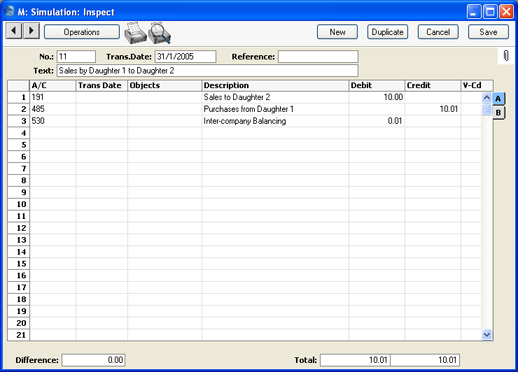
For example, the record in the Auto Elimination setting shown below will create a Simulation eliminating the balances from Accounts 191 and 485, with any difference being transferred to Account 530.
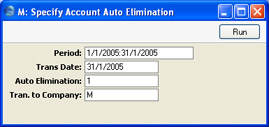
If you run the 'Account Auto Elimination' function from the Consolidation module, the 'Specify Account Auto Elimination' window has an extra field, Tran. to Company:
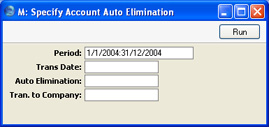
You can run the function from any Company in the database, and you should enter the Company Code of the Mother Company in this field. You should do this even if you are running the function in the Mother Company itself. The consequences will be as follows:
- The function will search in the specified Company (i.e. in the Mother Company, not in the current Company) for the Auto Elimination record specified in the field above.
- The function will create the elimination Simulation or Transaction in the Mother Company. The Accounts used in the Auto Elimination record must all exist in the Account register in the Mother Company.
- The function will check the Mother Company for the balances of Accounts 1 and 2 as specified in the Auto Elimination record, and it will also check all Companies listed in the Daughter Companies setting in the Mother Company. This is not a multi-level check, so if any Daughter Companies have their own Daughters, you should run the function at the Daughter Company level before doing so in the Mother Company.
A single inter-company transaction is recorded as a sale in the first Daughter Company and as a purchase in the second:
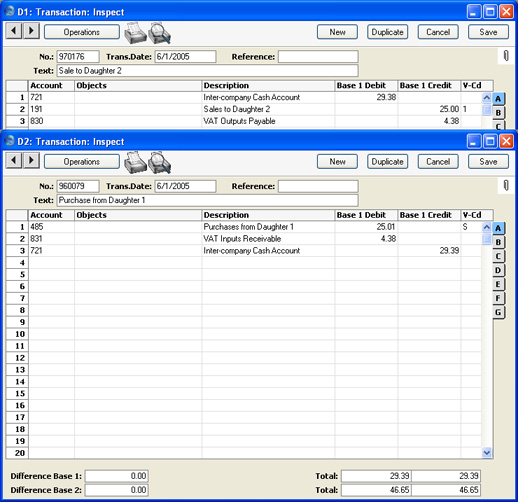
The 'Account Auto Elimination' function will create this Simulation in the Mother Company:
Consolidation
Please click here for details of this function.