Introduction to Gift Vouchers
This feature allows you to sell Gift Vouchers that you can take in payment for goods at a later date.Selling and redeeming Gift Vouchers are supported in POS Invoices. Redeeming Gift Vouchers is also supported in Bar Tabs.
---
Gift Vouchers in Standard ERP:
- Introduction
- Configuration
- Registering and Issuing Gift Vouchers
- Printing Gift Vouchers
- Selling Gift Vouchers
- Receiving Gift Vouchers as Payment
- Home page for Sales Ledger manual
- Home page for Standard ERP manual
Configuration
To configure the Gift Voucher feature, follow these steps. In a point of sales system, you can work on a desktop client or on the server itself:- Define Number Series for Gift Vouchers and Gift Vouchers Received using the Number Series - Gift Vouchers and Number Series - Gift Vouchers Received settings in the Sales Ledger or in the Point of Sales or Restaurant modules.
- If you have any live-sync tills from where Gift Vouchers are likely to be issued, define Synchronised Number Series for the Gift Vouchers Issued register, using the setting in the Technics module. If you don't have any live-sync tills, this step is not necessary.
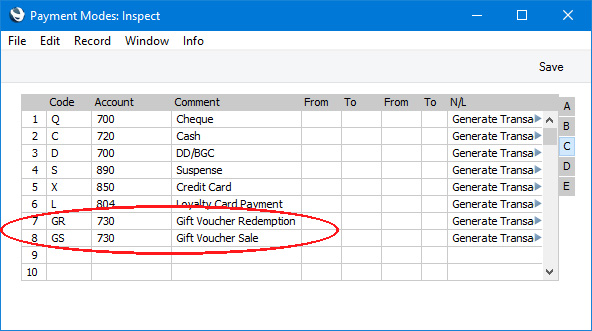
- Enter new Payment Modes to be used when you sell and receive Gift Vouchers.
- When configuring the buttons that will appear in the POS Invoice window using the POS Buttons setting, ensure you provide "Sell Gift Voucher" and "Gift Voucher" buttons. The "Sell Gift Voucher" button will enable you to sell Gift Vouchers to Customers, while the "Gift Voucher" button will enable you to receive Gift Vouchers in payment. You can also add a "Gift Voucher" button to the Bar Tab window.
In each of the rows in the POS Button record that adds these buttons to the POS Invoice or Bar Tab window, you must specify a Payment Mode in the Code field, using 'Paste Special' if necessary. In the case of "Sell Gift Voucher", the Account in the specified Payment Mode will be credited with the value of the sale (i.e. it will effectively be the Gift Voucher Sales Account). In the case of "Gift Voucher", the Account in the Payment Mode will be debited with the value of payments made using Gift Vouchers.
In the case of "Sell Gift Voucher", the Payment Mode that you specify here will act as a default. If you want to use a different Payment Mode for a particular Gift Voucher, create a Gift Voucher Type (step 7 below) containing the Payment Mode and assign it to the Gift Voucher.
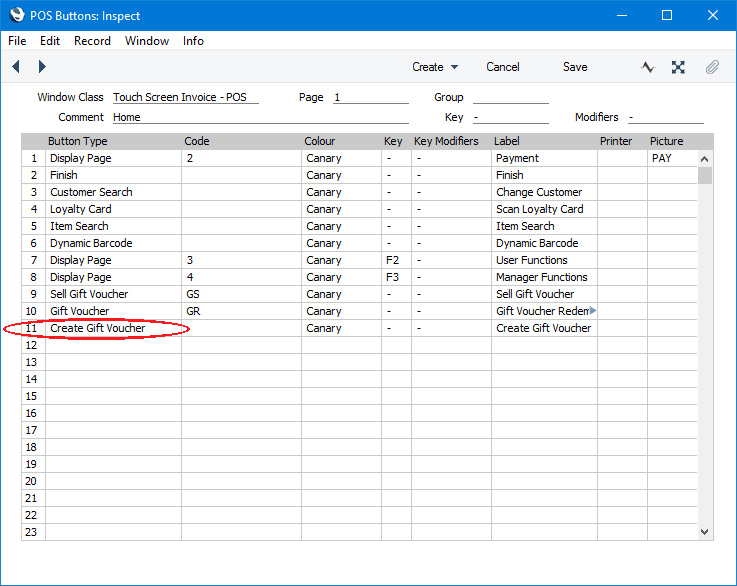
Before you can sell Gift Vouchers and take them as payment, you must register them in the system. If you would like to be able to register Gift Vouchers at the same time as you sell them, you can also add a "Create Gift Voucher" button to the POS Invoice window. You can again specify a Payment Mode in the Code field in the relevant row, but in this case it is optional. If you do not specify a Payment Mode here, the Payment Mode will be taken from the Gift Voucher Type of the new Gift Voucher. If the new Gift Voucher does not have a Gift Voucher Type, the Gift Vouch. Sold Payment Mode in the Default Payment Modes setting (step 5 below) will be used. The Account in the specified Payment Mode will be credited with the value of the each sale.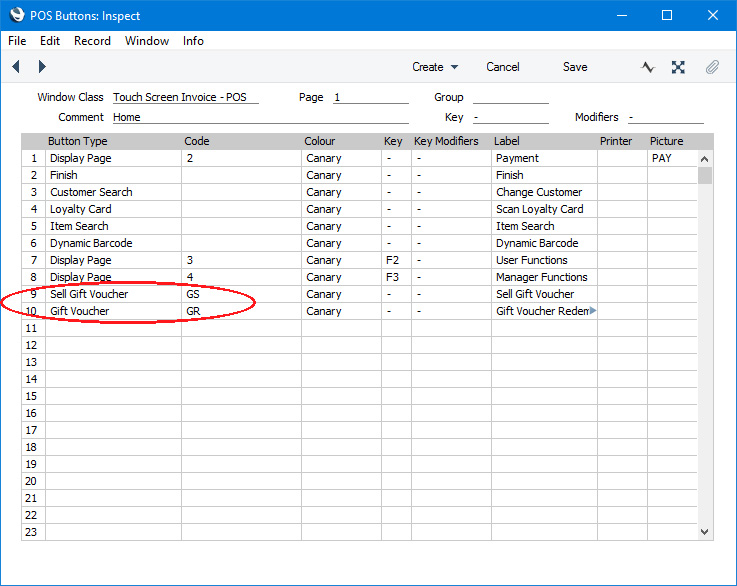
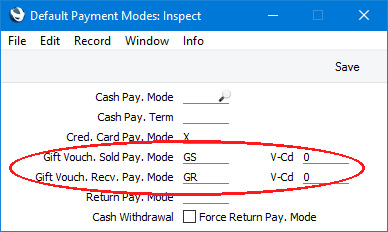
- In the Default Payment Modes setting in the Sales Ledger and Point of Sales and Restaurant modules, you can specify Gift Vouch. Sold and Gift Vouch. Recv. Payment Modes. These are default Payment Modes that will usually only be used in the absence of a suitable Payment Mode elsewhere in the system. Suitable Payment Modes will usually be taken from the POS Buttons (step 4 above), but you should specify at least a Gift Vouch. Sold Payment Mode here as this can be used if you will create and sell Gift Vouchers from POS Invoices using a "Create Gift Voucher" button as described in step 4.
- If your Gift Vouchers are valid for a fixed period, specify this period in the Expiry Months field in the Gift Voucher Settings setting (available in the Sales Ledger and Point of Sales and Restaurant modules). This will be used to calculate the Expiry Date in each new Gift Voucher. You should also specify here whether the sale and/or redemption of Gift Vouchers are transactions that qualify for Loyalty Card Points.
If you would like different Payment Modes to be used when you sell Gift Vouchers of different kinds, use the Gift Voucher Types setting in the Point of Sales and Restaurant modules to enter various Gift Voucher Types with different Payment Modes. As mentioned above, the Account in the specified Payment Mode will be credited with the value of the each sale (i.e. it will effectively be the Gift Voucher Sales Account):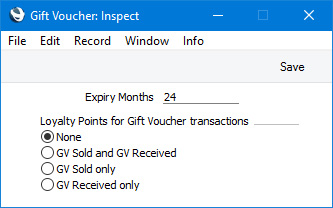
The Payment Mode in a Gift Voucher Type will only be used when you sell a Gift Voucher, not when you redeem it.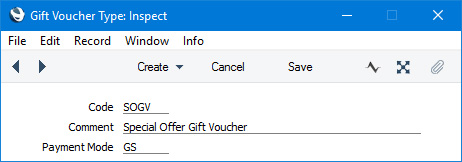
- Change to the System module and design a Form Template to be used to print Gift Vouchers.
Gift Vouchers in Standard ERP:
- Introduction
- Configuration
- Registering and Issuing Gift Vouchers
- Printing Gift Vouchers
- Selling Gift Vouchers
- Receiving Gift Vouchers as Payment
- Home page for Sales Ledger manual
- Home page for Standard ERP manual
Registering and Issuing Gift Vouchers
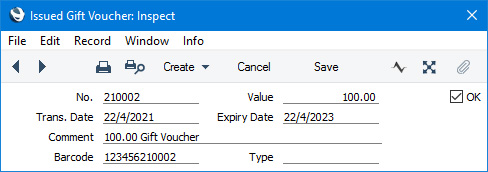
Before you can sell Gift Vouchers and take them as payment, you must register them in the system. You can do this in advance, or you can do it as you sell them, through the 'Paste Special' feature or using a "Create Gift Voucher" button. Bear in mind that each Gift Voucher can only be sold once.Use the Gift Vouchers Issued setting to register Gift Vouchers. To open this setting, first ensure you are in the Sales Ledger or in the Point of Sales or Restaurant modules. Then, if you are using Windows or macOS, click the [Settings] button in the Navigation Centre (or use the Ctrl-S/⌘-S keyboard shortcut) and, when the 'Settings' list opens, double-click 'Gift Vouchers Issued'. If you are using iOS or Android, select 'Settings' from the Tools menu (with 'wrench' icon) and tap 'Gift Vouchers Issued' in the 'Settings' list. The 'Gift Vouchers Issued: Browse' window opens: open a new record by selecting 'New' from the Create menu (Windows/macOS) or the + menu (iOS/Android).
- No.
- Paste Special
Select from another Number Series
- A unique Voucher Number for each Gift Voucher will be generated automatically from the first valid number sequence in the Number Series - Gift Vouchers setting. You may change this number, but not to one that has already been used. If you are working in a multi-user system, the Voucher Number will be assigned when you first save the Gift Voucher.
- Value
- Enter the value of the Gift Voucher.
- Trans. Date
- Paste Special
Choose Date
- The date of registration. You must enter a date before you can save the Gift Voucher.
- Expiry Date
- Paste Special
Choose Date
- The last date when the Gift Voucher can be used: you will be prevented from selling expired Gift Vouchers. You must enter a date before you can save the Gift Voucher, and the date cannot be earlier than the Trans. Date.
- If you have specified a figure in the Expiry Months field in the Gift Voucher Settings setting, a default Expiry Date will be calculated by adding that figure to the Trans. Date.
- If you have specified a figure in the Expiry Months field in the Gift Voucher Settings setting, a default Expiry Date will be calculated by adding that figure to the Trans. Date.
- Comment
- The comment that you enter here will be shown in the Invoice when you sell the Gift Voucher.
- Barcode
- Record the Bar Code of the Gift Voucher here.
- Providing the Barcode does not clash with your Voucher Numbers, you can enter it in POS Invoices instead of the Voucher Number when you sell the Gift Voucher or receive it in payment. This can be useful if you use barcode scanners.
- Providing the Barcode does not clash with your Voucher Numbers, you can enter it in POS Invoices instead of the Voucher Number when you sell the Gift Voucher or receive it in payment. This can be useful if you use barcode scanners.
- Type
- Paste Special
Gift Voucher Types setting, Point of Sales/Restaurant modules
- When you sell the Gift Voucher, you will do so using a "Sell Gift Voucher" button in a POS Invoice. When you configure this button in the POS Buttons setting (step 4 on the Configuration page), you will connect it to a Payment Mode. The Account in this Payment Mode will be credited with the value of the sale (i.e. it will effectively be the Gift Voucher Sales Account).
- If you would like to use a different Payment Mode (i.e. a different Account) when you sell a particular Gift Voucher, create a record in the Gift Voucher Types setting in the Point of Sales and Restaurant modules containing the Payment Mode. Then, specify that Gift Voucher Type in this field.
- If you would like to use a different Payment Mode (i.e. a different Account) when you sell a particular Gift Voucher, create a record in the Gift Voucher Types setting in the Point of Sales and Restaurant modules containing the Payment Mode. Then, specify that Gift Voucher Type in this field.
- OK
- Tick the OK box to approve the Gift Voucher. Once you have done this and have saved the record, no further changes can be made. You will be prevented from selling Gift Vouchers that have not been marked as OK.
---
Gift Vouchers in Standard ERP:
- Introduction
- Configuration
- Registering and Issuing Gift Vouchers
- Printing Gift Vouchers
- Selling Gift Vouchers
- Receiving Gift Vouchers as Payment
- Home page for Sales Ledger manual
- Home page for Standard ERP manual
Printing Gift Vouchers
Having registered a Gift Voucher, there are two ways you can use to print it:- While entering or inspecting a Gift Voucher, click the Printer icon in the Button Bar (Windows and macOS) or select 'Print' from the File menu (all platforms). If you want to print to screen, click the Preview icon (Windows and macOS only).
- Check you are in the Sales Ledge, Point of Sales or Restaurant modules. If you are using Windows or macOS, click the [Forms] button in the Navigation Centre or use the use the Ctrl-D (Windows)/⌘-D (macOS) key combination. Double-click 'Gift Vouchers' in the 'Forms' list window or highlight it and press the Enter key. If you are using iOS or Android, tap the [Routines] button in the Navigation Centre and then tap [Forms]. Tap 'Gift Vouchers' in the 'Forms' list window. In all cases, indicate the Voucher Number (or range of Voucher Numbers) to be printed and press [Run].
- Design the voucher document using the Form Template register in the System module. Use the 'Properties' function on the Operations menu to name the Form Template (in this description, we have used the name "GIFT_VOUCHER" and to assign it a Form Type of "Gift Vouchers". A full list of the fields you can include in the Template design can be found here.
- Select the Point of Sales, Restaurant or Sales Ledger module using the [Switch Module] button in the Navigation Centre or the Ctrl-0 (Windows and Linux) or ⌘-0 (macOS) keyboard shortcuts.
- Click the [Forms] button in the Navigation Centre or use the Ctrl-D/⌘-D key combination. The 'Forms' list window will be opened: highlight 'Gift Vouchers'.
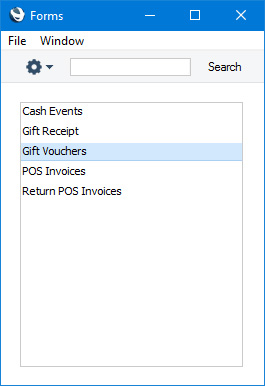
- Select 'Define Form' from the Operations menu.
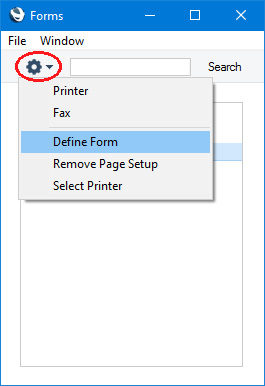
- In the subsequent 'Form Definition' window, enter "GIFT_VOUCHER" in the Form Template field in the first row (you can use 'Paste Special' to ensure the spelling is correct).
If you only want to be able to print Gift Vouchers that have been marked as OK, enter 'OKed' in the Status column in every row in the 'Form Definition' window (as has been done in the illustration).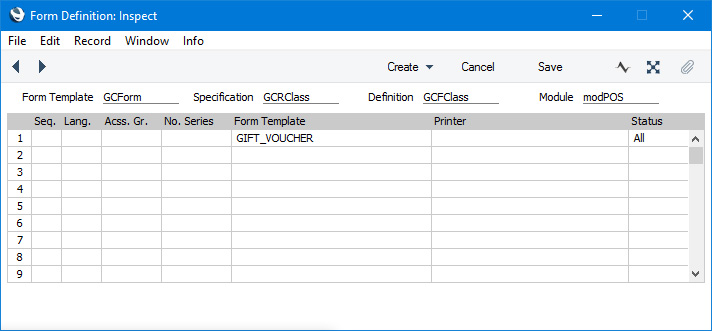
- Click [Save] to save the Gift Voucher form definition. From now on, the voucher document that you have designed will be used, from the 'Forms' function and from the Printer icon.
Gift Vouchers in Standard ERP:
- Introduction
- Configuration
- Registering and Issuing Gift Vouchers
- Printing Gift Vouchers
- Selling Gift Vouchers
- Receiving Gift Vouchers as Payment
- Home page for Sales Ledger manual
- Home page for Standard ERP manual
Selling Gift Vouchers
This page describes selling Gift Vouchers using POS Invoices.You can only sell a Gift Voucher if you have registered it in the system. If you will register Gift Vouchers in advance (as described on the Registering and Issuing Gift Vouchers page), you will sell them using a "Sell Gift Voucher" button in the POS Invoice window. If you will register Gift Vouchers at the same time as selling them, you will do so using a "Create Gift Voucher" button in the POS Invoice window. This description assumes you included both these buttons when configuring the buttons that will appear in the POS Invoice window, as mentioned in step 4 on the configuration page. Note that you can only sell Gift Vouchers through POS Invoices: you cannot sell them through conventional Invoices.
Steps 1-5 below describe using the "Sell Gift Voucher" button to sell a Gift Voucher that you have already registered in the system, while steps 6-9 describe using the "Create Gift Voucher" button to register a new Gift Voucher in the system at the point of sale. Steps 10-11 then describe the final processing that applies to both situations.
- If you need to sell a Gift Voucher that you have already registered in the system, click or touch the "Sell Gift Voucher" button in a POS Invoice.
- The 'Sell Gift Voucher' window appears:
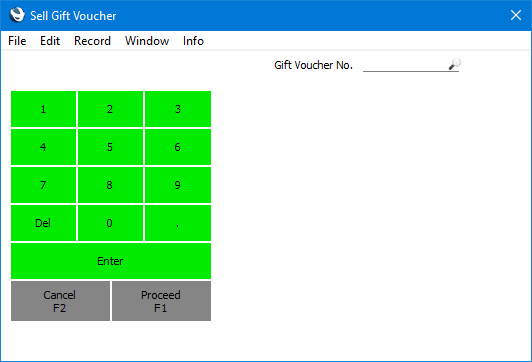
- Enter or scan the Gift Voucher Number or Barcode in the Gift Voucher No. field, or use the keypad to enter the Gift Voucher Number.
You can also choose an Issued Gift Voucher using 'Paste Special'. The 'Paste Special' list shows Issued Gift Vouchers that have not yet been sold.
- Remember that you can only sell Gift Vouchers that you have recorded in the Gift Vouchers Issued setting. If you need to sell a Gift Voucher that you have not yet registered, open the 'Paste Special' window and click or touch the [New] button. If you need to prevent cashiers creating Gift Vouchers in this way, use Access Groups to grant them Read or Browse access to the Gift Vouchers Issued setting. This will allow them to choose Gift Vouchers using 'Paste Special' but not create new ones.
- Click or touch [Proceed] to add the Gift Voucher to the Invoice, or [Cancel] to abandon it. If you clicked [Proceed], providing the Gift Voucher has been marked as OK (in the Gift Vouchers Issued setting) and has not expired, a line will be added to the POS Invoice, showing the sale of the Gift Voucher:
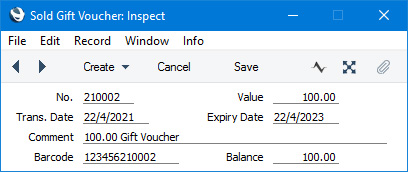
The line shows the Payment Mode, the Comment from the Issued Gift Voucher record with the Gift Voucher Number as a suffix, and the value. If you assigned a Gift Voucher Type to the Issued Gift Voucher, the Payment Mode will be taken from that Gift Voucher Type. Otherwise it will be taken from the POS Buttons setting.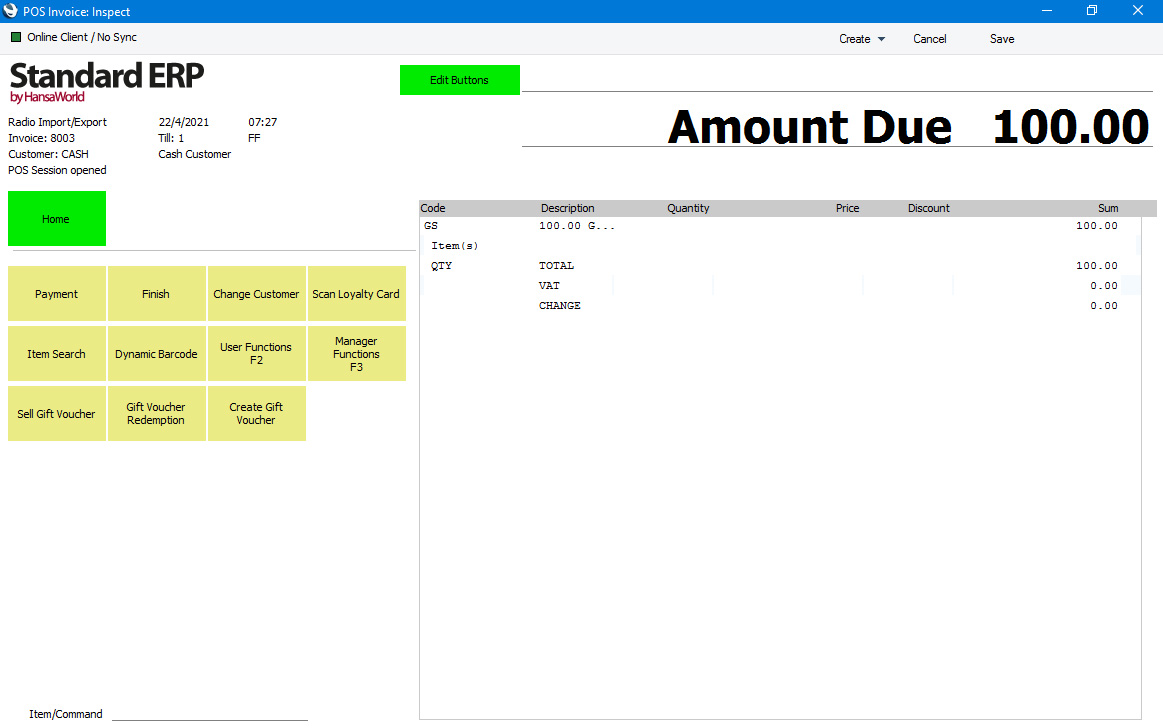
- If you need to register a new Gift Voucher in the system at the same time as selling it, you can use 'Paste Special' as mentioned in step 4 above. An alternative is to click or touch the "Create Gift Voucher" button in a POS Invoice.
- The 'Issued Gift Voucher: New' window appears:
Fill in the details as described on the Registering and Issuing Gift Vouchers page.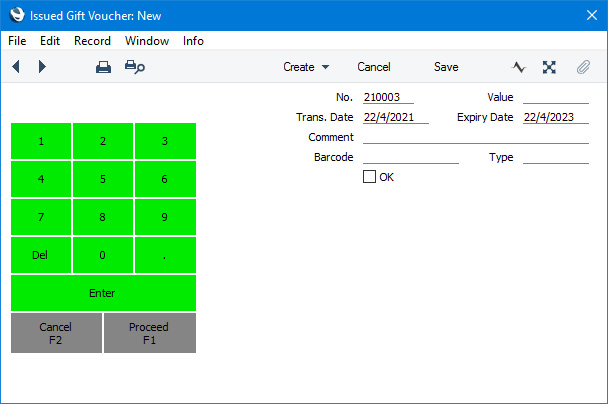
- Click or touch [Proceed] to add the Gift Voucher to the Invoice, or [Cancel] to abandon it. If you clicked [Proceed], the Gift Voucher will be marked as OK automatically if you did not do so yourself, it will be saved in the Gift Vouchers Issued setting, and a line will be added to the POS Invoice, showing the sale of the Gift Voucher.
Largely as described in step 5, the line will show the Payment Mode, the Comment and the value. The only difference in this case is that the Payment Mode can be taken from the Gift Voucher Type, from the POS Buttons setting or from the Default Payment Modes setting (Gift Vouch. Sold. Payment Mode, step 5 on the Configuration page).
- Having added a Gift Voucher to the Invoice, continue by adding any other Items sold alongside the Gift Voucher. You can do this before or after adding the Gift Voucher.
- Add the payment in the usual way (e.g. using the "Cash" or "Credit Card" buttons) and click or touch the "Finish" button to close the POS Invoice, again proceeding in the usual way.
- Debit
- Account from the Payment Mode used in payment.
- Credit (Sales)
- Account from the Payment Mode specified in the line in the POS Invoice showing the sale of the Gift Voucher (described in steps 5 and 9 above).
Gift Vouchers in Standard ERP:
- Introduction
- Configuration
- Registering and Issuing Gift Vouchers
- Printing Gift Vouchers
- Selling Gift Vouchers
- Receiving Gift Vouchers as Payment
- Home page for Sales Ledger manual
- Home page for Standard ERP manual
Receiving Gift Vouchers as Payment
This page describes receiving Gift Vouchers as payment in POS Invoices and Bar Tabs. The description assumes you have included a "Gift Voucher" button when configuring the buttons that will appear in the POS Invoice or Bar Tab window, as mentioned in step 4 on the configuration page. Note that you can only receive Gift Vouchers in payment through POS Invoices and Bar Tabs: you cannot do so through conventional Invoices or Receipts.The description below will describe receiving Gift Vouchers as payment using a POS Invoice as an example: the process in Bar Tabs is identical.
- Create a POS Invoice and add the Items that the Customer has purchased in the normal way.
- Click or touch the "Gift Voucher" button.
- The 'Gift Voucher Payment' window appears:
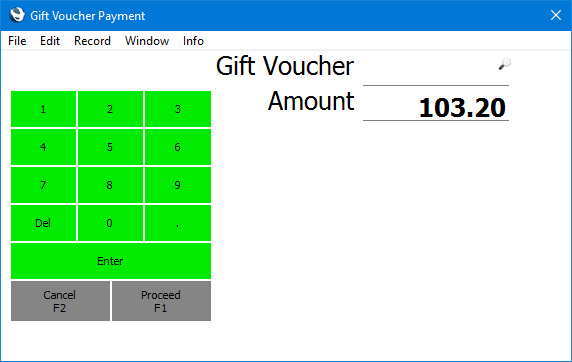
- Enter or scan the Gift Voucher Number or Barcode in the Gift Voucher field.
If the till has a touch screen but no keyboard, touch the Gift Voucher field and then use the keypad to enter the Gift Voucher Number.
You can also choose a Sold Gift Voucher using 'Paste Special'. The 'Paste Special' list shows Sold Gift Vouchers that have not yet been redeemed.
- The Amount field will show the value of the Invoice until you specify the Gift Voucher Number. It will then change to show the value of the Gift Voucher:
Depending on your Gift Voucher policies, you can change the Amount being paid by the Gift Voucher, if the value of the Gift Voucher is higher than the value of the Invoice. It may be that you must always take the full value of a Gift Voucher and give change if necessary, in which case you will not change the Amount. Alternatively, if you can take part of the Gift Voucher value and leave the remainder as a balance on the Voucher, you can change the Amount, and the balance will be recorded.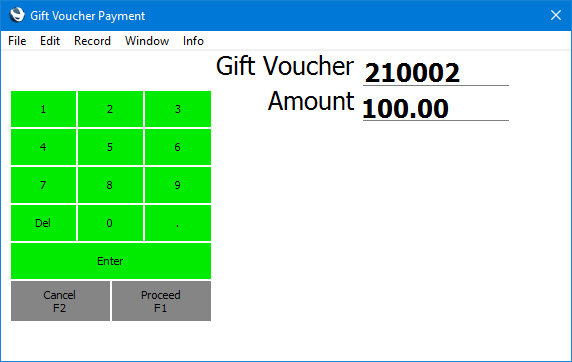
- Click or touch [Proceed] to add the Gift Voucher payment to the Invoice, or [Cancel] to abandon it. If you clicked [Proceed], providing the Gift Voucher has not expired, a line will be added to the Invoice, showing the Gift Voucher payment:
The line shows the Payment Mode and the Button Label ("Gift Voucher Redemption" in the illustration) (both from the POS Buttons setting, step 4 on the configuration page) and the amount paid by the Voucher.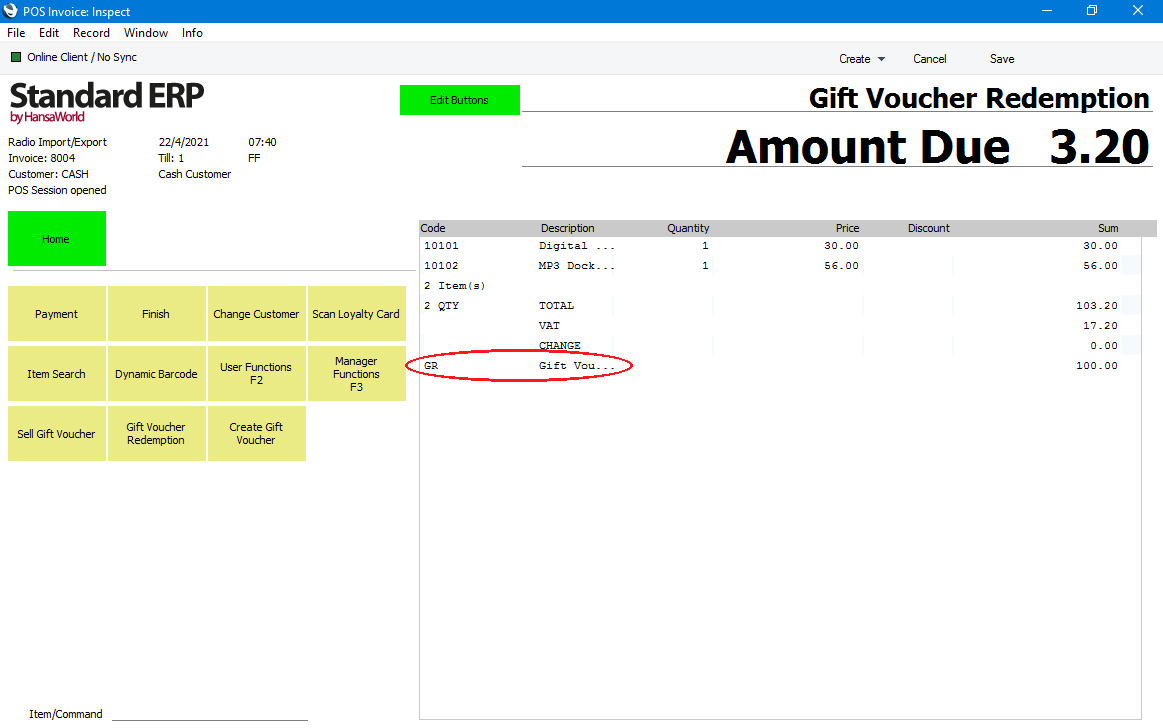
- Add to the Invoice any other payments as necessary (e.g. using the "Cash" or "Credit Card" buttons) and click or touch the "Finish" button to close the POS Invoice, proceeding in the usual way.
- Debit
- Account from the Payment Mode connected to the "Gift Voucher" button in the POS Buttons setting.
- Credit (Sales)
- Standard posting to Sales Account(s).
- Credit (VAT)
- Standard posting to Output VAT Account(s).
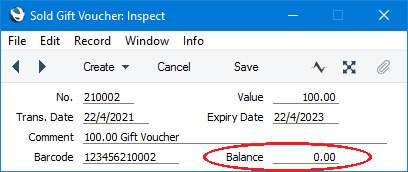
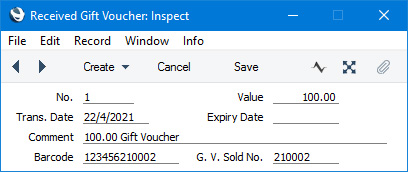
Gift Vouchers in Standard ERP:
- Introduction
- Configuration
- Registering and Issuing Gift Vouchers
- Printing Gift Vouchers
- Selling Gift Vouchers
- Receiving Gift Vouchers as Payment
- Home page for Sales Ledger manual
- Home page for Standard ERP manual