Introduktion till Fakturaregistret
This is where you define the Chart of Accounts. Each Account has a number and a name, and belongs to a class of Accounts.Hansa has no pre-assigned Accounts. Each user must define a Chart of Accounts, or import an existing one. The simplest method is to use the standard Chart of Accounts supplied with Hansa. Please refer to the Setting up a Basic Accounts System page for details of how to do this.
! | If you use your own Chart of Accounts, or modify that supplied with Hansa, it is important that all the Account numbers used in the settings and report definitions for each module are made to agree with your own numbers. |
In Hansa you always have access to the Chart of Accounts through the 'Paste Special' feature, for example when you enter Transactions and cannot remember an Account Number.
Show all Accounts on screen
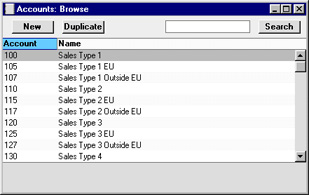
In the System module, select 'Accounts' from the Registers menu, or click the [Accounts] button in the Master Control panel. The 'Accounts: Browse' window is opened, showing Accounts that have already been entered.
Searching for an Account
In the 'Accounts: Browse' window shown above, you can scroll up and down through the list of Accounts as usual. You can also search for a particular Account by entering the first few characters of its Number or Name in the Search field in the top right-hand corner of the window. Enter a Name if the list is sorted by Name, a Number otherwise. Hansa will find the first record that matches the text you have entered.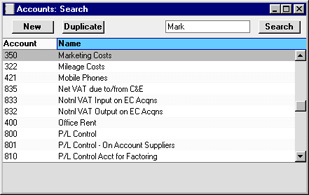
Entering, Inspecting and Changing Accounts
There are two ways to add new Accounts to the Chart of Accounts: creating a new Account or copying and then editing an existing one.In the 'Accounts: Browse' window, click [New] in the Button Bar, or highlight the Account to be copied and click [Duplicate] in the Button Bar. The 'Account: New' window appears. This is as described here.
Enter the new information or change the copied record as appropriate. Click [Save] to save the new record or [Cancel] to close without saving the record.
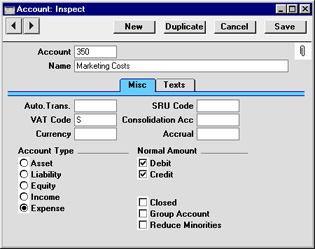
If you want to look at the details of an Account, double-click its name in the 'Accounts: Browse' window to open the Account record.
Entering, Inspecting and Changing Accounts - Header
- Account
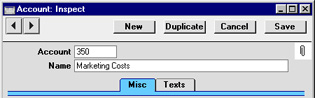
- The unique number of the Account. Up to ten characters can be used, with a minimum of two.
- Name
- The name or description of the Account.
Entering, Inspecting and Changing Accounts - Misc Card
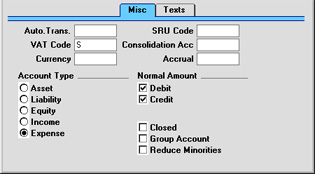
- Auto. Trans.
- Paste Special
Autotransactions setting, Nominal Ledger
- You can link an Autotransaction with a particular Account by entering the code of the Autotransaction in this field. When the Account number is entered in a Transaction record, the Autotransaction will be entered on the following rows automatically.
- VAT Code
- Paste Special
VAT Codes setting, Nominal Ledger
- A VAT Code can be assigned to each Account. It will be entered automatically every time the Account is used in a Purchase Invoice or Nominal Ledger Transaction.
- Currency
- Paste Special
Currency register, System module
- An Account can be assigned a foreign Currency. It will be used automatically every time the Account is used in a Transaction. Only postings in that Currency will be permitted. If no Currency is assigned to the Account, postings in all Currencies will be permitted.
- Account Type
- An Account can belong to one of five types: Assets, Liabilities, Equity, Revenues or Expenses. This information is used to control how the balance of this Account will be stored, as a negative or a positive figure. Assets and costs are treated as positive values, while accounts for liabilities, equity, and incomes are treated as negative. If it is necessary to change the sign of negative (credit) values for reporting purposes, use the Presentation of Balances setting in the Nominal Ledger.
- SRU Code
- This field is required in Sweden where the SIE Export function in the Nominal Ledger is used to export accounting information in a standard format to other systems. The SRU Code is a form of classification used by this export to group Accounts of a particular type together. For more details, please contact your local Hansa representative.
- Consolidation Acc
- Please click here for details of this field.
- Accrual
- Paste Special
N/L Accruals setting, Nominal Ledger
- You can link an Account with a particular record in the N/L Accruals setting by entering the Code of the N/L Accrual in this field. When the Account number is entered in an Invoice or Purchase Invoice, this reference to the N/L Accrual record will be brought in automatically.
- Normal Amount
- Click one or both of the check boxes to indicate what type of posting is the usual for the Account. If you use this option, and try to debit an Account usually used for credit, Hansa will alert you to the possible error.
- Closed
- Check this box if you want to close the Account for further Transactions. You will no longer be able to use it, and it will not appear in the 'Paste Special' selection window. If you want to open the Account again later, you simply click in the box again to remove the check mark.
- Group Account
- This check box is designed for use in Portugal, where hierarchical Charts of Accounts including report headings and subtotals are commonly used.
- The Accounts in an example section of such a Chart of Accounts might be defined as follows:
A/C Group Acc. Box Name Comment 70 On Banks Shows total amount in all banks 701 On Current Accounts Shows total amount in current accounts (7011+7012) 7011 On Bank 1 Shows total amount in current accounts in bank 1 (70111+70112) 70111 Off Curr. Account 1 Receipts and Payments post to this Account 70112 Off Curr. Account 2 Receipts and Payments post to this Account 7012 On Bank 2 Shows total amount in current accounts in bank 2 (70121+70122) 70121 Off Curr Account 3 Receipts and Payments post to this Account 70122 Off Curr. Account 4 Receipts and Payments post to this Account 702 On Deposit Accounts Shows total amount in deposit accounts - The report headings are entered to the Account register in the form of separate records. The Group Account box is switched on for these records, Accounts 70, 701, 7011, 7012 and 702 in the example. Because the Group Account box is on, you will not be able to post to these Accounts, and they will not appear in the 'Paste Special' selection window. Their purpose is solely to appear as report headings (together with subtotals) in the Analytical Balance report in the Nominal Ledger, when the 'With Group Accounts' Presentation option is used. They will not appear in other reports, even when the option to show unused Accounts is chosen.
- The report heading hierarchy is established using the initial digits of the Account Number. So, in the example Account 70 shows the total amount in all banks, establishing that all Accounts and Group Accounts concerned with banks should begin with "70". Account 701 shows the total amount in current accounts, so all Accounts and Group Accounts concerned with current accounts should begin with "701" and so on. The Accounts with five digits (70111, 70112, 70121 and 70122) are the only ones which can be used in transactions, the others show subtotals of the balances of these Accounts in various combinations.
- The Accounts in an example section of such a Chart of Accounts might be defined as follows:
- Reduce Minorities
- Please click here for full details of this check box.
Entering, Inspecting and Changing Accounts - Texts Card
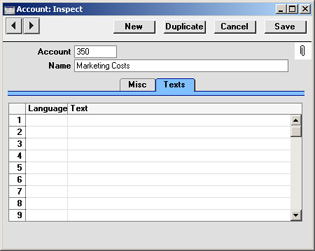
The translations entered here will be used by the Balance Sheet, Nominal Ledger, Profit & Loss and Transaction Journal reports, which can be printed in different Languages. To define translations of the report headings and sub-headings (applicable to the Balance Sheet and Profit & Loss report only), use the report definition feature (fully described on the Balance Sheet Definition page).
Deleting an Account
You can delete an Account from the Chart of Accounts, as long as it has not been used in any Transactions.In the 'Accounts: Browse' window, double-click the Account you want to delete. This opens the 'Account: Inspect' window.
Select 'Delete' from the Record menu. The Account is deleted and the previous Account in the list is shown.
! | You cannot undo the deletion of an Account. Used Accounts cannot be deleted. |
Printing the Chart of Accounts
The Chart of Accounts can be printed using the 'System Documentation' report in the System module. To print the Chart of Accounts with Consolidation Accounts and percentages, use the 'Consolidation Chart of Accounts' report.