Introduction to the Customer Register
The Customer register is where you store information about your Customers and assign Customer Categories and Payment Terms. It is accessible from the Sales Orders and Sales Ledger modules, and from the Contract, Quotations, CRM and Service Orders modules if installed. Use the Modules menu to enter one of these modules and select 'Customers' from the Registers menu, or click the [Customers] button in the Master Control panel.The 'Customers: Browse' window is opened, showing all Customers already entered.
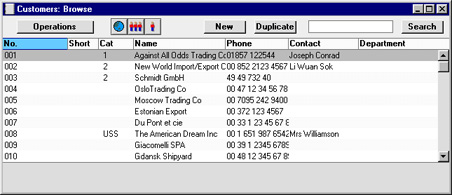
Entering a Customer
To enter a new Customer, click [New] in the Button Bar or use the Ctrl-N (Windows and Linux) or ⌘-N (Macintosh) keyboard shortcut. Alternatively, highlight a Customer similar to the one you want to enter and click [Duplicate] on the Button Bar.The 'Customer: New' window is shown, empty if you clicked [New] or containing a duplicate of the highlighted Customer.
Since the amount of information stored about each Customer will not fit in a single window, the Customer screen has been divided into seven cards. At the top of each is the header. This contains the Customer Number, Short Code, Customer Category, Name and Department. There are seven named buttons ('tabs') in the header.

The entry of Customer information often requires reference using 'Paste Special' to settings entered in the Sales Ledger or other modules. Where use of 'Paste Special' is appropriate, this is indicated in the text together with the module in which the setting is to be found. Please click on the links for full details of a particular setting.
Entering a Customer - Header
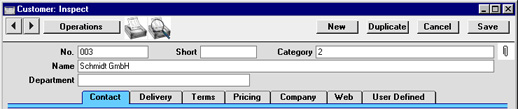
- No.
- Enter the unique code you are assigning to this Customer. The field holds up to 20 letters and/or numbers. Hansa offers a default based on the Customer Number of the previous Customer entered. Once the record has been saved, the Customer Number may not be changed. It is the means by which this Customer will be identified elsewhere in Hansa.
- Short
- This field can be used as an alternative means of identifying this Customer - information entered here appears in the Short column in the 'Customers: Browse' window. Firms of a similar nature could be given the same Short Code so that they would be grouped together in the 'Customers: Browse' window when sorted by the Code column. The field holds up to ten letters and/or numbers.
- Category
- Paste Special
Customer Categories setting, Sales Ledger
- Enter the Customer Category to which this Customer belongs. Customer Categories enable you to classify similar Customers together. All Customers of the same Category can use the same default Price List, Discount Matrix and Debtor Account, saving you the work of having to specify these for each Customer individually.
- Name
- Enter the Name of the Customer.
- Department
- The Department Name can be recorded here. This might be necessary if you are dealing with several Departments of the same Customer.
- Alternatively, if your company has several departments, that responsible for this Customer can be recorded here. The Customer List report can be sorted into Department order.
Entering a Customer - Contact Card
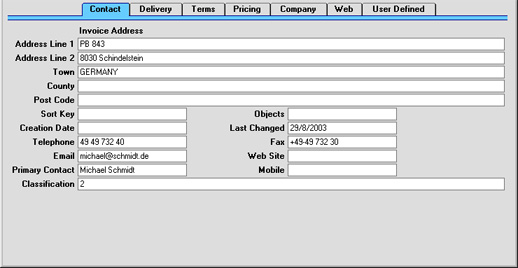
- Inv. Address
- Used as default in
Invoices
- Enter here the address to which Invoices and statements are to be sent.
- If you want to give a name to each of the individual address lines, use card 2 of the User Defined Fields setting in the CRM module. This can be useful if, for example, you want to indicate that the town is always to be typed into the third line of the address.
- If you want to give a name to each of the individual address lines, use card 2 of the User Defined Fields setting in the CRM module. This can be useful if, for example, you want to indicate that the town is always to be typed into the third line of the address.
- Sort Key
- This field can be used in countries where a post code, zip code or other area code appears on a separate line in an address. Note that, if the field is used for this purpose, it will need to appear on the standard Forms (Invoice, Delivery Note, etc). Therefore, the models supplied with Hansa will need to be modified accordingly using the Form register in the System module.
- You can also use this field to organise your Customers into zones to provide a guide for delivery drivers. The Sort Key is copied to the Sorting field of the Sales Order record. The Sorted Order List report in the Sales Order module is a list in Sort Key order of Orders with a particular Planned Delivery Date.
- You can also use this field to organise your Customers into zones to provide a guide for delivery drivers. The Sort Key is copied to the Sorting field of the Sales Order record. The Sorted Order List report in the Sales Order module is a list in Sort Key order of Orders with a particular Planned Delivery Date.
- Objects
- Paste Special
Object register, Nominal Ledger/System module
- Used as default in Quotations, Orders, Invoices
- Up to 20 Objects can be assigned to each Customer, separated by commas. They will be used as defaults in all Orders, Invoices and other transactions involving this Customer. You might define separate Objects to represent different departments, cost centres or product types. This provides a flexible method of analysis that can be used in Nominal Ledger reports.
- Up to 20 Objects can be assigned to each Customer, separated by commas. They will be used as defaults in all Orders, Invoices and other transactions involving this Customer. You might define separate Objects to represent different departments, cost centres or product types. This provides a flexible method of analysis that can be used in Nominal Ledger reports.
- Creation Date
- This field automatically records when this Customer was added to your Hansa database. It cannot be changed by the user.
- The Customer List report can be used to list Customers that were added or changed after a certain date.
- The Customer List report can be used to list Customers that were added or changed after a certain date.
- Last Changed
- This field is updated automatically by Hansa whenever any modification is made to the Customer record on screen.
- Telephone, Fax, Mobile
- Enter the Customer's main telephone, mobile and fax numbers here. If you have the CRM module, extensions, direct line and mobile numbers and e-mail addresses for each contact can be recorded there.
- If you are using the Hansa Fax Server, the fax number will be used when faxing documents to this Customer.
- The 'Update Fax Numbers' Maintenance function in the System module can be used to remove spaces and dashes from all Customers' Fax Numbers. This will be necessary if you will be sending faxes through the fax server, in which case fax numbers should not contain non-numeric characters.
- If you are using the Hansa Fax Server, the fax number will be used when faxing documents to this Customer.
- Email
- If the Customer has an email address, enter it here.
- Web Site
- If the Customer has a website, enter its address (URL) here.
- Primary Contact
- Paste Special
Contact Person register, CRM module
- Used as default in Quotations, Orders, Invoices
- The name of your main contact person can be entered here: it will be transferred as a default entry whenever this Customer is used in a transaction. If the CRM module is installed, the 'Paste Special' selection list will only show contact names for the Customer in question (identified by Customer Number). If you need to add more contact names, use the 'New Contact' function on the Operations menu.
- The name of your main contact person can be entered here: it will be transferred as a default entry whenever this Customer is used in a transaction. If the CRM module is installed, the 'Paste Special' selection list will only show contact names for the Customer in question (identified by Customer Number). If you need to add more contact names, use the 'New Contact' function on the Operations menu.
- Classification
- Paste Special
Customer Classifications setting, CRM module
- This field provides a further means of grouping Customers of a similar type together. It can be used as a reporting and mailing criterion in the CRM module and in the Sales Ledger. It is possible to allocate more than one Classification to each Customer, separated by commas.
- The 'Add Class to Customer' Maintenance function in the CRM module can be used to assign Classifications to Customers based on the Items they have bought or not bought.
Entering a Customer - Delivery Card
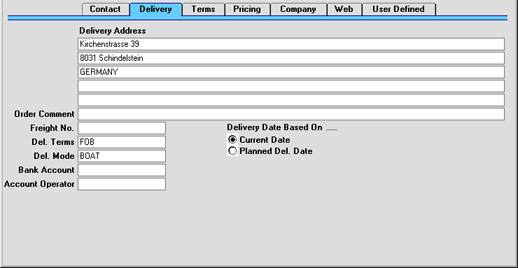
- Del. Address
- Used as a default in
Deliveries
- Specify the Customer's usual delivery address here.
- If the Customer has several Delivery Addresses, they can be recorded in the Delivery Addresses setting in the Sales Orders module. The appropriate one can be selected in Quotations, Orders, Invoices and Deliveries as necessary.
- If you want to give a name to each of the individual address lines, use card 2 of the User Defined Fields setting in the CRM module. This can be useful if, for example, you want to indicate that the town is always to be typed into the third line of the address.
- If the Customer has several Delivery Addresses, they can be recorded in the Delivery Addresses setting in the Sales Orders module. The appropriate one can be selected in Quotations, Orders, Invoices and Deliveries as necessary.
- Order Comment
- Text entered here will appear as a default in the Comment fields of Orders and Invoices for this Customer.
- Freight No
- In some countries each Customer can be allocated a specific Freight Number which will be quoted on all Deliveries. Freight Numbers can be included on delivery documents if necessary.
- Del. Terms
- Paste Special
Delivery Terms setting, Sales Orders module
- Used as default in Orders
- Specify the Delivery Terms for this Customer here. You will tend to use this field for international Customers: examples might be Cost, Insurance, Freight or Free On Board.
- For each Delivery Term record you can specify translations in different Languages: the Language for the Customer will determine the text to be printed on any Delivery Notes.
- Specify the Delivery Terms for this Customer here. You will tend to use this field for international Customers: examples might be Cost, Insurance, Freight or Free On Board.
- Del. Mode
- Paste Special
Delivery Modes setting, Sales Orders module
- Used as default in Orders, Deliveries
- Enter the mode of shipping most commonly used for this Customer. Examples might be Post or Courier, or might specify the name of one of the couriers that you use.
- For each Delivery Mode record you can specify an appropriate description in different Languages: the Language for the Customer will therefore determine the text to be printed on any Delivery Notes produced.
- You can also set up different versions of documents such as Invoices and Delivery Notes for each Delivery Mode, perhaps incorporating appropriate payment instructions. To do this, enter the Delivery Mode in the Language field when defining documents. Document definition is described here.
- Enter the mode of shipping most commonly used for this Customer. Examples might be Post or Courier, or might specify the name of one of the couriers that you use.
- Bank Account
- Enter the Customer's main bank account number here.
- Account Operator
- Paste Special
Banks setting, Purchase Ledger
- Enter the name of the Customer's bank or building society here.
- Delivery Date Based On
- When issuing Deliveries from Orders entered in this Customer's name, the Delivery Date can default to the current date or to the Planned Delivery Date entered in the Order. Specify here which option is to be used for this Customer.
- If the Planned Delivery Date option is chosen, the current date will be used if the Planned Delivery Date in the Order is blank. The Planned Delivery Date field must use the Date format, set in the Planned Delivery setting in the Sales Orders module.
Entering a Customer - Terms Card
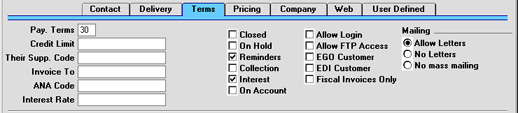
- Pay. Terms
- Paste Special
Payment Terms setting, Sales/Purchase Ledger
- Used as default in Invoices
- In addition simply to ensuring the correct Payment Terms appear on Invoices (in the Language of the Customer if necessary), entering Payment Terms records using the setting available in both the Sales and Purchase Ledger modules can enable a system of early settlement discounts to be established.
- Specifying Payment Terms for each Customer and therefore for each Invoice provides the basis for the debt-chasing reports provided in Hansa.
- In the Baltic States, there are circumstances where Invoices should follow the same number sequence as that used by Receipts and Cash In records. For this to happen, define the number sequences using the left-hand From and To fields on flip C of the Payment Modes setting and check the Common Number Series box in the Cash Book Settings setting in the Cash Book module. Then, enter a Payment Mode to this field for cash Customers. When one such Customer is entered to an Invoice, the Invoice Number will change to one in the correct sequence. When the Invoice is approved, it is treated as paid and no posting to a Debtor Account is made. Instead, a debit posting is made to the Account of the Payment Mode (i.e. a bank or cash Account).
- In addition simply to ensuring the correct Payment Terms appear on Invoices (in the Language of the Customer if necessary), entering Payment Terms records using the setting available in both the Sales and Purchase Ledger modules can enable a system of early settlement discounts to be established.
- Credit Limit
- Specify the Credit Limit for the Customer here. The Credit Limit setting in the Sales Ledger can be used to warn against or prevent the entering of Orders or Invoices for Customers who have exceeded their Credit Limit.
- Their Supp. Code
- Enter the Supplier Number allocated to your firm by this Customer. It can be printed on Sales documents.
- Invoice To
- Paste Special
Customer register
- If the Customer will not be paying your Invoices themselves but may, for example, be purchasing through a leasing company, enter the Customer Number of that company here (that company must also be in the Customer register).
- When Invoices for this Customer are created from Orders, they will be made out to the company specified here.
- When Invoices for this Customer are created from Orders, they will be made out to the company specified here.
- ANA Code
- Record the unique number assigned by the Article Numbering Association to this Customer here. This will most usually be necessary if the Customer is an EDI Customer (set using the check box described below). In the UK, companies with an ANA Code can create their own bar codes.
- Interest Rate
- When creating Interest Invoices for this Customer, enter here the annual rate of interest to be used in calculating interest charges.
- If this field is blank, the percentage will be taken from the Interest setting in the Sales Ledger. Wherever the percentage is taken from, the Sales Account and VAT Code are specified using the Interest setting: that setting can also be used to determine any fee to be levied for the raising of Interest Invoices.
- Interest Invoices are raised using the 'Create Interest Invoices' Maintenance function in the Sales Ledger, and will only be raised for Customers whose Interest box has been checked (described below).
- If this field is blank, the percentage will be taken from the Interest setting in the Sales Ledger. Wherever the percentage is taken from, the Sales Account and VAT Code are specified using the Interest setting: that setting can also be used to determine any fee to be levied for the raising of Interest Invoices.
- Closed
- Check this box if the Customer is no longer to be used (Customer records cannot be deleted if Orders or Invoices have been raised in their name). Closed Customers will appear in the 'Customers: Browse' window but not in the Customers 'Paste Special' list. You will not be able to enter Orders or Invoices for closed Customers. A closed Customer can be re-opened at any time.
- On Hold
- Check this box if the Customer is on hold. You can raise Invoices for Customers that are on hold, but you will not be able to approve them (commit them to the Sales and Nominal Ledgers). You will be able to enter Orders for such Customers, but you won't be able to create Deliveries (ship any goods to them).
- Some Maintenance functions (e.g. 'Create Contract Invoices' in the Contracts module and 'Create Deliveries from Orders') will not create new records for Customers that are on hold.
- Some Maintenance functions (e.g. 'Create Contract Invoices' in the Contracts module and 'Create Deliveries from Orders') will not create new records for Customers that are on hold.
- Reminders
- Check this box if the Customer is to receive Reminders.
- If this box is on for a Customer, you can ensure reminders are not sent for particular Invoices by checking the No Reminder box on the 'Delivery' card of the Invoice screen.
- If this box is on for a Customer, you can ensure reminders are not sent for particular Invoices by checking the No Reminder box on the 'Delivery' card of the Invoice screen.
- Interest
- Check this box if the Customer is to be sent interest Invoices for late payments. Please refer here for full details of this feature.
- If this box is on for a Customer, you can ensure interest is not charged on particular Invoices by checking the No Interest box on the 'Delivery' card of the Invoice screen.
- If this box is on for a Customer, you can ensure interest is not charged on particular Invoices by checking the No Interest box on the 'Delivery' card of the Invoice screen.
- On Account
- Check this box if you want to be able to register Prepayments and On Account Receipts from this Customer (i.e. you want to allow them to pay before you have invoiced them). Full details can be found here.
- Before Prepayments and On Account Receipts can be entered, an On Account A/C must be specified on card 2 of the Account Usage S/L setting. Alternatively, such an Account can be specified for the Customer Category. This Account will be credited with the value of these Receipts.
- Before Prepayments and On Account Receipts can be entered, an On Account A/C must be specified on card 2 of the Account Usage S/L setting. Alternatively, such an Account can be specified for the Customer Category. This Account will be credited with the value of these Receipts.
- Allow Login
- If you are using the Hansa Web Shop facility and wish to allow this Customer to place Orders over the web, check this box. They will use their Customer Number as a Login ID, and you can allocate them a password using the 'Change Password' function on the Operations menu of the 'Customers: Browse' window.
- Allow FTP Access
- If you are using the Hansa FTP facility and wish to allow this Customer access to your FTP server, check this box. They will use their Customer Number as a Login ID, and you can allocate them a password using the 'Change Password' function on the Operations menu of the 'Customers: Browse' window.
- EGO Customer
- This check box is designed for use in Denmark, where for certain Customers Invoices are not printed out but are sent electronically to a third party such as the Post Office for processing. Check this box for all such Customers. Please refer to your local Hansa representative for full details.
- EDI Customer
- The EDI (Electronic Data Interchange) module can be used to receive Orders and issue Invoices electronically in particular formats. If you have this module and this is a Customer that uses this system, check this box. EDI Invoices can only be raised for Customers with this box checked. Please refer to your local representative for full details.
- Mailing
- Use these options to specify whether letters are to be sent to the Customer. Letters are produced using the Customer Letter register in the CRM module.
- Allow Letters
- Printed letters and emails will be sent to the Customer in all circumstances.
- No Letters
- Printed letters and emails will not be sent to the Customer in any circumstances.
- No mass mailing
- Printed letters will be sent to the Customer in all circumstances, and single emails will be sent to the Customer, but the Customer will not be included in mass emailing campaigns. A mass emailing campaign is one generated from a Customer Letter whose Customer field is empty.
- Allow Letters
Entering a Contact - Terms Card - Check Boxes
This page describes the check boxes on the 'Terms' card of the Contact record. Please follow the links below for descriptions of the other cards:- Header
- 'Contact' card
- 'Delivery' card
- 'Terms' card - Fields
- 'Terms' card - Check Boxes
- 'Pricing' card
- 'Company' card
- 'Accounts' card
- 'E-Records' card
- 'Web' card
- 'Comments' card
- 'Personal' card
- 'User Defined' card
- 'Notes' card
- 'BI' card
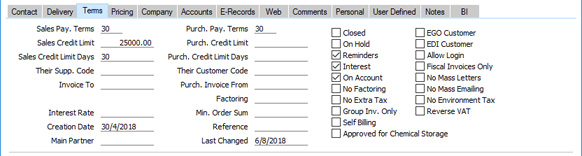
- Closed
- Tick this box if a Contact is no longer to be used (if a Contact is a Customer or Supplier, you cannot delete it altogether if they have at least one Sales Order or Sales or Purchase Invoice). Closed Contacts will appear in the 'Contacts: Browse' window but not in the Contacts 'Paste Special' list. You will not be able to enter Sales Orders or Sales or Purchase Invoices for closed Customers or Suppliers. You can re-open a closed Contact at any time.
- If a Closed Contact is a Contact Person working for a Customer or Supplier company, they will still appear in the list of people working for that company at the bottom of the 'Contact' card, but a red line will be drawn through their name and details. They will not appear in the 'Paste Special' list of Contact Persons when you open it from the Primary Contact and Attention fields in various registers.
- You can mark several Customers or Suppliers as Closed at once using the 'Close Contacts' Maintenance function in the CRM module.
- If a Closed Contact is a Contact Person working for a Customer or Supplier company, they will still appear in the list of people working for that company at the bottom of the 'Contact' card, but a red line will be drawn through their name and details. They will not appear in the 'Paste Special' list of Contact Persons when you open it from the Primary Contact and Attention fields in various registers.
- EGO Customer
- This check box is designed for use in Denmark, where Invoices issued to some Customers are not printed out but are sent electronically to a third party such as the Post Office for processing. Tick this box for all such Customers. Please refer to your local HansaWorld representative for full details.
- On Hold
- If a Contact is a Customer that you have put on hold, tick this box. You can raise Sales Invoices for Customers that are on hold, but you will not be able to mark them as OK (commit them to the Sales and Nominal Ledgers). You will be able to enter Orders for such Customers, but you won't be able to create Deliveries (ship any goods to them).
- Some Maintenance functions (e.g. 'Create Contract Invoices' in the Contracts module and 'Create Deliveries from Orders') will not create new records for Customers that are on hold.
- Some Maintenance functions (e.g. 'Create Contract Invoices' in the Contracts module and 'Create Deliveries from Orders') will not create new records for Customers that are on hold.
- EDI Customer
- The EDI (Electronic Data Interchange) module allows you to receive Sales Orders and issue Invoices electronically in particular formats. If you are using this module and a Contact is a Customer that uses this system, tick this box. You can only raise EDI Invoices for Customers for whom this box has been ticked. Please refer to your local representative for full details.
- Reminders
- Tick this box if a Contact is a Customer to whom you will need to send Reminders for late payment when appropriate.
- If you have ticked this box in the Contact record for a particular Customer, you can ensure that reminders will not be sent for individual Invoices by ticking the No Reminder box on the 'Delivery' card of the Invoice window.
- If you have not ticked this box in the Contact record for a Customer, Reminders will never be printed for that Customer. You can also specify that Open Invoice Customer Statements will not be printed for that Customer, by selecting the Customers with Reminders Only or Skip No Reminders options. The Skip No Reminders option will also exclude Invoices in which you have ticked the No Reminder box from the statements. When sending Open Invoice Customer Statements by email using the 'Create Open Invoice Customer Statement Email' Maintenance function, statements will never be sent to the Customer.
- If you have ticked this box in the Contact record for a particular Customer, you can ensure that reminders will not be sent for individual Invoices by ticking the No Reminder box on the 'Delivery' card of the Invoice window.
- Allow Login
- If you are using the Standard ERP Web Shop facility and wish to allow the Contact to place Orders over the web, tick this box. They can use their Customer Number or email address as Login IDs, and you can allocate them a password using the 'Change Password' function on the Operations menu of the 'Contacts: Browse' window.
- If you would like this check box to be ticked by default in new Contact records, select the Allow Login option in the Contact Settings setting.
- If you would like this check box to be ticked by default in new Contact records, select the Allow Login option in the Contact Settings setting.
- Interest
- Tick this box if a Contact is a Customer that is to be sent interest Invoices for late payments. Please refer here for full details about this feature.
- If you have ticked this box in the Contact record for a particular Customer, you can ensure interest will not be charged for individual Invoices by ticking the No Interest box on the 'Delivery' card of the Invoice screen.
- If you have ticked this box in the Contact record for a particular Customer, you can ensure interest will not be charged for individual Invoices by ticking the No Interest box on the 'Delivery' card of the Invoice screen.
- Fiscal Invoices Only
- If a Contact is a Customer, tick this box if their Invoices are to be classified as Fiscal Invoices. Fiscal Invoices should be printed on fiscal printers in some countries. Please refer to your local HansaWorld representative for more details.
- On Account
- Tick this box if a Contact is Customer from whom you want to be able to receive Prepayments and On Account Receipts (i.e. you want to allow them to pay before you have invoiced them) and/or the Contact is a Supplier to whom you want to be able to issue Prepayments and On Account Payments (i.e. to be able to pay them before you receive Invoices). Full details about the sales side can be found here and about the purchase side here.
- On the sales side, before you can enter Prepayments and On Account Receipts, you must specify an On Account A/C on the 'Debtors' card of the Account Usage S/L setting. Additionally, you can specify such an Account in the Debtors On Account A/C field in the Customer Category. This Account will be credited with the value of these Receipts.
- On the purchase side, before you can enter Prepayments and On Account Payments, you must specify an On Account A/C on the 'Creditors' card of the Account Usage P/L setting. Additionally, you can specify such an Account in the Supplier Category or in the individual Contact record (on the 'Accounts' card). This Account will be debited with the value of these Payments.
- If you would like this check box to be ticked by default in new Contact records, select the On Account option in the Contact Settings setting.
- On the sales side, before you can enter Prepayments and On Account Receipts, you must specify an On Account A/C on the 'Debtors' card of the Account Usage S/L setting. Additionally, you can specify such an Account in the Debtors On Account A/C field in the Customer Category. This Account will be credited with the value of these Receipts.
- No Mass Letters
- Tick this box if you do not want printed letters to be sent to the Contact from the Customer Letter register.
- Note that if you have included a Contact in a Mailing List that you have used in a Customer Letter, printed letters will be sent to the Contact from that Customer Letter even if this box is ticked.
- You can switch this option on or off for several Contacts at once using the 'Mass Emailing' Maintenance function in the CRM module. If you would like this check box to be ticked by default in new Contact records, select the No Mass Letters option in the Contact Settings setting.
- Note that if you have included a Contact in a Mailing List that you have used in a Customer Letter, printed letters will be sent to the Contact from that Customer Letter even if this box is ticked.
- No Factoring
- If you use a factoring company to pay your Sales Invoices, you will regularly use the 'Invoices for Factoring' Export function in the Sales Ledger to send your Invoices to the factoring company. If you want to receive payment from a particular Customer yourself and do not want that Customer's Invoices to be sent to the factoring company, tick this box.
- The 'Invoices for Factoring' Export function is capable of creating files in many different formats suitable for sending to many different banks. You should specify the format that you wish to use by choosing a Factoring Bank in the Factoring Export setting in the Sales Ledger. The 'Invoices for Factoring' function will not export Invoices issued to Customers in which the No Factoring box has been ticked if you are using one of the following Factoring Banks :
- Factoring Finans (NOR)
- Finvoice (FIN)
- Gjensidige Bank (NOR)
- Handelsbanken (FIN)
- Kredittstyring
- NORD finans
- NORD finans (DK)
- Nordea finans
- Nordea (FIN)
- Osuus Pankki (FIN)
- Sampo (FIN)
- SG Finans (NOR)
If you are using a Factoring Bank that is not listed above, the No Factoring check box will be ignored (i.e. a Customer's Invoices will be exported by the 'Invoices for Factoring' Export function even if you have ticked the No Factoring box for that Customer).
- If you are using the 'Finvoice' Export function in the Sales Ledger, you can again use the No Factoring box to prevent that function from exporting Invoices issued to a particular Customer. The 'Finvoice' Export function is only available in Finland (i.e. when the VAT Law in the Company Info setting is "Finnish").
- The 'Invoices for Factoring' Export function is capable of creating files in many different formats suitable for sending to many different banks. You should specify the format that you wish to use by choosing a Factoring Bank in the Factoring Export setting in the Sales Ledger. The 'Invoices for Factoring' function will not export Invoices issued to Customers in which the No Factoring box has been ticked if you are using one of the following Factoring Banks :
- No Mass Emailing
- Tick this box if you want do not emails to be sent to the Contact from the Customer Letter register.
- Note that if you have included a Contact in a Mailing List that you have used in a Customer Letter, letters will be emailed to the Contact from that Customer Letter even if this box is ticked.
- You can switch this option on or off for several Contacts at once using the 'Mass Emailing' Maintenance function in the CRM module. If you would like this check box to be ticked by default in new Contact records, select the No Mass Emailing option in the Contact Settings setting.
- Note that if you have included a Contact in a Mailing List that you have used in a Customer Letter, letters will be emailed to the Contact from that Customer Letter even if this box is ticked.
- No Extra Tax
- If a Contact is a Customer, tick this box if you do not want Extra Tax to be charged on their Invoices. Please refer to the description of flip B of the VAT Codes setting here for full details about this feature. If you want to charge Extra Tax to a Customer but at a discounted rate, use the Extra Tax Customer Discounts setting in the Sales Ledger.
- If a Contact is a Supplier, this check box will not apply. Extra Tax will always be calculated in Purchase Invoices at the full rate if the VAT Code has a Tax %.
- If a Contact is a Supplier, this check box will not apply. Extra Tax will always be calculated in Purchase Invoices at the full rate if the VAT Code has a Tax %.
- No Environment Tax
- If the Contact is a Customer, tick this box if you do not want environment tax to be charged on their Invoices. Please refer to the description of the Environment Tax setting here for full details about this feature.
- No Region Perceptions
- This option is only used in Argentina and will not be visible in many countries.
- If a Contact is a Customer, tick this box if you do not want Regional Perception Tax to be charged on their Invoices. If you want to charge Regional Perception Tax to a Customer but at a discounted rate, use the Regional Perception Customer Discounts setting in the Sales Ledger.
- If a Contact is a Customer, tick this box if you do not want Regional Perception Tax to be charged on their Invoices. If you want to charge Regional Perception Tax to a Customer but at a discounted rate, use the Regional Perception Customer Discounts setting in the Sales Ledger.
- Group Inv. Only
- Tick this box if a Contact is a Customer to whom Invoices can only be issued from Sales Orders using the 'Group Invoicing' Maintenance function in the Sales Orders module. Selecting this option will mean that you will not be able to create Invoices directly from Orders or Deliveries using the 'Invoice' function on the Create menu, and the 'Invoice Delivered Orders' Maintenance function will not create Invoices for the Customer. You will still be able to enter Invoices directly to the Invoice register.
- The 'Group Invoicing' Maintenance function includes an Only Group Invoice Customers option that you can use if you only want to issue Invoices to Customers for whom the Group Inv. Only box has been ticked.
- The 'Group Invoicing' Maintenance function includes an Only Group Invoice Customers option that you can use if you only want to issue Invoices to Customers for whom the Group Inv. Only box has been ticked.
- Reverse VAT
- Tick this box if a Contact is a Customer in the Domestic VAT Zone to whom you will sell Items of any value on a reverse charge VAT basis. If you do not tick this box, you will still be able to sell Items on a reverse charge VAT basis, but only if the value of the sale falls between specified minimum and maximum figures. Please refer to the 'Reverse Charge VAT in Sales Invoices' page for more details about selling Items on a reverse charge VAT basis to a Customer in the Domestic VAT Zone. This option will only be visible in Latvia, Lithuania, Poland and the UK (i.e. when the VAT Law in the Company Info setting is "Latvian", "Lithuanian", "Polish" or "Default").
- Self Billing
- Used as default in Invoices and Purchase Invoices
- A self-billing Invoice is an Invoice that a company issues to itself. For example, a company may have received goods from a Supplier on the agreement that invoicing will occur as it sells or consumes them. That company will create self-billing Purchase Invoices when necessary, notifying the Supplier as it does so. That Supplier should then create corresponding Sales Invoices. If you are the Supplier in a self-billing agreement, you can mark the Contact record for your Customer as self-billing using this check box. Similarly, if you are the Customer in a self-billing agreement, you can mark your Supplier as self-billing. When you create Sales or Purchase Invoices for the Customer or Supplier respectively, they will be marked as self-billing. Self-billing Invoices and Purchase Invoices are separately flagged when included in SAF-T exports in Portugal.
The Contact register in Standard ERP:
- Introduction
- Entering a Contact, including:
- Header
- 'Contact' card
- 'Delivery' card
- 'Terms' card - Fields
- 'Terms' card - Check Boxes
- 'Pricing' card
- 'Company' card
- 'Accounts' card
- 'E-Records' card
- 'Web' card
- 'Comments' card
- 'Personal' card
- 'User Defined' card
- 'Notes' card
- 'BI' card
- Header
- Editing a Contact
- Deleting a Contact
- Linking Contact Persons and Companies - The Contact Relations Register
- Operations menu
- Create menu
- Home page for Customers, Suppliers and Contact Persons manual
- Home page for Standard ERP manual
Entering a Customer - Pricing Card

- Default Items
- Paste Special
Default Items setting, Sales Ledger
- The Default Items setting allows you to define sets of Items that are always to appear on Invoices for certain Customers: specify here a particular Default Item record (i.e. a particular set of Items) for this Customer. The Items will be added as soon as the Customer is specified in the Invoice. They will also be added to Invoices created from Orders (although they will not appear in the Orders themselves or in Deliveries) and to those created in batches using the 'Group Invoicing' Maintenance function in the Sales Orders module. They will not appear in Interest Invoices.
- Price List
- Paste Special
Price List register, Pricing module
- Used as default in Quotations, Orders, Invoices
- If you wish to assign a particular Price List to a Customer, you can do so here. It will determine the prices used in Orders and Invoices for this Customer.
- Note that it is also possible to allocate Price Lists to Customer Categories. This makes it easy to allocate or change the Price List of a group or Customers in a single step. Any Price List specified here will override that of the Customer Category (if any) to which the Customer belongs.
- Please refer to the Price List page for full details of how to use Price Lists. If you need to use dated Price Lists, please refer also to the section below describing the Price Based On options.
- If you wish to assign a particular Price List to a Customer, you can do so here. It will determine the prices used in Orders and Invoices for this Customer.
- Discount Matrix
- Paste Special
, Orders, Invoices
- If you wish to assign a particular Discount Matrix to an individual Customer you can do so here. Discount Matrices allow you to set up a quantity discount structure and are fully described here. When receiving Orders from this Customer, the Discount Matrix entered here will determine the default percentage discount for each Item, depending on quantity ordered.
- Note that it is also possible to allocate Discount Matrices to Customer Categories. This makes it easy to allocate or change the Discount Matrix of a group of Customers in a single step. Any Discount Matrix specified here will override that of the Customer Category (if any) to which the Customer belongs.
- Note that it is also possible to allocate Discount Matrices to Customer Categories. This makes it easy to allocate or change the Discount Matrix of a group of Customers in a single step. Any Discount Matrix specified here will override that of the Customer Category (if any) to which the Customer belongs.
- Salesman
- Paste Special
Person register, System module
- Used as default in Quotations, Orders, Invoices
- Enter the initials of the salesman responsible for this Customer's account. By default, Orders and Invoices for this Customer will be attributed to the salesman entered here.
- This field is also used by the Limited Access module: please refer to the description of the Sales Group field (below) for details.
- Enter the initials of the salesman responsible for this Customer's account. By default, Orders and Invoices for this Customer will be attributed to the salesman entered here.
- Sales Group
- Paste Special
Sales Groups setting, System module
- Default taken from Salesman
- The Sales Group is brought in from the Person record after you have entered a Salesman. If the Limited Access module is present, this field can be used to prevent a user from seeing all Customers in the 'Customers: Browse' and Customer 'Paste Special' windows by restricting their view to their own Customers or to those of their Sales Group.
- Please refer to the page describing the Person register for full details of the Limited Access module.
- The Sales Group is brought in from the Person record after you have entered a Salesman. If the Limited Access module is present, this field can be used to prevent a user from seeing all Customers in the 'Customers: Browse' and Customer 'Paste Special' windows by restricting their view to their own Customers or to those of their Sales Group.
- Price Based On
- When entering Orders, if you are using dated Price Lists the choice of Price List can depend on the Order Date, the Planned Delivery Date or the Despatch Date. Specify here which option is to be used for this Customer.
- If the Planned Delivery Date option is chosen, the standard Price List will be used if the Planned Delivery Date in the Order is blank or in the wrong format. The Planned Delivery Date field must use the Date format, set in the Planned Delivery setting in the Sales Orders module. If the Despatch Date option is chosen, the standard Price List will be used if the Despatch Date in the Order is blank. The standard Price List is that entered to the Customer record in the field above, or in the Customer Category.
- When entering Invoices directly to the Invoice register, Price List selection will always depend on the Invoice Date. Similarly, when entering Quotations, Price List selection will always depend on the Quotation Date.
- Dated Price Lists are described here, with an example here.
- If the Planned Delivery Date option is chosen, the standard Price List will be used if the Planned Delivery Date in the Order is blank or in the wrong format. The Planned Delivery Date field must use the Date format, set in the Planned Delivery setting in the Sales Orders module. If the Despatch Date option is chosen, the standard Price List will be used if the Despatch Date in the Order is blank. The standard Price List is that entered to the Customer record in the field above, or in the Customer Category.
- Currency
- Paste Special
Currency register, System module
- Used as default in Quotations, Orders, Invoices
- Specify here the Currency to be used for invoicing this Customer. When entering Orders or Invoices, all prices of Items will be converted from the home Currency to that specified here using the latest Exchange Rates.
- Hansa will prevent the entry of Orders, Invoices, Quotations and Receipts in the name of this Customer using Currencies other than that specified here. If you need to be able to use more than one Currency with a particular Customer, leave this field blank.
- Once a Currency has been entered in this field and the Customer has been used in a transaction of any kind, this Currency should not be changed.
- Specify here the Currency to be used for invoicing this Customer. When entering Orders or Invoices, all prices of Items will be converted from the home Currency to that specified here using the latest Exchange Rates.
Entering a Customer - Company Card
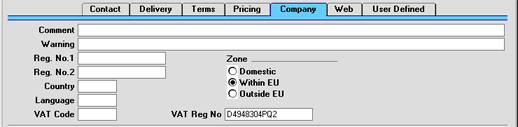
- Comment
- This field can be used to record any additional information about the Customer. Comments entered here will be shown on Sales Ledger reports featuring this Customer.
- Warning
- Text entered here will be used to alert users whenever an Order or Invoice is entered for this Customer.
- Reg. No. 1
- If the Customer is a limited company, enter their Company Registration Number here.
- Reg. No. 2
- Paste Special
Registration Defaults setting, Sales Ledger
- This field is used in Finland, where companies have two registration numbers.
- Elsewhere, the 'Paste Special' link to the Registration Defaults setting can be used to bring in a default VAT Code and Language.
- Elsewhere, the 'Paste Special' link to the Registration Defaults setting can be used to bring in a default VAT Code and Language.
- Country
- Paste Special
Countries setting, System module
- Specify a code for the Country in which the Customer is located. Once this has been specified, entering a VAT Number below will cause Hansa to check it is in the correct format for the Country. VAT Number formats are defined in the VAT Number Masks setting in the System module.
- Language
- Paste Special
Languages setting, System module
- It is possible to set up different versions of documents such as Invoices and Delivery Notes for Customers with different Languages: the Language code specified here will be used as a default in determining which document is used (it can be overridden for individual Orders). In addition, some of the information shown on the documents, such as Item Names, Payment Terms and Delivery Modes, can be made to appear in the appropriate translation.
- VAT Code
- Paste Special
VAT Codes setting, Nominal Ledger
- The VAT Code entered here refers to a VAT Code record entered using the VAT Codes setting in the Nominal Ledger. It determines the rate at which VAT will be charged to this Customer and the VAT Account to be credited.
- When creating Orders or Invoices for this Customer, in determining which VAT Code is to be used, that entered here will take precedence over those specified for the Item and the Item Group and that on card 3 of the Account Usage S/L setting in the Sales Ledger. Usually, you should only specify a VAT Code for an individual Customer if for some reason your usual VAT accounting method does not apply to them.
- When creating Orders or Invoices for this Customer, in determining which VAT Code is to be used, that entered here will take precedence over those specified for the Item and the Item Group and that on card 3 of the Account Usage S/L setting in the Sales Ledger. Usually, you should only specify a VAT Code for an individual Customer if for some reason your usual VAT accounting method does not apply to them.
- Zone
- Used as default in
Orders, Invoices
- Select a Zone for this Customer. This will be used in Orders and Invoices to control VAT calculation and accounting and the choice of Sales Account. Separate default VAT Codes and Sales Accounts can be assigned to each Zone on card 3 of the Account Usage S/L setting in the Sales Ledger.
- For Customers in the "Within EU" Zone, it is important that their VAT Number is recorded (see below). When Invoices are raised for such Customers, VAT will not be charged, irrespective of the VAT Code used on card 3 of the Account Usage S/L setting.
- For Customers in the "Within EU" Zone, it is important that their VAT Number is recorded (see below). When Invoices are raised for such Customers, VAT will not be charged, irrespective of the VAT Code used on card 3 of the Account Usage S/L setting.
- VAT Reg No
- It is important that the Customer's VAT Number is recorded here if they are in the "Within EU" Zone as this information is required for EU VAT reporting purposes.
- A check is made when the record is saved that the VAT Number has not been used for any other Customer. If this check fails, you can find the other Customer by searching for the VAT Number in the Customer List report (Detailed version).
- Hansa contains a feature whereby it will check that the VAT Number entered here is in the correct format for the Customer's Country. The correct format should be defined in the VAT Number Masks setting in the System module. If the Country is blank, the Country from the Company Info setting will be used. If that is blank, no validation check will be made.
- Because of this feature, be sure to enter the Customer's Country above before their VAT Number.
- A check is made when the record is saved that the VAT Number has not been used for any other Customer. If this check fails, you can find the other Customer by searching for the VAT Number in the Customer List report (Detailed version).
Entering a Contact - Accounts Card
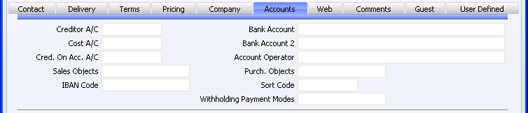
- Creditor A/C
- Paste Special
Account register, Nominal Ledger/System module
- If the Contact is a Supplier and you want to use a particular Creditor Account, enter its Account number here.
- If you leave this field empty the Creditor Account will be taken from the Supplier Category (or the Customer Category if the Supplier Category field is empty) or from the Creditor Account on the 'Creditors' card of the Account Usage P/L setting.
- If you leave this field empty the Creditor Account will be taken from the Supplier Category (or the Customer Category if the Supplier Category field is empty) or from the Creditor Account on the 'Creditors' card of the Account Usage P/L setting.
- Bank Account
- Enter the Contact's main bank account number here. If the Contact is a Supplier, this bank account number will be transferred to any Purchase Invoices and Payments (flip H) entered in the Supplier's name, facilitating payment by the transfer of funds between banks.
- Cost A/C
- Paste Special
Account register, Nominal Ledger/System module
- If the Company is a Supplier, you can determine that a particular Cost Account (i.e. Purchase Account) will be offered as a default in the first Purchase Invoice row when you enter a new Purchase Invoice. This can be particularly useful in the cases of specialist Suppliers and of Suppliers of services such as electricity or telephone services, whose Purchase Invoices are usually debited to the same Account.
- If you want to set a default Cost Account for this Supplier, enter its Account Number here.
- Note that this field must contain a value if you intend to raise Purchase Invoices in this Supplier's name remotely from the Purchase Order screen and you are using the Consolidate Items to Supplier Cost Account or Consolidate by Items and Project options in the Purchase Invoice Settings setting. In the case of the Consolidate Items to Supplier Cost Account option, this will be the Cost Account debited by those Purchase Invoices.
- If you want to set a default Cost Account for this Supplier, enter its Account Number here.
- Bank Account 2
- This field is used by the 'Banking File' Export function. Please refer to your local HansaWorld representative for details.
- Cred. On Acc. A/C
- Paste Special
Account register, Nominal Ledger/System module
- If the company is a Supplier and you need to be able to issue Prepayments or On Account Payments to them without reference to a specific Invoice, you may want to use a special Account for such Payments. Specify that Account here, and switch on the On Account check box on the 'Terms' card.
- When you issue a Prepayment or On Account Payment, it will be debited to this Account. Subsequently, when you receive the Invoice and allocate it to that Payment, the same Account will be credited in place of the default Creditor Account. Please refer to the On Account Payments and Prepayments page for full details of this process.
- The Account specified here will override any such Accounts specified for the Supplier Category of the Supplier or in the Account Usage P/L setting ( card).
- On the sales side, it is not possible to specify a Debtor On Account A/C at company level. This will always be taken from the Customer Category or from the Account Usage S/L setting.
- When you issue a Prepayment or On Account Payment, it will be debited to this Account. Subsequently, when you receive the Invoice and allocate it to that Payment, the same Account will be credited in place of the default Creditor Account. Please refer to the On Account Payments and Prepayments page for full details of this process.
- Account Operator
- Paste Special
Banks setting, Purchase Ledger
- Enter the name of the Contact's bank or building society here. If the company is a Supplier, their bank information will be transferred to any Purchase Invoices ('Other' card) and Payments (flip H) entered in their name, facilitating payment by the transfer of funds between banks.
- Sales Objects
- Paste Special
Object register, Nominal Ledger/System module
- Used as default in Quotations, Sales Orders, Sales Invoices
- Purch. Objects
- Paste Special
Object register, System module
- You can specify up to 20 Objects in each of these fields, separated by commas. You might define separate Objects to represent different departments, cost centres or product types. This provides a flexible method of analysis that can be used in Nominal Ledger reports.
- The Sales Objects will be used as defaults in all Sales Orders, Sales Invoices and other sales transactions involving this company.
- On the purchase side, when you enter a Purchase Invoice, the Purch. Objects entered here will be brought in to the Objects field on the 'Terms' card of the Purchase Invoice screen if you are using the Objects on Creditor Account option in the Account Usage P/L setting. In any Nominal Ledger Transactions generated from the Invoice, these Objects will be assigned to the debit posting to the Purchase Account(s) and, if you are using the Objects on Creditor Account option, to the credit posting to the Creditor Account.
- When a Nominal Ledger Transaction is generated from a Goods Receipt, the Purch. Objects will be assigned to the credit posting to the Purchase Accruals Account. If you are using the Supplier Object on Stock A/C option on the 'Creditors' card of the Account Usage P/L setting, they will be assigned to the debit posting to the Stock Account as well.
- The Sales Objects will be used as defaults in all Sales Orders, Sales Invoices and other sales transactions involving this company.
- IBAN Code
- If the Contact has an IBAN (International Bank Account Number), enter it here. IBAN is a standard account number format, permitting cross border payments in Europe. This information will be used when necessary by HansaWorld Enterprise's electronic payment and payment export functions.
- Sort Code
- Enter the Sort Code (branch number) of the company's bank here. If the company is a Supplier, their Sort Code will be transferred to any Purchase Invoices ('Identifiers' card) and Payments (flip H) entered in the Supplier's name, facilitating payment by the transfer of funds between banks.
- Withholding Payment Modes
- Paste Special
Payment Modes setting, Sales/Purchase Ledger
- This field is intended for use in Argentina, where the responsibility for the collection of some of the input VAT lies with the recipient of Purchase Invoices. This is done by paying a percentage of the Invoice amount directly to the authorities. You can define separate Payment Modes with different percentages, and then, if the Contact is a Supplier, specify those that can be used with the Supplier using this field. This will ensure that the percentage calculation is always correct for this Supplier. The Payment Mode must be of the Withholding Type. For full details of this feature, please refer to your local HansaWorld representative.
Entering a Contact - E-Records Card
This page describes the fields on the 'E-Records' card of the Contact record. Please follow the links below for descriptions of the other cards:- Header
- 'Contact' card
- 'Delivery' card
- 'Terms' card - Fields
- 'Terms' card - Check Boxes
- 'Pricing' card
- 'Company' card
- 'Accounts' card
- 'E-Records' card
- 'Web' card
- 'Comments' card
- 'Personal' card
- 'User Defined' card
- 'Notes' card
- 'BI' card
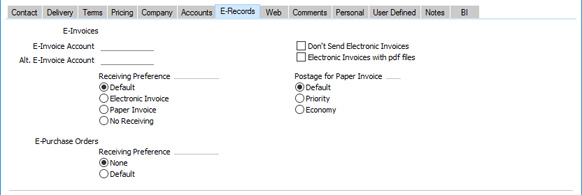
In some countries and depending on configuration, you can have Invoices sent electronically automatically when you mark them as OK and save. You can also receive Purchase Invoices that have been sent to you electronically.
Sending and receiving Invoices electronically are both chargeable Cloud Services: please refer to your local HansaWorld representative for details.
If you are sending Invoices electronically, use the 'E-Records' card to specify how Invoices should be sent to particular Customers. If you are receiving Invoices, use the 'E-Records' card to specify how Invoices from particular Suppliers will be sent to you.
The options that are available on the 'E-Records' card and the configuration that is required will depend on your country of operation. Again, please refer to your local HansaWorld representative for details.
---
The Contact register in Standard ERP:
- Introduction
- Entering a Contact, including:
- Header
- 'Contact' card
- 'Delivery' card
- 'Terms' card - Fields
- 'Terms' card - Check Boxes
- 'Pricing' card
- 'Company' card
- 'Accounts' card
- 'E-Records' card
- 'Web' card
- 'Comments' card
- 'Personal' card
- 'User Defined' card
- 'Notes' card
- 'BI' card
- Header
- Editing a Contact
- Deleting a Contact
- Linking Contact Persons and Companies - The Contact Relations Register
- Operations menu
- Create menu
- Home page for Customers, Suppliers and Contact Persons manual
- Home page for Standard ERP manual
Entering a Customer - Web Card

- Main Classification
- Paste Special
Item Classifications setting, Stock module
- If you are using Hansa's Web Shop, you may wish to offer different Items to different Customers. This is done by dividing the Items into sets known as "Classifications" and then specifying a Classification for each Customer. Customers will see only those Items in the relevant Classification when they log on to your Web Shop site.
- If a Classification has been specified at the individual Customer level, it will override one that has been specified at the Customer Category level.
- If no Classification has been specified for a Customer or Customer Category, the Classification with the Code "MAIN" will be used. If there is no "MAIN" Classification, or if a non-existent Classification has been specified for the Customer, no Items will listed when the Customer logs on.
- If a Classification has been specified at the individual Customer level, it will override one that has been specified at the Customer Category level.
- Display on the Web
- Paste Special
Display on the Web setting, Web Shop module
- Web Shop Customers are usually shown the prices of your Items, but not the current stock levels of those Items. If you want to change either or both of these defaults for a particular Customer, enter an appropriate record in the Display On The Web setting in the Web Shop module, and then enter the Code of that record in this field.
- Freight Code
- Paste Special
Web Freight setting, Web Shop module
- If you are using Hansa's Web Shop, you may wish to define various methods by which freight charges will be calculated on Orders placed over the web (e.g. for local, national and international delivery). These calculation methods are defined in the Web Freight setting in the Web Shop module: specify here which method is to be used for this Customer.
Entering a Contact - Comments Card
- Comment
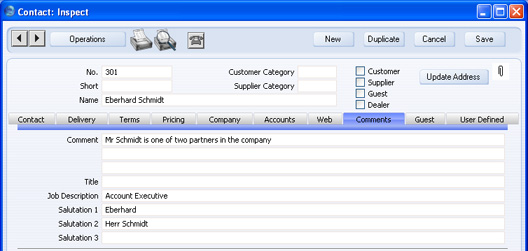
- If the Contact is a Contact Person, any comment entered here will be printed in the Customer List report, if you print it using the Include All Contact Persons option.
- Title
- If the Contact is a Contact Person, enter their Job Title as it appears on their business card. If you want this information to be printed on your Customer Letters, include the "Contact Person Title" field in your Form design. The Title is also shown in the 'Paste Special' list, so it can be useful information if there are Contact Persons with similar names working for a Customer or Supplier.
- Job Description
- Paste Special
Job Descriptions setting, CRM module
- If the Contact is a Contact Person, use this field to describe the role of the person within their company. It allows you to side step any slight differences in Job Title terminology that may exist in different companies. For example, the generic role of Finance Director might have "Director (Finance)" as its Job Title in one company but "Director of Finance" in another. Enter the generic title ("Finance Director") in the Job Description field of such Contacts, to enable you to mail all Finance Directors together, irrespective of differences in inter-company terminology.
- Salutation 1, 2 and 3
- If the Contact is a Contact Person, use these fields to record greetings with various degrees of formality. It is recommended that you enter Salutations in all three fields, even if they are the same.
- When you design the Forms that will be used to print Customer Letters, you can include the Salutation 1, 2 or 3 fields depending on the formality of the letter. You can also use these fields when designing Invoices.
Entering a Contact - Guest Card
This card allows you to record various pieces of personal information about the Contact, if the Contact is a Guest that you have entered using the Hotel module.Entering a Customer - User Defined Card
Please refer to the description of the User Defined Fields setting here for details of this card.Entering a Contact - Notes Card
This page describes the fields on the 'Notes' card of the Contact record. Please follow the links below for descriptions of the other cards:- Header
- 'Contact' card
- 'Delivery' card
- 'Terms' card - Fields
- 'Terms' card - Check Boxes
- 'Pricing' card
- 'Company' card
- 'Accounts' card
- 'E-Records' card
- 'Web' card
- 'Comments' card
- 'Personal' card
- 'User Defined' card
- 'Notes' card
- 'BI' card
---
The Contact register in Standard ERP:
- Introduction
- Entering a Contact, including:
- Header
- 'Contact' card
- 'Delivery' card
- 'Terms' card - Fields
- 'Terms' card - Check Boxes
- 'Pricing' card
- 'Company' card
- 'Accounts' card
- 'E-Records' card
- 'Web' card
- 'Comments' card
- 'Personal' card
- 'User Defined' card
- 'Notes' card
- 'BI' card
- Header
- Editing a Contact
- Deleting a Contact
- Linking Contact Persons and Companies - The Contact Relations Register
- Operations menu
- Create menu
- Home page for Customers, Suppliers and Contact Persons manual
- Home page for Standard ERP manual
Entering a Contact - BI Card
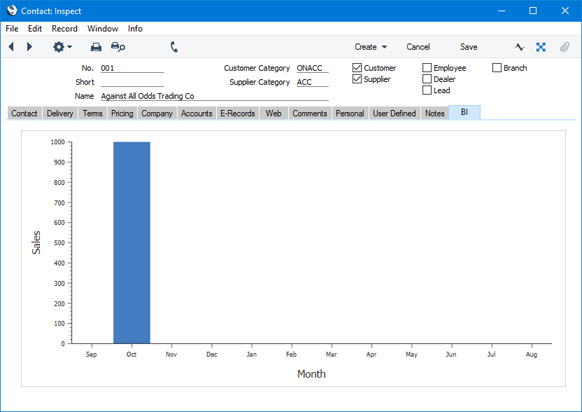
This page describes the fields on the 'BI' card of the Contact record. Please follow the links below for descriptions of the other cards:- Header
- 'Contact' card
- 'Delivery' card
- 'Terms' card - Fields
- 'Terms' card - Check Boxes
- 'Pricing' card
- 'Company' card
- 'Accounts' card
- 'E-Records' card
- 'Web' card
- 'Comments' card
- 'Personal' card
- 'User Defined' card
- 'Notes' card
- 'BI' card
The Contact register in Standard ERP:
- Introduction
- Entering a Contact, including:
- Header
- 'Contact' card
- 'Delivery' card
- 'Terms' card - Fields
- 'Terms' card - Check Boxes
- 'Pricing' card
- 'Company' card
- 'Accounts' card
- 'E-Records' card
- 'Web' card
- 'Comments' card
- 'Personal' card
- 'User Defined' card
- 'Notes' card
- 'BI' card
- Header
- Editing a Contact
- Deleting a Contact
- Linking Contact Persons and Companies - The Contact Relations Register
- Operations menu
- Create menu
- Home page for Customers, Suppliers and Contact Persons manual
- Home page for Standard ERP manual
Editing a Customer
The Customer register must be kept up to date, so it will need editing from time to time.In the 'Customers: Browse' window which appears when the Customer register is opened, the Customers are initially shown in Customer Number order. You can change the sort order by clicking on one of the headings. The underlined heading shows the current sort order.
To search for a specific Customer, enter the text to be found in the Search field in the top right-hand corner of the window and press Return. The text should be such that it would appear in the current sort column: to search by Company Name, for example, sort by Company Name before entering a Company Name (or its initial letters) to the Search field.
To modify a Customer's record, double-click on the line in the browse window. That record will be opened in a window entitled 'Customer: Inspect'. The fields in this window are the same as those in the 'Customer: New' window: please refer here for a detailed description of each field.
Edit the fields as necessary. Move from field to field with the Return key, or with the arrow keys. Click [Save] when you have finished, to save changes.
Deleting a Customer
Select and open the Customer record in the same way as for editing. Select 'Delete' from the Record menu. The Customer is deleted. Note that once Orders or Invoices have been entered in a Customer's name, that Customer can no longer be deleted.! | You cannot undo the deletion of a Customer record. |
Linking Contact Persons And Companies - the Customer Relations Register
Customers, Suppliers and Contact Persons are all stored in the Contact register. On this page, we describe linking Contact Persons to the company they work for.- The first step is to enter a Contact record representing the company. Mark the company as a Customer or Supplier or both, as appropriate. Remember that marking the company as a Customer or Supplier does not necessarily mean it has purchased goods or services from your business, or sold goods or services to you: the company can also be a potential customer or supplier to your business. Marking the company as a Customer or Supplier makes it available to the various sales or purchase registers respectively. Ensure you save this record before moving to step 2.
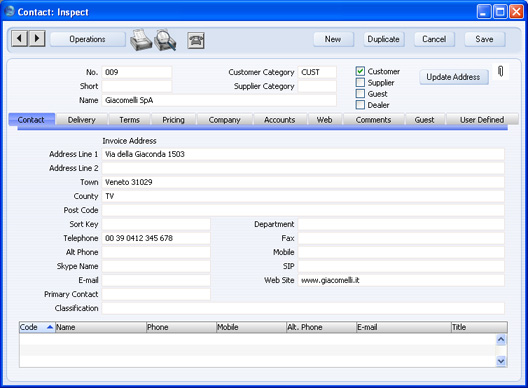
- The next step is to enter a Contact record representing a person working for the company (i.e. a Contact Person). Choose 'Create Contact' from the Operations menu. A new record will be created in the Contact register and will be opened in a new window entitled 'Contact: Inspect'. This means the record has already been saved and is being opened to allow you to enter the Contact Person's name and contact details if these are different to those of the parent company:
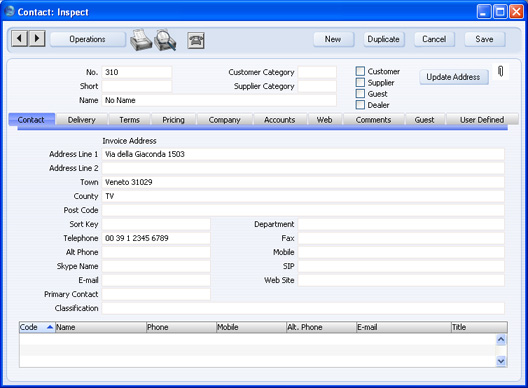
- The address details, telephone and fax will be copied from the parent company. Enter the Contact Person's name and appropriate contact information. As the Contact Person works for a company that has been marked as a Customer or a Supplier, you should not check these boxes in the Contact Person record (unless the Contact Person is also a Customer or Supplier in a private capacity).
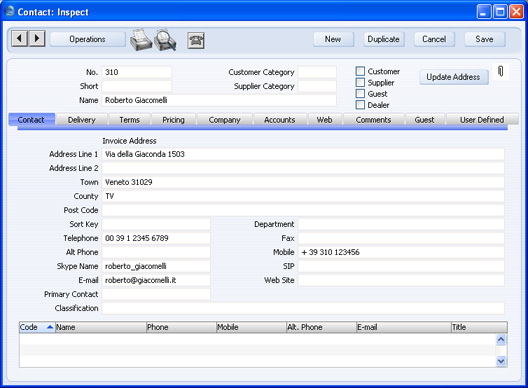
- Save the Contact Person and close the record by clicking the close box. The Contact Person is now included in the list at the bottom of the 'Contact' card of the parent company's Contact record:
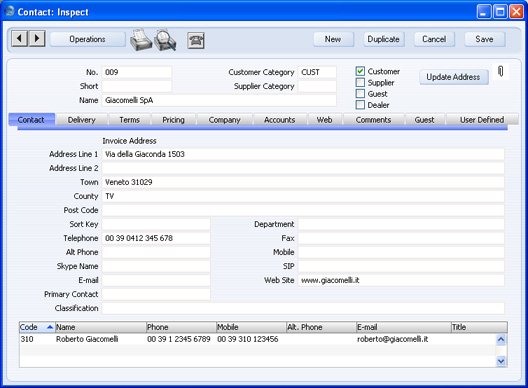
- This list will contain all the Contact Persons working for the Customer or Supplier. As with all lists in HansaWorld Enterprise, you can sort this one by clicking on a column heading. If you need to open the Contact record of a Contact Person, double-click a line in this list.
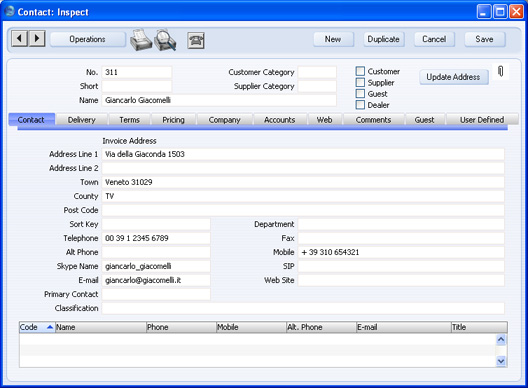
- The 'Create Contact' Operations menu function is the easiest way to add a Contact Person to a Customer or Supplier, but you can also use a more manual method. First, enter a new record to the Contact register for the Contact Person. No address, telephone or mobile information will be offered, so you will need to enter this information yourself (unless you duplicate an existing Contact Person):
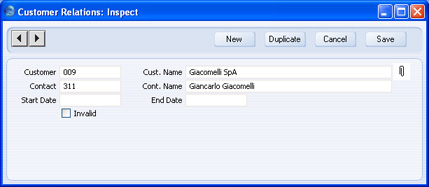
- Now, you need to connect the Contact Person to the Customer or Supplier. The Customer Relations register in the CRM module provides this connection. If you create a Contact Person using the 'Create Contact' Operations menu function as described in step 3, a record will be created in the Customer Relations register automatically, connecting the Contact Person to the Customer or Supplier. In this case, as you created the Contact Person manually, you also need to create the connecting Customer Relations record yourself. To do this, ensure you are in the CRM module, open the Customer Relations register and create a new record:
- Customer
- Paste Special
Customers, Suppliers and Contact Persons in Contact register
- Specify the Customer or Supplier for whom the Contact Person works.
- Contact
- Paste Special
Contact Persons in Contact register
- Specify the Contact Person.
- Start Date
- Paste Special
Choose date
- Enter the date when the Contact Person started working for the Customer or Supplier. This is for information only.
- End Date
- Paste Special
Choose date
- If appropriate, enter the date when the Contact Person stopped working for the Customer or Supplier. This is for information only.
- Invalid
- If the Contact Person stops working for the Customer or Supplier, you can mark the Customer Relations record as Invalid. This is described in step 6 below.
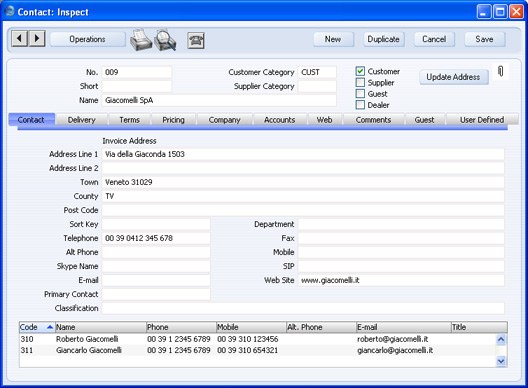
- The Customer Relations register allows a Contact Person to work for more than one company. Simply enter as many records to the Customer Relations register as necessary, linking the Contact Person to the companies they work for:
The Contact Person is listed in both Contact records for the companies: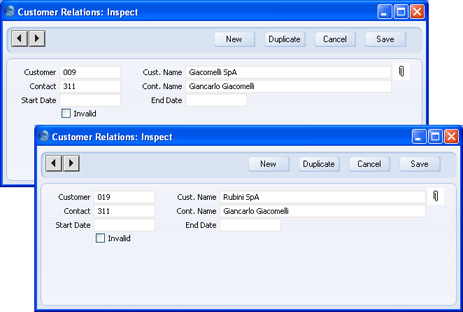
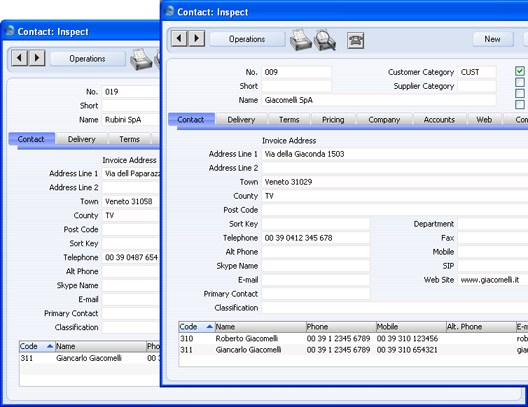
- If a Contact Person stops working for a Customer or Supplier, you can do one of three things:
- You can delete the relevant Customer Relations record. This will break the link between the Contact Person and the Customer or Supplier. Alternatively, if the Contact Person moves to another Customer or Supplier, you can enter the new Customer or Supplier in the Customer Relations record.
- You can mark the relevant Customer Relations record as invalid. The link between the Contact Person and the Customer or Supplier will remain, but the Contact Person will no longer appear in 'Paste Special' lists and will be marked with a red line in the Customer or Supplier record:
- You can delete the relevant Customer Relations record. This will break the link between the Contact Person and the Customer or Supplier. Alternatively, if the Contact Person moves to another Customer or Supplier, you can enter the new Customer or Supplier in the Customer Relations record.
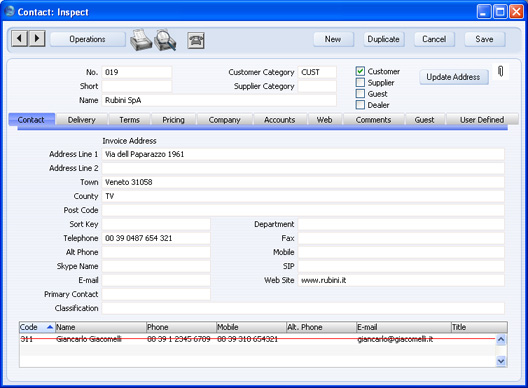
- You can mark the Contact Person as Closed (on the 'Terms' card of their Contact record). All Customer Relations records for the Contact Person will be marked as Invalid automatically. The link between the Contact Person and the Customer or Supplier will remain, but the Contact Person will be marked with a red line, as illustrated in point ii above. The Contact Person will no longer appear in 'Paste Special' lists. This method will not be suitable if the Contact Person moves to another Customer or Supplier, or works for more than one at the same time. It closes the Contact Person as a whole, so they will not appear in 'Paste Special' lists of Contact Persons belonging to the new or second companies.
- You can use this method if you want to remember that the Contact Person once worked for the Customer or Supplier, between the dates recorded in the Customer Relations record. If the Contact Person moves to another Customer or Supplier, you can create a new Customer Relations record.
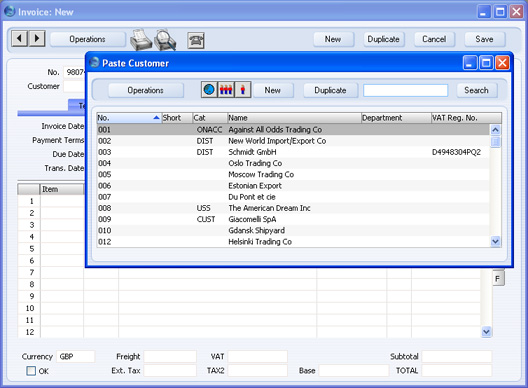
- Once you have entered a Customer or Supplier and all its Contact Persons, you can work with them quickly and easily. For example, when you enter a Sales Invoice, only Customers will be shown in the 'Paste Special' list from the Customer field:
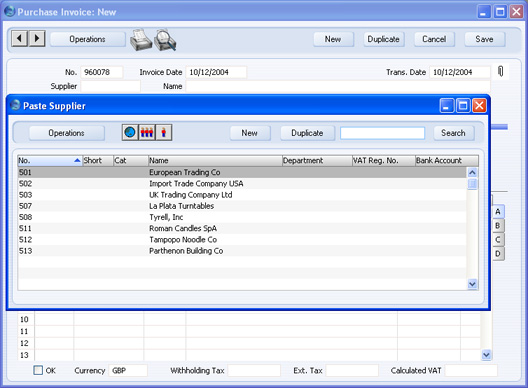
- When you enter a Purchase Invoice, only Suppliers will be shown in the 'Paste Special' list from the Supplier field:
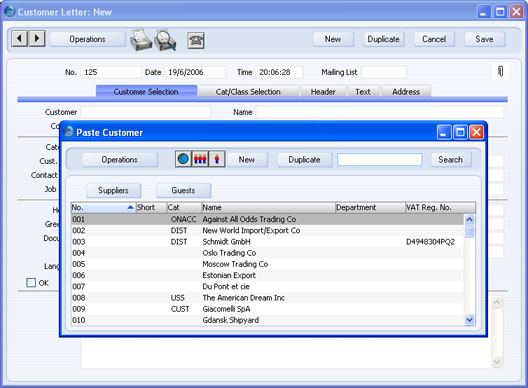
- In some cases (e.g. Activities, Customer Letters), you can specify Customers and Suppliers. When you open the 'Paste Special' list from the Customer field, it will list Customers, but there will be a [Suppliers] button at the top of the list, allowing you to choose a Supplier if necessary:
- In most records, you can choose a Contact Person as well as a Customer or Supplier. The Primary Contact from the 'Contact' card of the Customer or Supplier will be brought in as a default. To choose a different Contact Person, activate 'Paste Special' from the Contact or Attn. field (the name of this field varies depending on the register):
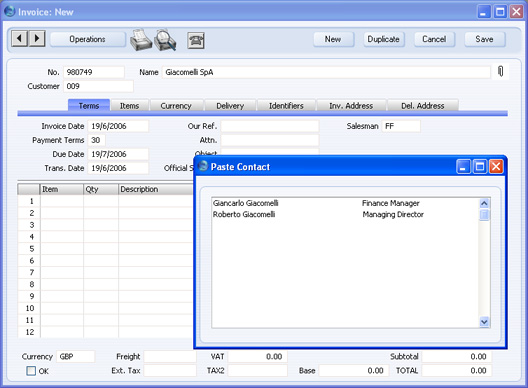
- This list will only contain Contact Persons that work for the Customer or Supplier. Closed Contact Persons will not be included in the list. The Primary Contact from the 'Contact' card of the Customer or Supplier will be included in the list, but will not be listed twice if you have a separate Contact record for that Person. Note that the Title of each Contact Person is shown in the list, so you should record this information if you have it (on the 'Comments' card of the Contact record), to make selection of the correct Contact Person easier.
Operations Menu

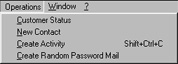
Operations Menu - Customer Status
The 'Customer Status' function provides a short cut to the Customer Status report, otherwise only available in a less detailed form in the Sales Ledger.In its basic form, this report shows address and turnover information and lists all Contact Persons for the Customer currently on screen or for those Customers highlighted in the browse window. However, if required, more information can be shown in the report, such as lists of recent Activities, Invoices, Contract Quotations, Contracts, Quotations and Orders, and monthly sales figures for the past year. Use the Customer Status Report setting in the CRM module to control how much of this additional information will be shown to different users, each of whom can be given a different report definition. Much of this additional information will not be shown if the report is produced from the Sales Ledger.
The Customer Status report has Hansa's Drill-down feature. Many records such as Contact Persons, Quotations and Invoices can be opened by clicking in the appropriate places (i.e. on Contact Person names and on Quotation and Invoice Numbers). Text with the drill-down feature is shown underlined in the report.
Operations Menu - Supplier Status
You can use the 'Supplier Status' function with Contacts that are Suppliers. It provides an immediate report listing previous Purchase Invoices and Payments for the Supplier currently on screen or for those highlighted in the browse window. It also shows total amount due figures. The function will have no effect if you try to use it with a company that is not marked as a Supplier.Depending on the availability of the CRM module, additional information can also be shown in the report, such as lists of recent Activities, Goods Receipts and Purchase Orders and monthly purchasing figures for the past year. Use the Info on Supplier Status Report setting in the CRM module to control how much of this additional information will be shown to different users, each of whom can be given a different report definition. If the appearance of the report is not as expected (it only lists Purchase Invoices and Contact Persons), the probable cause is that there is no record in the Info on Supplier Status Report setting for the user producing the report.
The Supplier Status report has the HansaWorld Enterprise Drill-down feature. You can open many records such as Contact Persons, Activities, Goods Receipts and Purchase Invoices from the report by clicking in the appropriate places (i.e. on Contact Person names, on Activity Dates and on Goods Receipt and Purchase Invoice Numbers). You can also click on a Person's initials to open an Activities, Persons report for that Person. Text with the drill-down feature is shown underlined in the report.
Operations Menu - Change Password
If you are using the Hansa Web Shop facility and have Customers who will be placing Orders over the web, you should use this function to give them passwords. Such Customers should also have the Allow Login box on the 'Terms' card of their Customer records checked. They will use their Customer Number as a Login ID.To set a password for a Customer, highlight their name in the 'Customers: Browse' window and select 'Change Password' from the Operations menu. The following window is opened:
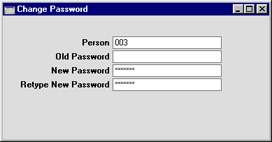
If you want to set rules for passwords (e.g. to impose a minimum number of characters, or to require at least one alpha or numeric character), use the Password Security setting in the System module.
Operations Menu - Search
You can search for Contacts containing a certain word or phrase. To do this, open the 'Contacts: Browse' window and select 'Search' from the Operations menu. The following window opens: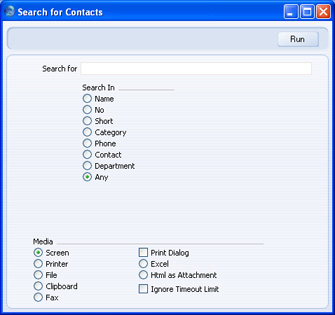
- Search for
- Enter here the word or phrase that you are looking for.
- Search in
- Choose the field where you want to search for the word or phrase.
Operations Menu - Contact - Link Existing Contact
Please refer to the Linking Contact Persons and Companies - The Contact Relations Register page for details about the 'Link Existing Contact' function.---
The Contact register in Standard ERP:
- Introduction
- Entering a Contact
- Editing a Contact
- Deleting a Contact
- Linking Contact Persons and Companies - The Contact Relations Register
- Operations menu, including:
- Customer Status
- Supplier Status
- Change Password
- Search
- Link Existing Contact
- Remove Linked Contact
- Edit Linked Contact Data
- Update Contact Persons
- Customer Status
- Create menu
- Home page for Customers, Suppliers and Contact Persons manual
- Home page for Standard ERP manual
Operations Menu - Contact - Remove Linked Contact
Please refer to the Linking Contact Persons and Companies - The Contact Relations Register page for details about the 'Remove Linked Contact' function.---
The Contact register in Standard ERP:
- Introduction
- Entering a Contact
- Editing a Contact
- Deleting a Contact
- Linking Contact Persons and Companies - The Contact Relations Register
- Operations menu, including:
- Customer Status
- Supplier Status
- Change Password
- Search
- Link Existing Contact
- Remove Linked Contact
- Edit Linked Contact Data
- Update Contact Persons
- Customer Status
- Create menu
- Home page for Customers, Suppliers and Contact Persons manual
- Home page for Standard ERP manual
Operations Menu - Contact - Edit Linked Contact Data
Please refer to the Linking Contact Persons and Companies - The Contact Relations Register page for details about the 'Edit Linked Contact Data' function.---
The Contact register in Standard ERP:
- Introduction
- Entering a Contact
- Editing a Contact
- Deleting a Contact
- Linking Contact Persons and Companies - The Contact Relations Register
- Operations menu, including:
- Customer Status
- Supplier Status
- Change Password
- Search
- Link Existing Contact
- Remove Linked Contact
- Edit Linked Contact Data
- Update Contact Persons
- Customer Status
- Create menu
- Home page for Customers, Suppliers and Contact Persons manual
- Home page for Standard ERP manual
Operations Menu - Update Address
If the Contact is a Customer or Supplier, use this function to update all their Contact Persons with the latest Invoice Address details. Change the Invoice Address as appropriate, save the Contact record and then select this function from the Operations menu. The new Invoice Address will be copied to all Contact Persons. Other contact details (e.g. telephone number, mobile, Delivery Address etc) will not be copied as Contact Person records are likely to contain personal numbers (e.g. extension numbers).Create Menu - Contacts
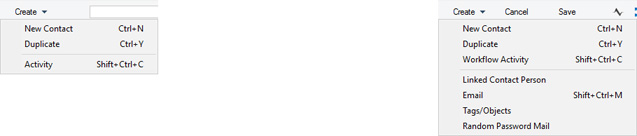
'New' and 'Duplicate' are standard functions that are provided on every Create and + menu. Use these functions to create new records, in this case in the Contact register. Please follow the links below for details about the other functions:
- Introduction
- Entering a Contact
- Editing a Contact
- Deleting a Contact
- Linking Contact Persons and Companies - The Contact Relations Register
- Operations menu
- Create menu
- Home page for Customers, Suppliers and Contact Persons manual
- Home page for Standard ERP manual
Operations Menu - Create Activity
This function can be used to create records in the Activity register in the System module. This can be useful if it is necessary, for example, to schedule a call to a new Customer.When you select the function, the following screen appears, where you can create a new Activity:
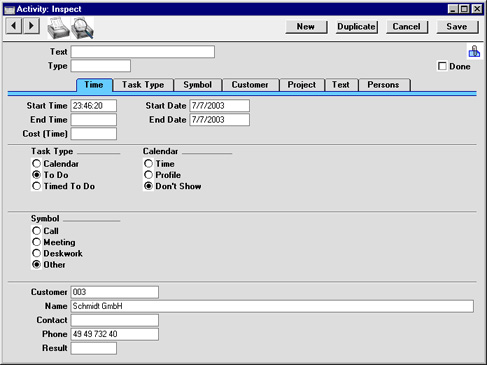
After amendment if necessary, save the record in the Activity register by clicking the [Save] button in the Button Bar and close it using the close box. Alternatively, if you no longer require the Activity, remove it using the 'Delete' function on the Record menu. In either case, you will be returned to the Customer window.
The Customer and the Activity will be connected to each other through the Attachments facility. This allows you to open the Customer quickly and easily when reviewing the Activity, or to open the Activity from the Customer. When viewing the Activity or Customer, click the button with the paper clip image to open a list of attachments. Then double-click an item in this list to open it.
The Customer does not have to be saved before creating an Activity.
The 'Activity: Inspect' window is fully described here.
Operations Menu - New Contact
This function can be used to create records in the Contact Person register in the CRM module, allowing you to add to the list of contact names for this Customer.When you select the function, the following screen appears, where you can create a new Contact Person record:
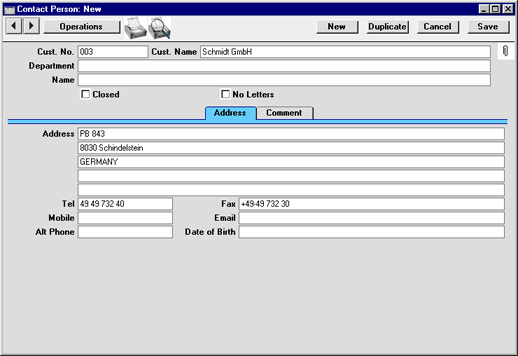
The Customer does not have to be saved before creating a Contact Person.
The 'Contact Person: New' window is fully described here.
Operations Menu - Create Email
Use this function if you need to send an email to the Contact. When you select the function, the window shown below appears, where you can create a new Mail.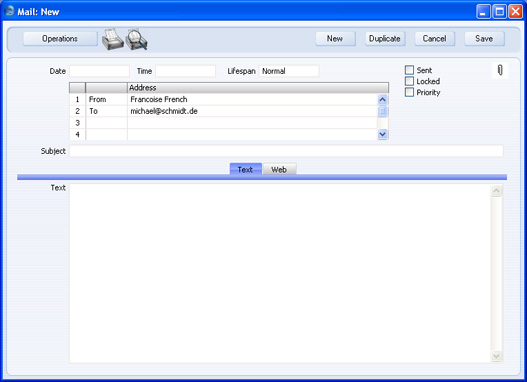
If the function does not create a Mail, the probable causes are:
- The current user does not have a Mailbox.
- The Contact does not have an email address.
- The Contact has not been saved.
Create Menu - Contact - Tags/Objects
This page describes the 'Tags/Objects' function on the Create menu in the Contact record window. If you are using iOS or Android, the 'Tags/Objects' function is on the + menu.---
If you need to create Tags/Objects that are specific to each Contact, there are two methods that you can use:
- You can have a Tag/Object created automatically whenever you save a Contact for the first time. To use this method, select the Automatically Create Sales Tags/Objects on Contacts and/or Automatically Create Purchase Tags/Objects on Contacts options in the Contact Settings setting.
- After saving a Contact, you can create a Tag/Object by selecting this 'Tags/Objects' function from the Create menu (Windows/Mac OS X) or + menu (iOS/Android).
- If the Contact is a Customer, the new Tag/Object will be placed in the Sales Tags/Objects field.
- If the Contact is a Supplier, the new Tag/Object will be placed in the Purch. Tags/Objects field.
- If the Contact is both a Customer and a Supplier, the new Tag/Object will be placed in the Sales Tags/Objects and in the Purch. Tags/Objects fields.
The Contact Number will be used as the Code of the new Tag/Object. For example, Tag/Object 001 will be created from Contact 001.
If you need the new Tag/Objects to be assigned to Tag/Object Types, specify those Tag/Object Types in the Sales Tag/Object Type and Purchase Tag/Object Type fields in the Contact Settings setting. If you need the Sales Tag/Object and Purchase Tag/Object to be assigned to different Tag/Object Types, you should specify Start Strings in those Tag/Object Types so that Tags/Objects with different Codes can be created. This will allow you to avoid the issue that Tag/Object 001 cannot be assigned to two Tag/Object Types, an issue that would otherwise arise if a Contact is both a Customer and a Supplier. If you have specified Lengths (maximum numbers of characters) in each Tag/Object Type, take care that these are sufficient for Tag/Object Codes to be constructed from the Start Str and Contact Numbers.
The two methods will only create Tags/Objects from Contacts that are Customers or Suppliers, not from other Contacts such as Contact Persons. So, if you are using the automatic method, be sure to mark a new Contact as a Customer or Supplier before saving for the first time.
---
The Contact register in Standard ERP:
- Introduction
- Entering a Contact
- Editing a Contact
- Deleting a Contact
- Linking Contact Persons and Companies - The Contact Relations Register
- Operations menu
- Create menu, including:
- Workflow Activity
- Linked Contact Person
- Email
- Tags/Objects
- Random Password Mail
- Workflow Activity
- Home page for Customers, Suppliers and Contact Persons manual
- Home page for Standard ERP manual
Operations Menu - Create Random Password Mail
If you are using the Hansa Web Shop facility and have Customers who will be placing Orders over the web, you can use this function to generate passwords for them. Such Customers should also have the Allow Login box on the 'Terms' card of their Customer records checked. They will use their Customer Number as a Login ID.To set a password for a Customer, double-click their name in the 'Customers: Browse' window and, when the 'Customer: Inspect' window opens, select 'Create Random Password Mail' from the Operations menu. The window shown below appears, where you can create a new Mail.
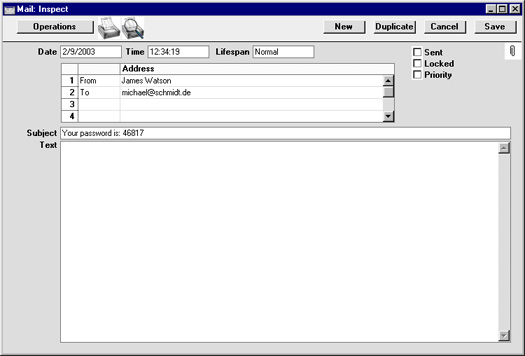
If the function does not create a Mail, the probable causes are:
- The current user does not have a Mailbox.
- The Customer does not have an email address.
- The Customer has not been saved.