Introduction to the Returned Goods Register
This register is used when goods that you have delivered to your Customer are returned to you. A record in the Returned Goods register is always connected with a Sales Order, and it can be either a full Return or a part Return. The register cannot be used if the Sales Orders module is not present.If you are using a FIFO stock system and/or cost accounting (maintaining stock values in the Nominal Ledger), the difficulty with the returning of goods to stock is that the system cannot know the actual cost (FIFO value) of the goods being returned. The purpose of the Returned Goods register is to allow the user to intervene in this process, so that the correct FIFO values can be recorded.
When the Return is approved, the stock levels of the Items used will be amended accordingly as will the Nominal Ledger stock valuation of any Stocked Items used (if you have chosen in the Sub Systems setting in the Nominal Ledger to have such Transactions created). You can then raise another Delivery (if you will be sending out a replacement) or a Credit Note (if an Invoice has already been issued and no replacement is required) from the Sales Order screen.
To view Returns already entered, select 'Returned Goods' from the Registers menu in the Stock module, or click the [Returned Goods] button in the Master Control panel. The 'Returned Goods: Browse' window is opened. Returns are normally shown in number order. For each is shown a Return Number, an indication of whether the Return has been approved in the OK column, Date and Comment. As in all Hansa browse windows, you can re-sort the list and search for particular records.
Entering a Return
Records cannot be entered directly to the Returned Goods register. Instead, a new Return must be created using one of two methods:- With a Sales Order open, select the 'Returned Goods' command from the Operations menu. This creates a new record in the Returned Goods register. For the command to have any effect, all changes to the Sales Order must first have been saved (use the [Save] button) and at least one Delivery must have been issued and approved from the Order.
- With a Delivery open, select the 'Return Goods' command from the Operations menu. This creates a new record in the Returned Goods register. For the command to have any effect, all changes to the Delivery must first have been saved (use the [Save] button) and it must have been approved.
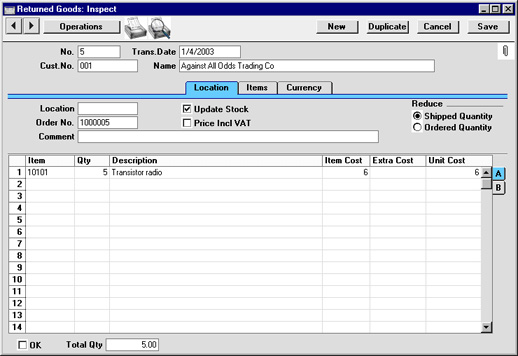
Entering a Return - Header

- No.
- Paste Special
Select from another Number Series
- The serial number of the current Return. The default is the next unused number from the first number sequence in the Number Series - Returned Goods setting. You may change this number, but not to one that has already been used.
- Trans. Date
- Paste Special
Current Date
- The date of the Return. The current date is entered by Hansa as a default.
- Cust. No.
- The Customer Number from the Order.
- Name
- The Customer Name, taken from the Order.
Entering a Return - Location Card

- Location
- Paste Special
Locations setting, Stock module
- Default taken from Order
- The Location into which the Items are to be returned. If a Main Location has been specified in the Stock Settings setting, leaving the field blank means that the Main Location will be used.
- This field must contain a value if the Require Location option is on in the Stock Settings setting.
- The Location into which the Items are to be returned. If a Main Location has been specified in the Stock Settings setting, leaving the field blank means that the Main Location will be used.
- Update Stock
- Use this option if you need stock levels for the Items on the Return to be altered when the record is approved.
- This check box has no effect over whether a Nominal Ledger Transaction is created when the Return is approved.
- This check box has no effect over whether a Nominal Ledger Transaction is created when the Return is approved.
- Order No.
- The serial number for the Sales Order from which the Returns record was created. This field cannot be changed.
- Objects
- Paste Special
Object register, Nominal Ledger/System module
- Default taken from Order, 'Date' card
- Up to 20 Objects, separated by commas, can be assigned to this Return and all transactions generated from it. You might define separate Objects to represent different departments, cost centres or product types. This provides a flexible method of analysis that can be used in Nominal Ledger reports.
- By default, the Objects entered here are taken from the Order from which the Return was issued, but they can be changed if necessary.
- In any Nominal Ledger Transactions generated from this Delivery, any Objects specified here will be assigned to the credit posting.
- Up to 20 Objects, separated by commas, can be assigned to this Return and all transactions generated from it. You might define separate Objects to represent different departments, cost centres or product types. This provides a flexible method of analysis that can be used in Nominal Ledger reports.
- Price Incl VAT
- Check this box if the Unit Prices for the Items on the Return include VAT.
- Comment
- Any comment entered here (perhaps the reason for the return) will be shown in the 'Returned Goods: Browse' window.
- Reduce
- Use these choices to control the effect of the Return on the Order from which it was created.
- Shipped Quantity
- This option reduces the Del 1 and Del 2 quantities only. It will be used if the goods were returned because they were faulty (i.e. the Customer requires a replacement). Then, once the Returned Goods record has been approved, when you return to the Order you can raise another Delivery for the appropriate quantity to fulfil the Order. In this instance you may choose not to update the stock levels and to write off the Items using the Stock Depreciation register. If you need to return the Items to your Supplier, it is recommended that you update stock levels and then enter a Stock Depreciation record.
- Ordered Quantity
- This option reduces the Del 1 and Del 2 quantities and the Order quantity. It will be used when goods are returned without a replacement being required (perhaps the Order has been cancelled). In this case, choose to reduce the ordered quantity and to update stock levels. If the Order has been invoiced, selecting 'Create Credit Note' from the Operations menu of the Returned Goods record will create a Credit Note with appropriate Payment Terms and a reference to the Invoice being credited.
- Shipped Quantity
Entering a Return - Items Card
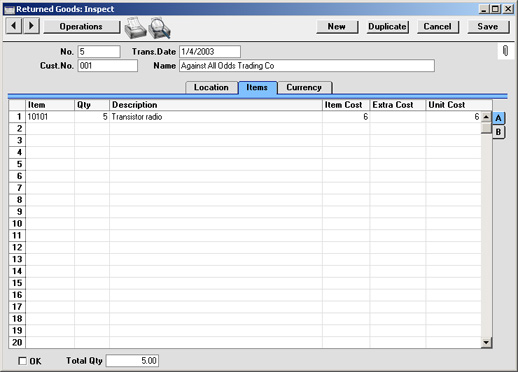
Flip A
- Item
- The Item Number from the Order.
- If an Item being returned is a Structured Item, you should list its components in the Return, not the Structured Item itself. Structured Items are built the moment the Delivery is made and are not kept in stock themselves. Therefore, they should not be included on a Return. Only the components should be listed on the Return: this will ensure they are correctly received back into stock.
- If an Item being returned is a Structured Item, you should list its components in the Return, not the Structured Item itself. Structured Items are built the moment the Delivery is made and are not kept in stock themselves. Therefore, they should not be included on a Return. Only the components should be listed on the Return: this will ensure they are correctly received back into stock.
- Qty
- Enter the quantity returned (the default is that delivered).
- Description
- The Item Name from the Order.
- Item Cost
- The unit Cost Price of the Item being returned.
- In the case of Returns created from Deliveries, the default is the true FIFO value of the Item from flip C of the Delivery.
- In the case of Returns created from Orders, the default is the Cost Price from flip C of the Order, not the actual cost of the Item being returned. FIFO values are not stored in Orders. To maintain a correct FIFO record, you should take care to set this figure correctly: you may need to find out the true value of the Item from flip C of the original Delivery record.
- If the Item in question is one that has its Cost Price updated on Purchase using the Weighted Average option (set on the 'Costs' card of the Item record), any change in Price here will be fed back to that Cost Price automatically. The FIFO value of the Item will be adjusted accordingly.
!
You must check the Unit Price yourself to ensure FIFO accuracy.
- In the case of Returns created from Deliveries, the default is the true FIFO value of the Item from flip C of the Delivery.
- Extra Cost
- Any additional cost (per unit) incurred by your company in having the item returned. It will be shown added to the Unit Price in the Cost Price column. Either enter an amount in Currency, or a percentage followed by the % character.
- If a Nominal Ledger Transaction is generated from this Return (this is determined using the Sub Systems setting in the Nominal Ledger), any costs in this field are credited to the Extra Costs Account specified on card 5 of the Account Usage S/L setting and included in the debit posting. The FIFO value of the Item will be adjusted to include the Extra Cost.
- If the Item in question is one that has its Cost Price updated on Purchase using the Weighted Average option (set on the 'Costs' card of the Item record), any Extra Cost entered here will be fed back to that Cost Price automatically.
- If a Nominal Ledger Transaction is generated from this Return (this is determined using the Sub Systems setting in the Nominal Ledger), any costs in this field are credited to the Extra Costs Account specified on card 5 of the Account Usage S/L setting and included in the debit posting. The FIFO value of the Item will be adjusted to include the Extra Cost.
- Unit Cost
- The Unit Cost of the Item in the Currency of the Return, including any Extra Costs.
- Objects
- Paste Special
Object register, Nominal Ledger/System module
- Default taken from Order row
- Up to 20 Objects, separated by commas, can be assigned to this Item and all transactions generated from it. You might define separate Objects to represent different departments, cost centres or product types. This provides a flexible method of analysis that can be used in Nominal Ledger reports.
- By default, the Objects entered here are taken from the Order row to which the Return row corresponds, but they can be changed if necessary.
- In any Nominal Ledger Transactions generated from this Return, any Objects specified here will be assigned to the credit posting. This assignment will merge these Objects with those of the parent Return (shown on the 'Location' card).
- Up to 20 Objects, separated by commas, can be assigned to this Item and all transactions generated from it. You might define separate Objects to represent different departments, cost centres or product types. This provides a flexible method of analysis that can be used in Nominal Ledger reports.
- Serial No.
- Paste Special
Serial Numbers of Items in stock
- If the Item uses Serial Numbers or batch numbers, a valid number must be entered here.
- In the case of Returns created from Deliveries, this field will contain a default, taken from the Items that have already been delivered. In the case of Returns created from Orders, there will be no default, because the Serial Numbers of delivered Items are not all stored in Orders if the Order Quantity is greater than one.
- If you are using the No Serial No. on Goods Receipts option in the Stock Settings setting, it will not be compulsory to enter Serial Numbers, and a Quantity greater than 1 will be allowed.
- In the case of Returns created from Deliveries, this field will contain a default, taken from the Items that have already been delivered. In the case of Returns created from Orders, there will be no default, because the Serial Numbers of delivered Items are not all stored in Orders if the Order Quantity is greater than one.
- Best Before
- In the case of perishable goods, enter a Best Before date here. The default will be taken from the Items that have already been delivered from the Order.
Entering a Return - Currency Card

- Currency
- Paste Special
Currency register, System module
- The Currency of the Return.
- Exchange Rates
- Default taken from
Base Currency Rates setting and/or Exchange Rate register, System module
- The current exchange rate will be entered by Hansa.
- One of two conversion methods will be used. The Dual-Base system will be useful for companies that have offices in two countries that need to report in both Currencies, for companies operating in countries where there is a second Currency (usually the US Dollar or Euro) in common use in addition to the national one, and for companies in the Euro zone who retain their old national Currency for comparison purposes. The second method is a simple conversion from the foreign Currency to the home Currency, applicable to the majority of worldwide Currency transactions. These are described below.
- Exchange Rates (Dual-Base System)
- If the Dual-Base system is being used, the Base Currency 1 and 2 fields on the left show in the form of a ratio the exchange rate between the two base Currencies (taken from the latest record in the Base Currency Rates setting).
- Note that European Monetary Union (EMU) regulations specify that the ratios must always show how many units of the home or foreign Currency can be bought with one Euro.
- Note that European Monetary Union (EMU) regulations specify that the ratios must always show how many units of the home or foreign Currency can be bought with one Euro.
- Exchange Rates (Simple Currency Conversion System)
- In the case of a simple currency conversion system, the Rate and right-hand Base Currency 1 fields are used to show a simple exchange rate between the foreign and home Currencies.
- One of two conversion methods will be used. The Dual-Base system will be useful for companies that have offices in two countries that need to report in both Currencies, for companies operating in countries where there is a second Currency (usually the US Dollar or Euro) in common use in addition to the national one, and for companies in the Euro zone who retain their old national Currency for comparison purposes. The second method is a simple conversion from the foreign Currency to the home Currency, applicable to the majority of worldwide Currency transactions. These are described below.
Entering a Return - Comment Card
This page describes the fields on the 'Comment' card in the Returned Goods record window. Please follow the links below for descriptions of the other cards:---

- Comment
- Any comment entered here (perhaps the reason for the return) will be shown in the 'Returned Goods: Browse' window.
- The Comment field will remain editable after marking a Return as OK and saving.
The Returned Goods register in Standard ERP:
- Introduction
- Entering a Return, including:
- Header
- 'Terms' card
- 'Items' card
- 'Currency' card
- 'Comment' card
- Header
- Nominal Ledger Transactions from Returns
- Returning Goods when there is no Delivery
- Operations Menu
- Create Menu
- Row Menu
- Home page for Stock Module manual
- Home page for Standard ERP manual
Nominal Ledger Transactions from Returns
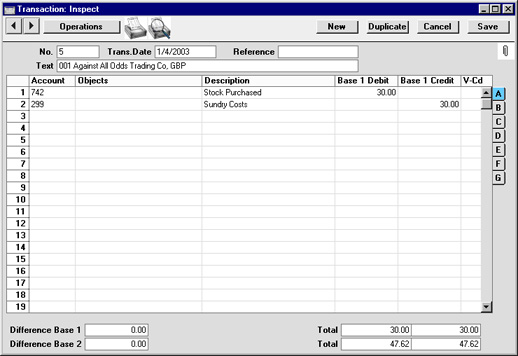
When a Returned Goods record is approved and saved, a Nominal Ledger Transaction will be generated automatically if you have so determined in the Sub Systems setting in the Nominal Ledger, if at least one of the Items on the Return is a Stocked Item.The Account debited by such Transactions is determined as follows:
- The Stock Account for the specified Location will be debited.
- If this is blank or if no Location has been specified, and if the Use Item Groups for Cost Accounts option in the Cost Accounting setting is on, the Stock Account for the Item Group to which the Item belongs will be debited.
- In all other cases, the Stock Account on card 5 of the Account Usage S/L setting will be debited.
- The Cost Account for the Item will be credited.
- If this is blank and the Use Item Groups for Cost Accounts option in the Cost Accounting setting is on, the Cost Account for the Item Group to which the Item belongs will be credited.
- In all other cases, the Returned Goods Account specified on card 5 of the Account Usage S/L setting will be credited.
- If the Returned Goods Account is blank, the Stock Cost Account specified on card 5 of the Account Usage S/L setting will be credited.
Below is shown an example of a Nominal Ledger Transaction created from a Return:
Returning Goods when there is no Delivery
It is possible to deliver goods from stock without a Sales Order or Delivery. This process is described on the Deliveries from the Sales Ledger page. In this circumstance, because of the lack of a Sales Order, if such goods are returned to you, the Returned Goods register cannot be used to receive them back into stock.Instead, follow these steps:
- Such an Item would originally have been issued using an Invoice. This Invoice should be credited, using the process described on the Credit Notes page. When the Credit Note is created and the Payment Terms field is changed to "CN", the Update Stock check box on the 'Delivery' card is switched off. This should not be switched on again as doing so will mean that the Nominal Ledger stock valuation will become inaccurate: the wrong FIFO value will be used. Instead, approve the Credit Note (to update the Sales Ledger and the Debtor, VAT and Sales Accounts in the Nominal Ledger).
- Receive the Item back into stock using the Goods Receipt register in the Stock module. This will correctly update stock levels and, if you have so determined in the Sub Systems setting, the Nominal Ledger stock valuation.
Because the system cannot obtain a FIFO valuation, it is recommended that you set the cost prices manually in the Goods Receipt record: you may need to find out the true value of the returned goods from the original Invoice record first (the FIFO field on flip C shows the average unit FIFO value of the Items delivered).
Operations Menu
Operations Menu - Returned Goods - Item Search
This page describes the 'Item Search' function on the Operations menu in the Returned Goods record window. If you are using iOS or Android, the 'Item Search' function is on the Tools menu (with 'wrench' icon).---
If you are using the Allow Returned Goods Not Linked to Orders option in the Returned Goods Settings setting, you will be able to add rows to a Return that you created from another record such as a Delivery or Work Sheet, and you will be able to add records directly to the Returned Goods register. One way to search for Items that you can then add to a Returned Goods record is to use the 'Item Search' function. This function is therefore an alternative to the 'Paste Special' feature.
To use this function, place the insertion point in the Item field in any row and then select 'Item Search' from the Operations menu (Windows/macOS) or Tools menu (iOS/Android). The following window opens:
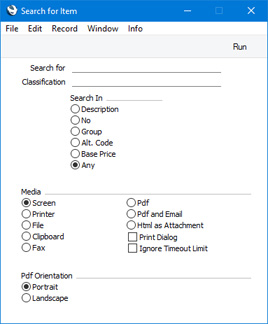
- Search for
- Enter here the string (e.g. part of an Item Number or Name) that you are looking for. You must make an entry in this field, otherwise no search will be carried out.
- Classification
- Paste Special
Item Classifications setting, Sales Ledger
- If you enter an Item Classification here, the search for the string that you specified in the field above will be restricted to Items belonging to that Classification.
- Search In
- Specify the field in which you want to search.
---
The Returned Goods register in Standard ERP:
- Introduction
- Entering a Return
- Nominal Ledger Transactions from Returns
- Returning Goods when there is no Delivery
- Operations Menu, including:
- Item Search
- Open NL Transaction
- Item Search
- Create Menu
- Row Menu
- Home page for Stock Module manual
- Home page for Standard ERP manual
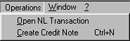
Operations Menu - Open NL Transaction
Once a Return has been approved and saved, if so defined in the Sub Systems setting in the Nominal Ledger, a Nominal Ledger Transaction is created. This function allows you to view that Transaction.On selecting the function, the Transaction will be opened in a new window.
Create Menu - Returned Goods
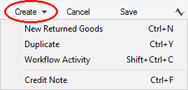
The standard 'New' and 'Duplicate' functions will only be visible if you are using the Allow Returned Goods Not Linked to Orders option in the Returned Goods Settings setting. Use these functions to create new records, in this case in the Returned Goods register. Please follow the links below for details about the other function.
The Returned Goods register in Standard ERP:
- Introduction
- Entering a Return
- Nominal Ledger Transactions from Returns
- Returning Goods when there is no Delivery
- Operations Menu
- Create Menu
- Row Menu
- Home page for Stock Module manual
- Home page for Standard ERP manual
Operations Menu - Create Credit Note
When an Order has been invoiced and goods are returned without a replacement being required (perhaps the Order has been cancelled), this function can be used to issue a Credit Note. The Return must first be approved and saved, and at least one Invoice must first have been created from the Order.On selecting the function, a new record is created in the Invoice register. It is opened in a new window, entitled 'Invoice: Inspect'. This means that it has been created and saved and is being opened for amendment and approval.
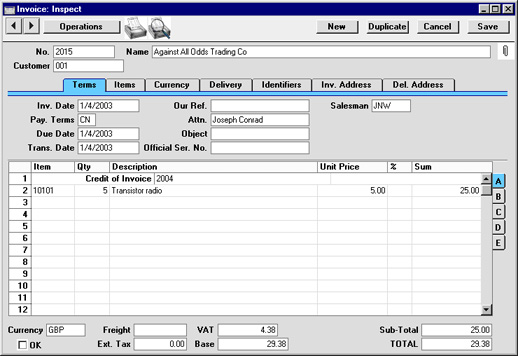
To print the Credit Note, click the Printer icon. If the Credit Note has not been approved, the printed Credit Note will be marked as a test print, so that it cannot be confused with the final version of the Credit Note.
When the Credit Note is complete, click the OK check box. This signifies that the Credit Note has been approved. Associated transactions in the Nominal Ledger will now be raised and you will no longer be able to modify the Credit Note.
If you have created more than one Invoice from an Order, you cannot use this function to create a Credit Note, because Hansa will not be able to establish which Invoice is to be credited. In this situation, you should enter the Credit Note directly to the Invoice register, perhaps by duplicating the correct original Invoice.
Please click here or a full description of the Invoice/Credit Note screen, and here for details about Credit Notes.
To close the screen and return to the Return, click the close box. You will be asked if you want to save any changes.
Row Menu - Returned Goods
The matrix in the Returned Goods window has its own menu, which contains a function that refers to or affects an individual row in the matrix. This is sometimes known as the "Row Menu".If you are using Windows or macOS, you can open the Row menu by first clicking in any field in the row in question (i.e. the row to which the function is to be applied), and then right-clicking (Windows) or Ctrl-clicking (macOS) the row number (on the left of the row). A menu will appear, where you can select the function:
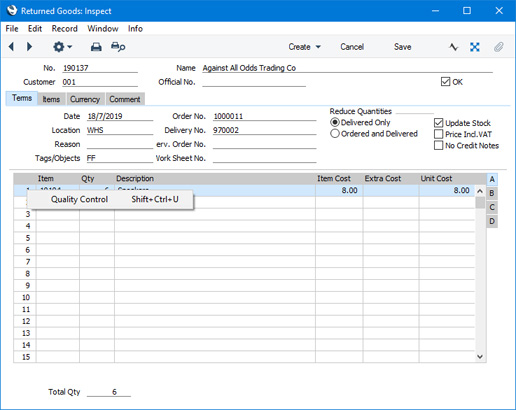
Please follow the links below for details about the function on the Row menu:
The Returned Goods register in Standard ERP:
- Introduction
- Entering a Return
- Nominal Ledger Transactions from Returns
- Returning Goods when there is no Delivery
- Operations Menu
- Create Menu
- Row Menu
- Home page for Stock Module manual
- Home page for Standard ERP manual
Row Menu - Returned Goods - Quality Control
This page describes the 'Quality Control' function on the Row menu in the Returned Goods record window. If you are using iOS or Android, the 'Quality Control' function is on the Tools menu (with 'wrench' icon).---
If a row in a Returned Goods record contains an Item with a Serial Number and a Best Before Date, you may need the Item to undergo quality control tests in order to confirm whether it can be re-sold. The 'Quality Control' function allows you to record the result of this test.
To use this function, first place the insertion point in the Return row containing the Item that has been tested. Then open the Row menu by right-clicking (Windows) or ctrl-clicking (macOS) the row number. When the Row menu opens, select 'Quality Control'. If you are using iOS or Android, select 'Quality Control' from the Tools menu (with 'wrench' icon). A 'Batch Quality Control: New' window will open, allowing you to enter the details of the test. In particular, use the Result field to connect the Batch Quality Control record to a record in the Batch Status setting. After you mark the Batch Quality Control record as OK and save, this Batch Status record will determine whether you will be warned when using the Item/Serial Number combination in an outgoing stock transaction, or whether you will be prevented from using the Item/Serial Number altogether.
Please refer here for more details about the 'Quality Control' function and about alternative methods that you can use to record the result of a quality control test on the Item/Serial Number.
---
The Returned Goods register in Standard ERP:
- Introduction
- Entering a Return
- Nominal Ledger Transactions from Returns
- Returning Goods when there is no Delivery
- Operations Menu
- Create Menu
- Row Menu, including:
- Quality Control
- Home page for Stock Module manual
- Home page for Standard ERP manual