Introduction to Maintenance in the Stock Module
Maintenance functions allow you to carry out certain updating tasks, usually involving batch processing and encompassing all or many of the records in the affected register. There are six such functions available in the Stock module. To use them, ensure you are in the Stock module and click (Windows/Mac OS X) or tap (iOS/Android) the [Routines] button in the Navigation Centre. Then click or tap the [Maintenance] button in the subsequent window. The following window appears: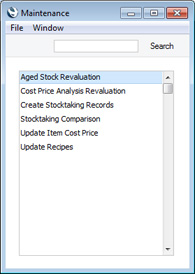
---
Please follow the links below for details about each Maintenance function:
- Aged Stock Revaluation
- Cost Price Analysis Revaluation
- Create Stocktaking Records
- Stocktaking Comparison
- Update Item Cost Price
- Update Recipes
- Rebuild Stock
- Home page for Stock module manual
- Home page for Standard ERP manual
Cost Price Analysis Revaluation
If the Cost Price of an Item changes, there may be circumstances where you need to change the value of the examples of that Item that you hold in stock. If so, you can use the 'Cost Price Analysis Revaluation' Maintenance function to create a record in the Stock Revaluation register that you can then use to implement the change in value.The function will search for Stocked Items where the Last Purchase Cost or the Weighted Average is different to the Cost Price. If there are any Items in which this is the case, it will then create a Stock Revaluation record containing those Items.
To use this function, ensure you are in the Stock module and then open the 'Maintenance' list by clicking (Windows/Mac OS X) or tapping (iOS/Android) the [Routines] button in the Navigation Centre and then the [Maintenance] button in the subsequent window. Double-click or tap 'Cost Price Analysis Revaluation' in the resulting 'Maintenance' list.
If you need to see a list of the Items that will be revalued, produce a Cost Price Analysis report before running this function. You can run this function from that report when it is printed to screen, by clicking (Windows/Mac OS X) or tapping (iOS/Android) the [Stock Revaluation] text link at the top of the report.
In both cases (from the 'Maintenance' list and from the Cost Price Analysis report), the specification window illustrated below will open. If you ran the function from the Cost Price Analysis report, the window will be filled in with the specifications that you used when running the report.
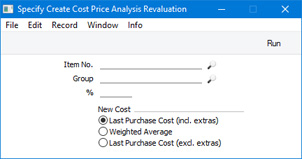
- Item No.
- Paste Special
Item register
- Range Reporting Alpha
- If you need a particular Item to be included in the new Stock Revaluation record, enter its Item Number here. You can also enter a range of Item Numbers separated by a colon (:).
- For an Item in the range to be included in the Stock Revaluation, it must meet the following requirements:
- It must be a Stocked Item.
- You must have at least one unit in stock.
- Its Last Purchase Cost or the Weighted Average must be different to its Cost Price.
- If you need a particular Item to be included in the new Stock Revaluation record, enter its Item Number here. You can also enter a range of Item Numbers separated by a colon (:).
- Group
- Paste Special
Item Group register, Sales Ledger
- If you need Items belonging to a particular Item Group to be included in the new Stock Revaluation record, specify that Item Group here.
- %
- By default, an Item will be included in the new Stock Revaluation record if its Last Purchase Cost or Weighted Average (as specified below) is different to its Cost Price. If you need this difference to be at least as much as a particular percentage of the Cost Price, enter that percentage here.
- The sign of the difference will be ignored. For example, if you enter "10" in this field, an Item will be included in the Stock Revaluation if its Last Purchase Cost or the Weighted Average is 10% higher than its Cost Price or 10% lower than its Cost Price.
- The sign of the difference will be ignored. For example, if you enter "10" in this field, an Item will be included in the Stock Revaluation if its Last Purchase Cost or the Weighted Average is 10% higher than its Cost Price or 10% lower than its Cost Price.
- New Cost
- In deciding whether an Item will be included in the new Stock Revaluation record, the function will compare its Last Purchase Cost (incl. extras), its Weighted Average or its Last Purchase Cost (excl. extras) with its Cost Price to see if there is a difference. Use these options to specify which of these figures will be compared with the Cost Price.
If the function does not create a Stock Revaluation when expected, the probable cause is that there is no valid record in the Number Series - Stock Revaluations setting. This problem will usually occur at the beginning of a new year.
---
Maintenance functions in the Stock module:
- Introduction
- Cost Price Analysis Revaluation
- Create Stocktaking Records
- Stocktaking Comparison
- Update Item Cost Price
- Update Recipes
- Rebuild Stock
- Home page for Stock module manual
- Home page for Standard ERP manual
Create Stocktaking Records
When you carry out a stocktake, you should enter the results to the Stocktaking register. You can do this yourself or, to minimise the typing load, you can use this Maintenance function. It will create new records in the Stocktaking register, containing the current stock figures for each Stocked Item as they are in your HansaWorld Enterprise database. If you have several Locations, the function will create separate new Stocktaking records for each Location. These records will only include Stocked Items of which you have stock in the specified Location. Then, you should update the new records to match the results of your stocktake before approving them and printing the Stocktaking Comparison report. Do not use this function if you are using Positions.Selecting the 'Create Stocktaking Records' function brings up the following dialogue box:
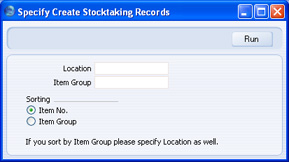
- Location
- Paste Special
Locations setting, Stock module
- Specify here the Location for which a Stocktaking record is to be created.
- If you leave this field and you have several Locations, a separate Stocktaking record will be created for each Location.
- If you have specified a Main Location in the Stock Settings setting, all Goods Receipts, Deliveries and other stock transactions without a Location will be treated as affecting the Main Location. The Main Location feature does not apply to Stocktaking records, so this function will create a Stocktaking record explicitly quoting the Main Location. For example, if the Main Location is 1, all stock transactions without a Location will be treated as adding stock to or removing stock from Location 1. This function will create a Stocktaking record with a Location of 1, not with a blank Location. If you have some stock transactions with a blank Location and some with a Location of 1, they will all contribute to the new Stocktaking record for Location 1.
- If you leave this field and you have several Locations, a separate Stocktaking record will be created for each Location.
- Item Group
- Paste Special
Item Group register, Sales Ledger
- Enter an Item Group here if you would like the new Stocktaking record to contain Items belonging to that Item Group only.
- Sorting
- Use these options to specify whether you want the Items in the new Stocktaking record to be listed in Item Number order or in Item Group order.
Stocktaking Comparison
This function automates the final stage of the stocktaking process. It compares the Counted Quantities in the latest approved Stocktaking record(s) with the current stock figures in the database. If there are any discrepancies, it will create appropriate unapproved Stock Depreciation transactions and Goods Receipts. As with the 'Create Stocktaking Records' Maintenance function, you should run this function once per Location. Before doing so, you can print a Stocktaking Comparison report that will list the discrepancies to be corrected. Do not use this function if you are using Positions.Note that if your stocktake revealed that a particular Item was in a different Location to that in which it is recorded as being stored, you would probably choose to make the correction using a Stock Movement. If you use this function, the Item will be removed from the original Location using a Stock Depreciation transaction and moved in to the new one using a Goods Receipt.
In the case of any Goods Receipts created by the function, the Unit Prices will be taken from the Cost Price fields on the 'Costs' card of the Item records. Since the new Goods Receipts will not be approved (unless you so choose), you will be able to change these figures if necessary. The Purchase Accruals Account on flip E of these Goods Receipts (the Account that will be credited in the subsequent Nominal Ledger Transactions) will not be chosen in the usual manner. If the Type of the Location is "Other", the default will be the Stock Gain Account from the Account Usage Stock setting. If the Type of the Location is "Production", if the Item belongs to an Item Group and if you are using the Use Item Groups for Cost Accounts option in the Cost Accounting setting, the default will be the Usage Variance Account in the Item Group. Otherwise, it will be the Stock Gain Account in the Account Usage Stock setting. You can change this default before approval.
In the case of any Stock Depreciations created by the function, the Cost Account in the header will be the Stock Loss Account from the Account Usage Stock setting as normal. However, if the Type of the Location is "Production", if the Item belongs to an Item Group and if you are using the Use Item Groups for Cost Accounts option in the Cost Accounting setting, the Usage Variance Account in the Item Group will be copied to the Cost Account field on flip A of the Stock Depreciation row. In effect, this Account will be used for wastage resulting from the Production process. If these conditions are not all met, the Cost Account field in the Stock Depreciation row will be left empty.
Selecting the 'Stocktaking Comparison' function brings up the following dialogue box:
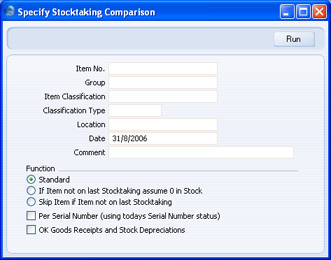
- Item No.
- Paste Special
Item register - Range Reporting Alpha
- Enter an Item Number (or range of numbers) if the function is to compare stock levels and Counted Quantities of specific Item(s) only. Use a colon (:) to separate the first and last number.
- This comparison will only be made for Stocked Items in the range (not Plain, Service or Structured Items).
- Enter an Item Number (or range of numbers) if the function is to compare stock levels and Counted Quantities of specific Item(s) only. Use a colon (:) to separate the first and last number.
- Group
- Paste Special
Item Group register, Sales Ledger - Range Reporting Alpha
- Enter an Item Group Code if the function is to compare stock levels and Counted Quantities of the Stocked Items in a particular Item Group.
- Classification
- Paste Special
Item Classifications setting, Stock module - Enter a Classification Code in this field if you want the function to compare stock levels and Counted Quantities of Items with a certain Classification. If the field is empty, stock levels and Counted Quantities will be compared for all Items, with and without Classification. If you enter a number of Classifications separated by commas, stock levels and Counted Quantities will only be compared for those Items featuring all the Classifications listed. If you enter a number of Classifications separated by plus signs (+), stock levels and Counted Quantities will be compared for all Items featuring at least one of the Classifications listed. If you enter a Classification preceded by an exclamation mark (!),stock levels and Counted Quantities will be compared for all Items featuring any Classification except the one listed.
- For example:
- 1,2
- Compares stock levels and Counted Quantities for Items with Classifications 1 and 2 (including Items with Classifications 1, 2 and 3).
- 1+2
- Compares stock levels and Counted Quantities for Items with Classifications 1 or 2.
- !2
- Compares stock levels and Counted Quantities for all Items except those with Classification 2.
- 1,!2
- Compares stock levels and Counted Quantities for Items with Classification 1 but not those with Classification 2 (i.e. not Items with Classifications 1 and 2). Note the comma before the exclamation mark in this example.
- !1,!2
- Compares stock levels and Counted Quantities for all Items except those with Classification 1 or 2 or both. Again, note the comma.
- !(1,2)
- Compares stock levels and Counted Quantities for all Items except those with Classifications 1 and 2 (i.e. not Items with Classifications 1, 2 and 3).
- !1+2
- Compares stock levels and Counted Quantities for Items without Classification 1 and those with Classification 2 (i.e. including Items with Classifications 1 and 2).
- (1,2)+(3,4)
- Compares stock levels and Counted Quantities for Items with Classifications 1 and 2, and those with Classifications 3 and 4.
- For example:
- Classification Types
- Paste Special
Classification Types setting, CRM module - Enter a Classification Type in this field if you want the function to compare stock levels and Counted Quantities of every Item with a Classification belonging to that Type. If the field is empty, stock levels and Counted Quantities will be compared for all Items, with and without Classification. If you enter a number of Classification Types separated by commas, stock levels and Counted Quantities will be compared for Items featuring a Classification belonging to any of those Types.
- Location
- Paste Special
Locations setting, Stock module - To compare stock levels and Counted Quantities of Stocked Items in one stock Location, enter its Location Code here. This Location will also be quoted in any Stock Depreciation transactions and Goods Receipts created by the function.
- If you have more than one Location, you must make an entry to this field and run this function once for each Location (including once for the Main Location if you have one).
- If you have a single Location, you will have specified in the Stock Settings setting that this Location is your Main Location. You do not need to specify that Location here.
- Any Objects specified in the Location will be copied to the Goods Receipts and Stock Depreciations created by this function. These Objects will not be copied to other Goods Receipts and Stock Depreciations, so they will allow you to analyse in the Nominal Ledger stock gains and losses for each Location resulting from the stock checking process.
- If you have more than one Location, you must make an entry to this field and run this function once for each Location (including once for the Main Location if you have one).
- Date
- Paste Special
Choose date - The function will compare stock levels on the date specified here with the Counted Quantities in the Stocktaking record(s) with the same date. If you leave this field blank, the current date will be used. If you specify a date for which more than one Stocktaking record exists, Counted Quantities will be taken from all Stocktaking records with that date (they will added together if you have used the same Item in more than one Stocktaking record). You should not specify a future date.
- If you specify a date for which no Stocktaking record exists, the first record after the specified date will be used. In general, it is recommended that you specify a date for which you are certain that a Stocktaking record exists, especially if you specify the current date. If there is no Stocktaking record with the current date, there will usually be no later Stocktaking record and so the function will assume the Counted Quantity for all Items is zero. If you are using the Standard option (described below). it will then create a Stock Depreciation record containing the entire stock for the specified Location.
- The Date entered here will be copied to any Stock Depreciation transactions and Goods Receipts created by the function.
- Historic stock levels are maintained for most Items, allowing you to enter any past date here, to compare stock levels on that date with the Counted Quantities in the Stocktaking record(s) with the same date. The exception is for Serial Numbered Items. Historic stock levels (i.e. quantities in stock) are maintained, but the Serial Numbers themselves are not. So, if you are using the Per Serial Number option below, the function will compare the Counted Quantities in the Stocktaking record(s) with the date specified here with current Serial Numbers. Therefore, if you need to use the Per Serial Number option, you should enter the current date here and you should have at least one approved Stocktaking record with the current date. If you enter a past date, it should be a date since when there has been no change in the Serial Numbers held in stock. If, for example, you have delivered a Serial Numbered Item after the last Stocktaking record, the Counted Quantity in the Stocktaking record, although accurate for the date, will be one greater than the actual (current) stock level, and so a Goods Receipt will incorrectly be created for that discrepancy.
- If you specify a date for which no Stocktaking record exists, the first record after the specified date will be used. In general, it is recommended that you specify a date for which you are certain that a Stocktaking record exists, especially if you specify the current date. If there is no Stocktaking record with the current date, there will usually be no later Stocktaking record and so the function will assume the Counted Quantity for all Items is zero. If you are using the Standard option (described below). it will then create a Stock Depreciation record containing the entire stock for the specified Location.
- Comment
- If you enter a comment here, it will be copied to every Stock Depreciation transaction and Goods Receipt created by the function.
- Function
- Use these options to specify how the discrepancies are to be calculated.
- Standard
- In order to find the Counted Quantity of an Item, this option looks forward through all Stocktaking records (from the date specified above) until it finds a reference to the Item in question. If it does not find a reference to the Item, it will assume the Counted Quantity is zero, and therefore, if the stock level is greater than zero, it will create a Stock Depreciation transaction, writing off that stock.
- Use this option if your Stocktaking records list all Stocked Items (i.e. you have carried out a complete stocktake, not a partial one).
- If Item not on last Stocktaking assume 0 in Stock
- In order to find the Counted Quantity of an Item, this option looks forward through all Stocktaking records from the specified date to find a reference to the Item in question. If it does not find a reference to the Item, it will assume the stock level in your HansaWorld Enterprise database and the Counted Quantity are both zero. So, no Stock Depreciation transactions will be created.
- You might use this option in the situation where you have not finished with the stocktaking process, so you do not want Stock Depreciation records or Goods Receipts created for Items that you have not counted yet.
- Skip Item if Item not on last Stocktaking
- This is similar to the second option described above.
- Per Serial Number (using today's Serial Number status)
- If the function includes a Serial Numbered Item in a new Goods Receipt or Stock Depreciation, it will usually be in a single row with appropriate Quantity, and without Serial Numbers. Before approving, you will need to specify the correct Serial Numbers yourself, inserting the appropriate number of rows with appropriate Quantity (if the Item is Serial Numbered at the Batch level), or each with a Quantity of one (if the Item is Serial Numbered at the Unit level). If you would like this function to suggest Serial Numbers and Quantities, check this box.
- If you are using this option, it is recommended that you enter the current date in the field above, and that you have at least one approved Stocktaking record with the current date.
- OK Goods Receipts and Stock Depreciations
- Check this box to create approved Goods Receipts and Stock Depreciation transactions. Otherwise, unapproved records will be created.
- You can use Access Groups to control who can approve Goods Receipts and Stock Depreciations. To do this, deny access to the 'OKing Goods Receipts' and 'OKing Stock Depreciation' Actions. If the Person running this Maintenance has been denied access to these Actions, the new Goods Receipts and Stock Depreciations will not be approved.
- If the function includes a Serial Numbered Item in a new Goods Receipt or Stock Depreciation but does not specify a Serial Number (usually this will be if you are not using the Per Serial Number option above), then the transaction will not be approved because this is not possible until you have specified the Serial Number.
- You can use Access Groups to control who can approve Goods Receipts and Stock Depreciations. To do this, deny access to the 'OKing Goods Receipts' and 'OKing Stock Depreciation' Actions. If the Person running this Maintenance has been denied access to these Actions, the new Goods Receipts and Stock Depreciations will not be approved.
Update Item Cost Price
This function allows you to update Cost Prices of Stocked Items in the Item register. The new Cost Prices will be taken from the Goods Receipt register.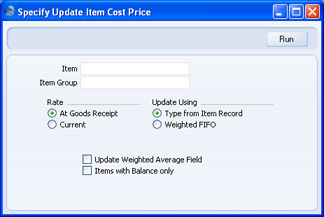
- Item
- Paste Special
Item register
- Enter an Item Number, or leave blank to update all Stocked Items.
- Item Group
- Paste Special
Item Group register, Sales Ledger
- Limit the updating to Stocked Items of a single Item Group.
- Rate
- Use these alternatives to control how Cost Prices will be calculated for Items that were purchased in foreign Currencies.
- At Goods Receipt
- Cost Prices will be calculated using the exchange rate applying on the date of each Goods Receipt. This is recommended, because it will give the same value as in the stock report.
- Current
- Cost Prices will be calculated using the current exchange rate.
- At Goods Receipt
- Update Using
- These alternatives are used to determine how the new cost prices are to be calculated.
- Type from Item Record
- The function will use the Update Cost Price at Goods Receipt option specified on the 'Costs' card of each Item.
- Weighted FIFO
- A weighted FIFO method will be used for all Items.
- Type from Item Record
- Update Weighted Average Field
- Use this option to recalculate the Weighted Average of each Item.
- Only Items with Balance
- Use this option to limit the updating to Items with positive stock balances.
Update Recipes
This Maintenance function is also available in the Production module: please click here for full details.Rebuild Stock
The Stock module was rewritten in HansaWorld Enterprise version 5.1. As far as daily use of the Stock module is concerned, this rewriting will cause little or no difference. Most of these changes are behind the scenes, in the way information is stored. If you were using HansaWorld Enterprise prior to this version, you need to rebuild your stock information using this function before you can start using the Stock module.To rebuild your stock information, you will need to work in the Technics module. If you are working in a multi-user system and 'Technics' is not available when you click the [Select Module] button in the Master Control panel, the probable reason is that you have logged on as a Person that does not have access privileges for this module. If you are the system administrator, it is recommended that your Person record should belong to an Access Group that Starts from Full Access and that explicitly grants full access to the Technics module. In a single-user system, the probable reason is that the Server option is not checked in the Configuration setting in the System module.Follow these steps:
- Referring to the Updating from Previous Versions of HansaWorld Enterprise page, update your database to the new version of the program.
- Back up your database in the usual fashion.
- Prior to HansaWorld Enterprise 5.1, you would use the Cost Model setting in the Sales Ledger to choose the Cost Model. You could choose different Cost Models for Invoices and Deliveries. Various options controlling the Cost Model were to be found in the Cost Accounting setting in the Stock module. In version 5.1, these two settings were combined. The Cost Model setting was removed, and the choice of Cost Model was moved to the Cost Accounting setting. The option to have different Cost Models for Invoices and Deliveries was replaced by a single Cost Model.
Having updated to the new version of the program, the next step is to check the options in Cost Accounting setting are correct (e.g. that the correct Cost Model has been chosen). If, in the old Cost Model setting, your Cost Model, Delivery was set to None, make sure the Don't Post Cost on Deliveries option in the Cost Accounting setting is chosen.
- Once you are certain that the Cost Accounting setting has been configured correctly, change to the Technics module and select the 'Rebuild Stock' Maintenance function:

- If this is the first time you have used the 'Rebuild Stock' function, click the [Run] button. This will cause your stock information to be rebuilt.
- If you have more than one Company, repeat the process in each Company.
- It will occasionally be useful to run the 'Rebuild Stock' Maintenance function on subsequent occasions. For example, if you change the Queued Cost Model per Location, Weighted Average per Location or Cost Price per Serial Number options in the Cost Accounting setting or in an Item that has previously been used in a stock transaction, you should then run the 'Rebuild Stock' function to rebuild the FIFO/LIFO queue and recalculate the Weighted Average figures. In this case, check the check box in the 'Specify Rebuild Stock' window before clicking [Run].