Introduction to the Purchase Order Process Register
If your company puts out Tenders for work that you want to be carried out, the Purchase Order Process register is used to keep track of the invitations and responses to those Tenders. A separate record in the register is used for each Supplier to whom invitations to tender are sent. The Tenders themselves are registered in the Tenders setting, described here. Once you have accepted a particular Supplier's response to a Tender invitation, the relevant Purchase Order Process record can be recorded on the 'Terms' card of all related Purchase Orders and the 'Other' card of related Purchase Invoices. This opens up detailed reporting possibilities: please refer to your local Hansa representatives for more information.Entering a Purchase Order Process record
To open the Purchase Order Process register, ensure you are in the Purchase Orders module and select 'Purchase Order Processes' from the Registers menu, or click the [P/O Processes] button in the Master Control panel. The 'Purchase Order Processes: Browse' window is opened, showing records that have already been entered.To enter a new record, click [New] in the Button Bar or use the Ctrl-N (Windows and Linux) or ⌘-N (Macintosh) keyboard shortcut. Alternatively, highlight a record similar to the one you want to enter and click [Duplicate] on the Button Bar.
The 'Purchase Order Process: New' window is opened, empty if you clicked [New] or containing a duplicate of the highlighted record.

Entering a Purchase Order Process record - Header
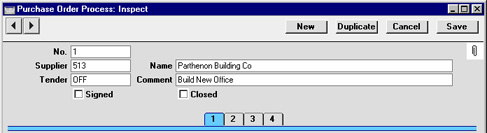
- No.
- Paste Special
Select from another Number Series
- When creating a new record, Hansa will enter the next unused number from the first number sequence in the Number Series - Purchase Order Processes setting. You may change this number, but not to one that has already been used. If you are working in a multi-user environment, the Number is assigned when the record is saved for the first time.
- Supplier
- Paste Special
Supplier register
- Enter the Supplier Number or use the 'Paste Special' function. When you press Return, the Supplier's name will be brought in to the field to the right.
- A separate record should be entered for each Supplier to whom you are issuing invitations to tender. These records will record their responses to that invitation.
- A separate record should be entered for each Supplier to whom you are issuing invitations to tender. These records will record their responses to that invitation.
- Name
- The Supplier Name is entered after you have entered the Supplier Number.
- Tender
- Paste Special
Tenders setting, Purchase Orders module
- Enter the Code of the Tender here. This is the job that you want to be carried out.
- Comment
- The Tender Name is entered after you have entered the Tender Code.
- Signed
- Check this box in the Purchase Order Process record representing the successful bid for the Tender in question. This will be shown in the 'Purchase Order Processes: Browse' window, making it easy to find successful Tender bids.
- Closed
- Check this box when it is apparent that the Supplier has been unsuccessful in its bid. Closed records will appear in the 'Purchase Order Processes: Browse' window but not in the 'Paste Special' list, preventing their use in Purchase Orders and Purchase Invoices. Once it has been marked as closed, the record will no longer be modifiable.
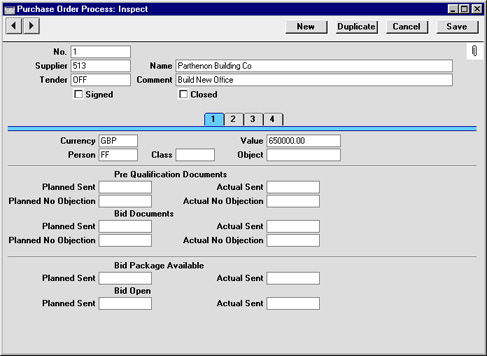
Entering a Purchase Order Process record - Card 1

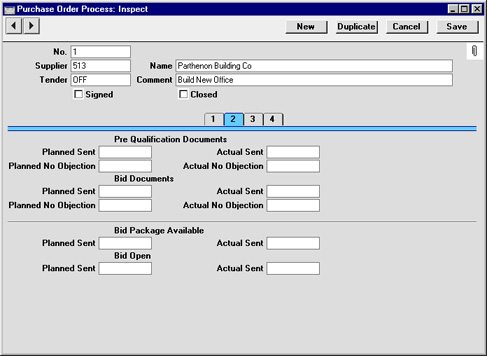
Entering a Purchase Order Process record - Cards 2, 3 and 4