Introduction to Payments in Books by HansaWorld
Use this register to issue Payments to creditors. Keeping the Purchase Invoice and Payment registers up to date will allow you to operate an efficient system for paying your Vendors and will help you to predict your cash flow accurately.Before working with Payments, you should also look at the following settings and registers:
In this chapter:
- Introduction
- Entering a Payment
- Entering a Payment - Example
- Reconciling and Approving Payments
- General Ledger Transactions from Payments
- Printing Payment Forms and Checks
- Invalidating Payments
- Operations menu
- On Account Payments
- Correcting Mistakes in Payments
- Home page for Books by HansaWorld manual
Entering a Payment
Open the Payment register by ensuring you are in the Payables module and clicking the [Payments] button in the Master Control panel. The 'Payments: Browse' window is opened, showing Payments already entered.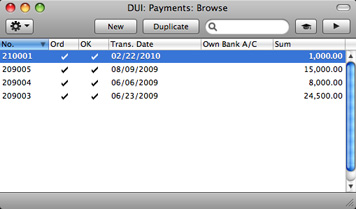
To enter a new Payment, click the [New] button in the Button Bar or use the ⌘-N (Mac OS X) or Ctrl-N (Windows) keyboard shortcut. Alternatively, highlight a Payment similar to the one you want to enter and click the [Duplicate] button.
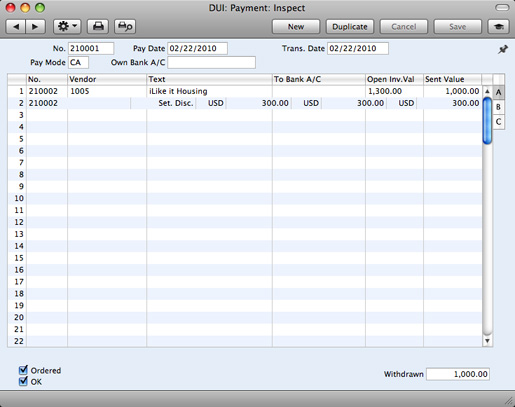
The 'Payment: New' window is opened, empty if you clicked [New] or containing a duplicate of the highlighted Payment. Complete the Payment record as described below, then save it using the [Save] button and close the window by clicking the close box. Then, close the browse window using the close box again.
The principle for entering a Payment is that you know the following:
- How much has actually been withdrawn; and
- any extra fees charged by the bank.
- No.
- Paste Special
Select from another Number Series
- The Payment Number of a new Payment is provided automatically by Books by HansaWorld. The default is the first unused number in the first valid number sequence in the Number Series - Payments setting. You may change this number, but not to one that has already been used.
- If you have not defined any number sequences in the Number Series - Payments setting, the Payment Number sequence will start at 1 and continue consecutively. If you want the sequence to start from another number, change the Payment Number of a Payment before saving it: Books by HansaWorld will then continue the sequence from there.
- If you are working in a multi-user environment, the Payment Number is assigned when you first save the Payment.
- If you have not defined any number sequences in the Number Series - Payments setting, the Payment Number sequence will start at 1 and continue consecutively. If you want the sequence to start from another number, change the Payment Number of a Payment before saving it: Books by HansaWorld will then continue the sequence from there.
- Pay Date
- Paste Special
Choose date
- The date when you want the Payment to be executed.
- After you have Ordered a Payment, you can still change the Payment Date. After approval, however, no further changes are possible.
- After you have Ordered a Payment, you can still change the Payment Date. After approval, however, no further changes are possible.
- Trans. Date
- This date will be used as the Transaction Date in the General Ledger Transaction that will result from the Payment. This date is always the same as the Payment Date and cannot be changed independently.
- Pay Mode
- Paste Special
Payment Modes setting, Receivables/Payables modules
- The Payment Mode is the method of payment (e.g. check, credit card or cash). It determines the General Ledger Account that will be credited by the Payment.
- You can issue payments to different Vendors against different Invoices using a single Payment record. However, you cannot enter payments with different Payment Modes.
- The first record listed in the Payment Modes setting will be offered as a default.
- You can issue payments to different Vendors against different Invoices using a single Payment record. However, you cannot enter payments with different Payment Modes.
- Own Bank A/C
- The number of the bank account from where you will issue the Payment. This information will be brought in from the Payment Mode record.
If you need to print a remittance advice and/or a check, separate documents will be printed for each Vendor included in the Payment record.
Each record in the Payment register results in one General Ledger Transaction, with bank or other institution as credit Account (taken from the Payment Mode).
To add a row to a Payment, click in any field in the first blank row and enter appropriate text. To remove a row, click on the row number on the left of the row and press the Backspace key. To insert a row, click on the row number where the insertion is to be made and press Return.
You can bring several Purchase Invoices into a Payment by opening the 'Purchase Invoices: Browse' or 'Paste Special' windows, selecting a range of Invoices by clicking while holding down the Shift key, and then dragging them to the No. field in the first empty Payment row. You can also copy a list of Invoice Numbers from a spreadsheet or word processor and paste them in the No. field in the first empty row.
The grid is divided into three horizontal flips. When you click on a flip tab (marked A, B and C), the two or three right-hand columns of the grid are replaced.

- No.
- Paste Special
Open, approved Purchase Invoices, Purchase Invoice register
- The number of the Purchase Invoice being paid. When you enter an Invoice Number, the Open Invoice Value (the amount outstanding) is shown in the Open Inv. Val field, and this figure will also be brought in to the Sent Value field as a default.
- If the Invoice qualifies for an early settlement discount, a discount row will be added to the Payment automatically, together with a suggested discount amount. This is calculated using the formula specified in the relevant Payment Term record. If you want to add an ad hoc settlement discount, use the 'New Settlement Discount' function on the Operations menu.
- Note that when you use 'Paste Special', only unpaid Purchase Invoices will appear in the selection list. However, if you have saved a Payment without Ordering or approving it (i.e. the Payment is a Draft), the Purchase Invoice(s) in that Payment will be treated as unpaid and thus will continue to be included in the 'Paste Special' list. It is therefore recommended that you do not leave Payments as unordered or unapproved for too long, to minimize the risk of quoting Purchase Invoices in Payments more than once.
- A Payment that is a payment made without reference to a specific Invoice (e.g. a deposit you have paid to the Vendor before they have issued an Invoice) is known as an "On Account Payment". Leave this field blank when entering On Account Payments, and specify the Vendor as normal in the field to the right. The Vendor must be one where you have switched on the On Account option on the 'Terms' card of their Contact record. This is fully described on the On Account Payments page.
- If the Invoice qualifies for an early settlement discount, a discount row will be added to the Payment automatically, together with a suggested discount amount. This is calculated using the formula specified in the relevant Payment Term record. If you want to add an ad hoc settlement discount, use the 'New Settlement Discount' function on the Operations menu.
- Vendor
- Paste Special
Vendors in Contact register
- Default taken from Purchase Invoice
- The Vendor Number will be placed here automatically when you enter a Purchase Invoice Number.
- In the case of an On Account Payment, choose a Vendor using 'Paste Special'.
- The Vendor Number will be placed here automatically when you enter a Purchase Invoice Number.
- Text
- The Vendor's Name will appear here when you enter the Purchase Invoice or Vendor Number (in the former case, the Vendor's Invoice Number will appear here as well, separated from the Name by a comma). You may change this if you wish.
- To Bank A/C
- The number of the Vendor's bank account receiving the Payment is brought in from the Purchase Invoice. This in turn will have been taken from the 'Account' card of the Contact record for the Vendor.
- Open Inv. Value
- The outstanding amount of the Invoice being paid. This value cannot be changed.
- Sent Val
- Default taken from
Open Invoice Value
- The amount paid against the Purchase Invoice. You can change the default figure, in the event of partial payments or overpayments.
- Bank Reference
- Default taken from
Purchase Invoice (Reference field)
- This reference will be included in bank export files in some countries. Please refer to your local Books by HansaWorld representative for details.
- Tax Code, Tax Value
- These fields are only used if you are using the Post Payment Tax option in the Account Usage A/P setting.
- If you are using the Post Payment Tax option, your Tax claim will be calculated from your Payments, not from your Purchase Invoices. In this case, the Tax Code and Tax Value will be brought in to these fields automatically when you enter a Purchase Invoice Number on flip A (the Tax Code comes from the first row of the Invoice). When you approve and save the Payment, the Tax Value will be moved from the temporary Tax Account (Input Account) to the final one (the I/P Account), as specified in the Tax Codes setting in the General Ledger.
- The Post Payment Tax option also adds a Tax element to On Account Payments. Once again, the I/P Account for the Tax Code will be debited and the Input Account for the Tax Code will be credited with the Tax Value.
- Take care with these fields when entering On Account Payments. As On Account Payments do not have an Invoice Number, you must enter a Tax Code manually if you are using the Post Payment Tax option. The Tax Value will then be calculated from the Sent Value. The General Ledger Transaction resulting from the Payment will not have a Tax element if the Tax Code or Tax Value is blank.
- If you are using the Post Payment Tax option, your Tax claim will be calculated from your Payments, not from your Purchase Invoices. In this case, the Tax Code and Tax Value will be brought in to these fields automatically when you enter a Purchase Invoice Number on flip A (the Tax Code comes from the first row of the Invoice). When you approve and save the Payment, the Tax Value will be moved from the temporary Tax Account (Input Account) to the final one (the I/P Account), as specified in the Tax Codes setting in the General Ledger.
- Ordered
- The Ordered and OK check boxes are provided to allow for the delay between the issuing of a Payment and the clearing of the funds from your company's bank account. Checking the Ordered box indicates that you have issued a Payment, while checking the OK box indicates that the funds have been cleared. You must therefore check the Ordered box before the OK box.
- When you save a Payment with its Ordered box checked, the Invoice being paid is no longer treated as open, even if the OK box is not checked.
- If, once a Payment has been issued, it transpires that the funds are not cleared from your company's bank account (perhaps because the check bounced or was lost), highlight each row in the Payment in turn by clicking the row number. Then, press the Backspace key. A red line will be drawn through the row, re-opening the Purchase Invoice.
- In multi-user systems, you can use Access Groups to control who can mark Payments as Ordered. To do this, deny access to the 'Ordering Payment' Action.
- When you save a Payment with its Ordered box checked, the Invoice being paid is no longer treated as open, even if the OK box is not checked.
- OK
- You can approve a Payment by checking this box. When you click [Save] to save the Payment, if so determined in the Sub Systems setting in the General Ledger, a General Ledger Transaction will be generated, crediting the Bank or Cash Account specified for the Payment Mode and debiting the Creditor Control Account of the Invoice being paid.
- In multi-user systems, you can use Access Groups to control who can approve Payments. To do this, deny access to the 'OKing Payments' Action.
- If you would like a warning to appear every time you save a Payment that you have not approved, please refer to the Global Warnings on UnOKed Records setting in the System module.
- References in these web pages to approved Payments are to Payments whose OK box has been checked (i.e. an approved Payment is one that is no longer a Draft).
- In multi-user systems, you can use Access Groups to control who can approve Payments. To do this, deny access to the 'OKing Payments' Action.
- Withdrawn
- The sum of the Sent Values: the total for this Payment.
In this chapter:
- Introduction
- Entering a Payment
- Entering a Payment - Example
- Reconciling and Approving Payments
- General Ledger Transactions from Payments
- Printing Payment Forms and Checks
- Invalidating Payments
- Operations menu
- On Account Payments
- Correcting Mistakes in Payments
- Home page for Books by HansaWorld manual
Entering a Payment - Example
We shall now show how to enter a Payment with the help of a few examples.To open the Payment register, first ensure you are in the Payables module and then click the [Payments] button in the Master Control panel. The 'Payments: Browse' window appears, listing the Payments that are already in the system. Start entering a new Payment by clicking the [New] button or using the ⌘-N (Mac OS X) or Ctrl-N (Windows) keyboard shortcut. The 'Payment: New' window opens, with a Payment Number already entered and the insertion point in the Payment Date field. Enter the date when you want the Payment to go out.
The next field is Payment Mode. Use the 'Paste Special' feature (⌘-Enter/Ctrl-Enter) to choose between the various payment methods you have entered in the Payment Modes setting. Your bank account number will be placed in the field to the right, copied from the Payment Mode.
Press Return again to move the insertion point to the No. field, the top left-hand field in the Payment rows grid. For each line, enter the Number of the Purchase Invoice you are paying. Again you can use ⌘-Enter or Ctrl-Enter to activate the 'Paste Special' function. This time it will open a selection list showing all open (unpaid) Vendor Invoices.
Select a Purchase Invoice by double-clicking. Press Return to bring in information such as the Vendor Number and Name and outstanding amount. Enter the amount you want to pay. Check the Ordered box to order the Payment and save. After saving, the Purchase Invoices in the Payment will no longer be treated as open. You can now print a Remittance Advice by clicking the Printer icon. This can also serve as your documentation for the person writing the checks. If necessary, you can design the Remittance Advice form to incorporate a check.
When the individual payments in the grid have all been removed from your bank account, approve the Payment by checking the OK box and saving. The Payment will be committed to your Accounts Payable and your General Ledger.
---
In this chapter:
- Introduction
- Entering a Payment
- Entering a Payment - Example
- Reconciling and Approving Payments
- General Ledger Transactions from Payments
- Printing Payment Forms and Checks
- Invalidating Payments
- Operations menu
- On Account Payments
- Correcting Mistakes in Payments
- Home page for Books by HansaWorld manual
Reconciling and Approving Payments
When paying Purchase Invoices by check, there will be a delay between the ordering of the Payment and the clearing of the funds from your company's bank account.In such a situation, when you issue the check, enter the Payment in the usual way and check the Ordered box but not the OK box. Then click the [Save] button in the Button Bar. This will ensure the Purchase Invoice(s) being paid will no longer be treated as open (outstanding). You can order several Payments at once by highlighting them in the 'Payments: Browse' window and selecting 'Order' from the Operations menu.
When you receive a statement from the bank, you can reconcile it with the ordered Payments. You should approve Payments that agree with your bank statement by clicking the OK check box and saving. General Ledger Transactions will be generated, debiting the Creditor Control Account of the Invoice(s) being paid and crediting the Bank or Cash Account specified in the Payment Mode. You can approve several Payments at once by highlighting them in the 'Payments: Browse' window and selecting 'OK' from the Operations menu.
! | After approving a Payment, you cannot change it. |
If an Ordered Payment is not included on the statement (perhaps because the check bounced or was lost), highlight the relevant rows in the Payment in turn by clicking the row number. Then, press the Backspace key. A red line will be drawn through the row, re-opening the Purchase Invoice. When you approve the Payment, rows with red lines will not be included in the resulting General Ledger Transaction. If the Payment contains many rows and you need to apply a red line to every one, a short cut is to use the 'Invalidate' function on the Record menu.
In multi-user systems, you can use Access Groups to control who can order and approve Payments. To do this, deny access to the 'Ordering Payment' and 'OKing Payments' Actions respectively.
---
In this chapter:
- Introduction
- Entering a Payment
- Entering a Payment - Example
- Reconciling and Approving Payments
- General Ledger Transactions from Payments
- Printing Payment Forms and Checks
- Invalidating Payments
- Operations menu
- On Account Payments
- Correcting Mistakes in Payments
- Home page for Books by HansaWorld manual
General Ledger Transactions from Payments
When you approve and save a Payment, a General Ledger Transaction will be generated automatically if you have so determined in the Sub Systems setting in the General Ledger. An example (including postings for a settlement discount) is illustrated below: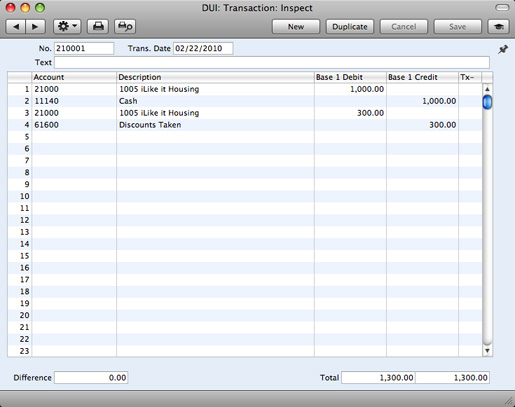
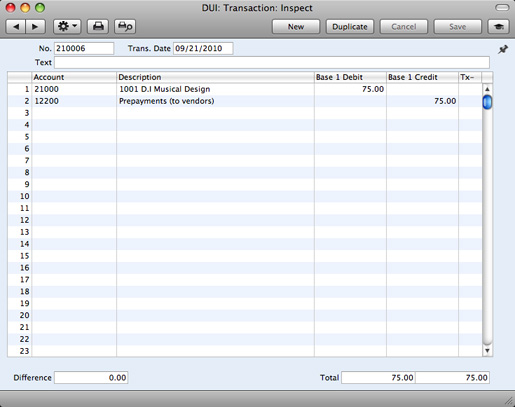
If the Payment is an On Account Payment, the On Account A/C specified in the Account Usage A/P setting will be debited instead of the Creditor Account.
The Bank or Cash Account posting will be determined by the Payment Mode that you specify in the Payment. This will refer to a record in the Payment Modes setting, available in the Receivables and Payables modules. You should list in this setting the various payment methods that you use to pay your Vendors, such as check, cash, credit card. You can attach a different Account to each payment method, allowing you to issue payments from different bank and cash accounts.
Once the Transaction has been generated, you can look at it straight away using the 'Open GL Transaction' function on the Operations drop-down menu.
---
In this chapter:
- Introduction
- Entering a Payment
- Entering a Payment - Example
- Reconciling and Approving Payments
- General Ledger Transactions from Payments
- Printing Payment Forms and Checks
- Invalidating Payments
- Operations menu
- On Account Payments
- Correcting Mistakes in Payments
- Home page for Books by HansaWorld manual
Printing Payment Forms and Checks
It is often necessary to print certain documents associated with the Payment. These may be remittance advices, checks or documents used to gain internal authorization for the Payment.If you want to print a remittance advice and a check together, you can do so, providing some set-up work has been carried out in advance. Follow this procedure:
- Using the Form register in the System module, design the remittance advice and the check. Use the 'Properties' function on the Operations menu to name the Forms (in this description, we have used the names "REM_ADVICE" and "CHECK" respectively) and to assign them Document Types of "Payment" (in the former case) and "Payment Checks". Sample Forms are supplied with Books by HansaWorld: you can modify them to suit your requirements. Full instructions for using the Form register can be found here.
- Select the Payables module using the [Module] button in the Master Control panel or the ⌘-0 or Ctrl-0 keyboard shortcuts.
- Click the [Documents] button in the Master Control panel or use the ⌘-D/Ctrl-D keyboard shortcut. The 'Documents' list window is opened showing a list of available documents. Highlight 'Payment Forms'.
- Select 'Define Document' from the Operations menu.
- Use the Sequence column in the subsequent window to determine the order in which the Forms will be printed. If, for example, you need a remittance advice to be printed first, on the first line enter "1" as the Sequence Number and "REM_ADVICE" as the Form (you can use 'Paste Special' from the Form field to ensure the spelling is correct). On the second line, enter "2" as the Sequence Number and "CHECK" as the Form. You can use the Printer column to print the Forms on different printers if necessary: you may have a dedicated printer for your check stationery. You can, of course, specify on a third line that an internal authorization document is also to be printed.
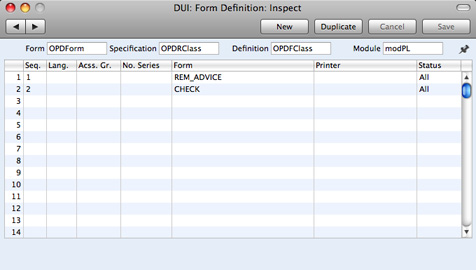
- Click [Save] to save the Payment Form definition. From now on, whenever the Payment Form is printed, the remittance advice and the check will be printed, on different printers.
- When viewing an individual Payment record, by clicking the Printer icon. If you want to print to screen, click the Preview icon.
- By clicking the [Documents] button in the Master Control panel and selecting 'Payment Forms' from the subsequent list.
If you print an unordered Payment and you are not using the No Test Printout option in the Optional Features setting in the System module, the phrase "Test Printout" will be printed diagonally across the page as a watermark.
---
In this chapter:
- Introduction
- Entering a Payment
- Entering a Payment - Example
- Reconciling and Approving Payments
- General Ledger Transactions from Payments
- Printing Payment Forms and Checks
- Invalidating Payments
- Operations menu
- On Account Payments
- Correcting Mistakes in Payments
- Home page for Books by HansaWorld manual
Invalidating Payments
In some circumstances it can be appropriate to invalidate a Payment using the 'Invalidate' command on the Record menu. This function will remove the Payment from your Accounts Payable and re-open the Purchase Invoices listed in the Payment. Any associated General Ledger Transaction will be removed from the General Ledger as well. An invalidated Payment is easily distinguished because all fields have red lines drawn through them. These red lines are also shown in the 'Payments: Browse' window.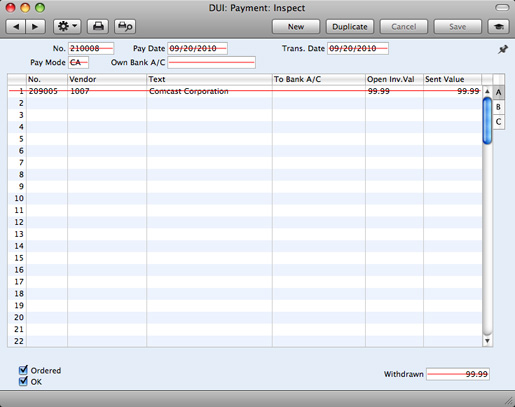
You can use Access Groups to control who can invalidate Payments. To do this, deny access to the 'Invalidating Payments' Action.
---
In this chapter:
- Introduction
- Entering a Payment
- Entering a Payment - Example
- Reconciling and Approving Payments
- General Ledger Transactions from Payments
- Printing Payment Forms and Checks
- Invalidating Payments
- Operations menu
- On Account Payments
- Correcting Mistakes in Payments
- Home page for Books by HansaWorld manual
Operations Menu

---
In this chapter:
- Introduction
- Entering a Payment
- Entering a Payment - Example
- Reconciling and Approving Payments
- General Ledger Transactions from Payments
- Printing Payment Forms and Checks
- Invalidating Payments
- Operations menu, including:
- On Account Payments
- Correcting Mistakes in Payments
- Home page for Books by HansaWorld manual
Operations Menu - Order
This command is only available on the Operations menu for the 'Payments: Browse' window. It allows you to order a Payment and is therefore the equivalent of checking the Ordered box in a Payment record and saving it. You can also select several Payments in the 'Payments: Browse' window (hold down the Shift key to select a range of Payments in the list) and order them all at once.In multi-user systems, you can use Access Groups to control who can mark Payments as Ordered. To do this, deny access to the 'Ordering Payment' Action.
---
In this chapter:
- Introduction
- Entering a Payment
- Entering a Payment - Example
- Reconciling and Approving Payments
- General Ledger Transactions from Payments
- Printing Payment Forms and Checks
- Invalidating Payments
- Operations menu, including:
- On Account Payments
- Correcting Mistakes in Payments
- Home page for Books by HansaWorld manual
Operations Menu - OK
This command is only available on the Operations menu for the 'Payments: Browse' window. It allows you to approve a Payment and is therefore the equivalent of checking the OK box in a Payment record and saving it. You can also select several Payments (hold down the Shift key to select a range of Payments in the list) and approve them all at once. Remember that, if so defined in the Sub Systems setting in the General Ledger, this action causes General Ledger Transactions to be created for each Payment in the selection and that therefore once it has been carried out you will no longer be able to modify those Payments.In multi-user systems, you can use Access Groups to control who can approve Payments. To do this, deny access to the 'OKing Payments' Action.
---
In this chapter:
- Introduction
- Entering a Payment
- Entering a Payment - Example
- Reconciling and Approving Payments
- General Ledger Transactions from Payments
- Printing Payment Forms and Checks
- Invalidating Payments
- Operations menu, including:
- On Account Payments
- Correcting Mistakes in Payments
- Home page for Books by HansaWorld manual
Operations Menu - New Settlement Discount
In normal circumstances, when you pay a Purchase Invoice, a settlement discount will be calculated automatically when you enter the Purchase Invoice Number in the Payment. This discount depends on the Payment Term of the Invoice and the Payment Date.If a settlement discount is not calculated automatically (e.g. the Invoice does not contain a Payment Term with a settlement discount, or the payment is too late), you can add it yourself using this 'New Settlement Discount' function. After you have specified the Purchase Invoice Number in a Payment row, change the Sent Value to the figure paid (i.e. the Invoice Total less settlement discount). Move the insertion point out of the Sent Value field, but make sure it remains in the same row, and select 'New Settlement Discount' from the Operations menu. A new row will be added to the Payment, containing the phrase "Set. Disc". As a default, the Sent Value of this new row will be set to the figure that remains outstanding on the Invoice: you can change this figure as appropriate.
In both cases (automatic settlement discount, and a settlement discount added using this function), the Settlement Discount Account specified in the Account Usage A/P setting will be credited with the discount amount in the resulting General Ledger Transaction.
---
In this chapter:
- Introduction
- Entering a Payment
- Entering a Payment - Example
- Reconciling and Approving Payments
- General Ledger Transactions from Payments
- Printing Payment Forms and Checks
- Invalidating Payments
- Operations menu, including:
- Order
- OK
- New Settlement Discount
- New Fee
- Open GL Transaction
- Order
- On Account Payments
- Correcting Mistakes in Payments
- Home page for Books by HansaWorld manual
Operations Menu - New Fee
You should use this function when you need to pay a single bank charge for the whole Payment. Start by entering the Purchase Invoice Number in the left-hand column. Then select 'New Fee' from the Operations menu. A new row will be created, containing the phrase "Fee" and a zero amount. Change the Sent Value in this new row to the value of the bank charge. When the General Ledger Transaction is created, the Bank Fee Account specified in the Account Usage A/P setting will be credited with the value of the bank charge. The Sent Value plus the Bank Fee will be credited to the Bank Account from the Payment Mode, while the Sent Value will be debited to the Creditor Account.---
In this chapter:
- Introduction
- Entering a Payment
- Entering a Payment - Example
- Reconciling and Approving Payments
- General Ledger Transactions from Payments
- Printing Payment Forms and Checks
- Invalidating Payments
- Operations menu, including:
- On Account Payments
- Correcting Mistakes in Payments
- Home page for Books by HansaWorld manual
Operations Menu - Open GL Transaction
When you approve and save a Payment, a General Ledger Transaction will be created if so defined in the Sub Systems setting in the General Ledger. This function allows you to view that Transaction.When you select the function, the Transaction will be opened in a new window.
In multi-user systems, you can use Access Groups to control who can open Transactions from Payments. To do this, deny access to the 'Open Transactions from Operations Menu' Action or to the General Ledger altogether.
---
In this chapter:
- Introduction
- Entering a Payment
- Entering a Payment - Example
- Reconciling and Approving Payments
- General Ledger Transactions from Payments
- Printing Payment Forms and Checks
- Invalidating Payments
- Operations menu, including:
- Order
- OK
- New Settlement Discount
- New Fee
- Open GL Transaction
- Order
- On Account Payments
- Correcting Mistakes in Payments
- Home page for Books by HansaWorld manual
On Account Payments
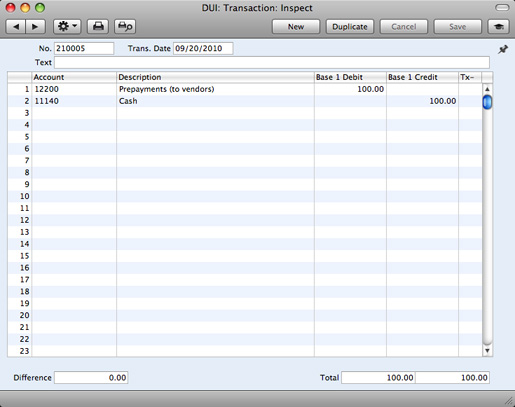
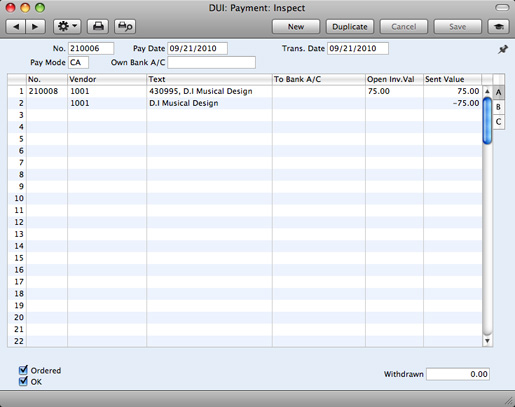
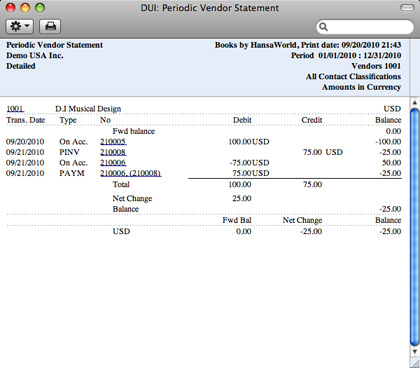
You can use On Account Payments when you issue payments to Vendors without reference to specific Invoices (usually before you have received the Invoices). You can enter these payments to the Payment register in the normal way but without specifying a Purchase Invoice Number on flip A: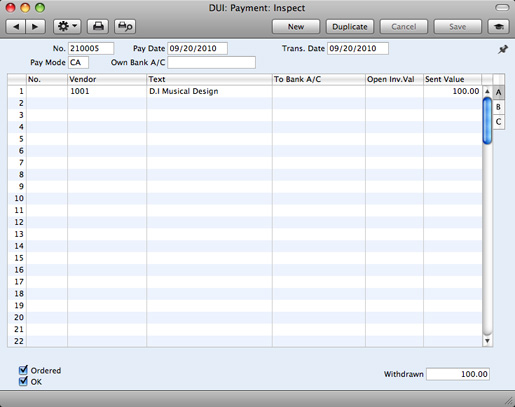
In this chapter:
- Introduction
- Entering a Payment
- Entering a Payment - Example
- Reconciling and Approving Payments
- General Ledger Transactions from Payments
- Printing Payment Forms and Checks
- Invalidating Payments
- Operations menu
- On Account Payments
- Correcting Mistakes in Payments
- Home page for Books by HansaWorld manual
Correcting Mistakes in Payments
Even with the tightest quality control, it is probable that you will make the occasional mistake when entering Payments. Once you have approved a Payment, you cannot change it, but you can correct mistakes easily using the following procedure. It is important that you follow this procedure, to ensure the Vendor's history remains correct.- In the 'Payments: Browse' window, highlight the Payment containing the error.
- Click [Duplicate]. A new Payment record is created, an exact copy of the Payment with the error.
- Insert a minus sign in front of the Sent Value, ensuring the Sent Value figure itself remains unchanged.
- Click the OK check box and save the Payment.
- Enter a new, correct, Payment.
In this chapter:
- Introduction
- Entering a Payment
- Entering a Payment - Example
- Reconciling and Approving Payments
- General Ledger Transactions from Payments
- Printing Payment Forms and Checks
- Invalidating Payments
- Operations menu
- On Account Payments
- Correcting Mistakes in Payments
- Home page for Books by HansaWorld manual