Attachments
You can connect files, notes or other records to any record in Standard CRM. These connected objects are known as "Attachments".Every record window contains an [Attachments] button in the top right-hand corner. If a record has an Attachment, the button has the icon on the left, otherwise it has the icon on the right.

---
In this chapter:
- Attaching Files to Records
- Reading Files
- Attaching Notes or Comments to Records
- Reading and Changing Notes
- Printing Notes
- Changing the Names of Attachments
- Attaching Records to Other Records
- Viewing Attached Records
- Attaching Reports to Records
- Reading Reports
- Removing Attachments
- Attaching Records to Mails
- Copying Attachments from one Record to Another
- Organising Attachments: Archives
- Home page for Working Environment manual
- Home page for Standard CRM manual
Attachments - Attaching Files to Records
To attach a file to a record, open the record in question and click the [Attachments] button. Select 'Attach File' from the Operations menu. An 'Open File' dialogue box will open, allowing you to locate the file to be attached. Find the file and click [Open]. The file will be attached to the record. Its filename will appear in the list of Attachments with the prefix "File:". You can attach as many files as you like to a single record.The 'Attach File' function attaches a file to a record by copying the file into a folder or directory called "Attach" that is in the same folder as your Standard CRM application. In multi-user systems, the "Attach" folder will be on the server machine, in the same folder or directory as the Standard CRM server application. Because the attachment process creates a copy of the original file, you will still be able to download and read the attached file, even after the original has been deleted. If you want to attach a large file to a record, make sure (using the disk space indicator in the 'About Standard CRM' window) that the hard disk containing your Standard CRM application has sufficient space. As the file is uploaded to the server, a progress indicator appears so that you can monitor its progress.
! | Do not move the "Attach" folder or directory, and do not rename any of the files that it contains. |
In this chapter:
- Attaching Files to Records
- Reading Files
- Attaching Notes or Comments to Records
- Reading and Changing Notes
- Printing Notes
- Changing the Names of Attachments
- Attaching Records to Other Records
- Viewing Attached Records
- Attaching Reports to Records
- Reading Reports
- Removing Attachments
- Attaching Records to Mails
- Copying Attachments from one Record to Another
- Organising Attachments: Archives
- Home page for Working Environment manual
- Home page for Standard CRM manual
Attachments - Reading Files
You can read a file that has been attached to a record in one of three ways. In the first two cases, a 'Save File' dialogue box will be opened, asking you where the file is to be saved.- By double-clicking on the file in the list of Attachments. When the file has been saved to your hard disk, your default browser will be opened so that the file can be opened using the appropriate helper application (not Mac OS X).
- By clicking on the file in the list of Attachments and selecting 'Download File' from the Operations menu. The file is saved to your hard disk, but no attempt is made to open it using a helper application.
- By clicking on the file in the list of Attachments and selecting 'Open Record' from the Operations menu. The file is saved to a folder or directory named "Tmp". This will be in the folder or directory containing your Standard CRM application. The file will then be opened using the appropriate helper application.
In this chapter:
- Attaching Files to Records
- Reading Files
- Attaching Notes or Comments to Records
- Reading and Changing Notes
- Printing Notes
- Changing the Names of Attachments
- Attaching Records to Other Records
- Viewing Attached Records
- Attaching Reports to Records
- Reading Reports
- Removing Attachments
- Attaching Records to Mails
- Copying Attachments from one Record to Another
- Organising Attachments: Archives
- Home page for Working Environment manual
- Home page for Standard CRM manual
Attachments - Attaching Notes or Comments to Records
You can attach notes or comments to records. To do this, open the record in question and click the [Attachments] button. Select 'Create Note' from the Operations menu. A window will open, where you can type in your note.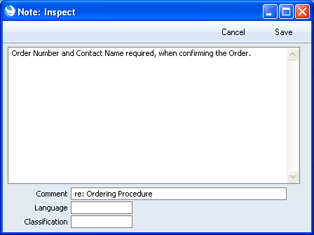
---
In this chapter:
- Attaching Files to Records
- Reading Files
- Attaching Notes or Comments to Records
- Reading and Changing Notes
- Printing Notes
- Changing the Names of Attachments
- Attaching Records to Other Records
- Viewing Attached Records
- Attaching Reports to Records
- Reading Reports
- Removing Attachments
- Attaching Records to Mails
- Copying Attachments from one Record to Another
- Organising Attachments: Archives
- Home page for Working Environment manual
- Home page for Standard CRM manual
Attachments - Reading and Changing Notes
You can read a note or comment that has been attached to a record in one of three ways:- By clicking on the note in the list of Attachments and selecting 'Open Record' from the Operations menu;
- By double-clicking on the note in the list of Attachments; and
- By clicking on the note in the list of Attachments and selecting 'Save' from the Record menu; and
---
In this chapter:
- Attaching Files to Records
- Reading Files
- Attaching Notes or Comments to Records
- Reading and Changing Notes
- Printing Notes
- Changing the Names of Attachments
- Attaching Records to Other Records
- Viewing Attached Records
- Attaching Reports to Records
- Reading Reports
- Removing Attachments
- Attaching Records to Mails
- Copying Attachments from one Record to Another
- Organising Attachments: Archives
- Home page for Working Environment manual
- Home page for Standard CRM manual
Attachments - Printing Notes
A note or comment that has been attached to a record can be printed when you print the record. For example, a note that has been attached to a Quotation can be printed on the Quotation document. You can use this feature with the Activity and Quotation documents. If more than one note has been attached to a record, only the first note will be printed.If you want notes and comments to be printed in this way, you should include the "Note" field in each of your Form designs:
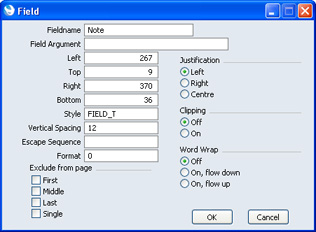
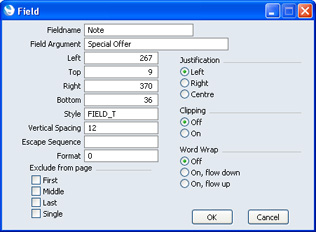
Form design in fully described here.
---
In this chapter:
- Attaching Files to Records
- Reading Files
- Attaching Notes or Comments to Records
- Reading and Changing Notes
- Printing Notes
- Changing the Names of Attachments
- Attaching Records to Other Records
- Viewing Attached Records
- Attaching Reports to Records
- Reading Reports
- Removing Attachments
- Attaching Records to Mails
- Copying Attachments from one Record to Another
- Organising Attachments: Archives
- Home page for Working Environment manual
- Home page for Standard CRM manual
Attachments - Changing the Names of Attachments
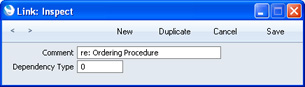
When you attach a file to a record, its file name will be shown in the list of attachments. When you attach a note to a record, it is not immediately given its own name in the list.If you want to rename a file or note, highlight it in the list of Attachments and select 'Edit Link Comment' from the Operations menu. A window opens where you can type in a new name.
---
In this chapter:
- Attaching Files to Records
- Reading Files
- Attaching Notes or Comments to Records
- Reading and Changing Notes
- Printing Notes
- Changing the Names of Attachments
- Attaching Records to Other Records
- Viewing Attached Records
- Attaching Reports to Records
- Reading Reports
- Removing Attachments
- Attaching Records to Mails
- Copying Attachments from one Record to Another
- Organising Attachments: Archives
- Home page for Working Environment manual
- Home page for Standard CRM manual
Attachments - Attaching Records to Other Records
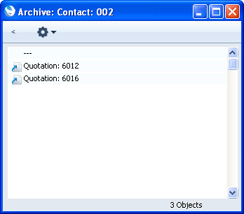
You can attach records to other records by dragging and dropping from the browse window of one register onto the [Attachments] button of another. For example, to attach a Contact record to a Quotation, open the Quotation in a record window and then open the 'Contacts: Browse' window. Find the correct Contact in the list, click on the Contact Number and drag it to the [Attachments] button of the Quotation. The Contact record will then appear in the Quotation's list of attachments. Alternatively, if the Contact record is already open, you can drag its [Attachments] button onto that of the Quotation. You can also select a range of Contact records in the browse window by clicking while holding down the Shift key, and then drag them all to the [Attachments] button of the Quotation.Later, when viewing the Contact record in the example above, you might wish to a list of the other records to which it has been attached. Open the list of Attachments and select 'Show To Links' from the Operations menu. The records the Contact has been attached to will be listed below a dotted line.
In this chapter:
- Attaching Files to Records
- Reading Files
- Attaching Notes or Comments to Records
- Reading and Changing Notes
- Printing Notes
- Changing the Names of Attachments
- Attaching Records to Other Records
- Viewing Attached Records
- Attaching Reports to Records
- Reading Reports
- Removing Attachments
- Attaching Records to Mails
- Copying Attachments from one Record to Another
- Organising Attachments: Archives
- Home page for Working Environment manual
- Home page for Standard CRM manual
Attachments - Viewing Attached Records
You can read a record that has been attached to another record in one of three ways:- By clicking on the record in the list of Attachments and selecting 'Open Record' from the Operations menu;
- By double-clicking on the record in the list of Attachments; and
- By clicking on the record in the list of Attachments and selecting 'Save' from the Record menu (or pressing the Enter key).
---
In this chapter:
- Attaching Files to Records
- Reading Files
- Attaching Notes or Comments to Records
- Reading and Changing Notes
- Printing Notes
- Changing the Names of Attachments
- Attaching Records to Other Records
- Viewing Attached Records
- Attaching Reports to Records
- Reading Reports
- Removing Attachments
- Attaching Records to Mails
- Copying Attachments from one Record to Another
- Organising Attachments: Archives
- Home page for Working Environment manual
- Home page for Standard CRM manual
Attachments - Attaching Reports to Records
To attach a report to a record, first print the report to screen, and open the record in question. The Button Bar of the report window contains an [Attachments] button:
When you attach a report to a record, the report is first printed to file and that file is then attached to the record. The report file is stored in the "Attach" folder or directory that is in the same folder as your Standard CRM application. In multi-user systems, the "Attach" folder will be on the server machine, in the same folder or directory as the Standard CRM server application. If you need to read the report later, you will effectively be reading the file, not producing the report again. The information it contains will be correct for the moment when it was originally produced, not for the moment when you are reading it. This may be useful if you have attached the report to a Mail for discussion with another member of staff. When you read the report later, it will be opened in a standard report window, so you can select 'Recalculate' from the Operations menu if you need to update the report to include the latest information in the database.
! | Do not move the "Attach" folder or directory, and do not rename any of the files that it contains. |
In this chapter:
- Attaching Files to Records
- Reading Files
- Attaching Notes or Comments to Records
- Reading and Changing Notes
- Printing Notes
- Changing the Names of Attachments
- Attaching Records to Other Records
- Viewing Attached Records
- Attaching Reports to Records
- Reading Reports
- Removing Attachments
- Attaching Records to Mails
- Copying Attachments from one Record to Another
- Organising Attachments: Archives
- Home page for Working Environment manual
- Home page for Standard CRM manual
Attachments - Reading Reports
You can read a report that has been attached to a record in one of three ways. Whichever method you use, the report will be opened in a standard report window.- By double-clicking on the report in the list of Attachments.
- By clicking on the file in the list of Attachments and selecting 'Download File' from the Operations menu.
- By clicking on the file in the list of Attachments and selecting 'Open Record' from the Operations menu.
In this chapter:
- Attaching Files to Records
- Reading Files
- Attaching Notes or Comments to Records
- Reading and Changing Notes
- Printing Notes
- Changing the Names of Attachments
- Attaching Records to Other Records
- Viewing Attached Records
- Attaching Reports to Records
- Reading Reports
- Removing Attachments
- Attaching Records to Mails
- Copying Attachments from one Record to Another
- Organising Attachments: Archives
- Home page for Working Environment manual
- Home page for Standard CRM manual
Attachments - Removing Attachments
To remove an attachment of any kind from a record, highlight it in the list of Attachments and select 'Clear' from the Edit menu.---
In this chapter:
- Attaching Files to Records
- Reading Files
- Attaching Notes or Comments to Records
- Reading and Changing Notes
- Printing Notes
- Changing the Names of Attachments
- Attaching Records to Other Records
- Viewing Attached Records
- Attaching Reports to Records
- Reading Reports
- Removing Attachments
- Attaching Records to Mails
- Copying Attachments from one Record to Another
- Organising Attachments: Archives
- Home page for Working Environment manual
- Home page for Standard CRM manual
Attachments - Attaching Records to Mails
You can attach records to Mails in one of two ways:- Where the Mail already exists, you can drag the record from its browse window to the [Attachments] button of the Mail, as described on the Attaching Records to Other Records page.
- Where the Mail does not exist, open the record and click its [Attachments] button. Select 'Create Mail' from the Operations menu. A new Mail will be opened. Complete the Mail in the usual way and save. The new Mail will be attached to the record automatically, and the recipient of the Mail will be able to open the record using the 'Show To Links' Operations menu function.
Mails are fully described here.
---
In this chapter:
- Attaching Files to Records
- Reading Files
- Attaching Notes or Comments to Records
- Reading and Changing Notes
- Printing Notes
- Changing the Names of Attachments
- Attaching Records to Other Records
- Viewing Attached Records
- Attaching Reports to Records
- Reading Reports
- Removing Attachments
- Attaching Records to Mails
- Copying Attachments from one Record to Another
- Organising Attachments: Archives
- Home page for Working Environment manual
- Home page for Standard CRM manual
Attachments - Copying Attachments from one Record to Another
You can copy an Attachment of any kind from one record to another as follows:- Open the record with the Attachment (the 'source' record) and click its [Attachments] button.
- Open the record that is to receive the Attachment (the 'destination' record).
- Drag the Attachment from the list of Attachments to the [Attachments] button of the 'destination' record (or to its list of Attachments).
- Hold down the Shift key while dragging if you do not want to remove the Attachment from the 'source' record.
In this chapter:
- Attaching Files to Records
- Reading Files
- Attaching Notes or Comments to Records
- Reading and Changing Notes
- Printing Notes
- Changing the Names of Attachments
- Attaching Records to Other Records
- Viewing Attached Records
- Attaching Reports to Records
- Reading Reports
- Removing Attachments
- Attaching Records to Mails
- Copying Attachments from one Record to Another
- Organising Attachments: Archives
- Home page for Working Environment manual
- Home page for Standard CRM manual
Attachments - Organising Attachments: Archives
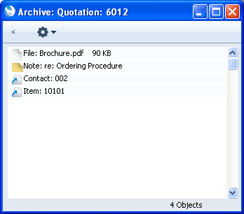
When a record has many Attachments, you can organise them into Archives. An Archive is a folder that can contain Attachments of all kinds, including other Archives.- Open the list of Attachments.
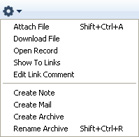
- Select 'Create Archive' from the Operations menu. The 'Create Archive' window opens, where you can give the new Archive a name:
When you click the [Save] button, the new Archive will appear at the top of the list of Attachments: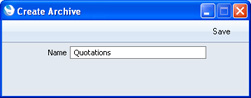
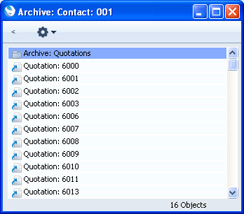
- Move the Attachments into the Archive by dragging and dropping onto it.
- If you want to work with an Attachment that is in an Archive, double-click the Archive. A new window will be opened, listing the Attachments that are in the Archive. This window has the same properties, features and functions as the main list of Attachments, so you can work with it in the manner described in the preceding sections.
To go back to the top-level list of Attachments, click the button with the arrow icon (Windows version illustrated on the left, Mac OS X version on the right):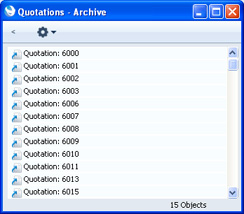

- If you want to rename the Archive, first open it as described in step 4 above and then select 'Rename Archive' from its Operations menu.
Enter the new Name of the Archive and click [Save].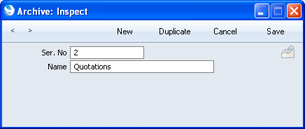
- You can remove an Attachment from an Archive in one of two ways. If you want the Attachment to remain attached to the record, drag it to the main list of Attachments or to another Archive. To remove the Attachment altogether, click on it and select 'Clear' from the Edit menu.
- To remove an Archive, click on it in the main list of Attachments and select 'Clear' from the Edit menu. You can only remove empty Archives. To empty an Archive, you must remove its contents item by item as described in step 6 above.
In this chapter:
- Attaching Files to Records
- Reading Files
- Attaching Notes or Comments to Records
- Reading and Changing Notes
- Printing Notes
- Changing the Names of Attachments
- Attaching Records to Other Records
- Viewing Attached Records
- Attaching Reports to Records
- Reading Reports
- Removing Attachments
- Attaching Records to Mails
- Copying Attachments from one Record to Another
- Organising Attachments: Archives
- Home page for Working Environment manual
- Home page for Standard CRM manual
Personal Desktop
As well as being able to connect files, notes or records to any record in Standard CRM (as described here), you can also attach them to your Master Control panel. They will be listed in the area on the right of the Master Control panel, known as the "Personal Desktop". You can also list important reports, documents, Maintenance functions, settings and registers in the Personal Desktop. You can therefore configure your Personal Desktop so that it gives you immediate access to the areas of Standard CRM that are most important to you (i.e. removing the need to change modules, find records in browse windows and find reports in list windows). The Personal Desktop is therefore similar to a list of Bookmarks in a browser.If you want to use the Personal Desktop, you must first set up a Mailbox for yourself. To do this, open the Person register in the System module, highlight your record in the 'Persons: Browse' window and choose 'Create Mailbox' from the Operations menu. This process is described in full here. In a multi-user system, each user that will be using the Personal Desktop should have their own Mailbox.
! | You must have a Mailbox if you want to use the Personal Desktop. |
Once you have a Mailbox, your name will be shown in the title bar of the Master Control panel, and the contents of your Personal Desktop will be listed in the area on the right:
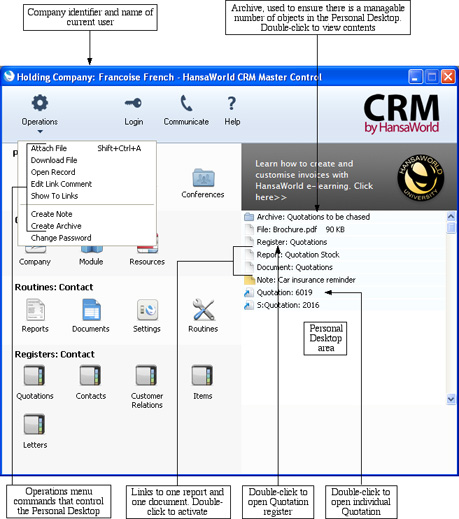
If you are using Windows, the Master Control panel's Operations menu contains various functions that you can use when working with the Personal Desktop, as shown in the illustration above. If you are using Mac OS X, you can also find some of these functions on the drop-down menu that appears when you click the [+] button immediately above the Personal Desktop, as illustrated below:
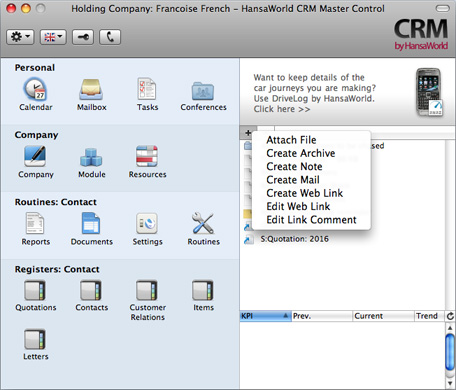
In this chapter:
- Records in your Personal Desktop
- Settings, Reports, Documents and Maintenance functions in your Personal Desktop
- Registers in your Personal Desktop
- Notes and Comments in your Personal Desktop
- Changing the Names of Items in your Personal Desktop
- Reports in your Personal Desktop
- Removing Items from your Personal Desktop
- Organising Items in your Personal Desktop: Archives
- Home page for Working Environment manual
- Home page for Standard CRM manual
Personal Desktop - Records in your Personal Desktop
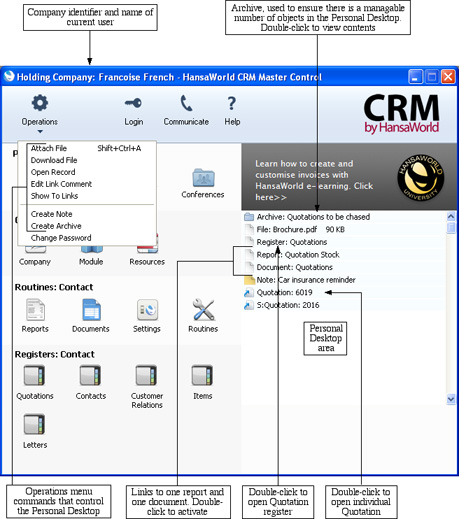
- By dragging the record from its browse window and dropping it on the Personal Desktop. For example, to place a Contact record in the Personal Desktop, open the 'Contacts: Browse' window and find the correct Contact in the list. Click on the Contact Number and drag it to the Personal Desktop. You can also select a range of Contact records in the browse window by clicking while holding down the Shift key, and then drag them all to the Personal Desktop.
- By opening the record and dragging its [Attachments] button onto the Personal Desktop.
The illustration also shows that the Personal Desktop can contain records from different Companies. In the illustration, the current Company is Company H (shown in the title bar of the Master Control panel, next to the name of the current user). "H" is short for Holding Company in the example database. The last item in the Personal Desktop in the illustration ("S: Quotation: 2016") is a Quotation that belongs to Company S (a Subsidiary Company). Any record that does not belong to the current Company will be shown in the Personal Desktop with its Company Short Code before the name of the register. So, in this example, if the current user were to quit Standard CRM and restart, selecting Company S, then Quotation 6019 would appear in the Personal Desktop as "H: Quotation: 6019" and Quotation 2016 would appear simply as "Quotation: 2016".
You can open a record in the Personal Desktop using one of these methods:
- By clicking on the record in the Personal Desktop and selecting 'Open Record' from the Operations menu;
- By double-clicking on the record in the Personal Desktop;
- By clicking on the record in the Personal Desktop and selecting 'Save' from the Record menu; and
- By clicking on the record in the Personal Desktop and pressing the Enter or Return key.
---
In this chapter:
- Records in your Personal Desktop
- Settings, Reports, Documents and Maintenance functions in your Personal Desktop
- Registers in your Personal Desktop
- Notes and Comments in your Personal Desktop
- Changing the Names of Items in your Personal Desktop
- Reports in your Personal Desktop
- Removing Items from your Personal Desktop
- Organising Items in your Personal Desktop: Archives
- Home page for Working Environment manual
- Home page for Standard CRM manual
Personal Desktop - Settings, Reports, Documents and Maintenance functions in your Personal Desktop
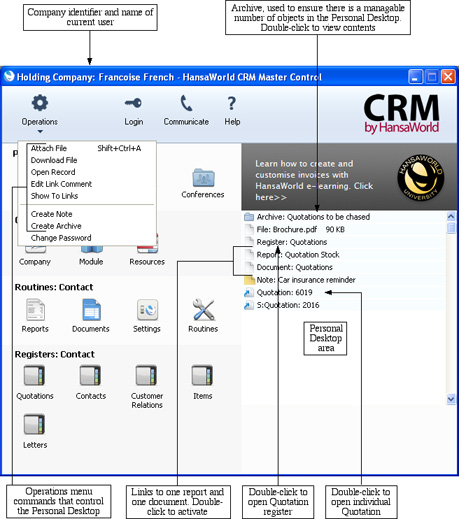
For example, to place the Quotation Journal in your Personal Desktop (as shown in the example illustration above), first ensure you are in the Contact module and then click the [Reports] button in the Master Control panel. Click on 'Quotation Journal' in the list and drag this text to your Personal Desktop.
To work with a setting, report, document or Maintenance function, use one of these methods:
- Click on the item in the Personal Desktop and select 'Open Record' from the Operations menu;
- Double-click on the item in the Personal Desktop;
- Click on the item in the Personal Desktop and select 'Save' from the Record menu; and
- Click on the item in the Personal Desktop and press the Enter or Return key.
---
In this chapter:
- Records in your Personal Desktop
- Settings, Reports, Documents and Maintenance functions in your Personal Desktop
- Registers in your Personal Desktop
- Notes and Comments in your Personal Desktop
- Changing the Names of Items in your Personal Desktop
- Reports in your Personal Desktop
- Removing Items from your Personal Desktop
- Organising Items in your Personal Desktop: Archives
- Home page for Working Environment manual
- Home page for Standard CRM manual
Personal Desktop - Registers in your Personal Desktop
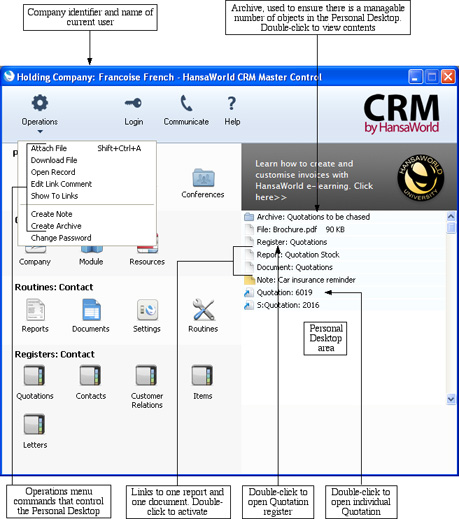
To work with a register, use one of these methods:
- Click on the item in the Personal Desktop and select 'Open Record' from the Operations menu;
- Double-click on the item in the Personal Desktop;
- Click on the item in the Personal Desktop and select 'Save' from the Record menu; and
- Click on the item in the Personal Desktop and press the Enter or Return key.
---
In this chapter:
- Records in your Personal Desktop
- Settings, Reports, Documents and Maintenance functions in your Personal Desktop
- Registers in your Personal Desktop
- Notes and Comments in your Personal Desktop
- Changing the Names of Items in your Personal Desktop
- Reports in your Personal Desktop
- Removing Items from your Personal Desktop
- Organising Items in your Personal Desktop: Archives
- Home page for Working Environment manual
- Home page for Standard CRM manual
Personal Desktop - Notes and Comments in your Personal Desktop
You can place notes or comments in your Personal Desktop. To do this, bring the Master Control panel to the front and select 'Create Note' from the Operations menu (Windows) or from the + menu (Mac OS X). A window will open, where you can type in your note.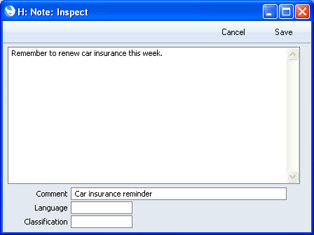
You can read a note or comment in your Personal Desktop in one of four ways:
- By clicking on the note in the Personal Desktop and selecting 'Open Record' from the Operations menu;
- By double-clicking on the note in the Personal Desktop;
- By clicking on the note in the Personal Desktop and selecting 'Save' from the Record menu; and
- By clicking on the note in the Personal Desktop and pressing the Enter or Return key.
---
In this chapter:
- Records in your Personal Desktop
- Settings, Reports, Documents and Maintenance functions in your Personal Desktop
- Registers in your Personal Desktop
- Notes and Comments in your Personal Desktop
- Changing the Names of Items in your Personal Desktop
- Reports in your Personal Desktop
- Removing Items from your Personal Desktop
- Organising Items in your Personal Desktop: Archives
- Home page for Working Environment manual
- Home page for Standard CRM manual
Personal Desktop - Changing the Names of Items in your Personal Desktop
If you want to change the name a file or note as it appears in your Personal Desktop, highlight it and select 'Edit Link Comment' from the Operations menu (Windows) or from the + menu (Mac OS X). A window opens where you can type in a new name.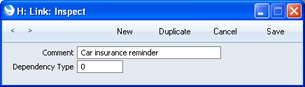
You can also change the name of a note by opening it and editing the Comment in the 'Note: Inspect' window.
---
In this chapter:
- Records in your Personal Desktop
- Settings, Reports, Documents and Maintenance functions in your Personal Desktop
- Registers in your Personal Desktop
- Notes and Comments in your Personal Desktop
- Changing the Names of Items in your Personal Desktop
- Reports in your Personal Desktop
- Removing Items from your Personal Desktop
- Organising Items in your Personal Desktop: Archives
- Home page for Working Environment manual
- Home page for Standard CRM manual
Personal Desktop - Reports in your Personal Desktop
To place a report in your Personal Desktop, first print the report to screen. The Button Bar of the report window contains an [Attachments] button: simply drag this button to the Personal Desktop. The name of the report will appear in the list of Attachments with the prefix "File:".To work with a report, use one of these methods:
- Click on the item in the Personal Desktop and select 'Open Record' from the Operations menu;
- Double-click on the item in the Personal Desktop;
- Click on the item in the Personal Desktop and select 'Save' from the Record menu; and
- Click on the item in the Personal Desktop and press the Enter or Return key.
When you attach a report to the Personal Desktop, the report is first printed to file and that file is then attached to the Personal Desktop. The report file is stored in the "Attach" folder or directory that is in the same folder as your Standard CRM application. In multi-user systems, the "Attach" folder will be on the server machine, in the same folder or directory as the Standard CRM server application. If you need to read the report later, you will effectively be reading the file, not producing the report again. The information it contains will be correct for the moment when it was originally produced, not for the moment when you are reading it. The report will be opened in a standard report window, so you can select 'Recalculate' from the Operations menu if you need to update the report to include the latest information in the database.
! | Do not move the "Attach" folder or directory, and do not rename any of the files that it contains. |
In this chapter:
- Records in your Personal Desktop
- Settings, Reports, Documents and Maintenance functions in your Personal Desktop
- Registers in your Personal Desktop
- Notes and Comments in your Personal Desktop
- Changing the Names of Items in your Personal Desktop
- Reports in your Personal Desktop
- Removing Items from your Personal Desktop
- Organising Items in your Personal Desktop: Archives
- Home page for Working Environment manual
- Home page for Standard CRM manual
Personal Desktop - Removing Items from your Personal Desktop
To remove an item of any kind from your Personal Desktop, highlight it and select 'Clear' from the Edit menu. If you are using Mac OS X, you can also highlight the item to be removed and click the [-] button immediately above the Personal Desktop.---
In this chapter:
- Records in your Personal Desktop
- Settings, Reports, Documents and Maintenance functions in your Personal Desktop
- Registers in your Personal Desktop
- Notes and Comments in your Personal Desktop
- Changing the Names of Items in your Personal Desktop
- Reports in your Personal Desktop
- Removing Items from your Personal Desktop
- Organising Items in your Personal Desktop: Archives
- Home page for Working Environment manual
- Home page for Standard CRM manual
Personal Desktop - Organising Items in your Personal Desktop: Archives
When you have many items in your Personal Desktop, you can organise them into Archives. An Archive is a folder that can contain Attachments of all kinds, including other Archives.- Bring the Master Control Panel to the front by clicking on it, by using the Ctrl-M/⌘-M keyboard shortcut or by selecting 'Master Control' from the File menu.
- Select 'Create Archive' from the Operations menu (Windows) or from the + menu (Mac OS X). The 'Create Archive' window opens, where you can give the new Archive a name:
When you click the [Save] button, the new Archive will appear towards the top of the Personal Desktop.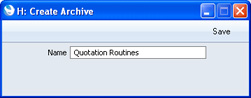
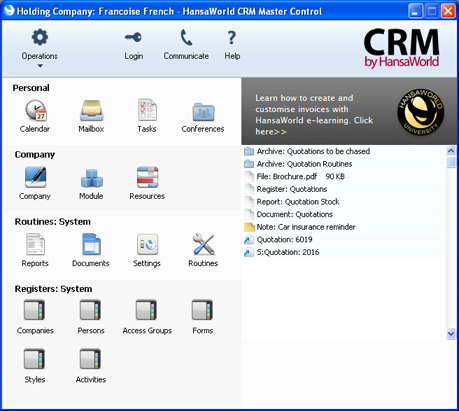
- Move the relevant items into the Archive by dragging and dropping onto it.
- If you want to work with an item that is in an Archive, double-click the Archive. A new window will be opened, listing the items that are in the Archive. This window has the same properties, features and functions as a list of Attachments, so you can work with it in the manner described on the Organising Attachments page.
If the Archive contains another Archive, double-click the second Archive to open it. The contents and title of the window will change to those of the second Archive. To go back to the top-level Archive, click the button with the arrow icon (Windows version illustrated on the left, Mac OS X version on the right):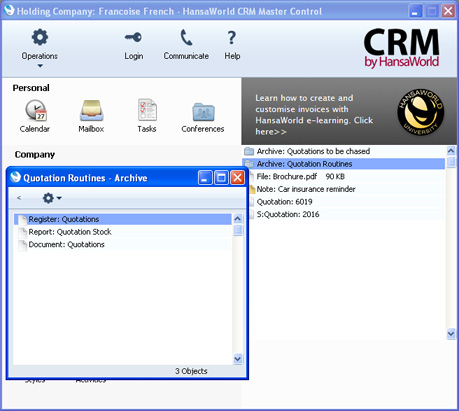

- If you want to rename the Archive, first open it as described in step 4 above and then select 'Rename Archive' from the Operations menu.
Enter the new Name of the Archive and click [Save].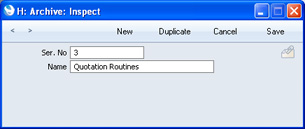
- You can remove an item from an Archive in one of two ways. First, you can drag it to the Personal Desktop or to another Archive. Otherwise, to remove the item altogether, click on it and select 'Clear' from the Edit menu. If you are using Mac OS X, you can also highlight the item to be removed and click the [-] button immediately above the Personal Desktop.
- To remove an Archive, click on it in the Personal Desktop and select 'Clear' from the Edit menu (or click the [-] button). You can only remove empty Archives. To empty an Archive, you must remove its contents item by item as described in step 6 above.
In this chapter:
- Records in your Personal Desktop
- Settings, Reports, Documents and Maintenance functions in your Personal Desktop
- Registers in your Personal Desktop
- Notes and Comments in your Personal Desktop
- Changing the Names of Items in your Personal Desktop
- Reports in your Personal Desktop
- Removing Items from your Personal Desktop
- Organising Items in your Personal Desktop: Archives
- Home page for Working Environment manual
- Home page for Standard CRM manual