Example
To explain the CRM module we have prepared a small example. The business is an export business with a number of sales persons who communicate with domestic and foreign firms via phone, fax and e-mail. We shall follow one of the sales persons through a day's work with the CRM module.
Contact Management
Every morning, Françoise French will open the Task Manager (i.e. her 'To Do' list). To do this, she will click the [Tasks] button in the Master Control panel:

The Task Manager lists Activities whose Task Type is To Do. In practice, it is a list of the Activities that Françoise is to carry out by the end of the day (including Activities from previous days that have not been completed). Activities that have been marked as Done are not shown. The Activities are sorted by Start Date and Time, but Françoise can change this by clicking on one of the column headings.
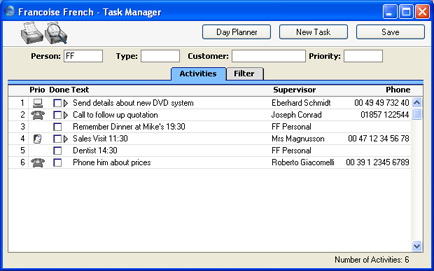
If the list was a long one, Françoise could reduce it to show Activities of a particular Type, Customer and/or Priority using the fields above the list.
When Françoise carries out one of these planned Activities, she will double-click the Text in the appropriate row to open the corresponding record in the Activity register. She can then remind herself of the details of the Activity before carrying it out. She does this now for the last Activity in the list.
When she has finished the task, she can record the Result in the field at the bottom of the window and mark the Activity as Done by marking the check box in the top right-hand corner:
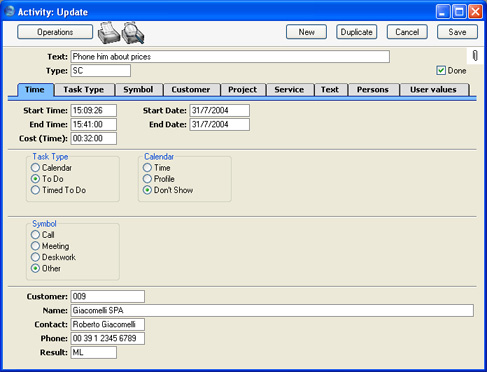
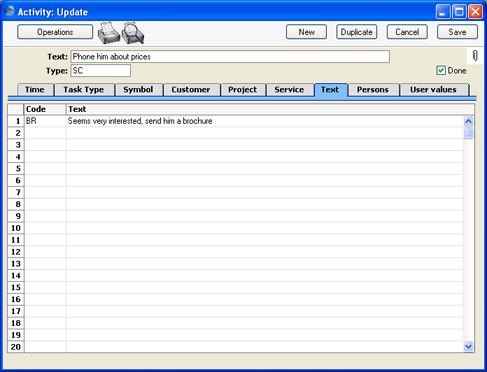
In this case, the call was made successfully and the Customer expressed interest in the products Françoise was selling. She recorded this interest is recorded in the Activity record, using the grid on the
'Text' card:
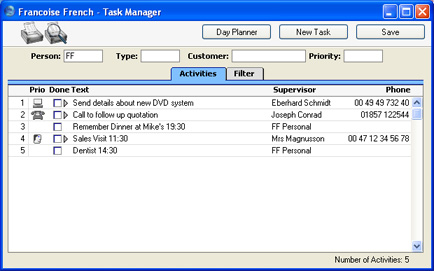
On saving and closing the Activity, the Task Manager is updated automatically. The last Activity is removed, since Activities that have been marked as Done are not usually listed:
Sometimes, it will not be necessary to open an Activity in order to complete it. The Task Manager itself displays sufficient information to carry out the work, including any notes and comments already entered on the
'Text' card. These notes can be seen by clicking the arrow icon to the left of the Activity Text. Françoise does this for the first Activity in the list:
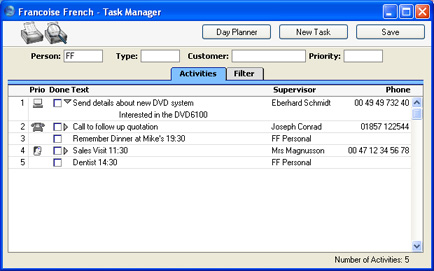
When she has completed the task, if there is no need to enter a Result, to enter more notes or to create a new follow-on Activity by duplication, Françoise can mark the Done box by clicking:
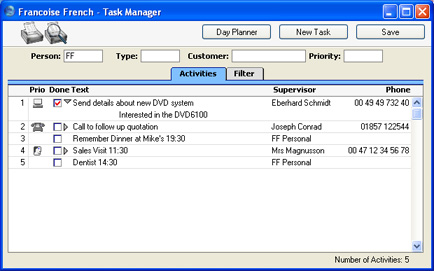
This marking of the Done box is not fed through to the corresponding Activity immediately. Françoise must save the Task Manager (by clicking the [Save] button, by pressing the Shift-Enter key combination or by selecting 'OK' from the Record menu) in order to mark Activity as Done and to remove it from the Task Manager list. Of course, she could mark several rows as Done before saving.
On reviewing her Task Manager, Françoise decides to call Joseph Conrad at the Against All Odds Trading Co. She double-clicks in the Text column to open the Activity to remind herself of the details.
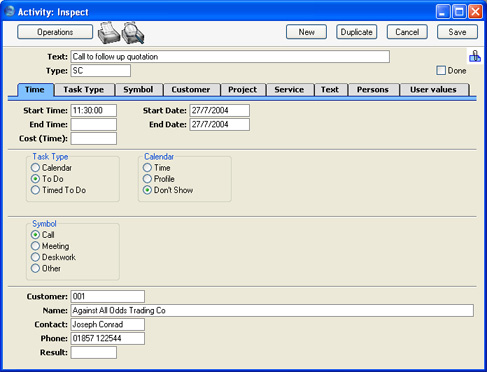
The Text field shows her that she is to make the call to follow up a Quotation that has already been sent, to try to convert it into an Order. In fact, the Activity was created when the Quotation was sent out, using the
'Create Activity' function on the Operations menu of the Quotation screen. This function automatically
attaches the Quotation to the Activity. The [Attachments] button (with the paper clip icon) reminds Françoise that the Activity has an Attachment:

When viewing the Activity, Françoise can easily remind herself of the details of the Quotation by clicking this button to open a list of Attachments:
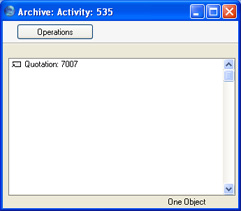
Then she double-clicks the Quotation in the list. The Quotation is opened:
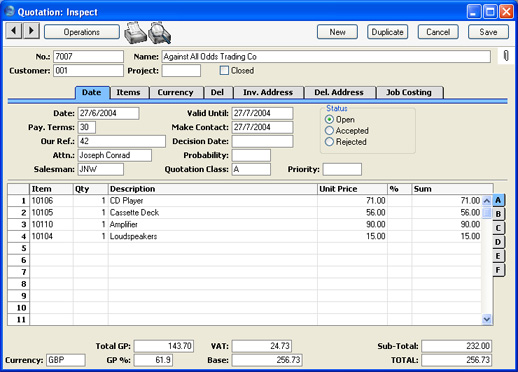
Françoise is able to convert the Quotation into an Order. From the Operations menu of the Quotation screen, she selects
'Order'. An Order is created and opened:
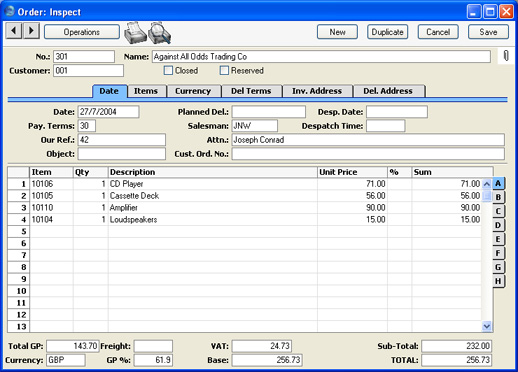
From the Task Manager, therefore, Françoise has been able to move into the Quotation and Sales Order modules, quickly and easily find the Quotation she wanted, and generate an Order, all in single steps. She could now print an Order Authorisation, close the Order and Quotation screens, mark the Activity as Done and finally return to the Task Manager.
At other times during the day, Françoise will be contacted by several of her Customers. By entering an Activity for each contact or event, she will quickly build up a contact history for each Customer. This means that if, for example, Mr. Wang from Hong Kong sends a fax complaining about a missing delivery of goods, she will easily be able to call up a list of recent Activities in relation to Mr Wang's company. This list would include both her own contacts with the New World Import/Export Co and those of other members of staff.
One way Françoise can do this is to use the 'Filter' card of the Task Manager. She can remove her initials from the Person field, enter "002" as the Customer (using 'Paste Special' to select the correct one if necessary) and choose to view Done Activities using the fourth column of options. She will then see a complete contact history for Customer 002:
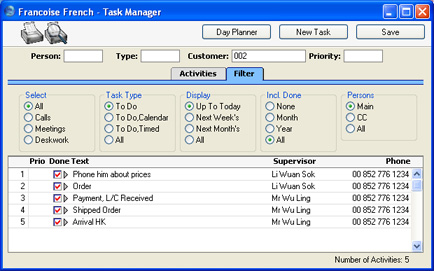
She can double-click the Text of any Activity to see more details if necessary.
An alternative method with the advantage of displaying Activity Dates would be to produce an 'Activities, Customers' report for Customer 002 from the CRM module:
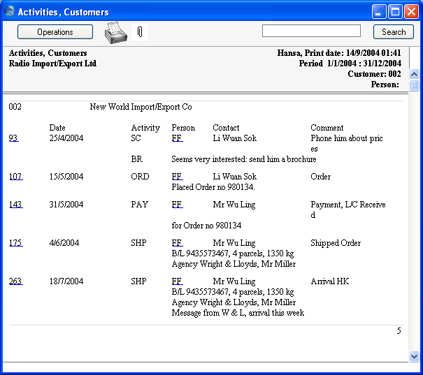
The detailed variant of the report is illustrated.
In both cases, Françoise can see at a glance the comments recorded on the 'Text' card of each Activity. Both show the Activities carried out and entered by different Persons over the time period, and are excellent tools to be used to sort out any queries or mistakes in relation to a series of events, providing, of course, that each member of staff has conscientiously entered a record of each task they have carried out.
As with all Hansa reports, the 'Activities, Customers' report contains a Search facility that can be used to look for occurrences of a particular word or words in the report. The production of this report can of course be followed by other reports, after searching for related information. Several reports can be kept on the screen at the same time, which adds a tremendous flexibility and power to the system. Françoise can also click on an Activity Number in the left hand column to open an Activity record.
Time Management
Françoise is also engaged in time management and analysis. She is in charge of a department in which there are two other sales people working. In planning the work for the coming month, she decides to book a particular afternoon to be spent on the telephones following up leads and making cold calls. She opens her
Calendar by clicking the [Calendar] button in the Master Control panel:

Then, she clicks the [New Activity] button and enters an Activity in the names of all three department members, booking their time. To do this, she enters the initials of the three members of the department in the Persons field on the
'Persons' card, separated by commas:
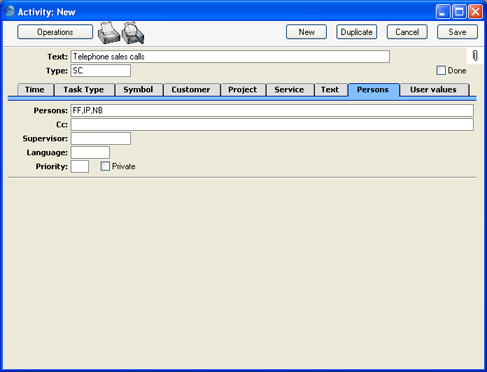
On the
'Task Type' card, she sets the Task Type to Calendar, signifying that the Activity is to appear in the Calendar rather than in the Task Manager. This Task Type also means that the Activity will be included in the
Employee Time Statistics report, used for time analysis. She chooses the Profile option as the Calendar Type to indicate that this is planned time.
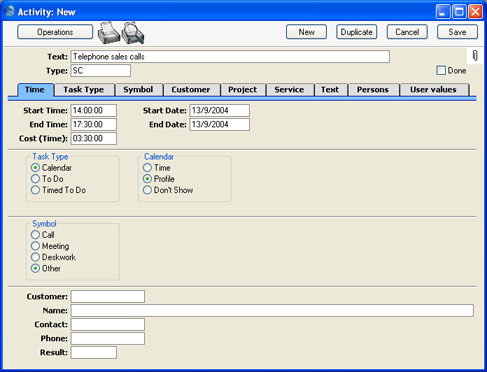
When Françoise saves the Activity, it will appear in the Calendar for each of the three members of personnel. When they open their Calendars by clicking the [Calendar] button in the Master Control panel, they will become aware that their time that afternoon has been booked:
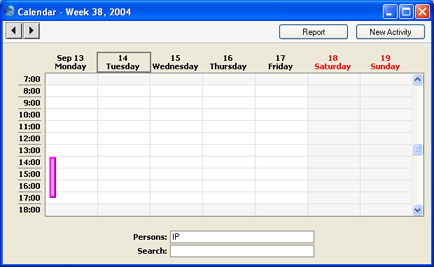
The Activity appears in their Calendar as a hollow coloured bar, because Françoise selected the Profile option. This bar signifies to the other two members of the department that their time has been booked. If either of them clicks the bar once, the Text of the Activity appears in the Search field at the bottom of the screen. They can also double-click this bar to open the Activity record if they want to see more details about what they will be doing.
Everyone else in the company can also view the Calendars of these three members of staff and see that their time has been booked.
During the afternoon in question, various methods are available to Françoise by which she can record the work actually carried out. She decides to ensure that separate Activities are entered for each telephone call. These will record the details of each call (keeping the contact history for each Customer up to date) and allow the creation of follow-up Activities should these be required. One such Activity recorded by Françoise's colleague Neil Brooker is shown below:
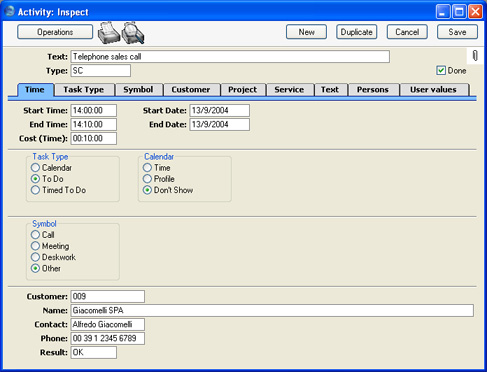
The Calendar is not really suitable for the displaying of many small Activities representing individual telephone calls, so the Task Type is set to To Do. These Activities are not entered for time management purposes but to contribute to the contact histories of the Customers affected. Selecting To Do means the Activity will not appear in the Calendar or in the
Employee Time Statistics report.
Details of each telephone call are recorded in the grid on the 'Text' card of each Activity:
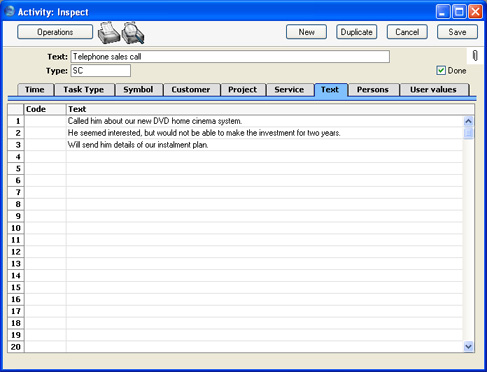
In this example, the call ended with a request to send some information to the Customer. After saving the Activity and while it is still on screen, Neil can click the [New] or [Duplicate] button to create a new Activity containing the instruction to send out the information. This can be in his own name, to remind himself to do this job later, or it can be in the name of the Person that usually sends out information. In the latter case, this Person will become aware that a job needs to be done when the Activity appears in their Task Manager or Calendar (depending on whether Neil sets the Task Type to To Do or Calendar respectively).
The creation of the follow-up Activity can be automatic. This is controlled using the Activity Consequences setting in the CRM module. Separate records can be entered to this setting for each Activity Type/Result combination, specifying the Person, Activity Type and Text to be used in the follow-up Activity. Whenever an Activity with a particular Activity Type/Result combination is marked as Done and saved, a new Activity will be created with these details taken from the appropriate record in the setting.
At the end of the day, Françoise enters new Activities for each member of staff, representing the afternoon's work. These Activities are solely for time management purposes. Neil Brooker had to leave early to go to the dentist, so Françoise enters this Activity recording the work that he was able to do:
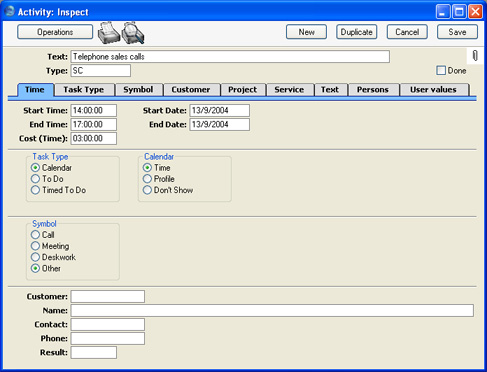
Since this Activity is to serve a time management purpose only, she sets the Task Type to Calendar. She selects Time as the Calendar Type, because the Activity represents the actual time spent making the calls. As a result, the Activity will appear in Neil's Calendar as a solid coloured bar to the right of the hollow bar entered earlier to book his time. It was for this purpose of comparison that Françoise created a new Activity instead of changing the earlier Activity from Profile to Time:
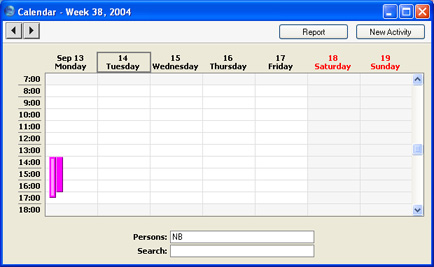
Neil's early departure is represented by his Time bar (solid colour, to the right) being shorter than his Profile bar (hollow).
The time spent by all three employees can be shown in the Calendar by entering the three sets of initials in the Persons field, separated by commas:
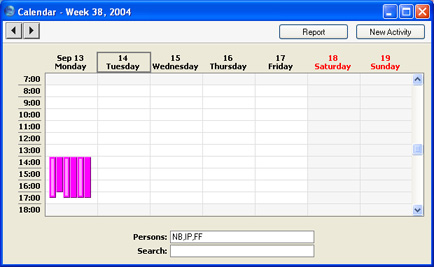
The position of the coloured bars corresponds to the position of each set of initials in the Persons field. So, the two left-hand coloured bars represent Neil's Profile and Time, and the two right-hand bars represent Françoise's Profile and Time.
This information can also be analysed in the Employee Time Statistics report. Time Activities appear in the Actual column:
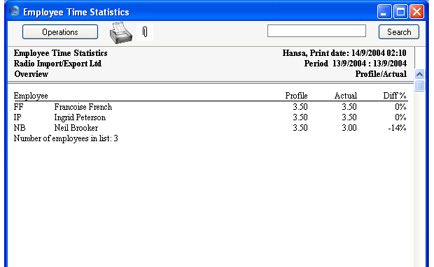
The Actual and Profile columns show partial hours as decimals, not as numbers of minutes.
In calculating the figures in these columns, all Calendar Activities are taken into account (except those whose Don't Show option has been selected). To Do and Timed To Do Activities are not included in the report, thus keeping Activities used for contact history purposes separate from those used for time management purposes. This removes the risk of including the same time twice in the report. The Activities representing the individual telephone calls all had a Task Type of To Do.