Introduction to the Purchase Order Register
The Purchase Order register contains records for each Purchase Order issued.Before you start entering Purchase Orders, make sure you have defined your sequence of Purchase Order Numbers using the Number Series - Purchase Orders setting.
Entering a Purchase Order
To open the Purchase Order register, first ensure you are in the Purchase Orders module, then click the [Purchase Orders] button in the Master Control panel.The 'Purchase Orders: Browse' window is opened, showing Purchase Orders already entered.
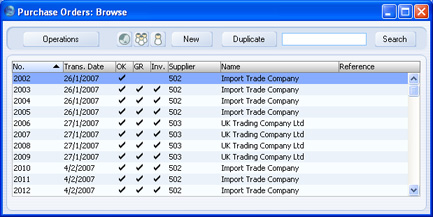
Also shown are indications that the Purchase Order has been approved, that the ordered goods have been received and approved in their entirety (in the 'GR' or 'Goods Received' column) and that a Purchase Invoice has been received and approved (in the 'Inv' column), and the Supplier number and name.
The functions on the Operations menu are described here.
HansaWorld Enterprise provides several shortcuts to simplify your work with entering Purchase Orders. You can for example use the 'Paste Special' function (Ctrl-Enter or ⌘-Enter) to bring a date into a date field or to enter Item Numbers, Customer Numbers, Payment Terms etc.
To enter a new Purchase Order, click [New] in the Button Bar or use the Ctrl-N (Windows and Linux) or ⌘-N (Macintosh) keyboard shortcut. Alternatively, highlight a Purchase Order similar to the one you want to enter and click [Duplicate] on the Button Bar.
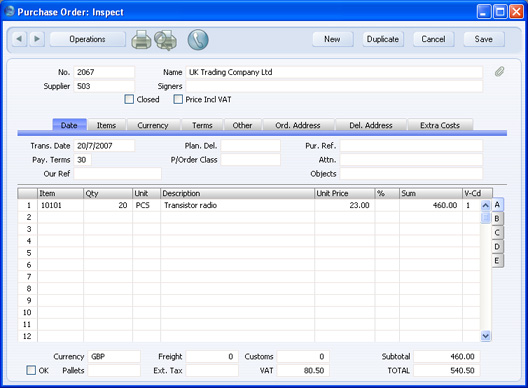
The 'Purchase Order: New' window is opened, empty if you clicked [New] or containing a duplicate of the highlighted Purchase Order.
! | You are not bound by the values suggested by HansaWorld Enterprise as defaults. For most fields you can change the pre-set values into something that suits you better. Changes made here are valid only for this particular Purchase Order. |
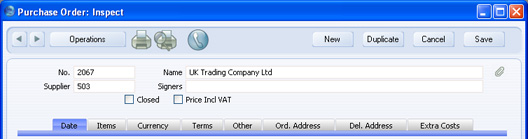
Since the amount of information stored about each Purchase Order will not fit on a single screen, the Purchase Order window has been divided into eight cards. At the top of each is the header. This contains the Purchase Order Number, the Supplier Number and Name. There are eight named buttons ('tabs') in the header.

Entering a Purchase Order - Header
- No.
- Paste Special
Select from another Number Series
- The unique identifying number of the Purchase Order. The default is the first unused number from the first valid number sequence in the Number Series - Purchase Orders setting. You may change this number, but not to one that has already been used. If you are working in a multi-user environment, the Purchase Order Number is assigned when you first save the Purchase Order.
- Supplier
- Paste Special
Suppliers in Contact register
- Enter the Supplier Number or use the 'Paste Special' function. When you press Return, the Supplier's name, address and other information will be entered into the appropriate fields.
- Name
- The Supplier Name is entered after you have entered the Supplier Number.
- Signers
- Paste Special
Person register, System module
- Enter the initials of the person who approved the Purchase Order. You can enter the initials of more than one Person, separated by commas.
- Closed
- Check this box when all deliveries and Purchase Invoices for this Purchase Order have been received. Any remaining quantities that have not been received will be cancelled and will no longer appear in reports as being outstanding.
- If you mark a Purchase Order as Closed, you will not be able to create Goods Receipts from it. However, you will still be able to create Purchase Invoices for earlier Goods Receipts.
- You cannot re-open a Closed Purchase Order.
- If you mark a Purchase Order as Closed, you will not be able to create Goods Receipts from it. However, you will still be able to create Purchase Invoices for earlier Goods Receipts.
- Price Incl. VAT
- Check this box if the prices entered for the goods ordered include VAT.
Entering a Purchase Order - Date Card

- Trans. Date
- Paste Special
Choose date
- The date the Purchase Order is to be issued. The default is the current date.
- Plan. Del.
- Paste Special
Choose date
- Specify here the date on which you need to receive the goods into stock. Enter this date using the format specified in the Planned Delivery setting in the Sales Orders module. Available options are free text, date, week number or year-week (4 characters).
- You can also specify a separate Planned Delivery Date in any of the Order rows (on flip D).
- If you are using the Force Planned Delivery Date option in the Planned Delivery setting in the Sales Orders module, you must enter a Planned Delivery Date either here or in each Order row before you can save the Purchase Order.
- You can also specify a separate Planned Delivery Date in any of the Order rows (on flip D).
- Pur. Ref.
- Use this field if you need to identify the Purchase Order by any means other than the Purchase Order Number. The Reference is shown in the 'Purchase Orders: Browse' window, allowing you to search for a Purchase Order with a particular Reference.
- Pay. Terms
- Paste Special
Payment Terms setting, Sales/Purchase Ledger
- Default taken from Contact (Purch. Pay. Terms)
- Payment Terms entered here will be transferred to any Purchase Invoices raised from the Order. In addition simply to ensuring the correct Payment Terms appear on Purchase Orders (in the Language of the Supplier if necessary), configuring Payment Term records using the Sales Ledger setting can enable you to administer a system of early settlement discount, if appropriate.
- Payment Terms entered here will be transferred to any Purchase Invoices raised from the Order. In addition simply to ensuring the correct Payment Terms appear on Purchase Orders (in the Language of the Supplier if necessary), configuring Payment Term records using the Sales Ledger setting can enable you to administer a system of early settlement discount, if appropriate.
- P/Order Class
- Paste Special
Purchase Order Classes setting, Purchase Orders module
- Enter the Purchase Order Class for the Order (if any). Purchase Order Classes permit the analysis of Orders for reporting or prioritising.
- You must enter a Purchase Order Class if you are using the Require Purchase Order Class option in the Purchase Order Settings setting.
- You must enter a Purchase Order Class if you are using the Require Purchase Order Class option in the Purchase Order Settings setting.
- Attn.
- Default taken from
Contact
- Record here your contact at the Supplier company. 'Paste Special' will list the Contact Persons belonging to the Supplier.
- Our Ref
- Use this field if you need to identify the Purchase Order by means other than the Purchase Order Number. A default will be taken from the Our Ref field on the 'Serial Nos' card of the Person record of the current user. References entered will appear on any printed Purchase Orders.
- Objects
- Paste Special
Object register, Nominal Ledger/System module
- Default taken from Contact (Purch. Objects)
- You can assign up to 20 Objects, separated by commas, can be assigned to an Order and all transactions generated from it. You might define separate Objects to represent different departments, cost centres or product types. This provides a flexible method of analysis that can be used in Nominal Ledger reports.
- In any Nominal Ledger Transactions generated from Purchase Invoices raised from this Order, any Objects specified here will be assigned to the debit posting to the Purchase Account(s) and, if you are using the Objects on Creditor Account option in the Account Usage P/L setting, to the credit posting to the Creditor Account.
- Similarly, in any Nominal Ledger Transactions generated from Goods Receipts raised from this Order, any Objects specified here will be assigned to the credit posting to the Purchase Accruals Account. If you are using the Supplier Object on Stock A/C option on the 'Creditors' card of the Account Usage P/L setting, they will be assigned to the debit posting to the Stock Account as well.
- You can assign up to 20 Objects, separated by commas, can be assigned to an Order and all transactions generated from it. You might define separate Objects to represent different departments, cost centres or product types. This provides a flexible method of analysis that can be used in Nominal Ledger reports.
Entering a Purchase Order - Items Card
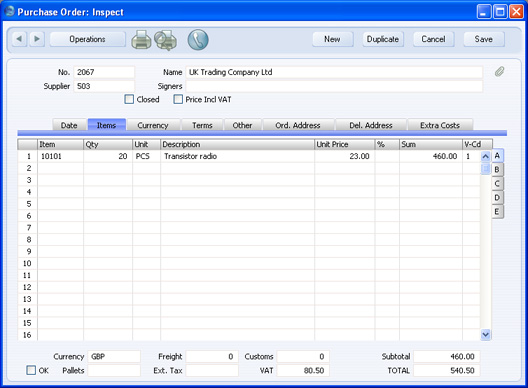

To add rows to a Purchase Order, click in any field in the first blank row and enter appropriate text. To remove a row, click on the row number on the left of the row and press the Backspace key. To insert a row, click on the row number where the insertion is to be made and press Return. You cannot remove or insert rows after you have created at least one Goods Receipt from the Purchase Order.
You can also bring Items into a Purchase Order by opening the 'Items: Browse' window, selecting a range of Items by clicking while holding down the Shift key, and then dragging them to the Item field in the first empty Purchase Order row. You can also copy a list of Item Numbers in a spreadsheet or word processor and paste them in the Item field in the first empty row.
Flip A
- Item
- Paste Special
Item register
- With the cursor in this field, enter the Item Number or Bar Code for each Item ordered. If the Item has a related Purchase Item in the name of the Supplier of the Purchase Order, pricing, descriptive and other information will be brought in from there. Otherwise, it will be taken from the Item record. If you leave this field blank, you can enter any text in the Description field, perhaps using the row for additional comments to be printed on Purchase Order documentation. You can also choose an Item by entering a Supplier's Item Number on flip B.
- If you want there to be a check if the Item is in fact sold by the Supplier, switch on the Warning If Not Default Supplier option in the Purchase Order Settings setting. If you are using this option, you will be given a warning if the Item does not have a related Purchase Item in the name of the Supplier of the Purchase Order. If you are not using this option, it will be your user's responsibility to ensure that you have chosen the correct Supplier/Item combination.
- If you want there to be a check if the Item is in fact sold by the Supplier, switch on the Warning If Not Default Supplier option in the Purchase Order Settings setting. If you are using this option, you will be given a warning if the Item does not have a related Purchase Item in the name of the Supplier of the Purchase Order. If you are not using this option, it will be your user's responsibility to ensure that you have chosen the correct Supplier/Item combination.
- Qty
- Enter the number of units ordered. Press Return to calculate the Sum, and the cursor will move to the Item field on the next row.
- This figure refers to the main Unit of the Item (the Unit you use to sell the Item, shown on the 'Pricing' card of the Item record and in the field immediately to the right). This may not be the Unit used by the Supplier. For example, your firm might sell an Item in single units, but the Supplier might sell in boxes of 12. If so, enter "12" to the Unit Conversion field of the Purchase Item. Then, if you need to order 240 of the Item, enter "240" here as the Quantity. The Sup. Qty field on flip B will be calculated to show "20", i.e. the order quantity from the Supplier's point of view (Quantity divided by Unit Conversion).
- This figure refers to the main Unit of the Item (the Unit you use to sell the Item, shown on the 'Pricing' card of the Item record and in the field immediately to the right). This may not be the Unit used by the Supplier. For example, your firm might sell an Item in single units, but the Supplier might sell in boxes of 12. If so, enter "12" to the Unit Conversion field of the Purchase Item. Then, if you need to order 240 of the Item, enter "240" here as the Quantity. The Sup. Qty field on flip B will be calculated to show "20", i.e. the order quantity from the Supplier's point of view (Quantity divided by Unit Conversion).
- Unit
- The Unit of the Item will be brought in from the Item register when you enter the Item Number. It cannot be changed.
- Description
- If the Item has a related Purchase Item in the name of the Supplier of the Purchase Order, the Description will be taken from that Purchase Item record. Any text entered on the 'Texts'card of the Purchase Item will also be brought in, taking up as many Purchase Order rows as necessary.
- In other circumstances, the Description will be taken from the Item record.
- In other circumstances, the Description will be taken from the Item record.
- Unit Price
- If the Item has a related Purchase Item in the name of the Supplier of the Purchase Order, the Unit Price will be taken from that Purchase Item record.
- If the Purchase Item has a Unit Conversion and a Supplier Unit, then this figure will be the Unit Price per Supplier Unit. For example, your firm might sell an Item in single units, but the Supplier might sell in boxes of 12. If so, enter "12" to the Unit Conversion field of the Purchase Item and "Dozen" to the Supplier Unit field. The figure here will be the price per dozen.
- If there is no suitable Purchase Item, the Unit Price will be taken from the 'Costs' card of the Item record.
- The Unit Price will include VAT if you have checked the Price Incl. VAT box in the header. In this case, the Price in the Purchase Item or the Cost Price in the Item record (as appropriate) will be treated as including VAT.
- If you have specified a Currency and Exchange Rate in the Purchase Order, this figure will be in the Currency concerned (i.e. having undergone currency conversion).
- If the Purchase Item has a Unit Conversion and a Supplier Unit, then this figure will be the Unit Price per Supplier Unit. For example, your firm might sell an Item in single units, but the Supplier might sell in boxes of 12. If so, enter "12" to the Unit Conversion field of the Purchase Item and "Dozen" to the Supplier Unit field. The figure here will be the price per dozen.
- %
- A discount percentage.
- Sum
- The total for the row: Supplier Quantity (from flip B) multiplied by Unit Price less Discount. Changing this figure will cause the Discount Percentage to be recalculated.
- Even if the Unit Price has been taken from the Purchase Item record, the Sum will take any Price Factor entered for the Item into account.
- This figure will be rounded up or down according to rounding rules set for the Currency in the Currency Round Off setting in the System module.
- Even if the Unit Price has been taken from the Purchase Item record, the Sum will take any Price Factor entered for the Item into account.
- V-Cd
- Paste Special
VAT Codes setting, Nominal Ledger
- When you create a Purchase Invoice from this Order, the VAT Code entered here will determine the rate at which VAT will be charged on this Item and the Input VAT Account to be debited. A default is offered, taken from the Purch. VAT Code field in the Contact record for the Supplier. If that field is empty, the default is taken from the Item, the Item Group or from the 'VAT' card of the Account Usage P/L setting. In the last three cases, the appropriate VAT Code for the Zone of the Supplier will be used. You can change this default in a particular Order row if necessary.
- Purch. A/C
- Paste Special
Account register, Nominal Ledger/System module
- Default taken from Purchase Accruals Account of Item Group or from Account Usage Stock
- If you are using the Use Item Groups for Cost Accounts option in the Cost Accounting setting in the Stock module and the Item belongs to an Item Group, the Purchase Accruals Account from that Item Group will be copied here by default. Otherwise, the default will be the Purchase Accruals Account specified in the Account Usage Stock setting. In both cases, the appropriate Account for the Zone of the Supplier will be used.
- When you raise a Purchase Invoice from this Order, if you are using the Transfer Each Row Separately option in the Purchase Invoice Settings setting, this Account will be copied to the Cost Account field in Purchase Invoice row. It will then be debited in the resulting Nominal Ledger Transaction.
- If you are using the Transfer Account to Goods Receipt option in the Purchase Order Settings setting is in use, this Account will be copied to the Purchase Accruals Account field in the appropriate row of any Goods Receipt created from this Purchase Order. It will then be debited in the Nominal Ledger Transaction resulting from that Goods Receipt.
- If you are using the Use Item Groups for Cost Accounts option in the Cost Accounting setting in the Stock module and the Item belongs to an Item Group, the Purchase Accruals Account from that Item Group will be copied here by default. Otherwise, the default will be the Purchase Accruals Account specified in the Account Usage Stock setting. In both cases, the appropriate Account for the Zone of the Supplier will be used.
- Objects
- Paste Special
Object register, Nominal Ledger/System module
- Default taken from Item
- Used as default in Goods Receipt row
- You can assign up to 20 Objects, separated by commas, to this row and all transactions generated from it. You might define separate Objects to represent different departments, cost centres or product types. This provides a flexible method of profit centre analysis that can be used in Nominal Ledger reports.
- If you are using the Transfer Each Row Separately option in the Purchase Invoice Settings setting, the Objects specified here will be copied to the corresponding row of the Purchase Invoice when it is created from this Order. In the resulting Nominal Ledger Transaction these Objects specified here will be assigned to the debit posting to the Purchase Account. This assignment will merge these Objects with those of the parent Order (shown on the 'Date' card).
- These Objects will also be copied to the Objects field in the appropriate row of any Goods Receipt created from this Purchase Order (flip E). They will then be assigned to both the debit and credit postings in the Nominal Ledger Transaction resulting from that Goods Receipt.
- Used as default in Goods Receipt row
- Sup. Item
- Paste Special
Purchase Item register, Purchase Orders module
- The code allocated to the Item by this Supplier.
- If you have registered the Item as a Purchase Item and if the Supplier of the Purchase Order is the same as the Supplier entered for the Purchase Item, then the Supplier's code will be brought in from the Purchase Item record when you enter an Item Number on flip A.
- If you choose an Item using 'Paste Special' from this field, all relevant information will be brought in to the Purchase Order row from the Purchase Item and Item registers, in the same way as if you had entered an Item Number on flip A.
- If you want this to be printed as the main Item Code in the Purchase Order document, include the "Supplier Item Code" field in your Form design. If you want to print the Item Number from flip A in the document as well, include the "Item Code" field.
- If you have registered the Item as a Purchase Item and if the Supplier of the Purchase Order is the same as the Supplier entered for the Purchase Item, then the Supplier's code will be brought in from the Purchase Item record when you enter an Item Number on flip A.
- Sup. Unit
- The Unit used by the Supplier for shipping and pricing the Item. This information will be taken from the Purchase Item record and cannot be changed.
- Sup. Qty
- This shows the number of Items the Supplier needs to despatch to fulfil your Purchase Order and is dependent on the Unit Conversion field in the Purchase Item record. For example, your firm might sell an Item in single units, but the Supplier might sell in boxes of 12. If so, enter "12" to the Unit Conversion field of the Purchase Item. Then, if you need to order 240 of the Item, enter "240" as the Quantity on flip A. The Sup. Qty field will be calculated to show "20", i.e. the order quantity from the Supplier's point of view (Quantity divided by Unit Conversion). Alternatively, enter "20" here and the Quantity on flip A will be calculated to show "240".
- If you want this figure to be printed as the Quantity in the Purchase Order document, include the "Quantity" field in your Form design. If you want to print the Quantity from flip A in the document as well, include the "Our Quantity" field.
- If the Purchase Item does not have a Unit Conversion, or there is no Purchase Item, then this figure will be the same as the Quantity on flip A.
- If you want this figure to be printed as the Quantity in the Purchase Order document, include the "Quantity" field in your Form design. If you want to print the Quantity from flip A in the document as well, include the "Our Quantity" field.
- Recv. 1, Recv. 2
- The quantity received for each Purchase Order row will be updated automatically when you create Goods Receipts using the 'Create Goods Receipt' function on the Operations menu (you will need to close the Order and re-open it to see the updated figures). The Recv. 1 quantity includes both approved and unapproved Goods Receipts, while the Recv. 2 field only shows approved Goods Receipts. This feature makes it easy to follow up on part shipments.
- If you are using the Automatic receiving of Service and Plain Items option in the Stock Settings setting in the Stock module, these fields will be changed to show the Order Quantity when the Purchase Order is saved, if the Item is a Plain or Service Item. This means that you can create Purchase Invoices for such Items immediately without the need for a Goods Receipt, and that these Items will not appear on any Goods Receipts. It also means that you cannot reduce the Order Quantity for such Items once you have saved the Purchase Order.
- If you are using the Automatic receiving of Service and Plain Items option in the Stock Settings setting in the Stock module, these fields will be changed to show the Order Quantity when the Purchase Order is saved, if the Item is a Plain or Service Item. This means that you can create Purchase Invoices for such Items immediately without the need for a Goods Receipt, and that these Items will not appear on any Goods Receipts. It also means that you cannot reduce the Order Quantity for such Items once you have saved the Purchase Order.
- Invoiced
- The quantity invoiced for each Order row will be updated automatically when you raise Invoices using the 'Create Purchase Invoice' function on the Operations menu (you will need to close the Order and re-open it to see this). The quantity usually includes both approved and unapproved Invoices You cannot raise an Invoice until you have created and approved at least one Goods Receipt (unless you are using the Invoice Before Goods Receipt option on the 'Terms' card). In the case of partial Goods Receipts, Invoices can only be raised for the quantity received.
- Note: The quantity shown in this field will not include unapproved Invoices if you are using the Consolidate Items to Supplier Cost Account option in the Purchase Invoice Settings setting. In this case, take care if you need to return to the Purchase Order to create a second Invoice before the first one has been approved.
- If you invalidate a Purchase Invoice related to the Purchase Order, the Invoiced Quantity in the relevant Order rows will be updated automatically, providing you are not using the Consolidate Items to Supplier Cost Account option.
- If you credit a Purchase Invoice related to the Purchase Order, the Credit Notes Update Invoiced Quantity option in the Purchase Order Settings setting controls whether the Invoiced Quantity will be updated automatically.
- If you are using this option (and providing you are not using the Consolidate Items to Supplier Cost Account option), the Invoiced Quantity figure will be updated automatically if you create the Credit Note by duplicating the original Invoice or using the 'Create Credit Note' Operations menu function from the original Invoice or from the Returned Goods to Supplier screen. If you duplicate the original Invoice, the Invoiced Quantity figure will only be updated if you enter the appropriate Payment Term and the number of the Invoice to be credited before you save the Credit Note for the first time. If you save the duplicate before changing the Payment Term, the Invoiced Quantity will not be updated correctly, but you will be able to correct it using the 'Recalculate Purchase Orders' Maintenance function. Similarly, if you are not using the Credit Notes Update Invoiced Quantity option, you can use the 'Recalculate Purchase Orders' function to update the Invoiced Quantity.
- If you create the Credit Note by entering a new record to the Purchase Invoice register, the Invoiced Quantity figure in the originating Purchase Order will not be updated, irrespective of whether you are using the Credit Notes Update Invoiced Quantity option, and it will not be updated by the 'Recalculate Purchase Orders' function.
- If you are using the Consolidate Items to Supplier Cost Account option in the Purchase Invoice Settings setting, the Invoiced Quantity figure in the originating Purchase Order will not be updated correctly from Credit Notes, irrespective of whether you are using the Credit Notes Update Invoiced Quantity option, and it will not be updated by the 'Recalculate Purchase Orders' function.
- Note: The quantity shown in this field will not include unapproved Invoices if you are using the Consolidate Items to Supplier Cost Account option in the Purchase Invoice Settings setting. In this case, take care if you need to return to the Purchase Order to create a second Invoice before the first one has been approved.
- Pallet No.
- This field will display the number of pallets you will receive, if the Item is one that will be supplied on a pallet and you have specified on the 'Warehouse' card of the Item record the quantity contained on a single pallet. This figure will be updated automatically each time you change the Quantity or the Sup. Qty on flip B, and it will contribute to the total number of pallets shown in the Purchase Order footer. This feature will be most useful if you are using the Warehouse Management module: please refer to your local HansaWorld representative for full details.
- Project
- If you are using the Job Costing module and you need to connect a single Purchase Order row to a Project, enter its Project Number here. If you need to connect the whole Purchase Order to a Project, use the Project field on the 'Terms' card.
- WS No.
- You can generate Purchase Orders for spare parts from the Service Orders module using the 'Create Purchase Order' function on the Operations menu of the Work Order screen. Such Purchase Orders could feature several Items when there is more than one Work Sheet related to the Work Order from which they were generated. This field will carry a record of the Work Sheet to which each row is related. Please refer here for full details of this feature.
- Plan. Del.
- Paste Special
Choose date
- Specify here the date on which you need to receive this Item into stock, if this is different to the Planned Delivery Date on the 'Date' card. Enter this date using the format specified in the Planned Delivery setting in the Sales Orders module. Available options are free text, date, week number or year-week (4 characters).
- If you are using the Force Planned Delivery Date option in the Planned Delivery setting in the Sales Orders module, you must enter a Planned Delivery Date either here or on the card before you can save the Purchase Order.
- If you are using the Force Planned Delivery Date option in the Planned Delivery setting in the Sales Orders module, you must enter a Planned Delivery Date either here or on the card before you can save the Purchase Order.
- Comment
- Record any further details about the Item here.
- Fr. Cost
- An optional Freight Cost (per unit) for the Purchase Order row. This figure is in the home Currency (or in Base Currency 1 as defined in the Base Currency setting in the System module). You can enter a value in a particular row, or you enter the Freight amount for the whole Purchase Order in the Freight field in the footer. When you move to the next field, the total Freight amount will be distributed to the different Item rows according to the cost value of each row. In order for the distribution to be accurate, enter the Freight figure after you have made sure the Item and Quantity information in each row is complete.
- When you raise a Goods Receipt from the Purchase Order, the value will be copied to the Freight field on flip H of the corresponding Goods Receipt row, with the total Freight value in the Purchase Order footer being copied to the Goods Receipt footer. If the Freight value in the Purchase Order footer and the Fr. Cost fields on each row are all empty, the Purchase Cost on the 'Other' card will be used as the Freight value in the Goods Receipt (distributed proportionally to the different rows).
- When you raise a Goods Receipt from the Purchase Order, the value will be copied to the Freight field on flip H of the corresponding Goods Receipt row, with the total Freight value in the Purchase Order footer being copied to the Goods Receipt footer. If the Freight value in the Purchase Order footer and the Fr. Cost fields on each row are all empty, the Purchase Cost on the 'Other' card will be used as the Freight value in the Goods Receipt (distributed proportionally to the different rows).
- Customs
- This field works in the same manner as the Freight fields, using the Customs field in the footer area. It refers to any customs charges attached to the Purchase Order.
- This value will default to the Purchase Cost from the relevant Purchase Item (multiplied by the quantity).
- You can enter either an amount in the home Currency (or in Base Currency 1 as defined in the Base Currency setting in the System module), or a percentage followed by the % character. The percentage will be applied to the Unit Price of the Item in the home Currency.
- This value will default to the Purchase Cost from the relevant Purchase Item (multiplied by the quantity).
- Costs 1-5
- Use these fields to record any additional costs (per unit) for the Item. They will be shown added to the Unit Price in the Cost Price column on flip A. Enter an amount in the home Currency (or in Base Currency 1 as defined in the Base Currency setting in the System module).
- You can also enter total additional cost figures for the whole Purchase Order on the 'Extra Costs' card: the total amount will then be distributed to the various Item rows according to the cost value of each row.
- When you raise a Goods Receipt from the Purchase Order, the values in these fields will be copied to the equivalent fields in the corresponding Goods Receipt row (flip H), with the total figures being copied to the 'Extra Costs' card of the Goods Receipt.
- If you want to give a name to each of the Extra Cost fields, use the User Defined Field Labels - Extra Costs setting in the Stock module.
- You can also enter total additional cost figures for the whole Purchase Order on the 'Extra Costs' card: the total amount will then be distributed to the various Item rows according to the cost value of each row.
Entering a Purchase Order - Items Card (Footer)

- OK
- You can approve the Purchase Order by clicking this check box. Once you have done this and have saved the Purchase Order, it will no longer be modifiable. If you do need to change an approved Purchase Order, first remove the check from the OK box and save.
- Usually, you do not have to approve a Purchase Order to receive goods against it, or for its Items to be included in the Purchase Order total displayed by the 'Item Status' function. Nevertheless, once you have finalised a Purchase Order, you should approve it for the following reasons:
- The functions that create Purchase Orders automatically will sometimes add Items to existing unapproved Purchase Orders instead of creating new ones.
- If you need to include several Purchase Orders on one Goods Receipt (using the fields on flip I of the Goods Receipt), you must approve the Purchase Orders in question first.
- You can use Access Groups to control who can approve Purchase Orders, who can unapprove Purchase Orders, who if anyone can create Goods Receipts from unapproved Purchase Orders and who if anyone can issue Prepayments against unapproved Purchase Orders. To do this, control access to the 'OKing Purchase Orders', 'UnOK Purchase Orders', 'Disallow Goods Receipt from not OKed Purchase Order' and 'Disallow Prepayment for not OKed Purchase Order' Actions respectively. Denying access to the 'Goods Receipt from Purchase Order' Action will prevent the creation of Goods Receipts from both approved and unapproved Purchase Orders. You can also prevent everyone from creating Goods Receipts from unapproved Purchase Orders and from unapproving Purchase Orders using the Not possible to UnOK PO and PO has to be OKed to Receive Goods option in the Purchase Order Settings setting.
- You can prevent the printing of Purchase Orders that have not yet been approved. Taken together with the previous point, this helps prevent the fraudulent creation and printing of unauthorised Purchase Orders. Please refer to the 'Printing Purchase Orders' page for details.
- References in these web pages to approved Purchase Orders are to those whose OK check box has been switched on.
- Usually, you do not have to approve a Purchase Order to receive goods against it, or for its Items to be included in the Purchase Order total displayed by the 'Item Status' function. Nevertheless, once you have finalised a Purchase Order, you should approve it for the following reasons:
- Currency
- Paste Special
Currency register, System module - Default taken from Contact (Purch. Currency) or Default Base Currency
- The Currency of the Purchase Order: the exchange rate is shown on the 'Currency' card where you can modify it only for this particular Purchase Order if necessary. Leave the field blank to use the home Currency (unless you have set a Default Base Currency, in which case this will be offered as a default and should be treated as your home Currency).
- If the Contact record for the Supplier has a Purchase Currency specified on the 'Pricing' card, you can only use that Currency. Otherwise, you can use any Currency.
- If you change the Currency after adding Items to the Purchase Order, the prices of those Items will be converted automatically and immediately using the appropriate Exchange Rate for the date of the Purchase Order.
- The Currency of the Purchase Order: the exchange rate is shown on the 'Currency' card where you can modify it only for this particular Purchase Order if necessary. Leave the field blank to use the home Currency (unless you have set a Default Base Currency, in which case this will be offered as a default and should be treated as your home Currency).
- Pallets
- This field will display the total number of pallets you will receive on the shipment fulfilling the Purchase Order, if it contains Items that will be supplied on pallets and you have specified on the 'Warehouse' card of the Item records the quantity of each Item contained on a single pallet. This figure will be updated automatically each time you change the Quantity or the Sup. Qty of an Order Item on flip B. This feature will be most useful if you are using the Warehouse Management module: please refer to your local HansaWorld representative for full details.
- Freight
- Please refer to the description of the Fr. Cost field on flip E above for details of this field. This figure is in the home Currency (or in Base Currency 1 as defined in the Base Currency setting in the System module).
- Freight will not be included in the Purchase Order total, because it is possible that it will not be paid to the Supplier quoted in the Purchase Order but instead to a separate company, and therefore it should not be printed on the Purchase Order document. It is also likely that you will only be able to estimate the Freight cost when you create the Purchase Order. When you raise a Goods Receipt from the Purchase Order, this value will be copied to the Freight field in the footer of the Goods Receipt. If this field is blank, the Purchase Cost field on the 'Other' card will be copied to Goods Receipt (reduced proportionally in the case of partial Goods Receipts). Freight will be included in the Goods Receipt total. You will be able to change the figure in the Goods Receipt. If there is a difference in Freight value between the Goods Receipt and the final Purchase Invoice, the difference can be posted to a Variance Account. Please refer to the Price Variances page for details.
- Ext. Tax
- When you define VAT Code records using the setting in the Nominal Ledger, you can specify that an additional tax, such as an environmental tax, is to be levied. If the VAT Code of any of the rows of the Purchase Order is one where you have defined such an additional tax, the amount of that tax will be shown in this field, in the Currency of the Purchase Order. That amount will be recalculated as you add Items to the Purchase Order. When you create and approve a Purchase Invoice from the Purchase Order, this Extra Tax will be debited to the Tax Account specified for the appropriate VAT Code. If you have specified a Tax Min. (minimum Extra Tax amount) for a VAT Code, and the Extra Tax in a Purchase Order is less than this minimum amount, this field will be blank.
- Customs
- Please refer to the description of the Customs field on flip E above for details of this field. This figure is in the home Currency (or in Base Currency 1 as defined in the Base Currency setting in the System module) and by default is the sum of the Purchase Costs from the 'Price' card of the relevant Purchase Items (multiplied by the quantity).
- Customs costs will not be included in the Purchase Order total, because it is possible that they will not be paid to the Supplier quoted in the Purchase Order but instead to a government department, and therefore it should not be printed on the Purchase Order document. It is also likely that you will only be able to estimate the Customs costs when you create the Purchase Order. When you raise a Goods Receipt from the Purchase Order, this value will be copied to the Customs field in the footer of the Goods Receipt (reduced proportionally in the case of partial Goods Receipts). It will be included in the Goods Receipt total. You will be able to change the figure in the Goods Receipt. If there is a difference in Customs costs between the Goods Receipt and the final Purchase Invoice, the difference can be posted to a Variance Account. Please refer to the Price Variances page for details.
- VAT
- The VAT total for the Purchase Order.
- This figure is rounded up or down according to rounding rules set for the Currency (in the Currency Round Off setting in the System module). If the Purchase Order does not have a Currency, or the Currency in question has not been entered in the Currency Round Off setting, the rounding rules are taken from the Round Off setting (also in the System module).
- VAT is calculated after the Sum of each row has been rounded up or down according to rounding rules set in the Currency Round Off setting.
- This figure is rounded up or down according to rounding rules set for the Currency (in the Currency Round Off setting in the System module). If the Purchase Order does not have a Currency, or the Currency in question has not been entered in the Currency Round Off setting, the rounding rules are taken from the Round Off setting (also in the System module).
- Subtotal
- The total for the Purchase Order, excluding VAT.
- TOTAL
- The total for the Purchase Order, including VAT.
- This figure is rounded up or down according to rounding rules set for the Currency (in the Currency Round Off setting in the System module). If the Purchase Order does not have a Currency, or the Currency in question has not been entered in the Currency Round Off setting, the rounding rules are taken from the Round Off setting (also in the System module).
Entering a Purchase Order - Currency Card

- Currency
- Paste Special
Currency register, System module
- Default taken from Contact (Purch. Currency) or Default Base Currency
- The Currency of the Purchase Order (also shown in the footer of the 'Items' card) is shown together with the exchange rate, which you can modify for this particular Purchase Order if necessary. Leave the field blank to use the home Currency (unless you have set a Default Base Currency, in which case this will be offered as a default and should be treated as your home Currency).
- If you change the Currency after adding Items to the Purchase Order, the prices of those Items will be converted automatically and immediately using the appropriate exchange rate for the date of the Purchase Order. However, if you change the exchange rate, the prices of the Items already in the Purchase Order will not be updated.
- The Currency of the Purchase Order (also shown in the footer of the 'Items' card) is shown together with the exchange rate, which you can modify for this particular Purchase Order if necessary. Leave the field blank to use the home Currency (unless you have set a Default Base Currency, in which case this will be offered as a default and should be treated as your home Currency).
- Exchange Rates
- Default taken from
Base Currency Rates setting and/or Exchange Rate register, System module
- The current exchange rates for the specified Currency will be entered to this card by HansaWorld Enterprise. If appropriate, change the exchange rate to that agreed with the Supplier for this Purchase Order. Ensure that it is correct and not blank before adding Items to the Purchase Order to ensure the correct currency conversion takes place.
- The rates specified here will be copied to any Goods Receipts created from the Purchase Order if you are not using the Use Today's Rate on Goods Receipts option in the Purchase Order Settings setting. They will also be copied to any Purchase Invoices created from the Purchase Order if you are not using the Update Base Cur. when Invoicing and Update Foreign Cur. when Invoicing options in the Account Usage P/L setting in the Purchase Ledger. If you are using these options, the current rates will be used instead of the rates specified here.
- One of two conversion methods will be used. The Dual-Base system will be useful for companies that have offices in two countries that need to report in both Currencies, for companies operating in countries where there is a second Currency (usually the US Dollar or Euro) in common use in addition to the national one, and for companies in the Euro zone who retain their old national Currency for comparison purposes The second method is a simple conversion from the foreign Currency to the home Currency, applicable to the majority of worldwide Currency transactions, for users outside and not trading with the EU. These are described below.
- Exchange Rates (Dual-Base System)
- In the example shown above, the Currency of the Purchase Order is the Euro. Base Currency 1 is the home Currency (GBP, Pounds Sterling) and Base Currency 2 is the Euro. The fields on the left show in the form of a ratio the exchange rate between the two base Currencies (taken from the latest record in the Base Currency Rates setting). The illustration shows that GBP0.63 buys one Euro.
- Note that European Monetary Union (EMU) regulations specify that the ratios must always show how many units of the home or foreign Currency can be bought with one Euro.
- Note that European Monetary Union (EMU) regulations specify that the ratios must always show how many units of the home or foreign Currency can be bought with one Euro.
- Exchange Rates (Simple Currency Conversion System)
- In the case of a simple currency conversion system, the Rate and right-hand Base Currency 1 fields are used to show a simple exchange rate between the foreign and home Currencies. In the example shown below, the home Currency is US Dollars (USD) and the foreign Currency Japanese Yen (JPY). JPY122.15 buys USD1.00.
- The rates specified here will be copied to any Goods Receipts created from the Purchase Order if you are not using the Use Today's Rate on Goods Receipts option in the Purchase Order Settings setting. They will also be copied to any Purchase Invoices created from the Purchase Order if you are not using the Update Base Cur. when Invoicing and Update Foreign Cur. when Invoicing options in the Account Usage P/L setting in the Purchase Ledger. If you are using these options, the current rates will be used instead of the rates specified here.

Entering a Purchase Order - Terms Card
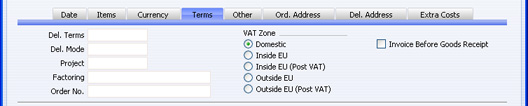
- Del. Terms
- Paste Special
Delivery Terms setting, Sales/Purchase Orders module
- Default taken from Contact (Purch. Del. Terms)
- Specify the Delivery Terms that you wish to be used for this Order here. You will tend to use this field for international Suppliers: examples might be Cost, Insurance, Freight or Free On Board.
- For each Delivery Term record you can specify an appropriate description in different Languages: the Language of the Purchase Order will therefore determine the translation to be printed on the Purchase Order.
- Specify the Delivery Terms that you wish to be used for this Order here. You will tend to use this field for international Suppliers: examples might be Cost, Insurance, Freight or Free On Board.
- Del. Mode
- Paste Special
Delivery Modes setting, Sales Orders module
- Default taken from Contact (Purch. Del. Mode)
- Enter the mode of shipping for this order. For each Delivery Mode record you can specify an appropriate description in different Languages: the Language of the Purchase Order will therefore determine the translation to be printed on any documentation produced from the Order.
- You can also set up different versions of the Purchase Order document for each Delivery Mode, perhaps incorporating appropriate payment instructions. To do this, enter the Delivery Mode in the Language field when defining documents. Document definition is described here.
- Enter the mode of shipping for this order. For each Delivery Mode record you can specify an appropriate description in different Languages: the Language of the Purchase Order will therefore determine the translation to be printed on any documentation produced from the Order.
- Project
- Paste Special
Project register, Job Costing module (if installed)
- Use this field to attach this Purchase Order to a Project. You can only use it if the Job Costing module is installed. If you would like the Project Number to be printed in the Purchase Order document, include the "Project Number" field in your Form design..
- Factoring
- Paste Special
Suppliers in Contact register
- Default taken from Contact (Purch. Invoice To)
- If the payment for the Purchase Invoice resulting from this Purchase Order is to be sent to another company, such as a factoring company, enter the Supplier Number here. The company must be registered as a Supplier in your system (i.e. there must be a record in the Contact register with the Supplier box checked).
- If the payment for the Purchase Invoice resulting from this Purchase Order is to be sent to another company, such as a factoring company, enter the Supplier Number here. The company must be registered as a Supplier in your system (i.e. there must be a record in the Contact register with the Supplier box checked).
- Order No.
- If you raised the Purchase Order to satisfy one of your own Sales Orders, enter the Sales Order Number here. Where a Purchase Order has been created remotely from the Sales Orders module using the 'Create Purchase Orders' Maintenance or Operations menu functions, the Sales Order Number will be brought in automatically.
- VAT Zone
- Default taken from
Contact
- This information is taken from the Contact record for the Supplier, and indicates the origin of the Supplier. The selection of a VAT Code for each row depends on the Zone of the Supplier. You cannot change the Zone in an individual Purchase Order: you should make any necessary changes in the Contact register before entering Purchase Orders.
- Invoice Before Goods Receipt
- When you create a Purchase Invoice from a Purchase Order, usually only those Items that have been received will be included. This means that you must have created an approved Goods Receipt from the Purchase Order before you can create an Invoice. If you would like to create a Purchase Invoice from the Purchase Order (for the complete value of the Purchase Order) before creating a Goods Receipt, check this box.
- This check box applies to this Purchase Order only. If you would it to be switched on by default in all new Purchase Orders, check the Purchase Invoices Before Goods Receipt box in the Stock Settings setting in the Stock module.
Entering a Purchase Order - Other Card
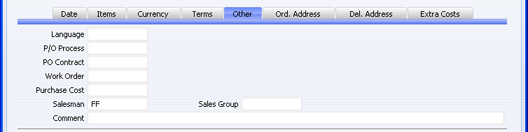
- Language
- Paste Special
Languages setting, System module
- Default taken from Contact
- The Language Code determines the text to be transferred from various registers and settings, for example the text for Payment Terms, Delivery Terms and Delivery Mode, the selection of document forms etc. Leave the field blank to use the home Language.
- You can also use the Language to determine the Form that will be used when you print the Purchase Order, and the printer that will be used to print it. This can include sending the document to a fax machine, if your hardware can support this feature. Do this in the 'Define Document' window for the Purchase Order document, as described here. You can change the Language before printing the Purchase Order, even if it has been approved, to ensure it is printed on the correct printer or fax machine.
- The Language Code determines the text to be transferred from various registers and settings, for example the text for Payment Terms, Delivery Terms and Delivery Mode, the selection of document forms etc. Leave the field blank to use the home Language.
- P/O Process
- Paste Special
Purchase Order Process register, Purchase Orders module
- In the case of Purchase Order that has an associated Purchase Order Process, enter the Process Number here.
- PO Contract
- If the Purchase Order was created from a Purchase Order Contract, the Contract Number will appear here. This field cannot be changed.
- Work Order
- You can generate Purchase Orders for spare parts from the Service Orders module using the 'Create Purchase Order' function on the Operations menu of the Work Order screen. Such Purchase Orders will carry a record of the Work Order from which they were generated in this field. Please refer here for full details of this feature.
- Purchase Cost
- Any value entered here will be transferred to Goods Receipts as a Freight charge, if the Freight field in the Purchase Order footer is empty. In the case of partial Goods Receipts, the figure will be distributed proportionally.
- When a Nominal Ledger Transaction is generated from the Goods Receipt, this Purchase Cost will be credited to the Freight Accrual Account specified on the 'Purchase Cost' card of the Account Usage Stock setting. It will also be included in any Purchase Invoice created using the 'Create Purchase Invoice' Operations menu function.
- When a Nominal Ledger Transaction is generated from the Goods Receipt, this Purchase Cost will be credited to the Freight Accrual Account specified on the 'Purchase Cost' card of the Account Usage Stock setting. It will also be included in any Purchase Invoice created using the 'Create Purchase Invoice' Operations menu function.
- Salesman
- Paste Special
Person register, System module
- Default taken from Current User
- Enter the initials of the Person responsible for this Purchase Order.
- This field is also used by the Limited Access module: please refer to the description of the Sales Group field (below) for details.
- Enter the initials of the Person responsible for this Purchase Order.
- Sales Group
- Paste Special
Sales Groups setting, System module
- Default taken from Salesman
- The Sales Group is brought in from the Person record after you have entered a Salesman. If you are using the Limited Access module, you can use this field to prevent a user from seeing every Purchase Order in the 'Purchase Orders: Browse' window by restricting their view to their own Purchase Orders or to those of their Sales Group.
- Please click here for full details of the Limited Access module.
- The Sales Group is brought in from the Person record after you have entered a Salesman. If you are using the Limited Access module, you can use this field to prevent a user from seeing every Purchase Order in the 'Purchase Orders: Browse' window by restricting their view to their own Purchase Orders or to those of their Sales Group.
- Comment
- Record here any comment about the Purchase Order.
Entering a Purchase Order - Ord. Address Card

- Ordering Address
- Default taken from
Contact (Invoice Address)
- The Supplier's address to which the Purchase Order is to be sent.
Entering a Purchase Order - Del Address Card
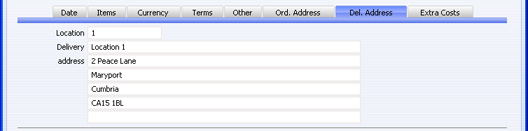
- Location
- Paste Special
Locations setting, Stock module
- The stock Location to which you want the delivery to be made. This will be used as a default in any Goods Receipts raised from this Purchase Order.
- A default Location and associated address will be brought in from the 'Bonus' card of the user's Person record or from the Local Machine setting in the User Settings module. The Local Machine setting is specific to the client machine you are working on.
- A default Location and associated address will be brought in from the 'Bonus' card of the user's Person record or from the Local Machine setting in the User Settings module. The Local Machine setting is specific to the client machine you are working on.
- Delivery Address
- Default taken from
Location
- The address to which delivery is to be made, where this differs from your main address.
Entering a Purchase Order - Extra Costs Card

- Extra Cost 1-5
- Use these fields to enter any total additional cost figures that may apply to the whole Purchase Order. The total amount will then be distributed to the Cost 1-5 fields on flip E of the 'Items' card according to the cost value of each row.
- Extra Costs will not be included in the Purchase Order total, because it is possible that they will not be paid to the Supplier quoted in the Purchase Order but instead to a separate company, and therefore they should not be printed on the Purchase Order document. It is also likely that you will only be able to estimate the Extra Costs when you create the Purchase Order. When you create a Goods Receipt from the Purchase Order, these figures will be copied to the 'Extra Costs' card of the Goods Receipt, and they will be included in the Goods Receipt total. You will be able to change the figures in the Goods Receipt. If there is a difference in Extra Cost value between the Goods Receipt and the final Purchase Invoice, the difference can be posted to a Variance Account. Please refer to the Price Variances page for details.
- If you want to give a name to each of the Extra Cost Accounts, use the User Defined Field Labels - Extra Costs setting in the Stock module. This has been done in the illustration above.
- Extra Costs will not be included in the Purchase Order total, because it is possible that they will not be paid to the Supplier quoted in the Purchase Order but instead to a separate company, and therefore they should not be printed on the Purchase Order document. It is also likely that you will only be able to estimate the Extra Costs when you create the Purchase Order. When you create a Goods Receipt from the Purchase Order, these figures will be copied to the 'Extra Costs' card of the Goods Receipt, and they will be included in the Goods Receipt total. You will be able to change the figures in the Goods Receipt. If there is a difference in Extra Cost value between the Goods Receipt and the final Purchase Invoice, the difference can be posted to a Variance Account. Please refer to the Price Variances page for details.
Inspecting and Changing Purchase Orders
You can change a Purchase Order at any time, as long as it has not been approved (i.e. as long as the OK check box has not been switched on). To do so, ensure you are in the Purchase Orders module and click the [Purchase Orders] button in the Master Control panel. The 'Purchase Orders: Browse' window is opened, listing all Purchase Orders. Double-click on the Purchase Order you want to inspect or change. The window 'Purchase Order: Inspect' will appear. This is identical to the 'Purchase Order: New' window described here.If you have created Goods Receipts or Purchase Invoice from the Purchase Order, some changes may not be permitted. For example, you cannot change a Quantity to a number lower than has already been received into stock. You can add new rows can be added at any time, but you cannot insert or remove rows after you have created at least one Goods Receipt from the Purchase Order, even if no Goods Receipt has been made from the row in question.
Printing Purchase Orders
There are two ways to print a Purchase Order.- While entering or inspecting a Purchase Order, click the Printer icon in the Button Bar or select 'Print' from the File menu. If you want to print to screen, click the Preview icon.
- In the Purchase Orders module, click the [Documents] button in the Master Control panel or use the Ctrl-D (Windows and Linux)/⌘-D (Macintosh) key combination. Double-click 'Purchase Orders' in the 'Documents' list window or highlight it and press the Enter key. Indicate the Purchase Order Number (or range of Purchase Order Numbers) to be printed and press [Run].
- Using the Form register in the System module, design the purchase order and name it "PURCHASE_ORDER". Use the 'Properties' function on the Operations menu to assign a Document Type of "Purchase Order". A sample Purchase Order Form is supplied with HansaWorld Enterprise: you can modify this to suit your requirements. You might want to design different Forms for use with different Languages or Delivery Modes.
- Select the Purchase Orders module using the [Select Module] button in the Master Control panel or the Ctrl-0 (Windows and Linux) or ⌘-0 (Macintosh) keyboard shortcut..
- Click [Documents] in the Master Control panel or use the Ctrl-D/⌘-D key combination. The 'Documents' list window is opened: highlight 'Purchase Orders'.
- Select 'Define Document' from the Operations menu.
- In the subsequent window, enter "PURCHASE_ORDER" in the Form field of the first row (you can use 'Paste Special' to ensure the spelling is correct).
- If you have designed different Forms for use with different Languages or Delivery Modes in step 1 above, enter the Form Code of each one on separate rows in the grid. In the Lang. field of each row, enter the appropriate Language or Delivery Mode. You can use 'Paste Special' to open a list of Languages from which you can choose the correct one.
You can also use Languages or Delivery Modes to specify the printer that will be used to print Purchase Orders. This can include sending a Purchase Order to a fax machine, if your hardware can support this feature. To do this, enter separate rows in the 'Define Document' window for printing and faxing, with appropriate Languages and Printers.
If you only want to be able to print Purchase Orders that have been approved, enter 'OKed' in the Status column in every row in the 'Define Document' window. This will prevent the printing of Purchase Orders that have not yet been approved. If you have also used Access Groups to control who can approve Purchase Orders, this feature helps prevent the fraudulent creation and printing of unauthorised Orders.
You can also use this feature to use a different Form when printing unapproved Purchase Orders, as shown below: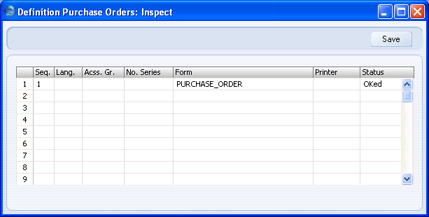
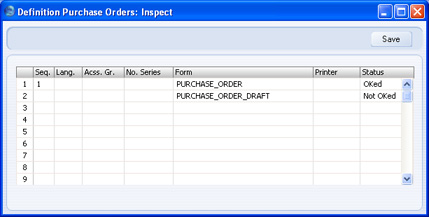
- Click [Save] to save the Purchase Order Form definition. From now on, the Purchase Order Form that you have designed will be used, from the 'Documents' function and from the Printer icon. If you have designed more than one Form, the correct one will be used depending on the Language or Delivery Mode of the Purchase Order.
Generating Purchase Orders for Stock
The purpose of the 'Create Purchase Orders' function in the Purchase Orders module is to bring the stock level of each Item up to a specified level after fulfilling all outstanding commitments. The function will create a Purchase Order for an Item if its stock level after all outstanding Sales, Purchase and Production Orders have been fulfilled is lower than a specified minimum. These Purchase Orders are sometimes known as "Stocking" Orders because their main purpose is to ensure that you are holding the correct quantity of each Item in stock. If you need to create Purchase Orders specifically for Items on outstanding Sales Orders ("back-to-back" Purchase Orders), use the 'Create Purchase Orders' Maintenance function in the Sales Orders module.To ensure an Item will be included in "Stocking" Purchase Orders, carry out the following configuration work.
- Create at least one record for the Item in the Purchase Item register in the Purchase Orders module, as follows:
- You can create several Purchase Items for the same Item, but each Purchase Item should have a different Supplier. These Purchase Items will represent the different Suppliers from whom you can buy the Item.
- in the Purchase Item record for your preferred Supplier for the Item, tick the Default check box. This is the Item's "Default Purchase Item". If you only have one Location or you are not using Locations, there should only be one Default Purchase Item for each Item. If you have more than one Location, you can have a separate Default Purchase Item for each Item for each Location. This can be useful if you prefer to use Suppliers that are local to each Location. It is recommended that you enter a Default Purchase Item with a blank Location as well, to be used if there is no Default Purchase Item for a particular Location.
- Specify a Normal or Minimum Order Quantity in each Purchase Item.
- Enter a Price in each Purchase Item record. This should be the Price that the Supplier in the Purchase Item charges for the Item.
- You can create several Purchase Items for the same Item, but each Purchase Item should have a different Supplier. These Purchase Items will represent the different Suppliers from whom you can buy the Item.
- If an Item does not have a Default Purchase Item, it will usually not be included in Purchase Orders created by the 'Create Purchase Orders' function.
If you need Items that do not have Default Purchase Items to be included in Purchase Orders, specify a Default Supplier in the Purchase Order Settings setting. The 'Create Purchase Orders' function will then include all Items that do not have Default Purchase Items in a Purchase Order made out to the Default Supplier. The purchase price of each Item will taken from be the Cost Price field on the 'Costs' card of each Item record.
- Specify a Minimum Stock Level for each Item. You can do this using the Minimum Level field on the 'Stock' card in each Item record or, if you want to specify separate Minimum Stock Levels for each Location, use the Minimum Stock Levels setting in the Stock module.
If you do not specify a Minimum Stock Level for a particular Item, the Minimum Stock Level for that Item will be deemed to be zero. Such an Item will still be included in Purchase Orders if you do not have enough stock to cover all outstanding Sales or Production Orders.
- Specify Purch. Pay Terms in the Contact records for each Supplier. The 'Create Purchase Orders' function will not create Purchase Orders made out to Suppliers without Payment Terms.
- Finally, ensure the Number Series - Purchase Orders setting is up-to-date.Before using the 'Create Purchase Orders' function, it is recommended that you produce a Deficiency List or Purchasing Suggestion report> These reports will the Items that are likely to be included in the new Purchase Orders.
All Items can be included in Purchase Orders providing they meet the criteria above: the function is not limited to Stocked Items. If you need a non-Stocked Item to be included in Purchase Orders, ensure that it has a Default Purchase Item or that you have specified a Default Supplier, and specify a Minimum Stock Level for the Item. Note that the Deficiency List and Purchasing Suggestion reports only list Stocked Items.
You can run the 'Create Purchase Orders' function in two ways:
- Open the 'Purchase Orders: Browse' window and select 'Purchase Orders' from the Create menu.
- Run the 'Create Purchase Orders' Maintenance function in the Purchase Orders module.
In both cases, the 'Specify Create Purchase Orders' window will open:
If you leave all the fields in this window blank, the function will generate Purchase Orders for every Item where the stock balance is lower than the Minimum Stock Level, taking outstanding Sales, Purchase and Production Orders into account. The order quantity for each Item will be the quantity required to bring the stock balance up to the Minimum Stock Level or to the Normal or Minimum Order Quantity from the Purchase Item, whichever is the greater. If this suggested order quantity is less than the Minimum Order Quantity in the Purchase Item, the Item will not be included in a Purchase Order. If you are using the Suggest Full Multiples of Normal Ordering Quantity option in the Purchase Order Settings setting, the suggested order quantity will be a multiple of the Normal Order Quantity. Each Purchase Order will be in the name of the default Supplier of each Item or the Default Supplier from the Purchase Order Settings setting.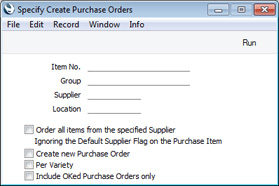
You can also use the fields in the 'Specify Create Purchase Orders' window as described below:
- Item No.
- Paste Special
Item register
- Range Reporting Alpha
- Use this field to ensure the function considers the stock/re-ordering position of a particular Item or range of Items. Any Closed Items in the range will be ignored.
- Use this field to ensure the function considers the stock/re-ordering position of a particular Item or range of Items. Any Closed Items in the range will be ignored.
- Group
- Paste Special
Item Group register, Sales Ledger
- Use this field to ensure the function considers the stock/re-ordering position of the Items of a particular Item Group.
- Supplier
- Paste Special
Suppliers in Contact register
- Use this field to ensure the function considers the stock/re-ordering position of Items with a particular Supplier specified in their Default Purchase Items.
- Items without a Default Purchase Item (i.e. those using the Default Supplier specified in the Purchase Order Settings setting) will not be considered if you enter that Supplier here. You can only order such Items using the Item Number or Group fields above.
- Items without a Default Purchase Item (i.e. those using the Default Supplier specified in the Purchase Order Settings setting) will not be considered if you enter that Supplier here. You can only order such Items using the Item Number or Group fields above.
- Location
- Paste Special
Locations setting, Stock module
- Specifying a Location here will have the following effects:
- The Supplier and Price of an Item will be taken from the Default Purchase Item for the specified Location or, if there is no such Purchase Item, from the Default Purchase Item in which the Location is blank. If there is no suitable Default Purchase Item, the Item will not be included in the new Purchase Order (unless you have specified a Default Supplier).
- In determining whether to include an Item in a Purchase Order, the Minimum Stock Level for the Location (in the Minimum Stock Levels setting in the Stock module) will be compared to the stock level in that Location, taking outstanding Sales, Purchase and Production Orders for that Location into account. If there is no record in the Minimum Stock Levels setting for the Item/Location combination, the Minimum Level in the Item record will be used.
- The Location assigned to the new Purchase Order will be taken from the Default Purchase Item that also provided the Supplier and Price. So, the Purchase Order will be assigned the Location that you specify in this field, or no Location, depending on the Default Purchase Item.
If you do not specify a Location, the effects will be as follows:
- The Supplier and Price of an Item will be taken from the Default Purchase Item in which the Location is blank. If there is no such Purchase Item, the Item will not be included in the new Purchase Order (unless you have specified a Default Supplier).
- In determining whether to include an Item in a Purchase Order, the total Minimum Stock Level for all Locations (in the Minimum Stock Levels setting) will be compared to the stock level in all Locations, taking outstanding Sales, Purchase and Production Orders for all Locations into account. If there are no records for the Item in the Minimum Stock Levels setting, the Minimum Level in the Item record will be used.
- The new Purchase Orders will not be given a Location.
- The Supplier and Price of an Item will be taken from the Default Purchase Item for the specified Location or, if there is no such Purchase Item, from the Default Purchase Item in which the Location is blank. If there is no suitable Default Purchase Item, the Item will not be included in the new Purchase Order (unless you have specified a Default Supplier).
- Order all Items from the Specified Supplier
- If you have specified a Supplier, select this option if you would like to include in the Purchase Order Purchase Items that they supply but for which they are not the default Supplier.
- You must specify a Supplier if you need to use this option.
- You must specify a Supplier if you need to use this option.
- Create new Purchase Order
- Select this option if you need the function always to create new Purchase Orders. If you do not select this option, the function will attempt to add Items to existing Purchase Orders and will only create new Purchase Orders if there are no existing Purchase Orders available. To be available, a Purchase Order should have the appropriate Supplier and Location and should not have been marked as OK or Closed. If there are several Purchase Orders available, Items will be added to the earliest one.
- Per Variety
- Select this option if you need Purchase Orders to be created for Items for Varieties.
- In order to use this option, you should create separate Default Purchase Items for each individual Variety. For example, if an Item has Black, White, Red and Green as Varieties, create separate Default Purchase Items for each colour. If the Minimum Stock Level for each Variety is the same, you can enter it in the Item record, but if you need different Minimum Stock Levels for each Variety, enter separate records in the Minimum Stock Levels setting for each one (you can leave the Location field blank in these records if you don't use Locations). For example, if you need to keep five Black, White and Red in stock but six Green, enter "5" as the Minimum Stock Level in the Item record and create a record in the Minimum Stock Levels setting for Green.
- If you do not create a Default Purchase Item for a particular Variety, that Variety will usually not be included in Purchase Orders. However, if you have specified a Minimum Stock Level in the Item record and you have also specified a Default Supplier in the Purchase Order Settings setting, the Varieties without Default Purchase Items will be ordered from the Default Supplier.
- Please refer here for more details about Varieties.
- In order to use this option, you should create separate Default Purchase Items for each individual Variety. For example, if an Item has Black, White, Red and Green as Varieties, create separate Default Purchase Items for each colour. If the Minimum Stock Level for each Variety is the same, you can enter it in the Item record, but if you need different Minimum Stock Levels for each Variety, enter separate records in the Minimum Stock Levels setting for each one (you can leave the Location field blank in these records if you don't use Locations). For example, if you need to keep five Black, White and Red in stock but six Green, enter "5" as the Minimum Stock Level in the Item record and create a record in the Minimum Stock Levels setting for Green.
- Include OKed Purchase Orders only
- The function will add an Item to a new Purchase Order if its stock balance is lower than its Minimum Stock Level, taking outstanding Sales, Purchase and Production Orders into account (i.e. if stock balance - unfulfilled Sales Orders + unfulfilled Purchase Orders - unfulfilled Production Orders < Minimum Stock Level). The order quantity for each Item will be the quantity required to bring the stock balance up to the Minimum Stock Level or to the Normal Order Quantity from the Purchase Item, whichever is the greater, again taking unfulfilled Orders into account. By default, the unfulfilled Purchase Order quantity in these calculations will be calculated from all Purchase Orders. Select this option if you would like this quantity only to be calculated from Purchase Orders that have been marked as OK.
The 'Create Purchase Orders' function will create Purchase Orders for every Item in the specified range that has fallen below its Minimum Stock Level. If necessary you can edit the resulting Purchase Orders (e.g. to remove Items that you don't need to order). If you would like to pre-select the Items that will be ordered, use the 'Create Purchase Orders from Deficiency Stock' Maintenance function.
---
The Purchase Order register in Standard ERP:
- Introduction
- Entering a Purchase Order
- Inspecting and Changing Purchase Orders
- Printing Purchase Orders
- Generating Purchase Orders for Stock, including:
- Operations menu
Go back to:
- Home page for Purchase Orders manual
- Home page for Standard ERP manual
Generating Purchase Orders for Stock - Creating Purchase Orders from Deficiency Stock
When you need to create Purchase Orders for stock (i.e. to bring stock levels of Items up to their minimum levels), one way of doing so is to use the 'Create Purchase Orders' function. This function will generate Purchase Orders for every Item where the stock balance is lower than the Minimum Stock Level, taking outstanding Sales, Purchase and Production Orders into account. You can of course edit the resulting Purchase Orders (e.g. removing Items that you don't need to order) before sending them to your Suppliers.
An alternative is to create a shopping list of Items to be ordered, and then to create Purchase Orders for those Items. The shopping list is given the term "Deficiency Stock" in Standard ERP. After constructing the Deficiency Stock list, you can then use the 'Create Purchase Orders from Deficiency Stock' Maintenance function to create Purchase Orders for the Items in that list.
To prepare to use the Deficiency Stock feature, follow these steps:
- If you are not using Locations, ensure each Item has a related Default Purchase Item.
Specify a Minimum Stock Level for each Item using the Minimum Level field in the Item record.
- If you have a single Location (i.e. you have a single record in the Locations setting and you have specified a Main Location in the Stock Settings setting), ensure each Item has a related Default Purchase Item.
Specify a Minimum Stock Level for each Item by creating separate records in the Minimum Stock Levels setting in the Stock module for each Item. Specify the Location in these records.
- If you have more than one Location, ensure each Item has a related Default Purchase Item. If necessary, you can enter separate Default Purchase Items for each Location. If so, enter a Default Purchase Item with a blank Location as well, to be used if there is no Default Purchase Item for a particular Location.
Specify a Minimum Stock Level for each Item by creating separate records in the Minimum Stock Levels setting in the Stock module. You should enter separate Minimum Stock Levels record for each Item for each Location.
To use the Deficiency Stock feature, follow these steps:
- The first step is to run the Deficiency List per Location report from the Stock module. When you run the report using the default options, it will list the Stocked Items that you have in stock but where the stock level is too low. There is an option to include Items that are not in stock as well. Each Item/Location combination for which there is a deficiency will be shown on a separate row in the report:
The last column (headed "Defncy") displays the current stock deficiency of the Item in each Location. If the stock level after all Sales, Purchase and Production Orders have been fulfilled is less than the Minimum Stock Level, then there is a deficiency. That deficiency is the quantity required to bring the stock level up to the Minimum Stock Level.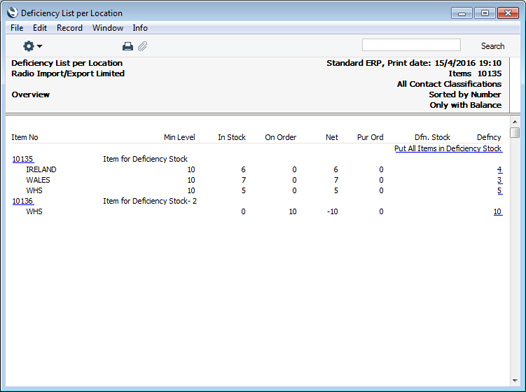
In this example, Item 10135 has a deficiency in three Locations because the stock level in each of those Locations is below the Minimum Stock Level. Item 10136 doesn't have a Minimum Stock Level, but it has a deficiency because there is an outstanding Sales Order.
- To add an Item to the Deficiency Stock list, click (Windows/Mac OS X) or tap (iOS/Android) the relevant figure in the Defncy column. A Deficiency Stock record will be created and opened, in this example for Item 10135 in Location WHS:
The quantity that is required will be copied to the Quant field. The Supplier and Supp. Item will be copied from the Default Purchase Item for the Item/Location combination or, if there is no such Purchase Item, from the Default Purchase Item for the Item in which the Location is blank. If there is no suitable Default Purchase Item, the Supp. Item and Supplier will be blank.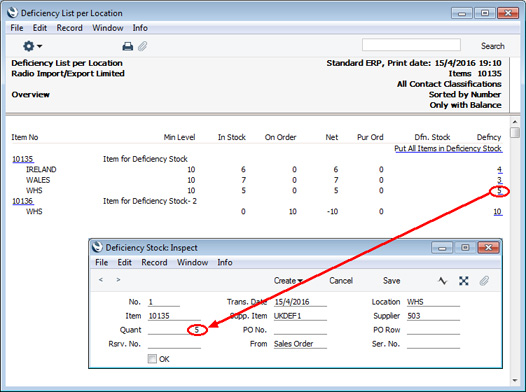
Note that the window title is 'Deficiency Stock: Inspect'. This means that the record has already been saved i.e. that the Item has already been added to the Deficiency Stock list for the relevant Location. If you don't need the Item to be included in the Deficiency Stock list, delete the record by selecting 'Delete' from the Record menu (which has a 'cog' icon if you are using iOS or Android). Otherwise, simply close the record.
- To check what is in the Deficiency Stock list, run the Deficiency Stock report in the Purchase Orders module:
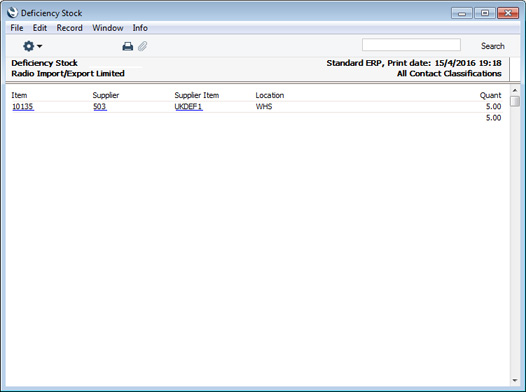
- If you need to inspect the Deficiency Stock records, you will find them in the Deficiency Stock setting in the Database Maintenance module.
- To create Purchase Orders for the Items in the Deficiency Stock list, run the 'Create Purchase Orders from Deficiency Stock' Maintenance function in the Purchase Orders module:
Specify a single Item, Location or Supplier as appropriate, or leave all the fields blank to create Purchase Orders from the entire Deficiency Stock list. Then, press the [Run] button to start the generation of Purchase Orders. When the process finishes, the new Purchase Orders will be available in the Purchase Order register for viewing, modifying and printing. The function will always create new Purchase Orders: it won't emulate the 'Create Purchase Orders' function and attempt to add to existing Purchase Orders.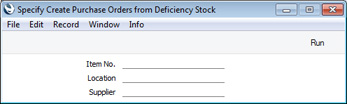
The Purchase Order register in Standard ERP:
- Introduction
- Entering a Purchase Order
- Inspecting and Changing Purchase Orders
- Printing Purchase Orders
- Generating Purchase Orders for Stock, including:
- Creating Purchase Orders from Deficiency Stock
- Operations menu
Go back to:
- Home page for Purchase Orders manual
- Home page for Standard ERP manual
Operations Menu
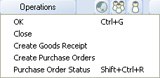
The Operations menus for Purchase Orders are shown above. The first illustration shows the Operations menu for the 'Purchase Orders: Browse' window: highlight one or more Purchase Orders (hold down the Shift key while clicking) in the list before selecting the function. The second illustration shows the Operations menu for the 'Purchase Order: New' and 'Purchase Order: Inspect' windows.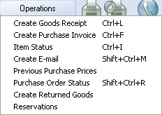
Operations Menu - OK
This command is available on the Operations menu only from the 'Purchase Orders: Browse' window. It permits allows you to approve of Purchase Order and is therefore the equivalent of checking the OK box in a Purchase Order record. You can also select several records in the 'Purchase Orders: Browse' window (hold down the Shift key to select a range of Purchase Orders in the list) and approve them all at once. Remember that once this action has been carried out you will no longer be able to modify those Purchase Orders.Operations Menu - Close
This command is available on the Operations menu only from the 'Purchase Orders: Browse' window. It is the equivalent of checking both the Closed and the OK boxes in a Purchase Order record. You can also select several records in the 'Purchase Orders: Browse' window (hold down the Shift key to select a range of Purchase Orders in the list) and close them all at once. Remember that once this action has been carried out you will no longer be able to modify those Purchase Orders.
You should close a Purchase Order when all deliveries have been received, and the Purchase Invoice has been processed. Any remaining quantities that have not been received will be cancelled.
Operations Menu - Create Goods Receipt
Use this function when you need to receive goods into stock against a Purchase Order. It is available on the Operations menu both in the browse window and in the record window for an individual Purchase Order. When you run this function from the browse window, highlight a single Purchase Order before selecting the function. When you run it from the record window, you must first save all changes to the Purchase Order (use the [Save] button).
When you select the function, a new record will be created in the Goods Receipt register (in the Stock module) and opened in a new window, entitled 'Goods Receipt: Inspect'. This means that it has been created and saved and is being opened for amendment and approval.
The Goods Receipt record takes its information from the Purchase Order, and usually assumes that all Items not yet received are on the current shipment. The exception is when you are using the Set Goods Receipt Quantity to Zero option in the Purchase Order Settings setting, in which case the default Quantity for all Items will be zero.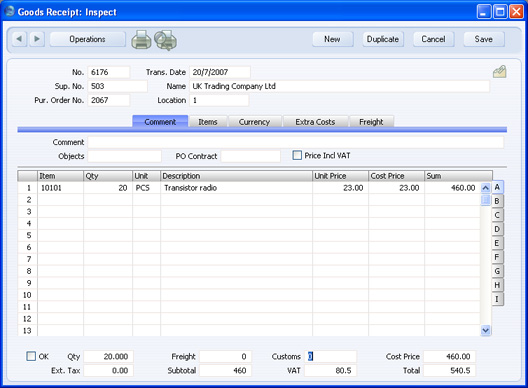
Plain Items on the Purchase Order will not appear on the Goods Receipt if you are using the Automatic receiving of Service and Plain Items option in the Stock Settings setting.
If the Purchase Order contains an Item that requires Serial Numbers at the Unit level (set on the 'Stock' card of the Item screen) with a Quantity greater than one, the Goods Receipt will contain the appropriate number of rows each with a Quantity of one. This allows you to enter Serial Numbers on flip B. You must enter Serial Numbers before you can approve the Goods Receipt, unless you are using the No Serial No. on Goods Receipts option in the Stock Settings setting. In the case of an Item requiring Serial Numbers at the Batch level, the Goods Receipt will only contain a single row with the quantity copied from the Purchase Order. If in fact you receive more than one batch, use the 'Split Row' Operations menu function to divide the row into two, and then enter the appropriate quantities and Serial Numbers in both rows. The 'Split Row' function will ensure that both Goods Receipt rows remain connected to the originating Purchase Order row, so the Received Quantities in that row will be correct.
You can change the Quantity in any row in the Goods Receipt screen can be amended as appropriate but you will not be able to enter a quantity greater than that ordered (unless you are using the Do Not Allow Over Receiving option in the Stock Settings setting in the Stock module). You can also remove entire rows, by clicking on the row number to the left and pressing the Backspace key, but you will not be able to add or insert rows.
The Use Today's Rate on Goods Receipts check box in the Purchase Order Settings setting controls the Base and Exchange Rates on the 'Currency' card of the Goods Receipt. If you are not using this option, the rates will be copied from the Purchase Order. If you are using it, the latest Base and Exchange Rates will be used in the Goods Receipt. In the latter case, the prices in Currency in the Goods Receipt will not be changed. This means you will still be charged the agreed price, but the value of the Goods Receipt in the home Currency (and therefore in the Stock List and in the Nominal Ledger) will be different to that of the Purchase Order.
To print Stock Labels, use the 'Print Labels' function on the Operations menu. To print a Goods Receipt Note, click the Printer icon.
When you have checked and confirmed that the Goods Receipt is correct, click the OK check box and save. This signifies that the Goods Receipt has been approved. Stock levels will be updated and, if you have determined that Nominal Ledger Transactions are to be created (using the Sub Systems setting in the Nominal Ledger and the Number Series - Goods Receipts setting), these Transactions will now be created. You will no longer be able to modify the Goods Receipt. You will not be able to create a Purchase Invoice for the Items on the Goods Receipt until it has been approved. Please refer to the Cost Accounting page for full details of the Nominal Ledger Transaction.
Please click here for a full description of the screen, including detailed information about shipments, stock and Nominal Ledger Transactions.
To close the screen and return to the Purchase Order, click the close box. You will be asked if you want to save any changes. The Recv. 1 and Recv. 2 fields of the Purchase Order (visible on flip C) will be updated automatically (you will need to close the Order and re-open it to see this). For any Items on the Goods Receipt that are Stocked Items, the stock balance for the stock Location specified for the Goods Receipt will be updated.
The Purchase Order and the Goods Receipt will remain connected to each other through the Attachments facility. This allows you to open the Order quickly and easily when reviewing the Goods Receipt, or to open the Goods Receipt from the Order. When viewing the Goods Receipt or Order, click the button with the paper clip image to open a list of attachments. Then double-click an item in this list to open it.
If the function does not create a Goods Receipt, the probable causes are:
- The Purchase Order has been marked as Closed.
- All Items on the Purchase Order have already been received.
- You have logged in as a user that is not permitted to create Goods Receipts from Purchase Orders. This is controlled using Access Groups. To do this, deny access to the 'Goods Receipt from Purchase Order' and/or 'Disallow Goods Receipt from not OKed Purchase Order' Actions as appropriate.
- You are using the Not possible to UnOK PO and PO has to be OKed to Receive Goods option in the Purchase Order Settings setting, and you have not approved the Purchase Order.
- There is no valid record in the Number Series - Goods Receipts setting (in the Stock module). This might be a fault in the setting itself, or it might be because the default Goods Rec Number on the 'Serial Nos' card of the current user's Person record or in the Number Series Defaults setting (in the System module) is not in a valid Number Series. This problem will usually occur at the beginning of a new year. If you make a change to the 'Serial Nos' card of the Person record, you will need to quit HansaWorld Enterprise and restart for it to take effect.
Operations Menu - Create Purchase Orders
This function is one of several methods you can use to create Purchase Orders in batches. Please refer to the Generating Purchase Orders for Stock page for a full description of how to use this function.Operations Menu - Purchase Order Status
This function produces a report for the Purchase Order currently open in a record window or for the first Order highlighted in the 'Purchase Orders: Browse' window. This report contains full details of the selected Order, and lists all connected transactions (e.g. Goods Receipts, Returned Goods to Supplier records and Purchase Invoices).
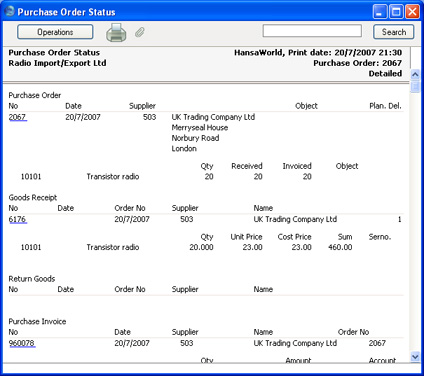
Operations Menu - Create Purchase Invoice
To raise a Purchase Invoice from a Purchase Order, select 'Create Purchase Invoice' from the Operations menu. For the function to have any effect, you must first save all changes to the Purchase Order (use the [Save] button). In some cases (described later in this section), the Contact record for the Supplier must have a Cost Account specified on its 'Accounts' card. Usually, you must first have created an approved Goods Receipt from the Purchase Order: exceptions to this are described later on this page.
When you select the function, a new record will usually be created in the Purchase Invoice register (in the Purchase Ledger) and opened in a new window, entitled 'Purchase Invoice: Inspect'. This means that it has been created and saved and is being opened for amendment and approval. The exception is if you are using the Extra Costs Invoices from Different Suppliers option in the Purchase Order Settings setting: this situation is described towards the end of this section.
The Purchase Invoice takes its information from the Purchase Order, and, as a default, assumes that all previously uninvoiced Items on approved Goods Receipts related to the Purchase Order are to be invoiced. The appearance of the Purchase Invoice will be determined by the set of Purchase Order Item Transfer Control options in the Purchase Invoice Settings setting in the Purchase Ledger. These options operate in the following manner: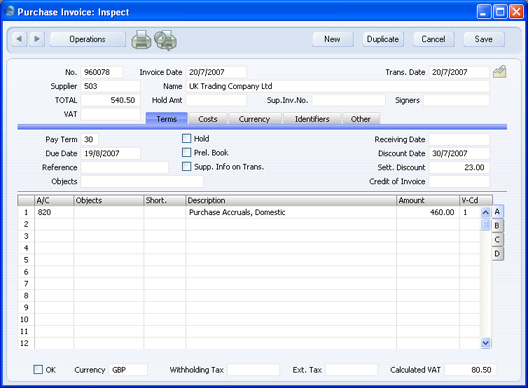
- Consolidate Items to Supplier Cost Account
- The ordered Items are grouped together on a single row on the Invoice indicating that they are to be posted to the same Cost Account (taken from the Cost Account on the 'Accounts' card of the Contact record for the Supplier). If the Items on the Purchase Order have different VAT Codes, there will be a separate row on the Invoice for each VAT Code. Objects specified in Purchase Order rows will not be transferred to the Invoice.
- Consolidate by Items and Project
- The Purchase Invoice will feature a separate row for each received Item/Project/Object combination on the Purchase Order. The Cost Accounts will be the Purchase Accruals Accounts for the Item Groups to which the Items belong (if you are using the Use Item Groups for Cost Accounts option in the Cost Accounting setting in the Stock module) or that on the 'Purchase Cost' card of the Account Usage Stock setting, or the Cost Account on the 'Accounts' card of the Contact record for the Supplier. The appropriate Accounts for the Zone of the Supplier will be used. Objects specified in Purchase Order rows will be transferred to the corresponding rows in the Invoice. If you have assigned any Purchase Order rows to a Project (or you have assigned the Purchase Order as a whole to a Project), Objects from that Project will also be transferred to all relevant rows in the Invoice.
- Transfer Each Row Separately
- Each ordered Item will have its own row on the Invoice. The Cost Accounts will be the Purchase Accrual Account on flip B of the Purchase Order, the Purchase Accruals Accounts for the Item Groups to which the Items belong (if you are using the Use Item Groups for Cost Accounts option in the Cost Accounting setting in the Stock module) or that on the 'Purchase Cost' card of the Account Usage Stock setting, or the Cost Account on the 'Accounts' card of the Contact record for the Supplier. The appropriate Account for the Zone of the Supplier will be used. Objects specified in Purchase Order rows will be transferred to the corresponding rows in the Invoice. If you have assigned any Purchase Order rows to a Project (or you have assigned the Purchase Order as a whole to a Project), Objects from that Project will also be transferred to all relevant rows in the Invoice.
Usually, Stocked Items will not be invoiced until they have been received (i.e. included on an approved Goods Receipt). This also applies to Plain and Service Items if you are using the Consolidate Items to Supplier Cost Account option (described above). If you are not using this option, Plain and Service Items will be included to their full quantity on the first Invoice created from the Purchase Order (i.e. there must be an approved Goods Receipt, but this need not include any of the Plain or Service Items on the Purchase Order). The three exceptions to this are:
- If you are using the Always use Full Qty from Purch. Ord. option in the Purchase Invoice Settings setting. In this case every Item (Stocked, Plain and Service) on the Purchase Order will be included in the Purchase Invoice even if they have not been received: no Goods Receipt need exist.
- if the Invoice Before Goods Receipt box on the 'Terms' card of the Purchase Order or the Purchase Invoices Before Goods Receipt box in the Stock Settings setting is checked. In this case, you can create a Purchase Invoice for the whole Purchase Order before you create a Goods Receipt.
- If you are using the Automatic receiving of Service and Plain Items box in the Stock Settings setting, Goods Receipts will not be created for Service and Plain Items. Therefore, they can be included on Purchase Invoices immediately: no Goods Receipt need exist. Stocked Items must still be received unless point 1 also applies.
If you are using this option, when you include a Plain or Service Item in a Purchase Order, the Received Quantity will be changed to the Order Quantity when you save the Purchase Order. Therefore Plain and Service Items will never be included on Goods Receipts created from the Purchase Order. This also means that you cannot reduce the Order Quantity for such Items once you have saved the Purchase Order. This option is intended for use where Purchase Orders for Items such as labour or training are issued frequently and Goods Receipts are not required.
Two check boxes in the Account Usage P/L setting, Update Base Currency when Invoicing and Update Foreign Currency when Invoicing, control the Base and Exchange Rates on the 'Currency' card of the Invoice. If you are not using these options, the rates will be copied from the Order. If you are using them, the latest Base and Exchange Rates will be used in the Purchase Invoice. In the latter case, the prices in Currency in the Invoice will not be changed. This means you will still be charged the agreed price, but the value of the Invoice in the home Currency (and therefore in the Nominal Ledger) will be different to that of the Order.
When you have checked that the Purchase Invoice is correct, click the OK check box and save. This signifies that the Purchase Invoice has been approved. Associated Transactions in the Nominal Ledger will now be raised (if so defined in the Sub Systems setting in the Nominal Ledger and in the Number Series - Purchase Invoices setting) and you will no longer be able to modify the Invoice.
Please click here for a full description of the screen, including detailed information about approving the Invoice and Nominal Ledger Transactions.
To close the screen and return to the Purchase Order, click the close box. You will be asked if you want to save any changes. The Invoiced field of the Order (visible on flip C) will be updated automatically (you will need to close the Purchase Order and re-open it to see this). If you are using the Consolidate Items to Supplier Cost Account option, the Invoiced field will not be updated until you approve the Purchase Invoice, and therefore you will need to take care if you need to return to the Purchase Order to create a second Invoice before the first one has been approved.
The Purchase Order and the Invoice will remain connected to each other through the Attachments facility. This allows you to open the Order quickly and easily when reviewing the Invoice, or to open the Invoice from the Order. When viewing the Invoice or Order, click the button with the paper clip image to open a list of attachments. Then double-click an item in this list to open it.
If the function does not create a Purchase Invoice, the probable causes are:
- The Supplier has been marked as Closed.
- You are using the Consolidate Items to Supplier Cost Account or Consolidate by Items and Project options in the Purchase Invoice Settings setting and the Supplier does not have a Cost Account specified.
- There are no Items on the Purchase Order awaiting invoicing.
- You have logged in as a user that is not permitted to create Purchase Invoices from Purchase Orders. This is controlled using Access Groups. To do this, deny access to the 'Purchase Invoice from Purchase Order' Action.
- There is no valid record in the Number Series - Purchase Invoices setting (in the Purchase Ledger). This might be a fault in the setting itself, or it might be because the default Purch Inv Number on the 'Serial Nos' card of the current user's Person record or in the Number Series Defaults setting (in the System module) is not in a valid Number Series. This problem will usually occur at the beginning of a new year. If you make a change to the 'Serial Nos' card of the Person record, you will need to quit HansaWorld Enterprise and restart for it to take effect.
Proceed as follows, depending on what has been included in the paper Purchase Invoice: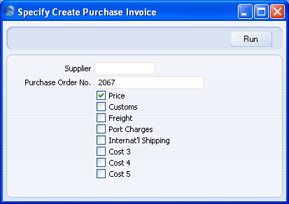
- If the Purchase Invoice includes the Item(s) on the Purchase Order, leave the Supplier field empty (the Supplier will be taken from the Purchase Order). If the Invoice includes any of the Extra Costs as well, leave the Price box checked and check other boxes as appropriate. Then, click the [Run] button.
- If the Purchase Invoice does not include the Item(s) on the Purchase Order (i.e. it is for one or more of the Extra Costs only), specify the Supplier using 'Paste Special', specify the Extra Costs boxes as appropriate, remove the check from the Price box and click the [Run] button.
Since it is possible that you will receive separate Invoices for the Item(s) and the Extra Costs, you can return to the Purchase Order to create the various Invoices at any time. You will not be able to create more than one Invoice for the Item(s).
Operations Menu - Item Status
This function provides instant feedback for the Item shown in the Order row containing the cursor or highlighted in the 'Paste Special' window listing Items, showing in a new window the quantity in stock, the quantity on order and the quantity shippable.
Please click here for full details of this function.
Operations Menu - Create E-Mail
You can use this function to create a Mail containing details of the Purchase Order, which you can use to send the Purchase Order to the Supplier by email.
When you select the function, the following window appears, in which you can create a new Mail:
A new record is opened in a window entitled 'Mail: Inspect'. This means that it has already been saved and is being opened for checking. The current user will be the default sender of the Mail. The To field will contain the email address of the Supplier from the Purchase Order. The text in the Subject field ("New Purchase Order, " in the example illustrated above) is taken from the Header field in the Purchase Order Mail setting. The Order Number is also shown. The Purchase Order Mail setting also allows two Standard Texts to be included in the Mail. The first of these is shown at the beginning of the Text field ("New Purchase Order Items: " in the illustration). This is followed by a list of Items from the Order, with Prices and Quantities. If an Order Item has a Supplier Item Number (shown on flip B of the Order row), this will be shown in the Mail. Otherwise, the standard Item Number from flip A will be shown. The Payment Terms then appear, followed by the second Standard Text ("Other Details: " in the illustration). An html version of the Order will be attached to the Mail.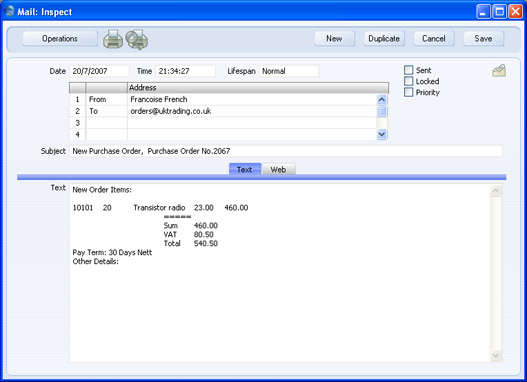
You can reformat the main body of the Mail to suit your requirements, and change the recipient if necessary, perhaps to the Mailbox of a member of staff. If you are then ready to send the Mail, check the Sent box. Finally, save the Mail by clicking the [Save] button in the Button Bar. If you are using the Lock and Send E-Mails Automatically option in the Mail and Conference Settings setting in the Technics module and the Mail contains an external email address (i.e. one with the @ sign), it will now be sent automatically. If you are not using this option, select 'Send E-mail' from the Operations menu after the Mail has been saved. Finally, close the Mail using the close box. You will be returned to the Purchase Order window.
If the function does not create a Mail, the probable causes are:
- The current user does not have a Mailbox.
- The Supplier from the Purchase Order does not have email addresses.
- The Purchase Order has not been saved.
Operations Menu - Previous Purchase Prices
This function produces a report showing the prices previously charged by the Supplier for one of the Items on the Order. Place the cursor in one of the rows of the Order and then select this function from the Operations menu. The report shows the most recent Order for each different price.Operations Menu - Create Returned Goods
Use this function when you need to return an Item to its Supplier. When you need to do this, open the Purchase Order and select 'Create Returned Goods' from the Operations menu. For the function to have any effect, you must first have saved all changes to the Purchase Order (use the [Save] button), and you must have approved at least one previous Goods Receipt. An alternative method is to open the Goods Receipt and select 'Create Returned Goods' from the Operations menu (you can open the Goods Receipt from the Purchase Order using the Attachments facility). You must create Returns from Goods Receipts if you are using the Original Cost on Returned Goods to Supplier option in the Cost Accounting setting in the Stock module, and/or you are using the Do Not Allow Return Goods From Order option in the Purchase Order Settings setting.
The difficulty with the returning of goods to their Suppliers is to establish the actual cost (FIFO, LIFO or weighted average value) of the goods being returned. The purpose of the Returned Goods to Supplier register is to allow you to record values that are as accurate as possible. For example, if you are using the Queued Cost Model (FIFO or LIFO) Cost Model, you should return an Item with the same value it had when you received it. If you are using the Weighted Average or Cost Price Cost Models, the Weighted Average or Cost Price may have changed in the time between receipt and return.
When you select the function, a new record will be created in the Returned Goods to Supplier register (in the Stock module), and opened in a new window, entitled 'Returned Goods to Supplier: Inspect'. This means that it has been created and saved and is being opened for amendment and approval.
The Returned Goods to Supplier record takes its information from the Purchase Order: the default Quantity is that already received (less any that have already been returned or delivered to Customers). Any Items on the Order with a received quantity of zero will not be included in the Returned Goods to Supplier record. The value of the returned Items (visible on flip C) will be calculated using the usual Cost Model (i.e. as if the Return was a normal removal from stock). If you need the value of the returned Items to be taken from the original Goods Receipt, you should use the Original Cost on Returned Goods to Supplier option in the Cost Accounting setting in the Stock module and you will need to create the Returned Goods to Supplier record from the Goods Receipt. Values from Goods Receipts are not stored in Purchase Orders.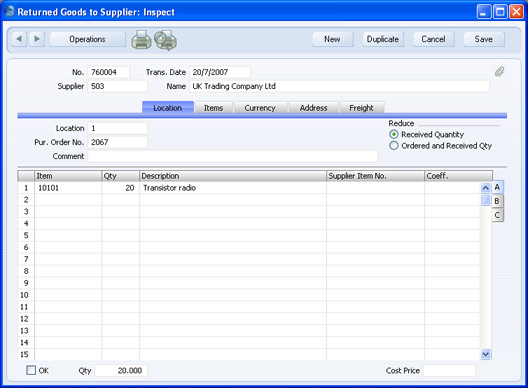
Enter the returned Quantity for each Item and remove any Items not returned by clicking on the row number to the left and pressing the Backspace key. You cannot enter a quantity greater than that originally received (or remaining in stock if some of those originally received have been delivered to a Customer or otherwise removed from stock).
If an Item being returned has a Serial Number, no Serial Number will be transferred from the Purchase Order to the Return. Serial Numbers are not stored in Purchase Orders. You must enter the correct Serial Number yourself on flip C.
If you are returning the goods because they are faulty (i.e. you require a replacement), choose to reduce the Received Quantity in the originating Purchase Order using the options on the right-hand side of the screen. Then, once you have approved the Returned Goods to Supplier record and when you receive the replacement Item, you can return to the Purchase Order and raise another Goods Receipt for the appropriate quantity.
Alternatively, you may have returned the goods to their Supplier without requiring a replacement (perhaps the Customer returned the goods to you and cancelled the Order). In this case, choose to reduce the Ordered and Received Quantities in the originating Purchase Order. If the Order has been invoiced selecting 'Create Purchase Invoice' from the Operations menu of the Purchase Order screen once again will create an Invoice for a negative quantity, effectively crediting the original Invoice. Alternatively, you can locate the original Invoice and select 'Create Credit Note' from the Operations menu (you can locate the original Invoice from the Order using the Attachments feature). This will create a Credit Note with appropriate Payment Terms and a reference to the Invoice being credited. An alternative method is to use the 'Create Credit Note' Operations menu function on the Returned Goods to Supplier screen. In all cases, the Credit Note will update the invoiced quantity on flip C of the originating Order if you are using the Credit Notes Update Invoiced Quantity option in the Purchase Order Settings setting and if you are not using the Consolidate Items to Supplier Cost Account option in the Purchase Invoice Settings setting.
When the Returned Goods to Supplier record is complete, click the OK check box. This signifies that the Return has been approved. Once this has been done and you have saved the Return, you will no longer be able to modify it. You will not be able to raise a credit Invoice for the goods that have been returned until the record has been approved. A stock transaction in the Nominal Ledger will be created if you have so determined using the Sub Systems setting in the Nominal Ledger and in the Number Series - Returned Goods to Supplier setting.
Please click here for a full description of the screen, including detailed information about any Nominal Ledger Transactions created when the Return is approved.
To close the screen and return to the Order, click the close box. You will be asked if you want to save any changes. The Recv. 1 and Recv. 2 fields of the Purchase Order (visible on flip C) will be updated automatically (as will the Order Quantity on flip A if you have so chosen). You may need to close the Order and re-open it to see these changes.
If the function does not create a Returned Goods to Supplier record and there is no problem with Number Series, then a possible cause is that the Purchase Order does not contain any Stocked Items. In this case, a Returned Goods to Supplier record will only be created if you are using the Cost Accounting for Plain and Service Items option in the Cost Accounting setting. If you are not using this option and the Purchase Order contains a mixture of Stocked, Plain and Service Items, only the Stocked Items will be copied to the Returned Goods to Supplier record.
Operations Menu - Reservations
Please click here for details of this function. - Open the 'Purchase Orders: Browse' window and select 'Purchase Orders' from the Create menu.