Introduction to Documents in the Stock Module
Use the 'Documents' function to print particular documents or Forms in batches. To begin printing documents, select 'Documents' from the File menu or click the [Documents] button in the Master Control panel. The window illustrated below appears, listing the documents that you can print from the Stock module. Each item in the list ("Document") will be printed using a different Form.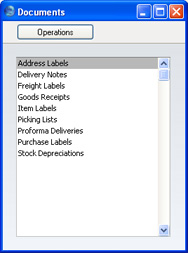
- Double-click the appropriate item in the list.
- A specification window will then appear, where you can determine the documents that you want to be printed (e.g. which Delivery Notes are to be printed). The specification window for each document is described in detail on the pages describing each document.
- Click [Run] to print the documents.
- Close the 'Documents' window using the close box.
- Design a Form (or change the sample Form supplied to reflect your own requirements) using the Form register in the System module. This process is fully described here. The design, contents and usage of these Forms are completely matters for your own choice, determined by what is suitable for your business. You should design a separate Form for each document.
- Change to the Stock module and open the 'Documents' list window using the 'Documents' item on the File menu or by clicking the [Documents] button in the Master Control panel.
- Highlight the appropriate item in the list and select 'Define Document' from the Operations menu. In the subsequent window, assign a Form (or more than one Form) to the document: this window is fully described here.
- You only need use the 'Define Document' function once. Afterwards, Form selection will be automatic.
It is often possible to report on a selection range, such as a range of Delivery Numbers. To do this, enter the lowest and highest values of the range, separated by a colon. For example, to report on Suppliers 001 to 010, enter "001:010" in the Supplier field. Depending on the field, the sort used might be alpha or numeric. In the case of an alpha sort, a range of 1:2 would also include 100, 10109, etc.
If you have the Purchase Orders and/or the Stock Locations Value Packs, the Stock module will contain some extra documents not shown in the illustration above. Please click the links for descriptions of these extra documents.
Address Labels
You can print address labels per Customer or for all Customers.Double-click 'Address Labels' in the 'Documents' list and the 'Specify Address Labels' window appears:
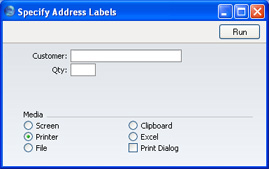
If you want static text to be printed on your labels (i.e. text that identifies the information on the labels, such as "Customer Name"), please follow the instructions on the page describing the Item Label. The Form to be amended has the Code "ADDRESS_LABEL".
Delivery Notes
There are several ways to print Delivery Notes:- While the Delivery is shown in an inspect window, click the Printer icon in the Button Bar. If you want to print to screen, click the Preview icon.
- The Delivery Note can be printed automatically when the Delivery is approved. This is controlled by the Auto Actions setting in the System module.
- With a list of Deliveries shown in the 'Deliveries: Browse' window, you can select one or more rows, and select 'Print' from the File menu. Delivery Notes for the selected records will then be printed.
Select several rows by shift-clicking the first to the last record. This will select all records in the interval.
- In the Stock module, click the [Documents] in the Master Control panel, or select 'Documents' from the File menu. Double-click 'Delivery Notes' in the 'Documents' list.
The 'Specify Delivery Notes' window is opened.
Enter a single Delivery number, or a range separated by a colon. If there are any unapproved Deliveries in the range, they will be printed using the Picking List Form instead of the Delivery Note Form. You must enter a Delivery number or a range of numbers: if you leave this field empty, no Delivery Notes will be printed.
Click [Run] to start the printout.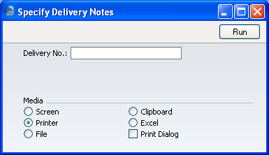
If you have the Currencies, Languages and Advanced Pricing Value Pack, please click here for details about printing the Delivery document using different Forms depending on the Delivery Mode.
Freight Labels
Special freight labels that you can attach to parcels to identify each Delivery.Double-click 'Freight Labels' in the 'Documents' list and, when the 'Specify Freight Labels' window appears, enter a Delivery Number or a range of numbers separated by a colon. Unusually, you must specify a Delivery: you cannot leave this field blank. Click [Run] to start printing.
If you want static text to be printed on your labels (i.e. text that identifies the information on the labels, such as "Item Name"), please follow the instructions on the page describing the Item Label. The Form to be amended has the code "FREIGHT_LABEL".
Goods Receipts
This document provides a hard copy of any records entered to the Goods Receipt register. It can be printed for a range of Goods Receipts from the 'Documents' function, or for a single Goods Receipt by clicking the Printer icon in the 'Goods Receipt: Inspect' window.When using the 'Documents' function, double-click 'Goods Receipts' in the 'Documents' list and, when the 'Specify Goods Receipt' window appears, enter a Goods Receipt Number or a range of numbers separated by a colon. Click [Run] to start printing.
Item Labels
Item Labels can be printed for fixing to item packages. Information in the label is taken from the Item register.Double-click 'Item Labels' in the 'Documents' list and the 'Specify Item Labels' window appears:
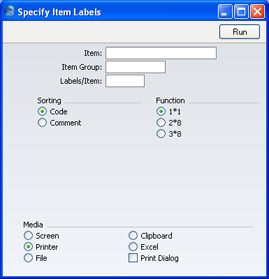
- Item
- Paste Special
Item register
- Range Reporting Alpha
- Use this field if you need to print labels for specific Items.
- Use this field if you need to print labels for specific Items.
- Item Group
- Paste Special
Item Groups setting, Sales Ledger
- Use this field if you need to print labels for all Items belonging to a particular Item Group.
- Labels/Item
- Specify here the number of labels that you want printed for each Item. One label per Item will be printed if this field is blank.
- Sorting
- The Labels can be sorted by Item Number or Name.
- Function
- Select the appropriate option for the label configuration being used.
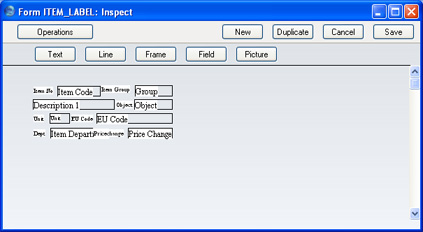
- Click the [Field] button and draw a rectangle where you want the static text to appear. The Field dialogue box opens.
- Leave the Fieldname blank and enter the static text in the Field Argument field.
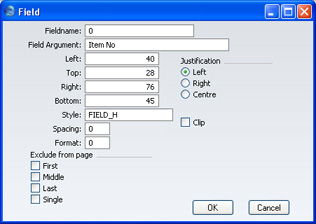
- Click [OK] to save.
- Do not use the [Text] button for this purpose: any text entered this way will be printed for the first label only.
Picking Lists
The Picking List can be used by the stock staff to prepare an Order for delivery.Double-click 'Picking Lists' in the 'Documents' list and, when the 'Specify Picking Lists' window appears, enter a Delivery Number or a range of numbers separated by a colon. Click [Run] to start printing.
If you have included fields to print your telephone and/or fax number on Picking Lists, this information will be taken from the Location record, if you have the Locations Value Pack. If the relevant fields in the Location are blank, no Location is specified in the Delivery or you do not have the Locations Value Pack, it will be taken from the Company Info setting in the System module.
Proforma Deliveries
This option behaves in the same manner as 'Picking Lists', but uses its own dedicated form.Purchase Labels
These are labels that you can attach to parcels received, in order to identify particular shipments into stock. You can print a Purchase Label for a range of Goods Receipts from the 'Documents' function, or for a single Goods Receipt using the 'Print Labels' item on the Operations menu of the 'Goods Receipt: Inspect' window.When using the 'Documents' function, double-click 'Purchase Labels' in the 'Documents' list and, when the 'Specify Purchase Labels' window appears, enter a Goods Receipt Number or a range of numbers separated by a colon. Unusually, a Goods Receipt must be specified: this field cannot be left blank. Click [Run] to start printing.
If you want static text to be printed on your labels (i.e. text that identifies the information on the labels, such as "Item Name"), please follow the instructions in the section describing the Item Label. The Form to be amended has the Code "PUR_LABEL".
Stock Depreciations
This document provides a hard copy of any records entered to the Stock Depreciation register. You can print it for a range of Stock Depreciation records from the 'Documents' function, or for a single Stock Depreciation record by clicking the Printer icon in the 'Stock Depreciation: Inspect' window.When using the 'Documents' function, double-click 'Stock Depreciations' in the 'Documents' list and, when the 'Specify Stock Depreciation' window appears, enter a Stock Depreciation Number or a range of numbers separated by a colon. Click [Run] to start printing.