Introduction to Settings in the Stock Module
The following settings are available in the Stock module: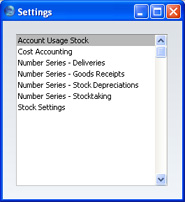
If you have the Purchase Orders and/or Stock Locations Value Packs, the Stock module will contain some extra settings not shown in the illustration above. Please click the links for descriptions of these extra settings.
Account Usage Stock
This setting allows you to determine the Accounts that will be used as defaults in your stock transactions. Take care to ensure that the Accounts that you specify here exist in the Account register. In each case, you can use the 'Paste Special' function (Ctrl-Return or ⌘-Return) to help you choose the correct Account.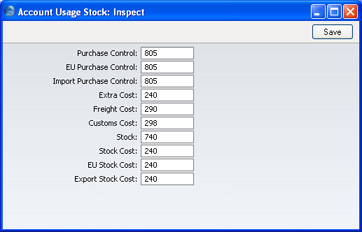
- Purchase Control
- The suspense Account used to book goods received before a Purchase Invoice has been received and booked. It is credited when records in the Goods Receipt register in the Stock module are approved. You should specify three separate Purchase Control Accounts, one for each Zone.
- Please refer here for full details of this feature.
- Please refer here for full details of this feature.
- Extra Cost
- A special expense account to collect any "extra costs" associated with the receipt of goods (entered to the Cost field for each row of a Goods Receipt record). It is credited when records in the Goods Receipt register in the Stock module are approved.
- Freight Cost
- Used to book the cost of freight on receipt of goods. It is credited when records in the Goods Receipt register in the Stock module are approved.
- Customs Cost
- Used to book the customs duty cost on receipt of goods. It is credited when records in the Goods Receipt register in the Stock module are approved.
- Stock
- The stock control Account. If you are using maintaining stock values in the Nominal Ledger ('cost accounting'), this Account will be debited when goods are received into stock and credited upon Invoice or Delivery, if the equivalent field for the appropriate Item Group is blank.
- Please refer here for full details of this feature.
- Please refer here for full details of this feature.
- Stock Cost
- Cost Account used when shipping goods from stock. If you are using cost accounting, this Account will be debited upon Invoice or Delivery, if the equivalent field for the appropriate Item Group is blank. You should specify three separate Stock Cost Accounts, one for each Zone.
Cost Accounting
This setting offers some options for controlling the costing method used by FirstOffice when generating Nominal Ledger cost accounting transactions from the Sales Support module.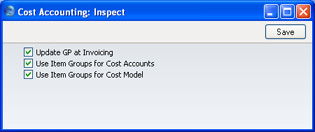
- Update GP at Invoicing
- When you create Invoices from Orders, the Cost Price of each Item on the Invoice (and therefore its gross profit) can be taken from the Order or from the sum of the Cost Price and the Extra Cost from the Item record. If you wish to use the latter alternative, switch this check box on. This can be more accurate if you are routinely updating Items' Cost Prices from Goods Receipts since these are likely to occur after the entry of the Sales Order.
- Use Item Groups for Cost Accounts
- If you select this option, FirstOffice will give priority to the Accounts entered for each Item Group when Nominal Ledger Transactions are generated from Deliveries and Goods Receipts.
- If you are using this option, it is recommended that all Stocked Items belong to Item Groups and that all Item Groups have Cost and Stock Accounts specified.
- If you are using this option, it is recommended that all Stocked Items belong to Item Groups and that all Item Groups have Cost and Stock Accounts specified.
- Use Item Groups for Cost Model
- If you select this option, FirstOffice will give priority to the Cost Model entered for each Item Group when outgoing cost accounting transactions are generated from Deliveries and Invoices.
- If you are using this option, it is recommended that all Stocked Items belong to Item Groups and that all Item Groups have Cost Models specified.
Number Series - Deliveries
Use this setting to define the number sequences for Deliveries in a similar manner to that described for Goods Receipts.Number Series - Goods Receipts
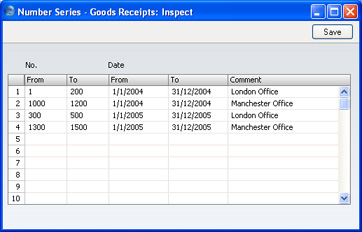
Each Goods Receipt has its own unique identifying number, based on a sequential series. When you enter a new Goods Receipt, the next number in the series will be used. If required, you can have a number of such sequences running concurrently, perhaps representing different years, different departments or different order types.Use this setting to define these sequences, or Number Series. The different series should not overlap. If you leave this setting empty, Goods Receipt Numbers will start at 1 and continue consecutively.
When you enter Goods Receipts, the next number in the first Number Series entered to this setting will be used as a default; change to the next number in any other Number Series using 'Paste Special'.
When you double-click 'No. Ser - Goods Receipts' in the 'Settings' list, the following window appears:
Number Series - Stock Depreciations
Use this setting to define the number sequences for Stock Depreciation records in a similar manner to that described for Goods Receipts.Number Series - Stocktaking
Use this setting to define the number sequences for Stocktaking records in a similar manner to that described for Goods Receipts.Stock Settings
This setting contains some miscellaneous options controlling the behaviour of various aspects of the Stock module.If you have the Stock Locations Value Pack, this setting will contain some extra options not shown in the illustration below. These extra settings are described here.
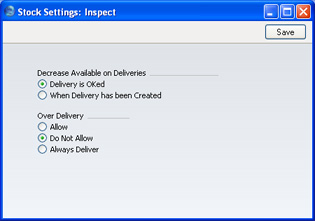
- Decrease Available on Deliveries
- Use these options to determine exactly when delivered Items are to be removed from stock. You can quickly look up the available quantity of an Item using the 'Item Status' and Item Status Report functions on the Operations menu, available in several areas of FirstOffice.
- These options control the calculation of the Available figure shown in a Delivery when it is created. They also control when the Stock and Order figures in the 'Item Status' window and Item Status Report are updated. In both cases, the figures can be reduced by the quantity delivered when you create Deliveries or when you approve them (i.e. the choice is whether these figures should include quantities on previous unapproved Deliveries).
- These options control the calculation of the Available figure shown in a Delivery when it is created. They also control when the Stock and Order figures in the 'Item Status' window and Item Status Report are updated. In both cases, the figures can be reduced by the quantity delivered when you create Deliveries or when you approve them (i.e. the choice is whether these figures should include quantities on previous unapproved Deliveries).
- Over Delivery
- These options control FirstOffice's behaviour when creating Deliveries from Orders when there is not sufficient stock to fully satisfy those Orders. Plain Items are not affected by these options.
- If you are using the FIFO Cost Model to calculate cost accounting values, you must use the Do Not Allow option. If you try to deliver an Item that is not in stock, its FIFO value will not be known and so the value of the cost accounting transaction will not be correct.
- Allow
- This option will allow the delivery of more units of a Stocked Item than are in stock. However, when you create Deliveries from Sales Orders, the default quantity will be the quantity in stock if the order quantity is greater.
- Do Not Allow
- Use this option to prevent the delivery of more units of a Stocked Item than are actually in stock.
- Always Deliver
- This option will allow the delivery of more units of a Stocked Item than are in stock. It differs from the Allow option in that when you create Deliveries from Sales Orders, the default quantity will always be the order quantity, even if there is insufficient stock.
- If you are using the FIFO Cost Model to calculate cost accounting values, you must use the Do Not Allow option. If you try to deliver an Item that is not in stock, its FIFO value will not be known and so the value of the cost accounting transaction will not be correct.