Routes, Routes/Locations
This page describes the Routes and Routes/Locations settings in the Stock module.
---
If you deliver or distribute Items using vehicles that regularly follow fixed routes, you can use the Routes and Routes/Locations settings and the Trip Sheet report (all in the Stock module) and the Sorted Order List report (in the Sales Orders module) to assign outgoing stock transactions to routes and to print lists of the Items that should be delivered on a particular journey.
Follow these steps:
- Add separate records to the Routes setting for each fixed route:
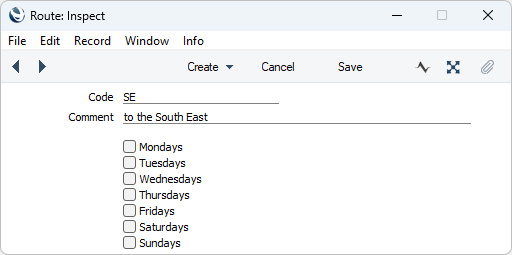
- Use the Routes/Locations setting to connect the Routes from step 1 to each Location. You might enter records to this setting for any or all of the following:
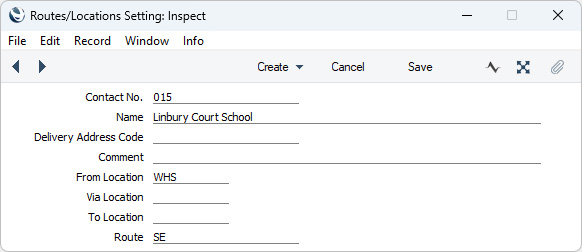
- Records that connect Locations to Customers. These will specify the Routes that will be used when delivering Items to particular Customers from each Location.
In these records, specify the Contact Number of each Customer in the Contact No. field, the From Location and the Route:
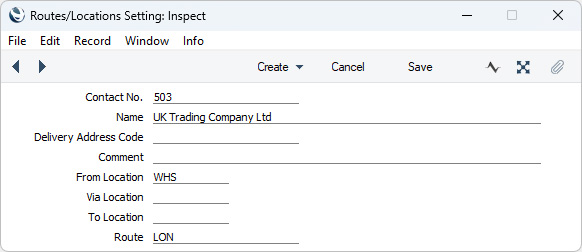
- Records that connect Locations to Suppliers. These will specify the Routes that will be used when returning Items to particular Suppliers from each Location.
In these records, specify the Contact Number of each Supplier in the Contact No. field, the From Location and the Route:
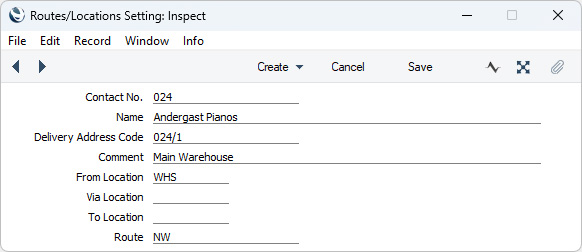
- Records that connect Locations to Delivery Addresses. These will specify the Routes that will be used when delivering Items to particular Delivery Addresses from each Location.
In these records, specify the Contact Number of each Customer or Supplier in the Contact No. field, the Delivery Address Code, the From Location and the Route:
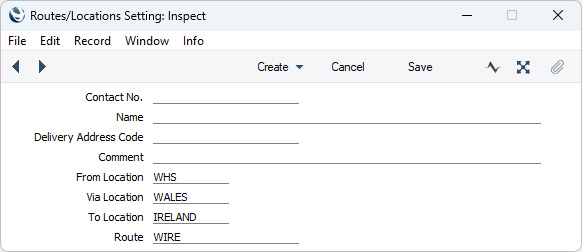
- Records that connect different Locations. These will specify the Routes that will be used when moving Items between Locations.
In these records, specify the From, Via (if needed) and To Locations and the Route:
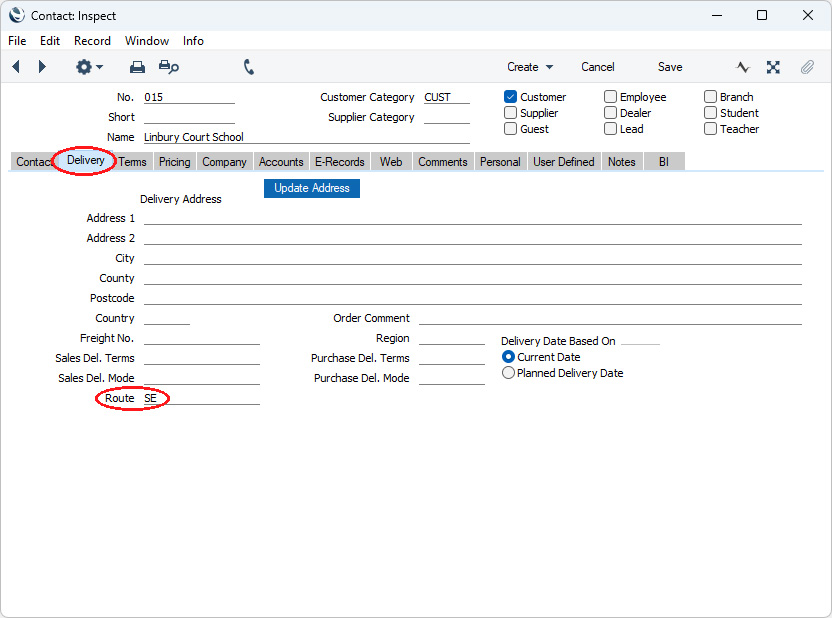
- An optional step is to specify Routes in the Contact records for your Customers and Suppliers (on the 'Delivery' card):
- When entering an Opportunity, Quotation or Sales Order, the Route will be updated whenever you change the Customer, Location or Delivery Address Code. The Route will be chosen as follows:
- The Route will be taken from the record in the Routes/Locations setting for the Location/Customer/Delivery Address combination.
- If there is no Delivery Address Code in the Opportunity, Quotation or Sales Order, the Route will be taken from the record in the Routes/Locations setting for the Location/Customer combination in which the Delivery Address is blank. If there is no such record, the Route will be taken from the first Routes/Locations record for the Location/Customer combination, sorted by Delivery Address.
- In all other circumstances (e.g. there is a Delivery Address Code in the Opportunity, Quotation or Sales Order but there is no record in the Routes/Locations setting for the Location/Customer/Delivery Address combination), the Route will be taken from the Contact record for the Lead or Customer.
- When creating a Delivery from a Sales Order, the Route will be copied from the Sales Order to the Delivery. If you change the Location or Delivery Address Code in the Delivery, the Route will be updated, as described above in step 4.
- When entering a Returned Goods to Supplier record, the Route will be updated whenever you change the Location or Delivery Address Code. The Route will be chosen as described above in step 4.
- When entering a Stock Movement, the Route will be updated whenever you change the From, Via or To Locations. The Route will be taken from the record in the Routes/Locations setting for the From/Via/To Location combination.
- If you need a list in Route order of Orders with a particular Planned Delivery Date, print a Sorted Order List report in the Sales Orders module.
- If you need a list of the Deliveries, Stock Movements and/or Returned Goods to Supplier records on a particular Route that can be transported on a specified date or during a specified period, produce a Trip Sheet report in the Stock module.
---
Go back to:


 Introduction to Settings in the Stock Module
