Serial Number History
This page describes the Serial Number History report, which is situated in the Rental, Service Orders and Stock modules.
---
The Serial Number History report allows you to track the purchase and sale of Items with particular Serial Numbers. As an option, it can also show their subsequent service history.
When printed to screen, the Serial Number History report has the Standard ERP Drill-down feature. Click (Windows/macOS) or tap (iOS/Android) on any stock transaction number (e.g. Delivery Number, Goods Receipt Number or Invoice Number) to open the corresponding stock transaction record or on any Item Number to open the corresponding Item record.
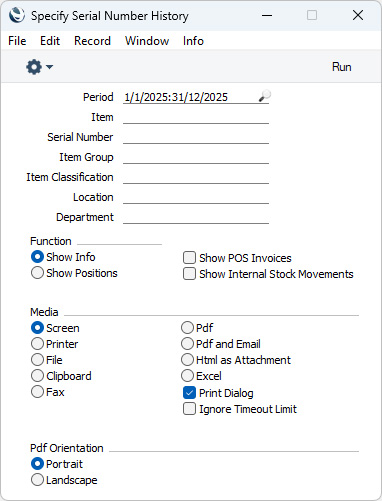
- Period
- Paste Special
Reporting Periods setting, System module
- Enter the start and end dates of the period to be covered by the report. The report will list the movements into and out of stock of Serial Numbered Items during the period specified here.
- Item
- Paste Special
Item register
- Range Reporting Alpha
- To restrict the report to particular Items, enter an Item Number or a range of numbers here.
- Serial Number
- Paste Special
Serial Numbers of Items in stock
- Range Reporting Alpha
- If you need to trace an Item with a particular Serial Number, enter that Serial Number here.
- If the Item field above is empty or contains a range of Items, the 'Paste Special' list will contain Serial Numbers of every Item. If the Item field contains a single Item Number, the 'Paste Special' list will contain Serial Numbers for that Item only.
- Item Group
- Paste Special
Item Group register, Sales Ledger
- Enter an Item Group here if you need to report on the Items belonging to a particular Item Group.
- Item Classification
- Paste Special
Item Classifications setting, Sales Ledger
- Enter an Item Classification in this field if you need the report to list Items with a particular Classification. If the field is empty, the report will include every Serial Numbered Item, with and without Classification. If you enter a number of Classifications separated by commas, the report will only include Items featuring all the Classifications that you have listed. If you enter a number of Classifications separated by plus signs (+), all Items featuring at least one of the Classifications listed will be included in the report. If you enter a Classification preceded by an exclamation mark (!), the report will include Items featuring any Classification except the one listed.
- For example:
- 1,2
- Includes Items with Classifications 1 and 2 (including Items with Classifications 1, 2 and 3).
- 1+2
- Includes Items with Classifications 1 or 2.
- !2
- Includes all Items except those with Classification 2.
- 1,!2
- Includes Items with Classification 1 but excludes those with Classification 2 (i.e. Items with Classifications 1 and 2 will not be included). Note the comma before the exclamation mark in this example.
- !1,!2
- Includes all Items except those with Classification 1 or 2 or both. Again, note the comma.
- !(1,2)
- Includes all Items except those with Classifications 1 and 2 (Items with Classifications 1, 2 and 3 will not be included).
- !1+2
- Includes Items without Classification 1 and those with Classification 2 (Items with Classifications 1 and 2 will be included).
- (1,2)+(3,4)
- Includes Items with Classifications 1 and 2, and those with Classifications 3 and 4.
- 1*
- Includes Items with Classifications beginning with 1 (e.g. 1, 10, 100).
- 1*,!1
- Includes Items with Classifications beginning with 1 but not 1 itself.
- *1
- Includes Items with Classifications ending with 1 (e.g. 1, 01, 001).
- 1*,*1
- Includes Items with Classifications beginning and ending with 1.
- Location
- Paste Special
Locations setting, Stock module
- Enter a Location here if you need the report to list stock transactions into and out of a particular Location.
- Department
- Paste Special
Departments setting, Assets/Human Resources Management/System module
- Range Reporting Alpha
- Enter a Department Code here if you need the report only to include Items assigned to a particular Department (specified on the 'Stock' card of each Item record).
- Function
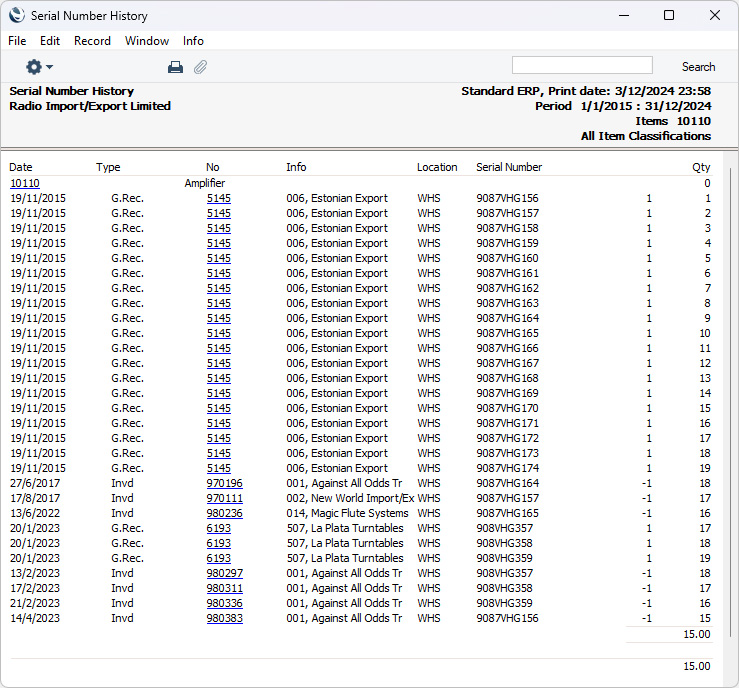
- The report is a list of the stock transactions in which each Serial Number has been used, including date, type of transaction, transaction number, Location, Serial Number, quantity and balance. If you choose the Show Info option, the Customer or Supplier Number and Name will also be shown. If you choose the Show Positions option, the Position will be shown instead.
- Show POS Invoices
- When you sell an Item through a POS Invoice, it won't be removed from stock immediately. Instead, it will be removed from stock when you next run the Maintenance function in the POS module. This function will create a Stock Depreciation which will remove the Item from stock when you mark it as OK and save.
- By default, an Item sold through a POS Invoice will be shown in the report as having been removed from stock by the Stock Depreciation. Select this option if you need the report instead to show which POS Invoice caused it to be removed from stock. The POS Invoice will be included in the report even if you have not yet run the 'Update Stock' function to create the Stock Depreciation.
- Show Internal Stock Movements
- By default, this report only tracks the purchase and sale of Items with particular Serial Numbers, it does not show their subsequent service history. If you have used Rental Pick-Up and Rental Return records to record the movements of Items out of and in to your service stock (internal stock), select this option if you need to see these movements in the report. Selecting this option will also mean that movements of Rental Items initially into internal stock through Stock Transfers and subsequently out of and into internal stock through Rental Pick-Up and Rental Return records will be included in the report.
---
Go back to:
|


 Introduction to Reports in the Stock Module
