Switching Cost Accounting On
This page describes enabling the cost accounting feature in Standard ERP. When this feature is enabled, Nominal Ledger postings will be generated automatically from each incoming and outgoing stock transaction (e.g. from each Goods Receipt and Delivery).
---
If you need cost accounting postings to be generated automatically from each incoming and outgoing stock transaction, follow these steps:
- In the Account Usage Stock setting in the Stock module, specify the Accounts that are to be used as the Stock Account and as the Cost Account (i.e. Cost of Sales Account) (both on the 'Stock' card) and as the Purchase Accruals Account (on the 'Purchase Cost' card). You should specify Cost and Purchase Accruals for each Zone. These Accounts will be used as defaults in the event that you have not defined equivalent Accounts for a particular Item, Item Group or Location. The roles of these Accounts are described on the Cost Accounting Transactions from Goods Receipts and Cost Accounting (Cost of Sales) Postings from Deliveries and Invoices pages. In the same setting, you should also specify Extra Cost, Freight Accrual and Customs Accrual Accounts on the 'Purchase Cost' card and you may also need to specify a Cost of Sales Accruals Account on the 'Stock' card (depending on the option that you choose in step 5).
- If you have more than one Location where stock will be stored, enter a separate record for each one in the Locations setting in the Stock module.
You can specify a dedicated Stock Account in any Location record. This Account will be debited whenever stock is received into the Location and credited when stock is delivered or otherwise removed (instead of the Stock Account specified in step 1). As an additional option, you can also specify dedicated Purchase Accruals and Cost Accounts for a Location. The fields for these additional Accounts are not in the Location record itself, but in the Location Accounts setting in the Stock module.
If you are using Locations (i.e. if you have entered at least one record to the Locations setting), you must specify a Main Location (in the Stock Settings setting in the Stock module), and it is recommended that you select the Require Location option in the same setting as well. This will ensure that you always specify a Location when adding or removing stock.
- In the Cost Accounting setting in the Stock module, specify the Primary (i.e. default) Cost Model. The Cost Model is the valuation method that will be used to value your stock and to calculate cost values in outgoing stock transactions. The Primary Cost Model that you specify in this step will be used for this purpose if you have specified in your Items and Item Groups that the default Cost Model is to be used. The different Cost Model options are fully described on the page describing the Cost Accounting setting.
- Having specified default Accounts in step 1 above and a default Cost Model in step 3, you can if necessary specify separate Cost, Purchase Accruals and Stock Accounts and Cost Models in each Item Group and (Cost Account and Cost Model only) in each Item. If you want to do this in at least one Item Group, select the Use Item Groups for Cost Accounts and Use Item Groups for Cost Model options in the Cost Accounting setting. If you do not select these options, the Accounts and Cost Models specified in Item Groups will play no part in your cost accounting structure.
- If you are using the Sales Orders module and/or the Service Orders module, you should choose a Cost of Sales Posting option in the Cost Accounting setting. The Cost of Sales Posting options allow you to specify when the outgoing cost accounting postings (Cost of Sales postings) will be made: from Invoices, from Deliveries, or from Invoices with Accruals from Deliveries. In more detail, the options are as follows:
- From Invoices (no posting from Deliveries)
- If you are using this option, a delivered Item will be removed from Stock when you issue the Delivery, but the stock valuation in the Nominal Ledger will not be updated until you issue the Invoice.
If you choose this option, you should also select the Invoices Update Stock option in the Account Usage S/L setting and, if you are using the Service Orders module, the Work Sheets Update Stock option in the Account Usage Service Order setting.
- Choosing this option will satisfy the requirement in some countries that the dates of sales transactions and related Cost of Sales postings should be the same. However, if you do not create Invoices for Deliveries immediately, it may mean that the valuation in the Stock List report may not agree with the stock valuation in the Nominal Ledger.
- From Deliveries
- Using this option will mean that a delivered Item will be removed from Stock when you issue the Delivery, and the stock valuation in the Nominal Ledger will be updated from the Delivery as well.
- If you are using this option, it is not necessary to select the Invoices Update Stock option in the Account Usage S/L setting, but it is recommended that you do so, just in case you sell a Stocked Item from an Invoice without a Sales Order (i.e. where there is no Delivery). If you are using the Service Orders module, you should also select the Work Sheets Update Stock option in the Account Usage Service Order setting.
- Choosing this option will help ensure that the valuation in the Stock List report always agrees with the stock valuation in the Nominal Ledger. However, if you do not create Invoices for Deliveries immediately, it may be that the dates of sales transactions and related Cost of Sales postings will not be the same.
- From Invoices with Accruals from Deliveries
- Choosing this option will satisfy both requirements: that the valuation in the Stock List report always agrees with the stock valuation in the Nominal Ledger; and that the dates of sales transactions and related Cost of Sales postings will be the same.
- When you deliver an Item, the stock valuation in the Nominal Ledger will be updated in two stages. The Stock Account will be credited by the Delivery, and a Cost of Sales Accrual Account will be debited. From the Invoice, the Cost of Sales Accrual Account will be credited, and the Cost of Sales Account will be debited.
- If you are using this option, you should also select the Invoices Update Stock option in the Account Usage S/L setting, and you should specify a Cost of Sales Accruals Account in the Account Usage Stock setting. If you are using the Service Orders module, you should also select the Work Sheets Update Stock option in the Account Usage Service Order setting,
- Use the Sub Systems setting in the Nominal Ledger to specify that cost accounting transactions will be created in the Nominal Ledger when you mark as OK and save Goods Receipts, Invoices, Work Sheets, Returned Goods, Returned Goods to Supplier records and, depending on the option that you selected in step 5 above, Deliveries.
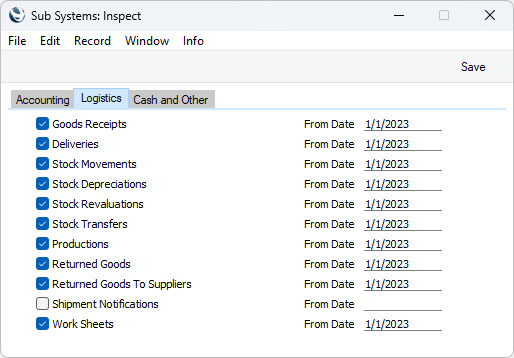
If you decided in step 5 that outgoing cost accounting postings (Cost of Sales postings) will be created from Deliveries or from Invoices with Accruals from Deliveries, select the Deliveries option. Do not select the Deliveries option if you decided that Cost of Sales postings will be created from Invoices. You should always select the Invoices option (even if Cost of Sales postings will be made from Deliveries) because otherwise you will prevent posting to the Sales, VAT and Debtor Accounts as well.
If you are using the Service Orders module, you should select the Work Sheets option. This will ensure that Cost of Sales postings from Work Sheets will update the Nominal Ledger stock valuation when you remove spare parts from stock to effect repairs.
You should also select the Goods Receipts option. This will ensure inward cost accounting postings are made, to balance the outward postings made on Invoice or Delivery. As a result, an inward movement will see a Purchase Accruals Account being credited and a Stock Account being debited, while an outward movement will credit the Stock Account and debit a Cost Account.
Finally, you should also select the Stock Movement, Stock Depreciation, Production, Returned Goods and Returned Goods to Supplier options. These stock transactions all record the movement of Items in and out of stock and so should result in cost accounting postings that update the stock valuation in the Nominal Ledger.
- If you will be using Item Groups, define them as described here. In each Item Group, you can specify Cost, Purchase Accruals and Stock Accounts and choose a Cost Model option, if you do not want the Item Group to use the defaults set in steps 1 and 3 above. If you want Accounts and/or Cost Model to be taken from Item Groups, select the Use Item Groups for Cost Accounts and/or Use Item Groups for Cost Model options in the Cost Accounting setting, as described in step 4 above. If you are not using these options, the Accounts and Cost Models specified in Item Groups will play no part in your cost accounting structure. Although cost accounting transactions will be created for Items that do not belong to Item Groups, management of the system is easier using Item Groups since it is simple to change Cost Accounts and Cost Models for a particular Item Group.
If you will be using Work Sheets, you can specify separate Service Cost Accounts in your Item Groups (using the Service Invoiceable Cost, Service Warranty Cost, Service Contract Cost and Service Goodwill Cost Account fields on the 'Service A/C' card). These Accounts will be used in place of the standard Cost Accounts in outgoing cost accounting postings originating from Work Sheets.
- Ensure you have specified that each Item for which cost accounting transactions are to be created is a Stocked Item using the option on the 'Pricing' card of the Item window. If you are using the Use Item Groups for Cost Accounts and/or Use Item Groups for Cost Model options, allocate all Stocked Items to Item Groups. You can also specify special Cost and, if necessary, Service Cost Accounts (on the 'A/C' card) and/or Cost Model (on the 'Cost Model' card) for a particular Item, to be used in place of the defaults set in steps 1, 3 and 7. Cost accounting transactions will not usually be created for Plain and Service Items, unless you are using the Cost Accounting for Plain and Service Items option in the Cost Accounting setting.
- You can set additional cost accounting attributes using the Cost Accounting setting in the Stock module: please click here for full details.
---
Cost Accounting in Standard ERP:
Go back to:
|



