Item Labels
This page describes the Item Labels form in the Stock module.
---
The Item Labels form allows you to print labels that you can affix to item packages. Information in the labels will be taken from the Item register.
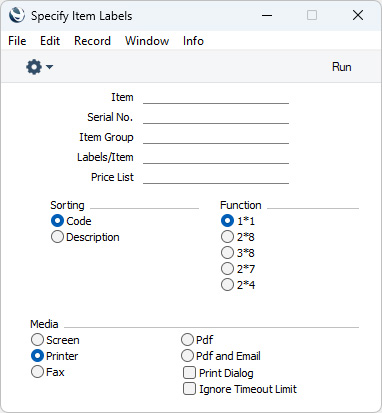
- Item
- Paste Special
Item register
- Range Reporting Alpha
- Enter an Item Number here if you need to print labels for a particular Item. You can also enter a range of Item Numbers separated by a colon (:).
- Serial No.
- Range Reporting
Alpha
- If you need to print labels for a particular Serial Number, specify that Serial Number here. You should also specify the relevant Item Number in the field above, otherwise labels will be printed for every Item, with the specified Serial Number on each label.
- Item Group
- Paste Special
Item Group register, Sales Ledger
- If you need to print labels for Items belonging to a particular Item Group, specify that Item Group here.
- Labels/Item
- Specify here the number of labels that you want printed for each Item. One label per Item will be printed if this field is blank.
- Price List
- Paste Special
Price List register, Pricing module
- Specify a Price List here if you need to print labels for Items listed in that Price List. An Item is listed in a Price List if there is a record in the Price register in the Pricing module connecting the Item to the Price List.
- Sorting
- Use these options to specify whether the Labels will be printed in Item Number or Name order.
- Function
- Choose one of these options to specify the label configuration that you wish to use.
Illustrated below is a sample ITEM_LABEL record from the
Form Template register in the System module. Note that you should only add each field once to the Form Template: the label printing function will print the fields the appropriate number of times on each page.
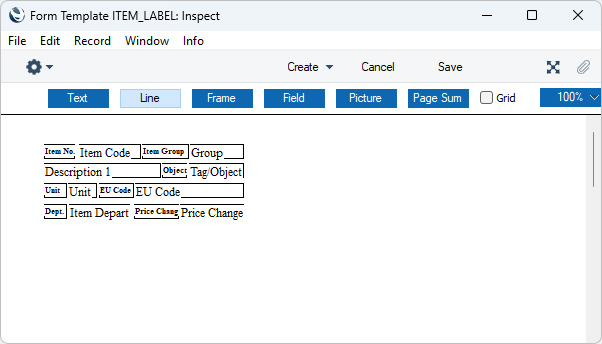
Add the fields to the Form Template design in the usual way (click the [Field] button and draw a rectangle where you want the field to appear). When the 'Field' dialogue box opens, specify the Fieldname.
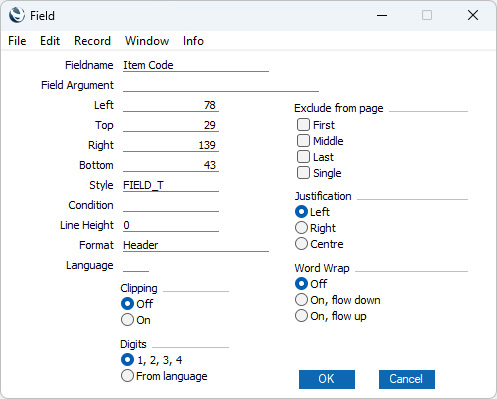
If you find the labels on each row are not aligned properly when printed, set the Format to 1.
If you want static text to be printed on your labels (i.e. text that identifies the information on the labels, such as "Item No."), follow these steps:
- Click the [Field] button and draw a rectangle where you want the static text to appear. The 'Field' dialogue box opens.
- Leave the Fieldname blank and enter the static text in the Field Argument field.
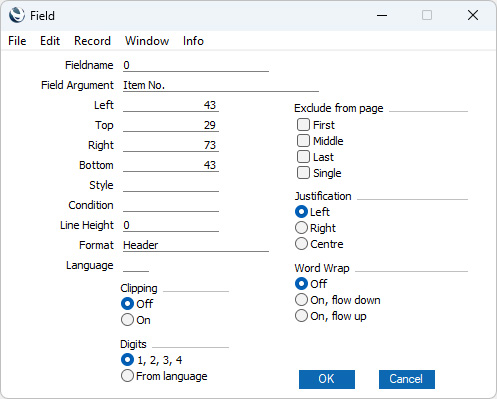
- Click [OK] to save.
- Do not use the [Text] button for this purpose: any text that you add to the Form Template this way will only be printed for the first label.
You can use the fields listed below when you design the Form Template to be used by the Item Labels form:
| Field in Form Template | Prints (from Item) |
| |
| Barcode | Barcode |
| Description 1 | Description |
| Document Type | Prints the phrase "Item Labels". This field only prints if the VAT Law in the Company Info setting is set to "Portuguese" |
| EU Code | Commodity Code |
| Group | Group |
| Item Barcode BC39 | Barcode from the Barcodes setting in the Stock module, or Barcode or Item Number from the Item record, printed using the Code 39 barcode format. You should give this field a Style that uses a Code 39 barcode font |
| Item Barcode EAN 13 | Barcode from the Barcodes setting in the Stock module, or Barcode or Item Number from the Item record, printed using the EAN 13 barcode format. You should give this field a Style that uses an appropriate EAN 13 barcode font |
| Item Code | No. (i.e. Item Number) |
| Item Code 2 | No. (i.e. Item Number) |
| Item Department | Department |
| Item Price | Price from the record in the Price register for the Item/Price List combination (if you specified a Price List when printing the labels) or Base Price from the Item record (otherwise) |
| Price Change | Cost Price Change |
| Price in Base Currency 2 | Base Price, converted to Base Currency 2 using the latest Base Currency Rate (if you have specified a Base Currency 1) or Base Price (otherwise) |
| Serial Number | Serial Number specified when printing the labels (or an incremented Serial Number if you specified a range) |
| Serial Number bc39 | Serial Number specified when printing the labels (or an incremented Serial Number if you specified a range), printed using the Code 39 barcode format. You should give this field a Style that uses a Code 39 barcode font |
| Serial Number EAN 13 | Serial Number specified when printing the labels (or an incremented Serial Number if you specified a range), printed using the EAN 13 barcode format. You should give this field a Style that uses an appropriate EAN 13 barcode font |
| Shelf Code (lagerplats) | Shelf Code |
| Tag/Object | Tags/Objects |
| Transaction Date (transdate) | Base Price Change |
| Unit | Unit |
| Unit Code | Supplier Unit from the Default Purchase Item for the Item (if there is one) or blank (otherwise) |
| XItemCode | Alternative Code |
Please refer
here for details about the standard fields that you can also include in the Form Template.
---
Go back to:


 Introduction to Forms in the Stock Module
