Introduction to the Goods Receipt Register
Entering a Goods Receipt
Inspecting Goods Receipts, Marking as OK and Posting to the Nominal Ledger
Nominal Ledger Transactions from Goods Receipts
Stock Adjustments
Invalidating Goods Receipts
Price Variances
Consignment Stock
Operations Menu
Create Menu - Goods Receipts
Row Menu - Goods Receipts Introduction to the Goods Receipt Register
Entering a Goods Receipt
Inspecting Goods Receipts, Marking as OK and Posting to the Nominal Ledger
Nominal Ledger Transactions from Goods Receipts
Stock Adjustments
Invalidating Goods Receipts
Price Variances
Consignment Stock
Operations Menu
Create Menu - Goods Receipts
Row Menu - Goods Receipts
 Tutorials for Standard Accounts Tutorials for Standard Accounts
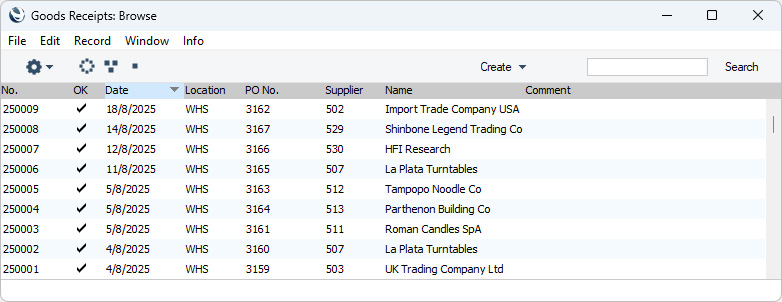
Search HansaManuals.com HansaManuals Home >> Standard ERP >> Stock >> Goods Receipt Register Предыдущая Следующая Вариант всей главы для печати Поиск Данный текст относится к версии программы 2026-06-25 Introduction to the Goods Receipt Register Using Standard ERP you can record every stage of the purchase process in sequence from Purchase Quotation Request through Purchase Order and the receipt of goods to the Purchase Invoice and payment. You can begin the sequence at any stage.When you receive Items from a Supplier, you should create a Goods Receipt to record the receiving of those Items into stock. As well as updating stock levels of each Item, a Goods Receipt will set the stock values (e.g. FIFO or Weighted Average values) of the received Items. You can enter Goods Receipt records directly to the Goods Receipt register in the Stock module. If you are subscribing to the Purchase Orders module, you can also create them from Purchase Orders, in which case all quantities and values will be copied from the Purchase Orders to the Goods Receipts. To open the Goods Receipt register, first ensure you are in the Stock module using the [Switch Module] button in the Home Screen, then click (Windows/macOS) or tap (iOS/Android) the [Registers] button, also in the Home Screen. Finally, double-click or tap 'Goods Receipts' in the resulting list. The 'Goods Receipts: Browse' window will be opened, listing the Goods Receipts that you have already entered:
To search for a particular Goods Receipt, first sort the list by the column that you want to use for the search. Then, enter the text that you want to find in the Search field in the top of the window (in the top right-hand corner if you are using Windows/macOS) and press the Return key (macOS) or Search (iOS/Android). The first record containing a match for your search string will be highlighted (if you are using Windows, a match will be highlighted as you type each character). For example, to search for a particular Supplier Name, sort by Name before entering a Supplier Name (or the first few characters) in the Search field. If you are using Windows or macOS, there will be three buttons in the top left-hand corner of the 'Goods Receipts: Browse' window. These are part of the Limited Access feature. You can use them as follows (Windows versions of the buttons illustrated on the left, macOS on the right):
Please refer to the page describing the 'Access' card of the Person register for full details about the Limited Access feature. The Goods Receipt register in Standard ERP is described in detail on the following pages:
Go back to:
Предыдущая Следующая Наверх Вариант всей главы для печати |