Serial Number Tracking
This page describes the Serial Number Tracking setting in the Stock module.
---
The Serial Number Tracking setting in the Stock module allows you to enable a feature that will generate Serial Numbers automatically, a feature that will be useful if you often use sequential Serial Numbers at the unit level when buying and selling Items. This setting also allows you to specify a fixed format for Serial Numbers. This format will be used by the 'Generate Serial Nos' function that you can use to assign Serial Numbers to Items in Goods Receipts.
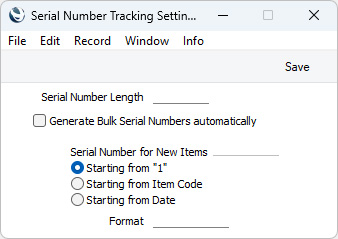
- Generate Bulk Serial Numbers automatically
- This option will be useful if you often use sequential Serial Numbers at the unit level when buying and selling Items.
- Usually if an Item is Serial Numbered at the unit level, you must enter separate rows in a stock record each with a quantity of one, to allow you to enter the Serial Numbers individually. However, if you are using this option, you will be able to enter a single row in a stock record and to specify a range of Serial Numbers in that row.
- If you are using this option, first specify a Serial Numbered Item in a stock record together with a quantity, then enter the first Serial Number of a range. When you move to the next field: the Serial Number that you entered will be overwritten by a range of Serial Numbers separated by a colon (:). The range will contain the appropriate number of Serial Numbers for the quantity. If you then change the quantity, the number of Serial Numbers in the range will be updated automatically. If you change the last Serial Number in the range, the quantity will be updated.
- This feature is supported by the Serial Number field in Invoices, Deliveries, Goods Receipts, Stock Depreciation records, Stock Movements, Returned Goods records and Returned Goods to Supplier records.
The remaining fields and options in this setting all allow you to specify a fixed format for Serial Numbers. This format will be used by the
'Generate Serial Nos' function that you can use to assign Serial Numbers to Items in Goods Receipts. If you change the format specified in this setting, the new format will only be used for Serial Numbers for new Items (Items for which you have not recorded any Serial Numbers). New Serial Numbers for older Items will continue to use the old format.
- Serial Number Length
- If you need Serial Numbers always to contain the same number of characters, specify that number of characters here.
- Serial Number for New Items
- Select one of these options to specify how Serial Numbers should be constructed:
- Starting from "1"
- Choose this option if Serial Numbers are to be purely numeric. By default the sequence will begin at 1, but if you enter a number yourself for the first Item, they will continue from there. Separate sequences will be maintained for each Item. If you have specified a Serial Number Length above, Serial Numbers will be padded with leading zeros.
- Starting from Item Code
- Choose this option if Serial Numbers are to be constructed using the following format:
- Item Number + zeros for padding (depending on the Serial Number Length) + numeric sequence (as described for the previous option)
- You must specify a Serial Number Length if you choose the Starting from Item Code option: be sure to enter a number of characters that is large enough to include Item Numbers.
- Starting from Date
- Choose this option if Serial Numbers are to be constructed using the following format:
- Date of Transaction + zeros for padding (depending on the Serial Number Length) + numeric sequence (as described for the previous option)
- Format
- If you select the Starting from Date option above, use this field to specify the format that is to be used for the date. Construct the format using any or all of the following:
- YYYY
- Four-digit year
- YY
- Two-digit year
- MM
- Two-digit month
- DD
- Two-digit day
- For example, if the Format is YYMM and you enter a Goods Receipt on September 1st 2024, generated Serial Numbers will begin with "2409".
- The Format cannot include separators.
- You must specify a Format if you choose the Starting from Date option, and you must also specify a Serial Number Length. Enter a number of characters that is large enough to include the Format. For example, if the Format is YYMM the Serial Number Length must be at least 4.
---
Go back to:


 Introduction to Settings in the Stock Module
