Entering a Delivery - Items Card Part 1 (Flips A-C)
This page describes the fields on flips A-C of the 'Items' card in the Delivery window. Please follow the links below for descriptions of the other cards:
---
The 'Items' card contains a list of the Items being delivered. This information is dictated by the Order and by current stock levels.
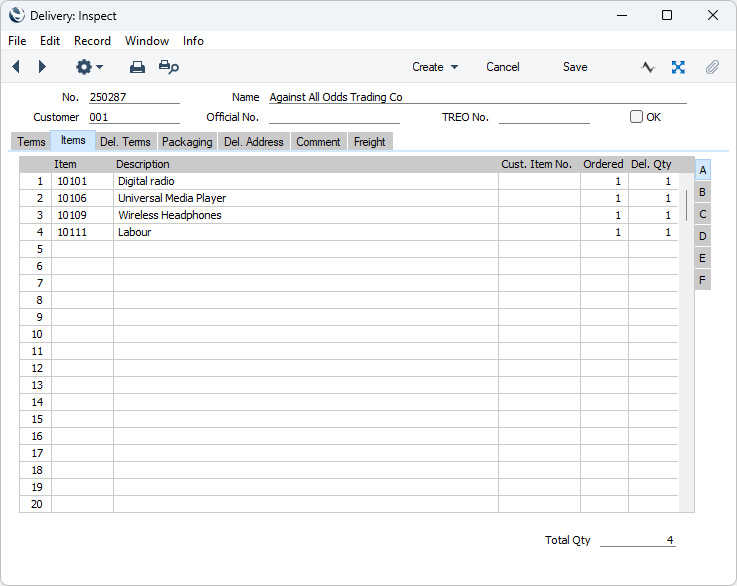
The matrix is divided into six horizontal flips. When you click (Windows/macOS) or tap (iOS/Android) a flip tab (marked A-F), the two or three right-hand columns of the matrix will be replaced.
If you need to make a part shipment, reduce the Del. Qty in any of the rows as appropriate. You can also remove entire rows, by clicking on the row number on the left of the row and pressing the Backspace key (Windows/macOS) or by long tapping on the row number and selecting 'Delete Row' from the resulting menu (iOS/Android). You cannot add or insert rows. You will not be able to deliver a greater Quantity than was ordered unless you are using the Allow Delivered Qty Greater than Ordered option in the Stock Settings setting. For Stocked Items, you can also prevent delivering more than you have in stock by using the Do Not Allow Over Delivery option in the same setting.
The first Delivery that you create from an Order will include every Order row (except "Header" and "Subtotal" rows). If the first Delivery was partial, a subsequent Delivery will usually only include the rows that have not already been fully shipped. If you would like fully shipped rows to be included in subsequent Deliveries (with Ordered and Del. quantities set to zero), select the Transfer all Order rows to Delivery option in the Order Settings setting. If you are also using the Invoice Based on Delivery option in the same setting, this option will mean that Items that were not delivered will be included in the Invoice (with a zero quantity). This can be useful if the printed Invoice uses the "Ordered Quantity" and "Remaining Quantity" row fields to display order and back order quantities for every Item, including those that were not included in an individual partial Delivery.
Plain and Service Items will be shipped without any checking of stock levels. These Items will not appear in a Delivery at all if you are using the Automatic Delivery for Service and Plain Items option in the Stock Settings setting.
Flip A - Item
- The Item Number from the Order. This field cannot be changed.
- Description
- The Item Name from the Order.
- You can use Access Groups to prevent particular users from changing the Description in any row in a Delivery, by denying them access to the 'Change Item Description on Delivery' Action. Separate similar Actions are available for Quotations, Orders and Invoices.
- Cust. Item No.
- The Customer's code for the Item (i.e. the Customer's equivalent of the Item Number), copied from the corresponding row in the originating Order.
- If you need this code to be printed on Delivery Notes and/or Picking Lists, add the "Customer Item Code" row field to your Form Template designs.
- Ordered
- This field shows the quantity of the Item that is still to be delivered. So, in the first Delivery that you create from an Order, this field will contain the full Qty from the corresponding Order row. In further Deliveries it will contain the order quantity less the quantity on previous Deliveries. This field cannot be changed.
- Del. Qty
- The delivery quantity.
- When you create a Delivery from an Order, the calculation of the Del. Qty will assume you wish to ship as many Stocked Items as possible, depending on the Over Delivery options in the Stock Settings setting, as follows:
- Allow
- The default Del. Qty will be the outstanding order quantity or the stock balance, whichever is lower. If the order quantity is greater than the stock balance, you will be able to increase the Del. Qty to the full order quantity, bearing in mind that this will create negative stock when you mark the Delivery as OK and save. It is strongly recommended that you do not allow negative stock if you are using a Queued Cost Model (FIFO or LIFO) so you should not use the Allow option with this Cost Model.
- Any Reserved stock (stock on unfulfilled Sales Orders and Stock Movements marked as Reserved) will not be included in the default Del. Qty if the Delivery was created from an Order that was not Reserved. Otherwise it will include Reserved stock. For example, if you have 53 in stock and the order quantity in an unreserved Order is also 53, but one is Reserved for another Order, the default Del. Qty will be 52. You will be able to change the Del. Qty to 53. If the Order for the 53 was Reserved, then the default Del. Qty would be 53.
- Do Not Allow
- The default Del. Qty will be the outstanding order quantity or the stock balance, whichever is lower. If the order quantity is greater than the stock balance, you will not be able to increase the Del. Qty to a figure greater than the stock balance. Since there is no possibility of negative stock, you should use the Do Not Allow option if you are using a Queued Cost Model (FIFO or LIFO).
- Any Reserved stock will not be included in the default Del. Qty if the Delivery was created from an Order that was not Reserved. Otherwise it will include Reserved stock. For example, if you have 53 in stock and the order quantity in an unreserved Order is also 53, but one is Reserved for another Order, the default Del. Qty will be 52. You will be able to change the Del. Qty to 53. If the Order for the 53 was Reserved, then the default Del. Qty would be 53.
- Always Deliver
- The default Del. Qty will always be the outstanding order quantity, even if this is greater than the stock balance. If the Del. Qty is greater than the stock balance when you mark the Delivery as OK and save, you will create negative stock. It is strongly recommended that you do not allow negative stock if you are using a Queued Cost Model FIFO or LIFO) so you should not use the Always Deliver option with this Cost Model.
- Any Reserved stock will be included in the default Del. Qty, even if the Delivery was created from an Order that was not Reserved. For example, if you have 53 in stock and the order quantity in an unreserved Order is also 53, but one is Reserved for another Order, the default Del. Qiy will be 53.
- The 'Item Status' function (described briefly here and in full in here) will allow you to see any Reserved quantity.
- If you need the Del. Qty in each row always to be zero in new Deliveries (perhaps because you will use the Scan Barcode field on the 'Terms' card to fill in delivery quantities), select the Set delivered quantity to Zero option on the 'Del. Terms' card in the originating Order before creating the Delivery. This option will be selected by default if you have selected the Set delivered quantity to Zero option in the Order Settings setting.
- For Plain and Service Items, as no stock balance figure is kept, the default Del. Qty will always be the outstanding order quantity. The Over Delivery options do not apply to Plain and Service Items, so you will always be able to deliver the ordered quantity.
- Negative quantities are not allowed.
- If you would like to be able to deliver a greater Quantity than was ordered, use the Allow Delivered Qty greater than Ordered option in the Stock Settings setting.
Flip B- Serial No.
- Paste Special
Serial Numbers of Items in stock
- If the Item uses Serial Numbers or batch numbers, you must enter a valid number here.
- For Items with Serial Numbers at the Unit level, if the Order Quantity is greater than 1, the Delivery will contain an appropriate number of separate rows each with a Del. Qty of 1, allowing you to enter Serial Numbers individually. On returning to the Order, only the Serial Number of the last Item will be visible.
- In the case of an Item requiring Serial Numbers at the Batch level, the Delivery will contain a single row in which the Del. Qty will be the unfulfilled Order Quantity (or the quantity of the Item in stock if that is lower). You will need to specify a Serial/Batch Number in this row. If you do not have a sufficient quantity in stock with the specified Serial Number, the Del. Qty will be changed to the quantity that you do have in stock and you will be shown a 'Quantity has changed' message when you move the insertion point away from the Serial Number field. You can then use the 'Split Row' Row menu (Windows/macOS) or Tools menu (iOS/Android) function to divide the row into two, and then enter a second Serial Number in the new row. The 'Split Row' function will ensure that both Delivery rows remain connected to the originating Sales Order row, so the Delivered Quantities in that row will be correct. Repeat the process if you do not have a sufficient quantity in stock with the second Serial Number to fulfil the Order.
- If you are using the Generate Bulk Serial Numbers automatically option in the Serial Number Tracking setting you will be able to enter a range of Serial Numbers in this field. Enter the first Serial Number of a range in this field and then move to the next field: the Serial Number that you entered will be overwritten by a range of Serial Numbers separated by a colon (:) when you leave the field. The range will contain the appropriate number of Serial Numbers for the Del. Qty. If any of the Serial Numbers in the range are no longer in stock, you will need to use the 'Split Row' function as described in the previous paragraph. If you change the Del. Qty, the number of Serial Numbers in the range will be updated automatically. If you change the last Serial Number in the range, the Del. Qty will be updated. This field can only contain a range if you are using the Generate Bulk Serial Numbers automatically option.
- If you have not specified a Location, the 'Paste Special' list will show the Serial Numbers of Items in every Location, with an indication of the Location in which each Serial Number is stored. However, if you have specified a Location on flip B or on the 'Terms' card or on flip B of the 'Items' card, the 'Paste Special' list will only show the Serial Numbers stored in that Location.
- If you would like the Best Before date and/or Batch Status of each Serial Number to be shown in the 'Paste Special' list, select the Show Best Before Dates and/or Show Batch Status options respectively in the Item Settings setting in the Sales Ledger. You can record Best Before Dates from Goods Receipts and Production records and using the Batch Specifications setting in the Stock module, and you can update Best Before Dates and record the Batch Status of each Serial Number using the Batch Quality Control setting in the Service Orders module.
- The 'Paste Special' list will not be shown if you are using the No Serial No. on Goods Receipts option in the Stock Settings setting. In this case, you must still enter a Serial Number and, if the Item has Serial Numbers at the Unit level, the Del. Qty must still be 1, but no check will be carried out that the Serial Number you have used is valid (i.e. one that is currently in stock).
- Usually, no default Serial Numbers will be offered, so you will need to enter them yourself. There is no automatic FIFO or LIFO allocation. However, in the case of Items that use batch numbers, Serial Numbers will be brought in automatically if you are using the Automatically set Batch Serial Number on Delivery option in the Stock Settings setting. If you do not mark the Delivery as OK immediately, there is a risk that the suggested batch Serial Numbers will be delivered to another Customer in the mean time, so you can update these batch Serial Numbers using the 'Refill Batch No. Items' function on the Operations menu (Windows/macOS) or Tools menu (iOS/Android).
- The cost of sales value of an Item with Serial Numbers is controlled by the Cost Price for Serial Number option. This option is in the Cost Accounting setting in the Stock module, but you can override it in the Item records ('Cost Model' card). If you are not using this option, the cost of sales value will be calculated using the usual Cost Model, even though this may not be appropriate for the Serial Number chosen (e.g. if you are using the FIFO Cost Model, the oldest cost of sales value will be used, even if the chosen Serial Number is not the oldest one). If you are using the Cost Price for Serial Number option, the cost of sales value will be the actual Cost Price of the selected Serial Number. The cost of sales value will be placed in the Row FIFO field on flip C when you mark the Delivery as OK and save.
- Best Before
- Default taken from
Batch Specifications setting, Stock module
- In the case of perishable goods, enter a Best Before date here.
- A default will be entered when you specify a Serial Number. This will be taken from the record for the Item and Serial Number in the Batch Specifications setting in the Stock module.
- You can use the Batch Status and Batch Quality Control settings in the Service Orders module to control the selling of goods with Best Before Dates. When you receive an Item with a Serial Number and Best Before Date into stock using a Goods Receipt or a Production record, a record with the specified Best Before Date will be created in the Batch Specifications setting automatically. As the Best Before Date approaches, you might enter a record to the Batch Quality Control setting with a "Give Warning" Batch Status. If you then use the Serial Number in a Delivery, this will mean that you will be given a warning that the Best Before Date is approaching. When the Best Before Date passes, you might enter a second record with a "Disallow Use" Batch Status. This will prevent further sales of Items belonging to the batch.
- Location
- Paste Special
Locations setting, Stock module
- You can enter a separate stock Location for each row of the Delivery. Please refer to the section describing the Location field on the 'Terms' card for full details.
- If you have specified a Location in this field, the figures in the 'Item Status' window will refer to this Location. If this field is empty, those figures will refer to the Location specified on the 'Terms' card. If you have not specified a Location here or on the 'Terms' card, the figures will refer to all Locations. This will be the case even if you have specified a Main Location in the Stock Settings setting.
- Position
- Paste Special
Position register, Warehouse Management module
- You can only use this field if you are using the Warehouse Management module. In this case, if you have selected the Require Position option in the relevant Location, the Position field will contain the Delivery Position for Picking (e.g. Warehouse exit ramp). This will set by default providing you created the Delivery using the 'Create Deliveries from Orders' Maintenance function. This function will also create one Stock Movement for each Delivery row, moving the Items from their Position in the Warehouse to the Delivery Position for Picking. You can mark all of these Stock Movements as Received at one stroke using the 'OK Warehouse Stock Movements' function. The Status of each To Position will be changed to "Free". Once you have done this, you will be able to mark the Delivery as OK and save.
Flip C- BuyBack Cost
- This field is part of the BuyBack feature that allows you to sell Items to particular Customers and then receive a refund from the Supplier. For example, if you sell an Item to a Customer in education at a special price, you may be able to receive a refund from the Supplier. When you create a Delivery, the Cost Price from the relevant Order row will be copied here. When you mark the Delivery as OK and save, this field will be updated to show the cost of sales value of the row. Please refer here for details about the BuyBack feature.
- Row FIFO
- This field records the Cost of Sales value of the row and will be calculated automatically when you mark the Delivery as OK and save.
- The calculation of this figure will usually use the Cost Model specified in the relevant Item or Item Group record. If that Cost Model is Default, the Primary Cost Model specified in the Cost Accounting setting will be used. Despite its name, the field will therefore show the total FIFO, LIFO, Weighted Average or other value of the row, depending on the Cost Model. The exception is when the Item requires Serial Numbers and you are using the Cost Price for Serial Number option: please refer to the description of the Serial No. field on flip B above for details.
- When you mark the Delivery as OK and save, the value in the Row FIFO field may be credited to the Stock Account and debited to the Cost of Sales Account in the resulting Nominal Ledger Transaction. These postings will be made if you have chosen to have Cost of Sales Transactions created from Deliveries and not from Invoices. Please refer to the Cost Accounting (Cost of Sales) Postings from Deliveries and Invoices ' page for more details.
- If you would like the Cost Price figure in the Order to be updated with a unit Cost of Sales value calculated from this Row FIFO figure, select the Update Cost Price on Order when Delivering option in the Order Settings setting in the Sales Orders module. The Gross Profit of the Order will be recalculated accordingly when you approve the Delivery.
- If the Item is a Structured Item in which you have not selected the Paste Components During Entry option, this field will usually remain empty when you mark the Delivery as OK. A stock value will only appear here if there is only one component to the Structured Item.
- W. Av. Base2
- When you mark the Delivery as OK and save, the unit Weighted Average value of the Item in Base Currency 2 will be placed here, taken from the 'Costs' card of the Item record.
- In the resulting Nominal Ledger Transaction, the value in Base Currency 1 in that Transaction will be calculated using the Cost Model. This figure will usually then be converted to Base Currency 2 using the current rate.
- If you are using the Weighted Average in Base Currency 2 option in the Cost Accounting setting, the value in Base Currency 1 will be calculated using the Cost Model as normal. But this figure will not be converted to Base Currency 2: instead the Base Currency 2 figure in the Cost of Sales Transaction will be taken from this field.
- Base Price
- This field shows the unit Base Price (retail price) of the Item in your home Currency, taken from the Item record.
- Coeff.
- Default taken from
Item
- The Unit Coefficient of the Item is shown here, taken from the 'Stock' card of the Item record. If you are maintaining stock quantities using different units of measurement, this coefficient is the ratio between those units of measurement.
Flips D-F of the 'Items' card and the footer are described here.
---
The Delivery register in Standard ERP:
Go back to:
|


 Introduction to the Delivery Register
