Price Variances
Price Variances can occur when you receive goods with estimated values into stock. You may not know at the time of placing a Purchase Order exactly how much the extra costs such as transport, customs duties, port charges, taxes etc. will be: usually this will be when importing goods. In some cases, you will not know the exact costs of the goods themselves. You will therefore need to estimate these costs when you issue the Purchase Order. When you receive the goods into stock, you still may not know the exact cost, so you will sign the goods into stock using the estimated figures taken from the Purchase Order. When the Purchase Invoice arrives, there may be differences between the actual prices (on the Invoice) and what you estimated (received into stock and posted to the various Accruals Accounts). Any such differences (Price Variances) between the Purchase Invoice and the Goods Receipt will be posted to Price Variance Accounts, from the Purchase Invoice or from the Goods Receipt, whichever arrives last. These differences will then be shown in the Profit & Loss report together with the cost of goods sold. This feature allows postings to the various Accruals Accounts from the Purchase Invoice and the Goods Receipt to balance, because the Variances are kept separate.
Follow these steps to configure the Price Variances feature:
- Select the Post Purchase Price Variance option on the 'Variances' card in the Account Usage Stock setting.
- In the same setting, specify Variance Accounts for Purchase Accruals, Freight, Customs, each of the Extra Costs and, if you will be using them, for Drop Shipments:
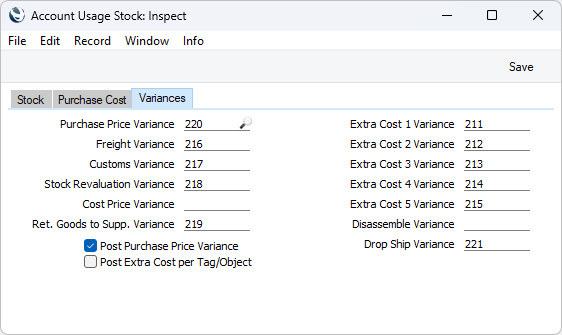
- You can define a separate Purchase Price Variance Account in an Item Group record, if the Item Group is not to use the default set in step 2 above. You must also select the Use Item Groups for Cost Accounts option in the Cost Accounting setting if you want to use the Variance Accounts in Item Groups.
- Select the Transfer Each Item Separately option in the Purchase Invoice Settings setting in the Purchase Ledger, but do not select the Always use Full Qty from Purch. Ord. option in the same setting.
- If you need to account for Variances in Customs, Freight and the other Extra Costs, select the Extra Costs Invoices from Different Suppliers option in the Purchase Order Settings setting. If you do not select this option, you will only be able to account for Variances in Item costs.
- If it is likely that you will need to enter Purchase Invoices before you have received any goods, select the Purchase Invoices before Goods Receipt option in the Stock Settings setting. This will cause the Invoice before Goods Receipt option to be selected by default in all new Purchase Orders. If you are not using the Purchase Invoices before Goods Receipt option, you can select the Invoice before Goods Receipt option in individual Purchase Orders if necessary.
Having completed the configuration work described above, you can now use the Price Variances feature, as follows:
- Start by entering a Purchase Order in the normal way. If you do not know the costs of the Item, Freight, Customs and/or any of the Extra Costs, you will need to estimate them so that you can print and issue the Purchase Order. Note that the Freight, Customs and Extra Costs are not included in the Purchase Order total, because it is possible that these will not be paid to the Supplier quoted in the Purchase Order but to a transport company or government revenue department.
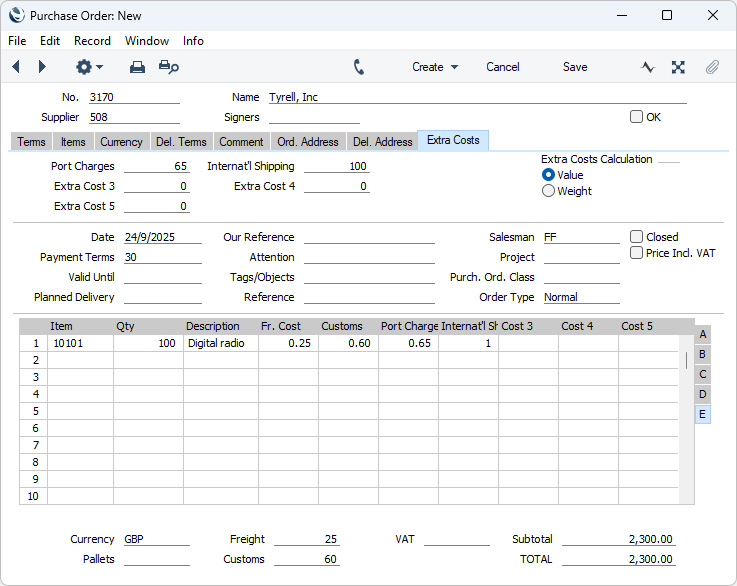
- When the goods arrive, open the Purchase Order and select 'Goods Receipt' from the Create menu (Windows/macOS) or + menu (iOS/Android). All costs will be copied from the Purchase Order to the Goods Receipt, and this time they are included in the total. Usually, the documentation accompanying the goods will not contain any pricing information, and warehouse staff may only be able to enter quantities and not prices. However, if the pricing information is known, you can update the figures in the Goods Receipt if necessary.
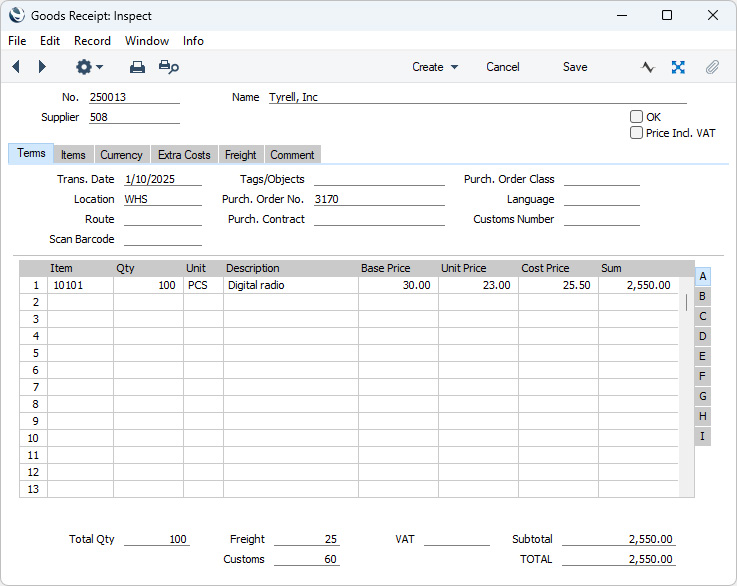
- When you save the Goods Receipt after marking it as OK, a Nominal Ledger Transaction will be created, debiting the Stock Account and crediting the appropriate Accrual Accounts (in the example, the Purchase, Customs, Freight and Extra Cost 1 and 2 Accrual Accounts) as normal:
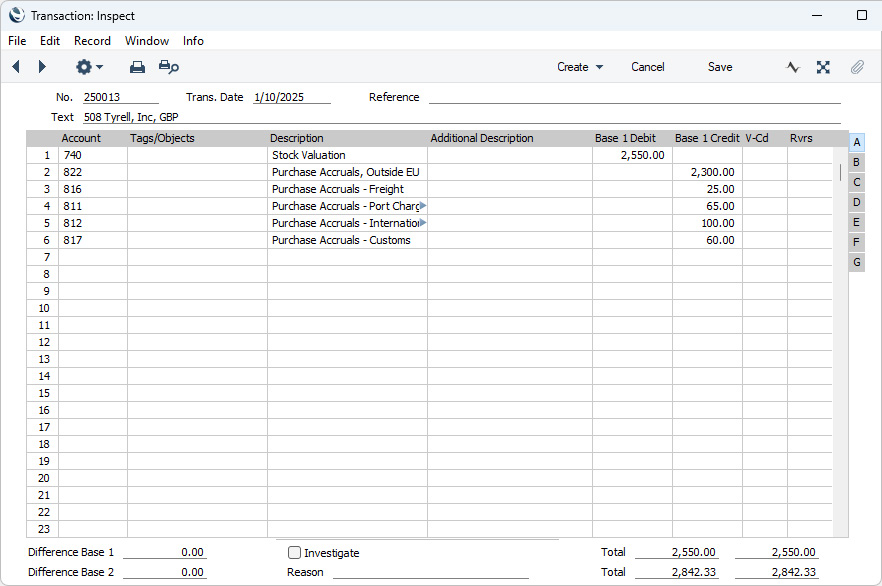
The posting to the Stock Account includes the Extra Costs. When you sell the Item, the value of the cost of sales posting will include the Extra Costs if your Cost Model is Weighted Average, FIFO or LIFO (or Cost Price, if that is being updated automatically to the Weighted Average or Last Purchase Cost).
- When the Purchase Invoice arrives, return to the Purchase Order and select 'Purchase Invoice' from the Create or + menu. Because you are using the Extra Costs Invoices from Different Suppliers option in the Purchase Order Settings setting, the Purchase Invoice will not be created immediately. Instead, the following dialogue box opens:
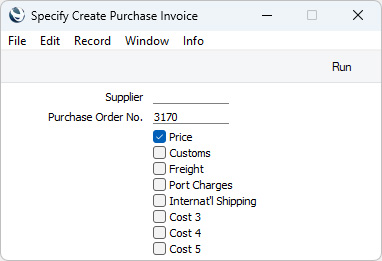
Proceed as follows, depending on what has been included in the Supplier's Invoice:
- If the Supplier's Invoice includes the Item(s) on the Purchase Order, leave the Supplier field empty (the Supplier will be taken from the Purchase Order). If the Invoice includes any of the Extra Costs as well, leave the Price box ticked and tick other boxes as appropriate. Then, press the [Run] button.
- If the Supplier's Invoice does not include the Item(s) on the Purchase Order (i.e. it is for one or more of the Extra Costs only), specify the Supplier using 'Paste Special', tick the Extra Costs boxes as appropriate, remove the tick from the Price box and press the [Run] button.
Since it is possible that you will receive separate Invoices for the Item(s) and the Extra Costs, you can return to the Purchase Order to create the various Invoices at any time. You will not be able to create more than one Invoice for the Item(s).
The example illustrated below shows an Invoice for the Items and the Freight:
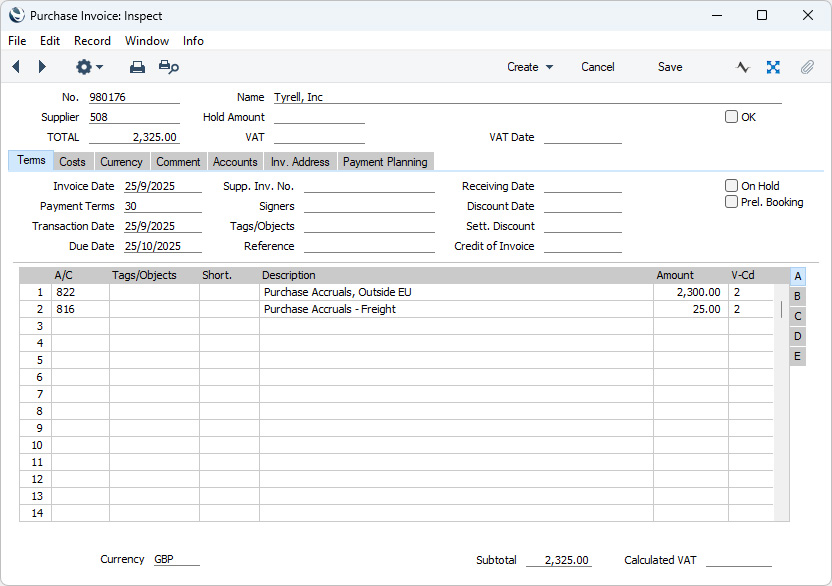
The values of the Item and of the Freight will be taken from the Purchase Order. The Purchase Accruals Account(s) for the Item(s) will be chosen in the usual way for the Transfer Each Item Separately option (please refer to the description of the 'Purchase Invoice' function for details). The Freight Accruals Account will be taken from the 'Account Usage Stock' setting.
If you create the Purchase Invoice from the Goods Receipt instead of from the Purchase Order as described above, the 'Specify Create Purchase Invoice' dialogue box illustrated above will not be opened, and instead a Purchase Invoice will be opened immediately. This Purchase Invoice will includes the Item(s) and all the Extra Costs, with Extra Cost Accruals Accounts being taken from the Account Usage Stock setting. Remove any Extra Costs that are not included in the Supplier's Invoice, then proceed as described below. When you receive separate Invoices for the Extra Costs, go back to the Purchase Order to create the various Invoices as needed.
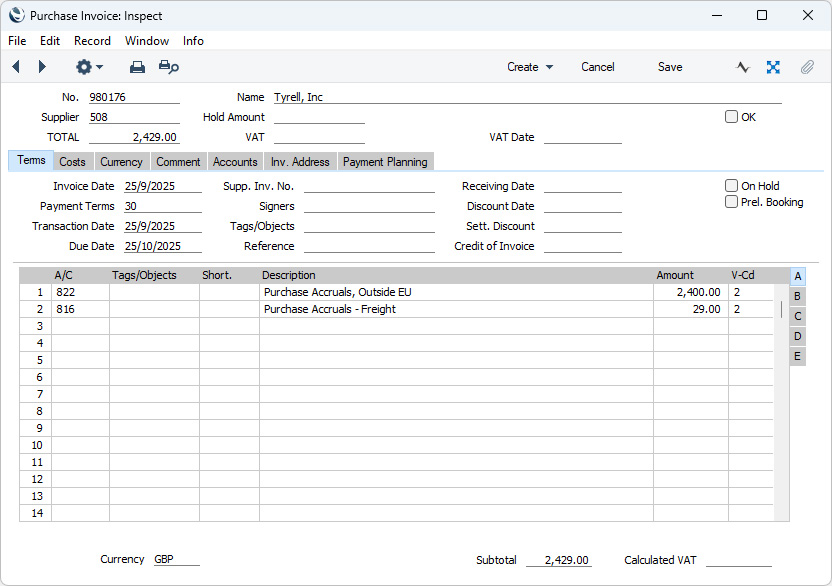
- If the amounts on the printed Purchase Invoice are different to the defaults, change them as necessary:
- When the Invoice is correct, mark it as OK and save in the usual way. The differences between the Goods Receipt and Purchase Invoice amounts will be copied to the Price Variance field on flip D (so, if you made any changes to the figures in the Goods Receipt in step 2, they will be included in the Variance figures):
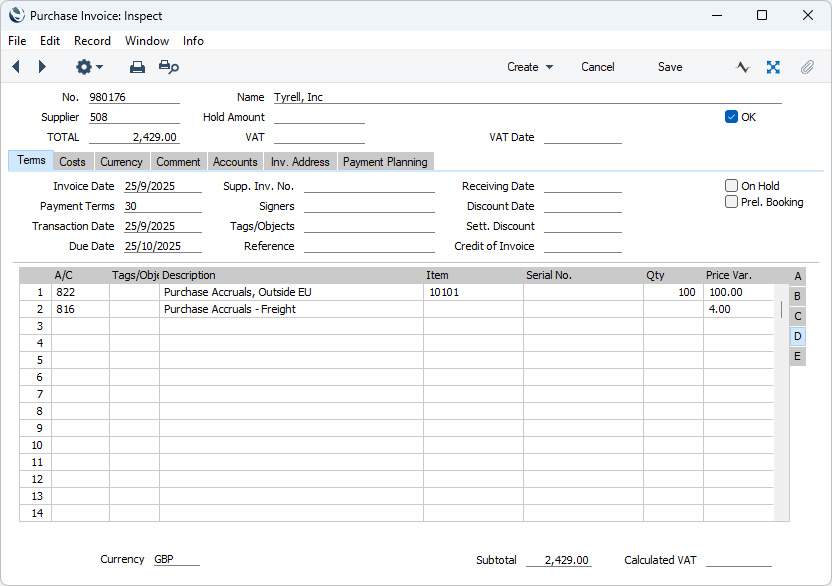
In the resulting Nominal Ledger Transaction, the Variance value for the Item will be posted to the Purchase Price Variance Account specified in the Item Group to which the Item belongs, if you are using the Use Item Groups for Cost Accounts option in the Cost Accounting setting. If you are not using this option, the Item does not belong to an Item Group, and/or the Item Group does not have its own Variance Account, the Purchase Price Variance Account in the Account Usage Stock setting will be used. The Variance values for the Extra Costs will be posted to the appropriate Variance Accounts specified in the Account Usage Stock setting:
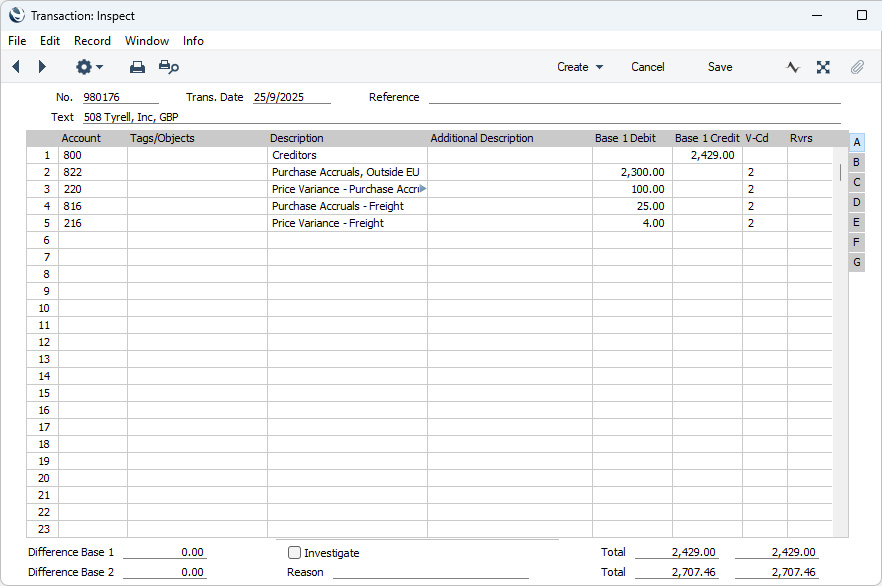
Thus, in the example the Goods Receipt credited 2300 to the Purchase Accruals Account, and the Purchase Invoice balanced this by debiting the same amount. If you were not using the Price Variance feature, the Purchase Invoice would debit 2400 to the Purchase Accruals Account, creating an imbalance of 100 that you would have to adjust manually.
- In some cases, you may receive the Purchase Invoice before you receive the goods. If so, select the Invoice before Goods Receipt option on the 'Del. Terms' card of the Purchase Order. This option will be selected by default if you are using the Purchase Invoices before Goods Receipt option in the Stock Settings setting. This will allow you to create the Purchase Invoice from the Purchase Order as normal but before the receipt of any goods. The figures on the Purchase Invoice will be copied from the Purchase Order as before, and you can change them if necessary. The resulting Nominal Ledger Transaction will not contain any postings to the Variance Accounts:
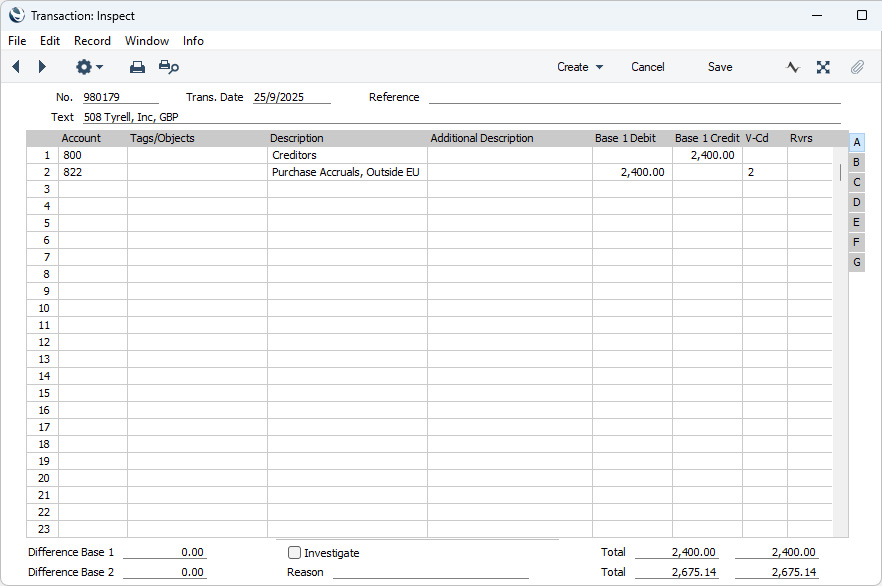
When the goods arrive, open the Purchase Order and select 'Goods Receipt' from the Create or + menu. Again, all costs will be copied from the Purchase Order to the Goods Receipt. Usually, the documentation accompanying the goods will not contain any pricing information, and warehouse staff may only be able to enter quantities and not prices. However, you can change the figures if necessary.
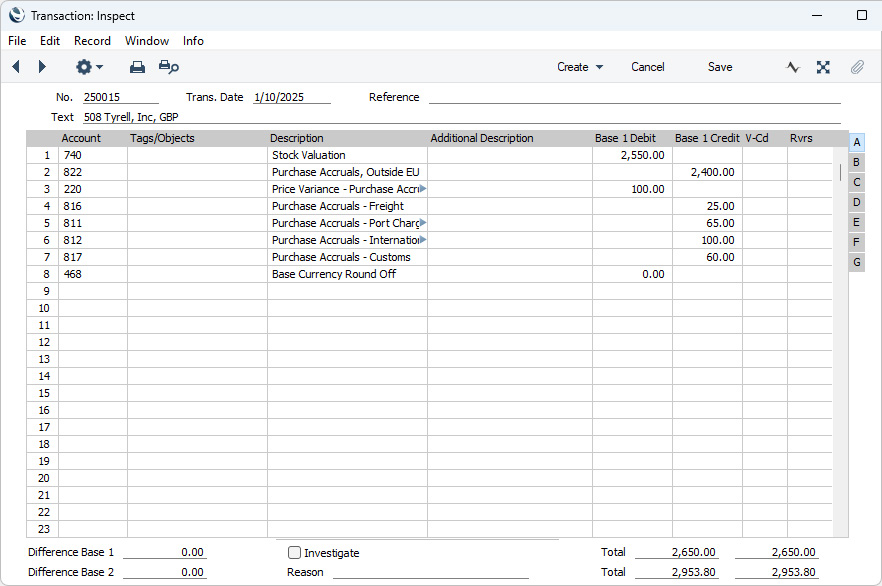
When you mark the Goods Receipt as OK and save, the resulting Nominal Ledger Transaction will contain postings to the appropriate Variance Accounts. The second Transaction (from the Goods Receipt in this case, from the Purchase Invoice in the first example) will always contain the Variance postings:
- If you need to return an Item to its Supplier, create a record in the Returned Goods to Supplier register in the usual way. When the time comes to enter the Credit Note, you must do so from the Returned Goods to Supplier window (by selecting Credit Note' from the Create menu (Windows/macOS) or + menu (iOS/Android)). If there is a difference in the value of the returned Item between the Returned Goods to Supplier record and the Credit Note, this will be posted as a Variance.
- If a Purchase Order is for an Item that will be Drop Shipped (i.e. the Supplier in the Purchase Order will deliver the Item directly to your Customer), you will create a Shipment Notification instead of a Goods Receipt in step 2 above when the Customer receives the Item. When you receive the Purchase Invoice, proceed as described in steps 4 and 5 above. When you mark the Purchase Invoice as OK and save, any Variance will be posted to the Drop Ship Variance Account specified in the Account Usage Stock setting. Please refer to the description of the Shipment Notification register here for more details about Drop Shipping.
---
The Goods Receipt register in Standard ERP:
Go back to:
|


 Introduction to the Goods Receipt Register
